Patch Management Needed? Configure Azure Update Manager
CloudTrips needs a repeatable way to assess and patch server operating systems. Azure Update Manager provides one portal for update compliance, on-demand patching, and recurring maintenance windows across Azure VMs and Azure Arc-enabled servers.
Update Manager orchestrates the operating system’s package manager; it does not replace application patching or compatibility testing. An update can restart the VM or affect an application. Test patches, define maintenance windows, and use a resilient deployment before patching production machines.
Azure Update Manager has no additional service charge for Azure VMs. Normal VM, disk, network, and software charges still apply. Other Azure Arc-enabled servers can have separate Update Manager charges.
Create the Resource Group and VM
Create:
Subscription: CloudTrips TEST
Resource group: rg-cloudtrips-updates-test-weu
Region: West Europe
Create an Azure virtual machine:
Virtual machine name: vm-cloudtrips-updates01-test-weu
Availability options: No infrastructure redundancy required
Security type: Trusted launch virtual machines
Image: Ubuntu Server 24.04 LTS - x64 Gen2
Size: Standard_D2s_v3
Authentication type: SSH public key
Username: azureuser
SSH public key source: Generate new key pair
Key pair name: sshkey-cloudtrips-updates-test-weu-01
Public inbound ports: None
OS disk type: Standard SSD LRS
Virtual network: vnet-cloudtrips-updates-test-weu
Address range: 10.89.0.0/16
Subnet: snet-servers
Subnet range: 10.89.1.0/24
Public IP: None
NIC network security group: None
Select Review + create > Create. The Azure VM Agent must be healthy, and the VM needs outbound access to Azure and its configured Ubuntu package repositories.
Enable Assessment and Scheduled Patching
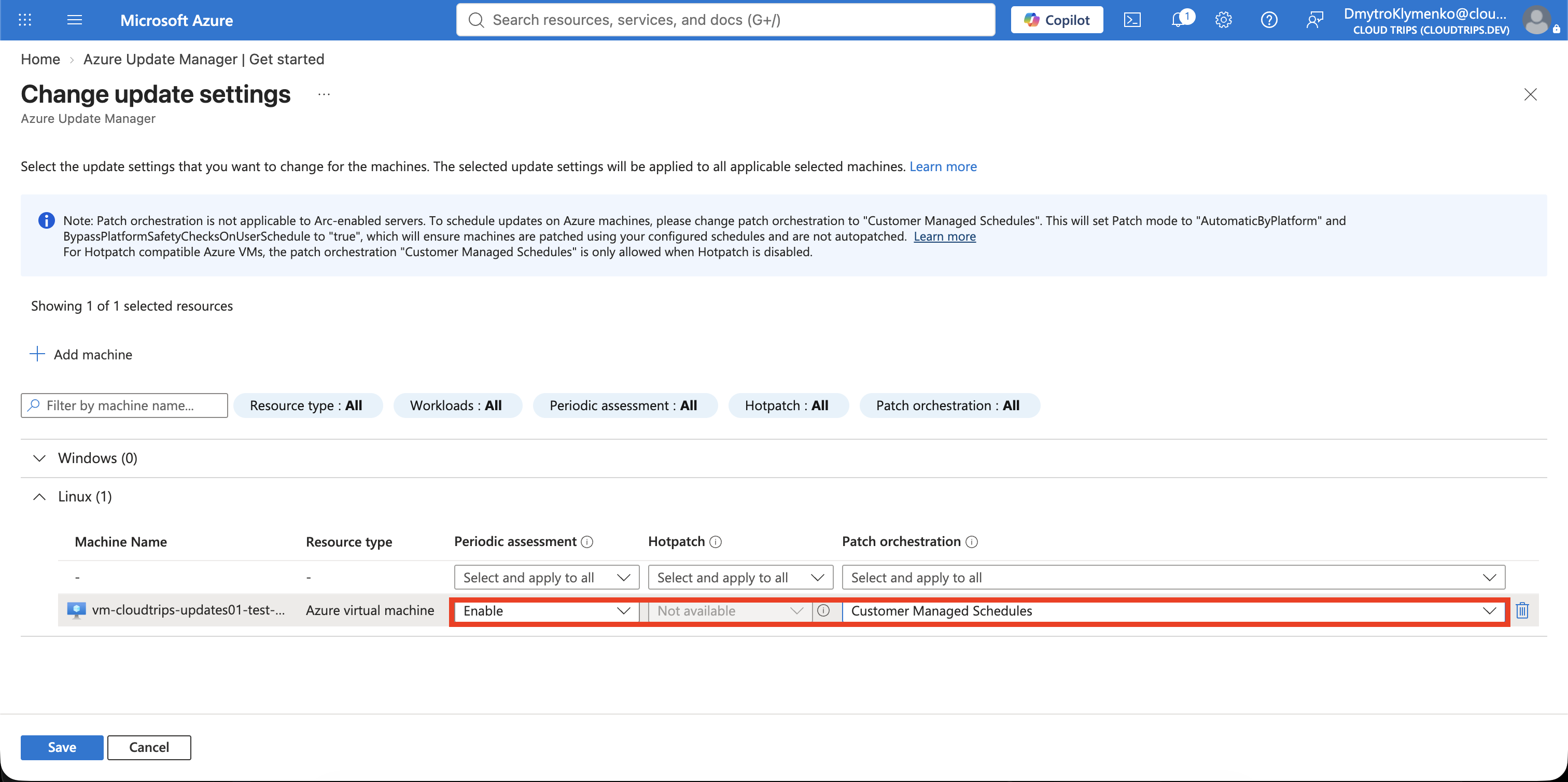
Search for Azure Update Manager. Open Overview > Update settings and
select Add machine. Add vm-cloudtrips-updates01-test-weu, then configure:
Periodic assessment: Enabled
Patch orchestration: Customer Managed Schedules
Select Save or Review and change, depending on the portal view. Periodic assessment checks for updates approximately every 24 hours but does not install them. Customer Managed Schedules gives the maintenance configuration permission to control patch timing.
Assess the VM
Open Azure Update Manager > Machines, select the VM, and choose Check for updates. Wait for the assessment to complete, then review:
- assessment status and time;
- missing update count;
- update classifications;
- whether a reboot is pending.
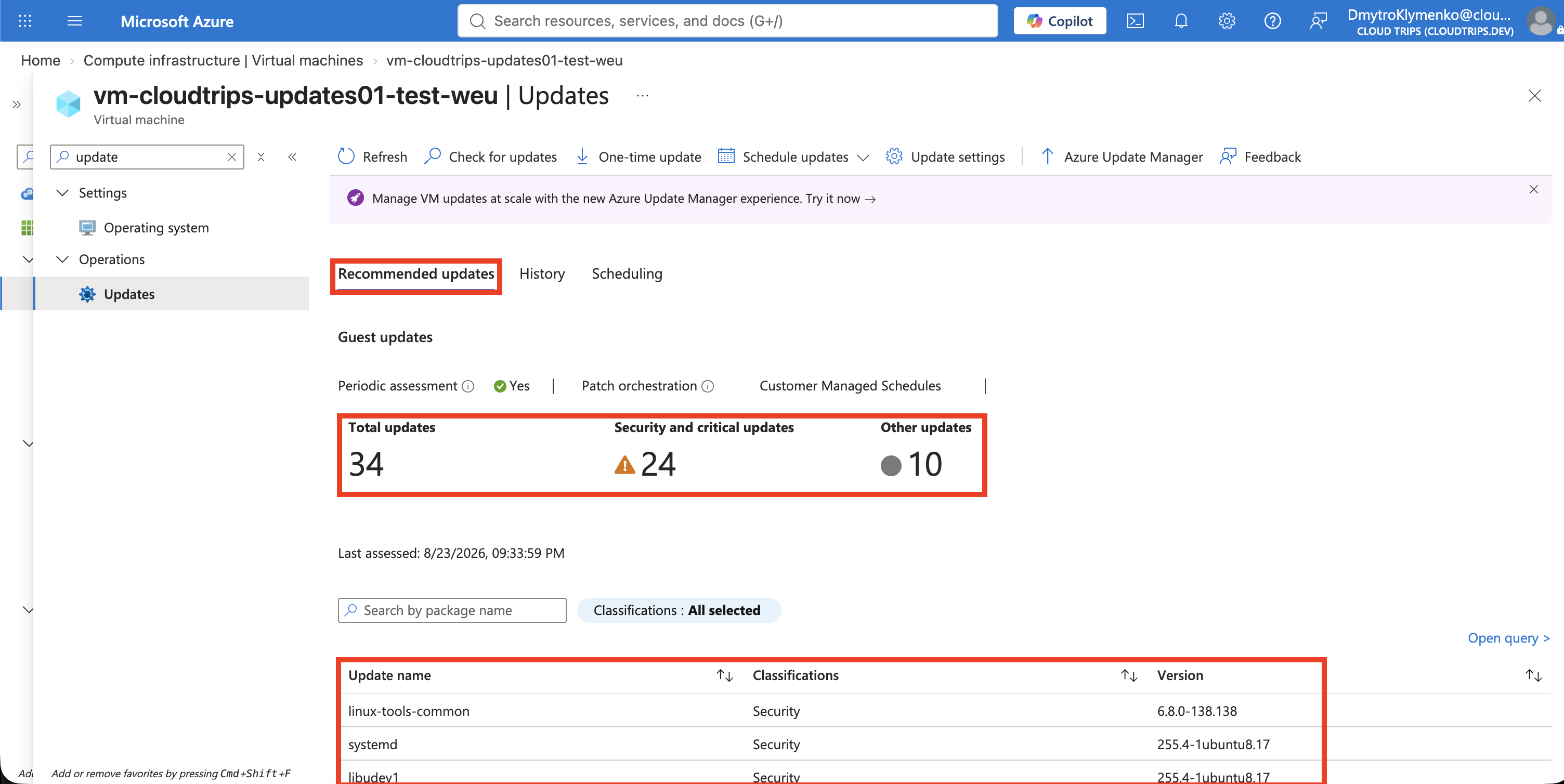
An empty update list is a valid result: the Ubuntu image may already be current. Update classifications come from the operating system’s package manager, so Linux updates can appear under Other as well as security or critical classifications.
Install a One-Time Update
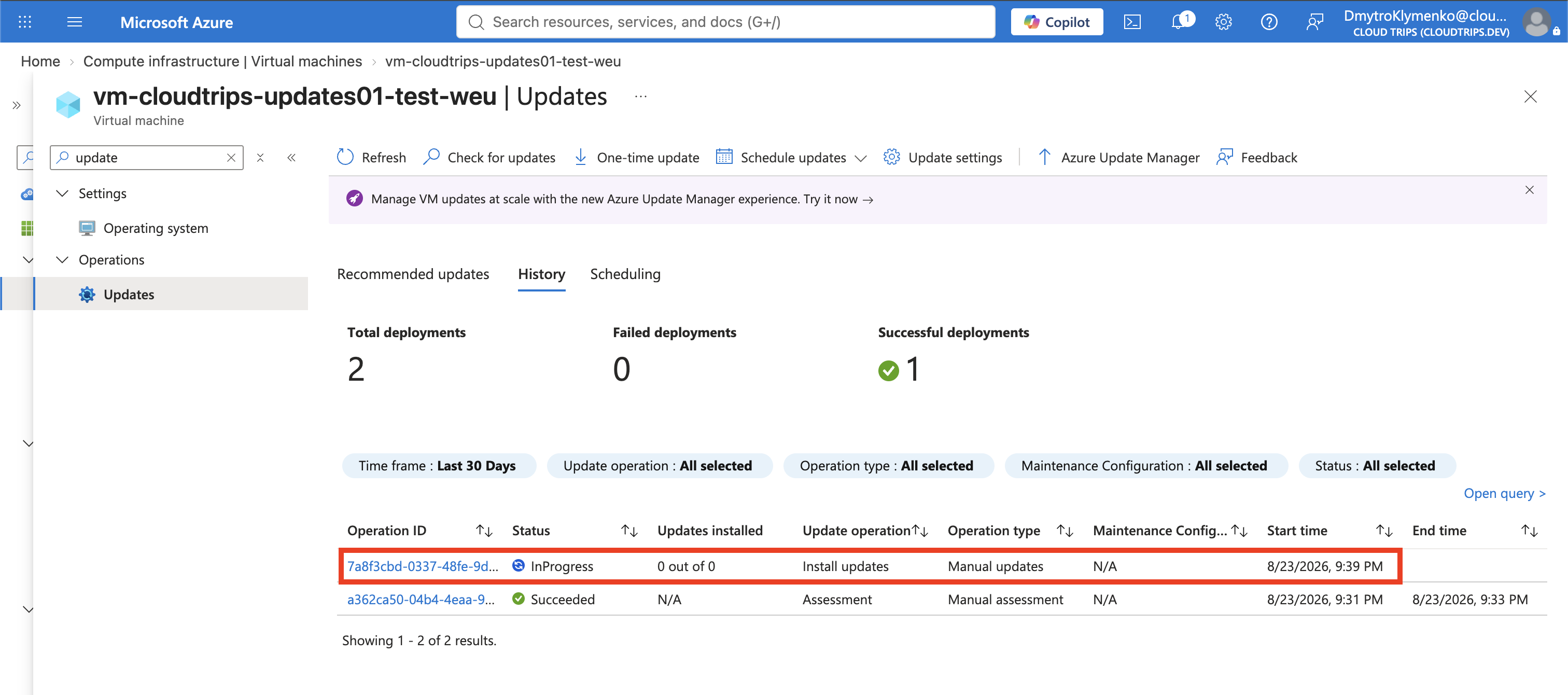
From the selected machine, choose One-time update or Install updates. On Updates, select the classifications and then select Next:
Update classifications: Critical and SecurityOn the following Properties tab, use the current portal labels:
Reboot: If required
Maintenance window (in minutes): 60
Review the selected packages before starting. Choose Install only when a restart and temporary interruption are acceptable. Wait for the deployment to finish and review its result. If no matching updates are available, record the successful assessment and continue to the schedule.
Create a Recurring Schedule
In Update Manager, select Schedule updates and create a maintenance configuration:
Resource group: rg-cloudtrips-updates-test-weu
Maintenance configuration name: mc-cloudtrips-updates-weekly-test-weu
Region: West Europe
Maintenance scope: Guest (Azure VM, Arc-enabled VMs/servers)
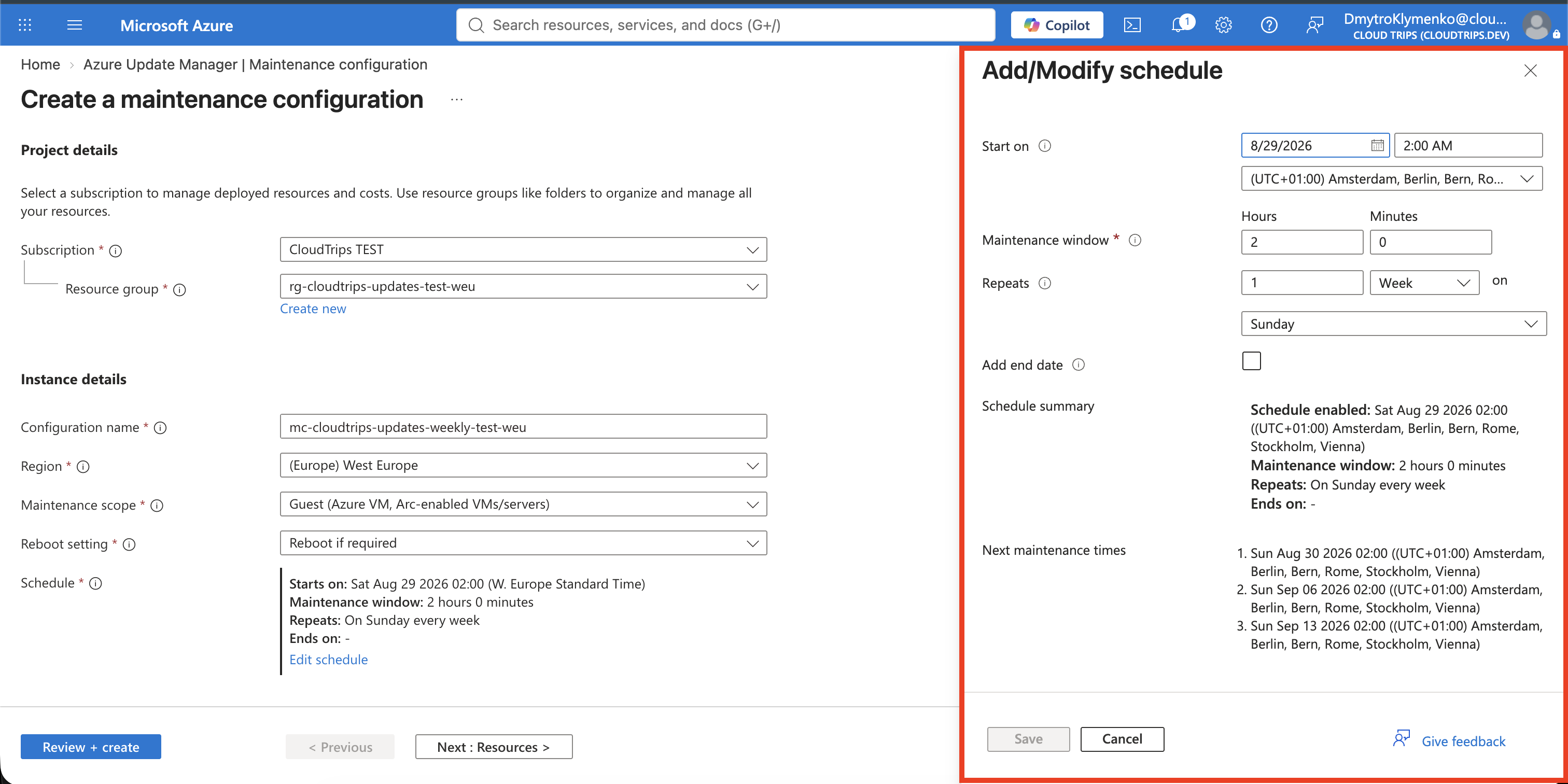
Select Add a schedule. In Add/Modify schedule, enter:
Start on: The next future Sunday
Time: 02:00 AM
Time zone: (UTC+01:00) Amsterdam, Berlin, Bern, Rome, Stockholm, Vienna
Maintenance window — Hours: 2
Maintenance window — Minutes: 0
Repeats: 1 Week
Repeat on: Sunday
Add end date: Off
Do not copy an example date that is already in the past. Confirm that the schedule summary shows a two-hour weekly window on Sunday, then select Save.
On Machines, add vm-cloudtrips-updates01-test-weu. On Updates, include
critical and security classifications. Under Properties, set Reboot to
If required. Add the usual CloudTrips TEST tags, then select
Review + create > Create.
The schedule is saved as an Azure Maintenance Configuration. A two-hour window is a time limit, not a guarantee that every update will finish. For production, patch redundant instances in separate waves and verify application health between them.
Verify the Configuration
In Azure Update Manager > Machines, confirm that the VM shows periodic assessment enabled and the weekly associated schedule. Check the underlying VM settings in Cloud Shell:
az vm show \
  --resource-group rg-cloudtrips-updates-test-weu \
  --name vm-cloudtrips-updates01-test-weu \
  --query "osProfile.linuxConfiguration.patchSettings" \
  --output yaml
The resource model should show platform assessment and patch orchestration, including values similar to:
assessmentMode: AutomaticByPlatform
patchMode: AutomaticByPlatform
automaticByPlatformSettings:
  bypassPlatformSafetyChecksOnUserSchedule: true
Clean Up
Deleting the schedule would not uninstall patches or undo a reboot. This lab is isolated, so delete the complete resource group:
az group delete --name rg-cloudtrips-updates-test-weu --yesConfirm that az group exists --name rg-cloudtrips-updates-test-weu returns
false.