Low-Latency VM Placement Needed? Configure a Proximity Placement Group
CloudTrips has two application tiers that exchange latency-sensitive traffic. An Azure proximity placement group (PPG) asks Azure to place supported compute resources as close together as possible within one datacenter.
A PPG reduces physical distance; it does not reserve capacity, guarantee a specific latency, or replace availability design. The extra placement constraint can cause allocation failures. If resilience matters more than the lowest latency, distribute workloads across availability zones instead.
Create the Resource Group and PPG
Create:
Subscription: CloudTrips TEST
Resource group: rg-cloudtrips-ppg-test-weu
Region: West Europe
Search for Proximity placement groups and select Create:
Resource group: rg-cloudtrips-ppg-test-weu
Region: West Europe
Proximity placement group name: ppg-cloudtrips-app-test-weu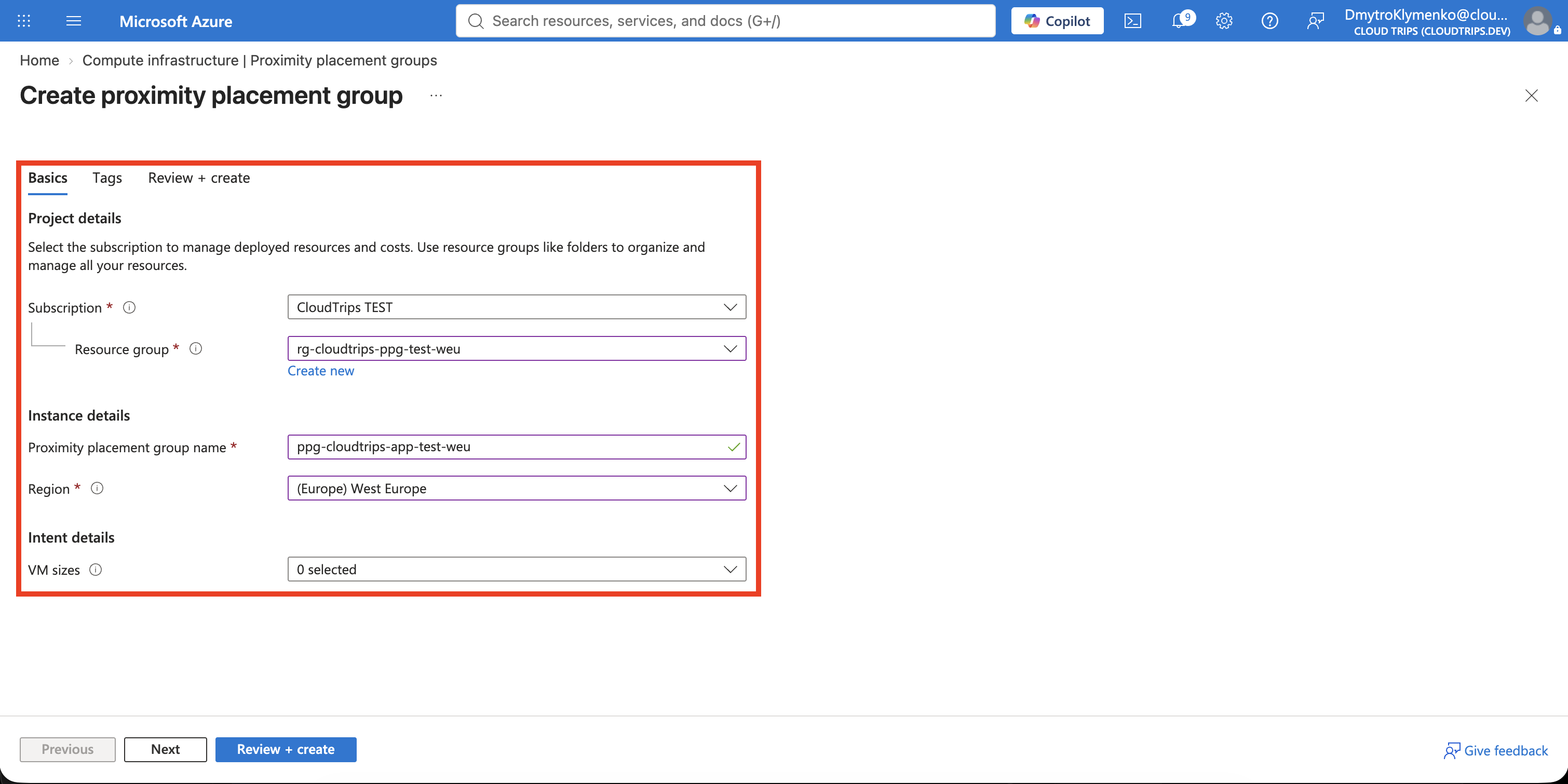
Select Review + create > Create. The PPG itself does not allocate hardware. It becomes pinned to a datacenter when the first VM using it is allocated.
Create the First VM
Create an Azure virtual machine. On Basics, configure:
Resource group: rg-cloudtrips-ppg-test-weu
Virtual machine name: vm-cloudtrips-ppg01-test-weu
Region: West Europe
Availability options: No infrastructure redundancy required
Security type: Trusted launch virtual machines
Image: Ubuntu Server 24.04 LTS - x64 Gen2
Size: Standard_D2s_v3
Authentication type: SSH public key
Username: azureuser
SSH public key source: Generate new key pair
Key pair name: sshkey-cloudtrips-ppg-test-weu-01
Public inbound ports: None
On Disks, select Standard SSD LRS. On Networking, create:
Virtual network: vnet-cloudtrips-ppg-test-weu
Address range: 10.86.0.0/16
Subnet: snet-app
Subnet range: 10.86.1.0/24
Public IP: None
NIC network security group: None
Select Review + create > Create.
Create the Second VM
Repeat the VM creation with these changes:
Virtual machine name: vm-cloudtrips-ppg02-test-weu
Key pair name: sshkey-cloudtrips-ppg-test-weu-02
Virtual network: vnet-cloudtrips-ppg-test-weu
Subnet: snet-app
Keep the same region, image, Standard_D2s_v3 size, disk type, and private
network settings. Select Review + create > Create.
Assign Both VMs to the PPG
The current VM creation UI might not show a proximity placement group field. Assign the group after deployment instead:
- Open
vm-cloudtrips-ppg01-test-weuand select Stop. - Wait until its status is Stopped (deallocated).
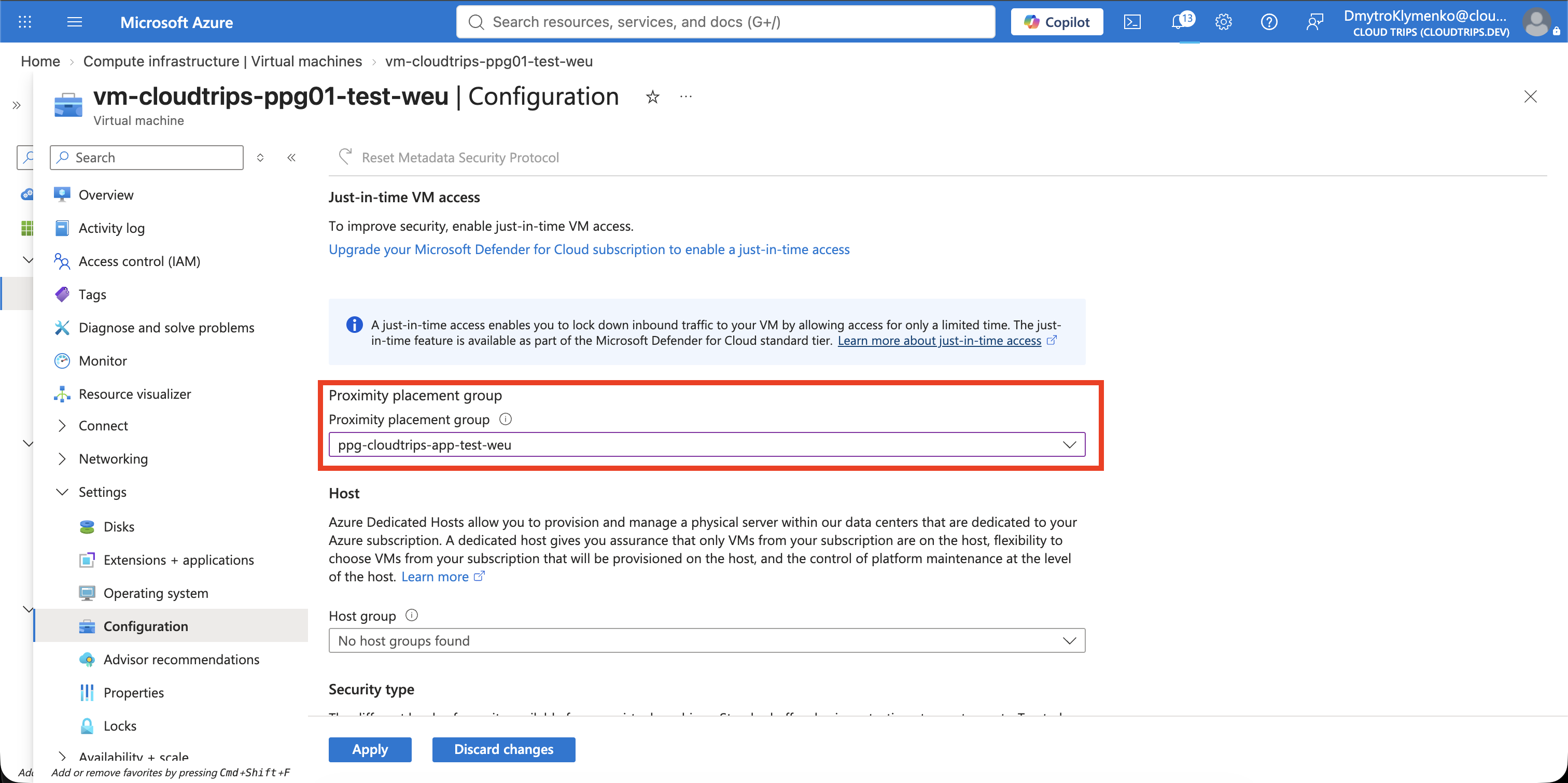
- Open Configuration.
- Set Proximity placement group to
ppg-cloudtrips-app-test-weuand select Save. - Repeat these steps for
vm-cloudtrips-ppg02-test-weu. - Start VM 1, wait until it is running, and then start VM 2.
The VMs must be deallocated because Azure might need to place them in a different datacenter. Starting VM 1 pins the PPG; starting VM 2 requests capacity in the same latency boundary.
If allocation fails, the pinned datacenter might lack capacity. Deallocate both VMs and retry, starting the failed or most restrictive size first. For mixed VM families, specify size intent through CLI or infrastructure as code and deploy the most restrictive size first.
Verify Alignment
Open Proximity placement groups > ppg-cloudtrips-app-test-weu. Confirm that both VMs are listed and the colocation status is Aligned.
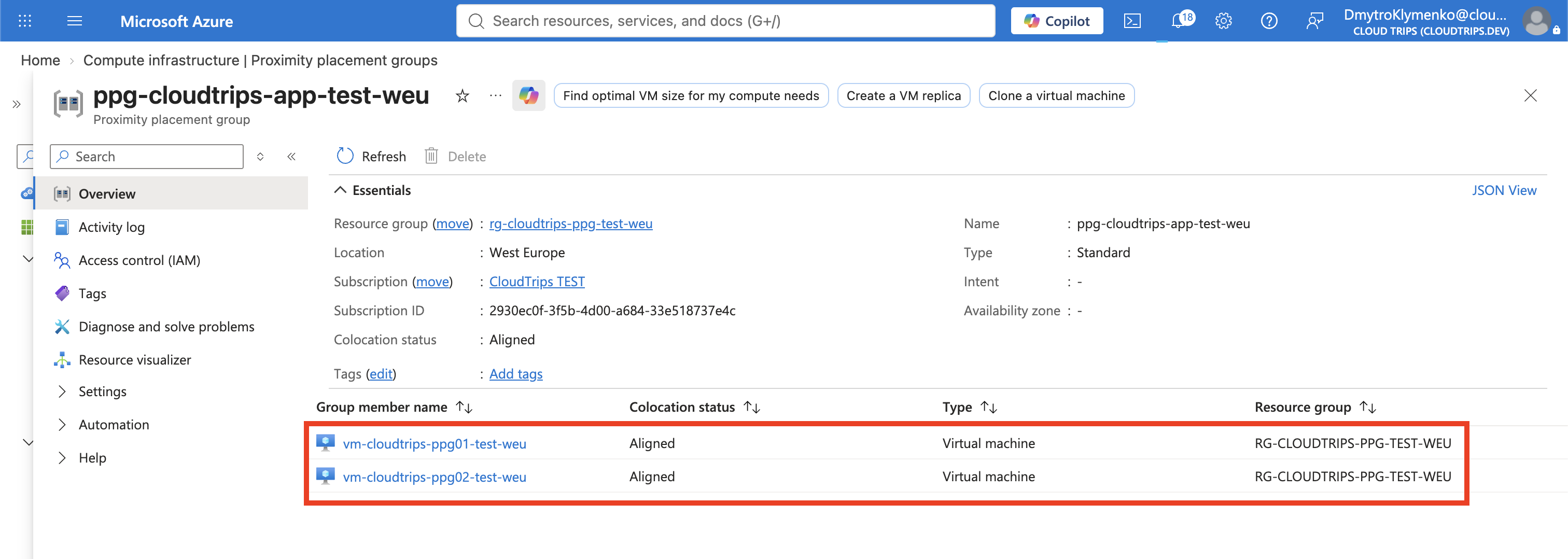
Verify from Cloud Shell:
az ppg show \
  --resource-group rg-cloudtrips-ppg-test-weu \
  --name ppg-cloudtrips-app-test-weu \
  --include-colocation-status \
  --query "{Status:colocationStatus,VMs:virtualMachines[].id}" \
  --output yaml
Aligned means the running resources are within the PPG’s latency envelope.
Unknown commonly means that at least one member is deallocated. Not aligned
requires deallocating and restarting the affected resources, sometimes all PPG
members.
Test Private-Network Latency
Open vm-cloudtrips-ppg02-test-weu > Overview and copy its private IP
address. Open vm-cloudtrips-ppg01-test-weu > Run command >
RunShellScript and run:
ping -c 20 <VM2-PRIVATE-IP>Replace the placeholder with VM 2’s private IP. Review the min/avg/max
round-trip values in milliseconds.
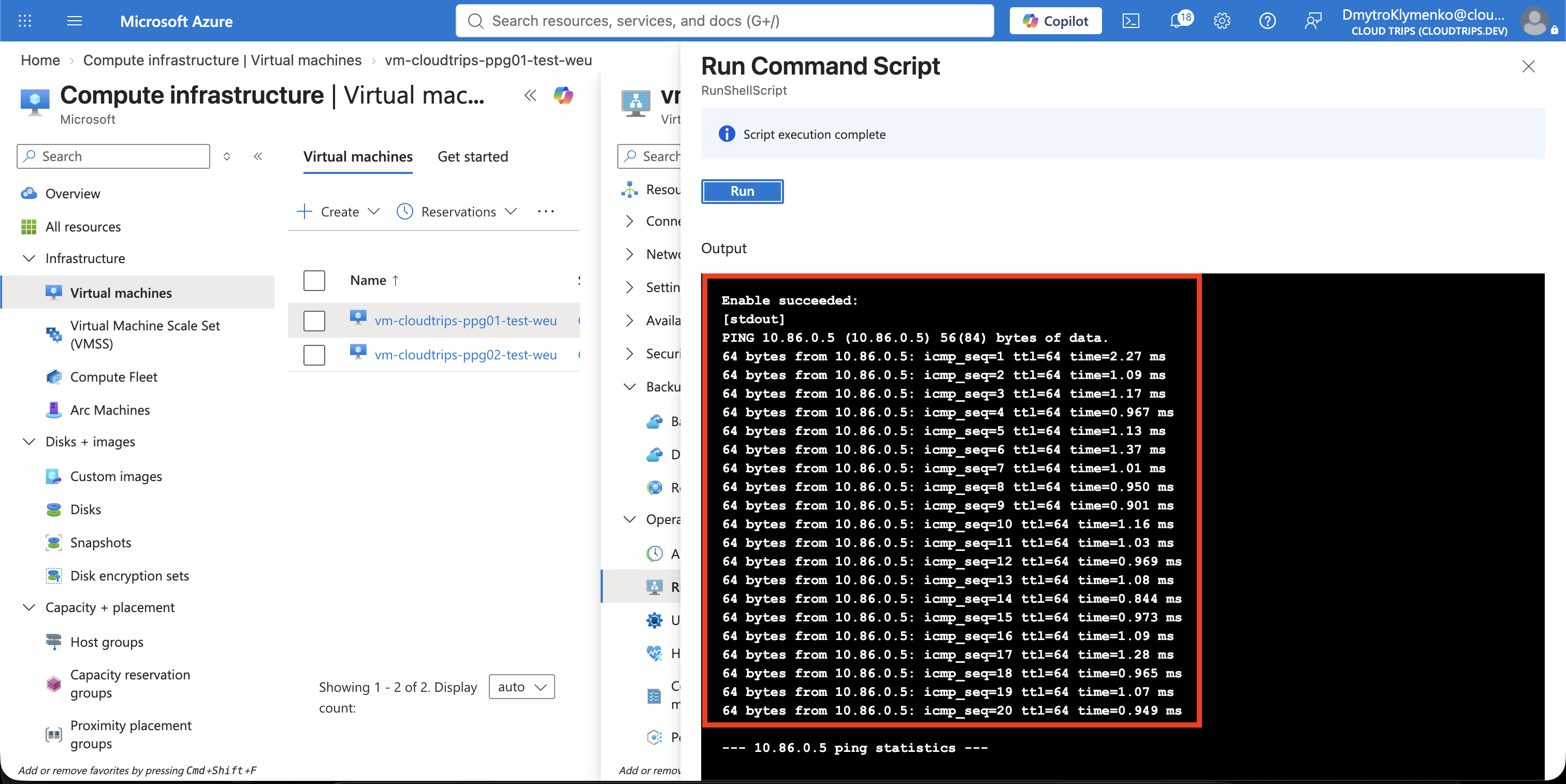
Ping confirms current network latency but does not prove application latency. Measure repeatedly and test the application’s real protocol before defining a service objective.
Clean Up
Delete the dedicated resource group:
az group delete --name rg-cloudtrips-ppg-test-weu --yesConfirm that az group exists --name rg-cloudtrips-ppg-test-weu returns
false.