VM Won't Boot? Enable Boot Diagnostics
CloudTrips has a VM that does not finish booting. Azure Boot diagnostics captures a hypervisor screenshot and serial-console output even when SSH, the network, or the Azure VM Agent is unavailable.
Boot diagnostics helps identify the failure; it does not repair the VM. Linux
serial output can reveal problems such as a broken /etc/fstab entry, a full
root filesystem, filesystem errors, kernel failures, or an emergency shell.
Use the Existing Linux VM
Use the standard Ubuntu VM from the Linux VM trip:
Resource group: rg-cloudtrips-compute-test-weu
Virtual machine: vm-cloudtrips-linux01-test-weu
The VM may be running or stopped. You do not need SSH access to enable or view boot diagnostics.
Enable Managed Boot Diagnostics
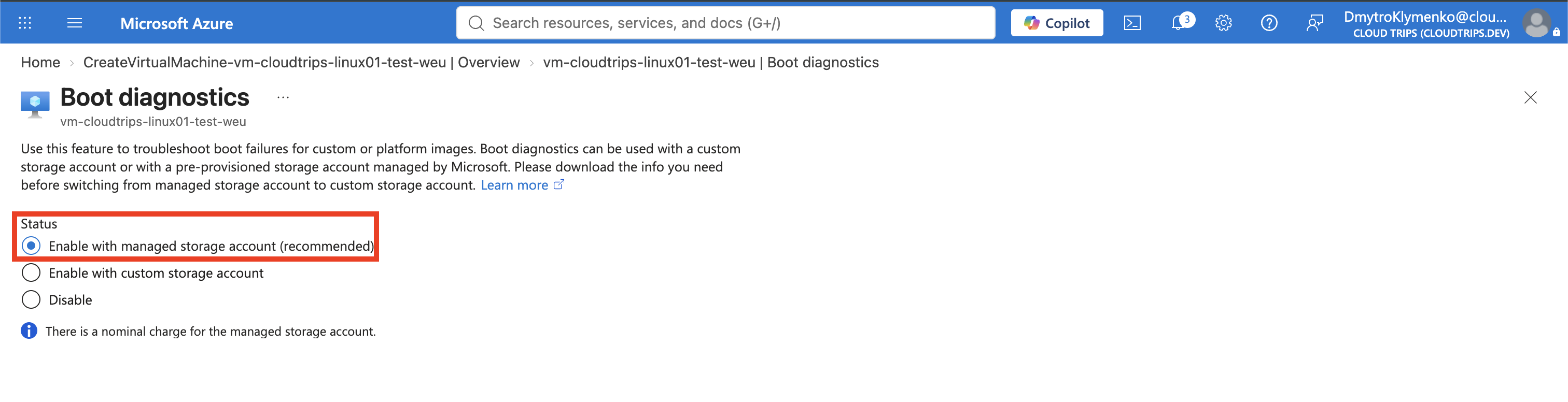
In the portal, open the VM. Under Help, select Boot diagnostics, then open Settings.
Choose:
Boot diagnostics: Enable with managed storage account (recommended)Select Save. If this option is already selected, boot diagnostics was enabled during VM creation and no change is required.
Managed boot diagnostics avoids creating a customer-managed storage account. Azure manages the diagnostic storage, and the stored screenshot and serial log are not currently billed. A custom storage account is needed only when you require direct storage control; its firewall and permissions must allow Azure to write and authorized users to read the data.
Inspect the Boot Evidence
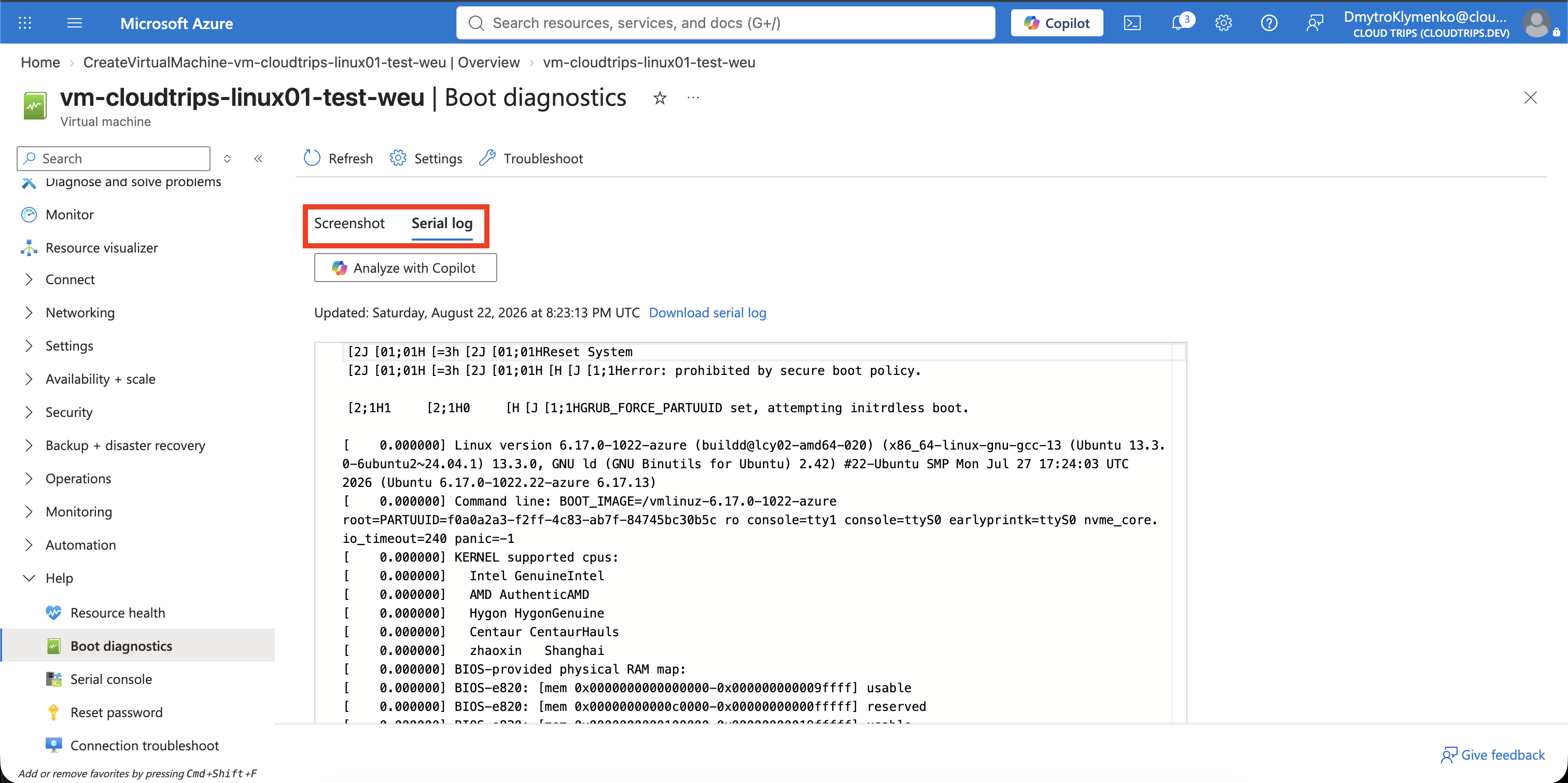
Return to Boot diagnostics and open Screenshot. A healthy Ubuntu VM normally shows a login prompt. A failed VM might show GRUB rescue, an emergency shell, a kernel panic, or a filesystem prompt.
Open Serial log and inspect the final messages. Search for terms such as:
FAILED
error
emergency
timeout
panic
No space left on device
The final error is useful evidence, but read the lines before it as well—the last message can be a consequence rather than the root cause. Use Refresh after starting or restarting the VM because the displayed data can otherwise be stale.
Verify from Cloud Shell
Confirm that boot diagnostics is enabled:
az vm show \
  --resource-group rg-cloudtrips-compute-test-weu \
  --name vm-cloudtrips-linux01-test-weu \
  --query "diagnosticsProfile.bootDiagnostics" \
  --output yaml
Expected result for managed storage:
enabled: truestorageUri can be empty for managed boot diagnostics. Retrieve the serial
boot log, decode the JSON string, and remove terminal color codes with:
az vm boot-diagnostics get-boot-log \
  --resource-group rg-cloudtrips-compute-test-weu \
  --name vm-cloudtrips-linux01-test-weu \
  --output json |
  jq -r '.' |
  perl -pe 's/\e\[[0-9;?]*[A-Za-z]//g'
The raw Azure CLI response can otherwise look like one long red or encrypted string because it contains JSON escapes and terminal formatting codes. It is not encrypted.
Choose the Next Recovery Action
Use the evidence to choose a targeted repair. Serial console can help when the OS reaches a usable console. For disk or configuration errors that prevent boot, create a repair VM or attach a copy of the OS disk to another VM. Take a disk snapshot before modifying an affected OS disk.
Leave managed boot diagnostics enabled so evidence is available for the next incident. This trip creates no separate resource group or visible storage account to delete.