VM Needs an Agent or Script Install? Install a VM Extension
CloudTrips needs to install software on a VM without an interactive SSH session. Azure VM extensions are small packages that the Azure VM Agent downloads and runs for post-deployment configuration, monitoring, security, or management tasks.
This trip uses Custom Script Extension version 2 to install NGINX. NGINX is a web server: it listens for HTTP requests and returns web content. Here it provides a simple workload that proves the extension changed the guest OS.
Use the Existing Linux VM
Start this VM from the Linux VM trip:
Resource group: rg-cloudtrips-compute-test-weu
Virtual machine: vm-cloudtrips-linux01-test-weu
Operating system: Ubuntu Server 24.04 LTS
Power state: Running
If it no longer exists, complete Need a Linux Server Quickly? Create a Linux VM first. Azure Marketplace images already include the Azure Linux Agent required to process extensions. The VM also needs outbound access so Ubuntu can download NGINX packages.
Install the Custom Script Extension
Open Azure Cloud Shell and select Bash. Run:
az vm extension set \
  --resource-group rg-cloudtrips-compute-test-weu \
  --vm-name vm-cloudtrips-linux01-test-weu \
  --name CustomScript \
  --publisher Microsoft.Azure.Extensions \
  --version 2.1 \
  --settings '{"commandToExecute":"apt-get update && DEBIAN_FRONTEND=noninteractive apt-get install -y nginx && systemctl enable --now nginx"}'
The extension runs as root, so the command does not need sudo. It refreshes
the Ubuntu package index, installs NGINX, enables it at boot, and starts it now.
The script requires no user input and is safe if its package-install commands
are repeated.
Do not place passwords, keys, or tokens in --settings; public settings can be
visible through the resource configuration. Use protected settings or managed
identity when a real script needs secrets or private Azure Storage access.
Verify the Extension
In the portal, open the VM > Extensions + applications. Confirm:
Extension: CustomScript
Publisher: Microsoft.Azure.Extensions
Provisioning state: Succeeded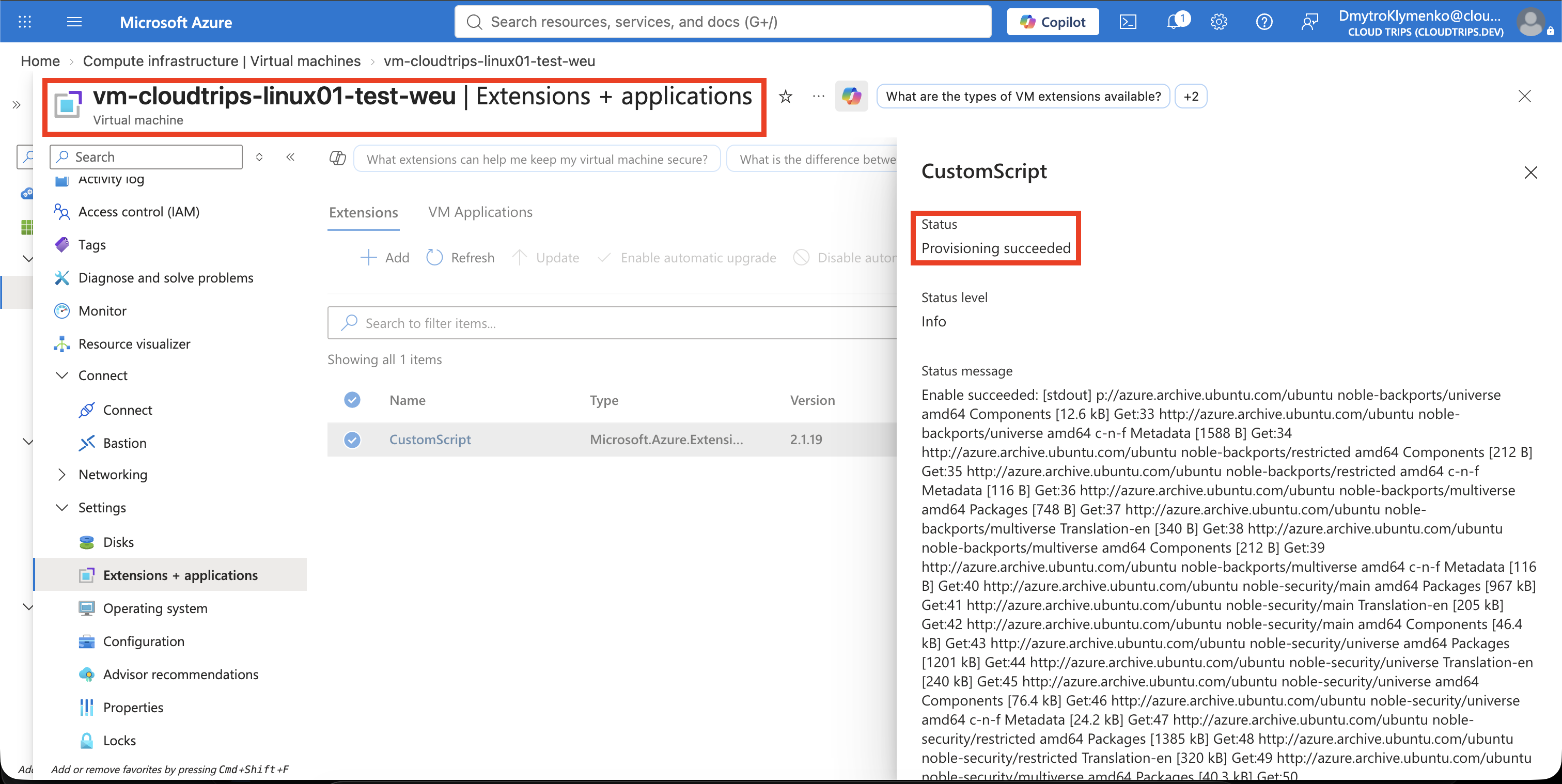
You can also query its instance status in Cloud Shell:
az vm extension show \
  --resource-group rg-cloudtrips-compute-test-weu \
  --vm-name vm-cloudtrips-linux01-test-weu \
  --name CustomScript \
  --instance-view \
  --query "{ProvisioningState:provisioningState,Status:instanceView.statuses[0].displayStatus,Message:instanceView.statuses[0].message}" \
  --output yaml
Verify NGINX
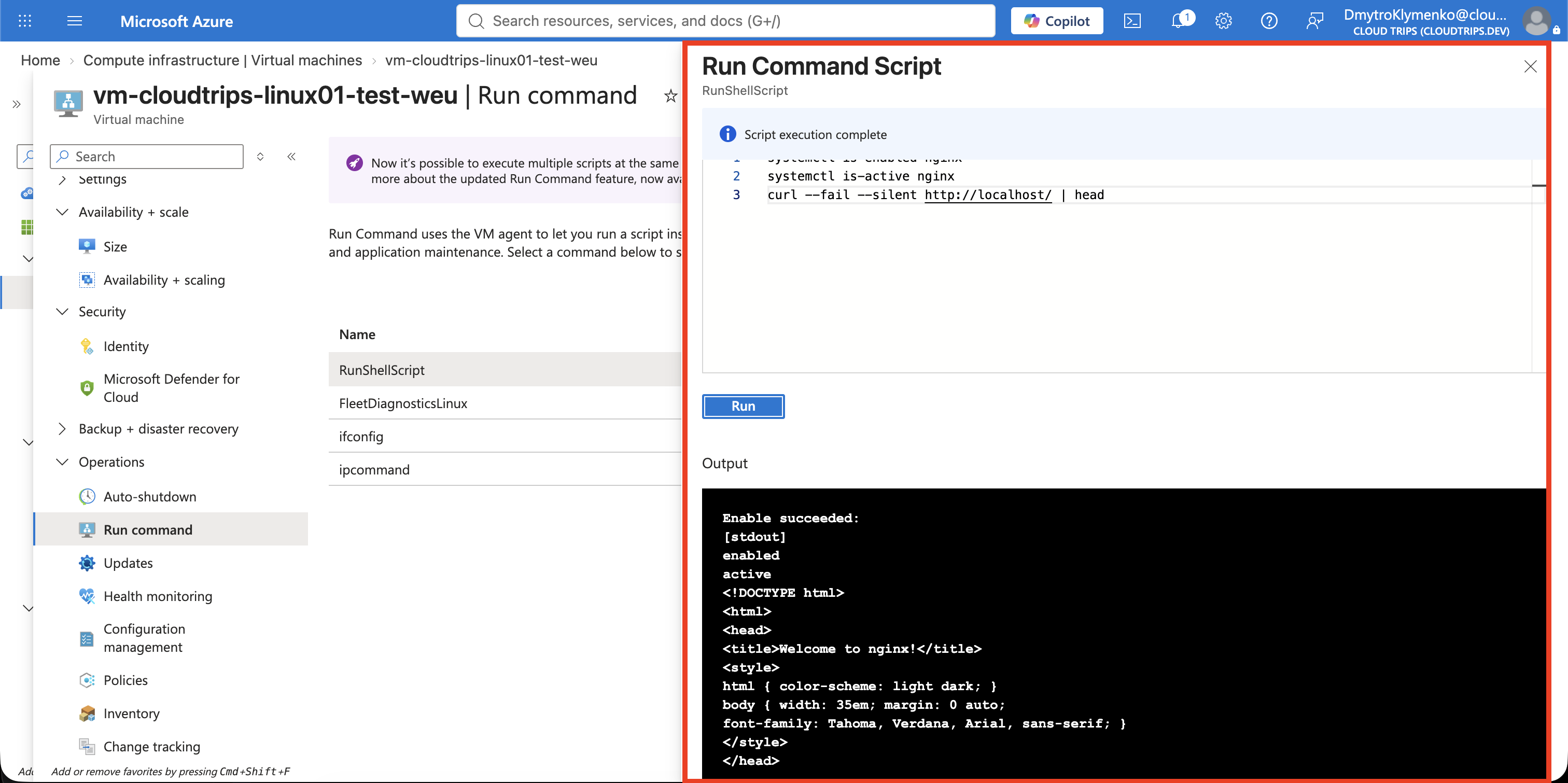
Open the VM > Run command > RunShellScript and run:
systemctl is-enabled nginx
systemctl is-active nginx
curl --fail --silent http://localhost/ | head
The first two commands should return enabled and active. The final command
should return the beginning of the NGINX welcome page. This proves the software
is installed and serving HTTP locally; it does not expose the site publicly.
Understand the Lifecycle
Custom Script Extension runs the configured script once. It is not a per-boot script or a full configuration-management system. Updating the extension configuration can run a new command, but only one Custom Script Extension instance can be applied to a VM at a time. Scripts should be noninteractive, idempotent, finish within 90 minutes, and avoid rebooting or stopping the Azure Linux Agent.
Deleting the extension removes its handler and Azure configuration, but it does not undo changes made by the script. NGINX remains installed until you remove it separately.
Clean Up
Remove the extension resource in the portal from Extensions + applications
CustomScript > Uninstall, or run:
az vm extension delete \
  --resource-group rg-cloudtrips-compute-test-weu \
  --vm-name vm-cloudtrips-linux01-test-weu \
  --name CustomScript
Keep the shared VM for later trips. If you also want to remove NGINX, use RunShellScript:
sudo apt-get purge -y nginx nginx-common
sudo apt-get autoremove -y