App Needs Network Access? Configure Internal and External Kubernetes Services
Your application has three running Pods, but their IP addresses can change when Kubernetes replaces them. A Service gives clients a stable address and directs connections to matching, ready Pods. Clients use the Service instead of tracking individual Pod addresses.
Reuse aks-ctlab-weu in UK West, namespace ct-apps, and the ct-web Deployment from the replicas trip. Start the cluster if stopped and confirm its three Pods are ready. Keep your Kubernetes administration access from the cluster trip.
We create two Services selecting the same Pods:
| Service | Type | Who uses it? |
|---|---|---|
ct-web-internal |
ClusterIP | Applications inside the cluster, using a cluster-internal IP or DNS name |
ct-web-public |
LoadBalancer | Clients outside the cluster, using an Azure public IP |
Use the Azure portal for all steps. A small test Pod will make the internal HTTP request and write the result to its logs. The public Service exposes only our sample NGINX page over HTTP; load-balancer networking and public IP resources can add charges.
Create the Internal Service
Open Kubernetes services → aks-ctlab-weu → Kubernetes resources → Services and ingresses → Create → Apply a YAML.
Paste the following manifest and choose Add or Apply, as shown in your portal:
apiVersion: v1
kind: Service
metadata:
  name: ct-web-internal
  namespace: ct-apps
spec:
  type: ClusterIP
  selector:
    app: ct-web
  ports:
    - name: http
      protocol: TCP
      port: 80
targetPort: 80| Field | What it does |
|---|---|
namespace: ct-apps |
Creates the Service in the same namespace as the application |
selector: app: ct-web |
Finds Pods with the matching label in that namespace |
port: 80 |
Port clients connect to on the Service |
targetPort: 80 |
Port NGINX listens on inside the selected Pods |
A Service selects Pod labels, not the Deployment’s name. Both happen to use ct-web in this lab, but the selector must match the labels under the Deployment’s Pod template.
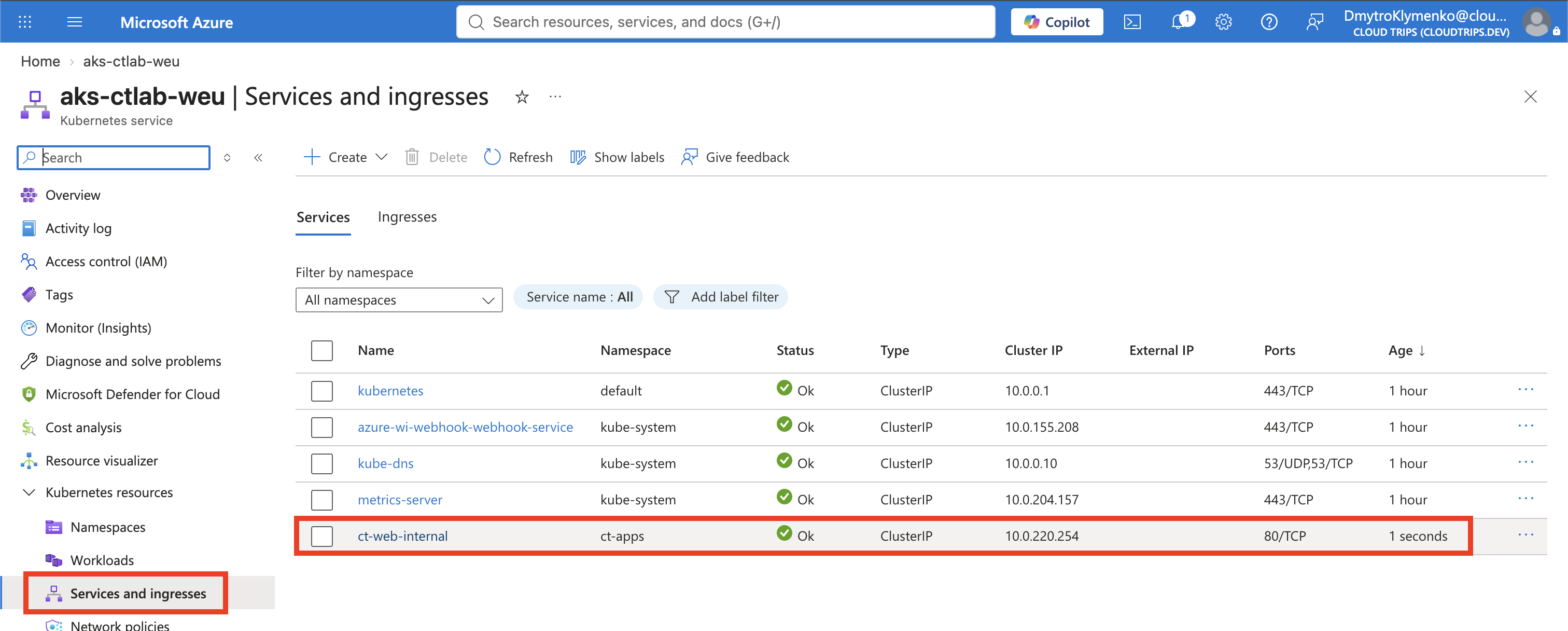
Refresh Services and ingresses, filter to ct-apps, and open ct-web-internal. Confirm Type: ClusterIP, an assigned Cluster IP, and TCP port 80. No public external IP is expected. The ClusterIP stays stable for the life of this Service, even when Pods are replaced.
Test Access from Inside the Cluster
The internal address is not an internet endpoint. Opening its ClusterIP on your laptop, or making a request directly from ordinary Cloud Shell, is not the correct test. Run a client inside the cluster.
Open Create → Apply a YAML again and apply:
apiVersion: v1
kind: Pod
metadata:
  name: ct-service-check
  namespace: ct-apps
spec:
  restartPolicy: Never
  containers:
    - name: check
      image: busybox:1.37
      command:
        - sh
        - -c
        - wget -S -O - -T 15 http://ct-web-internal.ct-apps.svc.cluster.local
      resources:
        requests:
          cpu: 10m
          memory: 16Mi
        limits:
          cpu: 100m
          memory: 32Mi
This temporary Pod uses wget to request the Service’s DNS name. ct-web-internal is the Service name, ct-apps is its namespace, and svc.cluster.local is the default cluster DNS suffix. An application in the same namespace can simply use http://ct-web-internal.
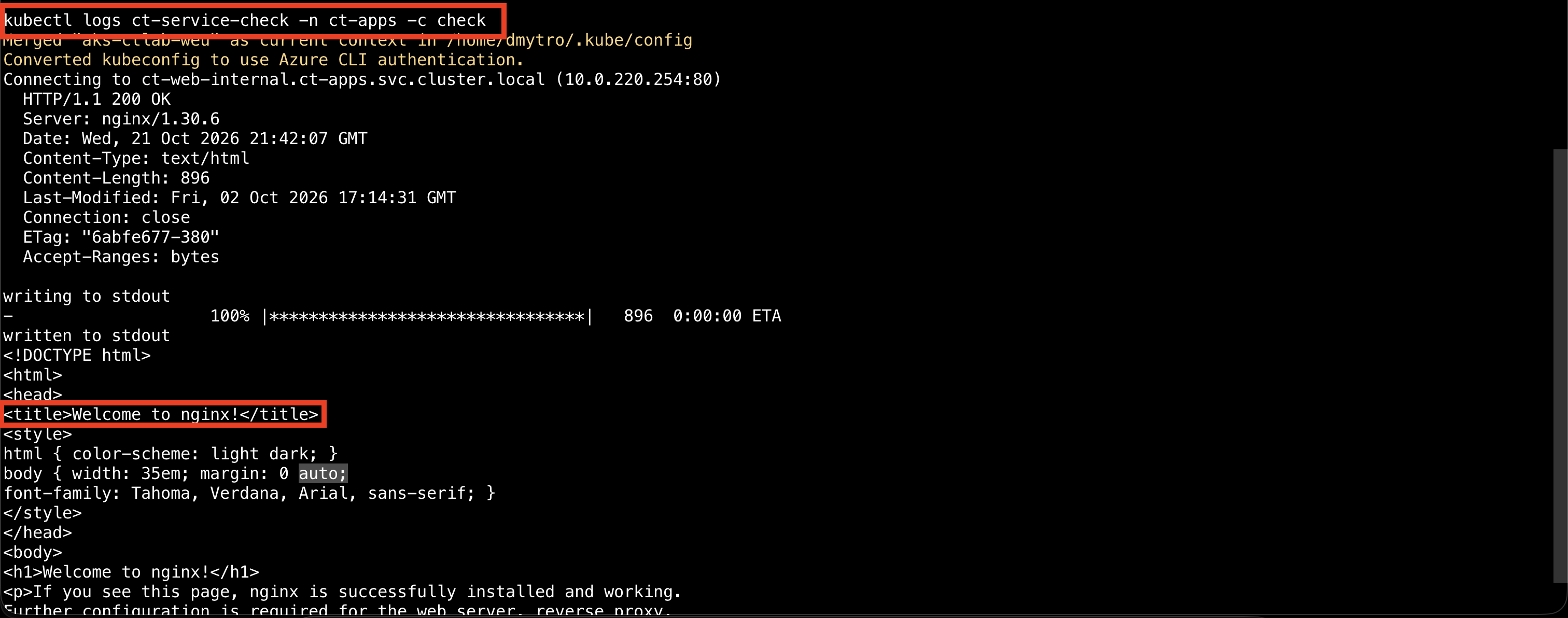
Open Kubernetes resources → Workloads → Pods, filter to ct-apps, and select ct-service-check → Logs. Select the check container if prompted. Expect HTTP/1.1 200 OK and HTML containing Welcome to nginx!.
The Pod should finish with Completed because it performs one request and exits. That is success for this test, even though it is not a continuously running application Pod. If you need to repeat the test, delete only ct-service-check and apply its manifest again.
If the portal’s live logs remain empty, open Cloud Shell → Bash and run the complete block below. It reconnects kubectl to the lab cluster using your Azure CLI sign-in, then retrieves the test container’s logs, including after it has finished:
az account set --subscription "CloudTrips TEST"

az aks get-credentials \
  --resource-group rg-cloudtrips-aks-test-weu \
  --name aks-ctlab-weu \
  --overwrite-existing

kubelogin convert-kubeconfig -l azurecli

kubectl logs ct-service-check -n ct-apps -c check
Expect HTTP/1.1 200 OK and Welcome to nginx! in the output. A container state of Terminated is normal after this one-time test if its reason is Completed and its exit code is 0. A nonzero exit code indicates a failed test. If Azure CLI reports an expired login, restart Cloud Shell and repeat the block. Reconnecting first also addresses the kubectl error “You must be logged in to the server” when its connection configuration or authentication needs refreshing.
Create the External Service
Return to Services and ingresses → Create → Apply a YAML and apply:
apiVersion: v1
kind: Service
metadata:
  name: ct-web-public
  namespace: ct-apps
spec:
  type: LoadBalancer
  selector:
    app: ct-web
  ports:
    - name: http
      protocol: TCP
      port: 80
      targetPort: 80
This creates a second route to the same three Pods; it does not create another Deployment or more replicas. AKS configures Azure load-balancer resources and a public frontend address for this Service. You do not need to create a load balancer manually or open port 80 on each node yourself.
Refresh the Services list with ct-apps selected. ct-web-public should show Type: LoadBalancer. Its external IP may initially be Pending; wait a few minutes and refresh until an address appears.
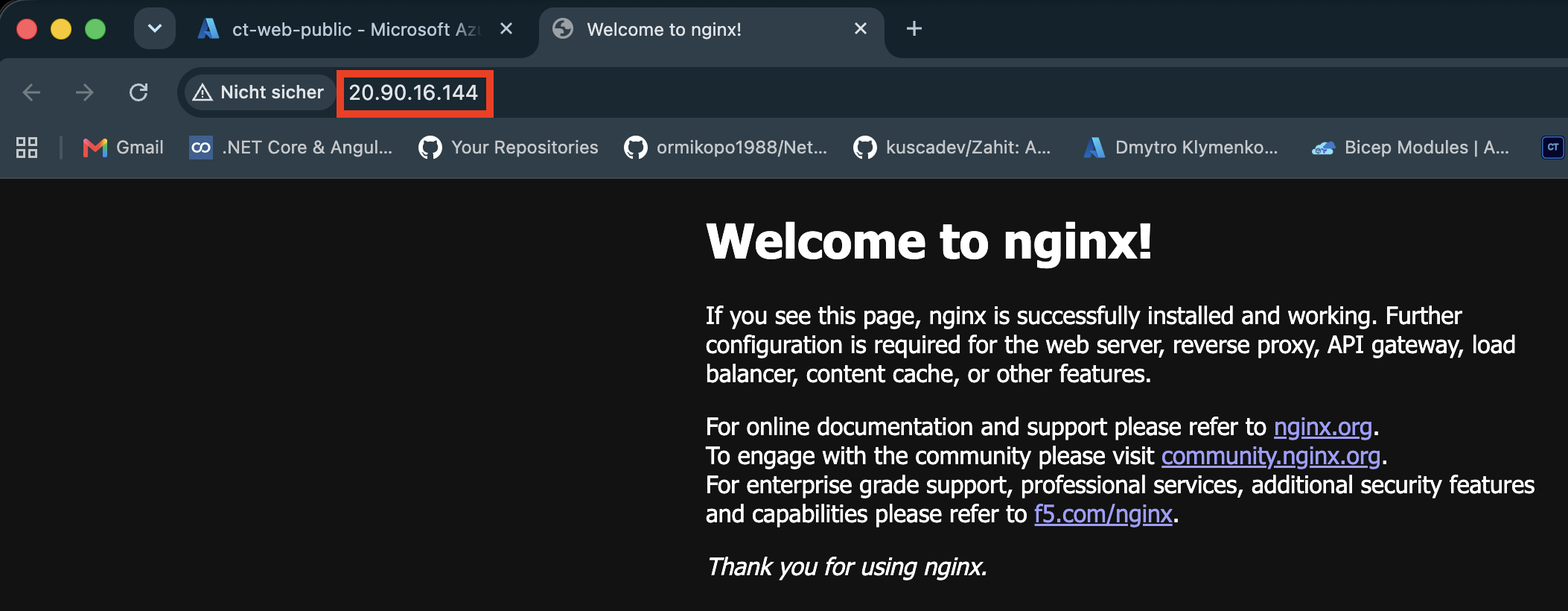
Copy the external/public IP, not the ClusterIP. Open it in your browser using this format, replacing the placeholder with the actual IP:
http://<external-ip>/Use http://, because this lab does not configure a TLS certificate or HTTPS listener. Expect the Welcome to nginx! page. If the browser upgrades the URL to HTTPS, enter the HTTP URL explicitly.
Both addresses now reach the application: the internal DNS name from a Pod, and the public IP from your browser. Kubernetes updates the Service’s backend endpoints as matching Pods become ready or disappear. Connections can reach different replicas, but identical NGINX pages will look the same; refreshing is not proof that traffic rotated through every Pod.
If a request fails, confirm the three ct-web Pods are ready and the Service selector is exactly app: ct-web in ct-apps. Open the Service’s details and Events to inspect provisioning errors. A Service without matching ready Pods has no healthy application destination.
Clean Up the Public Endpoint
When finished testing, select ct-web-public under Services and ingresses and choose Delete. This removes the public Service and triggers cleanup of its Azure networking configuration. Do not manually delete the cluster’s shared load balancer or other resources in the MC_ node resource group.
Delete ct-service-check under Workloads → Pods. Keep ct-web-internal and the Deployment for further exercises, or delete the internal Service if no longer needed. Deleting a Service leaves the application Pods running; deleting the ct-apps namespace removes everything in it.
The cluster’s worker VMs continue to cost money. Use Overview → Stop between sessions, remembering that retained networking and disks can still incur charges, or delete the cluster’s lab resource group when finished with AKS.