Kubernetes Needs a Cluster? Create AKS and Connect with kubectl
Kubernetes manages container workloads across a group of machines called a cluster. You describe the desired state—such as three copies of an application—and Kubernetes schedules and maintains those workloads. Azure Kubernetes Service (AKS) provides a managed Kubernetes control plane and Azure worker nodes.
| Component | Its job |
|---|---|
| Control plane | Exposes the Kubernetes API, schedules workloads, and coordinates cluster state; Azure manages it |
| Node | A worker VM that runs pods |
| Node pool | A group of nodes with the same configuration |
| Pod | The smallest deployable Kubernetes unit, containing one or more containers |
| kubectl | The client you use to send requests to the Kubernetes API |
This trip creates the cluster and verifies access. Application deployment comes next. Your existing ACR can stay in its own resource group; it is not needed to connect to the cluster.
Use the Azure portal for cluster creation and permissions. Use Azure Cloud Shell → Bash for kubectl, so no local Kubernetes installation or Docker Desktop Kubernetes cluster is needed. You need permission to create AKS resources and assign Azure roles, such as Owner on your lab subscription.
Create the Cluster in the Portal
Search for Kubernetes services → Create → Kubernetes cluster. If offered AKS Automatic and AKS Standard, choose Standard, which lets you configure the node pools. This choice is separate from the management pricing tier below.
On Basics, set:
Subscription: CloudTrips TEST
Resource group: rg-cloudtrips-aks-test-weu (new)
Cluster preset configuration: Dev/Test
Kubernetes cluster name: aks-ctlab-weu
Region: UK West
Availability zones: None for this lab
AKS pricing tier: Free
Kubernetes version: the portal's recommended supported stable version
Free means no cluster-management tier charge; the worker VMs, disks, and associated networking still cost money. Check the estimated cost before creating the cluster. Do not choose a preview Kubernetes version for this introductory lab.
Under Authentication and authorization (on Basics or a separate tab), choose Microsoft Entra ID authentication with Azure RBAC. Use the cluster’s managed identity option for Azure resource management. These are separate identities: your Entra user connects to Kubernetes; the cluster identity manages Azure infrastructure.
Configure the Node Pool and Networking
Under Node pools, edit the default system pool:
Pool name: agentpool (keep the default name if different)
Mode: System
OS: Linux / Ubuntu
VM size: Standard_D4as_v6, or another available x64 D-series size with at least 4 vCPUs
Scale method: Manual
Node count: 2
A system pool runs Kubernetes infrastructure pods. Keep this single pool for the introductory lab; do not add a user pool yet. Avoid B-series and ARM VM sizes here. If the preset adds another pool, remove that extra pool before deployment. Availability and quota vary: the example needs at least 8 vCPUs across the two nodes, with extra quota potentially needed during upgrades.
Under Networking, use:
API server access: Public
Private cluster: Disabled
Network configuration: Azure CNI Overlay
Virtual network: Create new / generated network
Load balancer: Standard
For this temporary lab, leave API server authorized IP ranges unconfigured so browser-based Cloud Shell can connect. A public API endpoint still requires authentication and authorization. For a real environment, restrict network access according to your design.
Under Integrations / Monitoring, leave ACR integration unconfigured for now. Disable optional Container Insights, Managed Prometheus, Managed Grafana, and Defender paid add-ons if selected; those are separate labs. Keep supported default upgrade settings.
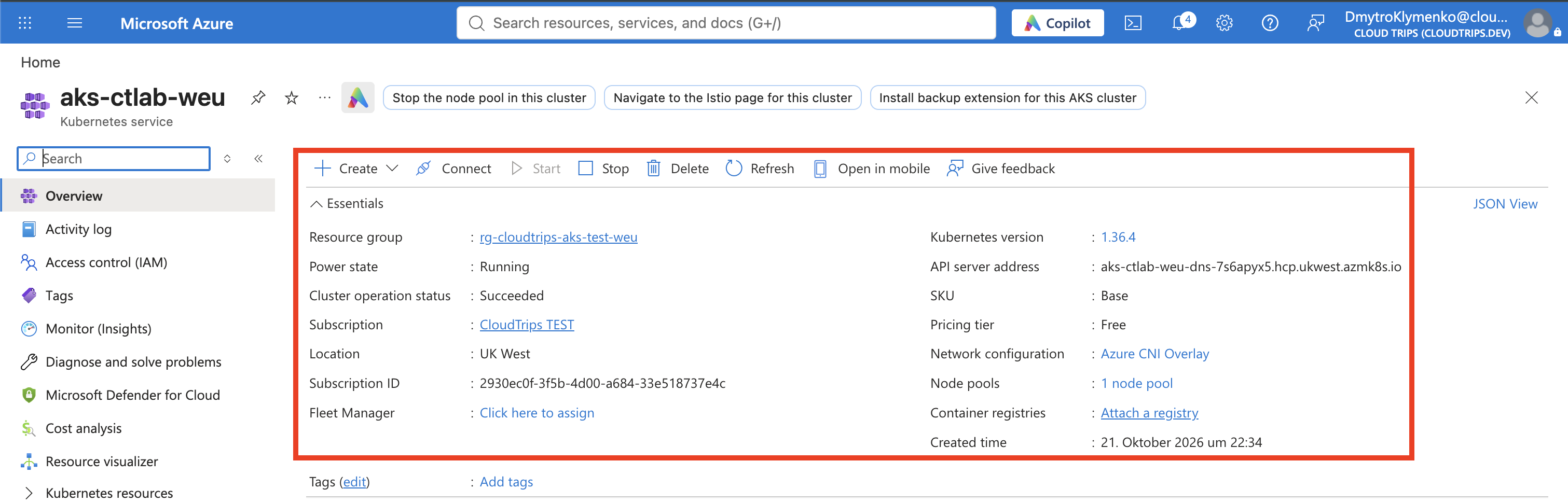
Choose Review + create → Create. When deployment succeeds, open aks-ctlab-weu → Overview and Node pools to confirm the cluster and pool are provisioned.
Azure also creates a node resource group, usually beginning with MC_, for managed VMs, disks, and networking. Do not manually delete or edit these resources while the cluster is in use.
Give Your User Cluster Access
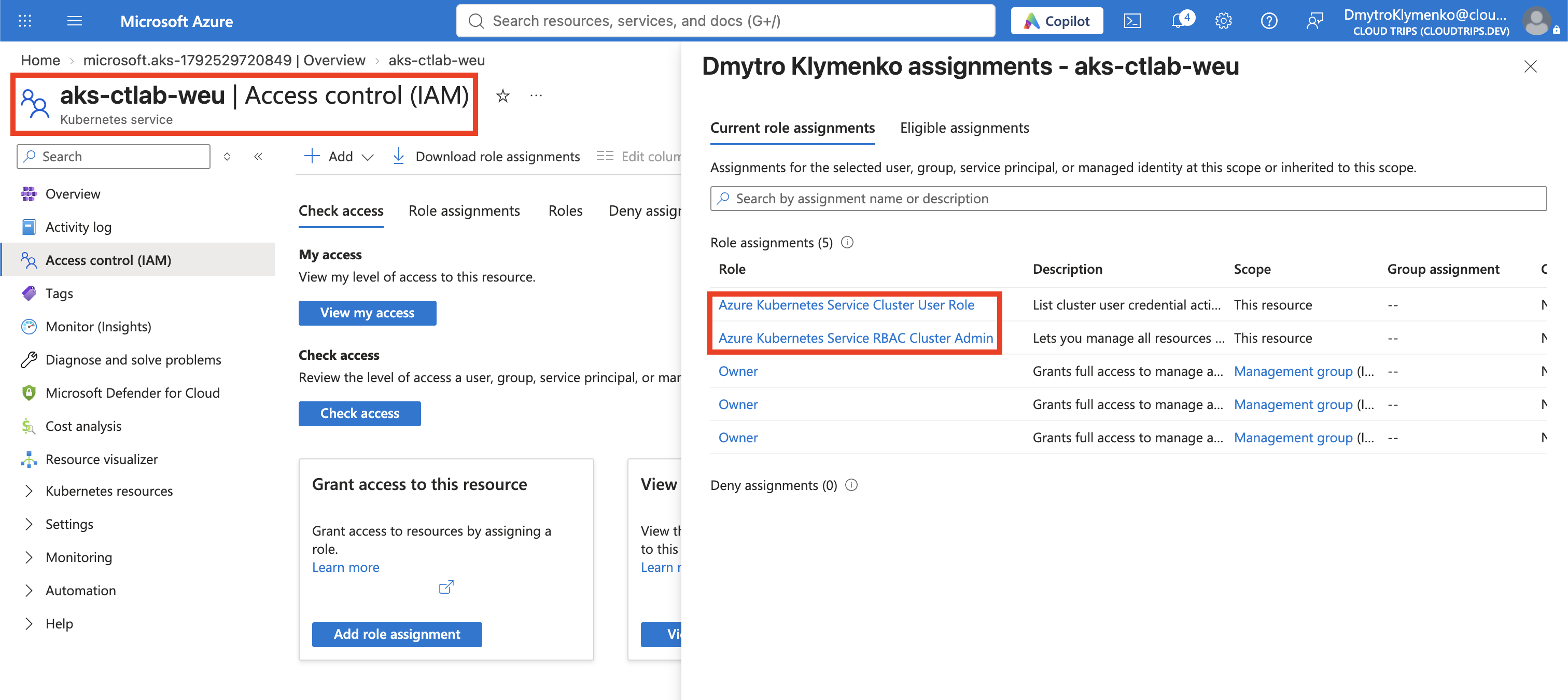
Open aks-ctlab-weu → Access control (IAM) → Add → Add role assignment. Assign these roles to your own signed-in user at the AKS resource scope:
| Role | Purpose |
|---|---|
| Azure Kubernetes Service Cluster User Role | Allows downloading the user connection configuration; skip an extra assignment if already covered by your existing Azure role |
| Azure Kubernetes Service RBAC Cluster Admin | Gives Kubernetes administration rights for this isolated lab and the following deployment exercises |
For each assignment, choose User, group, or service principal → Select members, select your user, then Review + assign. The second role includes RBAC in its name; do not confuse it with Azure Kubernetes Service Cluster Admin Role, which grants access to local admin credentials.
Azure subscription ownership and Kubernetes permissions are separate concerns. Wait a few minutes for role assignments to take effect. In a team environment, grant narrower roles appropriate to each person’s tasks.
Connect with kubectl
Open Cloud Shell using the >_ button at the top of the Azure portal and choose Bash. Use the same account you assigned the roles to. Cloud Shell is already signed in and includes the Kubernetes tools. If prompted for a subscription, choose CloudTrips TEST; a temporary session without persistent storage is sufficient for these checks.
Run:
az account set --subscription "CloudTrips TEST"
az aks get-credentials \
  --resource-group rg-cloudtrips-aks-test-weu \
  --name aks-ctlab-weu
kubelogin convert-kubeconfig -l azurecli
kubectl config current-context
kubectl get nodes -o wide
az aks get-credentials adds the cluster’s connection information to ~/.kube/config in Cloud Shell. It does not create a cluster. kubelogin uses the current Azure CLI session for Entra authentication. The current context tells kubectl which cluster to contact; it should identify aks-ctlab-weu.
Expect two node rows with STATUS Ready. Their names and Kubernetes version depend on the deployment. ROLES
Verify the Cluster
kubectl cluster-info
kubectl get namespaces
kubectl get pods -n kube-system
cluster-info confirms that the API is reachable. Namespaces group Kubernetes resources. The kube-system namespace contains infrastructure pods, so seeing pods before deploying your own application is expected. Most long-running system pods should be Running; completed jobs can show Completed. Repeated failures or Pending pods need investigation.
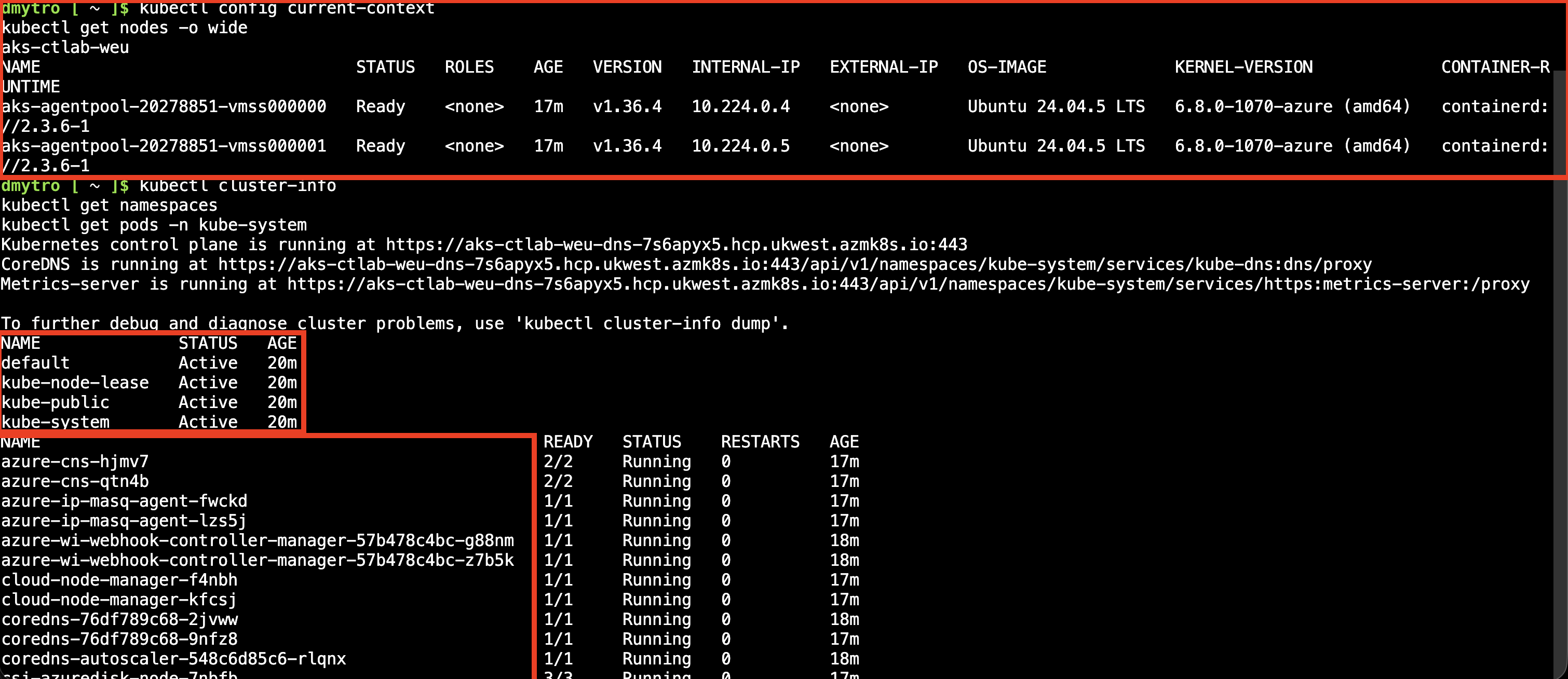
You are connected when kubectl successfully lists the nodes and system resources. If a temporary Cloud Shell session ends, reopen it and repeat the connection commands.
Pause or Finish
Keep the cluster for the next Kubernetes trips. Between sessions, use aks-ctlab-weu → Overview → Stop, wait for it to stop, and use Start before reconnecting. Stopping reduces compute charges, but retained disks and other resources can still incur costs.
If finished, delete rg-cloudtrips-aks-test-weu in the portal. AKS deletion normally removes its managed node resource group; verify cleanup completes and investigate any leftovers. Keep the separate registry resource group if you still need its images.