Container Images Need Storage? Create Azure Container Registry, Push an Image, and Verify a Pull
A container registry stores images so other machines and deployment services can download them. An image is the packaged application and its dependencies; a container is a running instance of that image. Azure Container Registry (ACR) stores images—it does not run your application.
Imagine building an application on your laptop and deploying it to AKS. Pushing the image to a registry gives the cluster a place to pull it from. This lab uses an existing Nginx image, so no application code or Dockerfile is needed.
Public Nginx image → local Docker → push to your ACR
Your ACR → pull to local Docker → run a container
Use your local Docker Desktop and Azure CLI. Run docker info and az version in your computer’s terminal first. Docker must be running and both commands must work. Run the commands below in the same local Bash or zsh terminal, not Cloud Shell. No local project files are created.
Create the Registry
In the Azure portal, open Container registries → Create:
Subscription: CloudTrips TEST
Resource group: rg-cloudtrips-containers-test-neu (new)
Registry name: acrctcontainersneu (must be globally unique)
Location: North Europe
Pricing plan: Basic
Role assignment permissions mode: RBAC Registry Permissions
Domain name label scope: Tenant Reuse (if shown)
Use a unique name containing only letters and numbers if the example is taken. Keep public network access enabled for the lab and Admin user disabled. We will authenticate with your Entra identity. A public network endpoint does not make the stored images anonymously readable.
Basic is sufficient for this push/pull lab. The registry incurs charges while it exists, even when no container is running; check the displayed price before creating it.
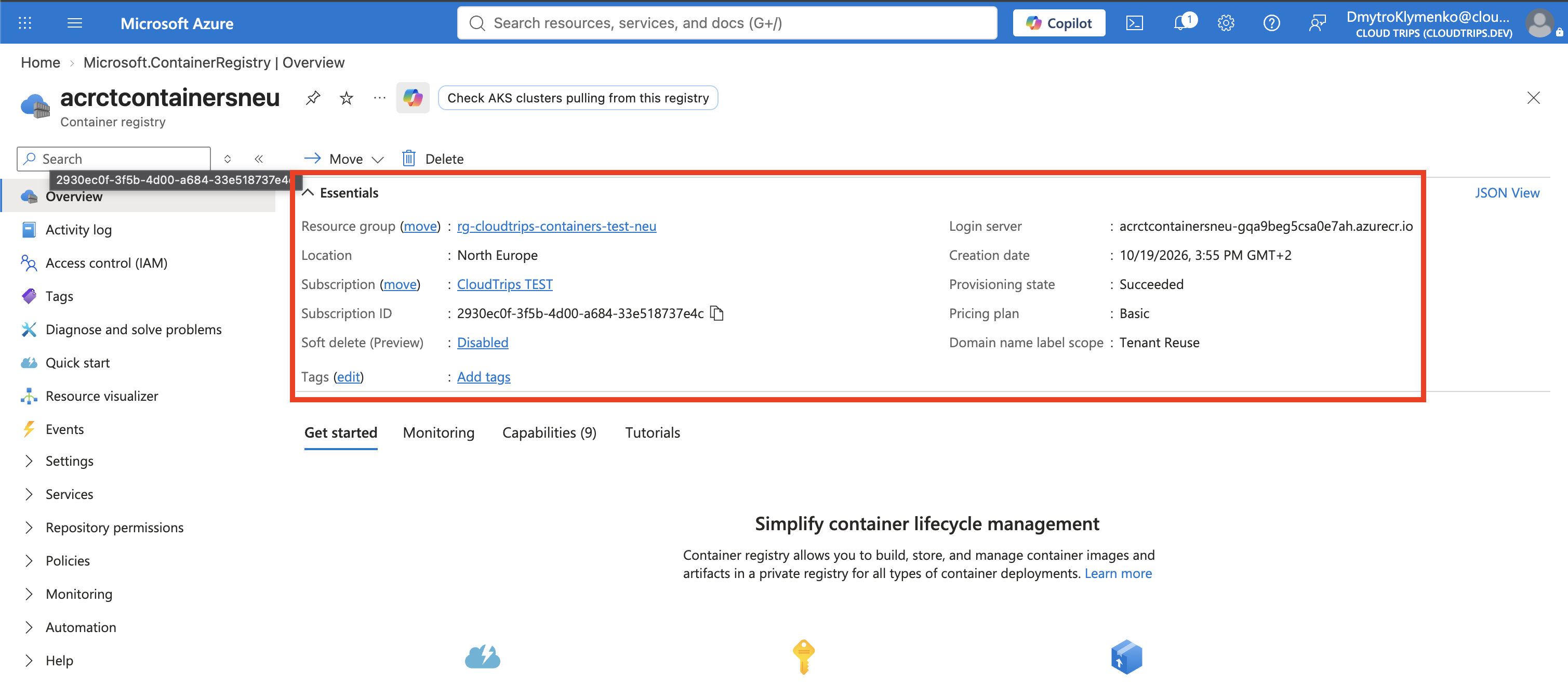
Select Review + create → Create → Go to resource. On Overview, note the Login server. It may include a generated suffix, so do not assume it is simply the registry name plus .azurecr.io.
Give Your User Image Access
For the selected RBAC Registry Permissions mode, AcrPush allows both pushing and pulling images. Under the registry’s Access control (IAM) → Add role assignment, assign AcrPush to the same user you will use with Azure CLI if that user does not already have equivalent access. Creating role assignments requires permission such as Owner or Role Based Access Control Administrator at the appropriate scope.
Check Properties → Role assignment permissions mode if uncertain. If you created the registry with RBAC Registry + ABAC Repository Permissions, AcrPush is not honored: use Container Registry Repository Writer for push/pull and Container Registry Repository Catalog Lister to browse the repository list, without conditions for this small lab. You do not need to enable the registry admin account.
Sign In from Your Computer
Run the following. Replace acrctcontainersneu with your actual registry resource name:
az login
az account set --subscription "CloudTrips TEST"
az account show --query '{subscription:name,tenant:tenantId}' -o table

ACR_NAME="acrctcontainersneu"
ACR_SERVER=$(az acr show --name "$ACR_NAME" --query loginServer -o tsv)
printf 'Registry server: %s\n' "$ACR_SERVER"
az acr login --name "$ACR_NAME"
Select the correct tenant/account during sign-in. The final command should print Login Succeeded. az login signs you into Azure; az acr login authenticates Docker to the registry. It takes the registry’s resource name, not the login-server hostname.
Keep this terminal open: ACR_NAME and ACR_SERVER are used in the remaining commands. Stop if the server value is empty or any command fails. Newly assigned permissions may need a few minutes to take effect; then rerun az acr login.
Tag and Push an Image
docker pull nginx:stable-alpine
docker tag nginx:stable-alpine "$ACR_SERVER/cloudtrips/nginx:v1"
docker push "$ACR_SERVER/cloudtrips/nginx:v1"
The commands download Nginx, give the image an additional local name pointing to your registry, and upload it. Tagging alone does not upload or rebuild anything.
| Part of the image reference | Meaning |
|---|---|
$ACR_SERVER |
Your registry’s exact login-server hostname |
cloudtrips/nginx |
Repository: a named collection of images |
v1 |
Tag: a readable label for this image version |
Wait for docker push to finish successfully and display a sha256 digest. The digest identifies the pushed manifest’s content; a tag can later be moved to a different image. This lab copies the platform variant Docker pulled for your computer, not every architecture of the public image. An Apple Silicon pull normally selects arm64; an x86-64 computer normally selects amd64. Later deployments need a compatible image architecture.
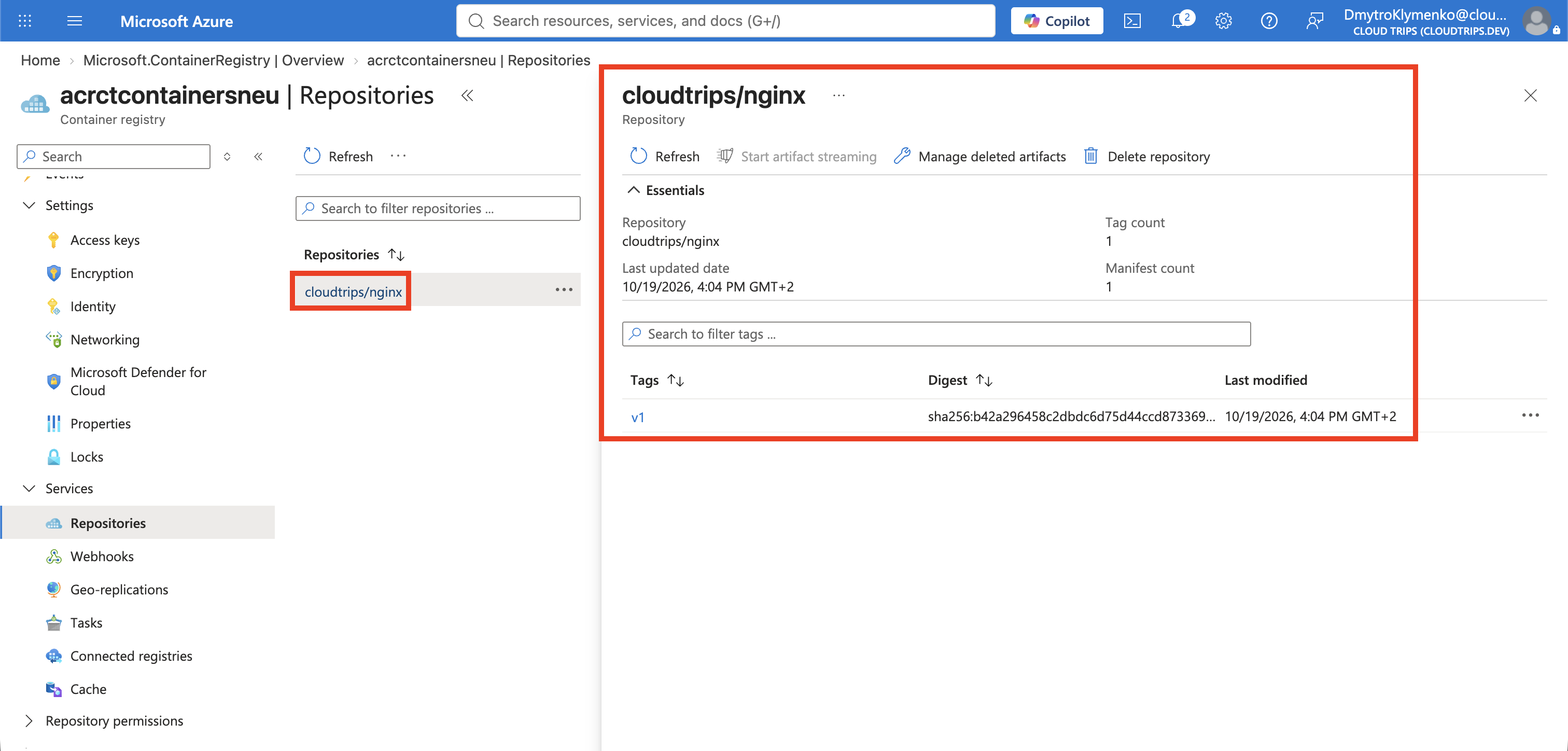
In the portal, open the registry → Services → Repositories (or Repositories) → cloudtrips/nginx. Confirm v1 appears. Open it to inspect its digest. Refresh if necessary; the repository is created by the first push, not manually beforehand.
Verify a Pull and Run the Image
Remove only the local ACR image reference, then pull it back:
docker image rm "$ACR_SERVER/cloudtrips/nginx:v1"
docker pull "$ACR_SERVER/cloudtrips/nginx:v1"
docker image inspect "$ACR_SERVER/cloudtrips/nginx:v1" \
  --format '{{json .RepoDigests}}'
This does not delete the image from Azure. Docker may report Already exists for layers because the original Nginx image shares them. That is normal: the explicit pull still contacts your registry, resolves the remote image, and reuses cached layers. Check that the pull finishes successfully and prints the registry image’s digest.
Now run the image using its ACR address:
docker run -d --name ct-acr-web \
  -p 127.0.0.1:8082:80 \
  "$ACR_SERVER/cloudtrips/nginx:v1"

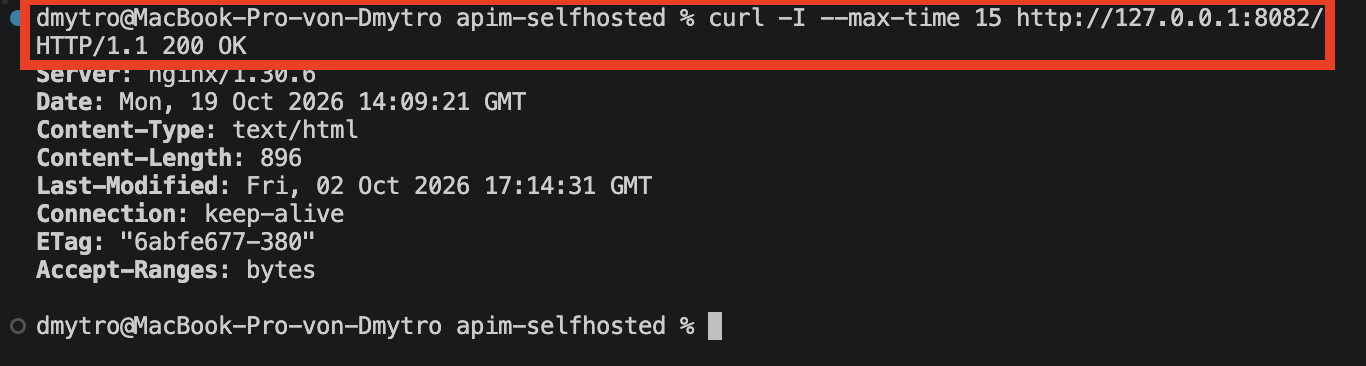
curl -I --max-time 15 http://127.0.0.1:8082/
Expect HTTP 200 OK. If the web server is still starting, wait briefly and retry curl. You can also open http://127.0.0.1:8082/ in your browser and see the Nginx welcome page. Port 8082 avoids the self-hosted gateway lab’s port 8080; the container is reachable only from your computer.
You have now stored an image in Azure, retrieved it through the registry, and started a container from that image.
If Something Fails
- Docker daemon unavailable: start Docker Desktop and wait for the engine to run.
- Push/pull denied: verify the CLI user, subscription, registry permissions mode, and matching role. Wait for role propagation and rerun
az acr login. - Registry not found: check ACR_NAME is your actual resource name and the selected subscription is correct.
- Hostname or image reference error: rerun the ACR_SERVER lookup; use the returned login server, including any generated suffix.
- Public image download limit: the initial image comes from Docker Hub; sign in with
docker loginif Docker Hub requires authentication or wait for its limit to reset. - Port/container name already used: inspect
docker ps -a; remove only your previous ct-acr-web lab container before retrying, or choose another free host port.
Finish
Remove the local test container:
docker rm -f ct-acr-webKeep the registry and cloudtrips/nginx:v1 if continuing with container deployment trips. Otherwise, delete rg-cloudtrips-containers-test-neu once no resources in it are needed. Removing local containers or images does not delete the registry or stop its charges.