App Needs Managed Replicas? Create a Namespace and Deploy an Application
You want three copies of your web application running, without manually starting a replacement whenever a Pod disappears. A Kubernetes Deployment describes that desired state. It manages a ReplicaSet, which maintains the requested number of Pods.
For this lab, one Pod runs one NGINX container. Three replicas therefore mean three Pods running the same application. They share the cluster’s existing nodes; three Pods do not require three VMs. Kubernetes chooses their placement, and multiple replicas can run on the same node.
A namespace groups resources inside the cluster. We use ct-apps to keep this application’s resources separate from infrastructure in kube-system. A namespace is not an Azure resource group and does not, by itself, block network traffic between applications.
Reuse aks-ctlab-weu in UK West and your Azure Kubernetes Service RBAC Cluster Admin access from the cluster trip. Start the cluster from its Overview if stopped. The existing nodes continue to incur charges while running.
We use the public nginx:stable-alpine image so this exercise needs no registry credentials or ACR integration. AKS pulls the image directly; your local Docker images are not involved.
Create the Namespace in the Portal
Open Kubernetes services → aks-ctlab-weu → Kubernetes resources → Namespaces.
Use Create → Apply a YAML to open the YAML editor. If that option is not shown on Namespaces, open Kubernetes resources → Services and ingresses → Create → Apply a YAML instead. The editor can apply different Kubernetes resource types; the kind field determines what it creates.
Paste this manifest and select Add or Apply, as shown in your portal:
apiVersion: v1
kind: Namespace
metadata:
  name: ct-apps
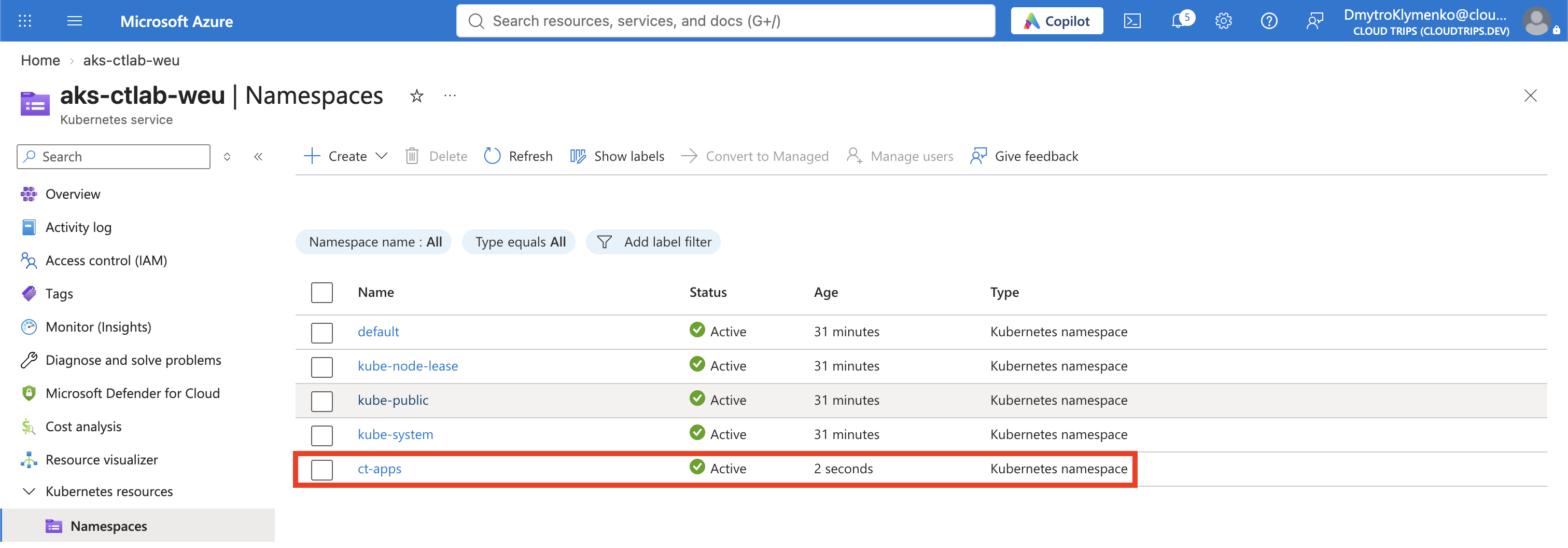
A manifest is a description of the resource you want Kubernetes to maintain. Here, kind: Namespace creates a namespace named ct-apps. Refresh Namespaces and confirm it appears with status Active.
Deploy Three Replicas
Open the portal’s Create → Apply a YAML editor again. Replace its contents with the following complete manifest, then apply it:
apiVersion: apps/v1
kind: Deployment
metadata:
  name: ct-web
  namespace: ct-apps
spec:
  replicas: 3
  selector:
    matchLabels:
      app: ct-web
  template:
    metadata:
      labels:
        app: ct-web
    spec:
      nodeSelector:
        kubernetes.io/os: linux
      containers:
        - name: nginx
          image: nginx:stable-alpine
          ports:
            - containerPort: 80
          resources:
            requests:
              cpu: 100m
              memory: 64Mi
            limits:
              cpu: 250m
              memory: 128Mi
          readinessProbe:
            httpGet:
              path: /
              port: 80
            initialDelaySeconds: 2
periodSeconds: 5| Setting | Meaning in this lab |
|---|---|
namespace: ct-apps |
Places the Deployment and its Pods in our application namespace |
replicas: 3 |
Requests three Pods; this is a fixed target, not automatic scaling based on traffic |
selector.matchLabels and template.metadata.labels |
Connect the Deployment to Pods labeled app: ct-web; these values must match |
template |
Describes the Pods Kubernetes creates, including their container image |
requests |
Reserves scheduling capacity per container: 100m is 0.1 CPU core, and 64Mi is 64 mebibytes of memory |
limits |
Caps each container at 0.25 CPU core and 128Mi memory; exceeding the memory limit can cause termination |
readinessProbe |
Checks HTTP / on port 80 so Kubernetes can mark the container ready when NGINX responds |
containerPort: 80 documents the application’s listening port. It does not create a public endpoint. This trip verifies the running replicas; exposing the application requires a Service or another access method.
Inspect the Deployment and Its Pods
Open Kubernetes resources → Workloads → Deployments. Set the namespace filter to ct-apps, refresh, and open ct-web. Allow time for image downloads and startup. Confirm the desired replica count is 3 and the ready or available count reaches 3.
Under Workloads → Replica sets, use the same namespace filter. You should see a ReplicaSet whose name starts with ct-web-. The ownership chain is Deployment → ReplicaSet → Pods.
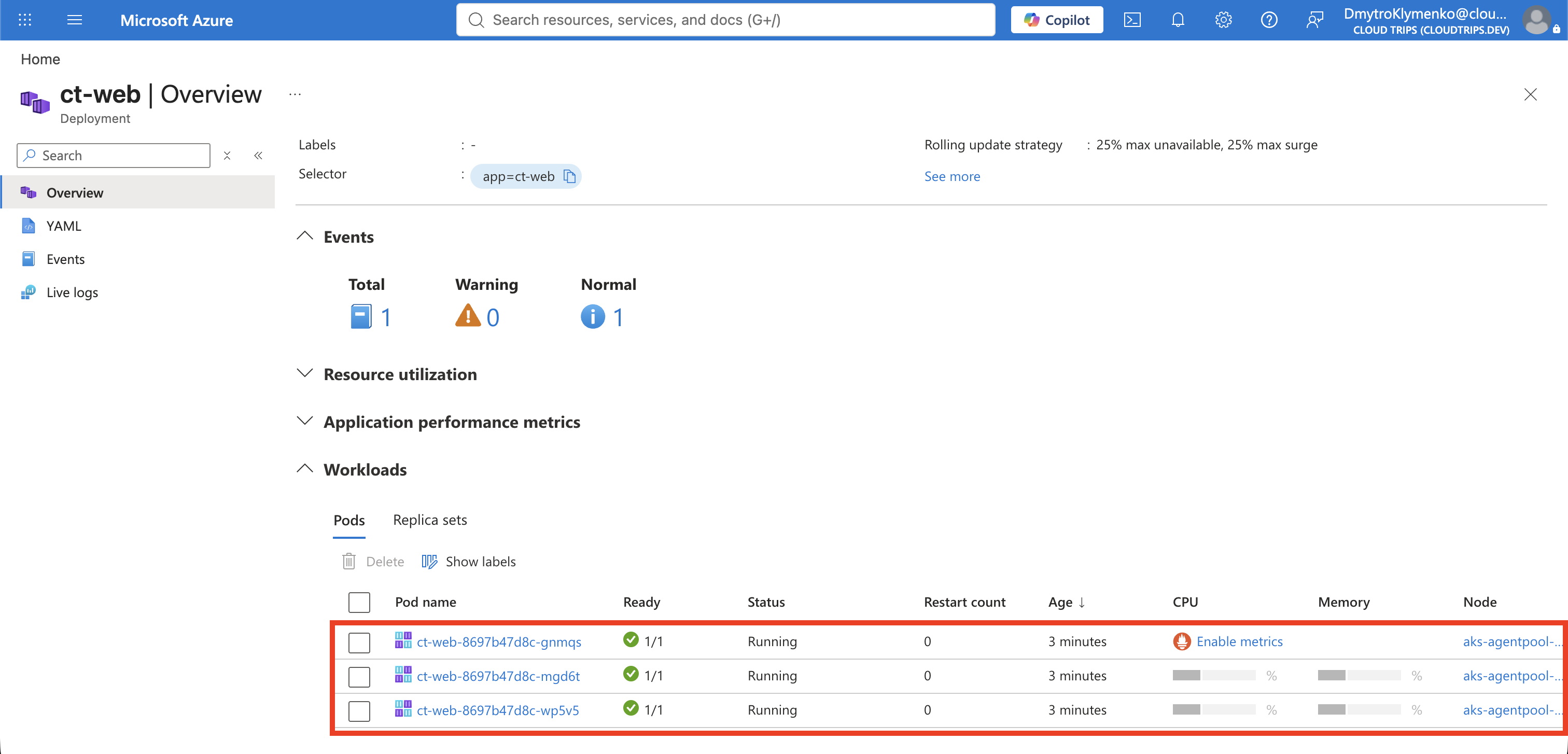
Open Workloads → Pods, filter to ct-apps, and inspect the three ct-web-… Pods. Their generated suffixes will differ. Expect Running and Ready 1/1 for each: one ready container out of one container in that Pod. Running alone does not prove the readiness check has passed.
Open one Pod and inspect its details or YAML:
- Image:
nginx:stable-alpine. - Node: the worker VM where this Pod runs.
- Pod IP: an internal address, not a public browser endpoint.
- Owner / ownerReferences: the ReplicaSet managing this Pod.
- Events: scheduling, image pulling, and container startup activity.
Use the Pod’s Logs view and select the nginx container if prompted. Startup messages and requests from the readiness probe can appear here. Logs show application output; Events describe what Kubernetes did to the Pod.
Watch Kubernetes Replace a Pod
In Workloads → Pods, with ct-apps selected, note the name of one ct-web-… Pod. Select only that Pod and choose Delete, then confirm. Leave the Deployment and ReplicaSet in place.
Refresh the list. The ReplicaSet still has a target of three replicas, so Kubernetes creates a replacement Pod with a new name. Briefly, you may see the old Pod terminating and the new one pending or starting. Wait until three Pods are ready again.
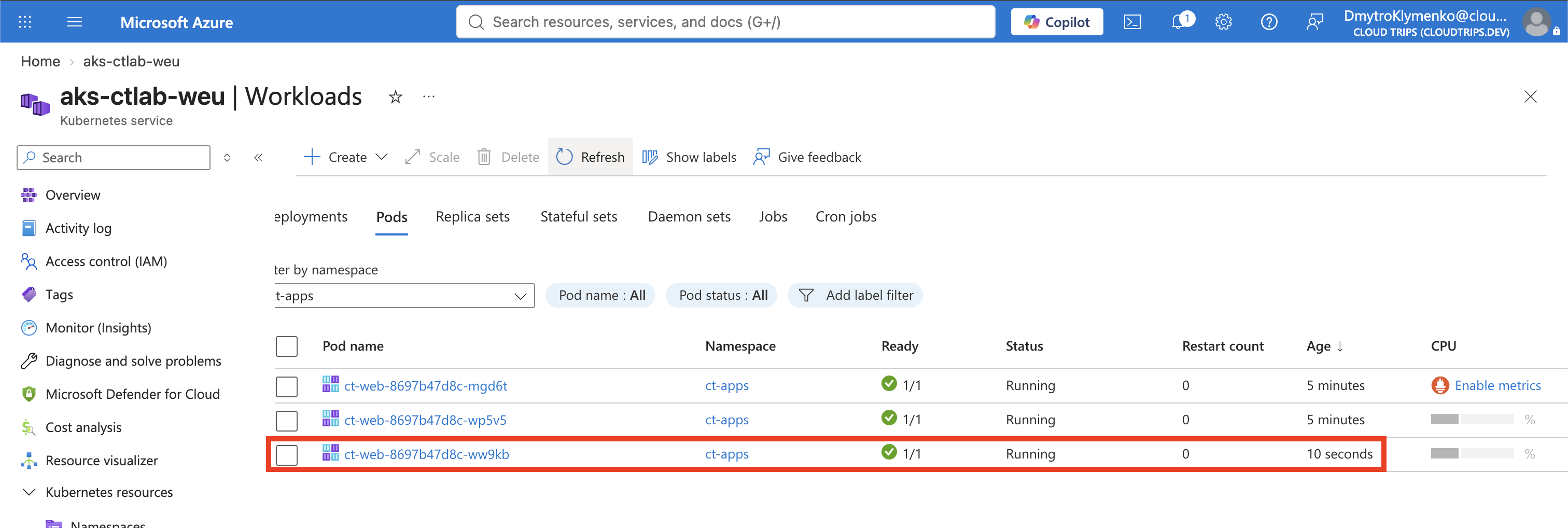
Compare the new name and age with the Pod you deleted. This is a replacement Pod, not a restart of the original one. Its restart count can therefore be zero. The replacement may run on the same node or another node.
The key idea: you maintain the desired replica count in the Deployment; Kubernetes maintains the Pods that satisfy it. Replacement still needs available cluster capacity and access to the image. Replicas do not automatically synchronize application data or preserve files stored inside a deleted container.
Keep the Lab or Clean Up
Keep ct-apps and ct-web for further Kubernetes exercises. To pause the cluster between sessions, use aks-ctlab-weu → Overview → Stop. Retained disks and other resources can still incur costs.
To remove only this lab, open Kubernetes resources → Namespaces, select ct-apps, and choose Delete. This deletes the namespace and everything inside it, including the Deployment, ReplicaSet, and Pods. Deleting individual Pods alone does not stop this Deployment from replacing them.
The AKS cluster and its worker VMs remain after namespace deletion. Delete the cluster’s lab resource group in the portal only when you are finished with the cluster.