App Needs More Capacity? Scale a Deployment and Enable the Cluster Autoscaler
Your application needs more running copies to handle work, but those copies also need somewhere to run. Kubernetes scaling has two separate levels:
| Change | What grows? | Who makes the decision here? |
|---|---|---|
| Scale a Deployment | Application Pods | You change the desired replica count |
| Enable the cluster autoscaler | Worker nodes in a node pool | The autoscaler adds nodes when eligible Pods cannot be scheduled on existing nodes |
Six replicas do not mean six VMs. Several Pods can share a node if their resource requests and placement rules allow it. The cluster autoscaler does not change your Deployment’s replica count and does not add nodes simply because a CPU chart is high. Automatically changing application replicas based on metrics is the job of a Horizontal Pod Autoscaler (HPA), which we do not configure in this trip.
Reuse aks-ctlab-weu in UK West, namespace ct-apps, and the ct-web Deployment from the replicas trip. Start the cluster if stopped. Use your existing AKS resource-management and Kubernetes administration permissions. This lab assumes the original agentpool uses Standard_D4as_v6, with four vCPUs per node.
Scale the Application in the Portal
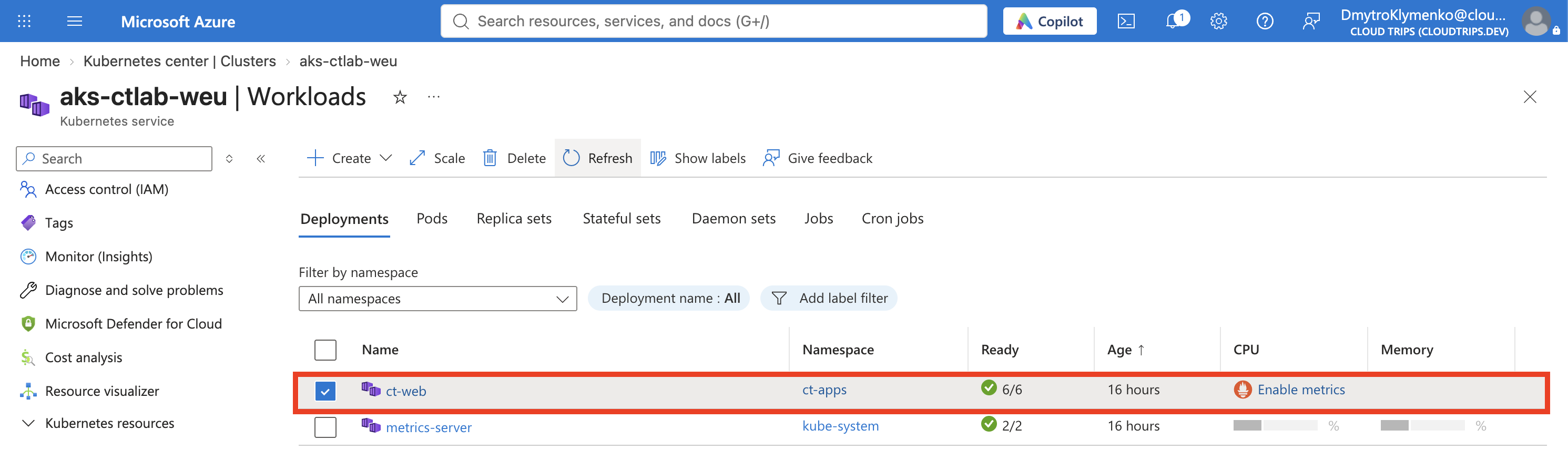
Open Kubernetes services → aks-ctlab-weu → Kubernetes resources → Workloads → Deployments. Filter to ct-apps and open ct-web.
Open its YAML view and choose Edit if needed. Change only the top-level desired replica count under spec:
spec:
  replicas: 6
This is an excerpt showing the field to change, not a complete manifest to paste over the existing resource. Leave the Pod template, image, labels, and resources unchanged, then select Save or Apply. Do not edit status or an annotation containing an older copy of the manifest.
Refresh the Deployment and wait for 6 desired / 6 ready replicas. Under Workloads → Pods, filter to ct-apps and check the ct-web-… Pods. If the orders or gateway workloads remain from the previous trip, they will also appear; count only the ct-web application Pods.
Each ct-web container requests 100m CPU and 64Mi memory. Six replicas therefore request 0.6 CPU core and 384Mi memory in total, before other cluster workloads. They will often fit on the existing nodes. An unchanged node count is expected in that case.
The existing Service still selects app: ct-web, so new ready Pods become eligible backends automatically. No Service or HTTPRoute change is needed. More replicas can increase application capacity, but do not remove bottlenecks such as a shared database.
Enable the Cluster Autoscaler
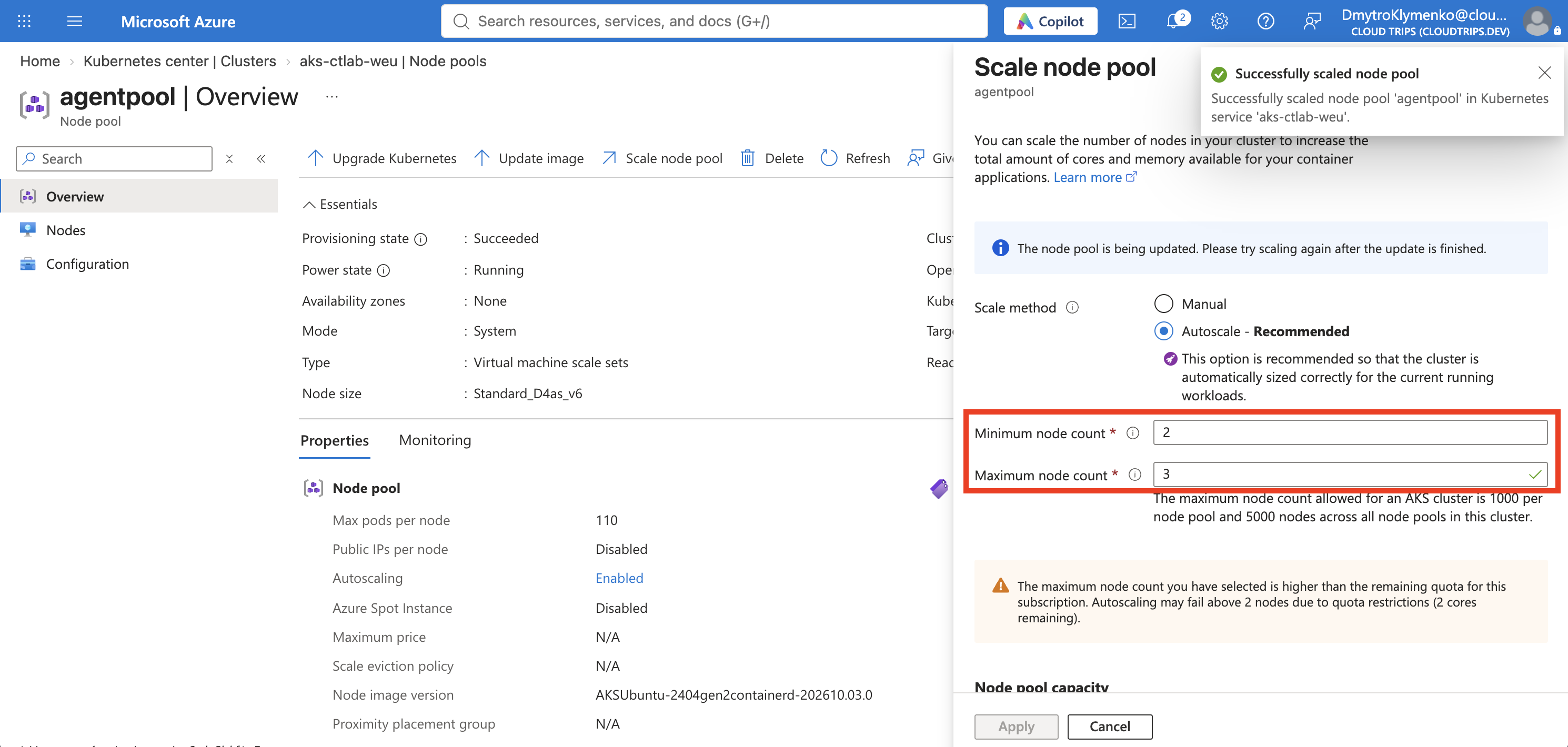
Open aks-ctlab-weu → Settings → Node pools and select agentpool. Note its current node count and scaling settings, then select Scale. Set:
Scale method: Autoscale
Minimum node count: 2
Maximum node count: 3
Choose Apply or Save. If autoscaling is already enabled, review and update the existing limits. This range assumes the small lab currently has two or three nodes; do not apply it to a larger shared pool without reviewing its workloads.
The maximum is a limit, not a request to immediately create three nodes. The minimum prevents this pool from scaling below two. With this VM size, three nodes use 12 vCPUs in total, and upgrades can need extra quota. Check the subscription’s Usage + quotas for UK West, including the relevant VM-family and regional vCPU quotas. An additional node and its disks increase cost.
Configure scaling on the AKS node pool, not directly on the VM scale set in the MC_ resource group. Leave the cluster-wide autoscaler profile at its defaults for this lab.
Optional: Observe a Node Being Added
The previous steps complete application scaling and enable node autoscaling. To see an actual scale-out event, you need Pods that cannot fit on the current nodes.
This optional test is designed for two current four-vCPU nodes. If your pool already has three nodes, the test may fit without adding another node; that does not indicate a failure. Do not raise the maximum just to force an event. The test also needs quota and available VM capacity for the third node.
Open Kubernetes resources → Services and ingresses → Create → Apply a YAML and apply the following. If your node pool has another name, replace agentpool in the node selector with that name:
apiVersion: apps/v1
kind: Deployment
metadata:
  name: ct-capacity-check
  namespace: ct-apps
spec:
  replicas: 3
  selector:
    matchLabels:
      app: ct-capacity-check
  template:
    metadata:
      labels:
        app: ct-capacity-check
    spec:
      nodeSelector:
        kubernetes.io/os: linux
        kubernetes.azure.com/agentpool: agentpool
      containers:
        - name: nginx
          image: nginx:stable-alpine
          ports:
            - containerPort: 80
          resources:
            requests:
              cpu: "2"
              memory: 64Mi
            limits:
              cpu: "2"
              memory: 128Mi
          readinessProbe:
            httpGet:
              path: /
              port: 80
            initialDelaySeconds: 2
            periodSeconds: 5
This creates a separate, temporary Deployment. Its three Pods each request two CPU cores, even though idle NGINX uses little actual CPU. Requests affect scheduling; this is a capacity-reservation test, not a CPU stress test. It does not change ct-web’s resource settings or receive traffic from its Service.
Two of these Pods cannot share a four-vCPU AKS node because some CPU is reserved for the node and Kubernetes. With only two such nodes, at least one test Pod cannot initially fit. Under Workloads → Pods, select a pending ct-capacity-check-… Pod and inspect Events. Expect a scheduling message such as Insufficient cpu.
The autoscaler can then request a third node, within the configured maximum. Open Node pools and inspect Autoscale events, Autoscale warnings, or Scale-up not triggered, if shown. Allow several minutes for provisioning. When the new node is Ready, the pending Pod can be scheduled. Confirm the pool count reaches 3 and the test Deployment reaches 3 ready replicas.
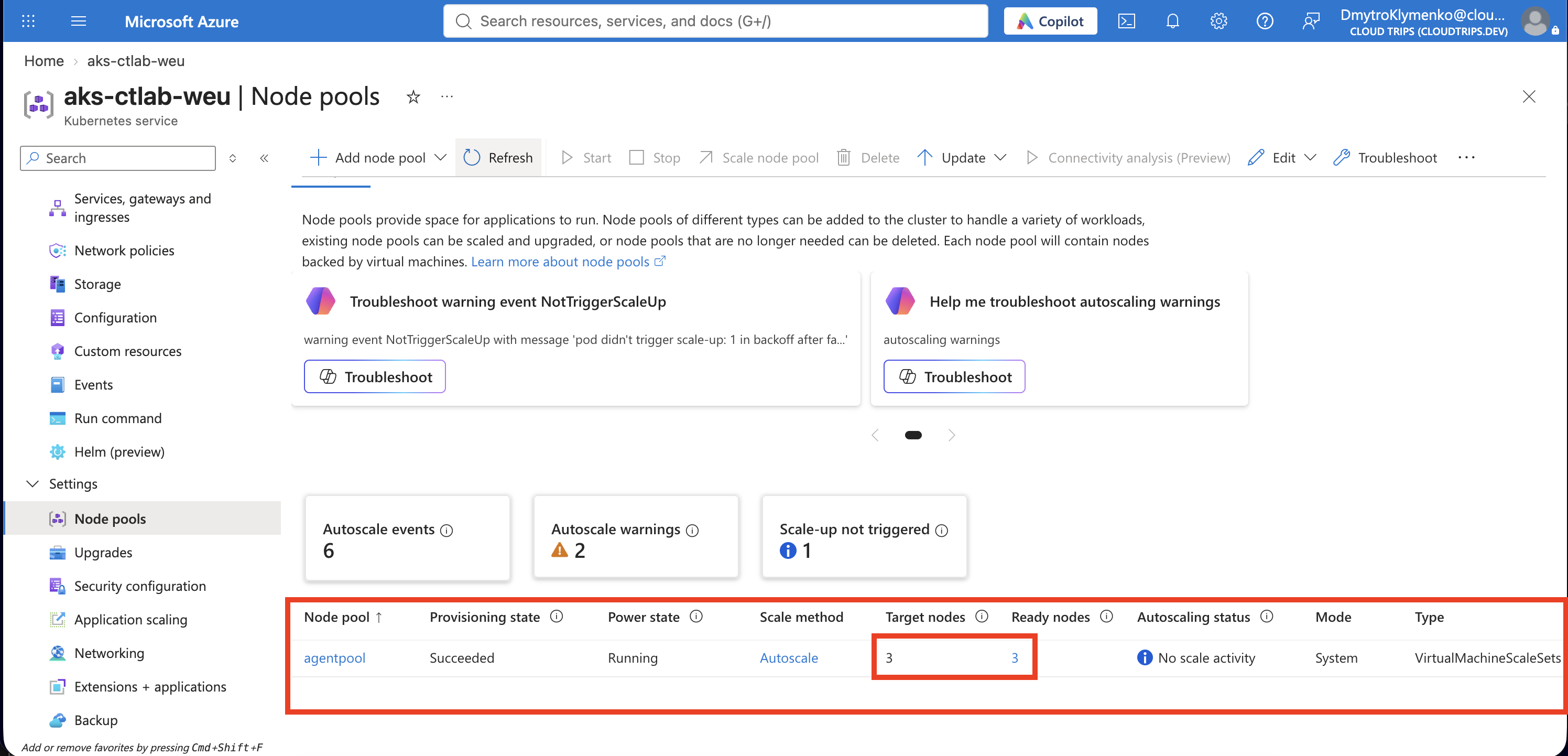
If test Pods remain Pending, inspect their Events and autoscaler warnings. Reaching the maximum, quota limits, unavailable VM capacity, a wrong pool selector, or existing workloads consuming capacity can prevent scheduling. Adding nodes cannot fix an image-pull error. Remove the test workload if it cannot complete; do not keep increasing the limits blindly.
Restore the Lab and Review Scale-Down
Delete only ct-capacity-check under Workloads → Deployments after the test. Deleting its Pods individually would cause the Deployment to replace them.
Return to ct-web → YAML and restore its top-level spec.replicas to 3. Save and confirm that three application Pods remain ready. Kubernetes removes the extra replicas; the Service continues to select the remaining ready Pods.
The cluster autoscaler may later remove an unneeded node, but scale-down is not immediate. Default delays and workload constraints apply, and Pod disruption budgets or system workloads can prevent removal. A node count of three immediately after cleanup is not evidence of failure. Review the autoscaler events rather than assuming it must drop to two at a fixed time.
Keep autoscaling at minimum 2 / maximum 3 for subsequent exercises if desired. Switching back to Manual stops automatic node scaling; it does not by itself guarantee that the node count returns to two. Review the actual count and workload needs before applying a manual size.
Stop the cluster through Overview → Stop between sessions, or delete its lab resource group when finished with AKS. Retained disks and networking can still incur charges while the cluster is stopped.