SQL Needs Automatic Failover? Configure Failover Group
Your database has a copy in another region, but someone still has to promote it during an outage and change the application’s server address. A failover group adds a stable connection name that follows the primary and a policy for who initiates failover. Its Microsoft-managed policy delegates regional disaster failover to Azure.
Prepare Both Servers
Use the pair from Enable Geo-Replication: sqldb-cloudtrips on sql-ctappweu in West Europe and its secondary on sql-ctappfrc in France Central. Complete that trip first if either is missing.
Confirm replication is healthy and both databases have matching service tiers, compute tiers, and compute sizes. Allow your current public IP on both servers. For this SQL-authentication lab, use ctadmin with the same password on both; use the server’s Reset password action if necessary. This lets the same connection credentials work after failover.
Create the Group
Open the server sql-ctappweu → Data management → Failover groups → Add group. Configure:
Failover group name: fog-ctsql (globally unique)
Secondary server: sql-ctappfrc
Database: sqldb-cloudtrips
Read/write failover policy: Microsoft managed (Automatic)
Grace period: 1 hour
Use Configure database to select the database, then create the group. If the policy is configured afterward in your portal, open the created group’s Edit configuration, set it there, and save. Use your own group name if fog-ctsql is taken.
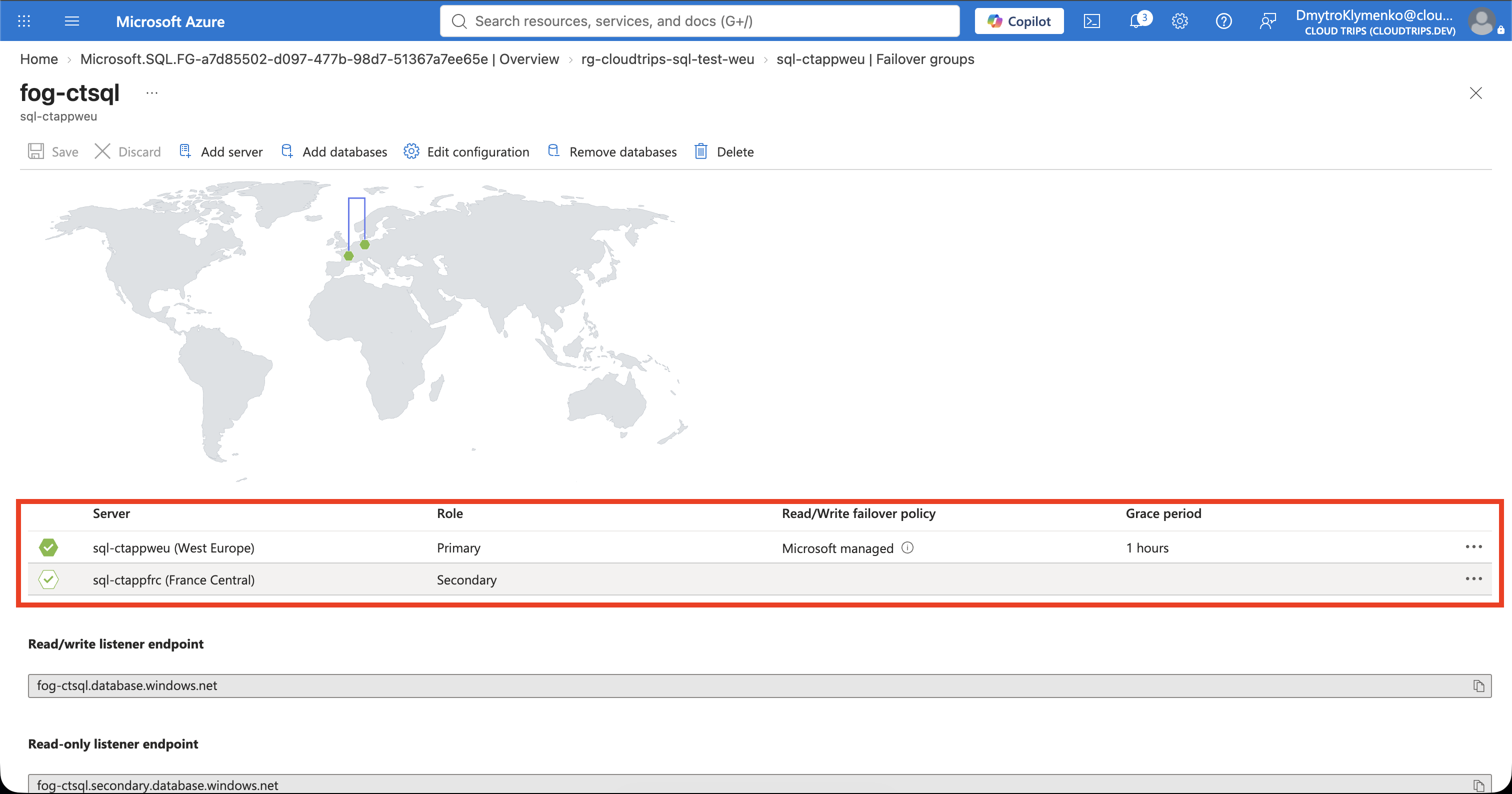
Check the partner server, selected database, policy, and grace period. The group adopts the existing geo-replication relationship.
The one-hour grace period is a minimum wait, not a recovery deadline. Microsoft-managed failover applies to widespread regional outages; Microsoft decides when to trigger it. Forced failover can lose changes that have not replicated. For tighter recovery targets, Microsoft recommends customer-managed failover with your own monitoring and recovery process.
Connect Through the Group
The read/write listener endpoint is a fixed server address that directs connections to the current primary, where you can read and change data. Before failover it points to West Europe; afterward it points to France Central. Your application keeps the same address and reconnects after the switch.
Copy the group’s Read/write listener endpoint into a new VS Code SQL connection:
Server: fog-ctsql.database.windows.net
Database: sqldb-cloudtrips
Authentication: SQL Login
User: ctadmin
Encrypt: Mandatory
Trust server certificate: False
Use your actual group name and password. Run:
SELECT CONVERT(nvarchar(128), SERVERPROPERTY('ServerName')) AS ConnectedServer,
       DB_NAME() AS DatabaseName,
       DATABASEPROPERTYEX(DB_NAME(), 'Updateability') AS AccessMode;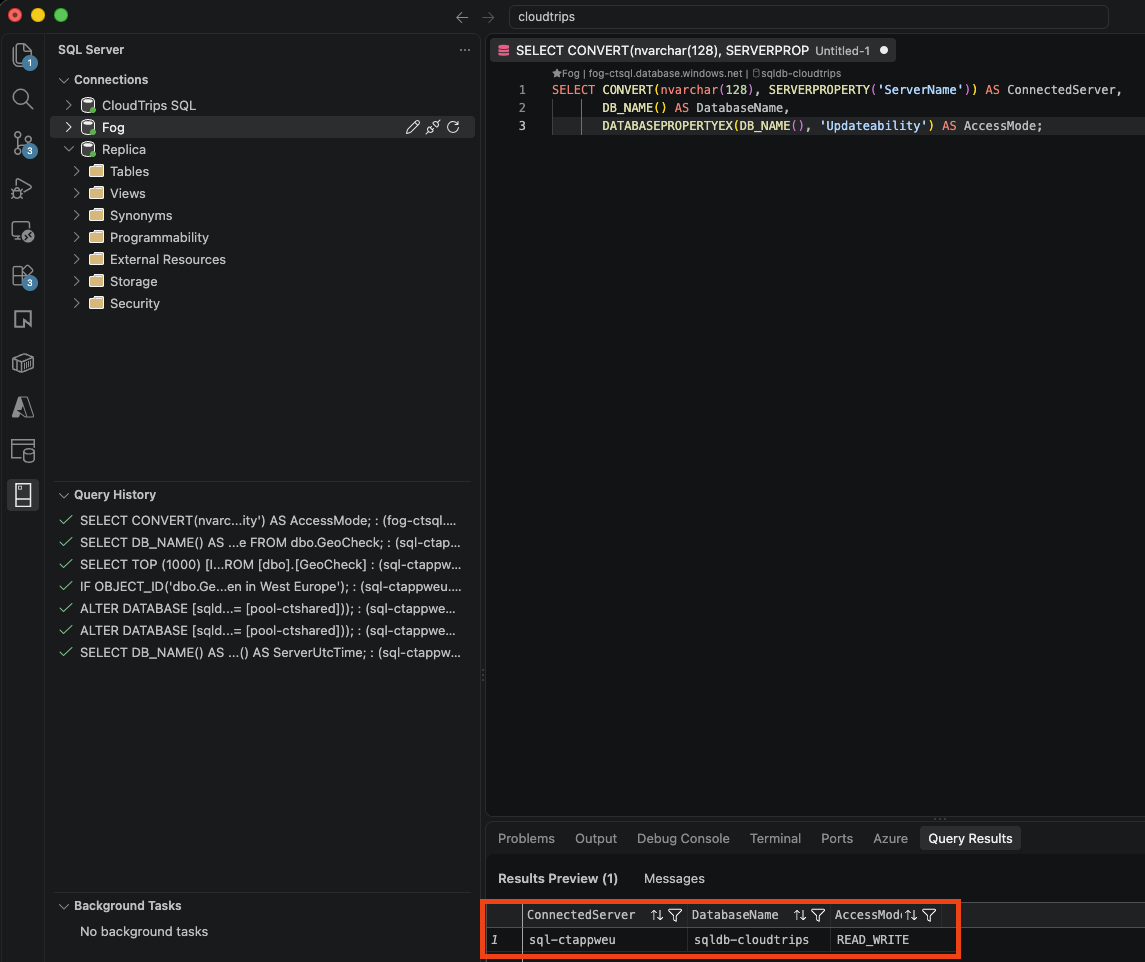
Expect the current primary sql-ctappweu, database sqldb-cloudtrips, and READ_WRITE. The listener is the address your application should use.
Test a Planned Failover
With both databases healthy, open the group’s page and select Failover, confirming the planned operation. It synchronizes data before switching roles and disconnects existing sessions.
Wait until sql-ctappfrc is primary. Reconnect using the same listener address and rerun the query above.
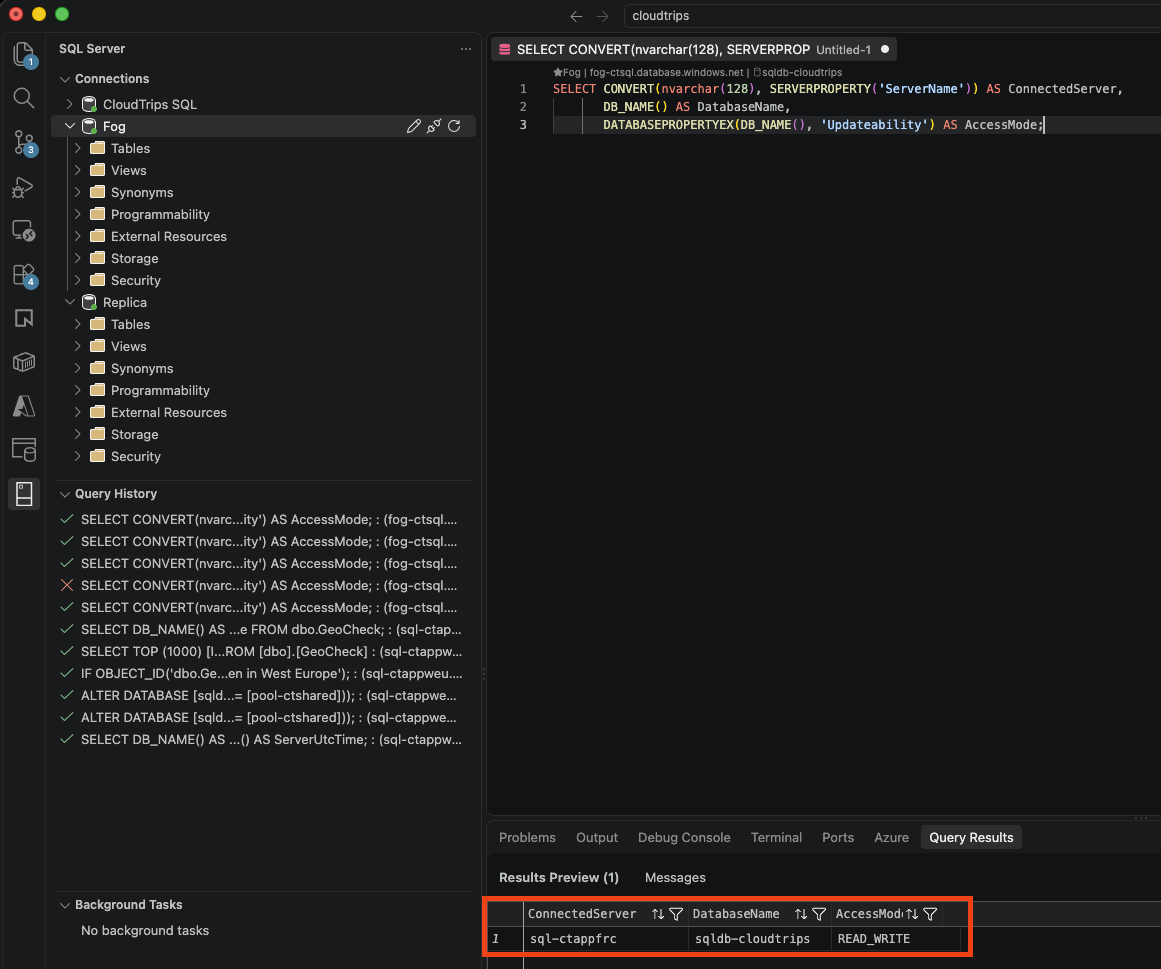
Expect sql-ctappfrc and READ_WRITE. The server changed while your connection address stayed the same. DNS updates and reconnects take time; applications need retry handling. This tests a planned role switch; the Microsoft-managed regional-outage trigger remains untested.
Return or Clean Up
Once replication is healthy, select Failover again to return the primary to West Europe. Keep the pair for later labs, or delete the failover group, stop the remaining geo-replication link, and delete the secondary’s lab resource group rg-cloudtrips-sql-dr-frc. Deleting the group preserves the databases and replication. Delete the primary’s lab resources too when finished; retained databases remain billable.