App Needs PostgreSQL? Create PostgreSQL Server
Your application already uses PostgreSQL drivers and queries, and needs a shared database that keeps its data when the app restarts. Running the database yourself also means maintaining a server, applying patches, and managing backups. Azure Database for PostgreSQL Flexible Server runs PostgreSQL as a managed service, letting you focus on the application’s tables and queries.
Create the Server
In the Azure portal, open Azure Database for PostgreSQL flexible servers → Create and configure:
Resource group: rg-cloudtrips-pg-test-weu (new)
Server name: pg-ctappweu (globally unique)
Region: West Europe
PostgreSQL version: 17
Workload type: Development
Availability zone: No preference
Authentication: PostgreSQL authentication only
Admin username: ctadmin
Choose and save a strong admin password. Under Compute + storage, choose Burstable, B1ms if available, and 32 GiB storage. Keep backup retention at 7 days and review the displayed cost. Burstable capacity suits a small lab with occasional CPU peaks; sustained heavy workloads need more capacity.
Availability zone selects where the server is placed within the region; No preference lets Azure choose. High availability adds a standby server and requires General Purpose or Memory Optimized.
Allow Your Computer
On Networking, choose Public access (allowed IP addresses) and enable public access. Add your current client IP as a firewall rule with identical start and end addresses. Leave access from other Azure services disabled. Select Review + create → Create.
After deployment, open the server’s Networking page.
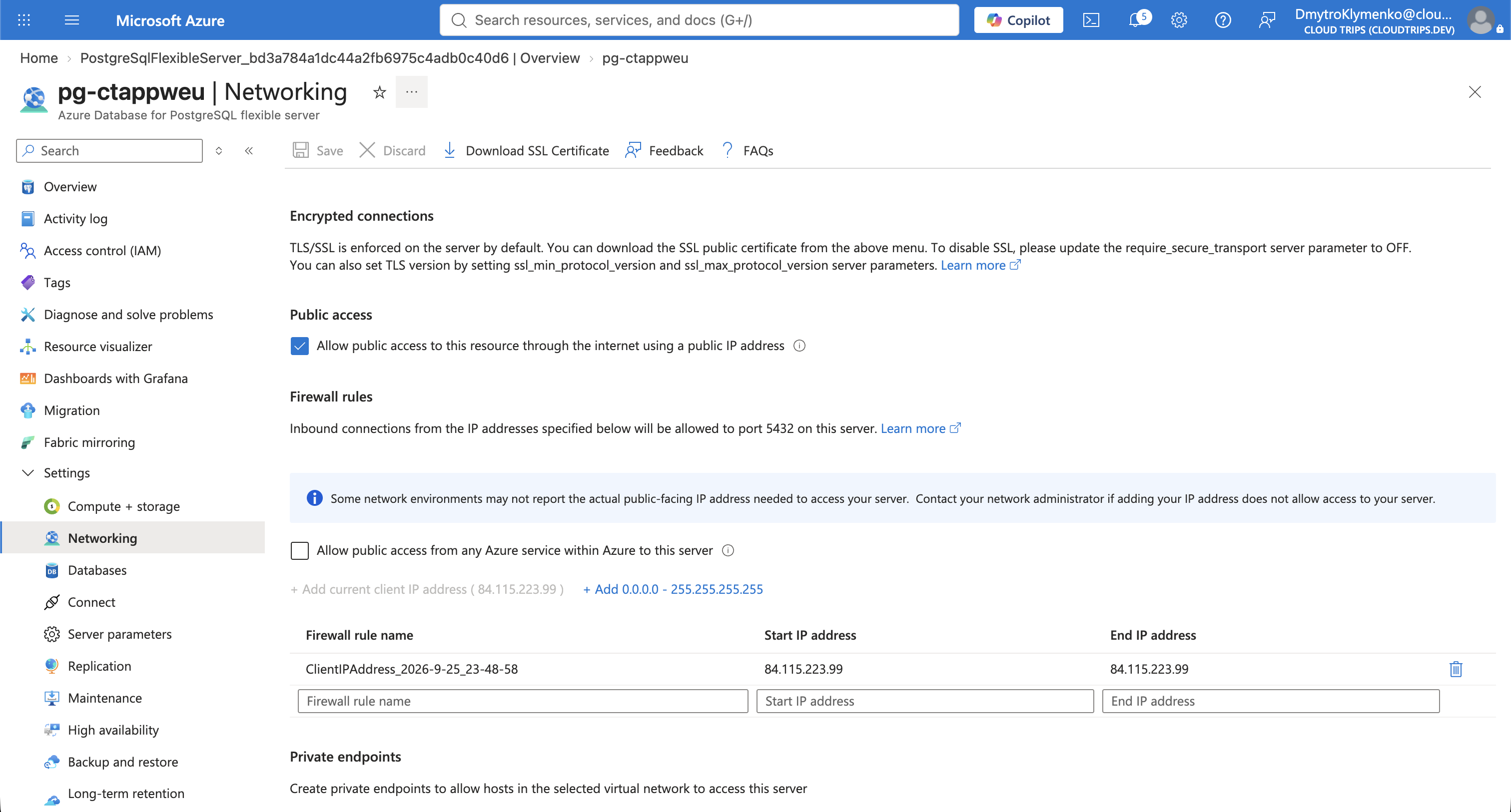
Check the rule matches your public IP. PostgreSQL connections use TCP port 5432; your local network must allow outbound access. Update the rule if your public IP changes.
Connect from VS Code
Install the PostgreSQL extension published by Microsoft. Open its sidebar, choose Add Connection, and enter:
Server: pg-ctappweu.postgres.database.azure.com
Port: 5432
Database: postgres
Authentication: Password
User: ctadmin
Password: your PostgreSQL admin password
Use your actual server name. Under Advanced Connection Settings → SSL, choose SSL root certificate mode: System and SSL mode: Verify-Full, then connect. This encrypts traffic and validates the server certificate and hostname.
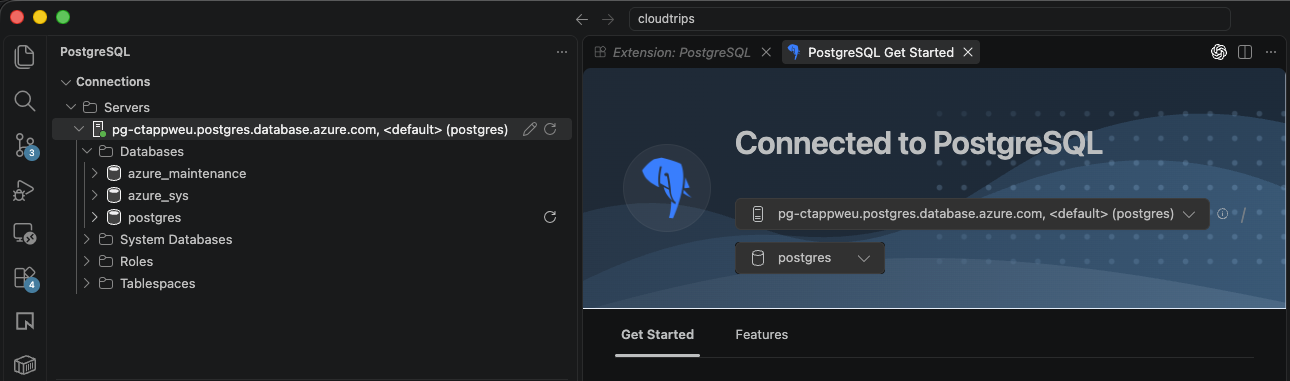
Confirm the connection succeeds and the database is postgres, the default database created with the server. Your Azure portal login and this PostgreSQL login serve different purposes.
Create the App Database and Test It
Open a query on postgres and run this statement by itself:
CREATE DATABASE appdb;Successful execution creates the database. Refresh the connection tree, select appdb, and open a new query connected to it. Run once:
CREATE TABLE products (
    product_id integer GENERATED ALWAYS AS IDENTITY PRIMARY KEY,
    name text NOT NULL,
    price numeric(10,2) NOT NULL CHECK (price >= 0)
);
INSERT INTO products (name, price) VALUES ('Notebook', 12.50);
SELECT current_database() AS database_name, product_id, name, price
FROM products;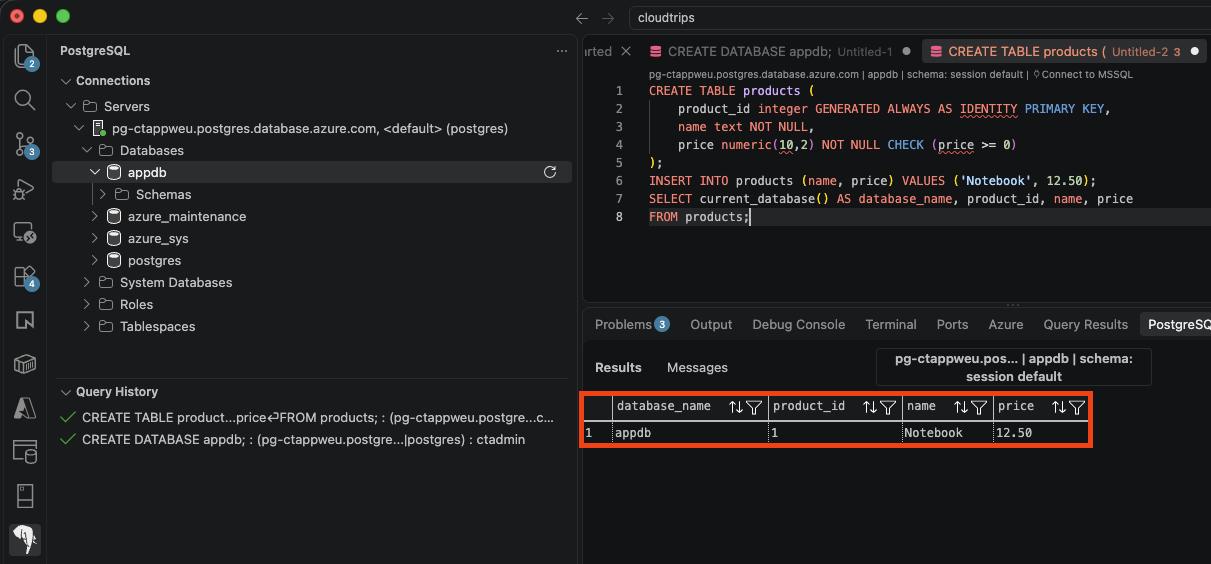
Expect appdb, 1, Notebook, and 12.50. PostgreSQL generated the ID and stored the row. The application can use the same server endpoint with database appdb; give it its own login with permissions limited to its tasks.
Clean Up
Keep the server for the next PostgreSQL trip, or delete rg-cloudtrips-pg-test-weu and confirm deletion completes. Disconnecting VS Code leaves the server running and billable.