Large-Scale Analytics Workspace Needed? Create a Synapse Workspace
A team collects sales files from many systems. Analysts need totals across those files, while engineers prepare data and coordinate processing. Azure Synapse Analytics brings SQL queries, Spark processing, and data pipelines into one workspace. This small lab uses its built-in serverless SQL pool to query a file directly in storage; the same approach can query larger collections of files.
Data Factory, Stream Analytics, and Synapse
| Data Factory | Stream Analytics | Synapse Analytics | |
|---|---|---|---|
| Main purpose | Move and transform data through workflows | Process incoming events continuously | Query and analyze large datasets using SQL and Spark |
| Typical task | Copy daily sales files, clean them, load a database | Detect temperature readings above 30°C as they arrive | Calculate sales totals across thousands of files |
| How it runs | A pipeline starts, performs steps, and finishes | A job keeps running and processing events | Queries, processing jobs, and pipelines run as needed |
| Your trip | Copy and filter sales.csv | Filter temperature messages | Query sales.csv directly in storage |
They overlap: Synapse includes data pipelines based on Data Factory technology, alongside SQL and Spark capabilities.
They can also work together: Data Factory collects historical files; Stream Analytics processes live events; Synapse analyzes the stored results.
Create the Workspace
In Azure Portal, open Azure Synapse Analytics → Create:
Resource group: rg-cloudtrips-synapse-test-weu
Managed resource group: leave blank
Workspace name: syn-ctappweu
Region: West Europe
Data Lake Storage Gen2 account → Create new: stctsynapseweu
File system → Create new: workspace
Assign myself Storage Blob Data Contributor: Checked
Adjust globally unique names if taken. The file system is a storage container. Data Lake Storage Gen2 adds a hierarchical folder structure to Blob storage for analytics workloads.
On Security, use SQL administrator ctadmin and securely save your chosen password if requested. On Networking, keep the managed virtual network disabled for this lab, enable public access, and allow your current client IP. Keep Git configuration for later. Review and create the workspace.
After deployment, open Overview → Open Synapse Studio. Under Manage → SQL pools, locate Built-in.
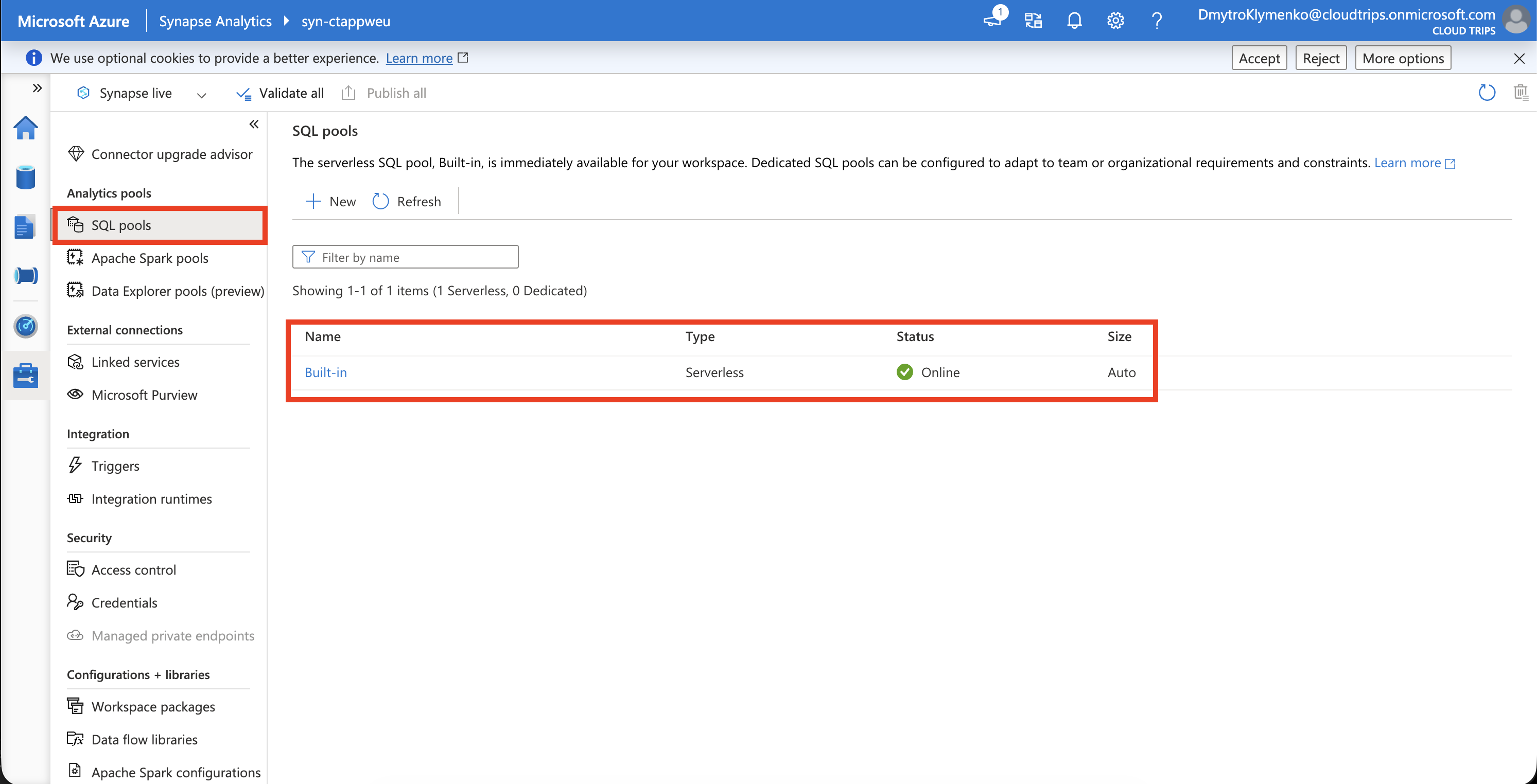
Built-in is ready for queries and charges by data processed. Use it for this exercise; dedicated SQL pools and Spark pools are additional compute options.
Upload the Sample
On stctsynapseweu → Access control (IAM), confirm Storage Blob Data Contributor for your user and the workspace’s managed identity syn-ctappweu. Add missing assignments and allow a few minutes for propagation. Your signed-in identity will read the file for this query.
Save this as sales.csv, or reuse the same file from the ADF trip:
order_id,product,amount
1,Notebook,12.50
2,Pen,2.00
In Synapse Studio, open Data → Linked → Azure Data Lake Storage Gen2 → your primary storage → workspace. Upload sales.csv directly into that container.
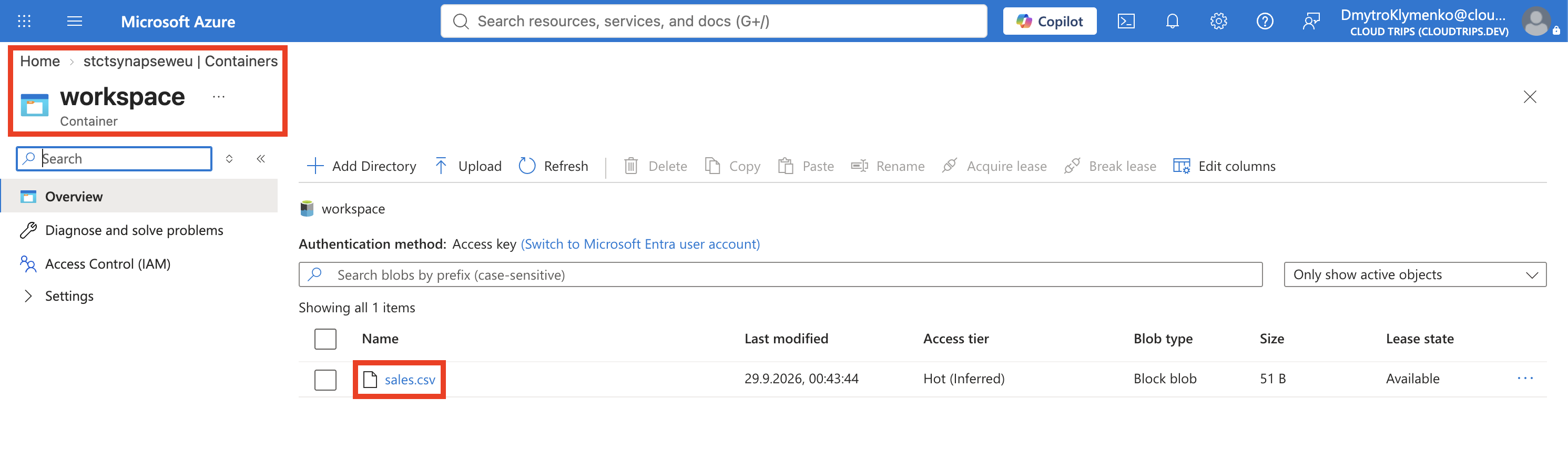
Check that the filename is sales.csv at the container root. The file holds the two sales records that the SQL query will read.
Query the File
Open Develop → + → SQL script. Name it sales-summary, set Connect to: Built-in and Use database: master, and use your signed-in Microsoft Entra account. Run this query, replacing the storage name if you changed it:
SELECT COUNT(*) AS SaleCount,
       SUM(amount) AS TotalAmount
FROM OPENROWSET(
    BULK 'https://stctsynapseweu.dfs.core.windows.net/workspace/sales.csv',
    FORMAT = 'CSV',
    PARSER_VERSION = '2.0',
    FIRSTROW = 2
)
WITH (
    order_id int,
    product varchar(100),
    amount decimal(10,2)
) AS sales;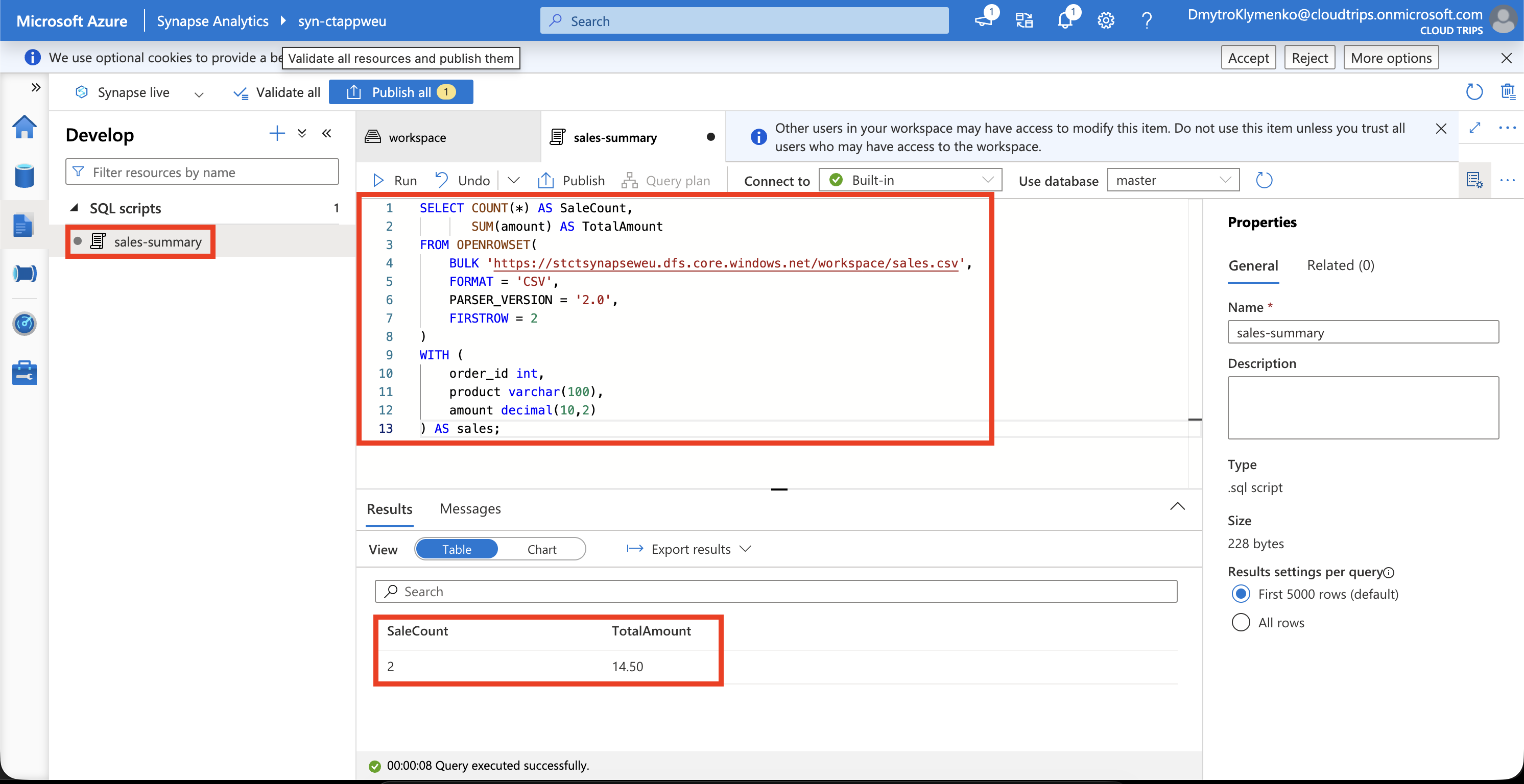
Expect SaleCount = 2 and TotalAmount = 14.50. OPENROWSET reads the file, FIRSTROW = 2 skips its header, and WITH defines the column types. SQL sums the amounts directly from storage. Select Publish all to save the script in the workspace.
If the SQL endpoint blocks your connection, open the workspace’s Networking page in Azure Portal, add your current client IP, and save. A storage access error requires checking your user’s Blob data role and the file path.
Finish
Serverless queries incur data-processing charges, including a minimum chargeable data size per query; storage incurs separate charges. Keep the workspace for further exercises or delete rg-cloudtrips-synapse-test-weu to remove the workspace and its storage.