Costs Need Department Tracking? Apply Azure Tags
Azure costs are visible by subscription and resource group, but finance also needs to know which department owns each charge.
Add a consistent business tag to the resources:
Tag name: Department
Tag value: Engineering
This trip uses:
Subscription: Azure subscription 1
Resource group: rg-customer-portal-dev-weu
Resource: stcloudtripsdev01
Plan the Tag
Azure tags are plain-text key-value pairs attached to subscriptions, resource groups, and supported resources. They add business context that Azure resource names do not always contain.
Define the allowed name and values before applying tags:
| Tag name | Example values |
|---|---|
Department |
Engineering, Finance, Marketing |
Use the same capitalization and spelling everywhere. Do not create variants such as department, Dept, and Engineering Team, because they can split cost reports into separate groups.
Tags are stored as plain text and can appear in exports, deployment history, APIs, and cost reports. Never store passwords, secrets, personal data, or other sensitive information in tag values.
Tag the Resource Group
In the Azure portal, open:
Resource groups
> rg-customer-portal-dev-weu
> Tags
Add:
Name: Department
Value: Engineering
Select Apply or Save, depending on the portal view.
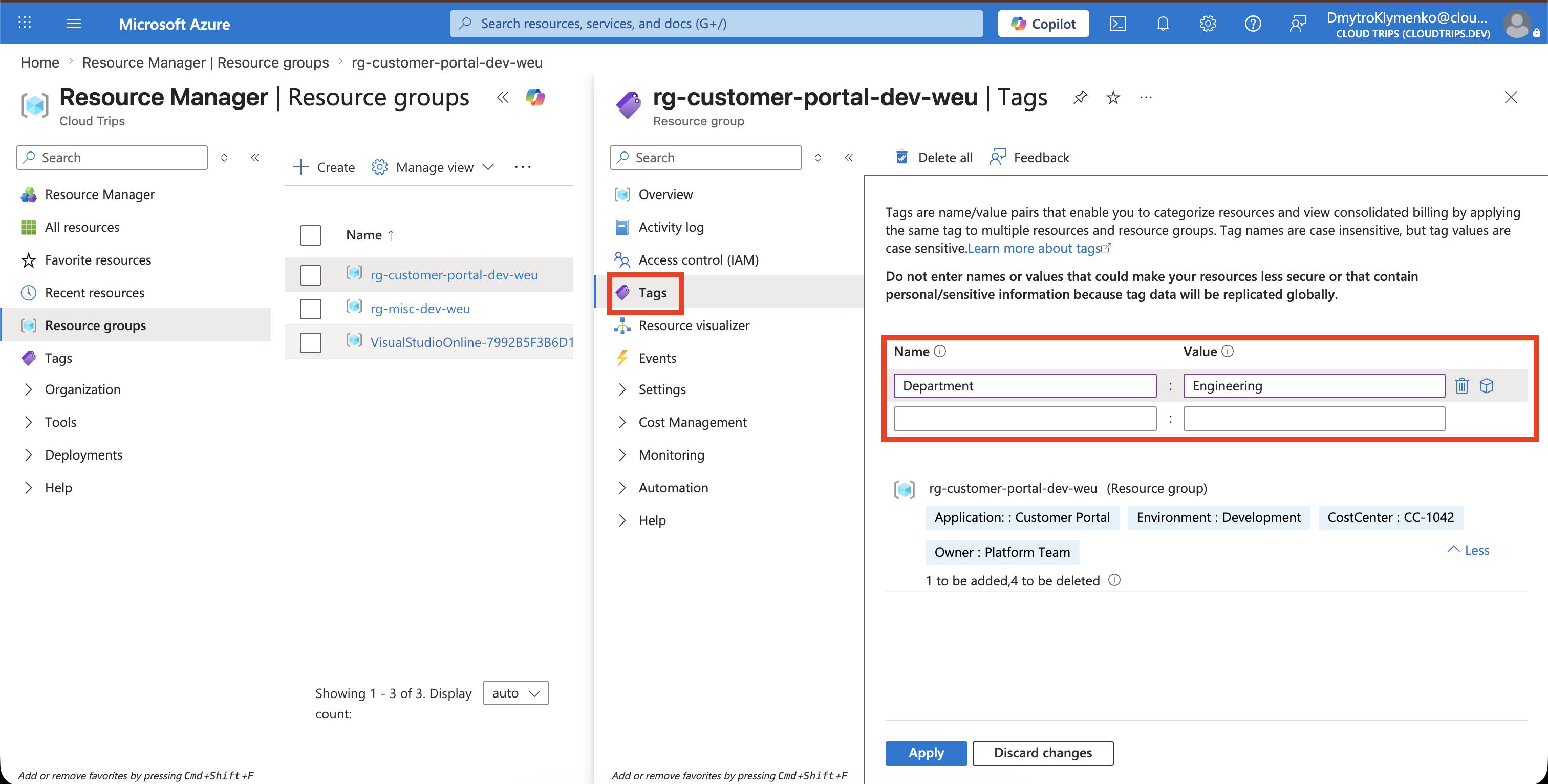
The resource-group tag describes ownership of the group. By default, it is not automatically inherited by resources inside that group.
Tag the Cost-Generating Resources
Open the storage account:
Storage accounts
> stcloudtripsdev01
> Tags
Add the same tag and save:
Department: Engineering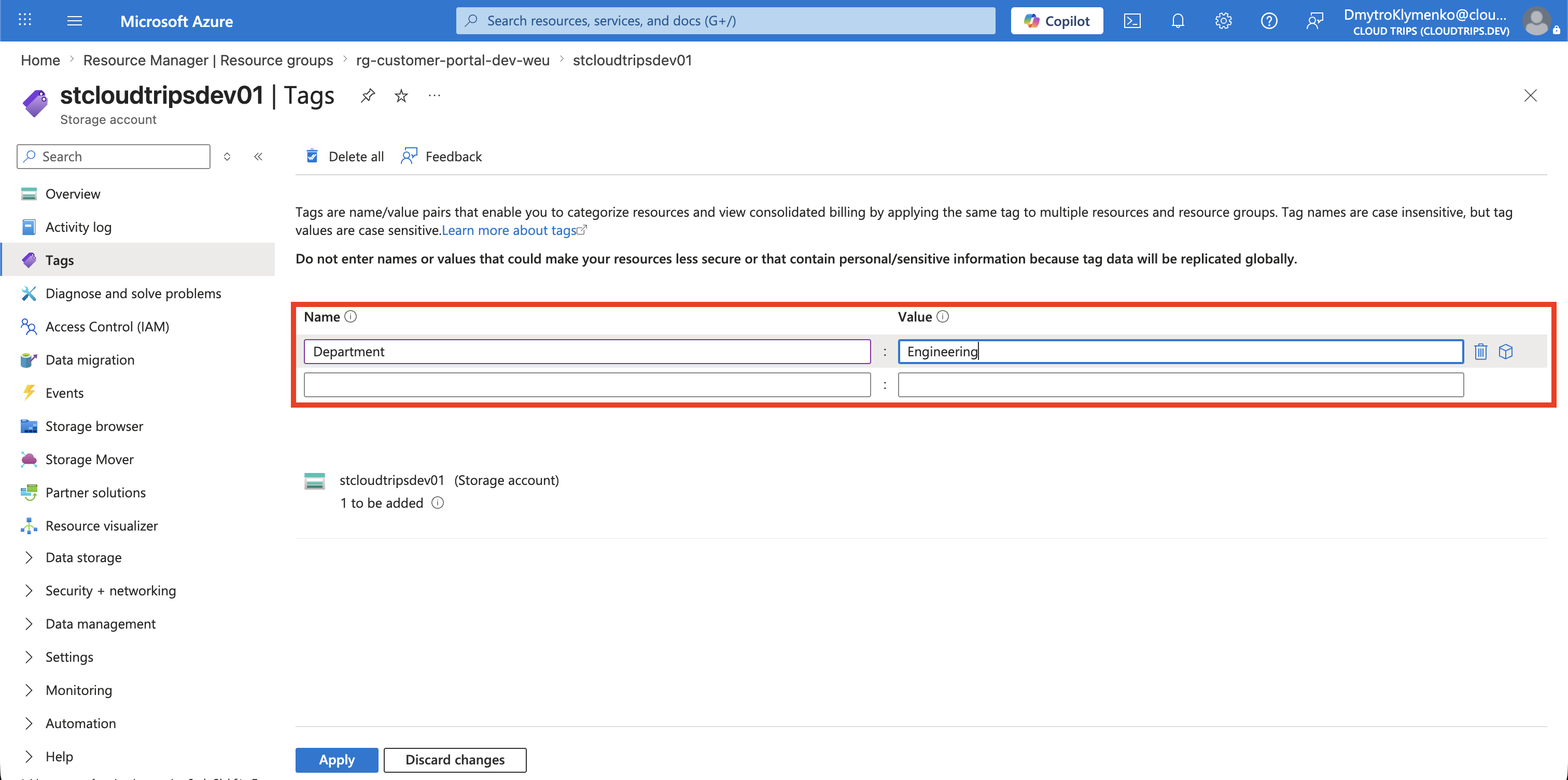
Repeat this for every supported resource whose cost should be allocated to Engineering. Some resource types do not support tags or do not emit their tags into cost data, so validate support for the services in use.
When tagging many existing resources, use the Azure portal’s Tags service, Azure CLI, PowerShell, Resource Graph-based workflows, or automation instead of editing resources one at a time.
Verify Tag Coverage
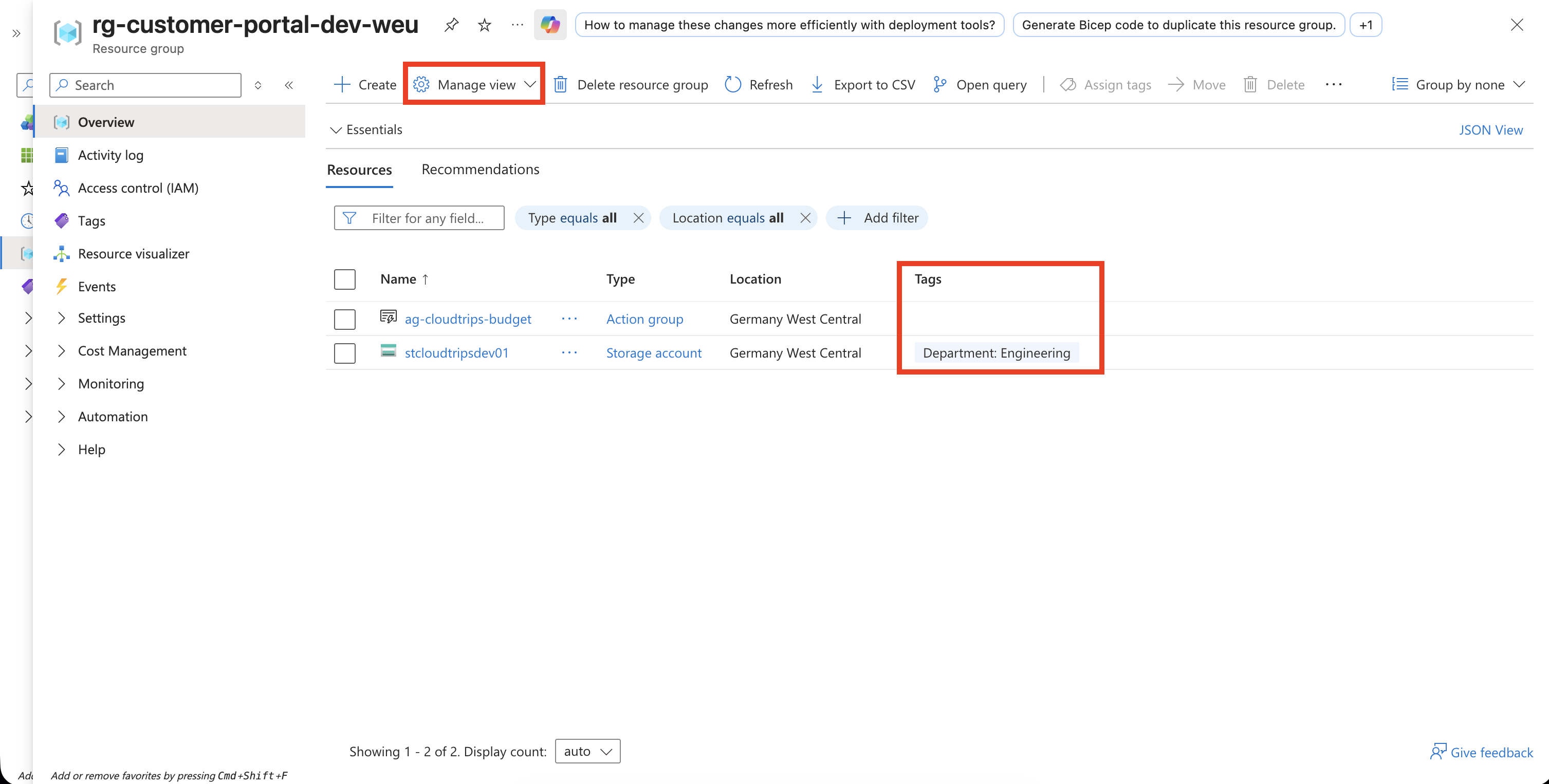
Open the resource group and review its resource list. Display the Tags column or use the portal’s Tags view to find resources missing Department.
Confirm that:
- the tag name is exactly
Department - the intended value is
Engineering - all cost-generating resources are covered
- shared resources use an agreed ownership or allocation rule
Optional: Enable Tag Inheritance in Cost Management
You do not need tag inheritance when Department: Engineering is applied directly to every cost-generating resource. The directly tagged storage account can appear in cost data after it generates usage and Cost Management processes that usage.
Open the standalone Cost Management service from the Azure portal search. Select the green Cost Management service, not Cost Management + Billing.
Then go to:
Cost Management
> Scope
> Azure subscription 1
> Settings
> Manage subscription
> Tag inheritance
> Edit
Enable automatic application of subscription and resource-group tags to new cost data, then save.
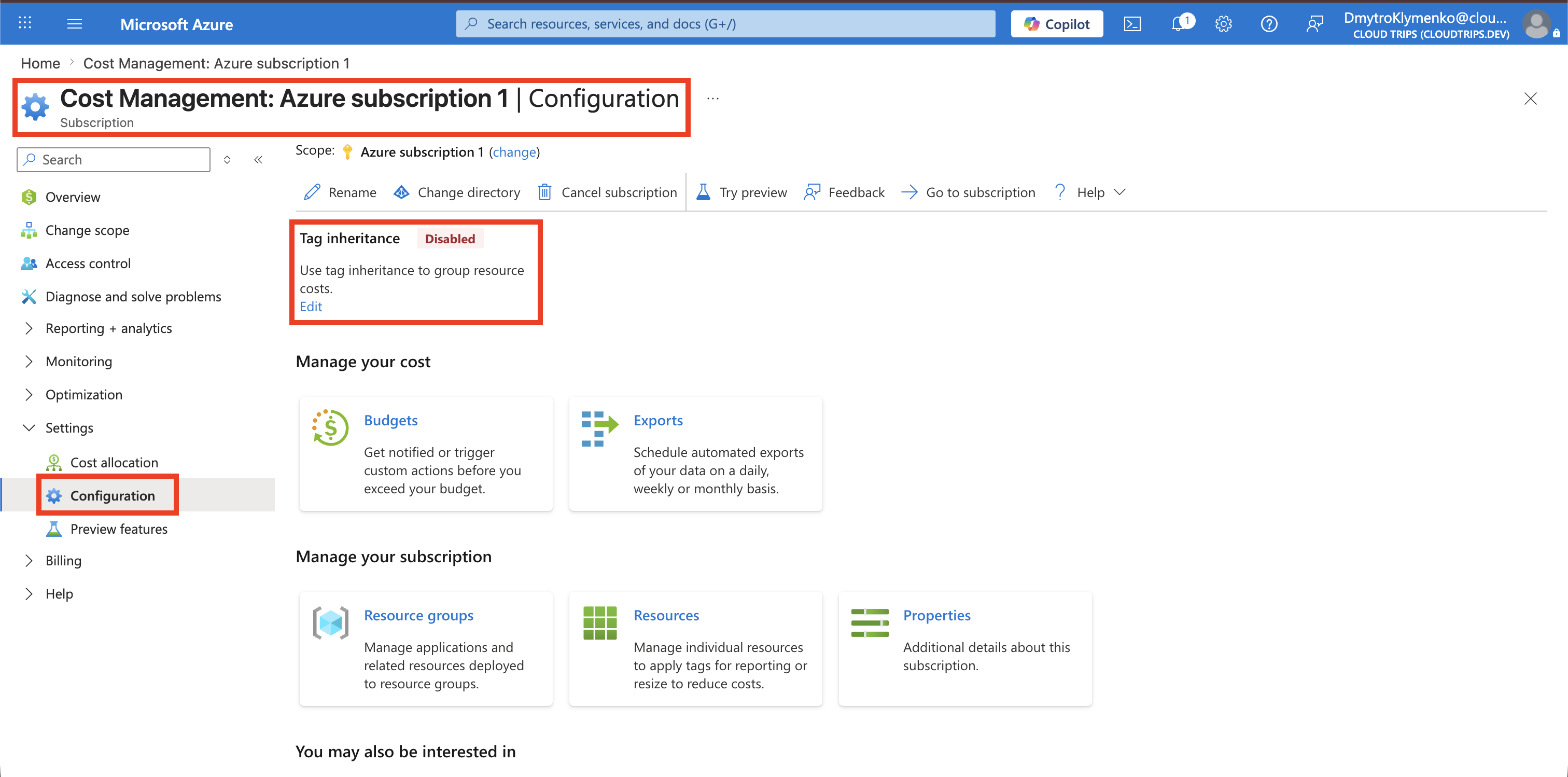
Tag inheritance copies tags into Cost Management usage records; it does not physically add them to the Azure resources. Updates can take 8–24 hours and apply to usage records for the current month.
If a resource already has the same tag name with another value, review the available precedence option and decide whether the resource value or inherited value should be used in cost data.
View Costs by Department
Open:
Azure subscription 1
> Cost Management
> Cost analysis
Open the Group by selector and look for the Department tag.
Group by: Tag
Tag: Department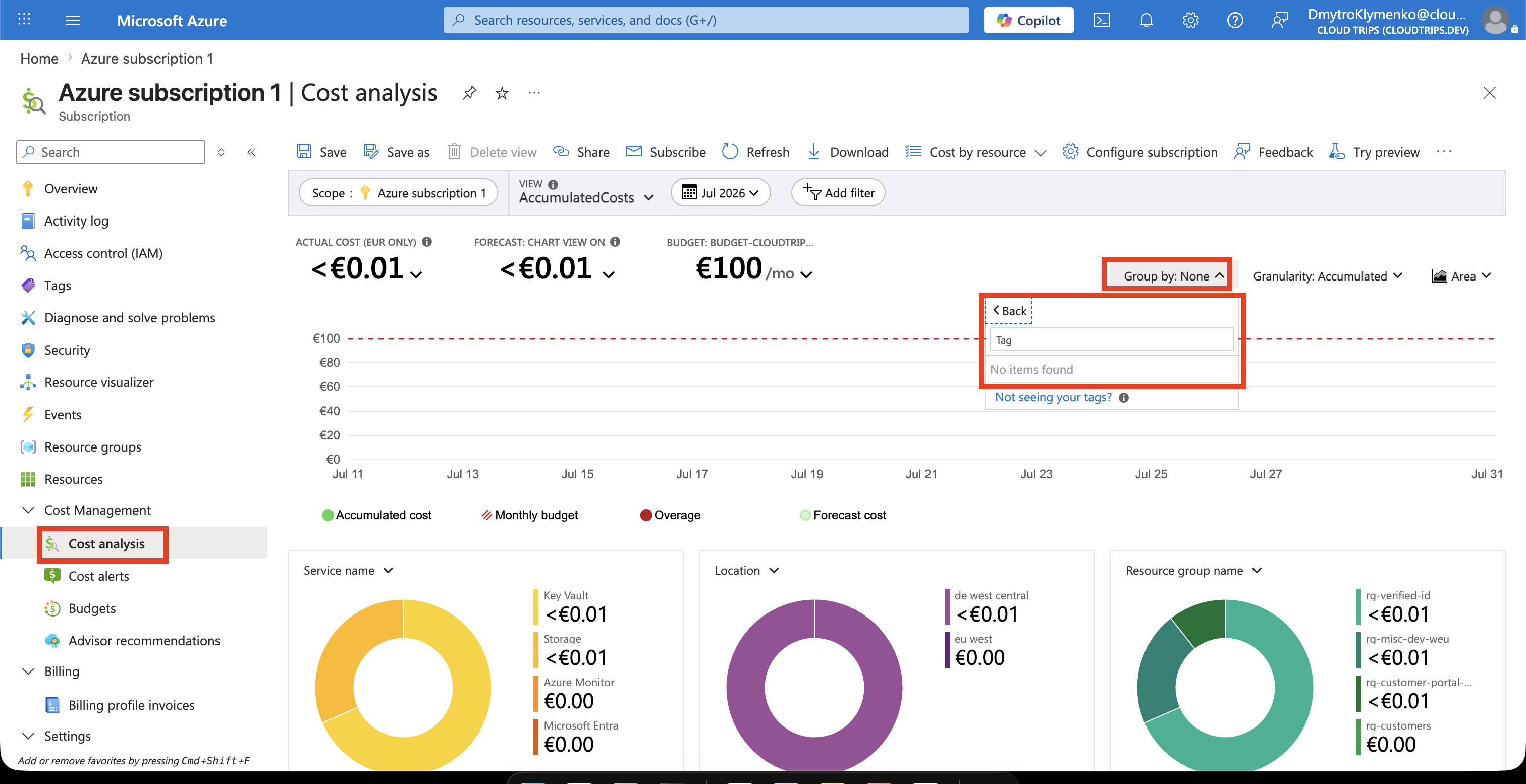
It is valid for Department to be missing in this screenshot immediately after tagging. Cost Analysis only shows a tag after processed cost records contain that tag.
Wait at least 8–24 hours, refresh Cost Analysis, and use a date range containing billable storage usage generated after stcloudtripsdev01 was tagged. Pay-as-you-go usage data can sometimes take longer to appear.
After processing completes, select Department and confirm that Engineering costs appear together. Investigate any Untagged or empty group; it can indicate a missing tag, historical usage from before tagging, an unsupported resource type, delayed cost data, or usage that does not carry resource tags.
Manual tagging solves the immediate need. For ongoing governance, use Azure Policy in a separate trip to require or inherit approved tags during resource deployment.