New Subscriptions Must Be Consistent? Configure Subscription Vending
Creating subscriptions manually can produce inconsistent names, owners, budgets, tags, and management-group placement. A new TEST or PROD subscription might therefore start without the governance already used by DEV.
Subscription vending is an automated request-and-provisioning process. An application team requests a subscription, an authorized owner approves it, and automation creates and prepares it consistently.
There is no Configure subscription vending page in the Azure portal. This trip adds a small Git-based vending workflow to the existing CloudTrips repository and uses the Azure Verified Modules (AVM) subscription-vending module for deployment.
The workflow is:
Subscription request
→ Review and approval
→ Deployment pipeline
→ Create and configure subscription
→ Place it under Online
→ Hand it to the application team
Understand What You Need to Build
Subscription vending is not enabled by creating one YAML file. For this trip, build three connected parts in the CloudTrips GitHub repository:
- Product-line file — documents the allowed subscription names, environments, destination management group, tags, and budget requirement.
- Request file — asks for one subscription, such as CloudTrips TEST.
- Automation — a Bicep template and GitHub Actions workflow validate the approved request and call Azure to create and configure the subscription.
The YAML files contain data only. They do nothing in Azure until automation validates them and maps approved values to the Bicep subscription-vending module. The minimal workflow in this trip validates fixed request fields; a production implementation should parse the product-line file instead of duplicating its rules in shell checks.
Use the existing cloudtrips repository. Do not create a second repository. In GitHub, use Add file > Create new file to create the files shown below. GitHub creates a folder when its name is included in the file path.
Use this initial structure:
cloudtrips/
├── cloudtrips-subscription-vending/
│   ├── product-lines/
│   │   └── cloudtrips-online.yaml
│   ├── requests/
│   │   └── cloudtrips-test.yaml
│   └── infra/
│       └── main.bicep
└── .github/
    └── workflows/
        └── vend-subscription.yml
The workflow belongs in the repository-level .github/workflows directory. Do not place another .github directory inside cloudtrips-subscription-vending. The following sections fill these files. Creating the request files is safe; running the deployment requires the billing permissions listed next.
Check the Prerequisites
CloudTrips uses a Microsoft Customer Agreement (MCA). Before creating automation, confirm:
- you can access the MCA billing account and an invoice section
- the
mg-cloudtrips-onlinemanagement group exists - CloudTrips DEV is already under
mg-cloudtrips-online - an authorized reviewer owns the approval step
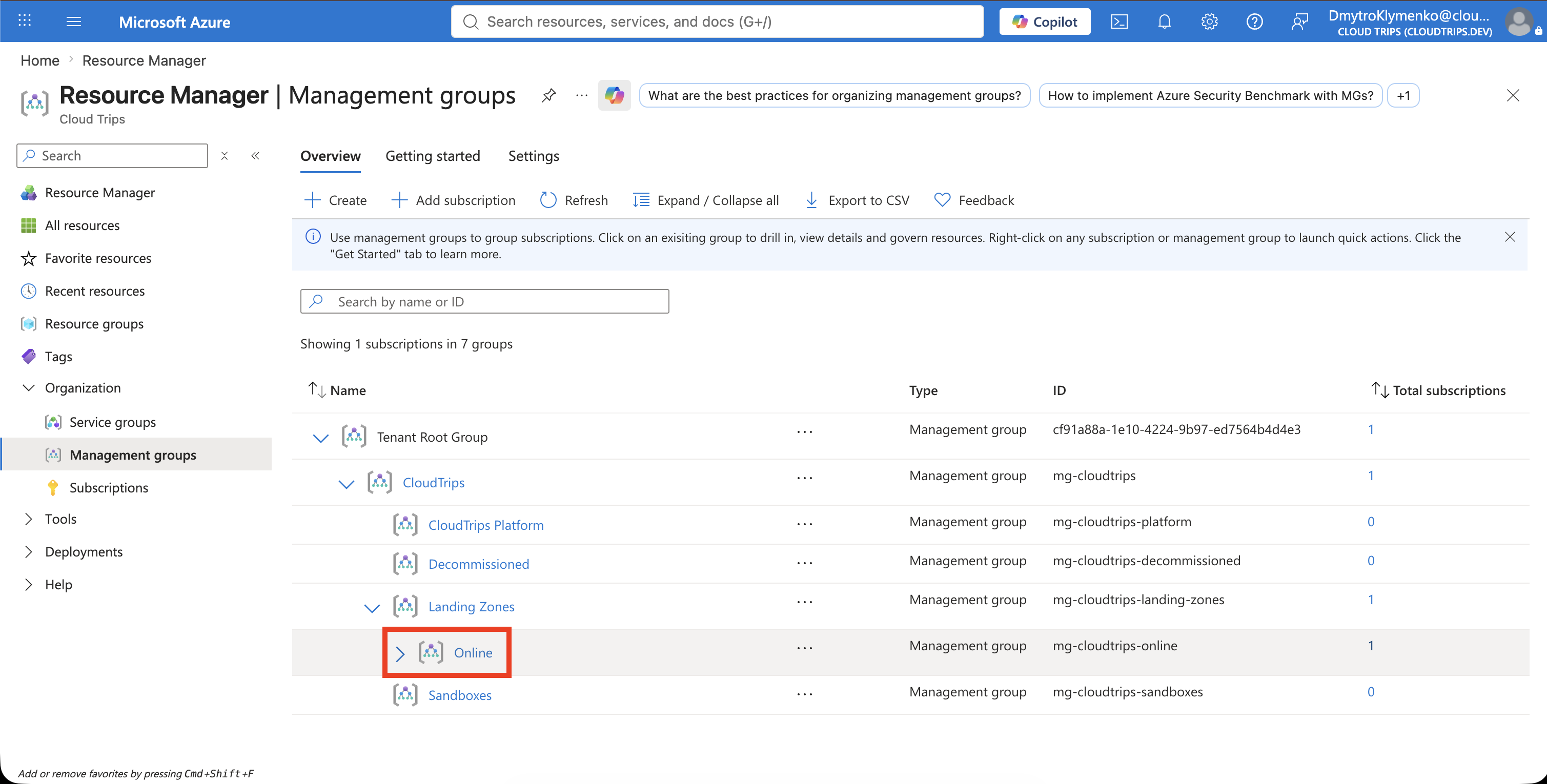
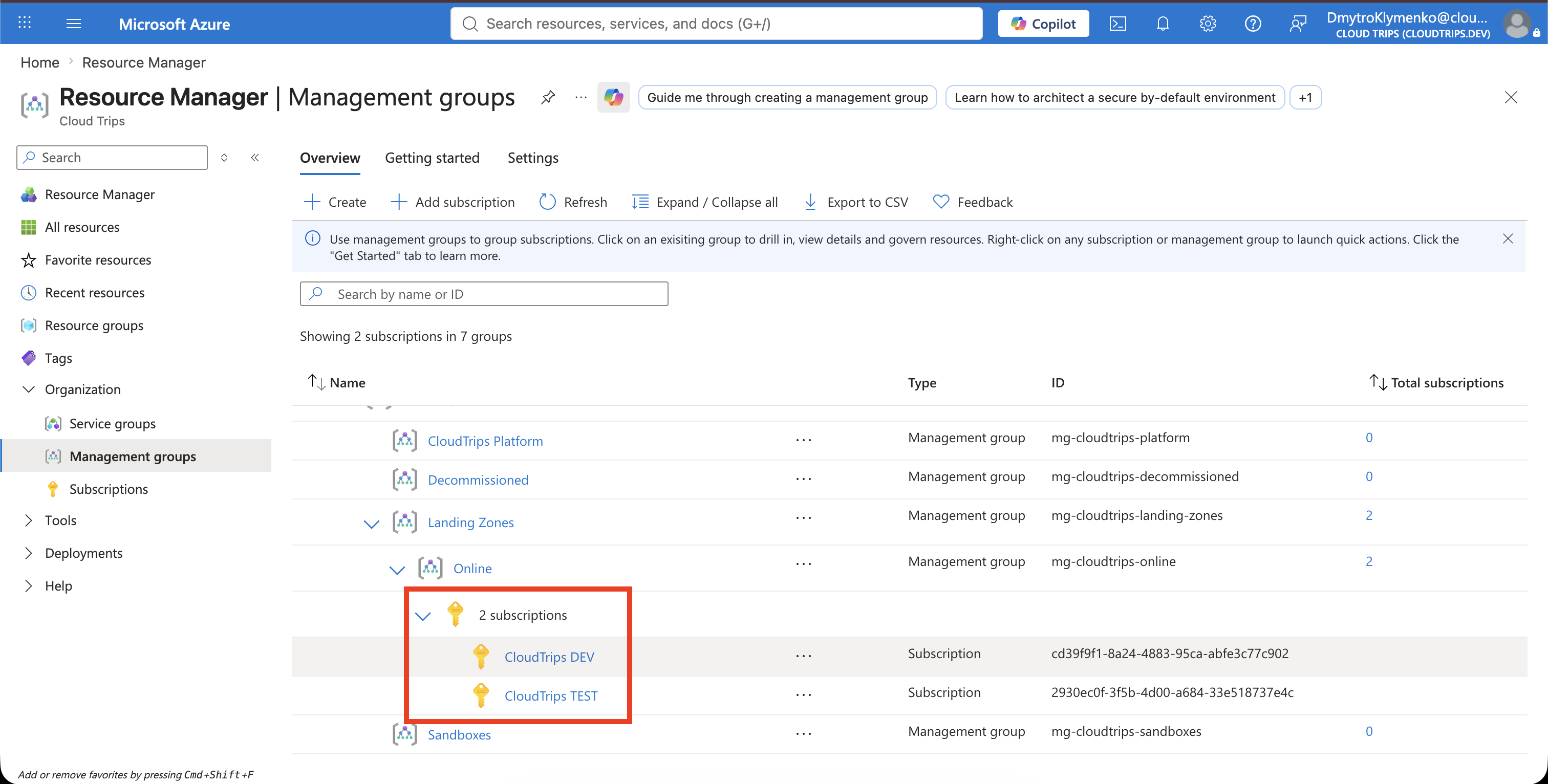
Confirm the management-group hierarchy shows:
CloudTrips
└── Landing Zones
    └── Online
        └── CloudTrips DEV
Capture the hierarchy with Online expanded and CloudTrips DEV visible. This proves that the approved destination exists before the vending workflow creates CloudTrips TEST.
Create the GitHub Deployment Identity
Use workload identity federation so GitHub signs in to Azure without storing a client secret:
-
In Microsoft Entra ID, open App registrations and select New registration.
-
Enter
sp-cloudtrips-sub-vending, keep the app single-tenant, and select Register. -
Copy the Application (client) ID and Directory (tenant) ID. The client ID comes from the app registration; it is not the enterprise application’s object ID.
-
Open Certificates & secrets > Federated credentials, select Add credential, and choose GitHub Actions deploying Azure resources.
-
Enter your GitHub account details. The current Entra form requires both names and numeric IDs. For a repository owned by a personal account, enter that account under Organization:
Organization: YOUR-GITHUB-OWNER
Organization ID: YOUR-GITHUB-OWNER-ID
Repository: cloudtrips
Repository ID: YOUR-GITHUB-REPOSITORY-ID
To retrieve the IDs, run these commands in a terminal after
gh auth login:gh api users/YOUR-GITHUB-OWNER --jq .id gh api repos/YOUR-GITHUB-OWNER/cloudtrips --jq .id -
Select Environment as the entity type and enter
subscription-vending-production. This must exactly match the deployment job’senvironmentvalue. -
The subject must match the assertion emitted by GitHub. This existing repository emits the name-based subject below. If Entra generates a subject containing
@and numeric IDs, switch Subject identifier to manual entry and use:Issuer: https://token.actions.githubusercontent.com Subject: repo:dmitri-klimenko/cloudtrips:environment:subscription-vending-production Audience: api://AzureADTokenExchangeNewer repositories can emit an immutable subject containing the numeric IDs. In that case, use the exact subject printed by the GitHub workflow instead.1
-
Create the credential.
No client secret is required.
Return to the MCA Invoice section > Access control (IAM). Select Add, choose Azure subscription creator, and assign it to the enterprise application for sp-cloudtrips-sub-vending. The role must be assigned on the exact invoice section used in AZURE_BILLING_SCOPE. Azure resolves the assignment to the enterprise application’s service-principal object ID; this is different from the application/client ID used by azure/login.
The workflow creates a management-group deployment at mg-cloudtrips, and the module then associates the subscription with mg-cloudtrips-online. For this lab, assign the enterprise application Contributor at mg-cloudtrips. This provides the deployment validation and management-group operations that failed when the identity had access only elsewhere. In production, replace this broad lab assignment with a tested custom role containing only the required actions.
In the GitHub repository, open Settings > Secrets and variables > Actions. Under Repository secrets, not Variables, add:
AZURE_CLIENT_ID: Application ID of sp-cloudtrips-sub-vending
AZURE_TENANT_ID: Directory ID of the CloudTrips tenant
The workflow refers to these exact, case-sensitive names. Repository secrets are sufficient for this trip. Environment secrets with the same names also work for the subscription-vending-production job, but do not split the values between locations while troubleshooting.
Add the billing-scope resource ID as a repository secret:
AZURE_BILLING_SCOPEOpen Cost Management + Billing, open the MCA billing account, and then open the billing profile and invoice section where the new subscription’s charges should appear. Under Properties, copy the Billing account ID, Billing profile ID, and Invoice section ID. Join them into the complete resource ID:
/providers/Microsoft.Billing/billingAccounts/<billing-account-id>/billingProfiles/<billing-profile-id>/invoiceSections/<invoice-section-id>The invoice-section ID alone is not sufficient. Use the copy buttons so the billing-account value is not truncated. Alternatively, retrieve the complete ID with Azure CLI:
az billing invoice section list \
  --account-name <billing-account-name> \
  --profile-name <billing-profile-name> \
  --query "[].{name:name,displayName:displayName,id:id}" \
  --output table
Replace the placeholders with the name values returned by the preceding commands. Copy the complete id from the invoice-section result. It must end with:
/billingProfiles/<billing-profile-name>/invoiceSections/<invoice-section-name>In GitHub, open Settings > Secrets and variables > Actions > Repository secrets, select New repository secret, use AZURE_BILLING_SCOPE as the name, paste the complete invoice-section id as the value, and select Add secret.
Never echo secret values in the workflow for debugging. Check only whether each secret is present. GitHub masking is a safety net, not permission to print credentials or billing configuration.
Define the CloudTrips Product Line
A product line is the rule set that every request must follow. In the cloudtrips repository, create:
cloudtrips-subscription-vending/product-lines/cloudtrips-online.yamlAdd this configuration:
productLine: CloudTrips Online
managementGroupId: mg-cloudtrips-online
namingPattern: CloudTrips <ENVIRONMENT>
allowedEnvironments:
  - DEV
  - TEST
  - PROD
defaultOwner: DmytroKlymenko@cloudtrips.onmicrosoft.com
requiredTags:
  - Application
  - Environment
  - Owner
budgetRequired: true
networkDeployment: Per environment subscription
DEV, TEST, and PROD remain separate application landing-zone subscriptions. The vending process gives them the same baseline; it does not put their resources or virtual networks into one shared subscription.
Select Commit changes, commit directly to main, and add a message such as Define CloudTrips Online product line.
Create a Subscription Request
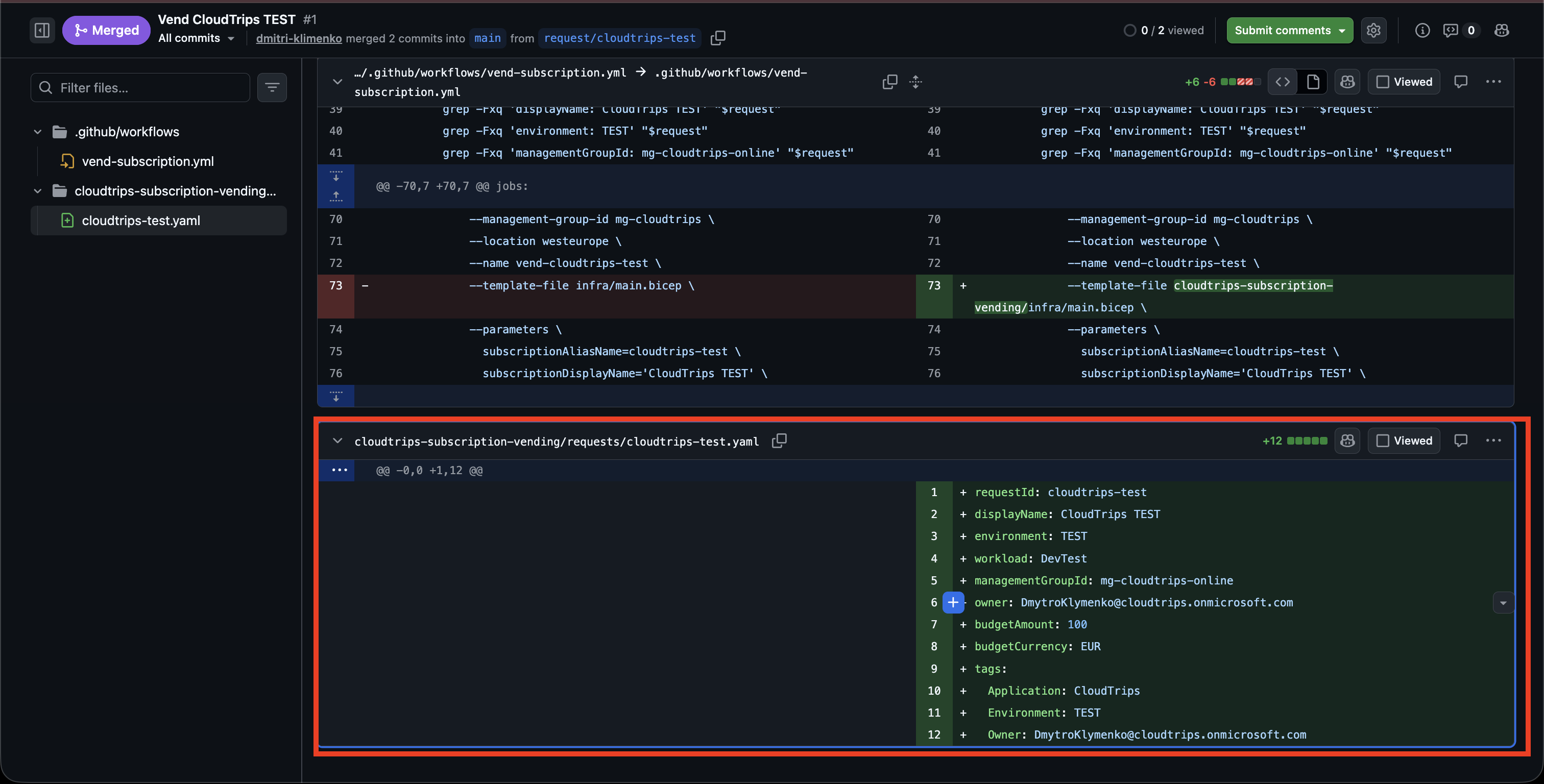
Store one reviewed request file for each subscription. For the next environment, create a request similar to:
requestId: cloudtrips-test
displayName: CloudTrips TEST
environment: TEST
workload: DevTest
managementGroupId: mg-cloudtrips-online
owner: DmytroKlymenko@cloudtrips.onmicrosoft.com
budgetAmount: 100
budgetCurrency: EUR
tags:
  Application: CloudTrips
  Environment: TEST
  Owner: DmytroKlymenko@cloudtrips.onmicrosoft.com
Create a branch named request/cloudtrips-test. Save the file as cloudtrips-subscription-vending/requests/cloudtrips-test.yaml, commit it to that branch, and select Compare & pull request. Use the title Vend CloudTrips TEST.
The request is input to the workflow, not an Azure deployment template. Keep the billing scope and credentials in protected GitHub configuration rather than committing secrets to the request file.
The pipeline should reject a request when a required field is missing, the environment is not allowed, the name does not match the pattern, or the management-group ID differs from the approved product line.
Use DevTest only when the MCA invoice section offers Microsoft Azure Plan for DevTest. Otherwise set workload: Production; this field selects the Azure plan and does not change the environment name TEST.
Connect the Deployment Automation
The platform engineer must now implement cloudtrips-subscription-vending/infra/main.bicep and .github/workflows/vend-subscription.yml. The Bicep file calls the supported Azure module; the workflow validates the request and authenticates to Azure for an explicitly approved manual deployment after the pull request is merged.
Start cloudtrips-subscription-vending/infra/main.bicep with a management-group deployment and the required inputs:
targetScope = 'managementGroup'

param subscriptionAliasName string
param subscriptionDisplayName string
@secure()
param subscriptionBillingScope string
param subscriptionManagementGroupId string
param subscriptionWorkload string = 'Production'
param subscriptionTags object

module subVending 'br/public:avm/ptn/lz/sub-vending:0.8.0' = {
  name: '${deployment().name}-sub-vending'
  params: {
    resourceProviders: {}
    subscriptionAliasEnabled: true
    subscriptionAliasName: subscriptionAliasName
    subscriptionBillingScope: subscriptionBillingScope
    subscriptionDisplayName: subscriptionDisplayName
    subscriptionManagementGroupAssociationEnabled: true
    subscriptionManagementGroupId: subscriptionManagementGroupId
    subscriptionTags: subscriptionTags
    subscriptionWorkload: subscriptionWorkload
  }
}
The outer workflow deployment is named vend-cloudtrips-test. The module must have a different nested deployment name, so this example produces vend-cloudtrips-test-sub-vending. Giving both deployments the same name causes Duplicate parent and nested deployment ID.
Version 0.8.0 is pinned by this trip. Test a newer module release before changing the pinned version.
Next, create .github/workflows/vend-subscription.yml at the root of the cloudtrips repository. Configure it to do two different jobs:
- On a pull request that changes
cloudtrips-subscription-vending/**or the workflow, validate Bicep and the approved request fields. This job must not create a subscription. - On a manual
workflow_dispatch, run validation first. Only run deployment when the operator sets the Booleandeployinput totrue. Sign in withazure/login, readAZURE_CLIENT_IDandAZURE_TENANT_IDfrom GitHub Secrets, and run a management-group deployment ofcloudtrips-subscription-vending/infra/main.bicep. PassAZURE_BILLING_SCOPEfrom GitHub Secrets instead of the request file.
Set permissions: id-token: write so GitHub can issue the OIDC token. Use allow-no-subscriptions: true in azure/login because the vending identity can sign in before it owns an Azure subscription. Use the explicit GitHub environment subscription-vending-production for the deployment job and configure a required reviewer in Settings > Environments.
Map the approved request to module parameters that perform these tasks in this minimal implementation:
- create the subscription with the display name CloudTrips TEST
- associate it with
mg-cloudtrips-online - apply the required subscription tags
The Owner value in this trip is a tag; it does not grant Azure’s Owner role. The request records budgetAmount, but this minimal template does not deploy a budget. Add explicit IAM and Cost Management modules before claiming those controls are automated.
Before merging, confirm the validation job is green and that the reviewed request contains:
Display name: CloudTrips TEST
Environment: TEST
Destination: mg-cloudtrips-online
Required tags: Present
Budget: Present
An authorized reviewer then approves the pull request. Select Merge pull request. The PR run should show the deployment job as skipped because PRs only validate.
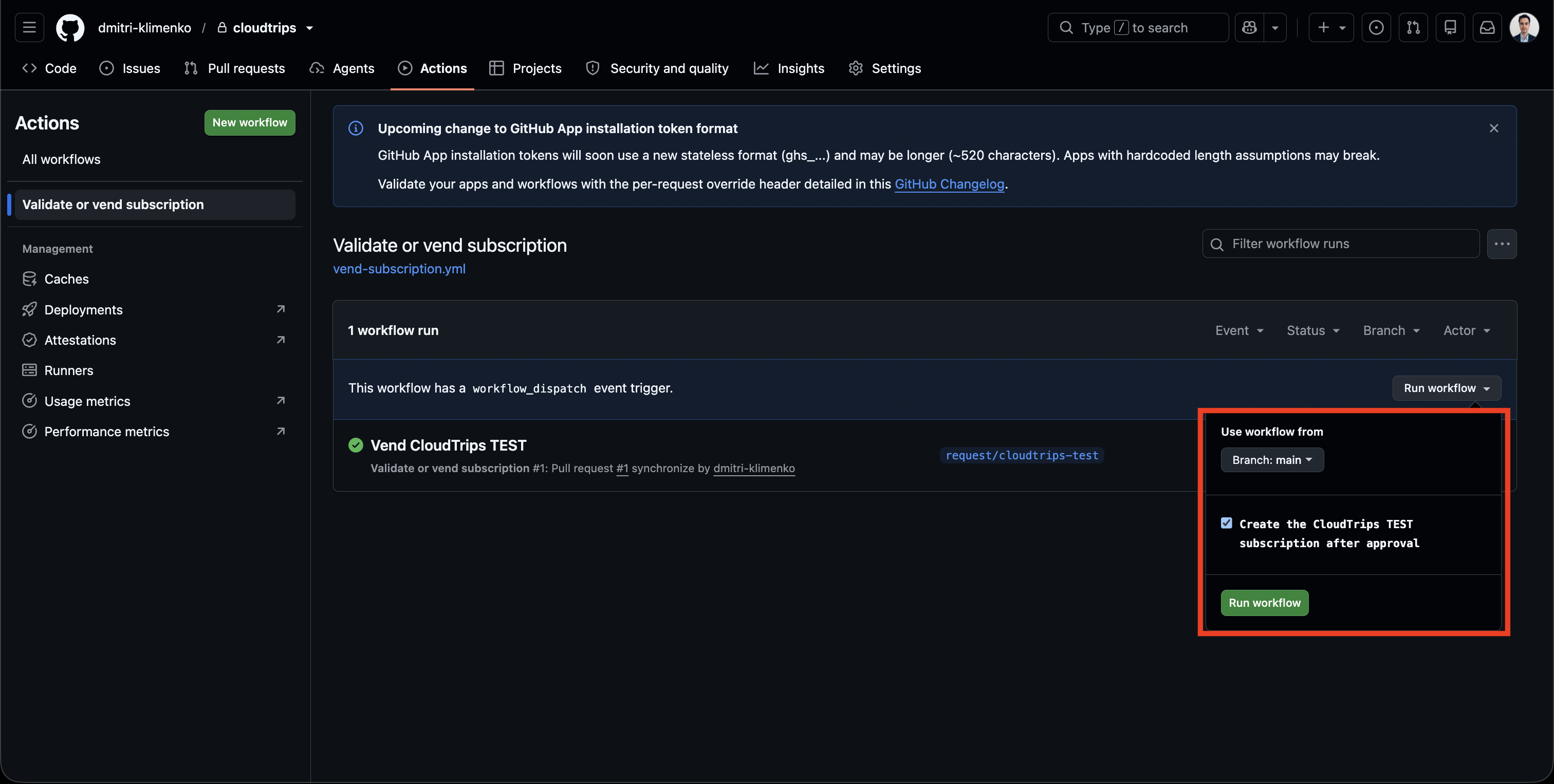
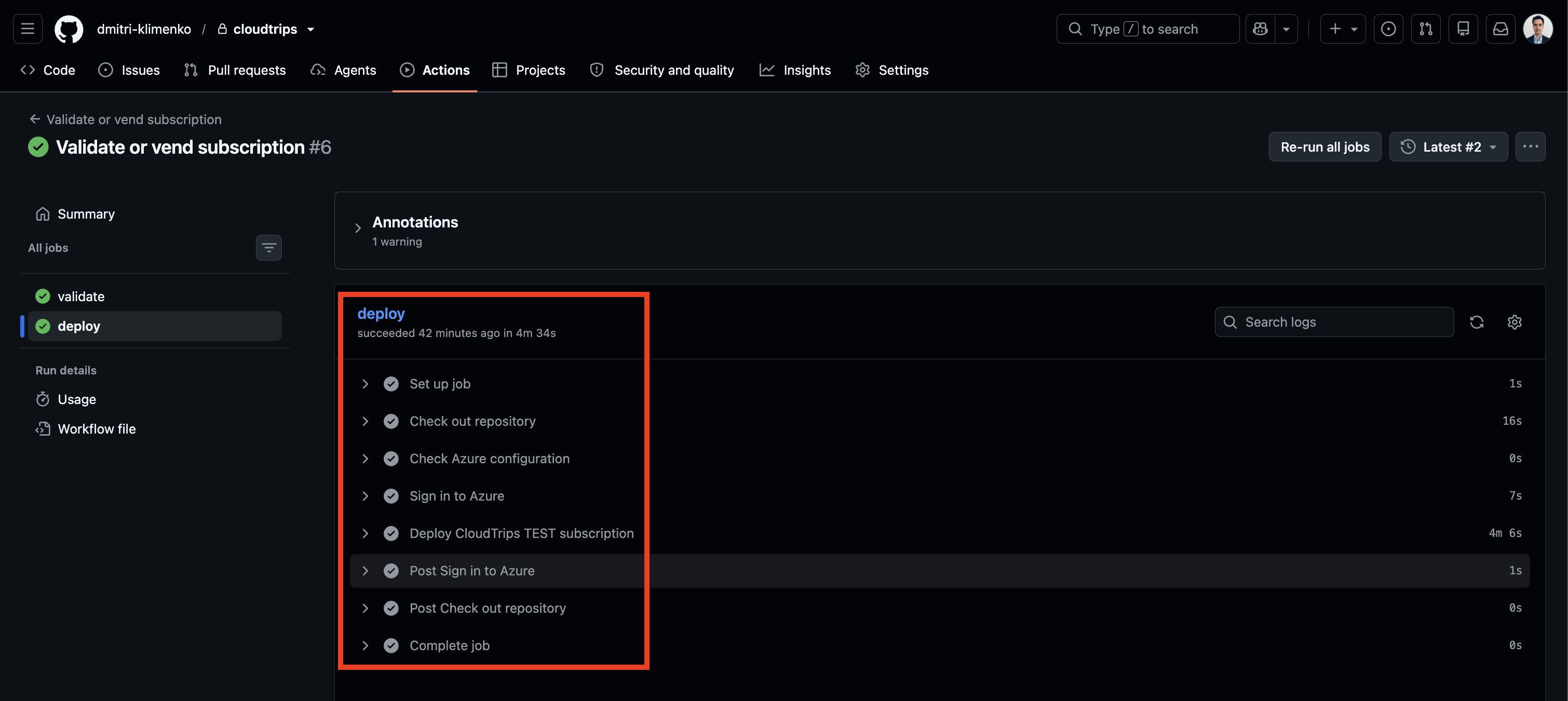
After merging, open Actions > Validate or vend subscription, select Run workflow, choose the main branch, enable Create the CloudTrips TEST subscription after approval so deploy is true, and start a new run. Running from main ensures that the approved request and latest workflow are used. Approve the protected GitHub environment when the deployment pauses, and watch the deployment job until it completes successfully.
Verify the Vended Subscription
After the pipeline succeeds, open Management groups and expand:
CloudTrips
└── Landing Zones
    └── Online
        ├── CloudTrips DEV
        └── CloudTrips TEST
Open Subscriptions > CloudTrips TEST and verify:
- Subscription ID exists and the state is active
- Parent management group is
Online - the Application, Environment, and Owner tags are present
- expected policies are inherited from
Online
Do not deploy TEST workload resources until all checks pass. The subscription is now the TEST application landing zone; its workload resources and TEST virtual network can be deployed afterward.
Do not create CloudTrips PROD by copying portal steps. Submit another request through the same reviewed workflow so PROD receives the same baseline and an auditable approval record.
Footnotes
-
GitHub Actions OpenID Connect subject formats, GitHub Docs. ↩