You Need a Clean Project Boundary? Create a Resource Group
When a new project starts, do not place its resources in an unrelated resource group.
Create a dedicated resource group. It gives the project a clear management boundary for:
- resources that share a lifecycle
- role-based access control (RBAC)
- policies and deployment history
- cost analysis and budgets
- tags and resource locks
Deleting a resource group also deletes the resources inside it, so group resources that should be created, managed, and retired together.
Plan the Boundary
Before creating the resource group, decide:
Project: Customer Portal
Environment: Development
Subscription: Azure subscription 1
Region: West Europe
Resource group: rg-customer-portal-dev-weu
Use your organization’s naming convention. A useful name identifies the workload, environment, and region without becoming difficult to read.
The resource group’s region stores its metadata. Resources inside the group can use other regions, although keeping related resources in the same region usually makes the design easier to understand.
Create the Resource Group
Sign in to the Azure portal and go to:
Resource groups > Create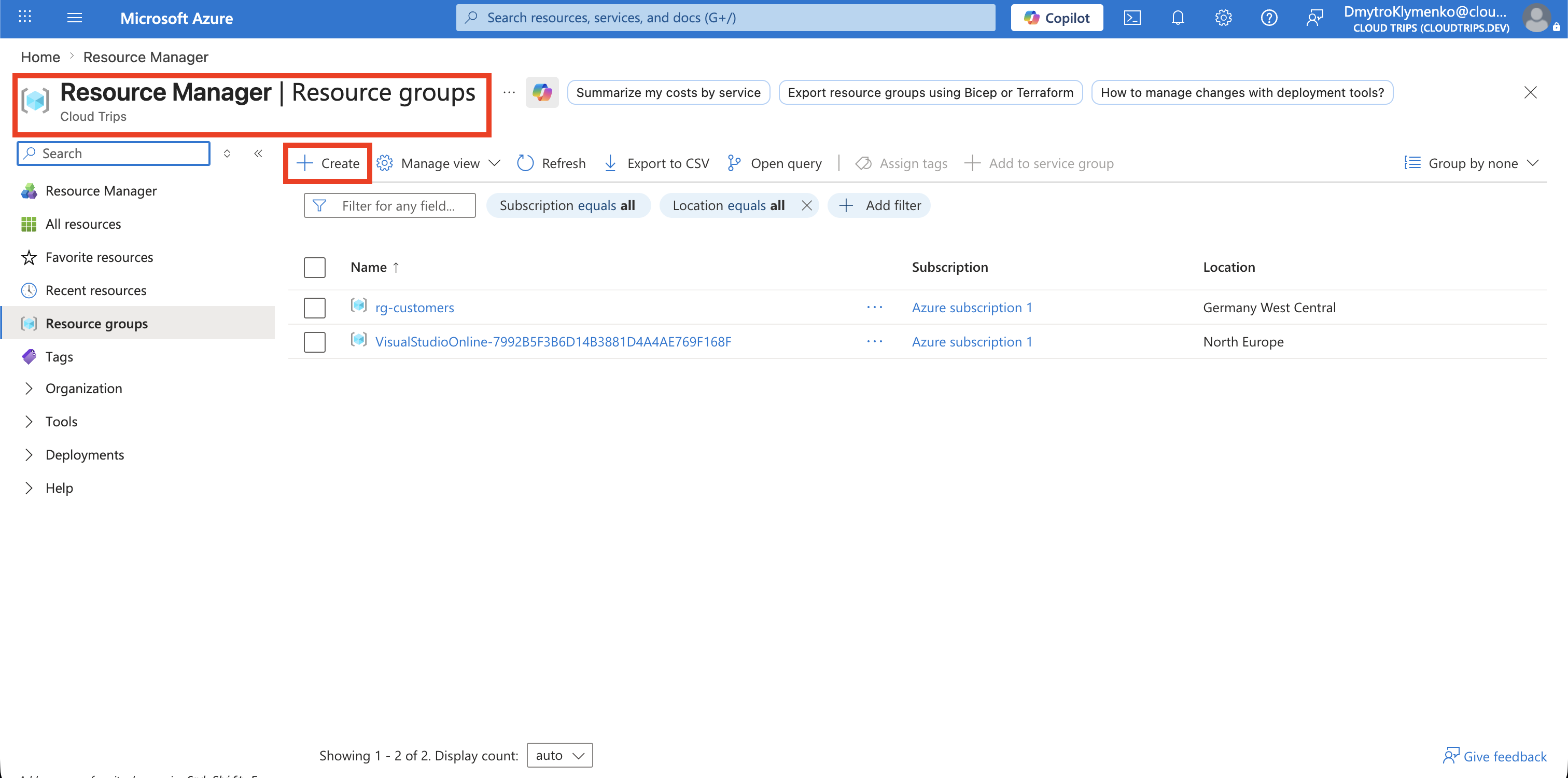
On the Basics tab, configure:
Subscription: Azure subscription 1
Resource group: rg-customer-portal-dev-weu
Region: West Europe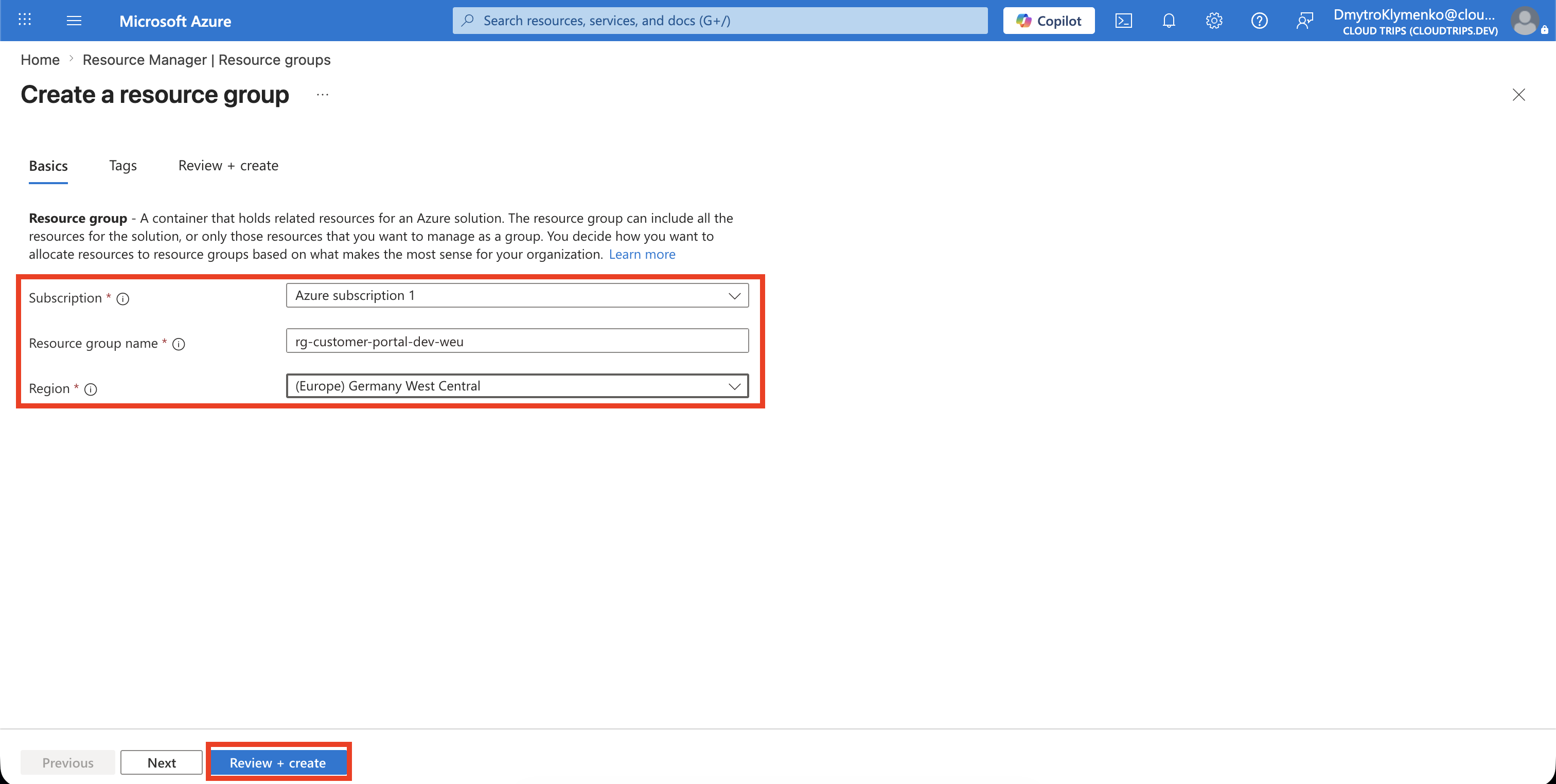
Select Review + create, confirm that validation succeeds, and then select Create.
Add Governance Tags
Open the new resource group and select Tags. Add the tags required by your organization, for example:
Application: Customer Portal
Environment: Development
CostCenter: CC-1042
Owner: Platform Team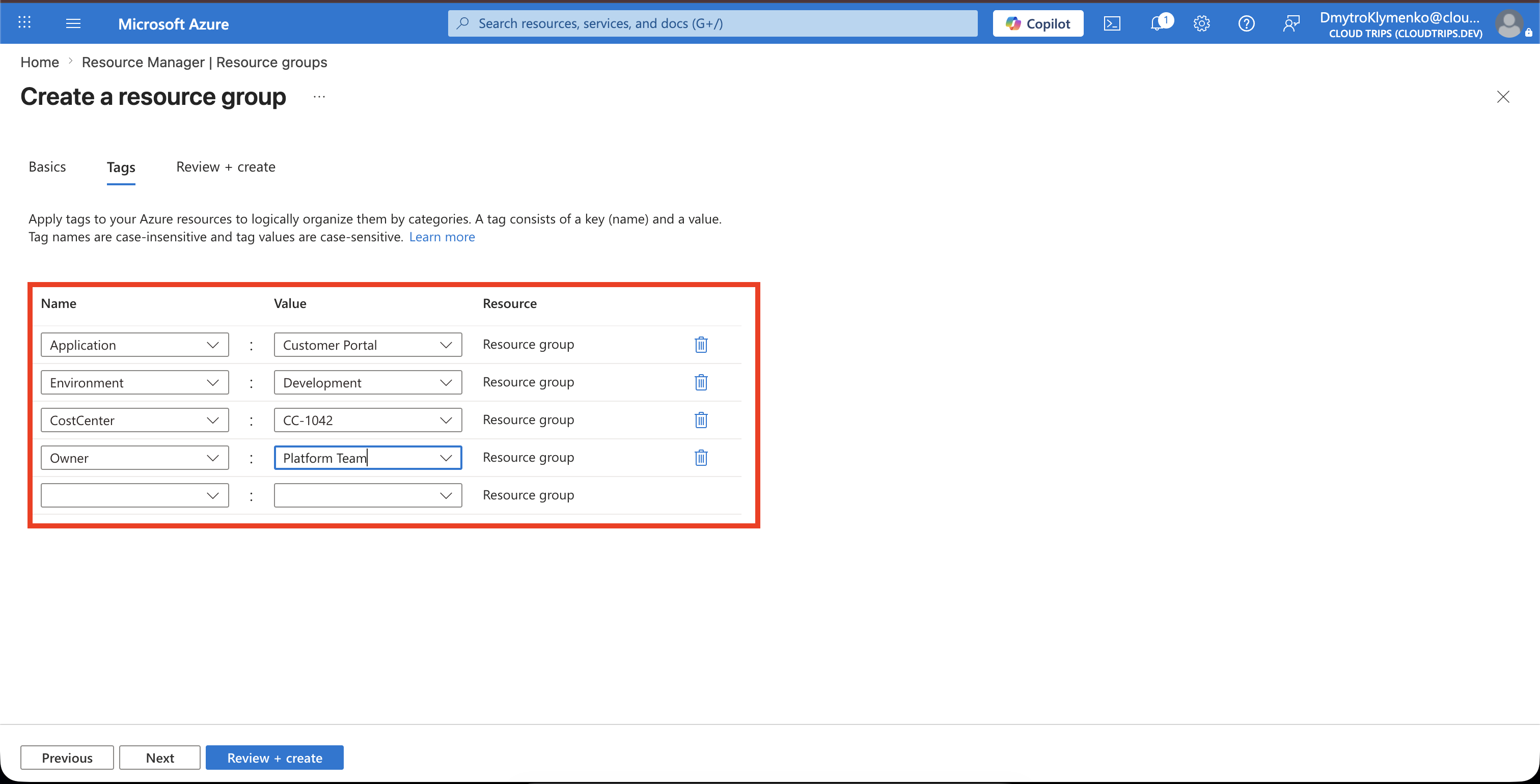
Tags make it easier to find resources and analyze costs. Resource-group tags are not automatically inherited by resources unless your organization enforces inheritance with Azure Policy.
Verify the Boundary
Open the resource group and confirm:
- the correct subscription and region are shown
- the expected tags are present
- new project resources are deployed into this group
- project access is assigned at the narrowest appropriate scope
The project now has a clean Azure boundary that can be governed and removed independently from unrelated workloads.