Subscription Needs Governance? Manage Its Settings
An Azure subscription is more than a billing container. It is also a governance boundary for access, policy, costs, and resource deployment.
Use this review for:
Subscription: Azure subscription 1
Management group: CloudTrips Platform
Open the Subscription
In the Azure portal, go to:
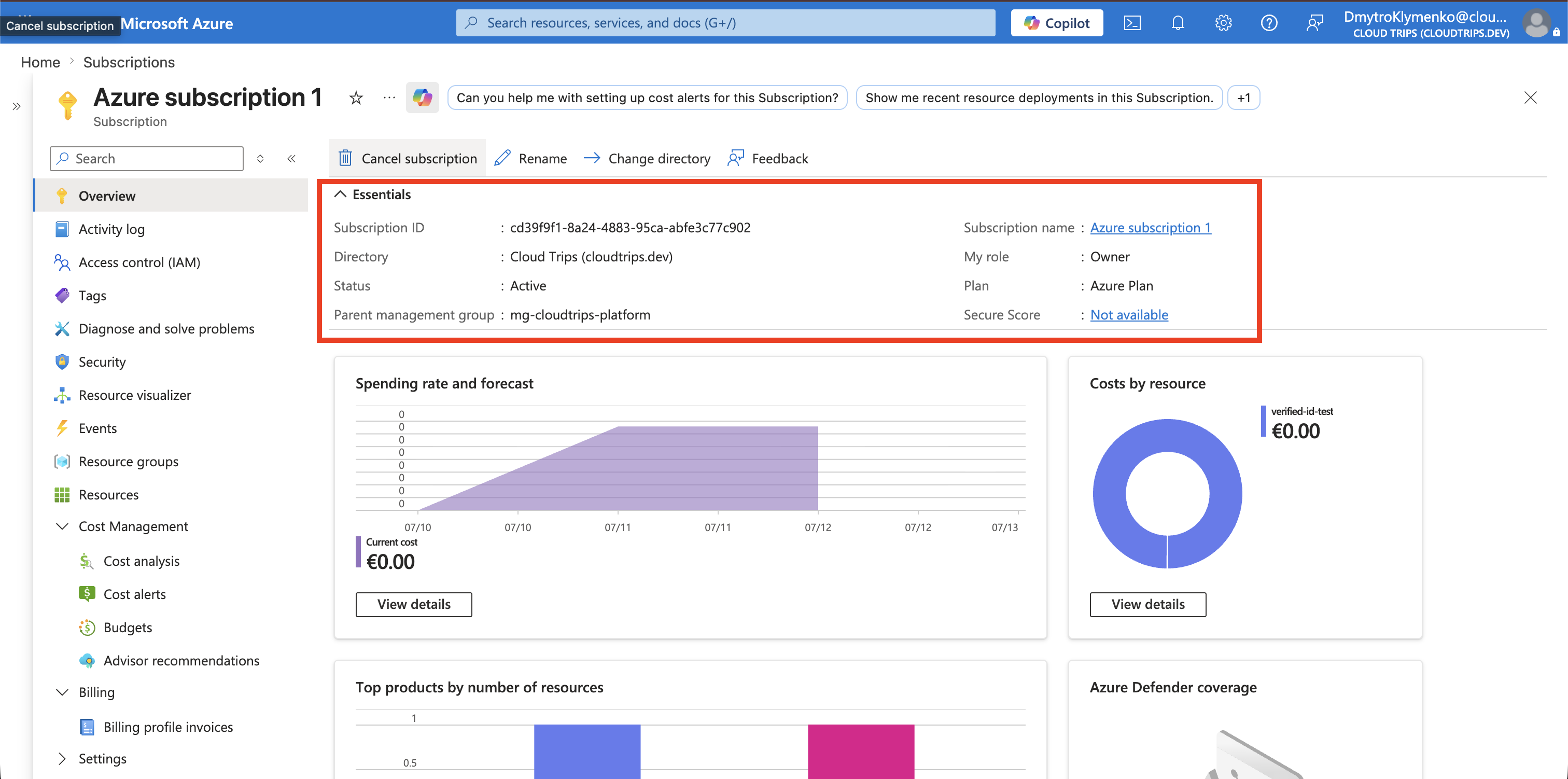
Subscriptions > Azure subscription 1On Overview, verify the subscription name, subscription ID, status, directory, and management-group parent.
Use a Clear Name
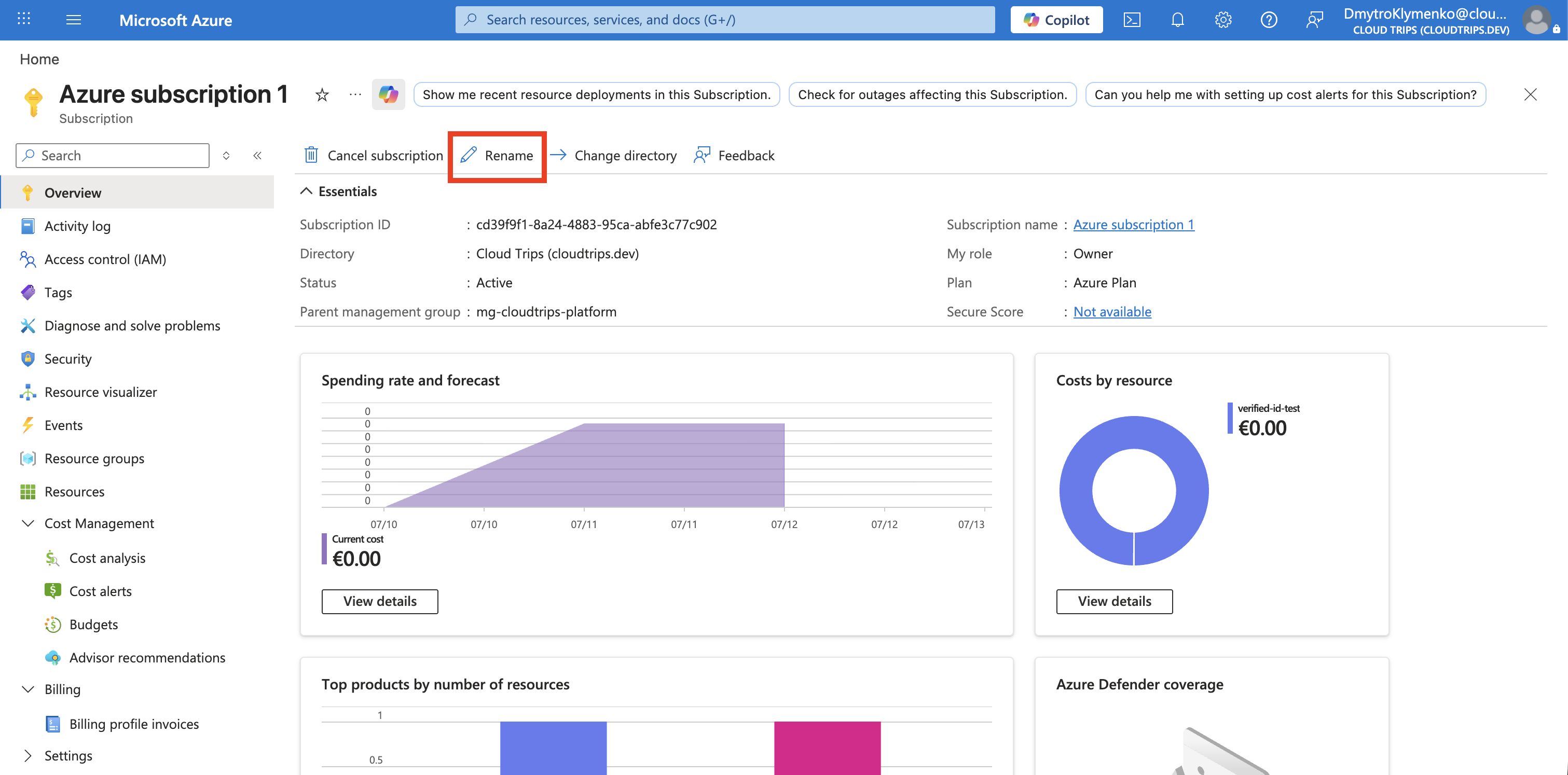
If the name does not identify the subscription, select Rename, enter the approved name, and save. Renaming does not change the subscription ID or move its resources.
Keep Azure subscription 1 if that is the intended CloudTrips subscription name.
Review Access
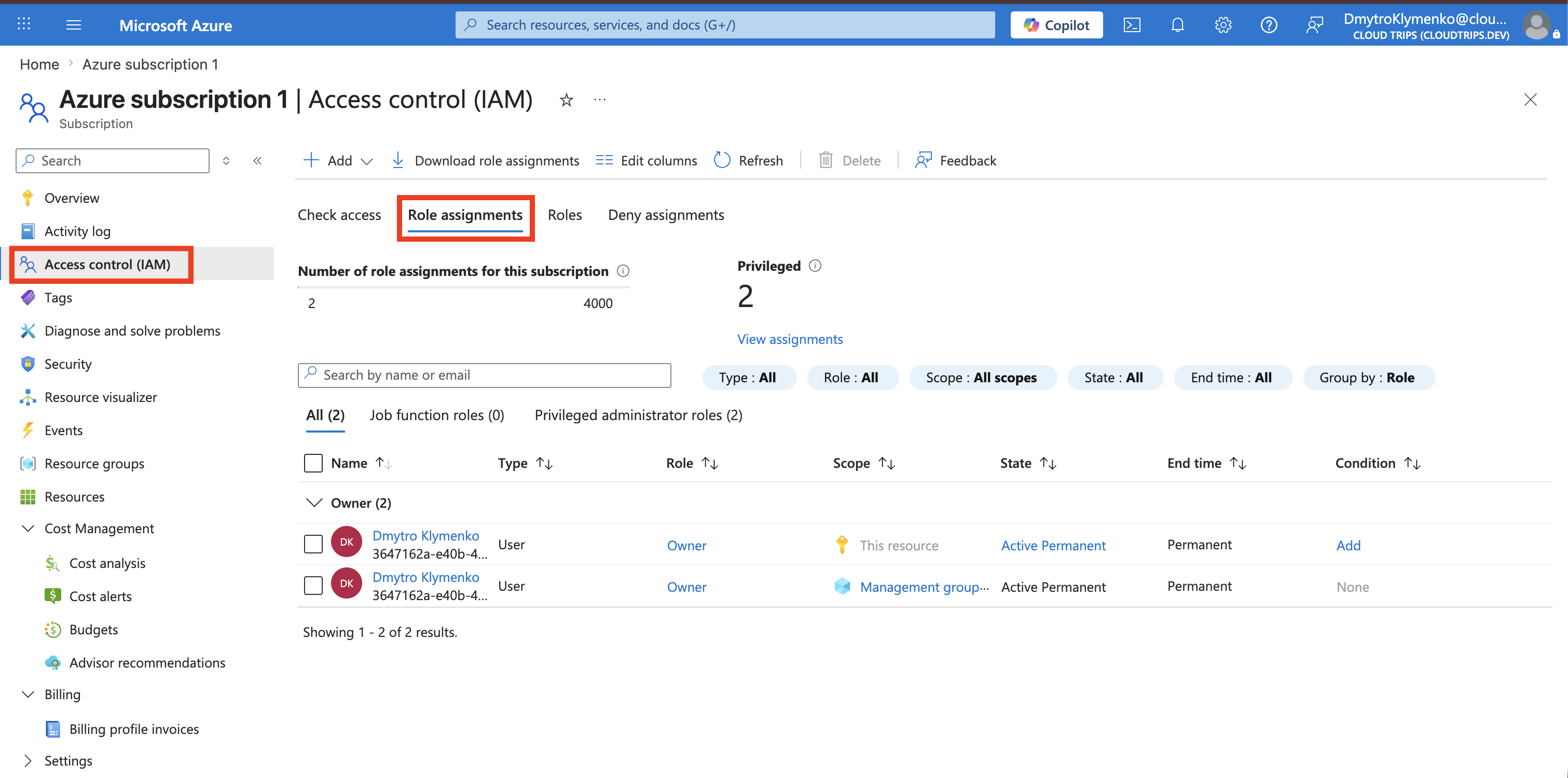
Open Access control (IAM) > Role assignments. Remove obsolete assignments and avoid broad roles at subscription scope when resource-group or resource scope is sufficient.
Prefer group-based assignments and keep only the required subscription administrators.
Review Policy and Hierarchy
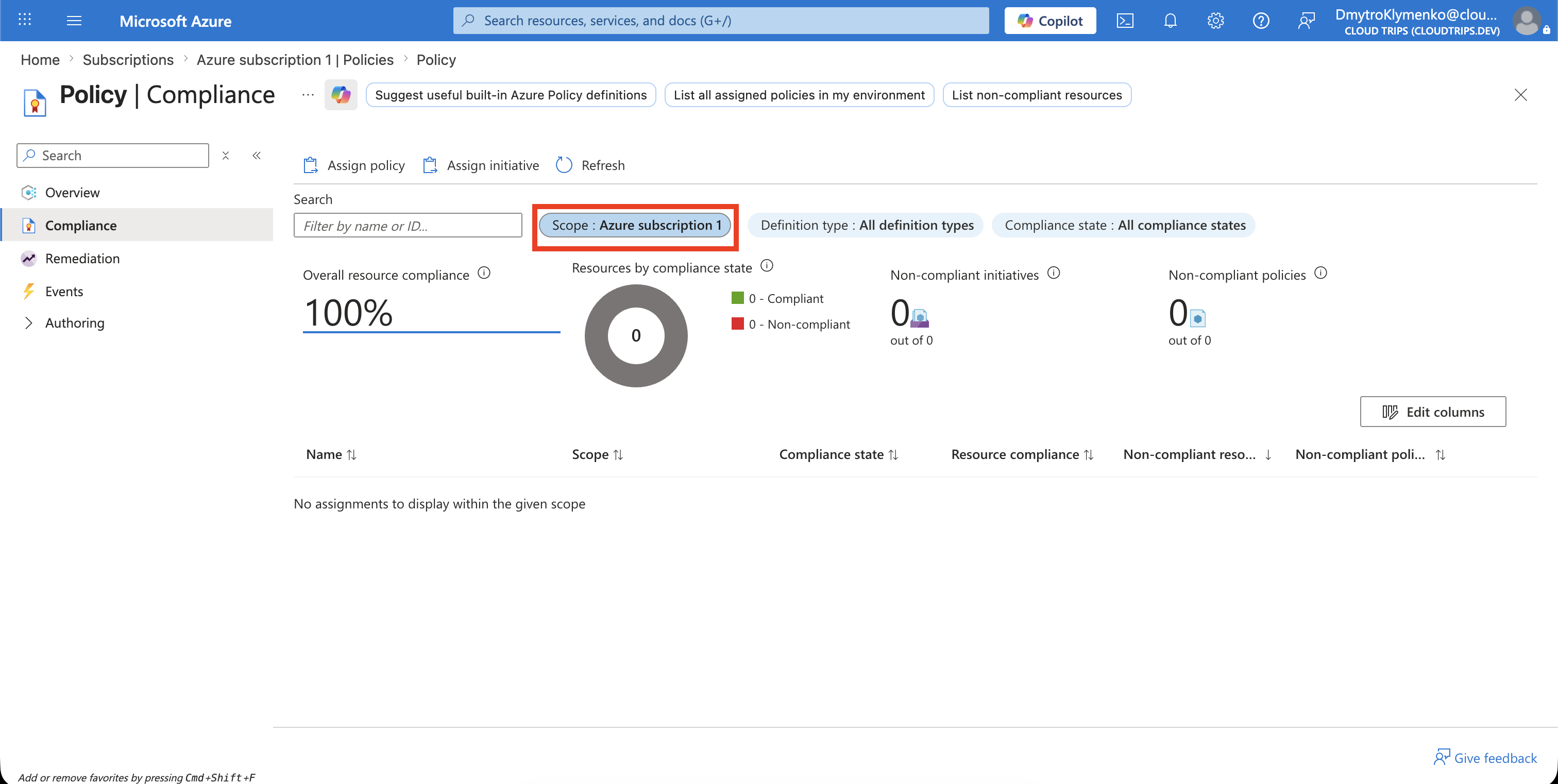
Confirm that the subscription is below CloudTrips Platform and review Policy > Compliance for inherited and subscription-level policies.
Moving a subscription to another management group can change inherited Azure Policy and RBAC assignments.
Review Cost Controls
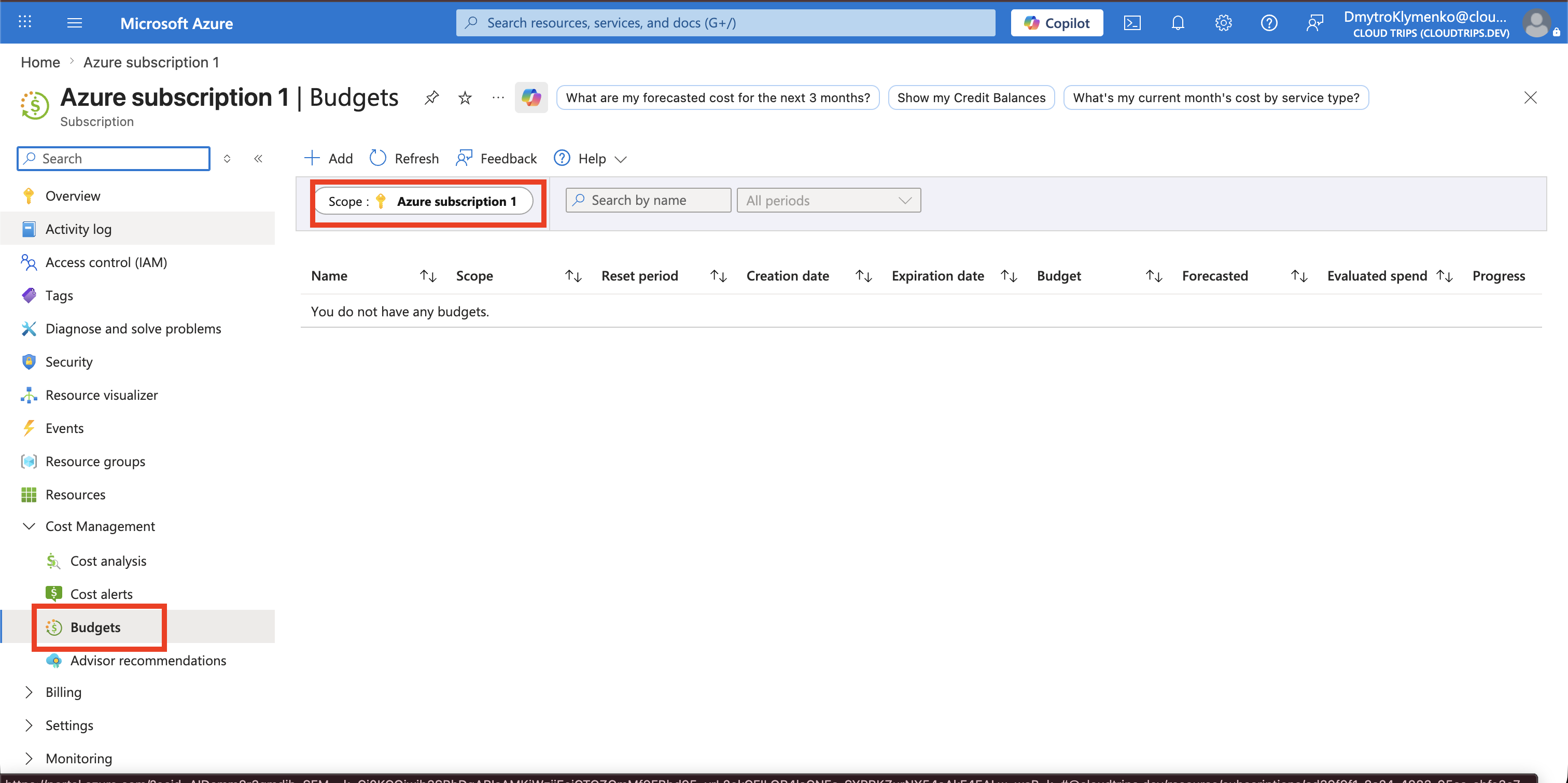
Open Cost Management > Budgets. Confirm that a budget and alert recipients exist for the subscription and match the current spending expectations.
A budget sends alerts but does not automatically stop resources or spending.
Review Resource Providers
A resource provider is the Azure service component that exposes the resource types and management operations for a service. Each provider has a namespace, for example:
Microsoft.Compute   > virtual machines and disks
Microsoft.Storage   > storage accounts
Microsoft.Network   > virtual networks and public IP addresses
Microsoft.KeyVault  > key vaults
A resource type combines the provider namespace with a type. A virtual machine, for example, uses:
Microsoft.Compute/virtualMachinesThe subscription must be registered with a provider before resources from that provider can be deployed. Registration prepares the subscription to use the provider’s API and can add a corresponding enterprise application to the Microsoft Entra tenant.
Open:
Azure subscription 1
> Settings
> Resource providers
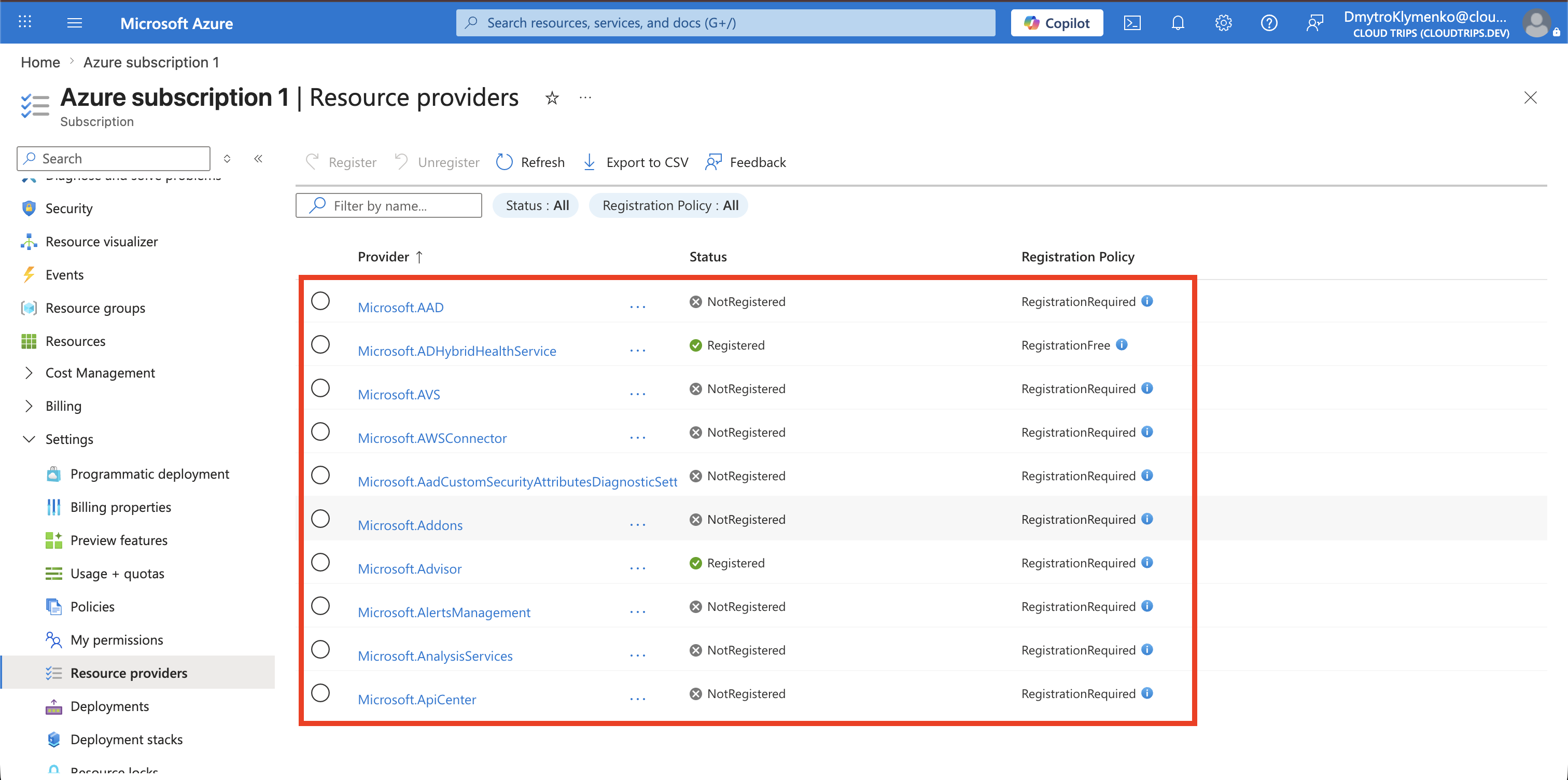
Review the Status column:
- Registered — the subscription can use the provider
- NotRegistered — the provider has not been enabled for this subscription
- Registering or Unregistering — a state change is still in progress
The Azure portal and deployments automatically register many providers when their services are first used. If a deployment reports MissingSubscriptionRegistration or NoRegisteredProviderFound, locate the provider named in the error and select Register.
Do not register every provider in advance. Register only providers required by planned workloads. This keeps the subscription’s available service surface smaller and avoids unnecessary provider applications appearing in Microsoft Entra ID.
Before unregistering a provider, confirm that no resources from that namespace remain in the subscription. Azure can block unregistration while provider resources still exist.
The subscription now has a reviewed identity, hierarchy, access model, compliance state, cost controls, and deployment surface. Repeat this review after ownership, workload, or organizational changes.