Need to Search Across Subscriptions? Use Azure Resource Graph
CloudTrips needs one inventory query that searches resources across subscriptions without opening each subscription separately. Use Azure Resource Graph Explorer to find and summarize resources at scale.
This trip uses:
Tool: Azure Resource Graph Explorer
Scope: Current directory
Language: Kusto Query Language (KQL)
Search target: All accessible Azure resources
Understand Resource Graph Scope
Azure Resource Graph queries Azure Resource Manager resource metadata. It is designed for fast inventory and governance searches across subscriptions.
Results are permission-trimmed. You need at least read access to a resource for it to appear, and selecting the current directory does not bypass Azure RBAC. If you can access only Azure subscription 1, the query correctly returns only that subscription.
Resource Graph is not a replacement for application logs, Azure Monitor metrics, or Cost Management data. It searches resource configuration and inventory properties.
Open Resource Graph Explorer
In the Azure portal, search for and open:
Resource Graph ExplorerSelect Directory on the toolbar. Choose the current directory and include all subscriptions you are allowed to query. Apply the scope.
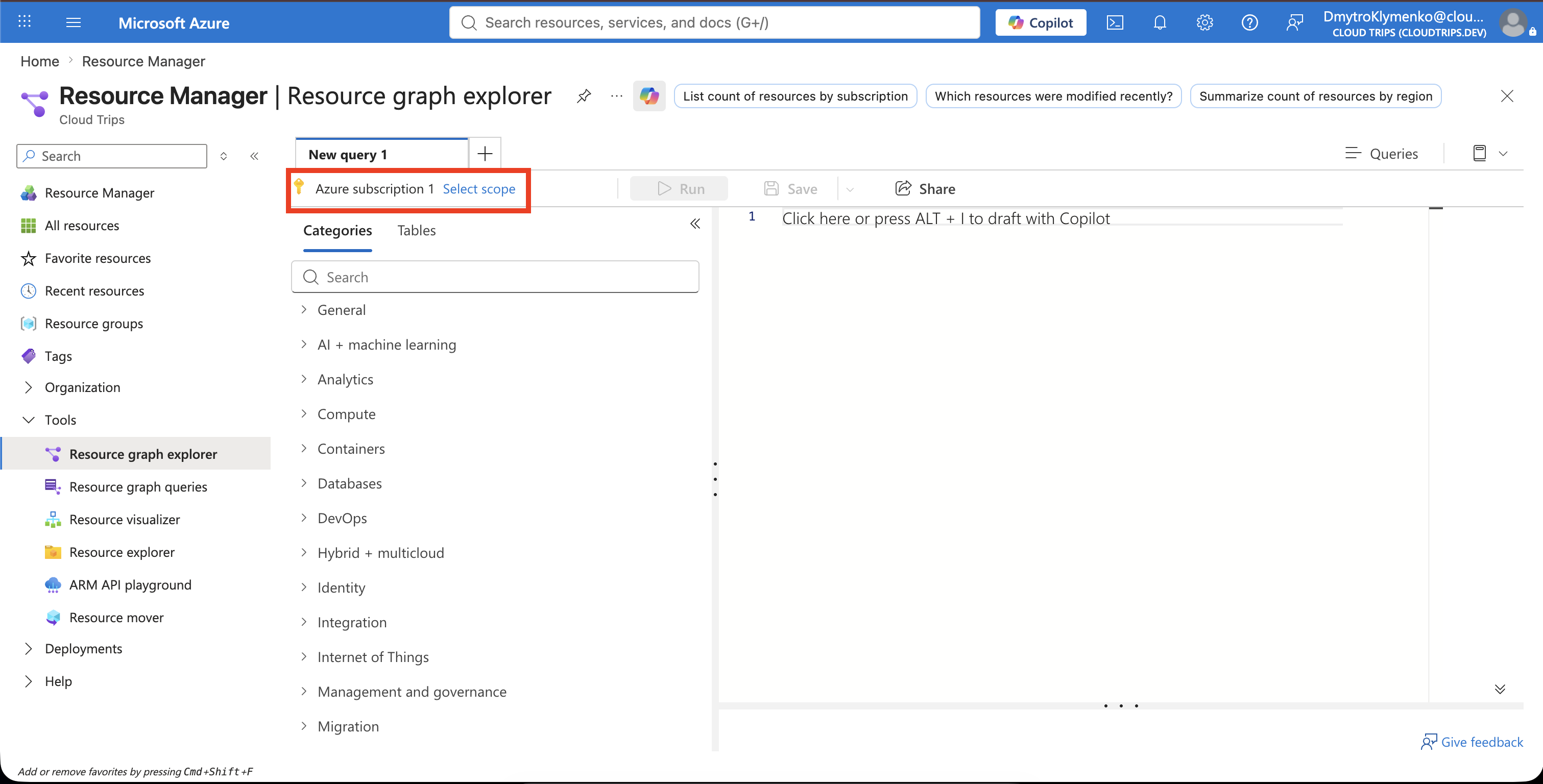
If a newly granted subscription is missing, refresh the portal session or sign out and back in so Resource Graph refreshes the subscriptions available to your identity.
List Resources with Subscription Names
Paste this query into the editor:
resources
| join kind=leftouter (
    resourcecontainers
    | where type =~ 'microsoft.resources/subscriptions'
    | project subscriptionId, subscriptionName = name
  ) on subscriptionId
| project subscriptionName, subscriptionId, resourceGroup, name, type, location
| order by subscriptionName asc, type asc, name asc
Select Run query.
The resources table contains Azure resources. The query joins it with subscription records from resourcecontainers so the output displays a readable subscription name instead of only an ID.
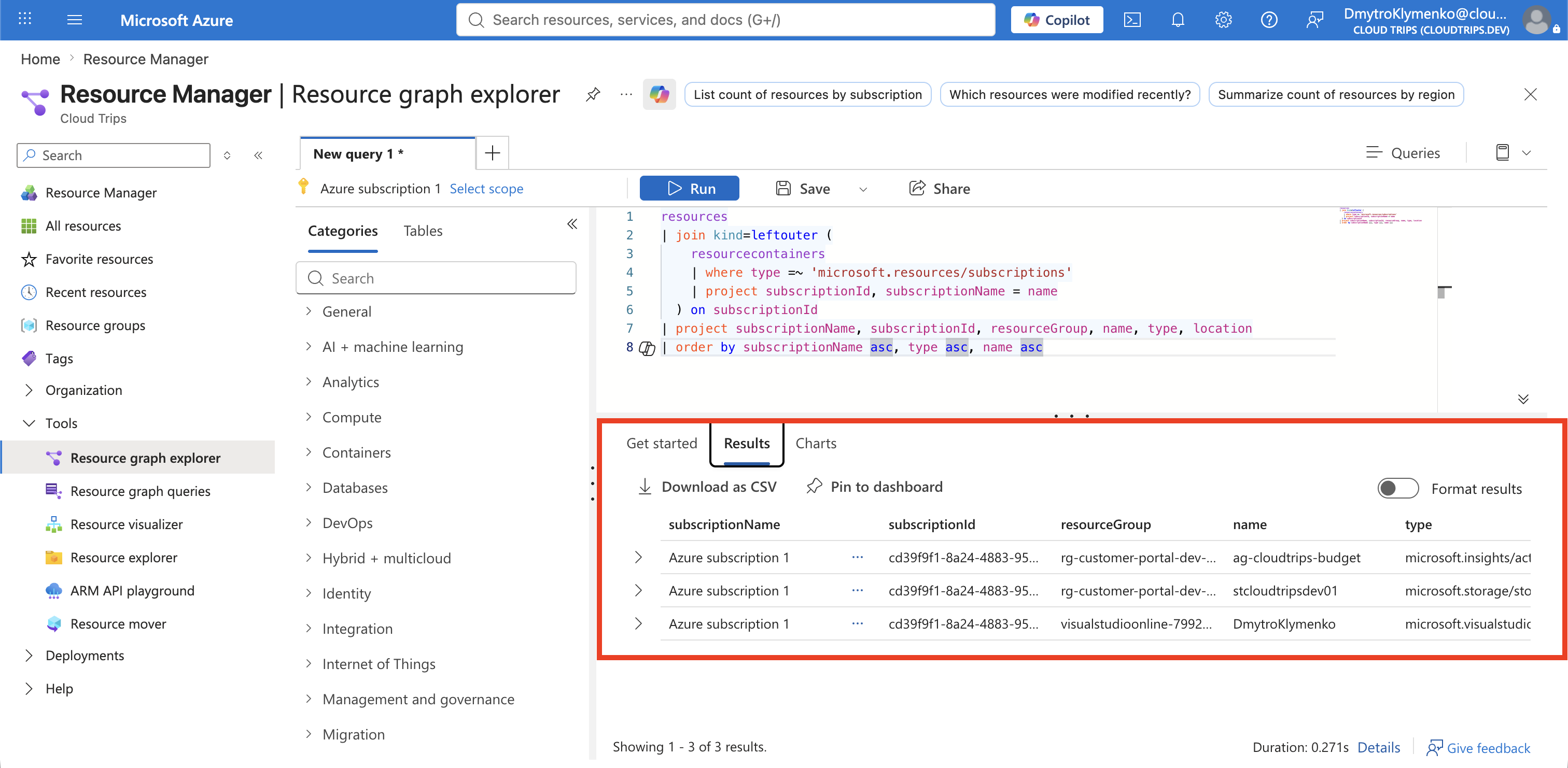
Open the Results tab and review the returned resources. If an expected resource is absent, verify the selected scope, your read permission, and whether the resource type is represented by Resource Graph.
Find Storage Accounts Across Subscriptions
Replace the query with:
resources
| where type =~ 'microsoft.storage/storageaccounts'
| extend department = tostring(tags['Department'])
| join kind=leftouter (
    resourcecontainers
    | where type =~ 'microsoft.resources/subscriptions'
    | project subscriptionId, subscriptionName = name
  ) on subscriptionId
| project subscriptionName, resourceGroup, name, location, department
| order by subscriptionName asc, resourceGroup asc, name asc
Select Run query. Confirm that stcloudtripsdev01 appears when it exists in an included subscription and you have permission to read it.
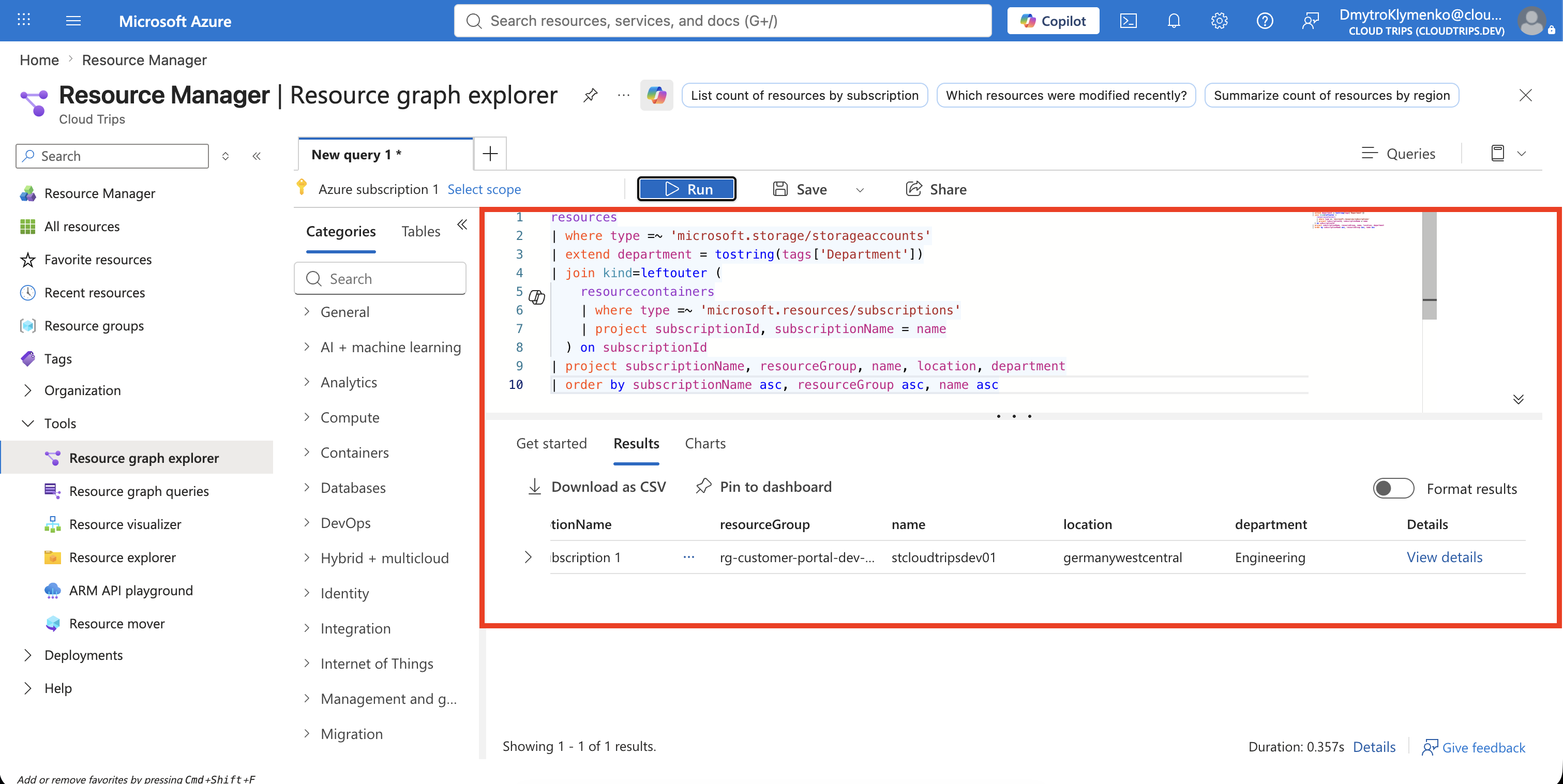
The case-insensitive operator =~ avoids type-casing differences. The tostring() conversion makes the Department tag suitable for a result column. An empty value means that the resource metadata returned to Resource Graph has no such tag.
Count Resources by Subscription
Run this summary query:
resources
| summarize resourceCount = count() by subscriptionId
| join kind=leftouter (
    resourcecontainers
    | where type =~ 'microsoft.resources/subscriptions'
    | project subscriptionId, subscriptionName = name
  ) on subscriptionId
| project subscriptionName, subscriptionId, resourceCount
| order by resourceCount desc
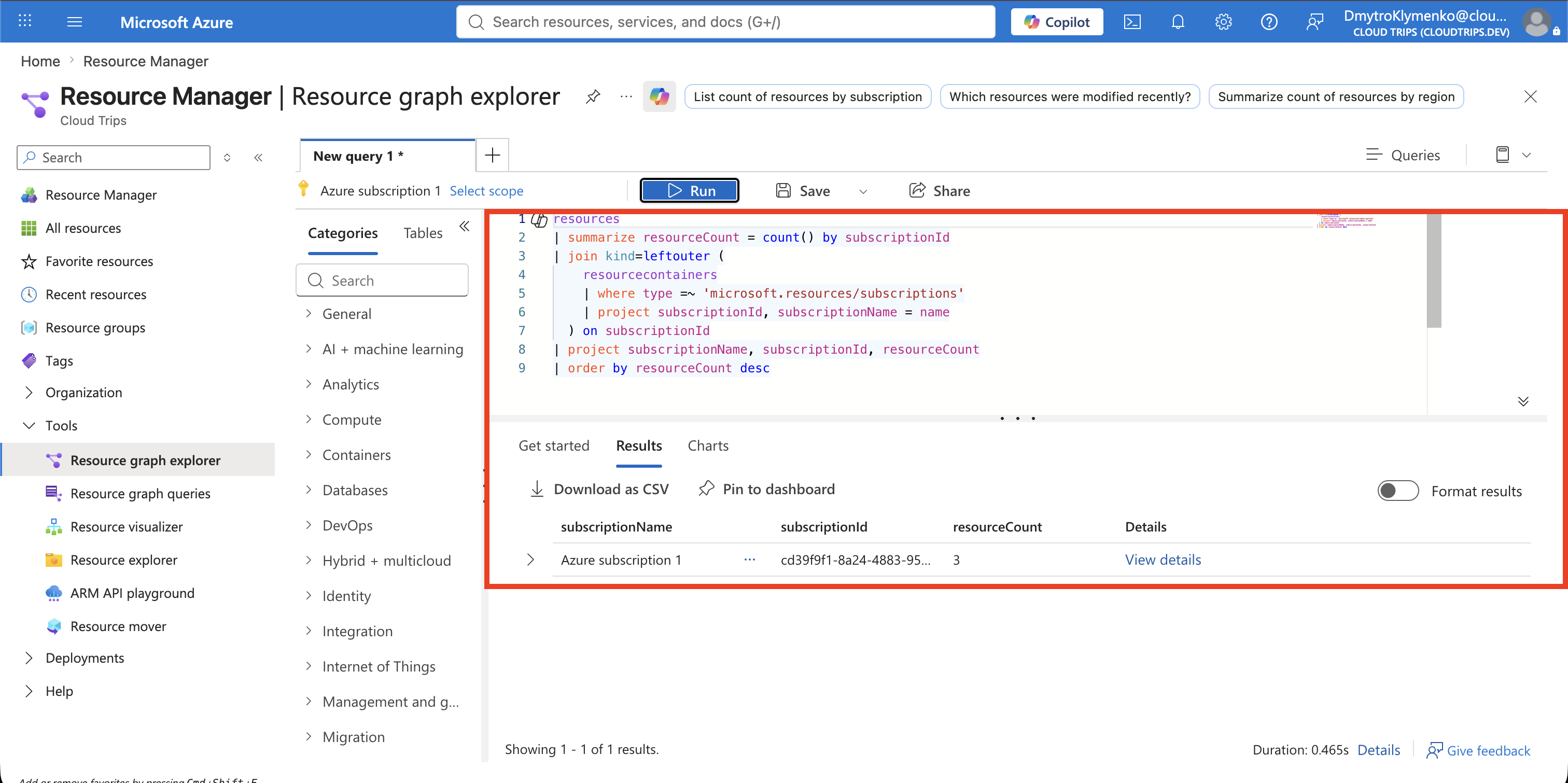
The result gives one row per accessible subscription. If more than one subscription is in scope, compare the counts to identify where resources are concentrated.
Save or Export the Query
Select Save and use:
Query name: CloudTrips cross-subscription inventory
Query type: Private query
Use Download as CSV when the inventory must be reviewed outside the portal. Portal CSV export is limited to 55,000 results, so large environments should use Resource Graph APIs or command-line pagination instead.
Do not treat a saved query as a static inventory. Resource Graph reruns it against the current resource state whenever the query is executed.
CloudTrips can now search and summarize every Azure resource visible to the signed-in identity across the selected subscriptions.