HR Sends 50 New Users? Bulk Create Users
When HR provides multiple new employees, Microsoft Entra ID supports bulk user creation via CSV upload.
This is the standard approach for onboarding users in batches.
Each CSV row represents one user account.
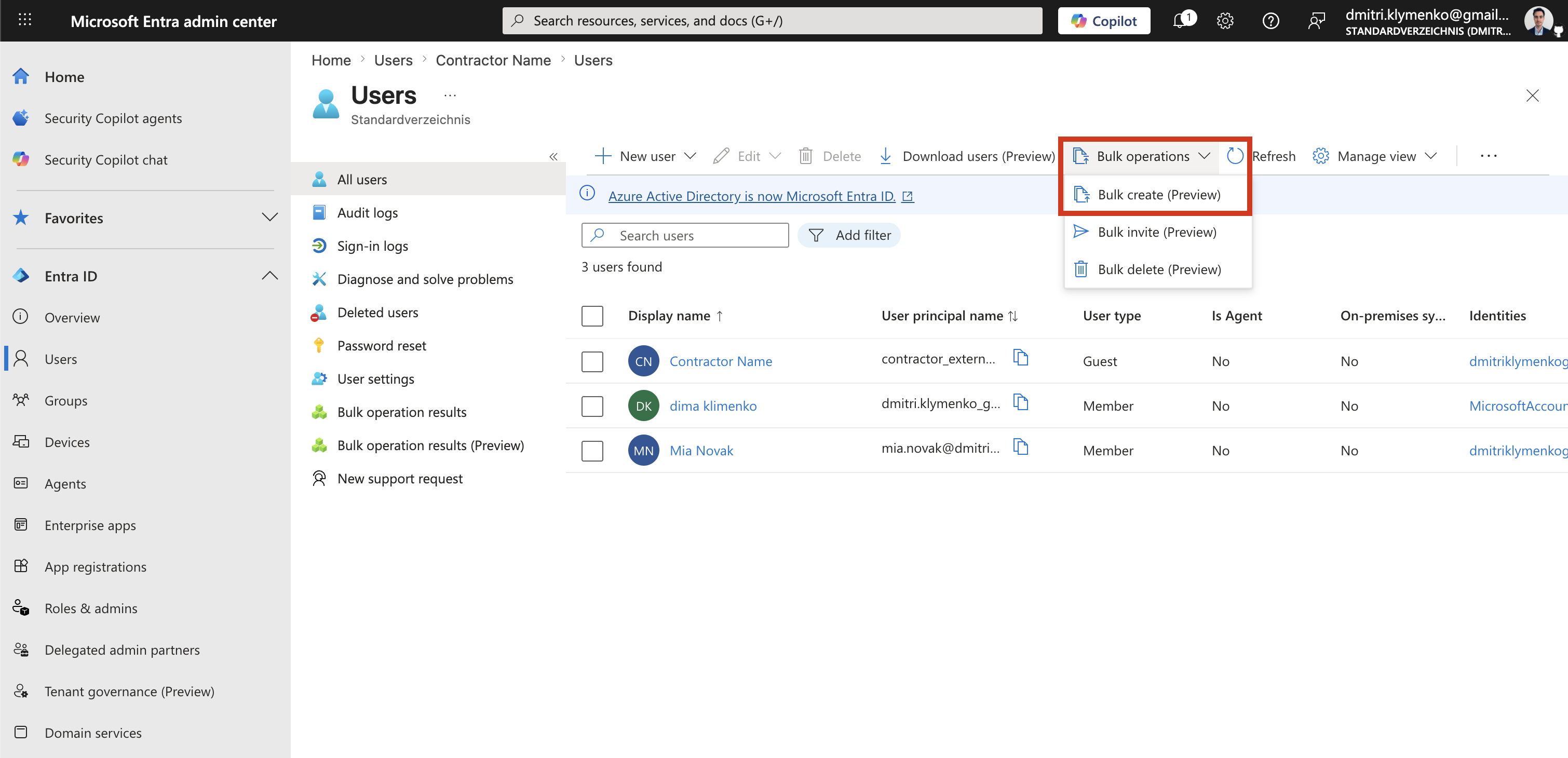
Open Bulk User Creation
Go to:
Entra ID > UsersThen select:
New user > Bulk create usersThis opens the bulk import wizard.
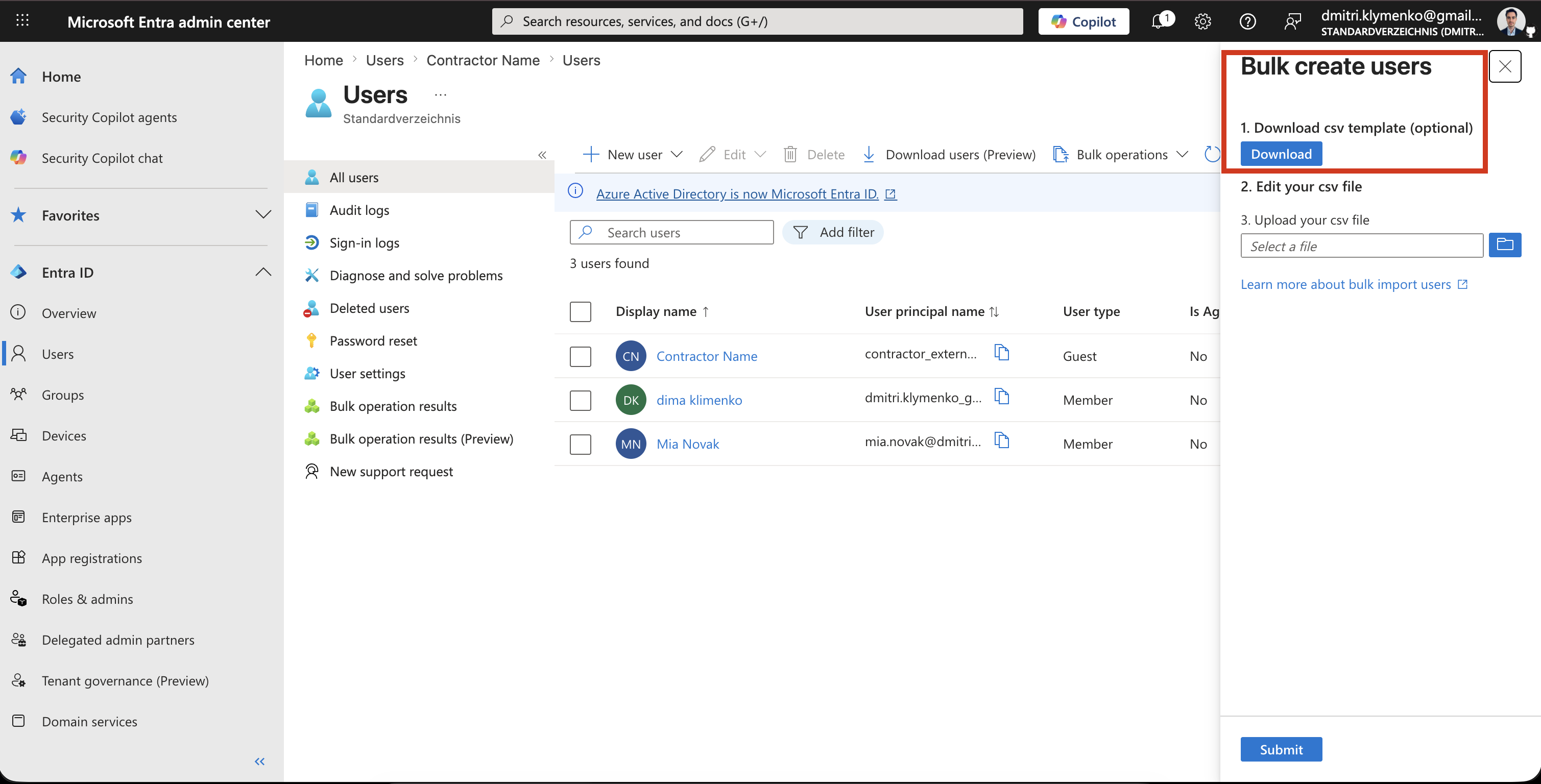
Download CSV Template
Download the official Microsoft-provided CSV template.
This defines:
- required column structure
- supported user attributes
- correct Entra import format
Important:
Do not modify column headers.
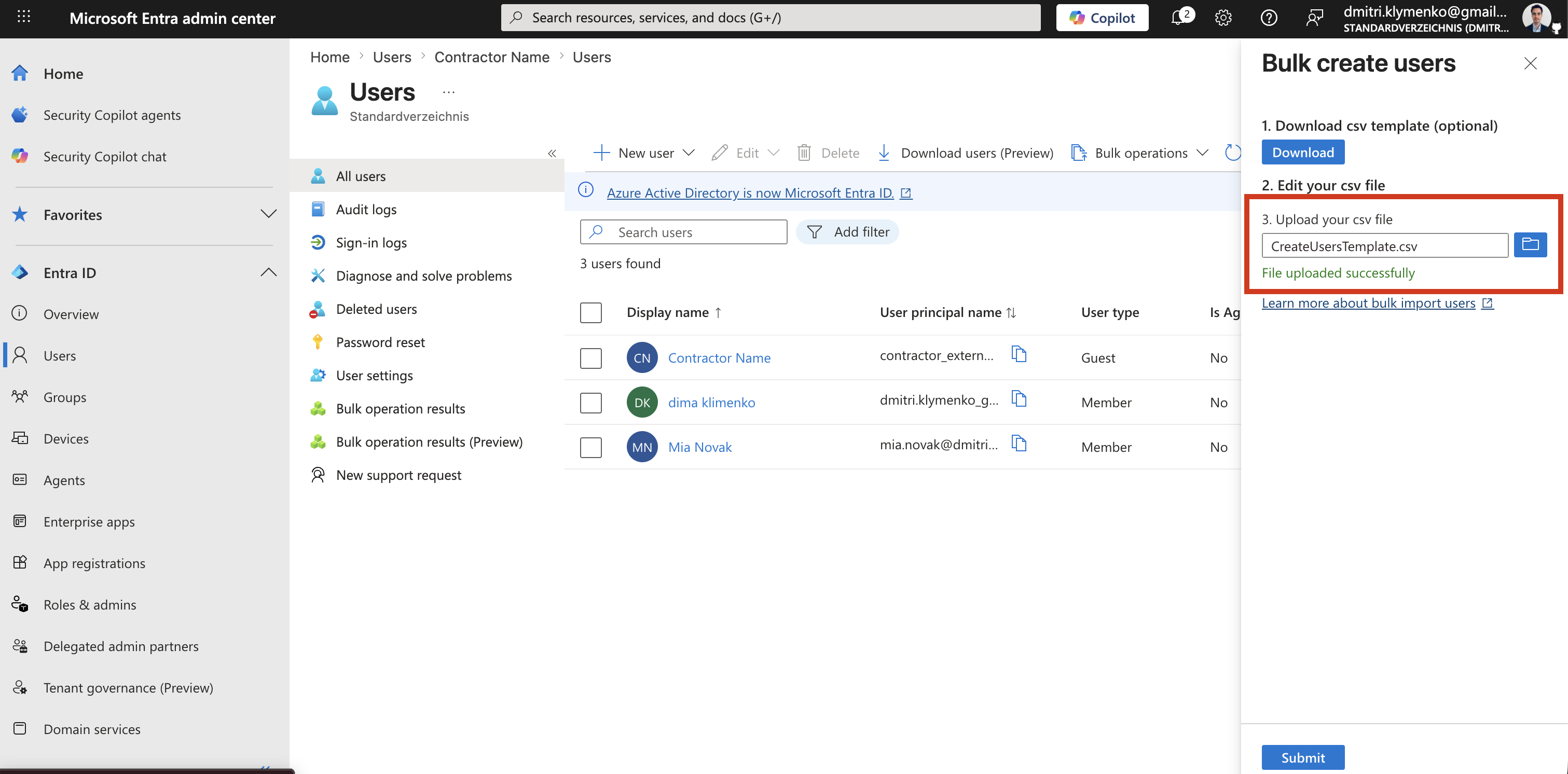
Upload CSV File
After filling in the HR user data, upload the file into the portal.
During upload, Entra validates:
- UPN format
- domain validity
- required fields
- password policy
- CSV structure
Any errors are shown per row before execution.
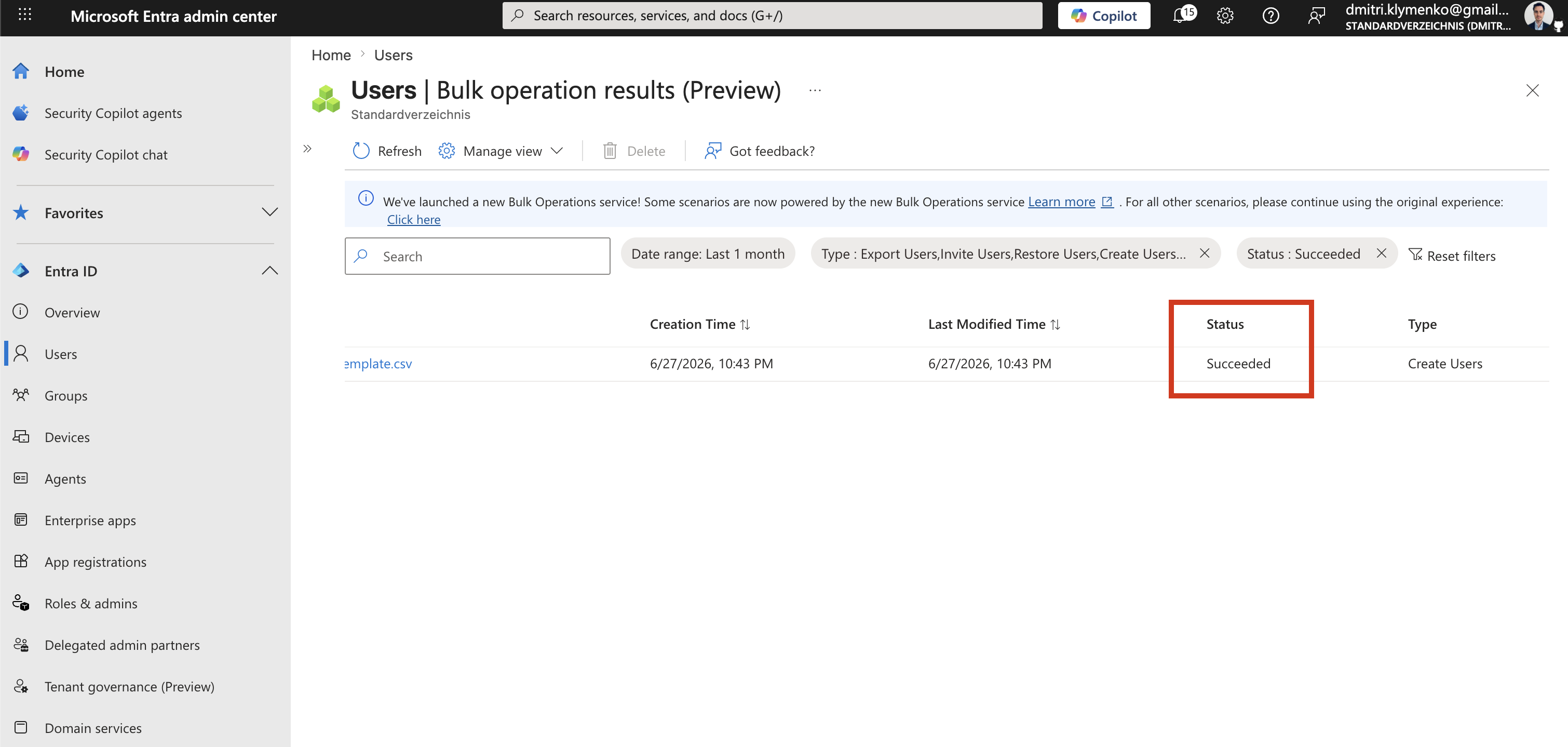
Check Operation Results
After submission, Entra shows the bulk operation execution results.
Go to:
Entra ID > Users > Bulk operation resultsThis screen shows:
- execution status of the import job
- per-user result, success or failure
- detailed error messages for failed rows
This is the main control view for debugging bulk imports.
Important Note: Domain Must Be Correct
The user principal name must use a domain that exists in your tenant.
Example valid:
john.doe@dmitriklymenkogmail.onmicrosoft.comExample invalid:
john.doe@contoso.comIf the domain is not verified in Entra ID, the bulk operation fails immediately.
What Bulk Creation Does Not Do
Bulk creation does not:
- assign groups
- assign Azure roles
- grant access permissions
- assign licenses
It only creates identities.