Background App Needs Access? Use Client Credentials Flow
In enterprise systems, backend applications often communicate without user interaction.
This pattern is used when:
- no user is present
- systems call APIs directly
- authentication is handled by Microsoft Entra ID
In this example:
- Dynamics 365 (D365) is the caller application
- Middleware API is the resource application
Authentication is done with OAuth 2.0 Client Credentials Flow. Authorization is controlled with App Roles.
Create Middleware API App
First, create the resource application.
Go to:
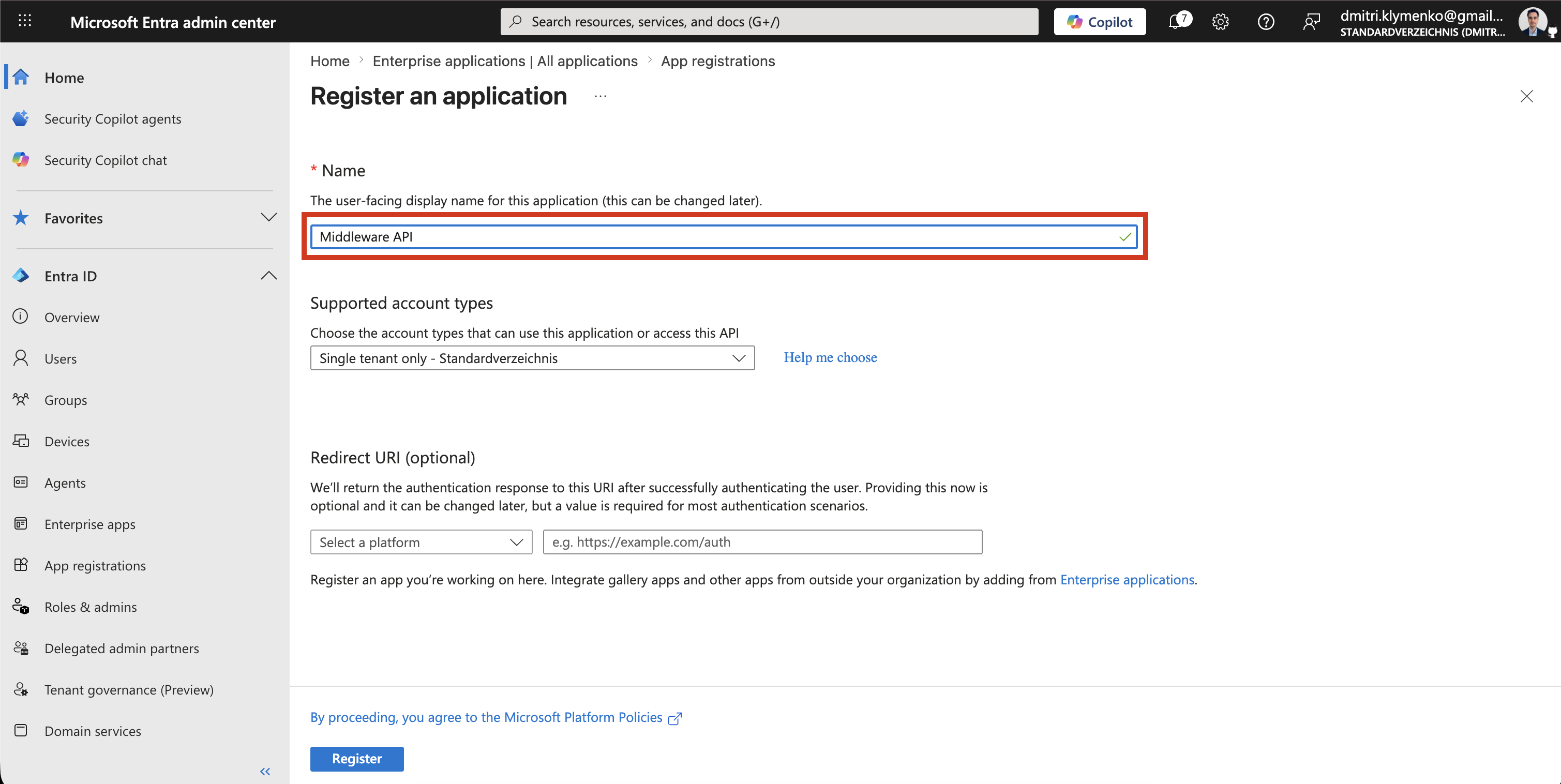
Entra ID > App registrations > New registrationCreate an application:
Name: Middleware-APIThis app registration represents the API that will receive and validate access tokens.
Expose API
Inside Middleware-API, open:
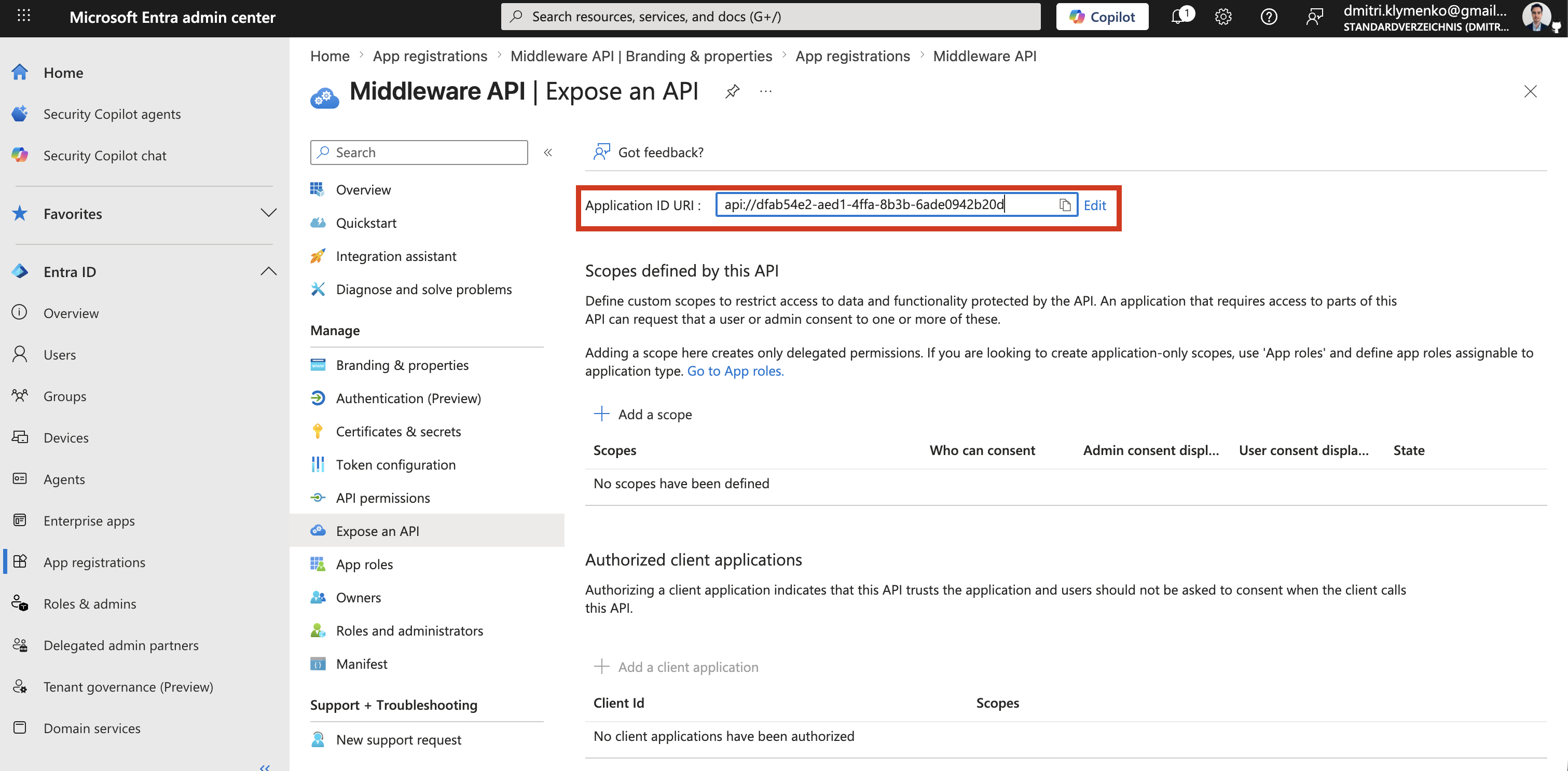
Expose an APISet the Application ID URI:
api://<application-id>Keep the Azure-generated format unchanged unless you have a clear naming standard for your tenant.
This identifier becomes the audience for tokens issued to the Middleware API.
Create App Role
Inside Middleware-API, create an application role:
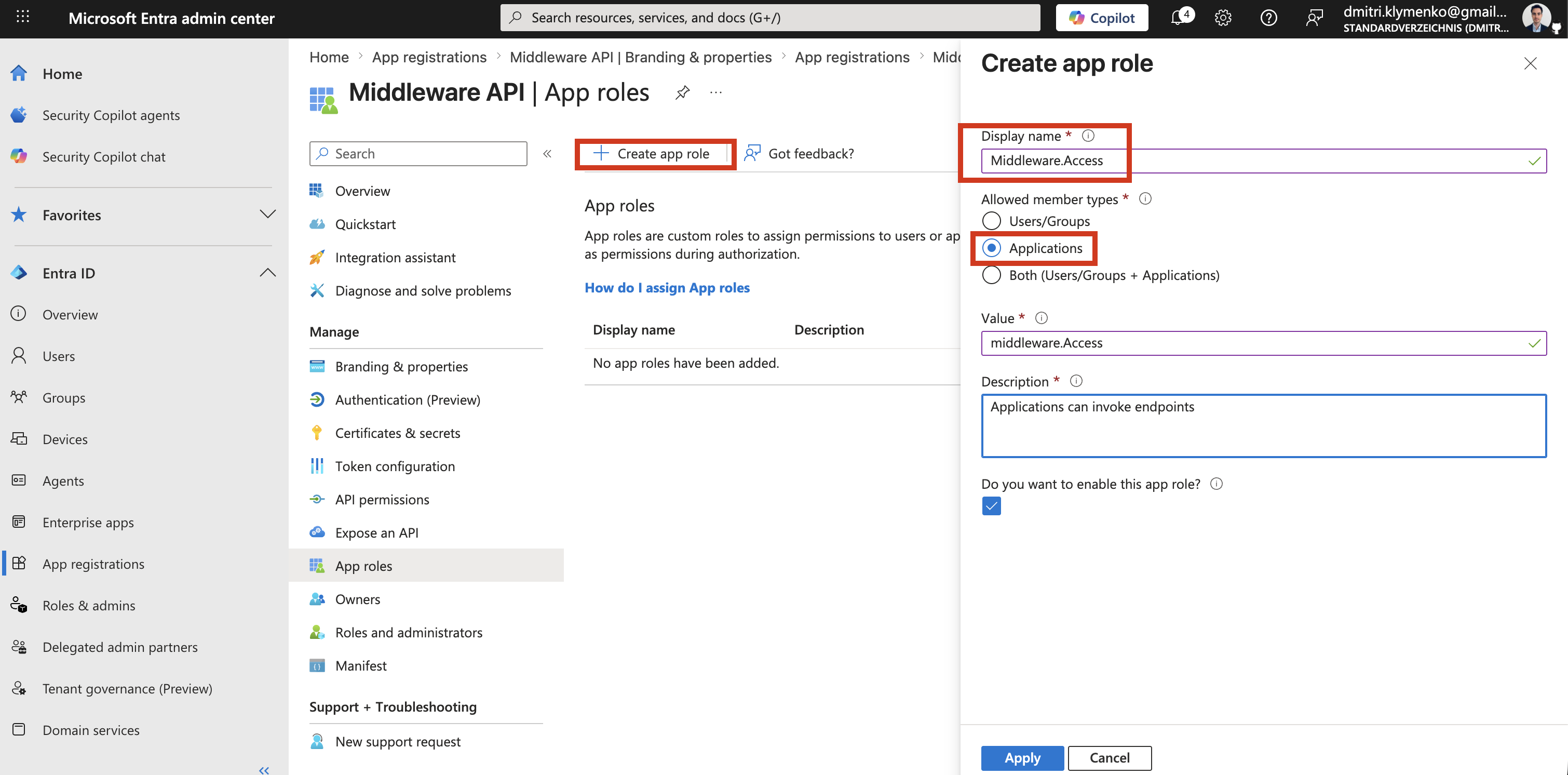
App roles > Create roleExample:
Name: Middleware.Access
Value: middleware.access
Allowed member types: Applications
This defines application-level authorization. It is not user-based access.
The Middleware API can later check whether the incoming token contains the required role.
Create D365 Client App and Secret
Now create the caller application.
Go to:
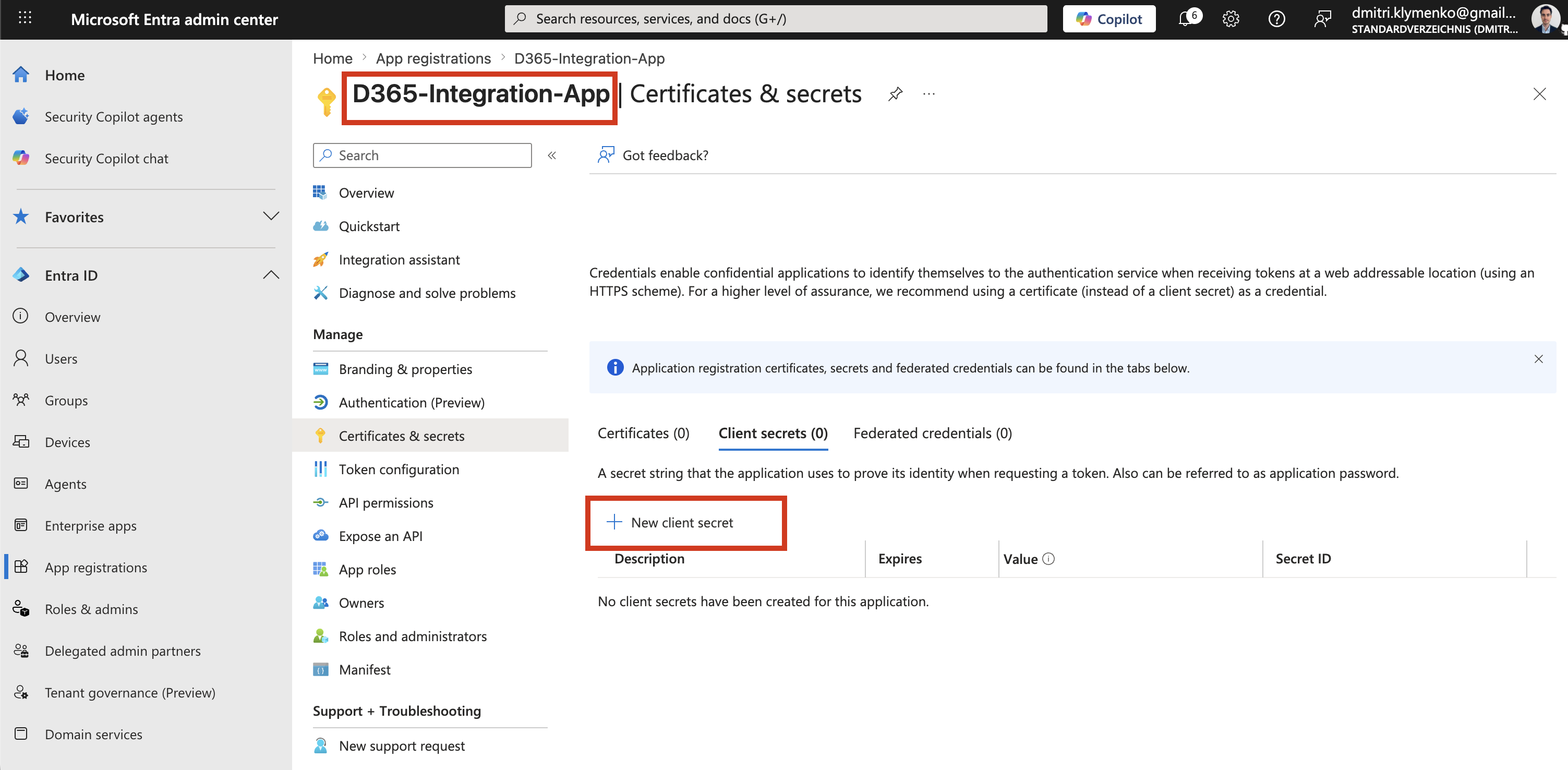
Entra ID > App registrations > New registrationCreate an application:
Name: D365-Integration-AppThen create a client secret:
Certificates & secrets > New client secretStore the secret value securely. It is required when the client application authenticates against Entra ID.
In real projects, prefer managed identities or certificate-based credentials where possible. If a client secret is used, rotate it regularly and never store it in source control.
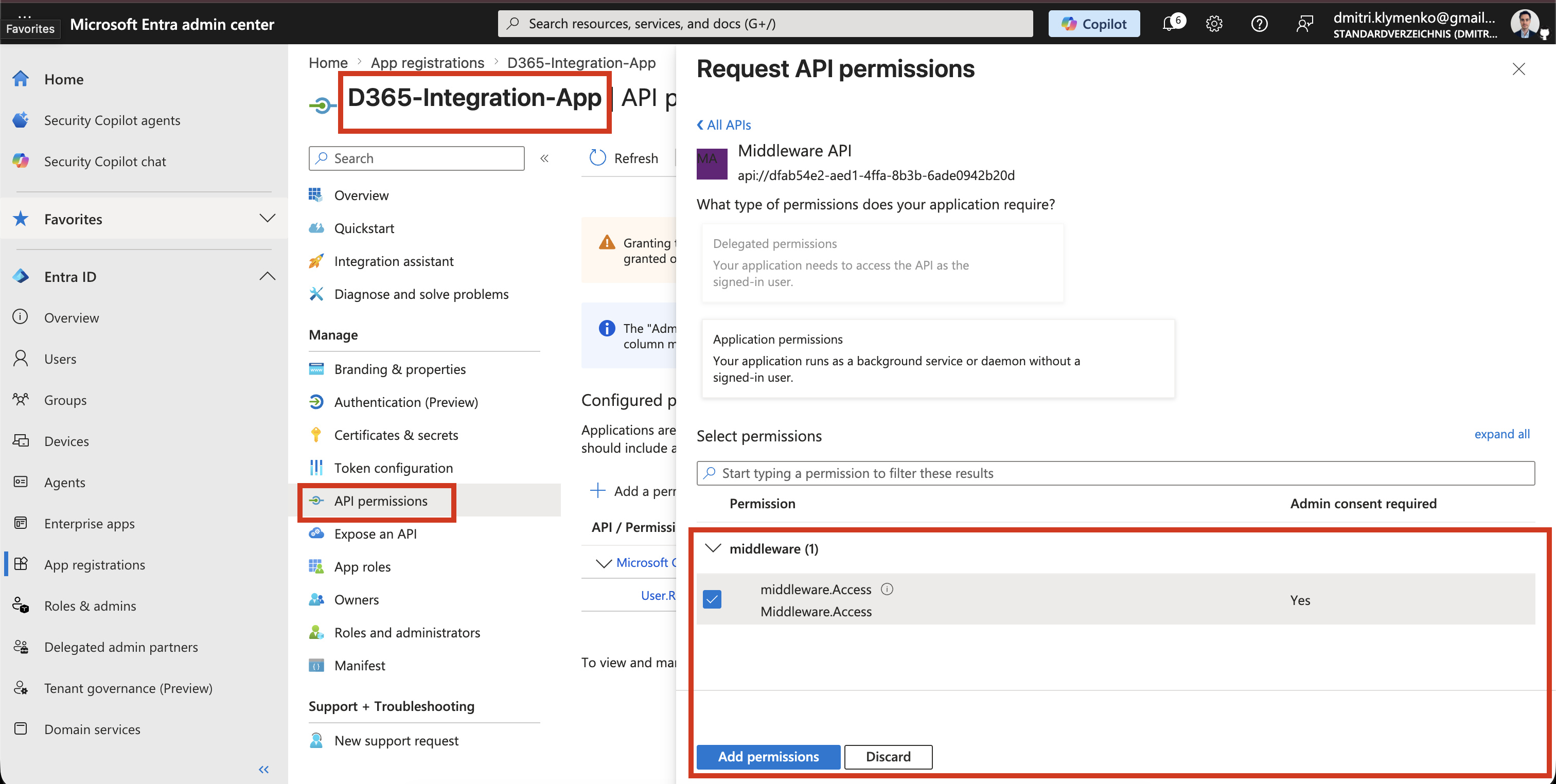
Assign App Role via API Permissions
Go to:
App registrations > D365-Integration-App > API permissionsThen select:
Add a permissionChoose:
My APIs > Middleware-API > Application permissions > Middleware.AccessThen click:
Grant admin consentThis grants the D365 client application permission to request tokens for the Middleware API with the middleware.access app role.
After admin consent is granted, Entra ID can issue application tokens that contain this role.
Client Credentials Flow at Runtime
At runtime, D365 requests a token from Entra ID:
POST https://login.microsoftonline.com/<tenant-id>/oauth2/v2.0/tokenRequest body:
client_id=D365_CLIENT_ID
client_secret=SECRET
grant_type=client_credentials
scope=api://<application-id>/.default
The .default scope tells Entra ID to issue a token containing the application permissions already granted to the client app.
Token Result
The access token contains:
- app role:
middleware.access - audience: Middleware API
- no user identity
That last point matters: this is an application token, not a delegated user token.
Enterprise Note
Real enterprise environments usually have multiple stages:
- DEV
- TEST or STAGE
- PROD
If these environments are separated into different Azure subscriptions within the same Entra ID tenant, best practice is to create separate App Registrations per environment.
Example:
D365-Integration-App-DEV
D365-Integration-App-TEST
D365-Integration-App-PROD

Middleware-API-DEV
Middleware-API-TEST
Middleware-API-PROD
This provides:
- isolation of secrets and credentials
- safer production boundaries
- independent deployments
- no cross-environment token reuse
- clearer auditing and troubleshooting