Users Request App Permissions? Configure Admin Consent Workflow
Users need access to applications, but administrators should review risky permissions before consent is granted.
Configure the admin consent workflow so users can request approval instead of being blocked without a path forward.
Understand the Scope
Applications can ask users or administrators to consent to permissions. Some permissions are low impact. Others allow access to organization data and should be reviewed.
The admin consent workflow creates a controlled process:
user opens app -> app requests permissions -> user requests admin approval -> reviewer approves or denies -> app receives consent if approvedThis is useful when user consent is restricted but the organization still wants a request path for legitimate apps.
Admin consent workflow does not replace application governance. It only handles consent requests. You still need to review app publisher, requested permissions, business owner, and data access.
Prerequisites
You need:
- a Global Administrator account to enable the workflow
- one or more reviewers for consent requests
- a separate test application that requests permissions, for example
CloudTrips Consent Demo - a test user who can trigger the request
Being selected as a reviewer does not give the reviewer extra permissions. The reviewer still needs the required Microsoft Entra role to approve the specific consent request.
For a demo, use a test app. Do not approve unknown production permissions just to complete a screenshot.
Create the Consent Demo App
Create a separate app for this trip so the consent workflow is not mixed with another demo.
In the Microsoft Entra admin center, go to:
Entra ID
> App registrations
> New registration
Create the app:
Name: CloudTrips Consent Demo
Supported account types: Accounts in this organizational directory only
Redirect URI platform: Web
Redirect URI: https://jwt.ms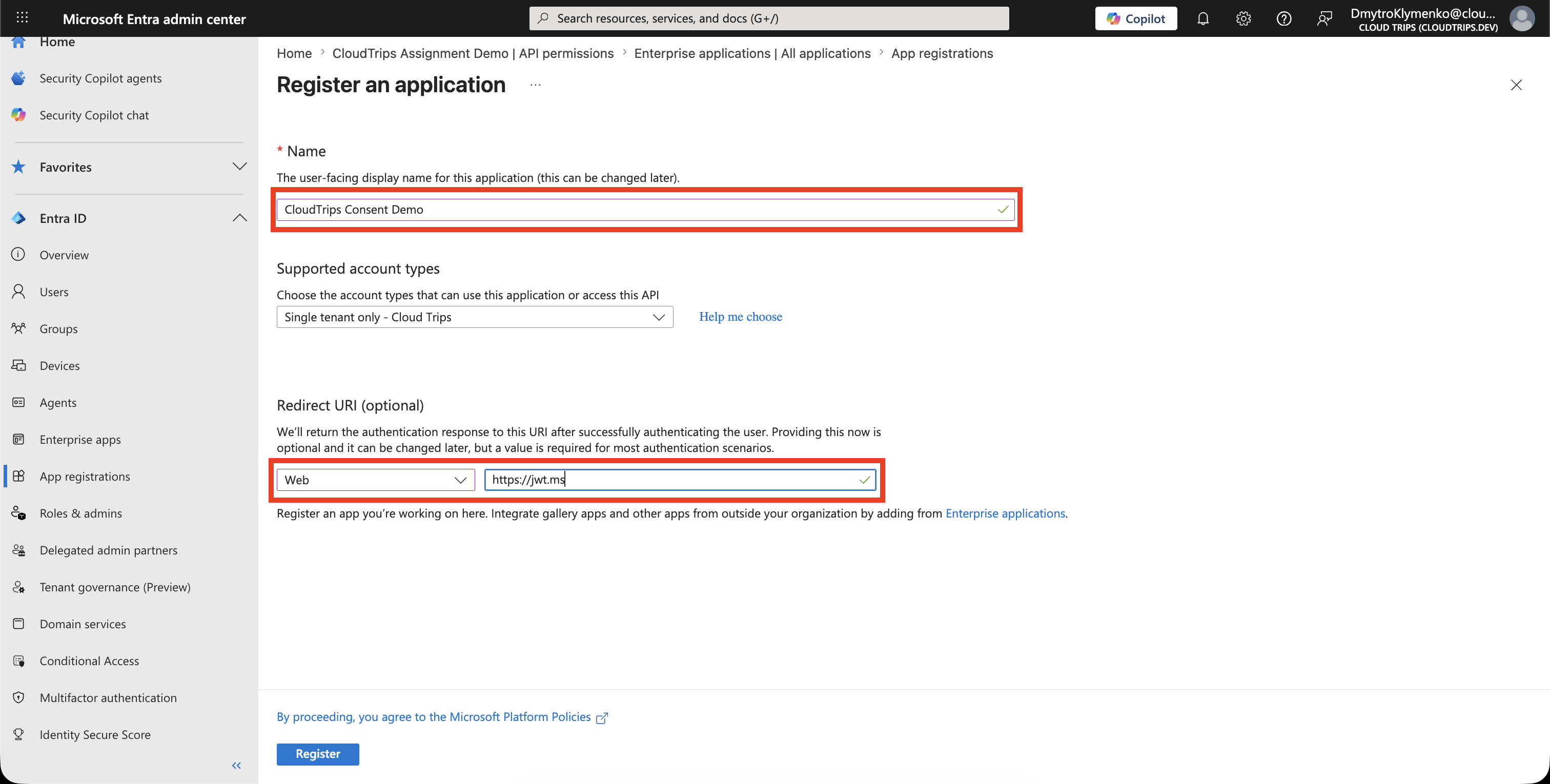
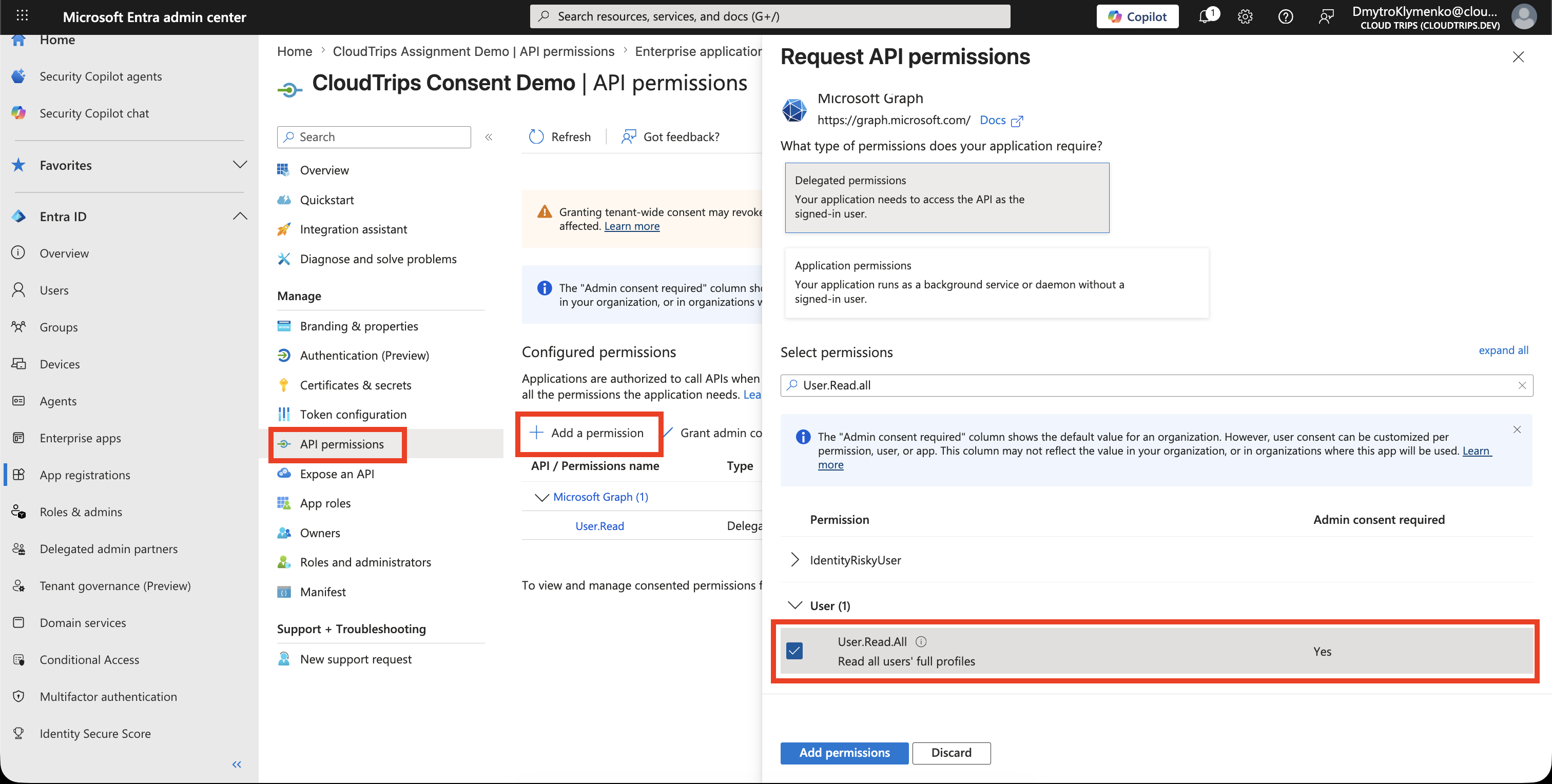
Open the new app and go to:
API permissions
> Add a permission
> Microsoft Graph
> Delegated permissions
Add a permission that clearly requires admin review, for example:
User.Read.AllDo not grant admin consent yet. The point of the demo is to let the test user request it.
Open Consent Settings
In the Microsoft Entra admin center, go to:
Entra ID
> Enterprise applications
> Consent and permissions
> Admin consent settings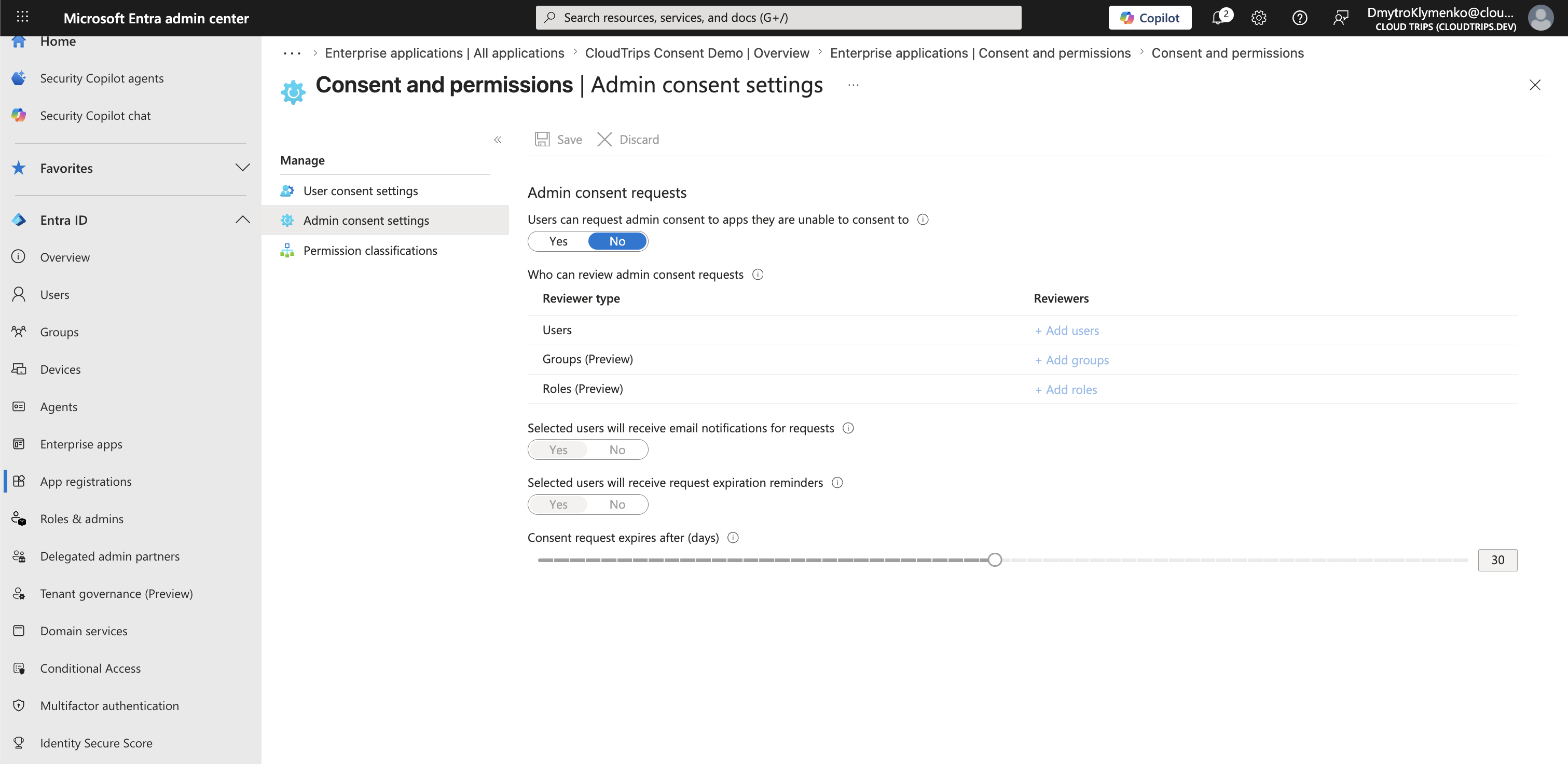
Enable Admin Consent Workflow
Set:
Users can request admin consent to apps they are unable to consent to: YesAdd at least one reviewer.
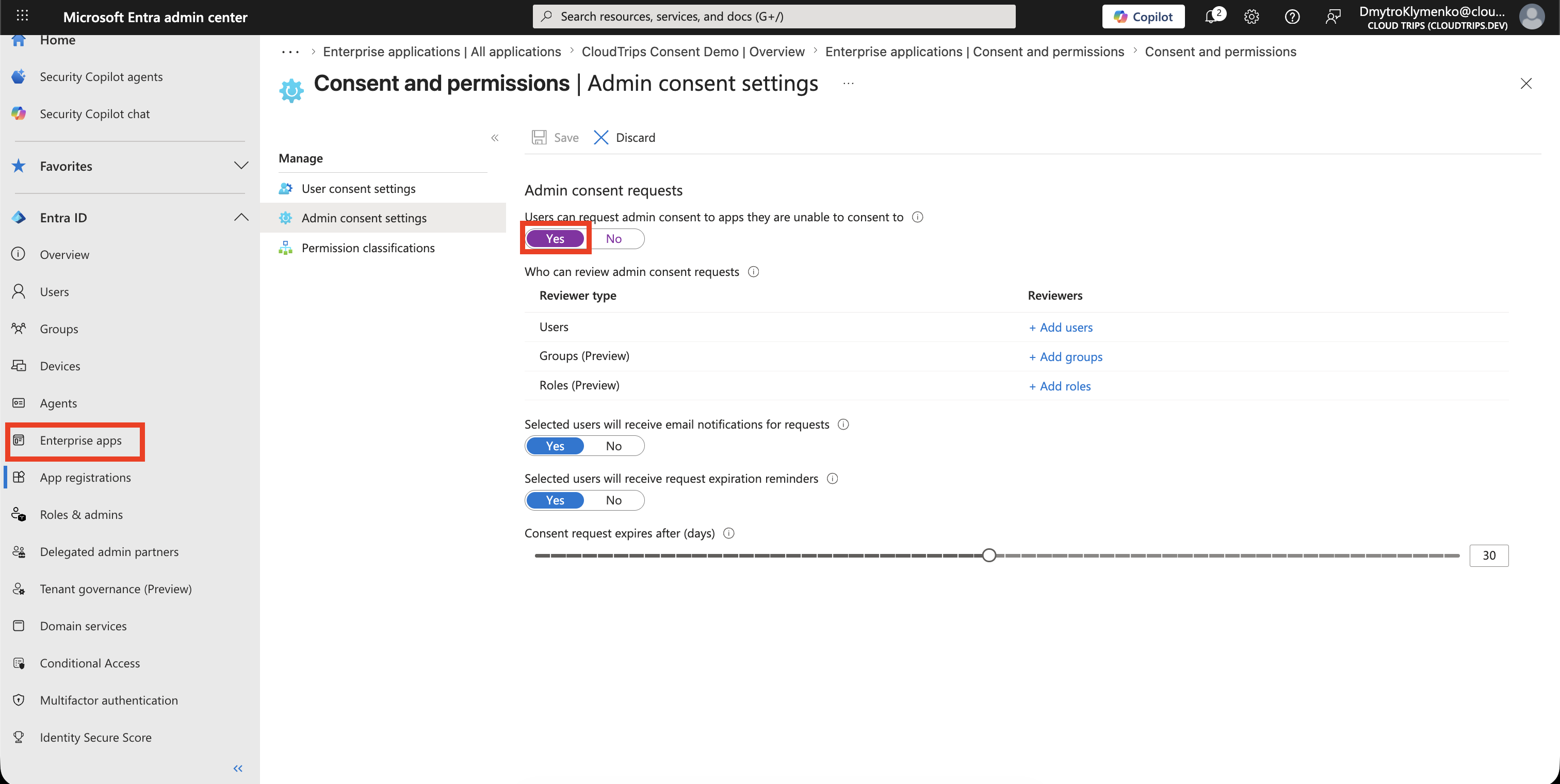
For a demo tenant, you can add your administrator account as reviewer. In production, use a small reviewer group with clear ownership.
Configure:
Selected users to review admin consent requests
Request expires after
Reminder frequency
Save the settings.
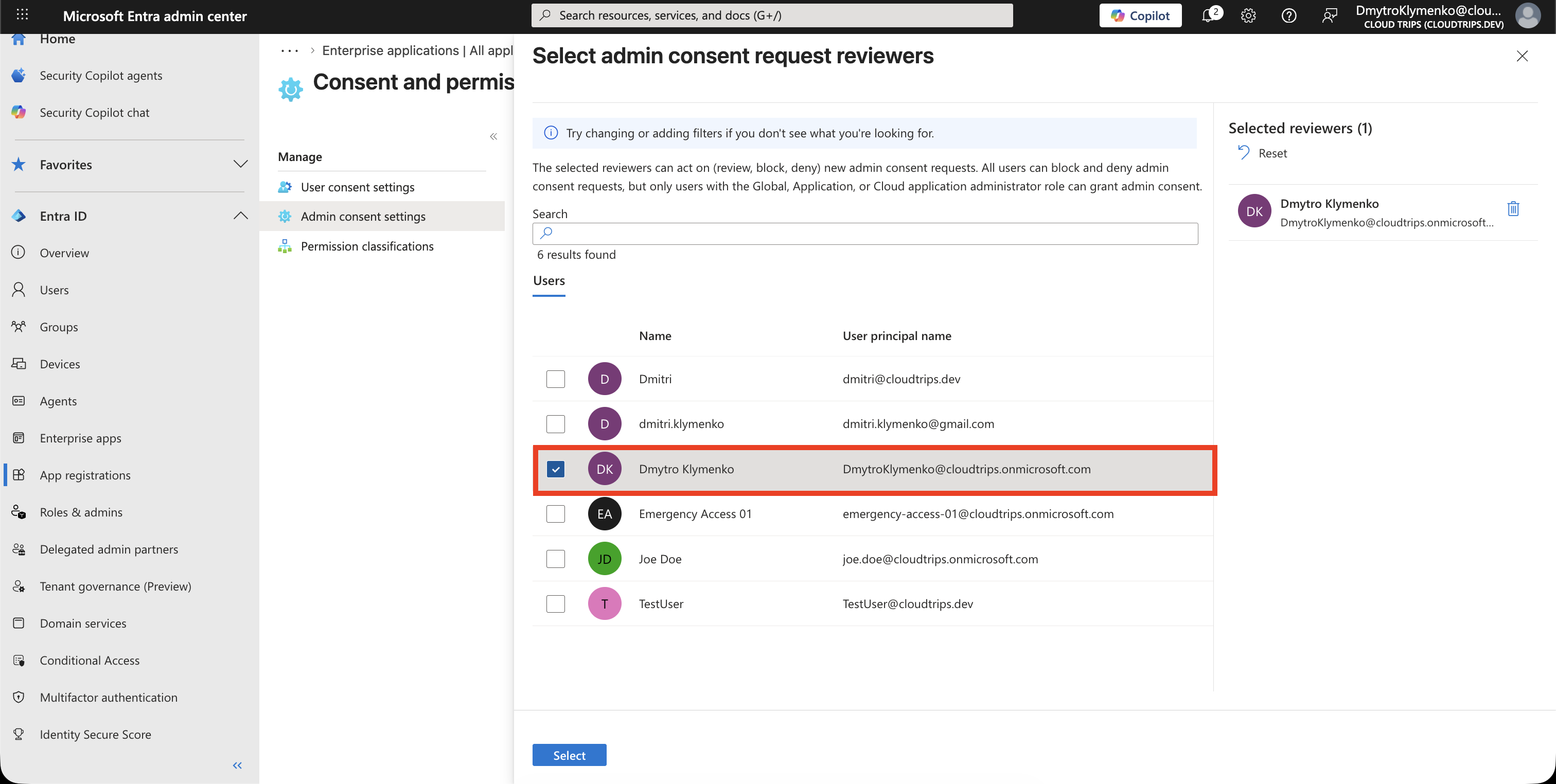
Trigger a Test Request
Sign in as a test user and open the consent demo app.
Use the OAuth authorization endpoint from the app registration overview and redirect the result to https://jwt.ms.
The URL uses this shape:
https://login.microsoftonline.com/<tenant-id>/oauth2/v2.0/authorize?client_id=<client-id>&response_type=code&redirect_uri=https%3A%2F%2Fjwt.ms&scope=openid%20profile%20https%3A%2F%2Fgraph.microsoft.com%2FUser.Read.AllWhen the consent screen appears, request approval.
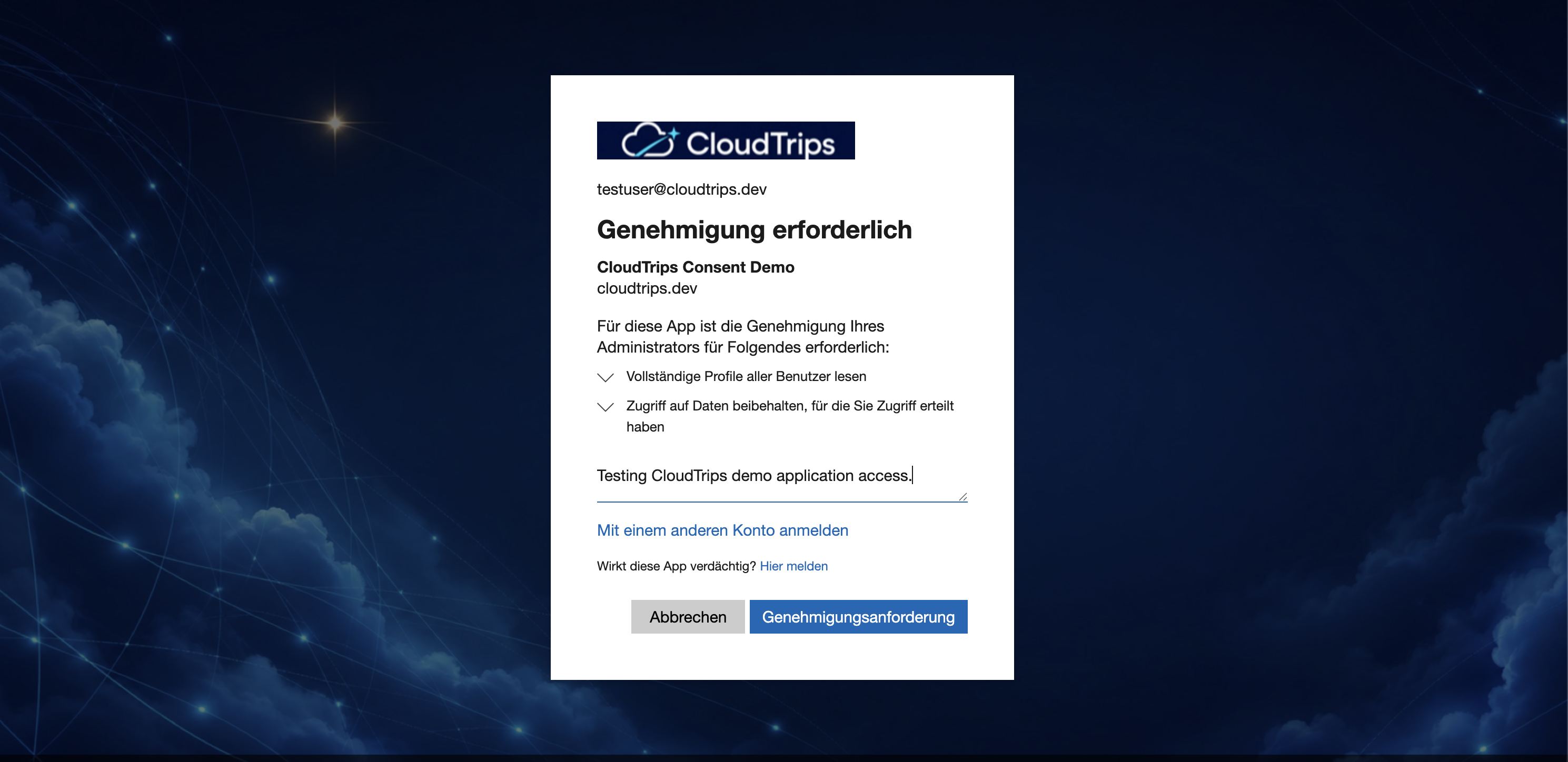
Add a short justification, for example:
Testing CloudTrips demo application access.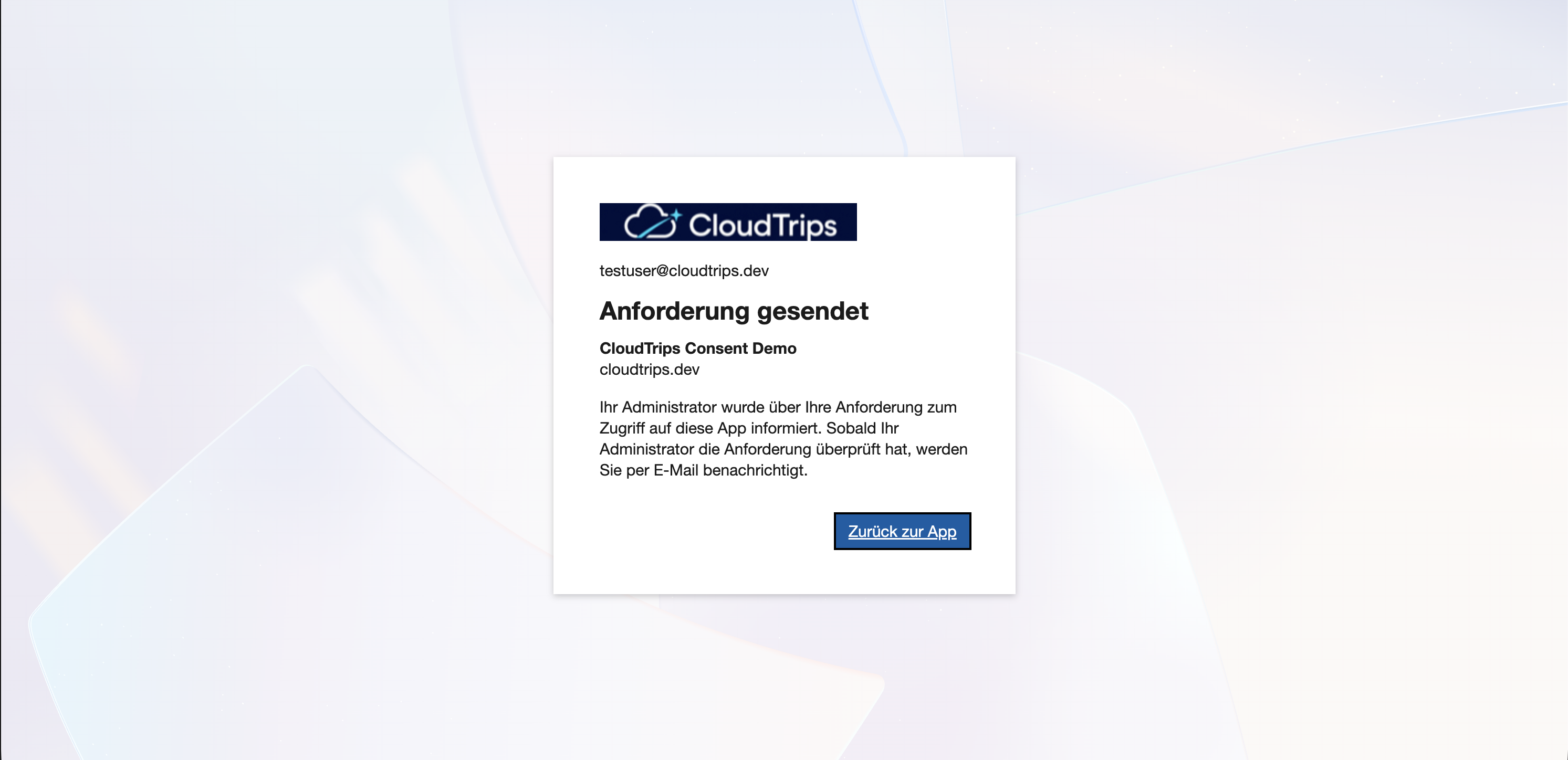
Review the Request
Return to the Microsoft Entra admin center and open:
Enterprise applications
> Consent and permissions
> Admin consent requests
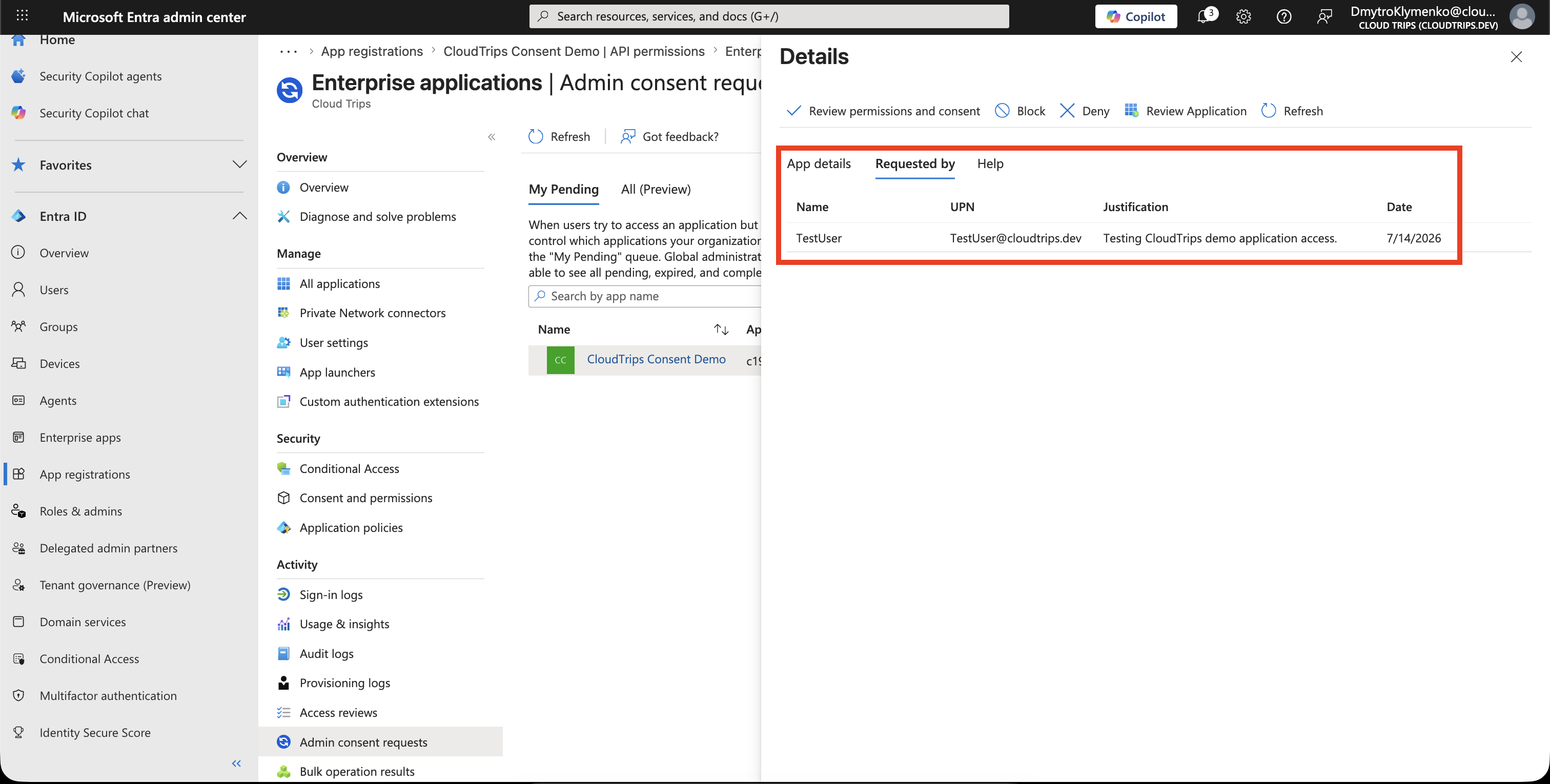
Open the pending request.
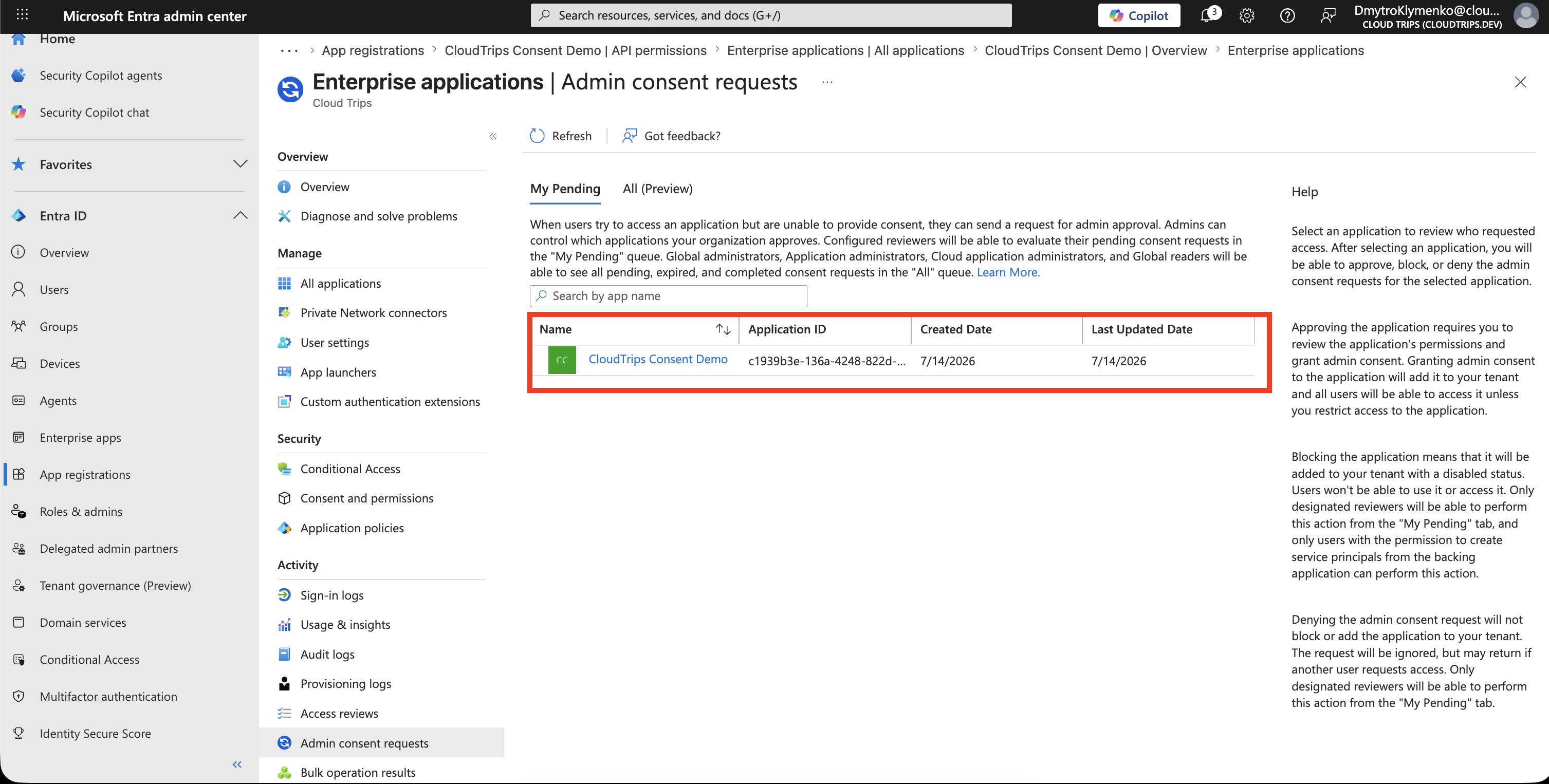
Review:
- name
- application ID
- created date
- last updated date
Open the request details to review the requested permissions before approving.
Approve or Deny
Approve the request only if the app and permissions are expected.
For a demo, approve the test request.
If the app is unknown, requests broad permissions, or has no business owner, deny the request and investigate.
Confirm the Result
Sign in again as the test user and open the app.
The user should no longer see the admin consent request for the approved permissions.
Review the enterprise application permissions afterward:
Enterprise applications
> select application
> Permissions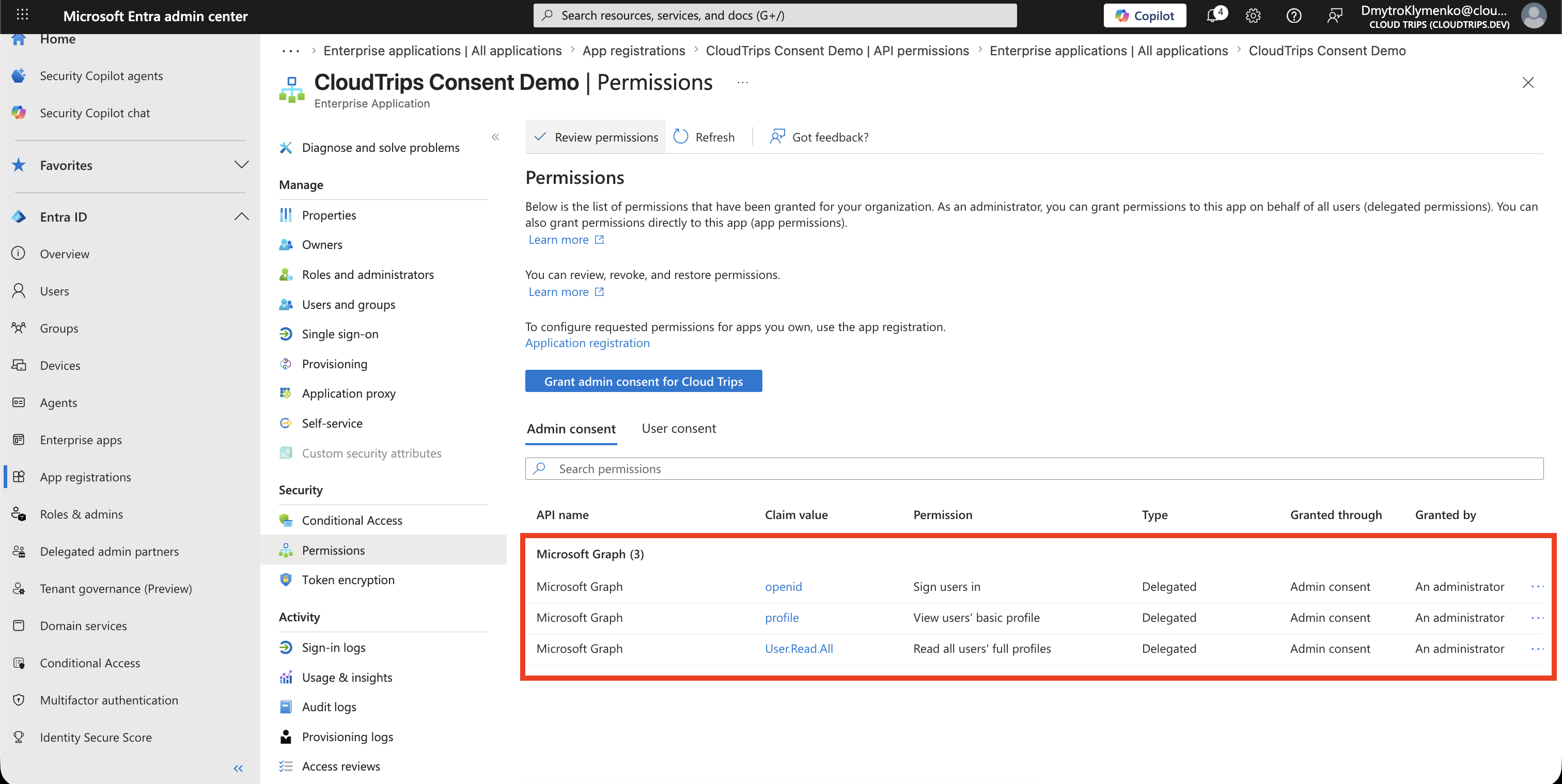
Enterprise Note
- restrict user consent for risky apps and permissions
- enable admin consent workflow so users have a request path
- assign reviewers who understand app risk and business ownership
- make sure reviewers also have the role required to approve the request
- review publisher, permission scope, and justification before approving
- deny requests for unknown apps or excessive permissions
- document why consent was approved
- periodically review granted permissions
- remove consent when the app is no longer needed
Admin consent workflow turns app permission requests into a review process. It is strongest when reviewers look at both the technical permissions and the business reason.