Company Wants a Branded Login Page? Configure Company Branding
Users should recognize the organization when they sign in to Microsoft 365 and applications protected by Microsoft Entra ID.
Company branding can add an approved logo, background, colors, and sign-in guidance to the tenant-wide sign-in experience.
Understand the Scope
Default company branding applies across the tenant. For many Microsoft and multitenant applications, users see the branding after entering their username, when Microsoft Entra identifies their home tenant.
Branding changes appearance only. It does not change authentication methods, Conditional Access, or application authorization.
Prerequisites
Company branding requires a supported license, such as Microsoft Entra ID P1 or P2, Microsoft 365 Business Standard, or SharePoint Plan 1.
Use the minimum required role:
Organizational Branding AdministratorPrepare approved assets:
| Asset | Recommended dimensions | Maximum size |
|---|---|---|
| Favicon | 32 × 32 px | 5 KB |
| Background image | 1920 × 1080 px | 300 KB |
| Banner logo | 245 × 36 px | 50 KB |
| Square logo | 240 × 240 px | 50 KB |
PNG is preferred; JPG is also supported. Keep important content away from the center because the sign-in box and responsive cropping can cover the background.
Open Custom Branding
In the Microsoft Entra admin center, go to:
Entra ID
> Custom Branding
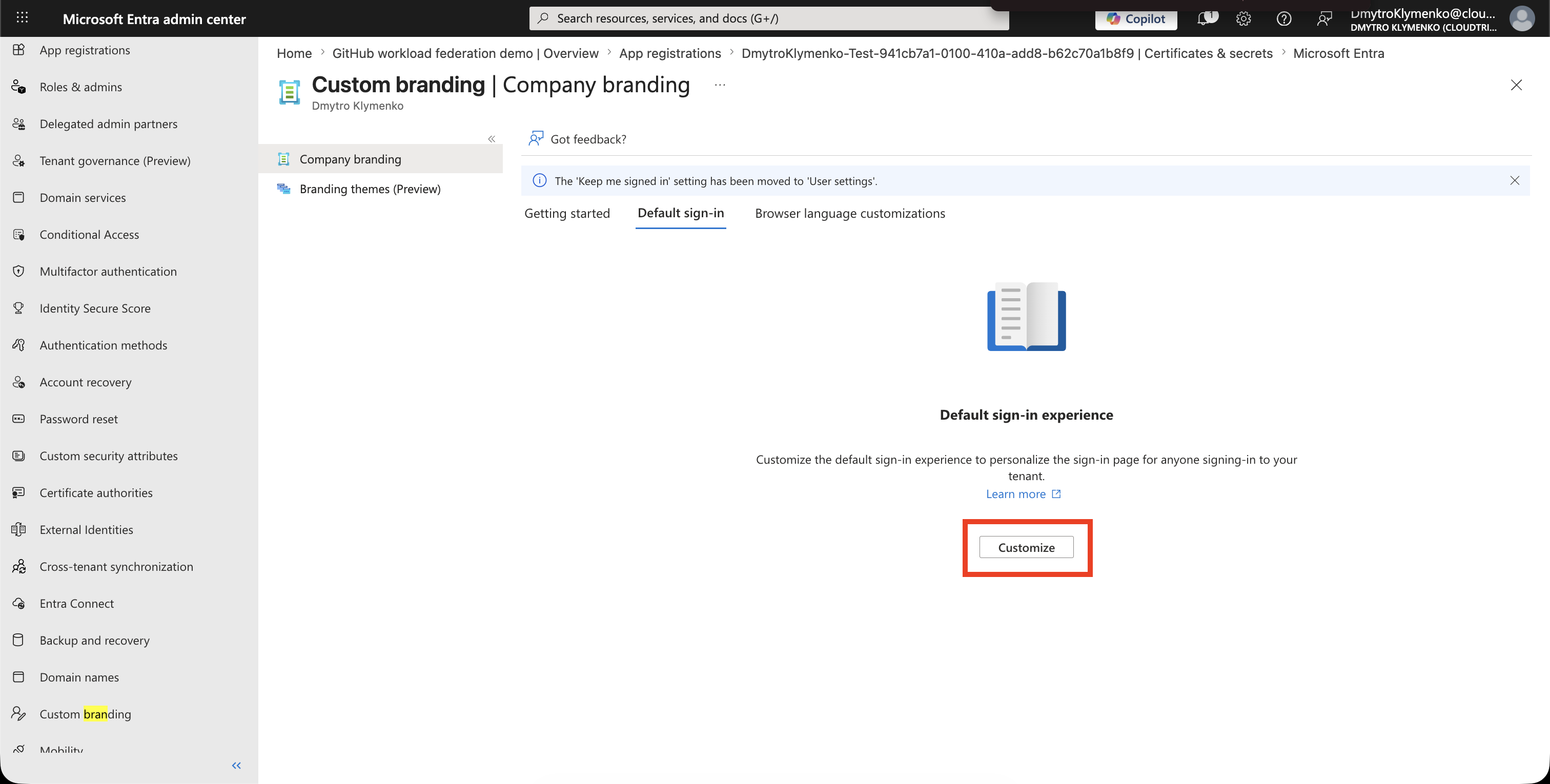
Select Configure for the default sign-in experience. If branding already exists, select Edit.
Configure the Basics
On Basics, upload the approved favicon and background image.
Set a page background color that remains readable if the image cannot load.
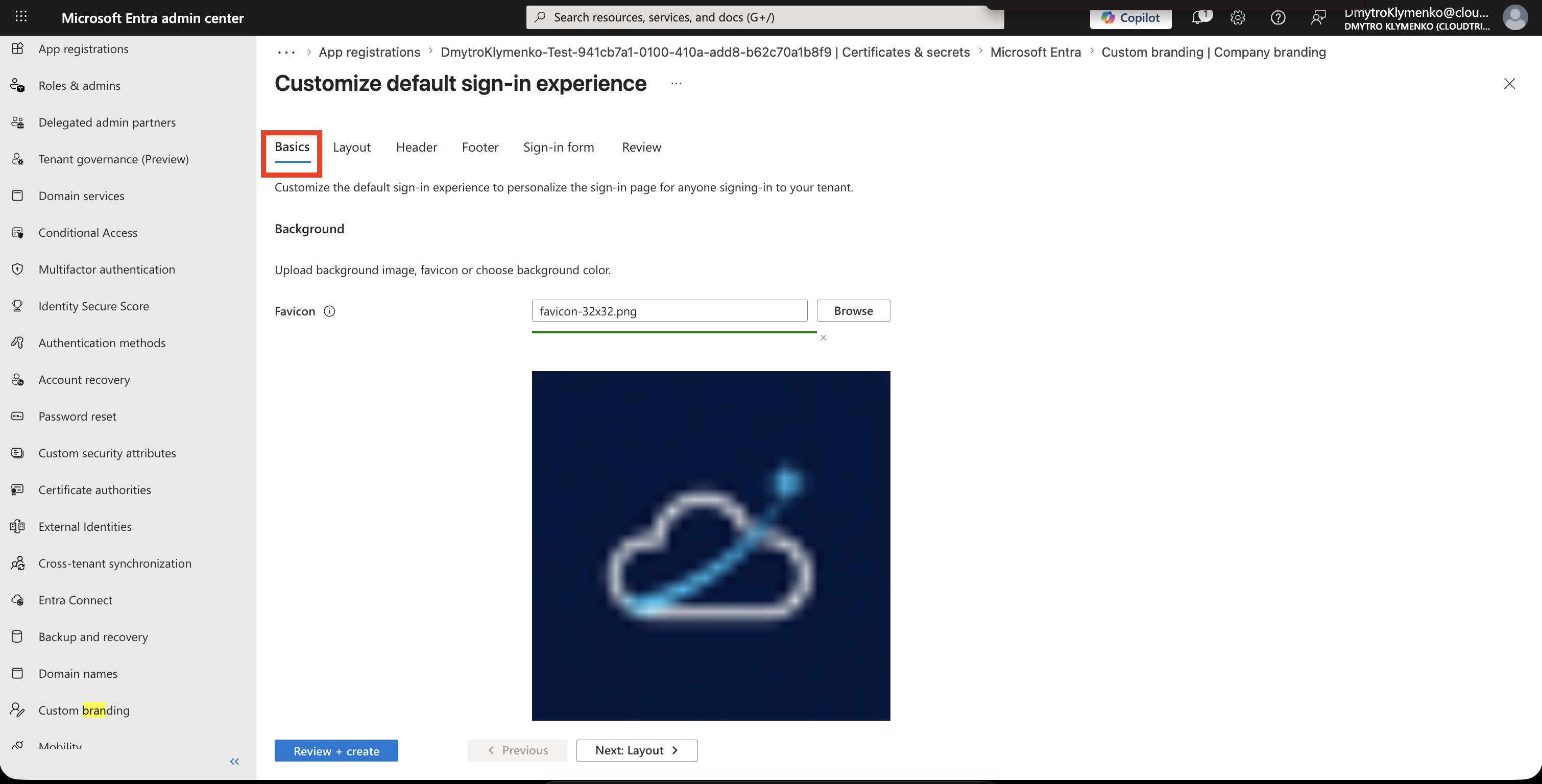
Select Next: Layout.
Choose the Layout
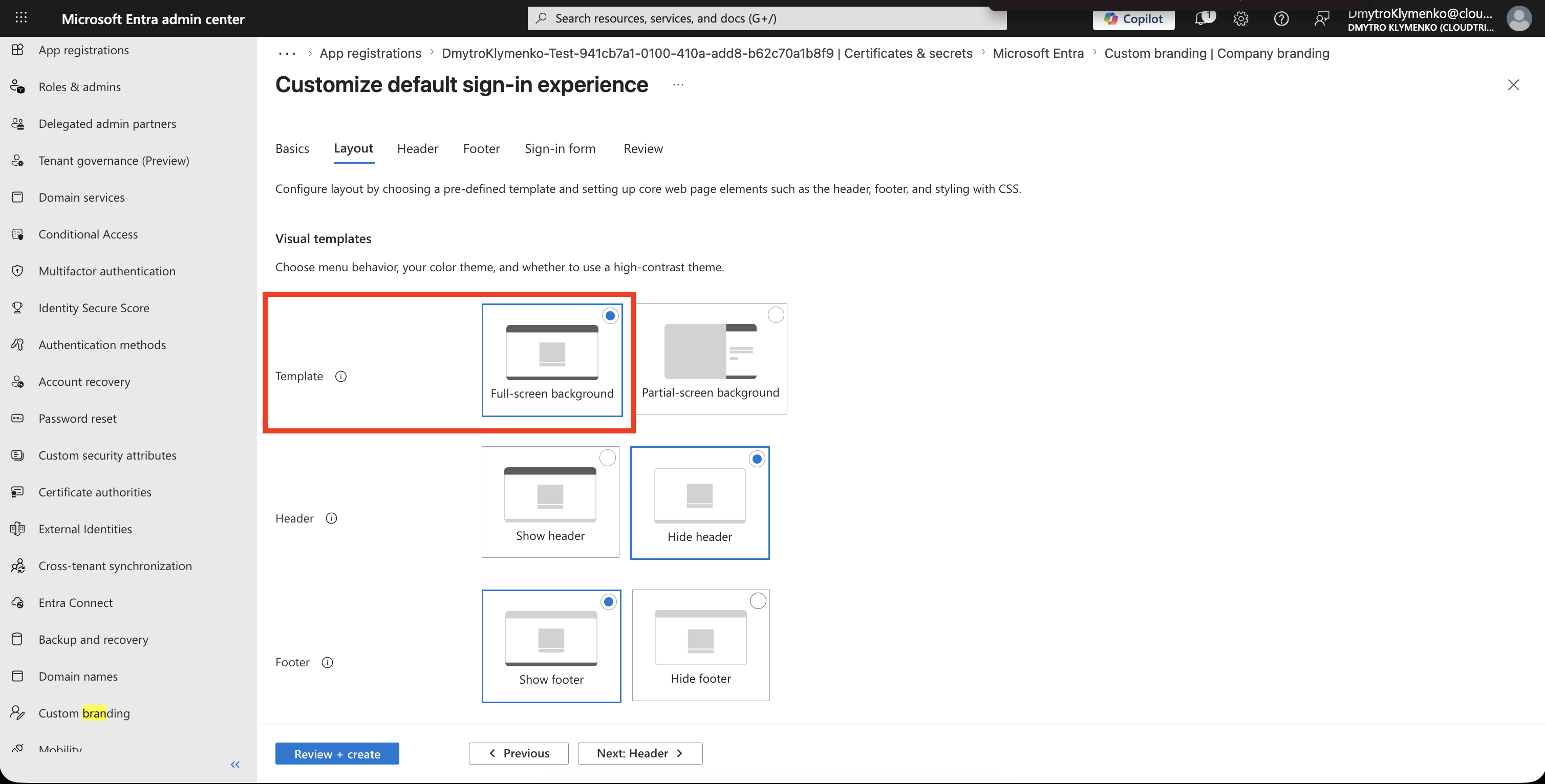
Choose the visual template that keeps the sign-in form readable and preserves the important part of the background image.
Enable the header or footer only when they are part of the approved design.
Note: Custom CSS is not available for Microsoft Entra ID tenants created after January 5, 2026. Use the available visual templates and branding controls for new tenants.
Configure the Sign-In Form
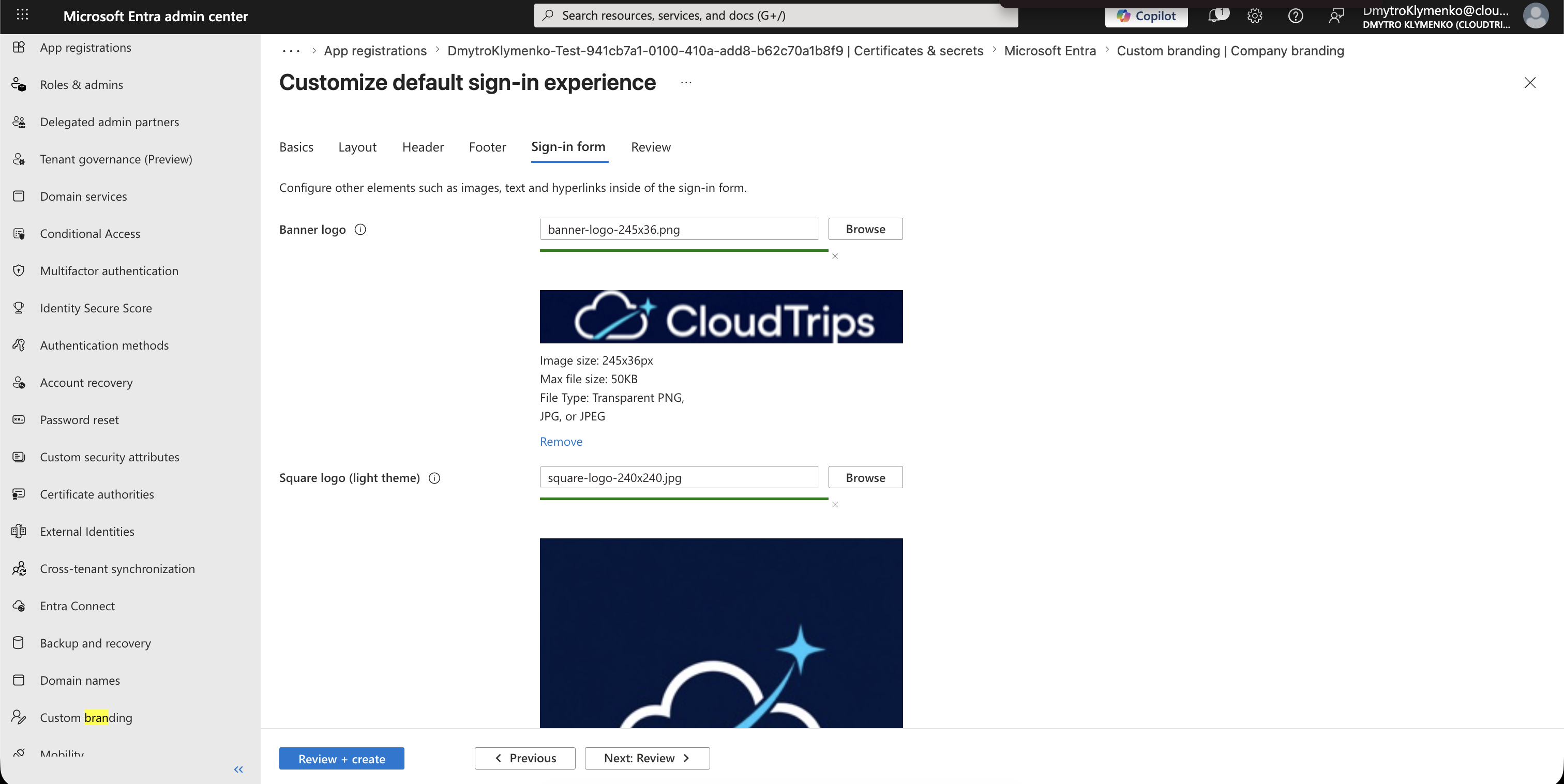
Upload:
Banner logo: 245 × 36 px
Square logo (light theme): 240 × 240 px
Square logo (dark theme): 240 × 240 px, when required
Add short sign-in page text only when it helps users recognize the legitimate sign-in page or contact support.
Example:
Sign in with your organizational account. Contact the IT service desk if you need help.The sign-in page is public. Do not include internal-only information, personal data, or sensitive support details.
Avoid username hint text when external guests also use the tenant because one internal email format can confuse them.
Review and Create
Open Review and verify:
- correct tenant
- approved logo versions
- readable contrast
- no sensitive public text
- correct support wording
- acceptable layout on narrow and wide screens
Select Create or Save.
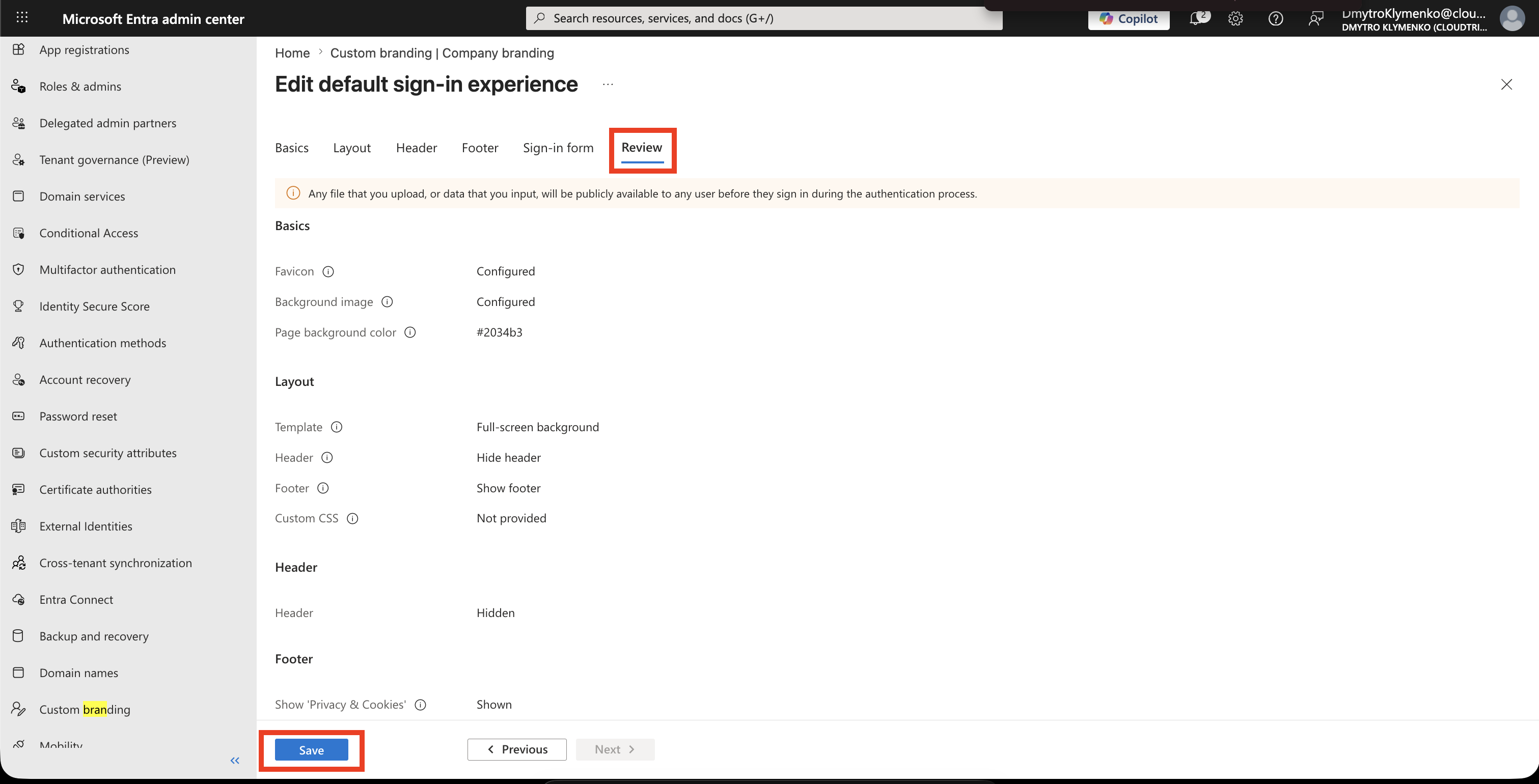
Changes can take time to appear depending on the tenant location and cached sign-in experience.
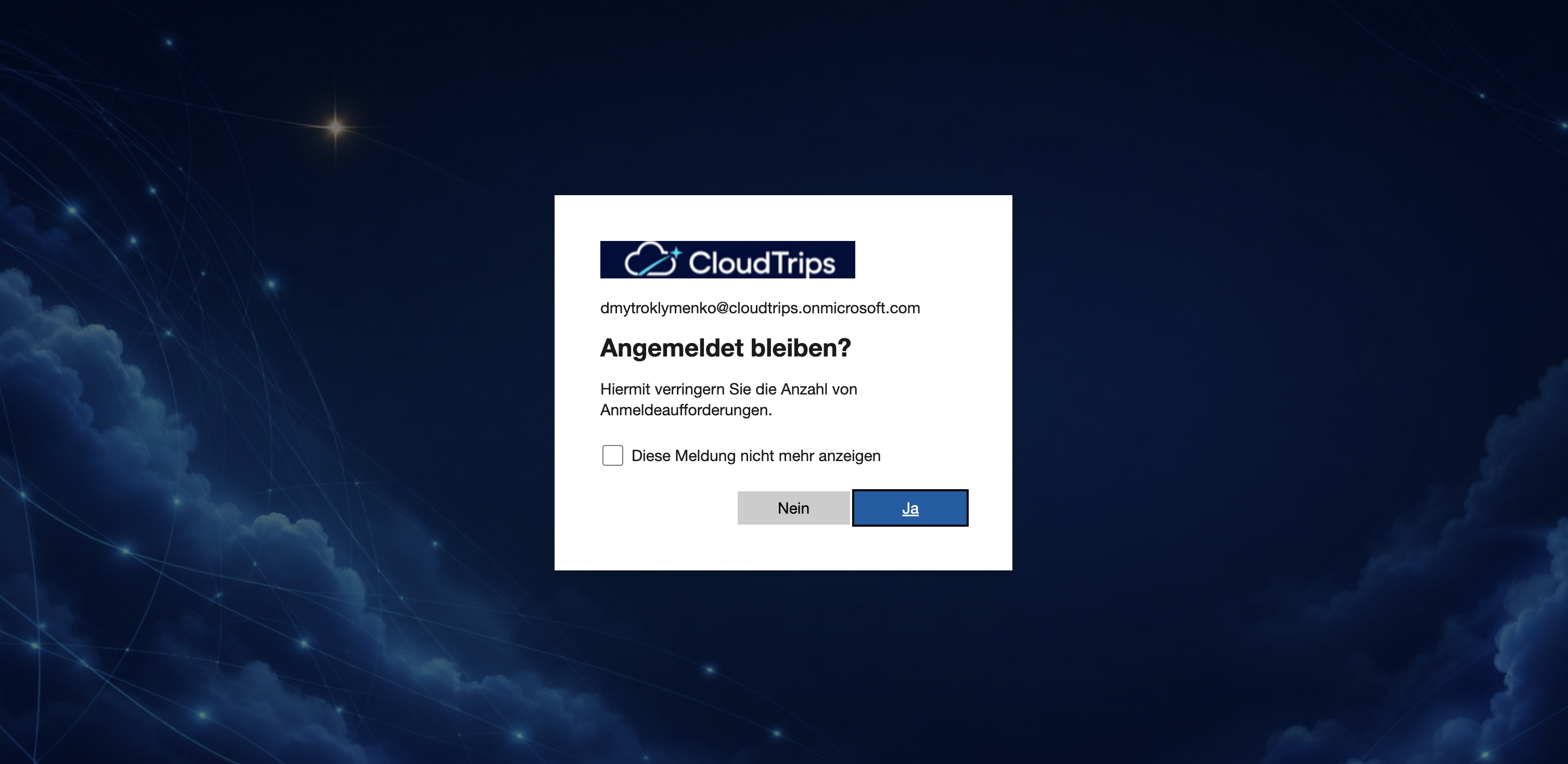
Test the Branded Sign-In
Open a private browser window and start a tenant sign-in.
Enter a test user’s organizational email address and select Next. Confirm that the branded experience appears for the correct tenant.
Test:
desktop and mobile window sizes
light and dark themes where applicable
background image cropping
logo clarity
sign-in text and support information
Do not complete a real user’s sign-in while capturing public screenshots.
Optional Language Customization
If localized branding is required, return to Custom Branding and select Add browser language.
Add translated sign-in text for each supported language. Any element not customized for that language falls back to the default branding.
Enterprise Note
- obtain approval from brand, security, privacy, and legal owners
- optimize images before upload
- keep a copy of every approved asset and text version
- use recognizable branding without implying that branding alone proves a page is safe
- test guest and member sign-in experiences
- review branding after company-name, logo, domain, or support changes
- restrict branding administration to the minimum required role
Company branding improves recognition and consistency. Users should still verify the sign-in domain and follow organizational phishing guidance.