Customer Identities Need Sign-Up/Sign-In? Configure External ID
Customers need to create accounts and sign in to an application.
Use Microsoft Entra External ID to create a customer user flow, collect only the required attributes, connect the user flow to an application, and test the customer sign-up/sign-in experience.
Understand the Scope
Microsoft Entra External ID for customers is used for customer-facing applications. It is separate from normal workforce sign-in and guest collaboration.
The basic pattern is:
create external tenant -> register app -> create sign-up/sign-in user flow -> add app to user flow -> test customer sign-upFor a normal customer identity setup, use a separate External ID external tenant. Do not let customers self-register into the workforce tenant that admins and employees use.
Prerequisites
You need:
- access to the Microsoft Entra admin center
- an External ID external tenant
- the
External ID User Flow Administratorrole or a role that can manage External ID user flows - an application registration for the customer-facing app
- a redirect URI for the app
For a demo, use a test application and a test customer account. Do not collect production customer data.
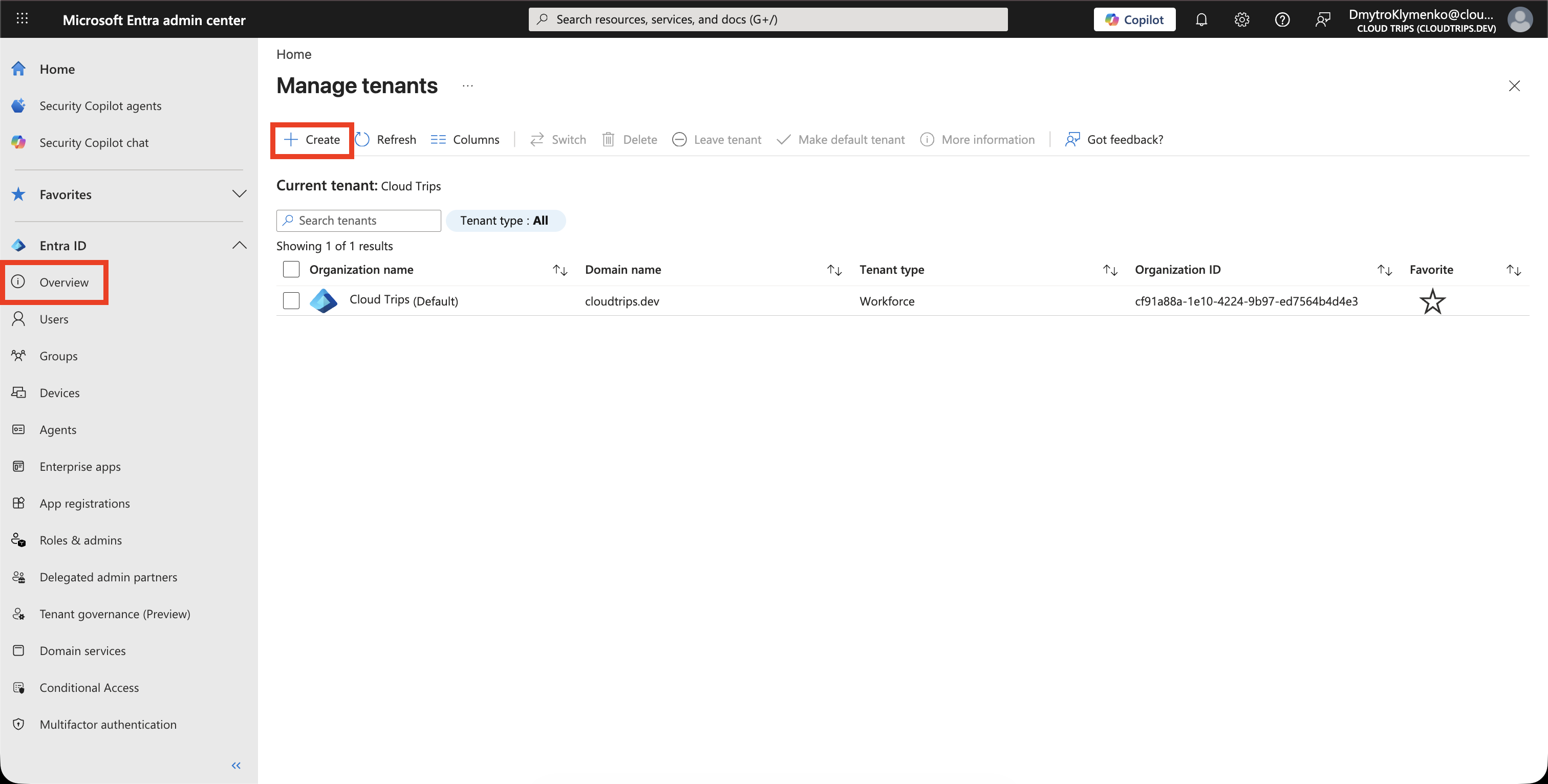
Create the External Tenant
In the Microsoft Entra admin center, go to:
Entra ID
> Overview
> Manage tenants
Select Create.
Choose:
Microsoft Entra External ID
> Customers
Enter tenant details, for example:
Organization name: CloudTrips Customers
Initial domain name: cloudtripscustomers
Country/region: your region
Create the tenant.
Switch to the External Tenant
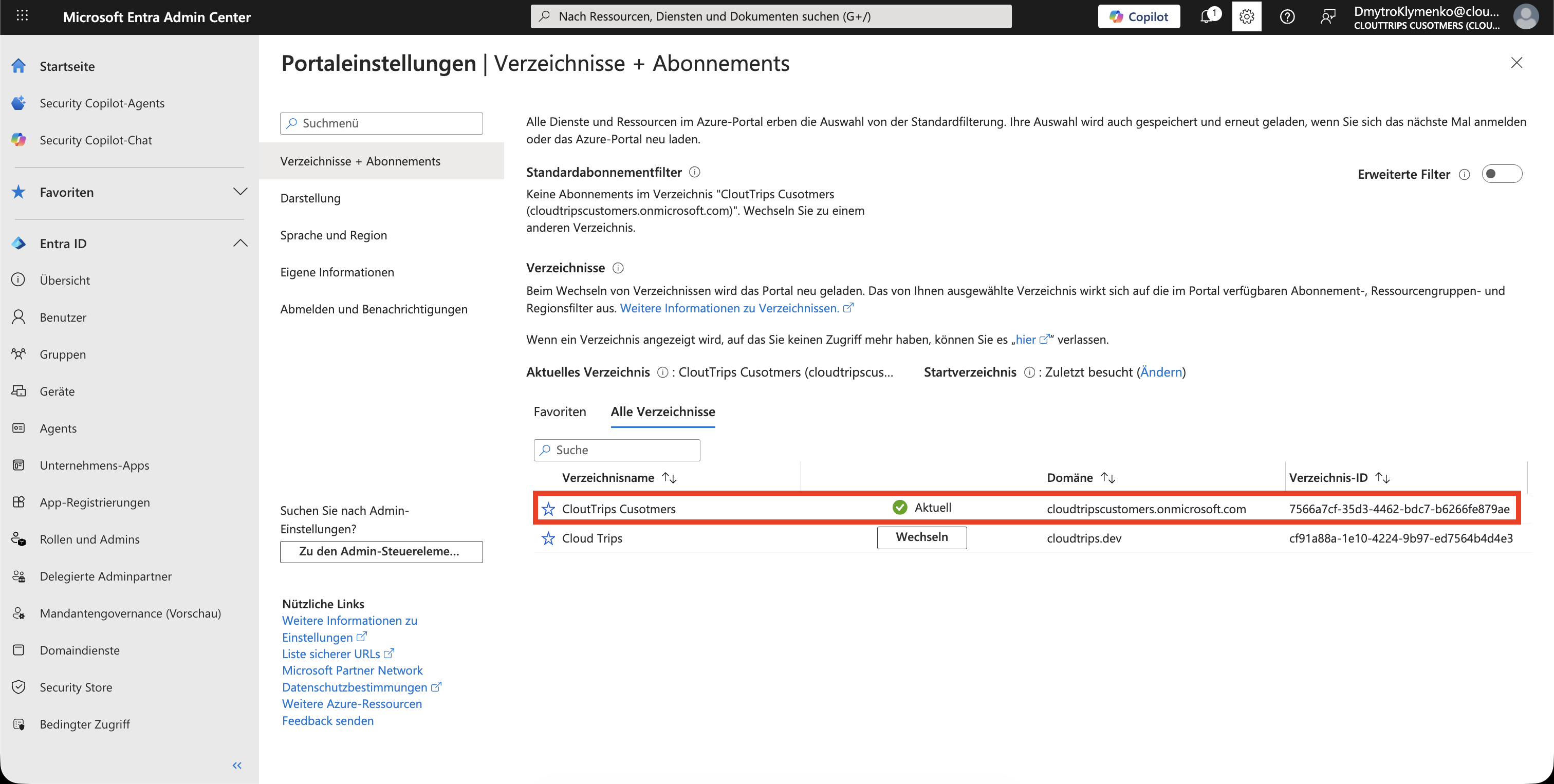
After the tenant is created, switch directory.
Use the top-right account menu:
Switch directory
> CloudTrips Customers
The rest of this trip is done inside the External ID external tenant.
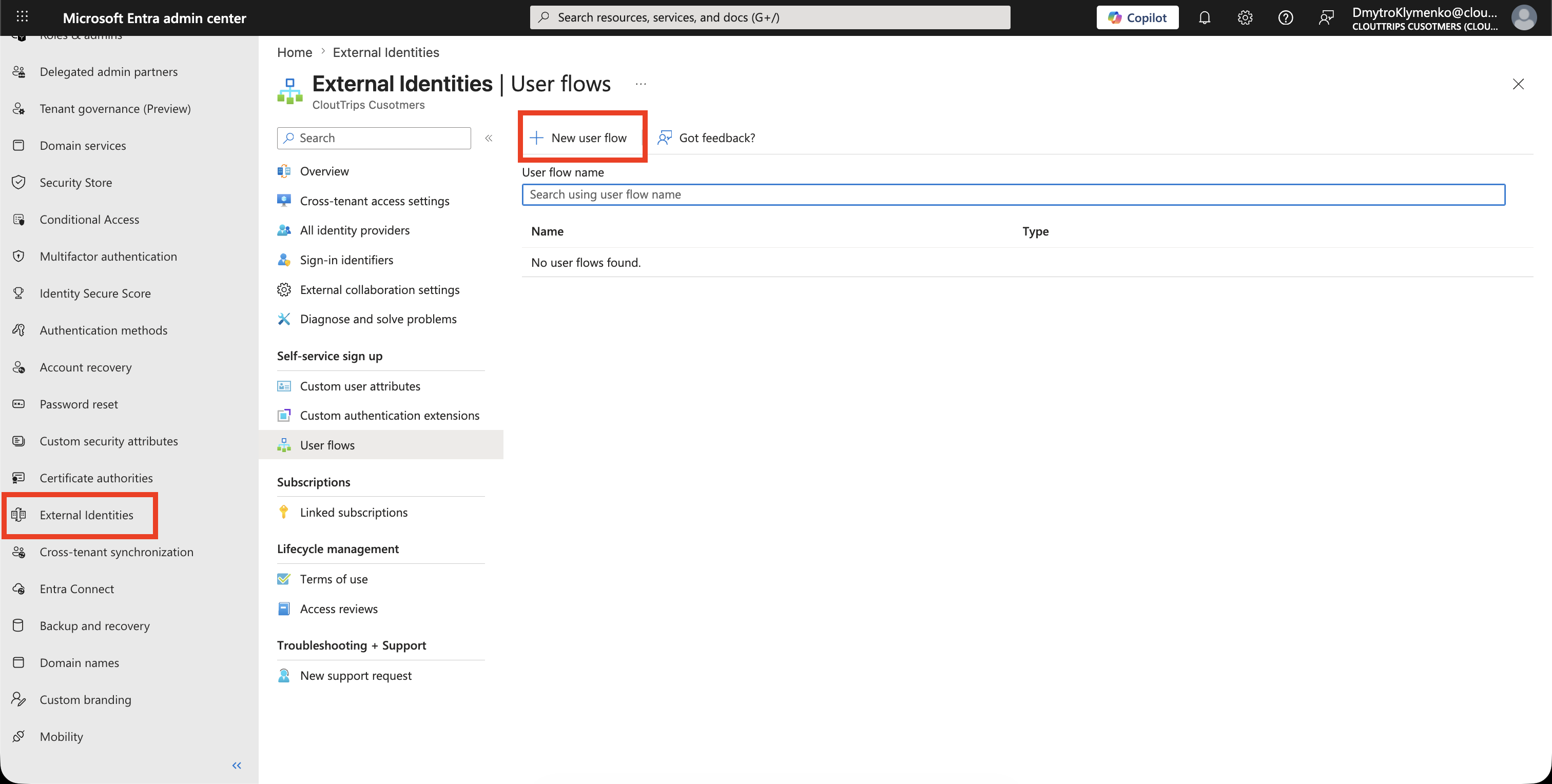
Open User Flows
Go to:
Entra ID
> External Identities
> User flows
Select New user flow.
Create the Sign-Up and Sign-In Flow
Choose a sign-up and sign-in user flow.
Use a clear name:
CustomerSignUpSignInSelect the identity providers customers can use.
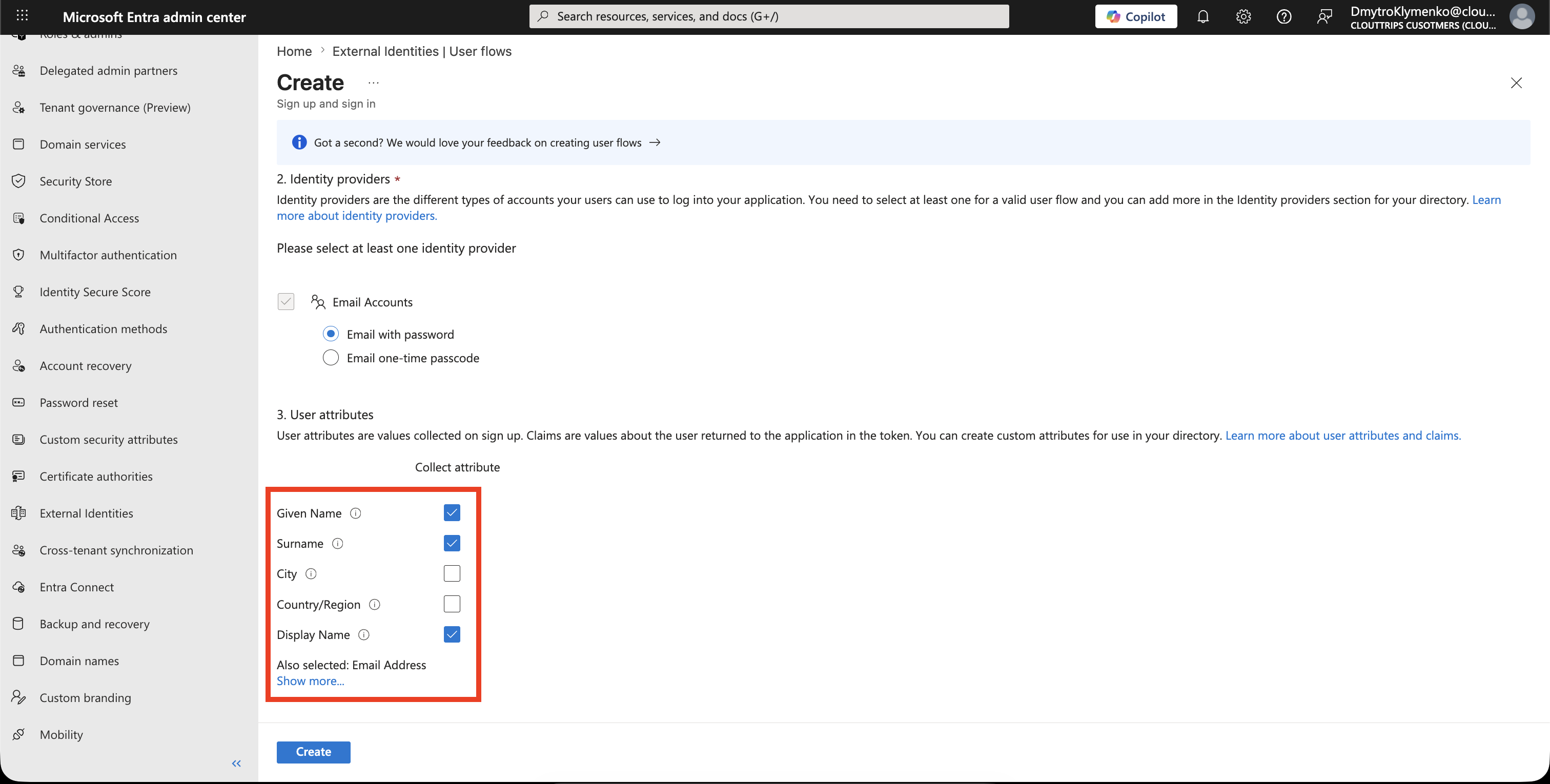
For a simple demo, start with:
Email with password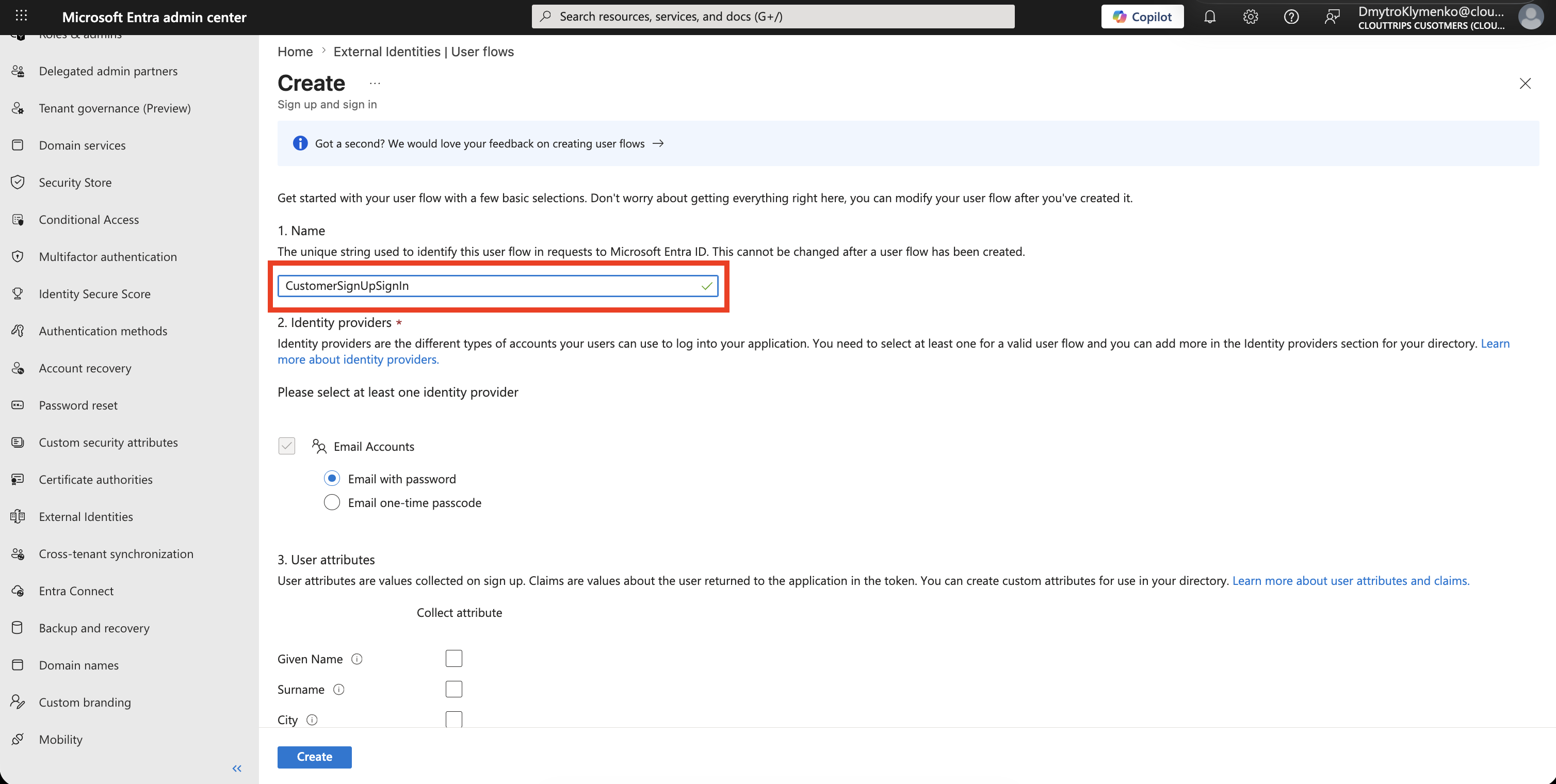
Choose Customer Attributes
Select only the attributes the application needs.
For a minimal demo, collect:
Email address
Display name
Given name
Surname
Avoid collecting phone number, address, job title, or custom attributes unless the application really needs them.
Select Create.
Register the Customer Application
Stay in the External ID external tenant.
Go to:
Entra ID
> App registrations
> New registration
Create the customer-facing app in this tenant.
Example:
Name: CloudTrips Customer App
Supported account types: Accounts in this organizational directory only
Redirect URI type: Web
Redirect URI: http://localhost:3000/auth/callback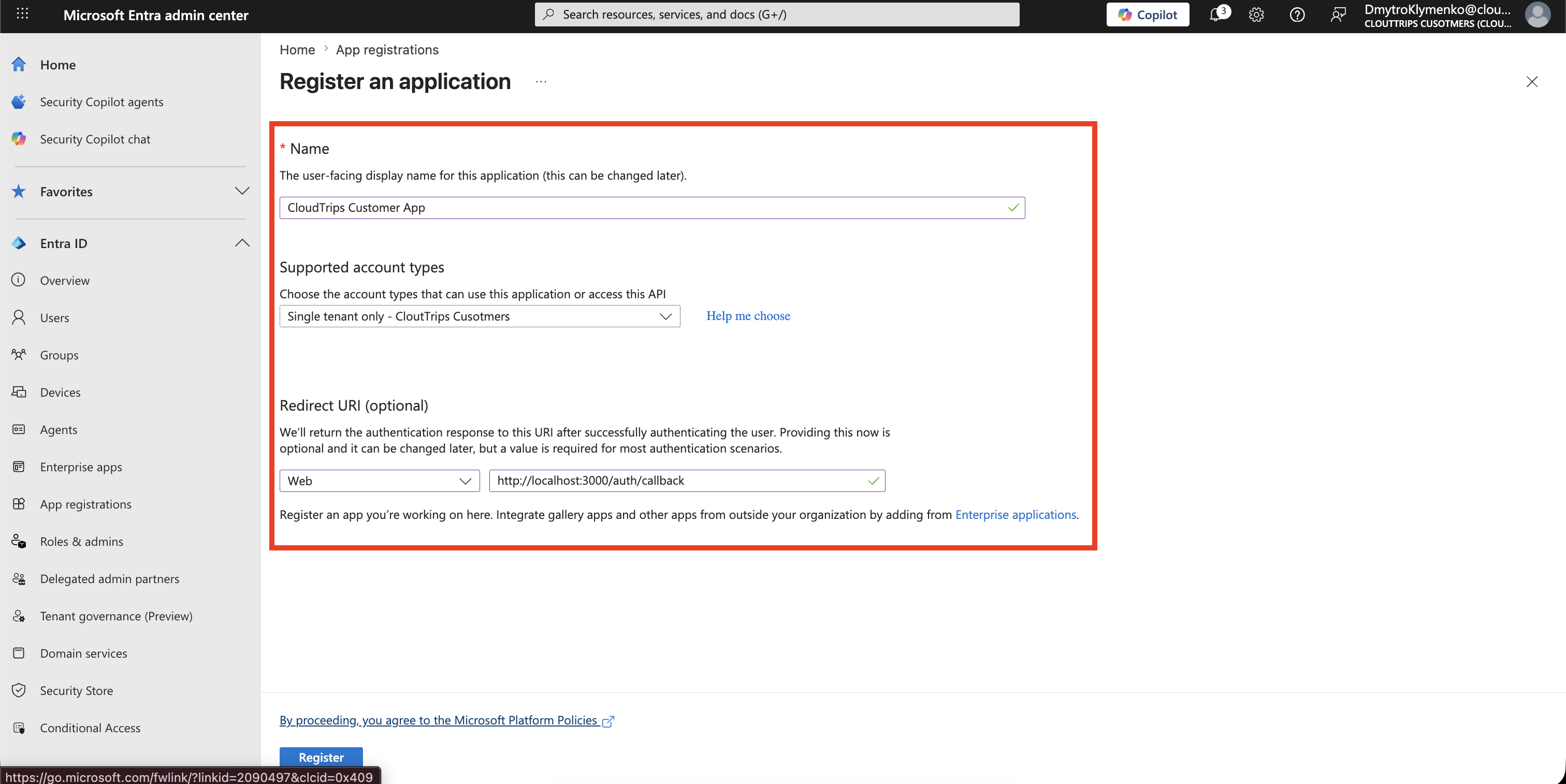
The app registration must be in the External ID external tenant because the customer user flow is also in that tenant.
Add the Application to the User Flow
Open the new user flow.
Go to:
Applications
> Add application
Select the customer-facing application and add it to the user flow.
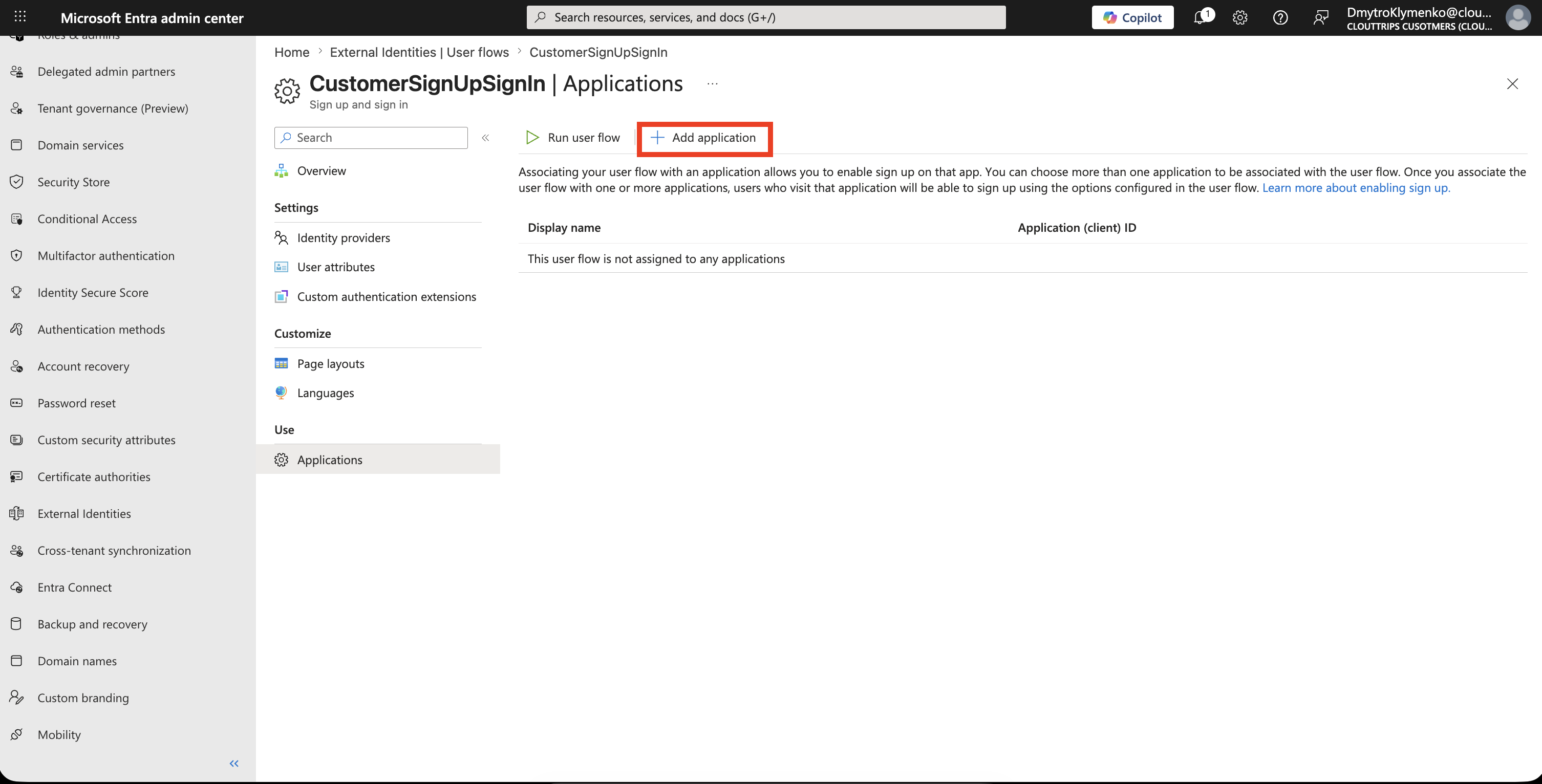
The app must be associated with the user flow. Creating the user flow alone does not automatically make the app use it.
Review Application Redirect Settings
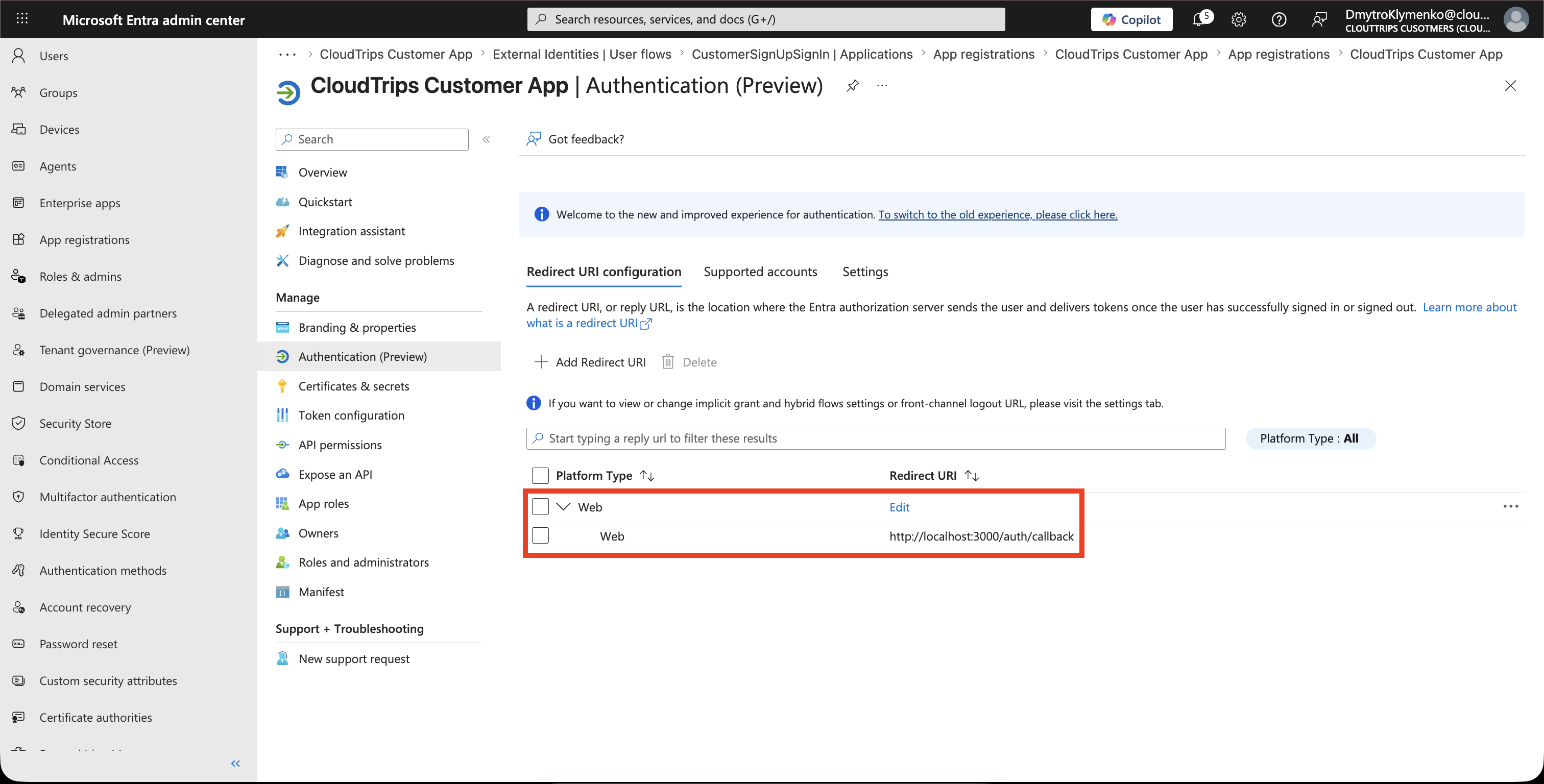
Open the application registration and confirm the redirect URI matches the application.
For a local demo, it may look like:
http://localhost:3000/auth/callbackFor a hosted app, use the app’s HTTPS callback URL.
Test Customer Sign-Up
Open the user flow and select:
Run user flowChoose the customer application and redirect URI, then run the flow.
Choose Sign up now or the equivalent sign-up link.
Create a test customer with an email inbox you can access. The sign-up flow sends a verification code to this address.
dmitri.klymenko@gmail.comComplete the required attributes and verification steps.
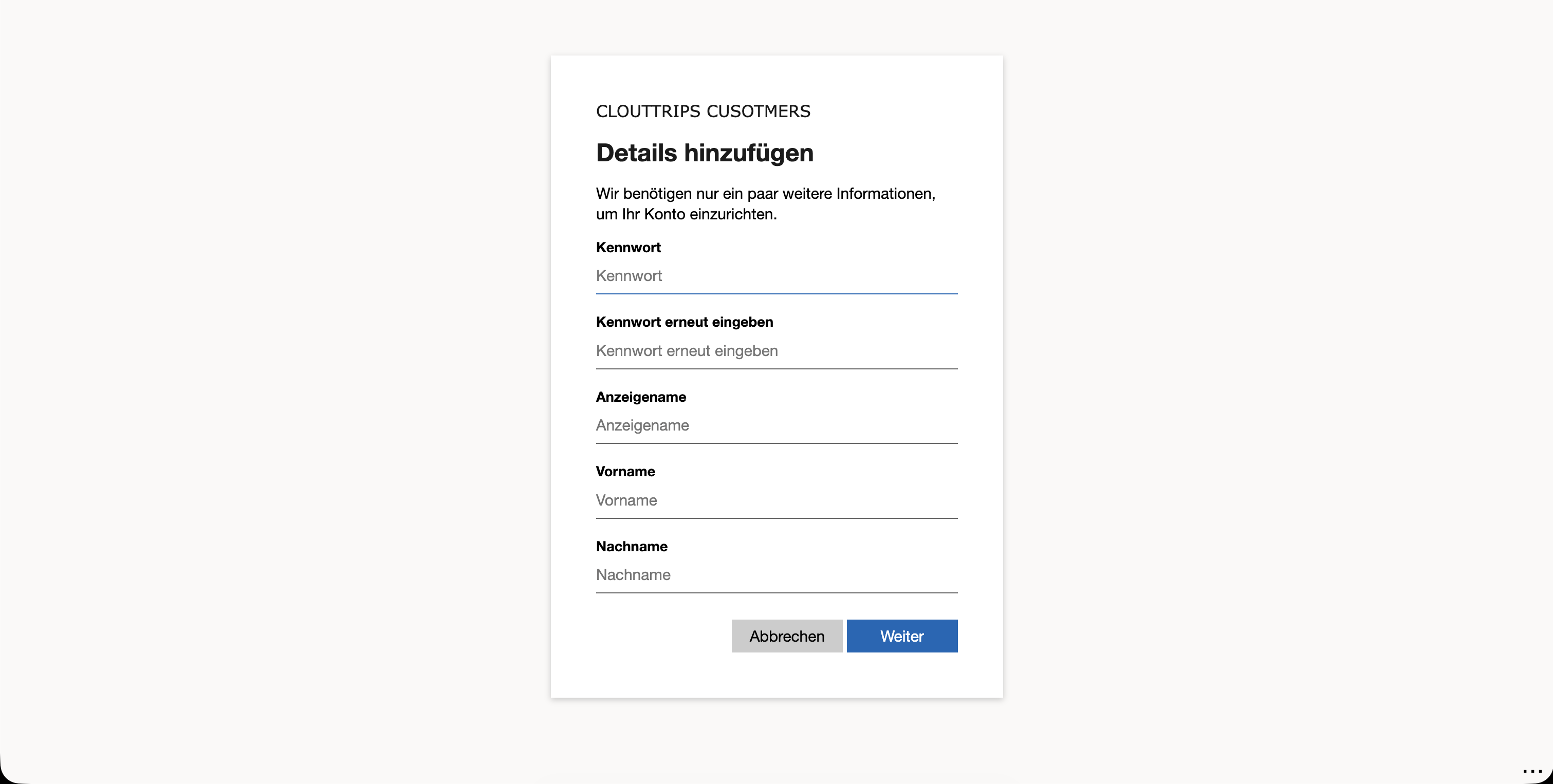
In a real application, the app starts the same sign-up/sign-in flow from its own Sign in or Sign up button.
Verify the Customer Account
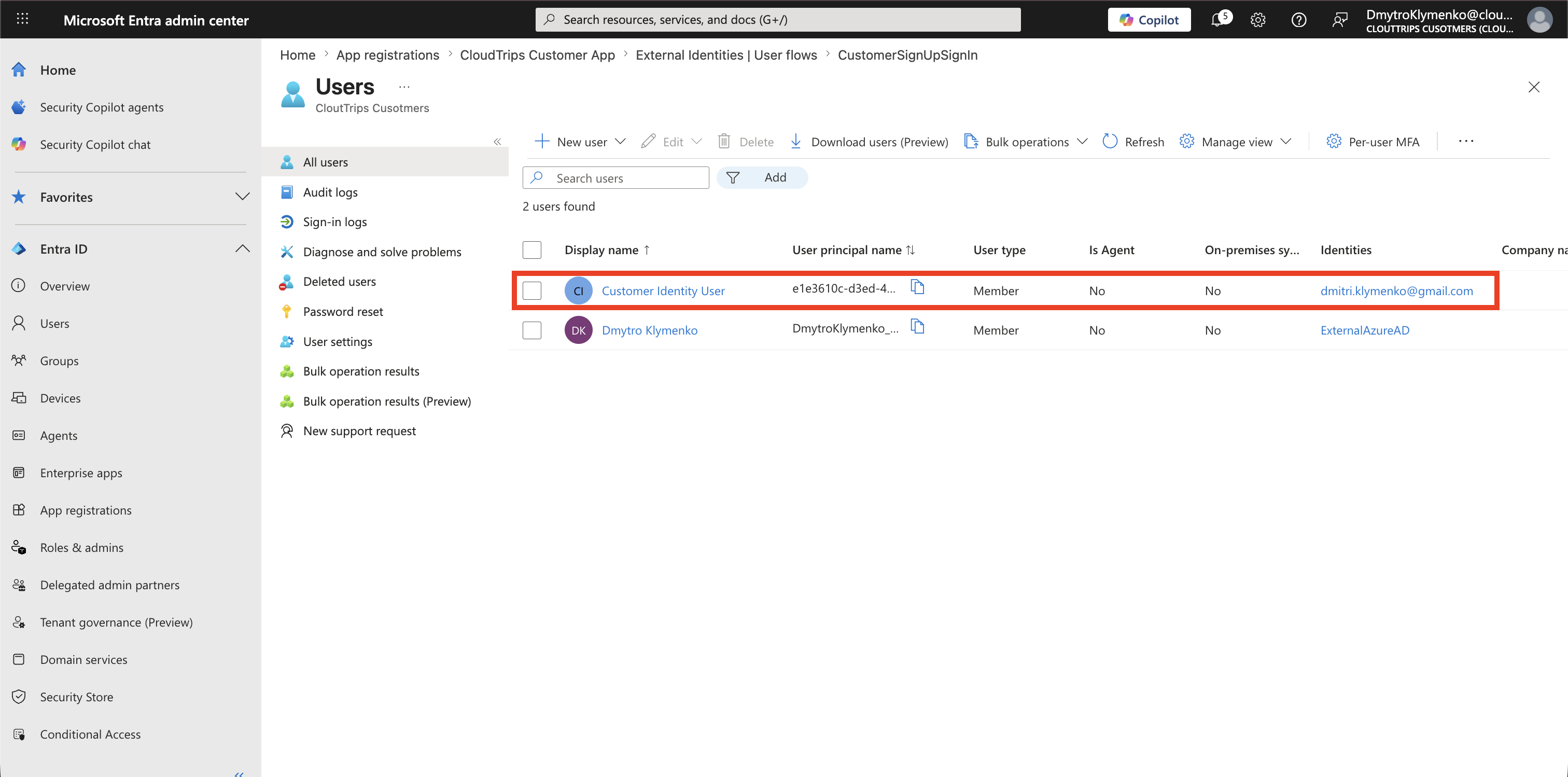
After sign-up succeeds, return to the external tenant and open:
Entra ID
> Users
Confirm that the test customer account exists.
Enterprise Note
- separate customer identity from workforce identity
- collect only attributes required by the application
- review privacy text, terms of use, and consent requirements
- use custom branding before production rollout
- test password reset and account recovery
- monitor sign-in logs for failed customer sign-ins
- validate redirect URIs before enabling production apps
- use separate test and production external tenants when possible
External ID gives customers a self-service sign-up and sign-in experience. The important design work is deciding which identity providers, attributes, branding, and recovery options belong in the customer journey.