Only Office Countries Should Sign In? Configure Named Locations
Sometimes the business rule is simple:
Users should sign in only from countries where the company operates.
In Microsoft Entra ID, the pattern is:
Create a named location -> use it in Conditional Access -> block sign-ins outside itThe named location is only a label.
The Conditional Access policy is what actually enforces the rule.
In this example:
- CloudTrips operates from selected office countries
- Allowed office countries become a named location
- Conditional Access blocks sign-ins from all other countries
Named Locations vs Conditional Access
Named locations answer:
Which countries, regions, or IP ranges do we want to recognize?Conditional Access answers:
What should happen when a sign-in is from or not from that location?So do not stop after creating the named location.
Use it in a policy.
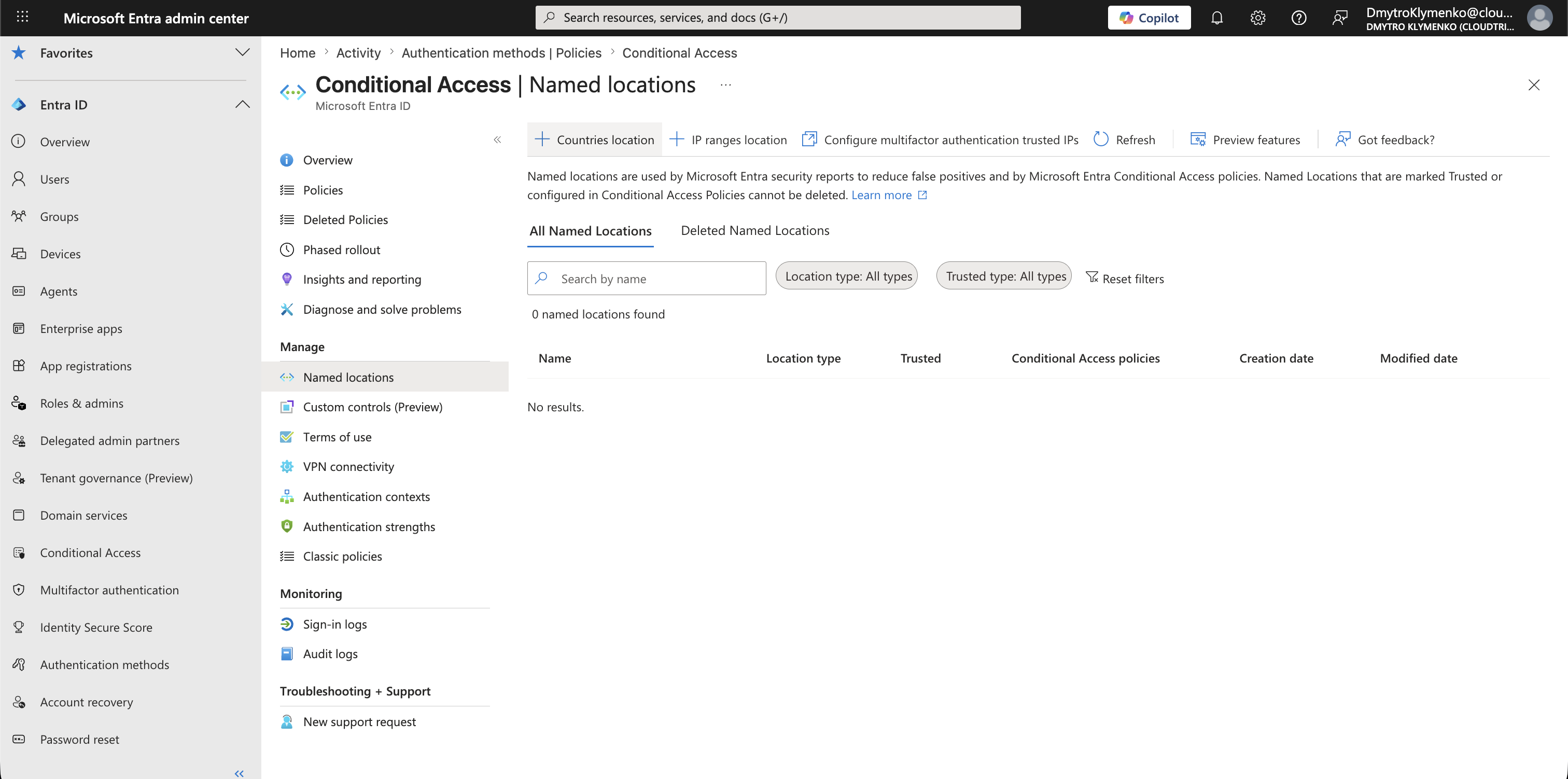
Open Named Locations
Go to:
Entra ID > Conditional Access > Named locationsThis is where Microsoft Entra stores reusable country and IP-based locations.
Create a Country Location
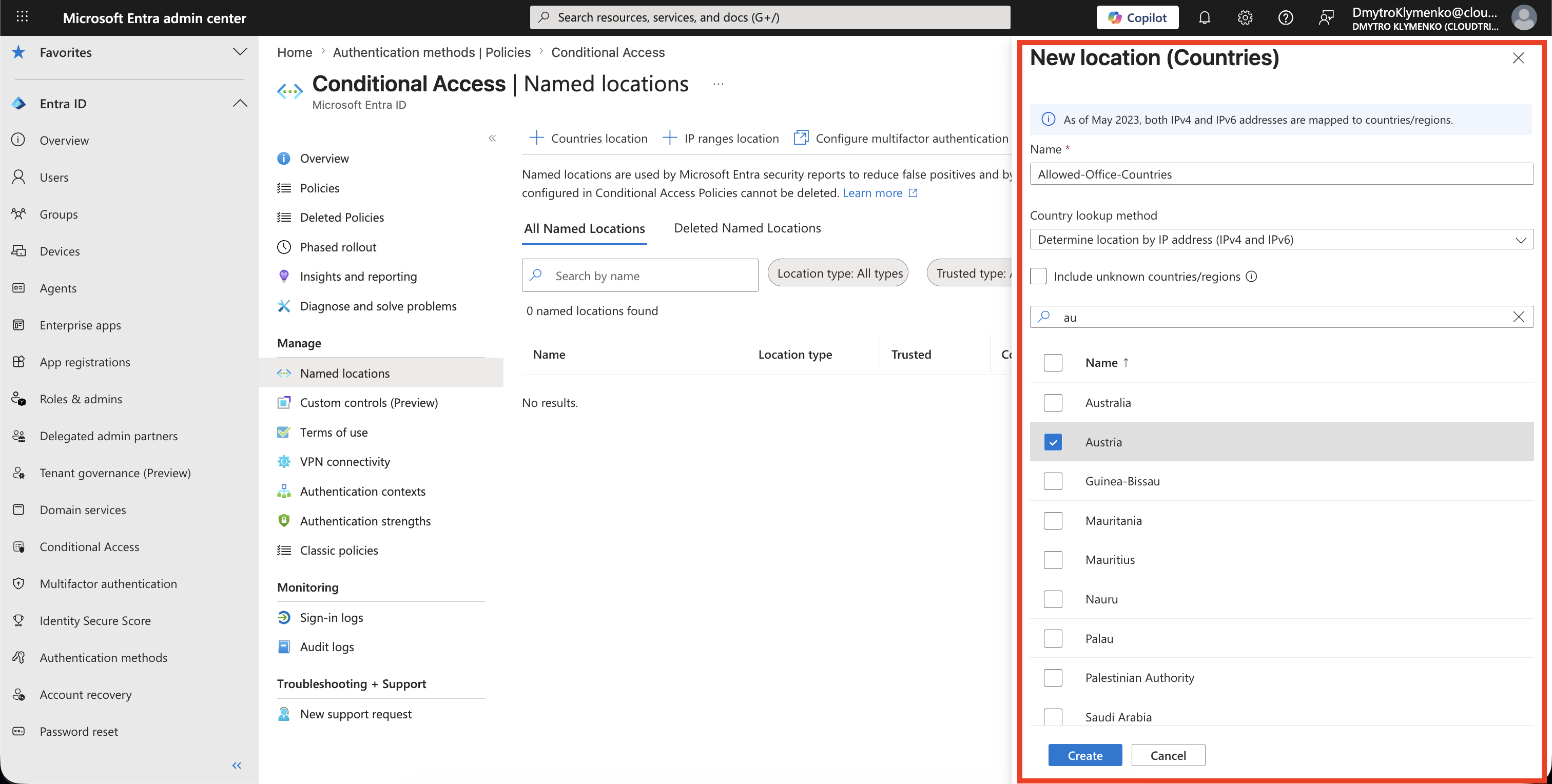
Select:
Countries locationName it:
Allowed-Office-CountriesSelect the countries or regions where users are allowed to sign in.
For example:
Austria
Germany
United States
Use your real office countries here.
Decide What to Do with Unknown Countries
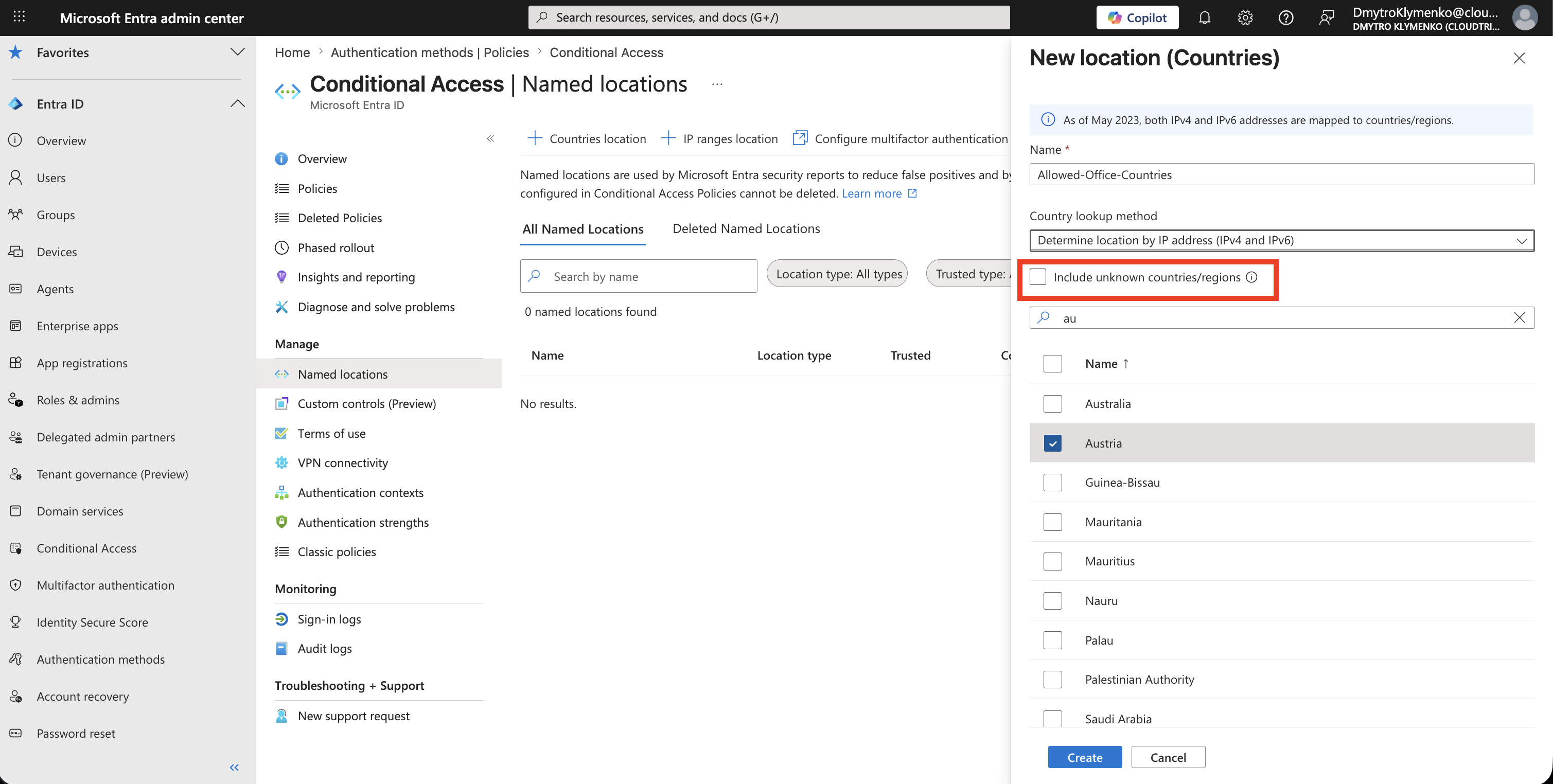
Country detection depends on IP geolocation.
If the portal shows:
Include unknown countries/regionsbe careful.
For a strict allow-list, do not treat unknown locations as allowed office countries.
Unknown should normally remain outside the trusted location and be handled by the blocking policy.
Confirm the Named Location
After saving, confirm the named location appears in the list.
The important result is:
Allowed-Office-Countries
Type: Countries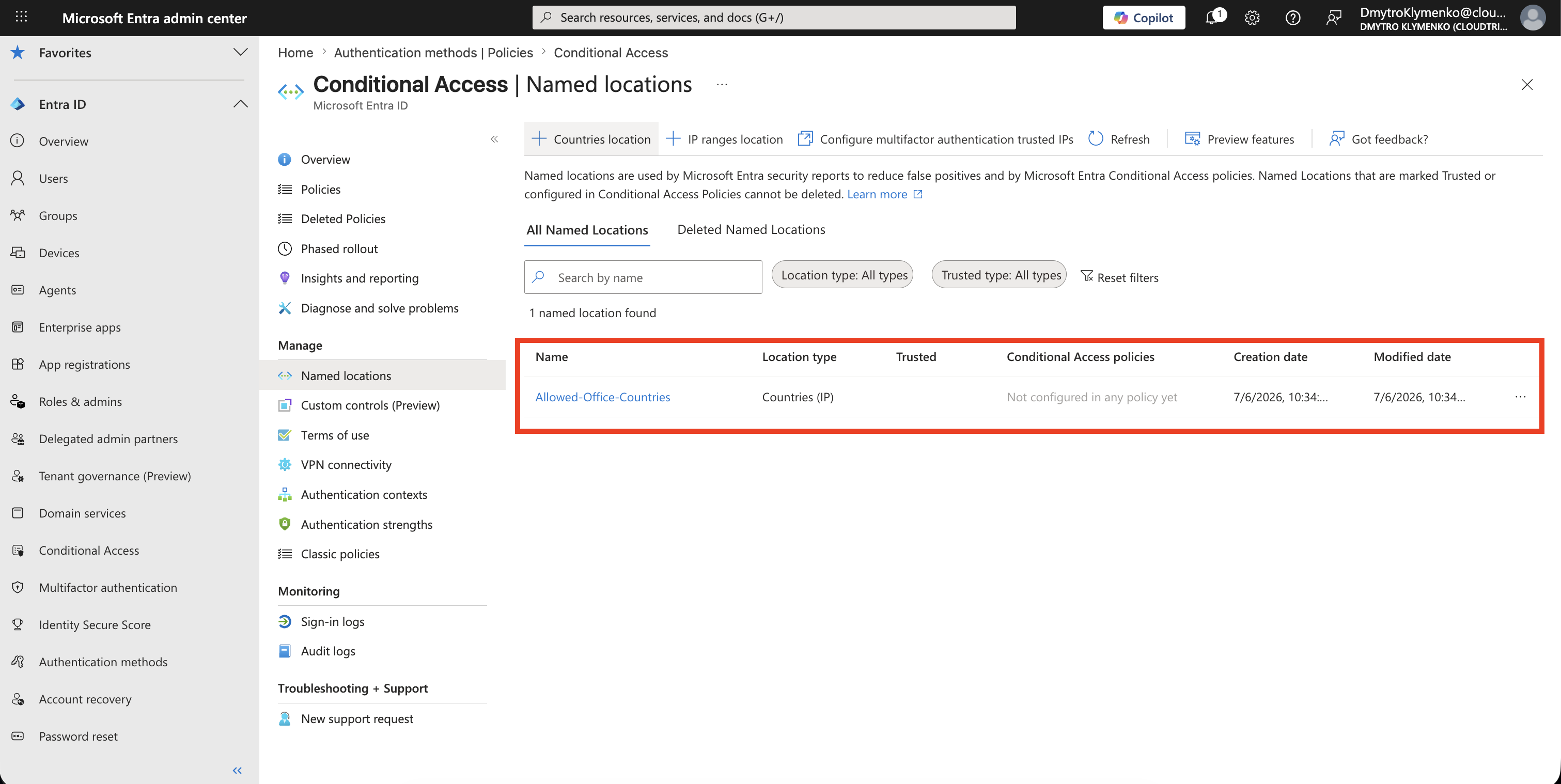
Create the Conditional Access Policy
Go to:
Entra ID > Conditional Access > PoliciesCreate a new policy.
Example name:
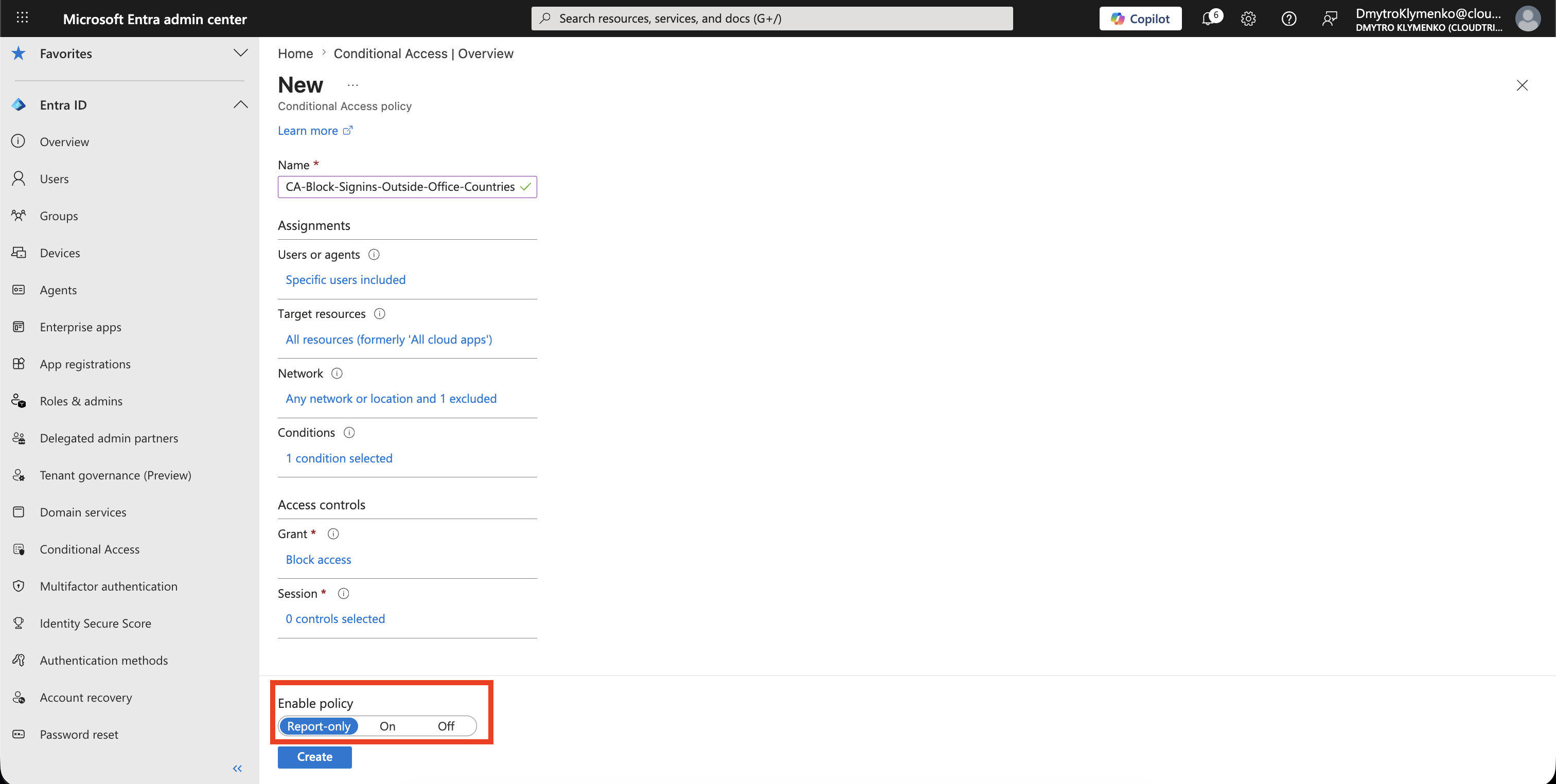
CA-Block-Signins-Outside-Office-CountriesUnder users, start with a pilot group before applying to all users.
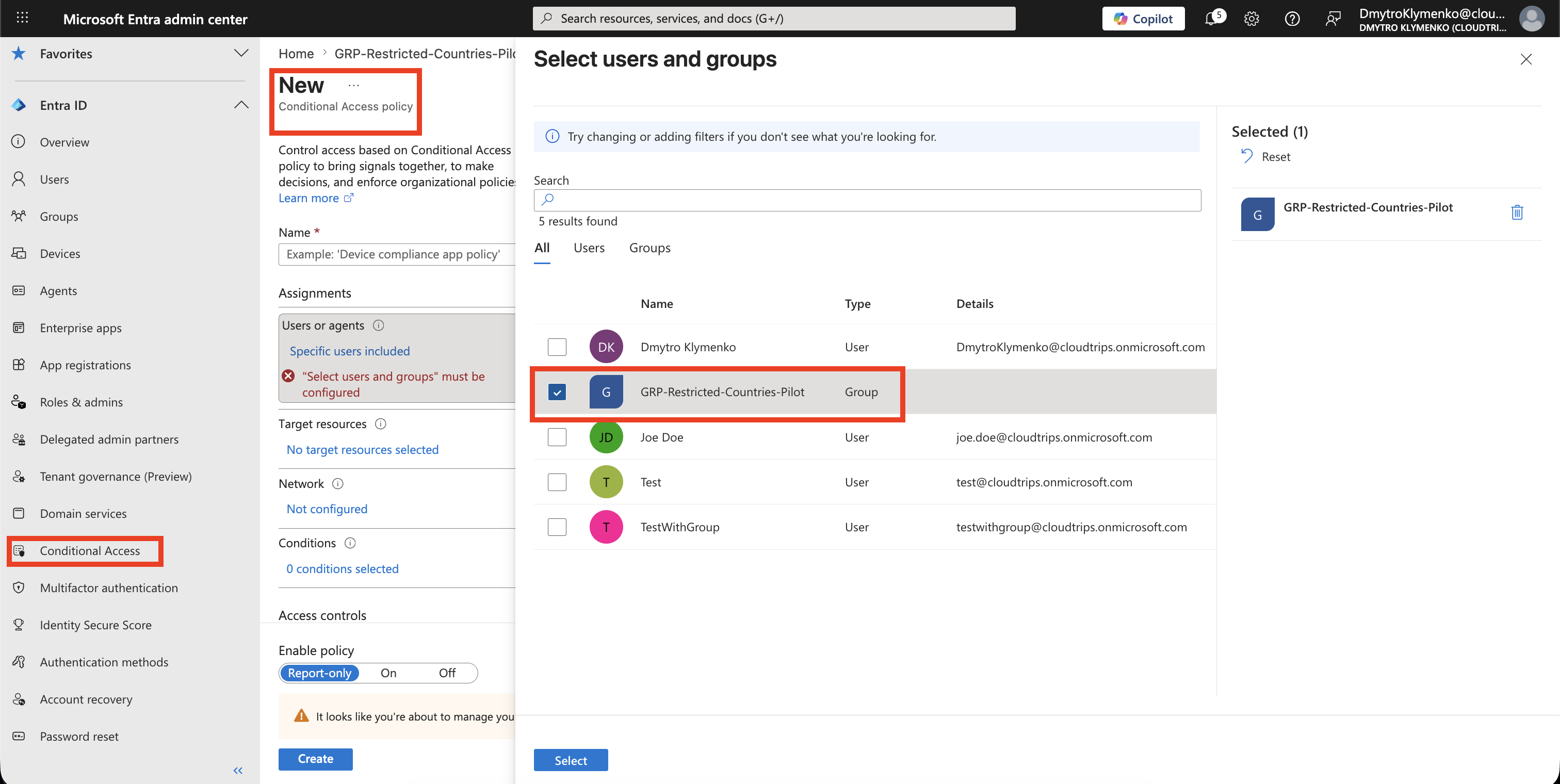
Target the Apps
Under target resources, choose what the location rule protects.
For a broad tenant policy, use:
Target resources: All resourcesFor a safer first rollout, target one or two important apps first.
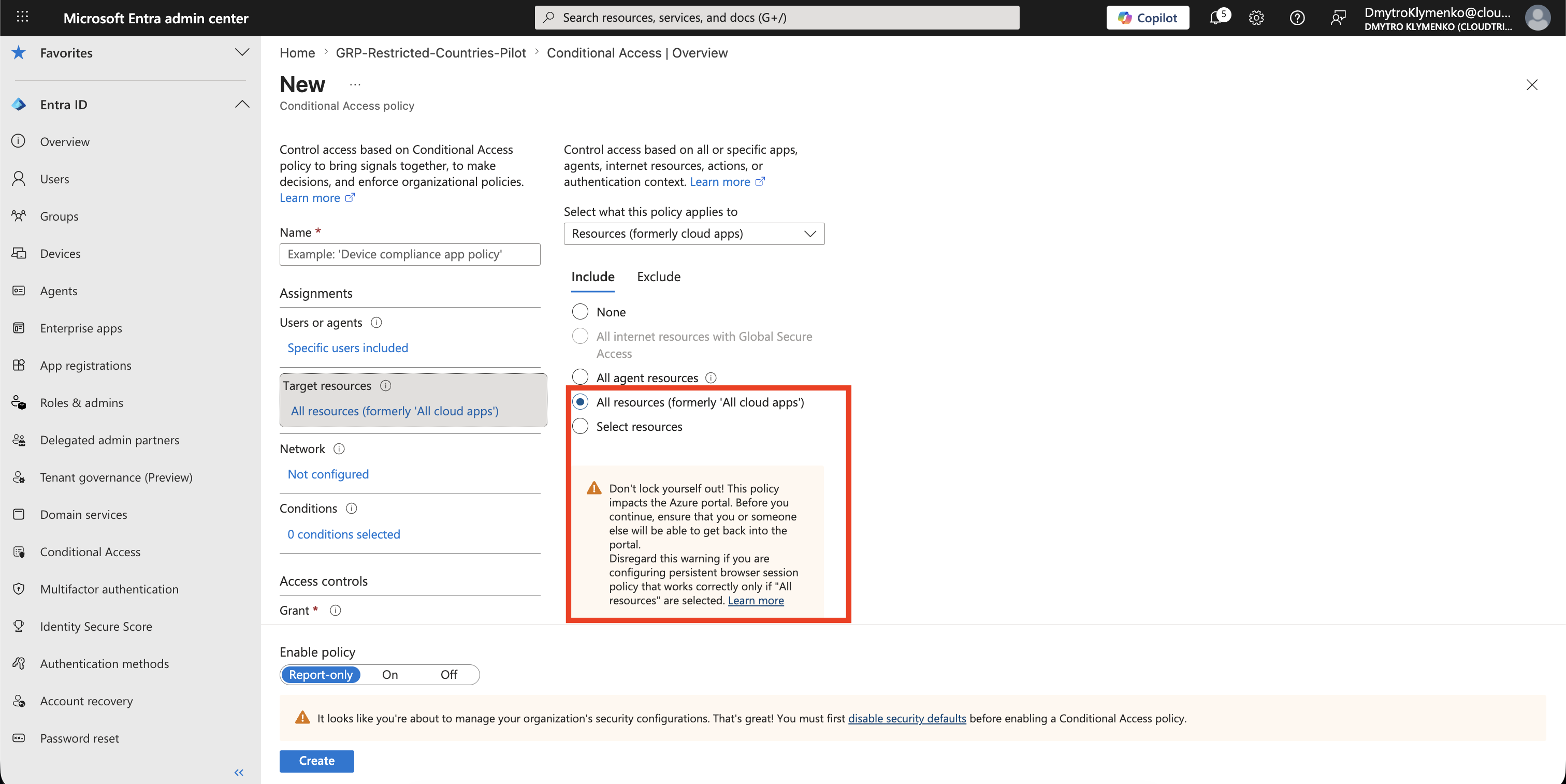
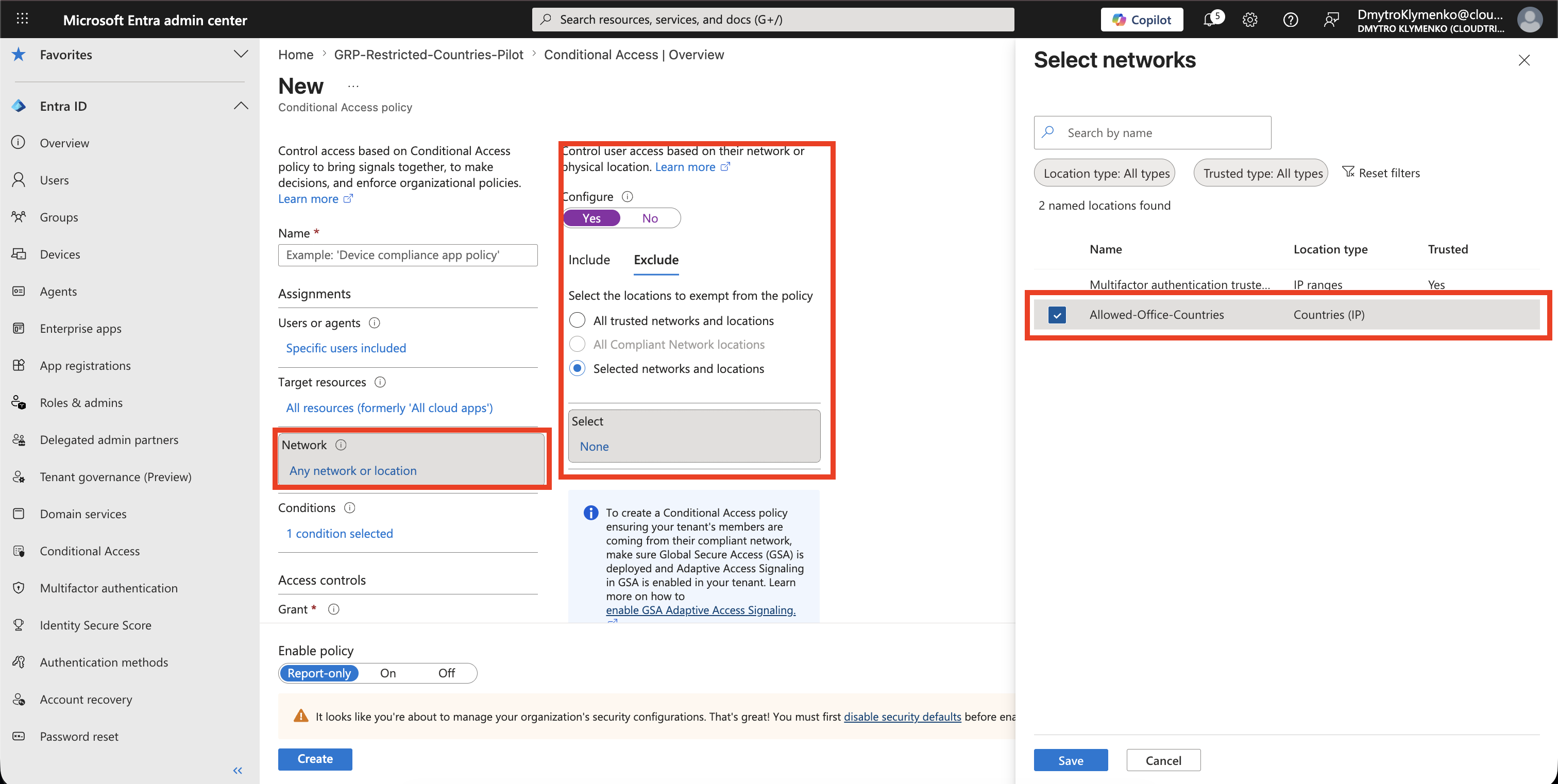
Configure the Network Condition
Under:
Conditions > NetworkConfigure the policy like this:
Include: Any network or location
Exclude: Allowed-Office-Countries
This means:
Match every sign-in location except the allowed office countriesThat is the important trick.
You do not block the allowed countries.
You block everything else.
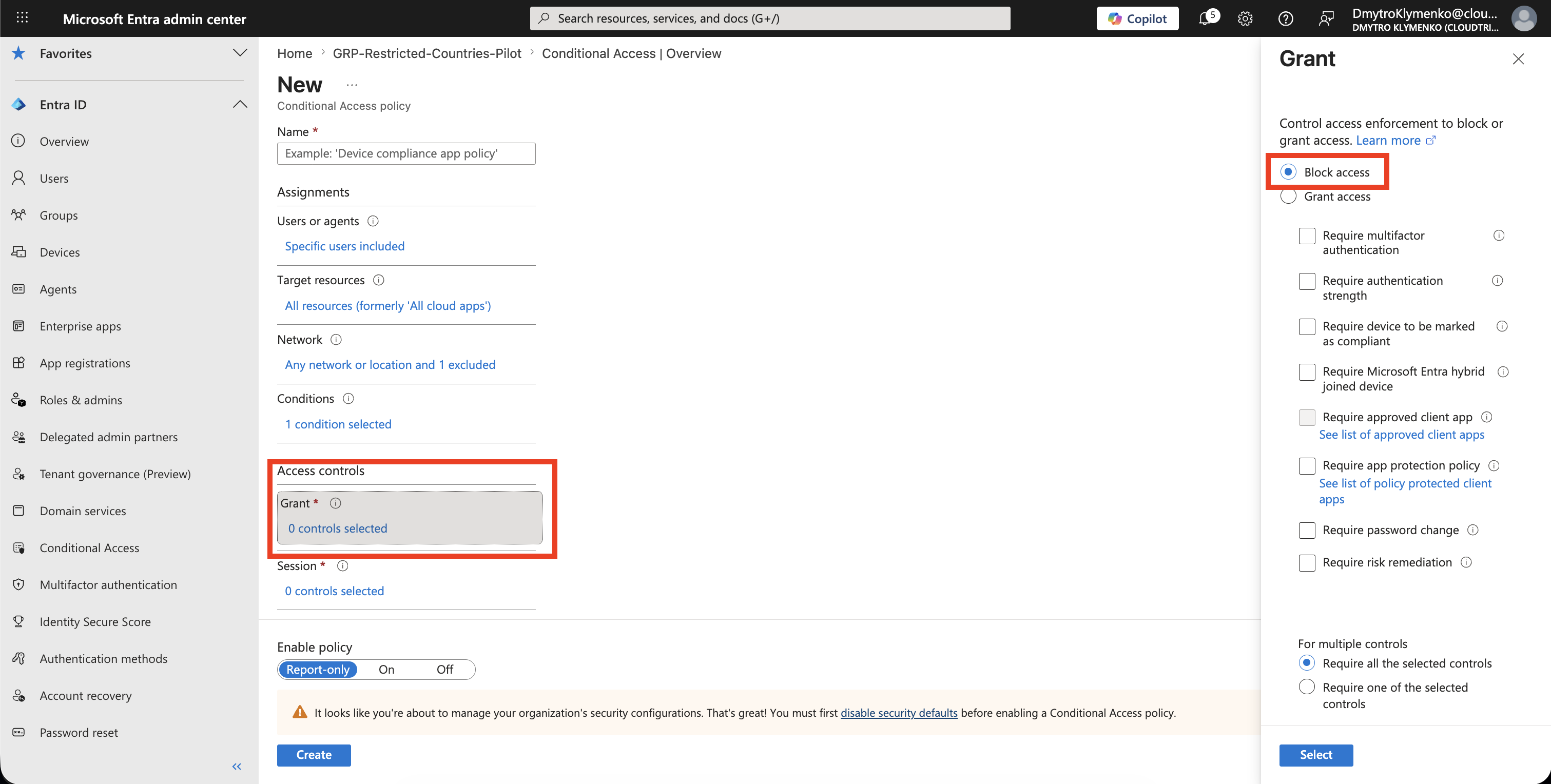
Block Access
Under:
Access controls > GrantSelect:
Block accessThis denies sign-ins that match the policy, which means sign-ins from outside the allowed countries.
Start in Report-Only Mode
Set the policy state to:
Report-onlyReport-only mode lets you check the effect before blocking real users.
Review sign-in logs before turning the policy on.
Turn Policy On
After testing, change:
Policy state: OnNow users can sign in only from the allowed office countries unless they are excluded from the policy.
Enterprise Note
Country-based blocking is useful, but it is not perfect security.
Users may travel.
VPNs and proxies can change apparent location.
IP geolocation can be wrong.
Use this pattern as a guardrail, not as your only control.
Recommended rollout:
- start with a pilot group
- exclude emergency access accounts
- check sign-in logs for travel and service accounts
- use report-only before enforcement
- document who owns country exceptions
- combine with MFA, authentication strengths, and risk policies for sensitive access