User Needs Verifiable Digital Credential? Configure Verified ID
A user needs a digital credential they can hold in a wallet and present later as proof.
Use the default Microsoft Entra Verified ID employee credential for the demo and test how a user gets and presents it.
Understand the Scope
Microsoft Entra Verified ID lets an organization issue verifiable credentials. The user stores the credential in a digital wallet, such as Microsoft Authenticator, and can present it later to a verifier.
For this trip, use the default employee credential that Microsoft Entra Verified ID creates after the default setup:
open Verified ID -> review default employee credential -> get credential -> present credential -> control eligibilityDefault setup is the fastest option for a demo because Microsoft handles the service setup and prepares a verified employee credential. Advanced Setup is used when the organization needs direct control over Azure Key Vault, decentralized ID registration, and domain verification.
Verified ID is not the same as a normal Entra user account. It does not replace MFA, Conditional Access, role assignments, or application permissions. It gives the user a portable credential that can be cryptographically checked.
Prerequisites
You need:
- the
Authentication Policy Administratorrole in Microsoft Entra ID - Microsoft Authenticator on a mobile device for testing
- a test user that is eligible for the verified employee credential, for example
DmytroKlymenko@cloudtrips.onmicrosoft.com
For this trip, use a test credential and a test user. Do not issue production credentials until the credential claims, lifecycle, and privacy review are approved.
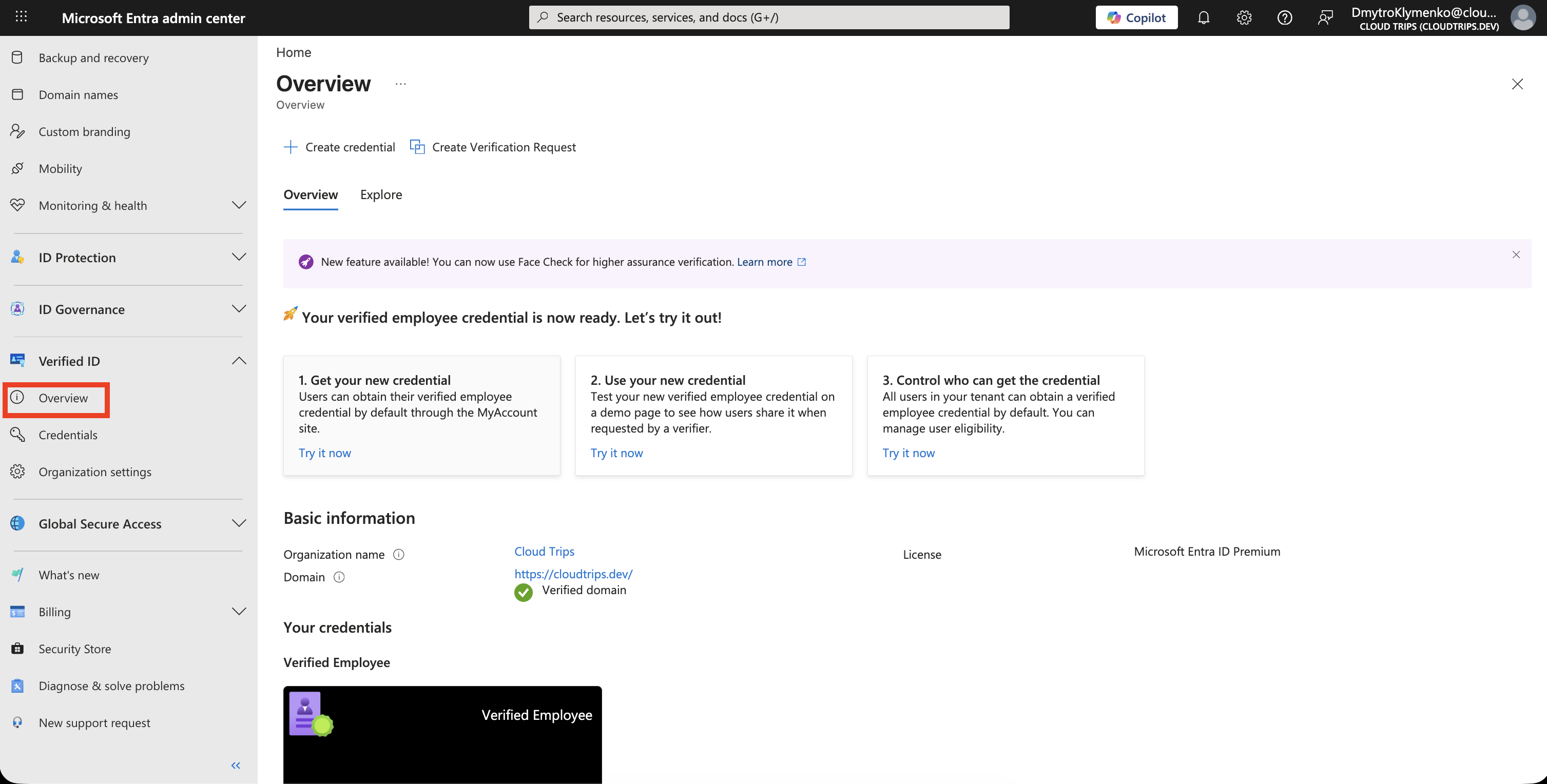
Open Verified ID Overview
In the Microsoft Entra admin center, go to:
Verified ID
> Overview
If you do not see it in the left menu, search for Verified ID or Verifiable credentials in the portal search bar.
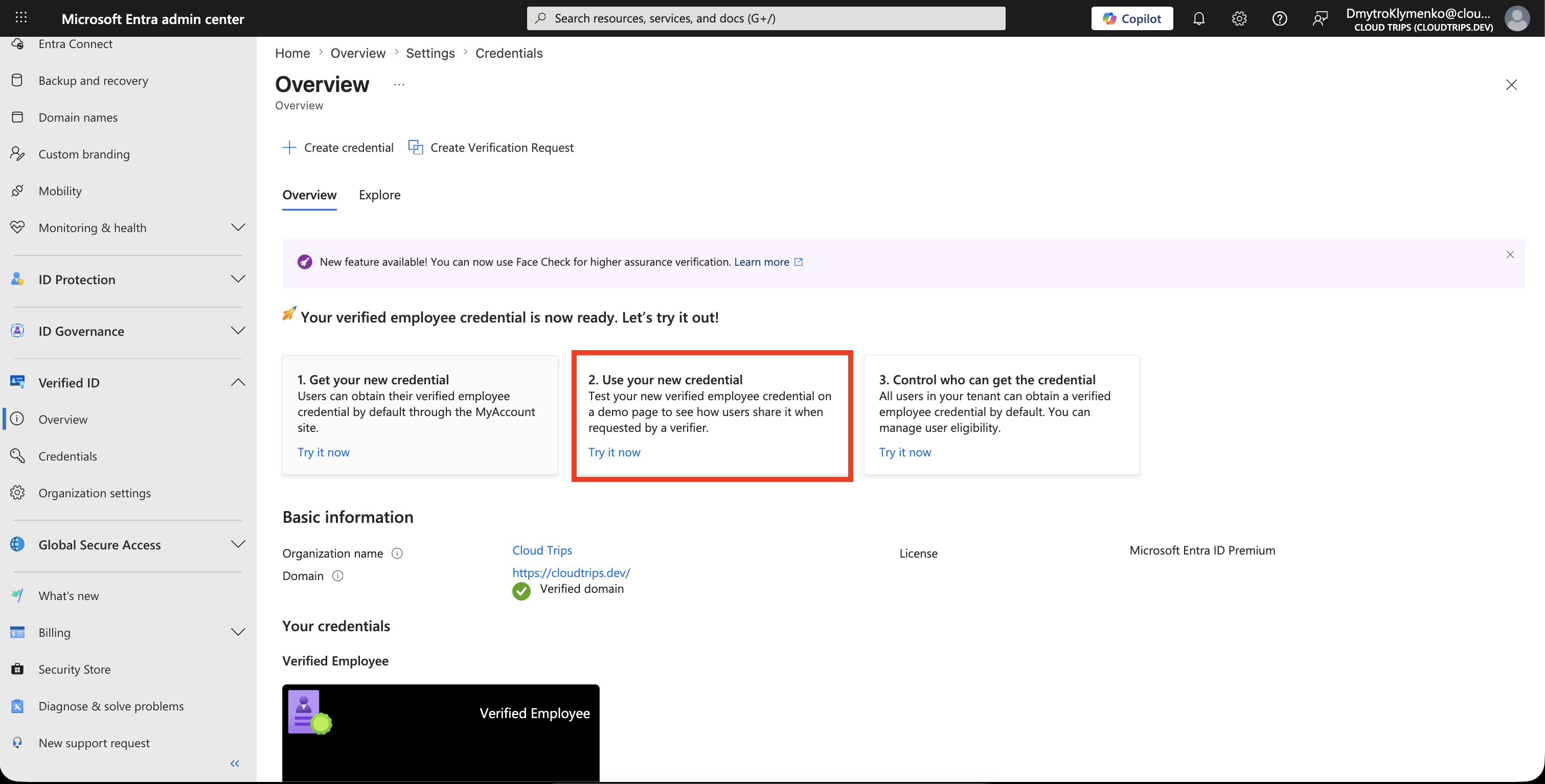
The Overview page shows that the verified employee credential is ready.
Get the New Credential
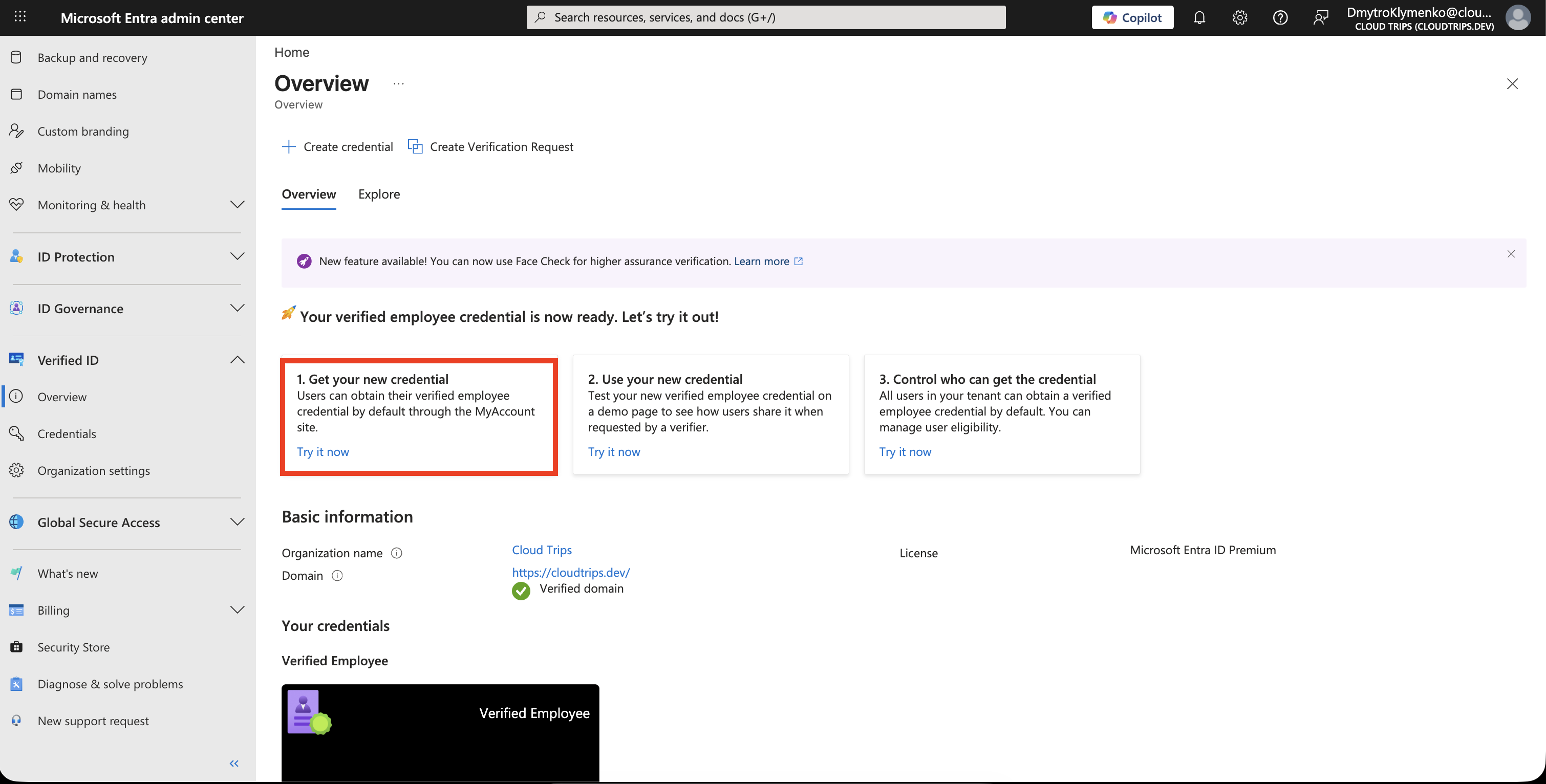
On the Overview page, open:
1. Get your new credential
> Try it now
This opens the user flow for obtaining the default verified employee credential.
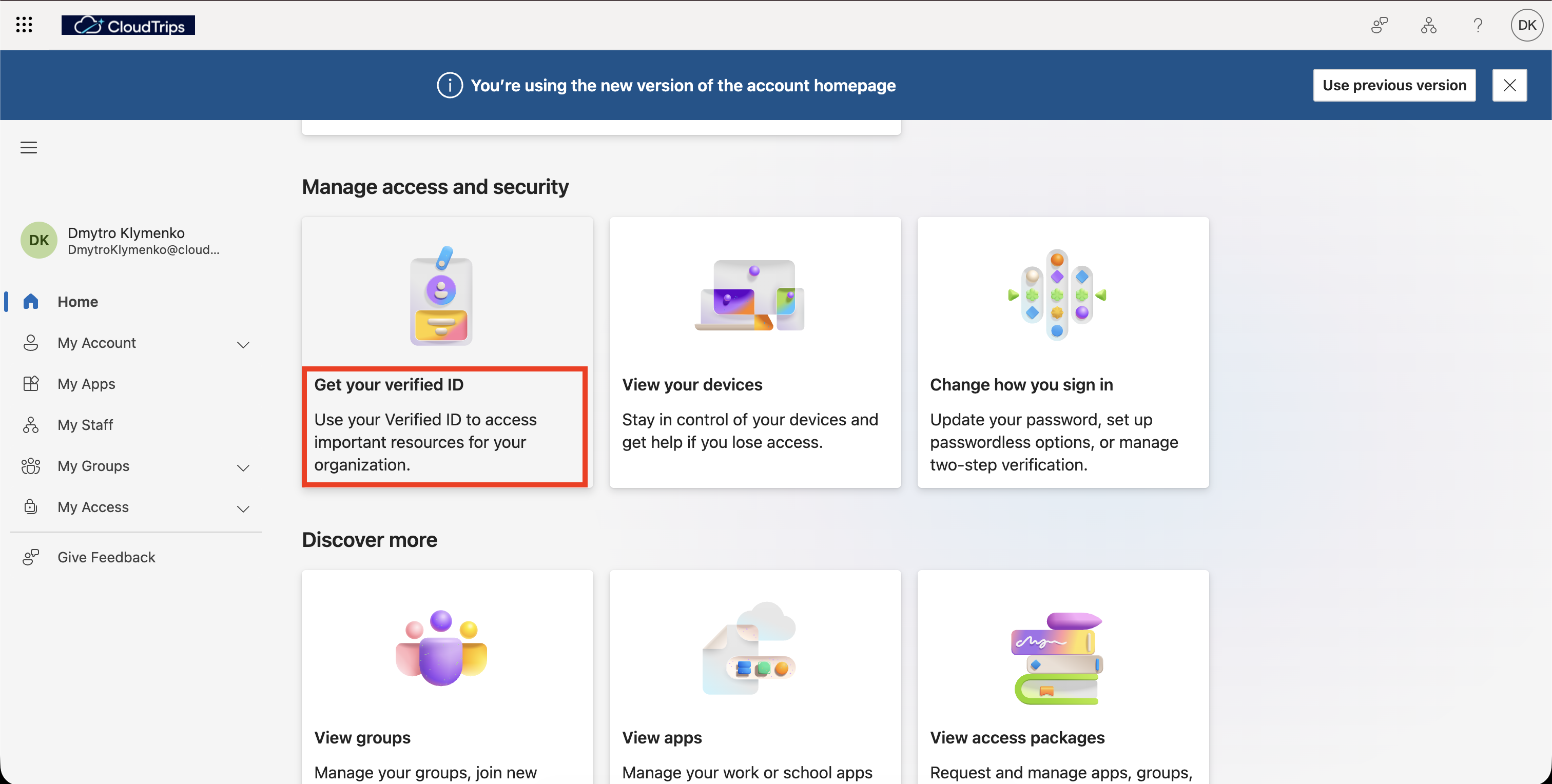
Sign in as the test user:
DmytroKlymenko@cloudtrips.onmicrosoft.comUse a user that is eligible for the verified employee credential. If the user is not eligible, the issuance flow can show an access error.
After authentication, the user lands on the My Account page. Open the Get Verified ID option for the verified employee credential.
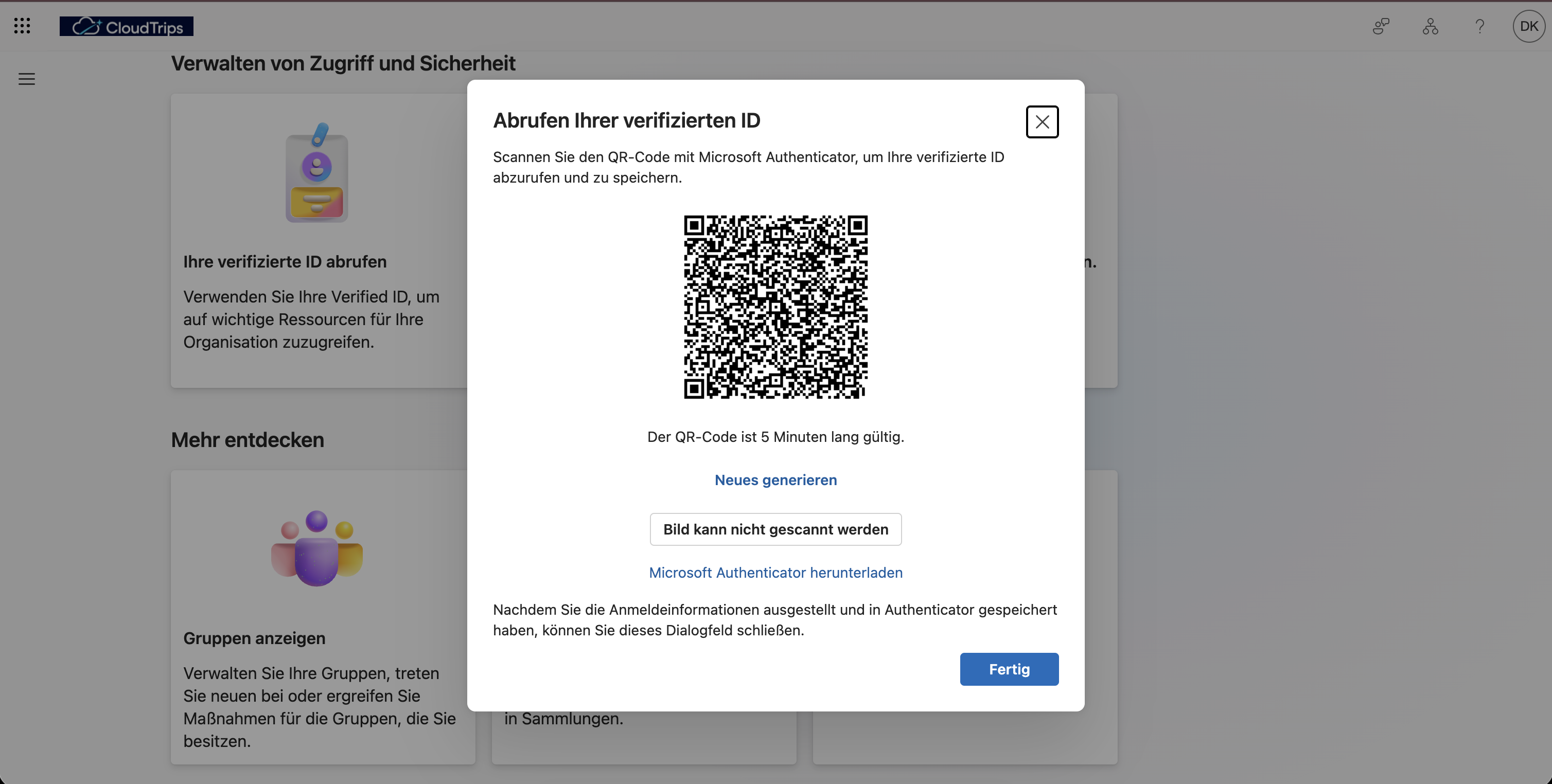
Scan the QR code with Microsoft Authenticator and add the credential to the wallet.
On the mobile device, review the issuer name and credential details.
Accept the credential only if the displayed issuer and claims are correct.
Use the New Credential
Return to the Verified ID Overview page and open:
2. Use your new credential
> Try it now
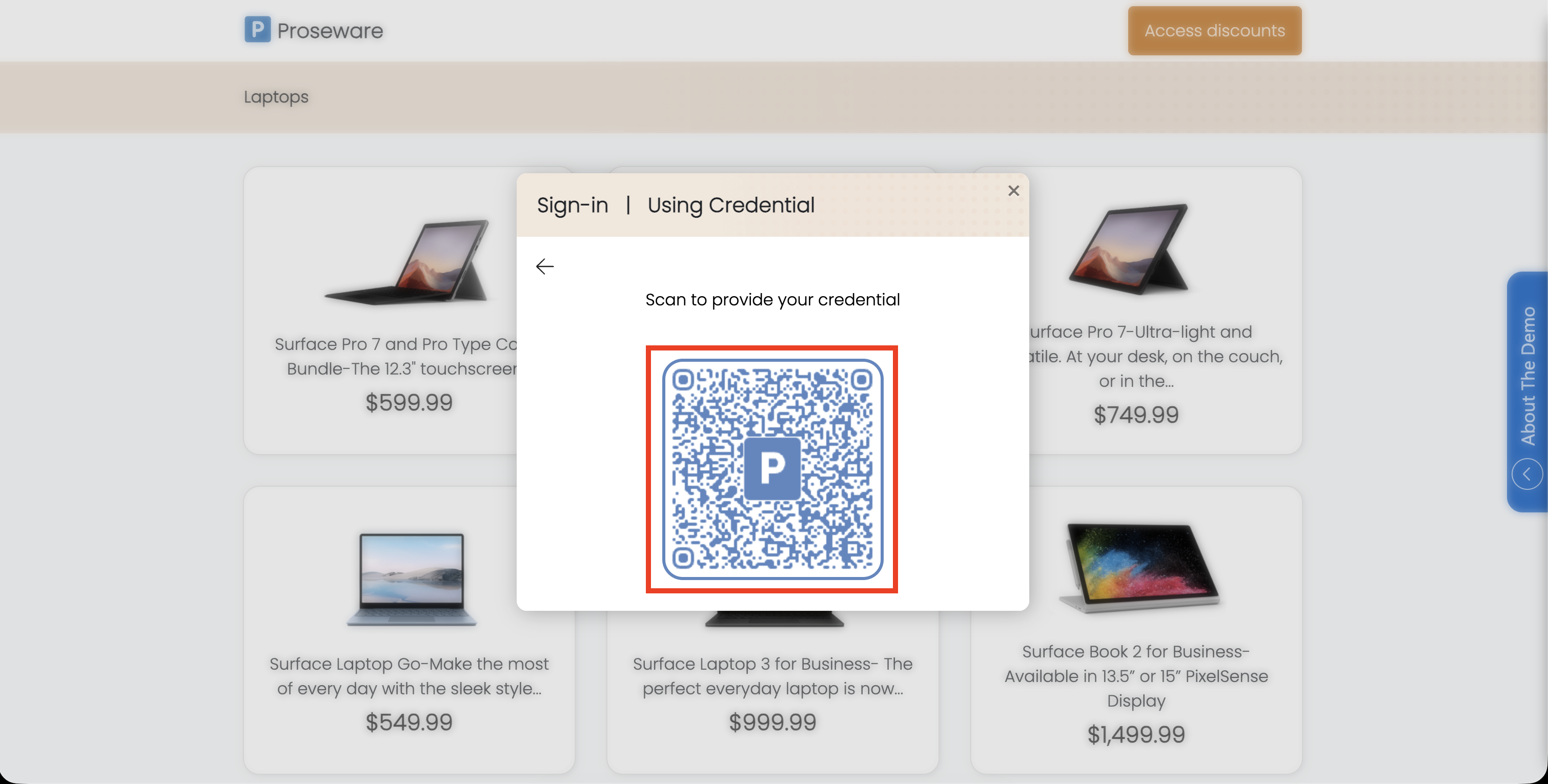
This opens a demo verifier page that asks the user to present the verified employee credential.
Scan the presentation QR code with Microsoft Authenticator and present the credential.
Confirm that the verifier receives the expected claims and that the credential status is valid.
Review Issuing a Credential
Return to the Verified ID Overview page and open the issuing overview for the employee credential.
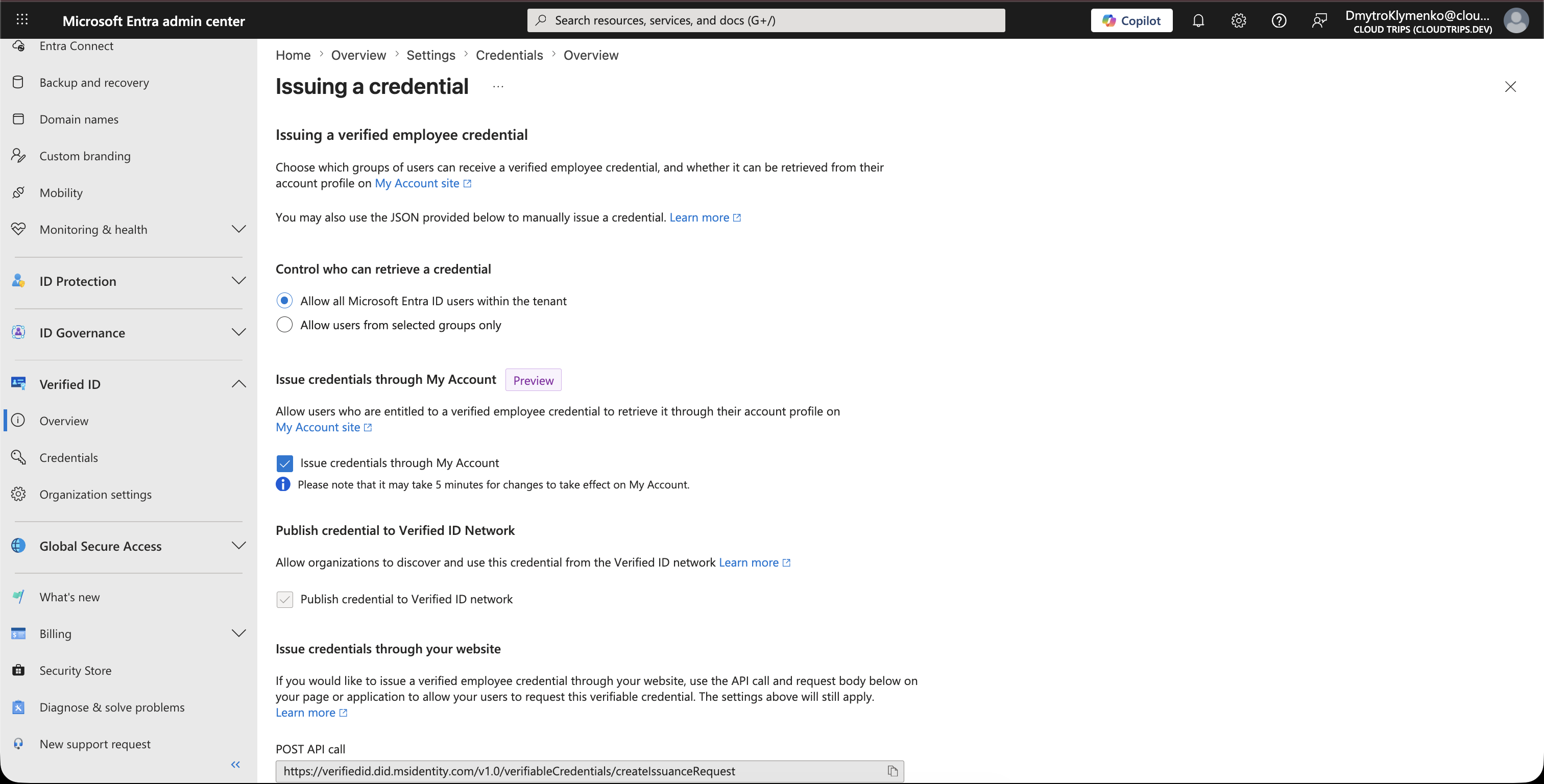
Use this overview to confirm how the default employee credential is issued. In production, also review who can obtain the credential and restrict eligibility to the users or groups that should receive it.
When to Use Advanced Setup
Use Advanced Setup only when the organization needs direct control over Azure Key Vault, decentralized ID registration, and domain verification.
Advanced Setup is the enterprise path. It requires Azure subscription access, Key Vault permissions, and domain verification. For this CloudTrips demo, the default setup is enough.
Enterprise Note
- decide which business process owns issuance and revocation
- collect only claims that are required for the credential purpose
- publish a privacy notice before issuing real credentials
- use a trusted organization name users recognize
- control which users can obtain the default employee credential
- separate issuer and verifier applications where duties must be split
- test credential issuance, presentation, expiration, and revocation
- avoid showing real personal data in public screenshots
- move to Advanced Setup later if the organization needs full control of keys and domain binding
Verified ID is strongest when the credential has a clear purpose, minimal claims, and a trusted issuer. The demo proves the flow; production requires governance around who can issue, who can verify, and when credentials must be revoked.