Contractor Needs Time-Limited Access? Create an Access Package
A contractor needs access, but only for a limited time.
You could invite the guest manually and add them to a group.
But that does not answer the full governance question:
Who can request access -> who approves it -> what access is granted -> when does it expire?The Microsoft Entra pattern is:
Create access package -> add resource roles -> configure request policy -> require approval -> set expirationThis trip creates an access package for contractor access.
What an Access Package Does
An access package bundles access to one or more resources.
Examples:
- group membership
- Team membership
- enterprise application assignment
- SharePoint site access
When a contractor receives the access package, Microsoft Entra grants the configured resource roles.
When the assignment expires, the access is removed according to the package policy.
Access packages are part of Microsoft Entra ID Governance.
Depending on your tenant, you need the required Entra ID Governance, Entra Suite, or compatible paid/trial licensing.
Open Entitlement Management
Go to:
Microsoft Entra admin center > ID Governance > Entitlement management > Access packagesSelect:
New access package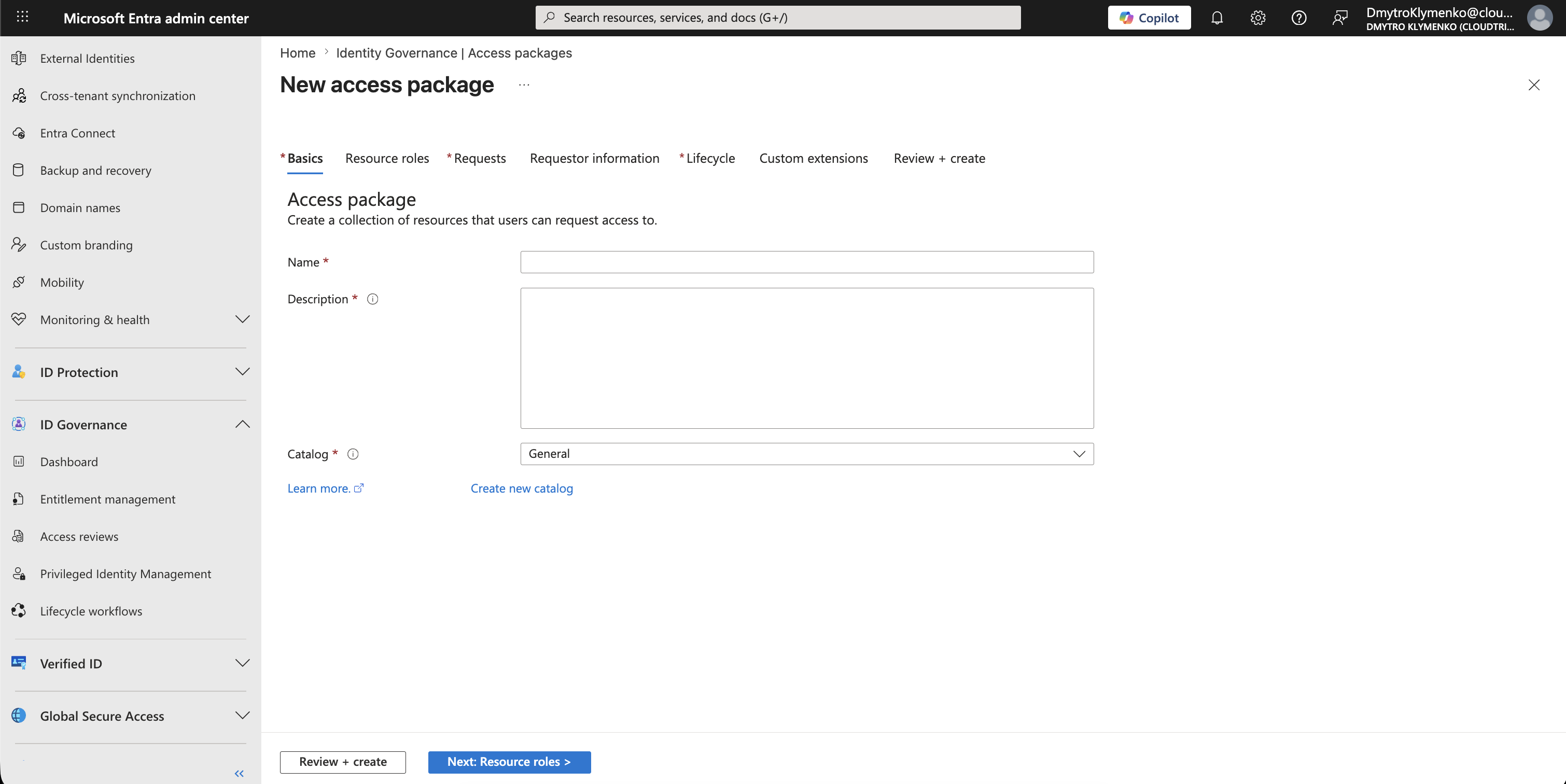
Configure Basics
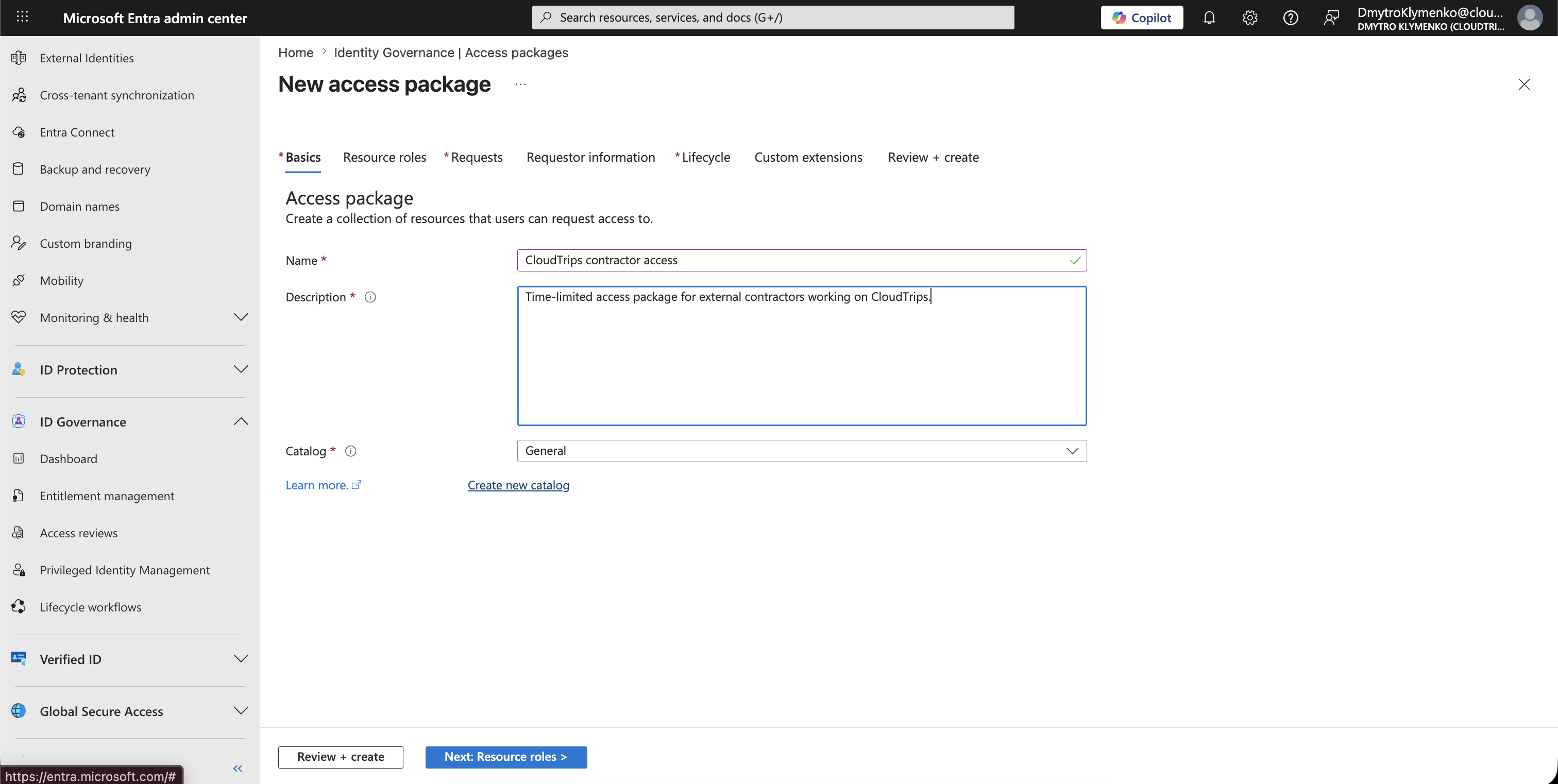
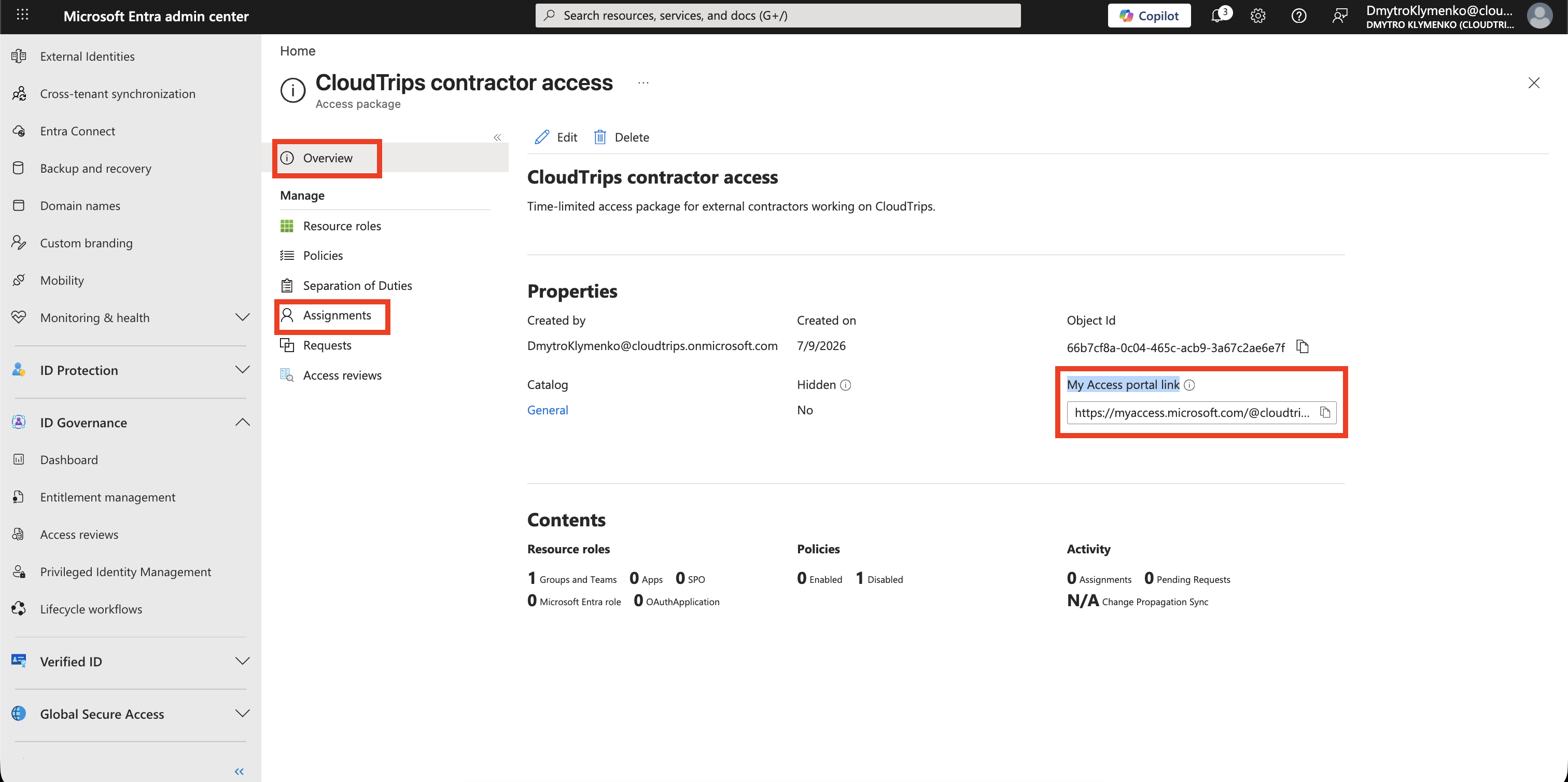
Enter a clear name and description.
Example:
Name: CloudTrips contractor access
Description: Time-limited access package for external contractors working on CloudTrips.
Catalog: General
The catalog is the container that holds the access package and the resources that can be added to it.
For a first test, the default general catalog is enough.
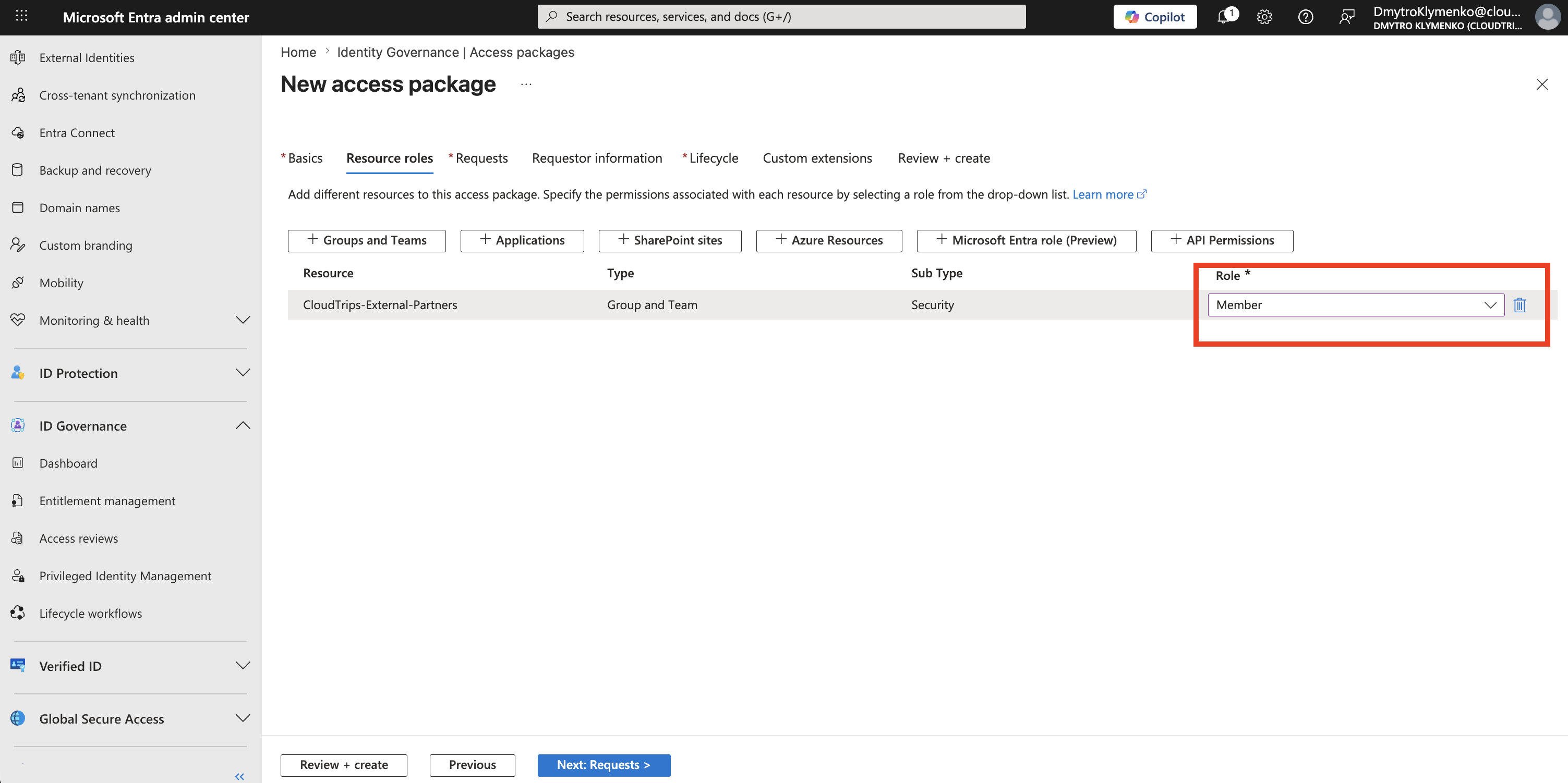
Add Resource Roles
Open the resource roles step.
Choose the resource type that grants the contractor access.
For this trip, use:
Groups and TeamsThen select the access group.
Example:
CloudTrips-External-Partners
Role: Member
This means the contractor receives group membership when the access package is assigned.
If the real access is through an enterprise application instead, choose Applications and add the app assignment role.
Configure Who Can Request
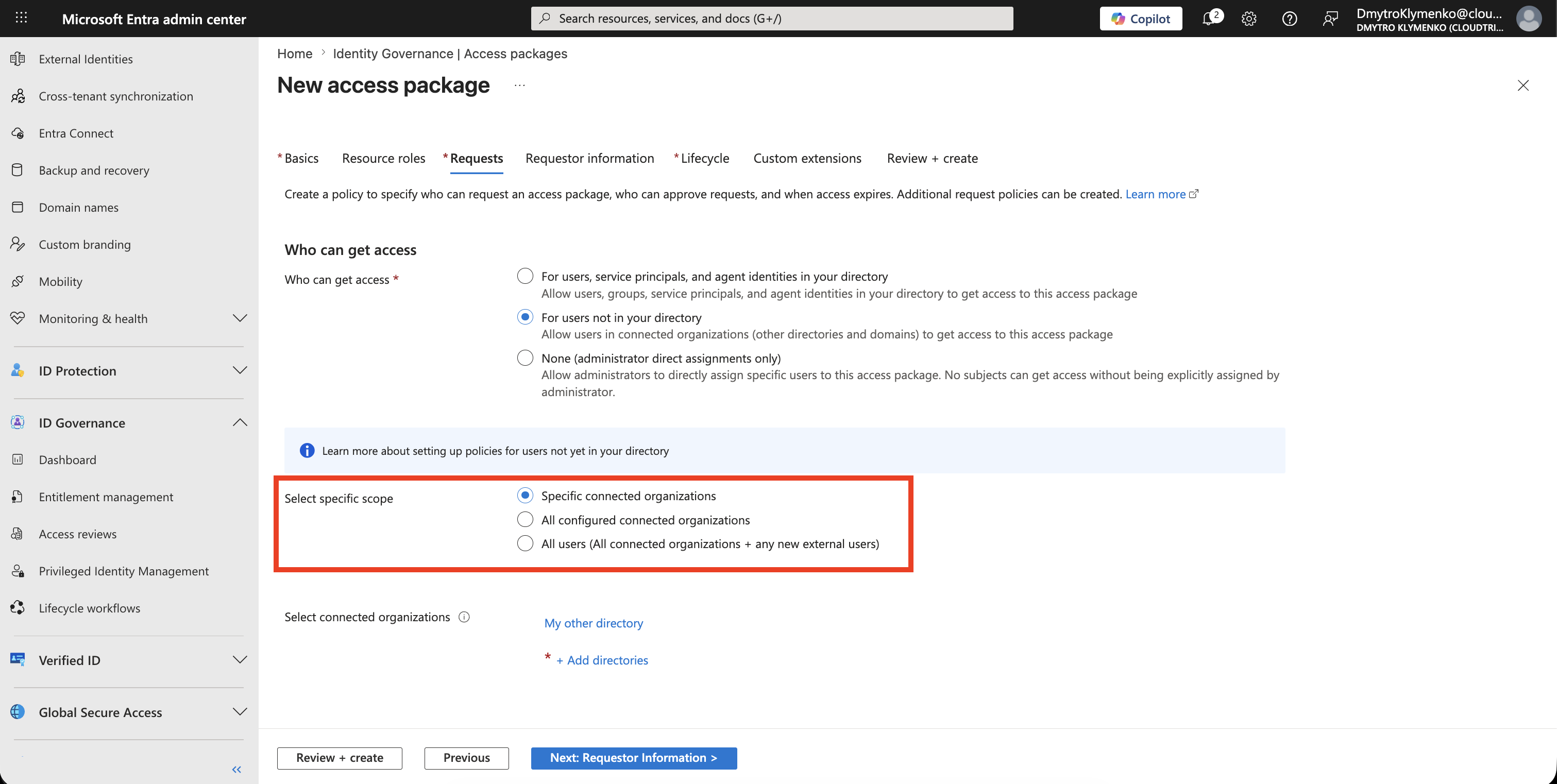
Open the requests step.
For a contractor who is outside your tenant, choose:
For users not in your directoryThen choose the external users who can request the package.
For a controlled setup, use a connected organization or a known external domain instead of allowing every external user.
Example:
Specific connected organizationsThis controls who is allowed to ask for the package.
It does not grant access yet.
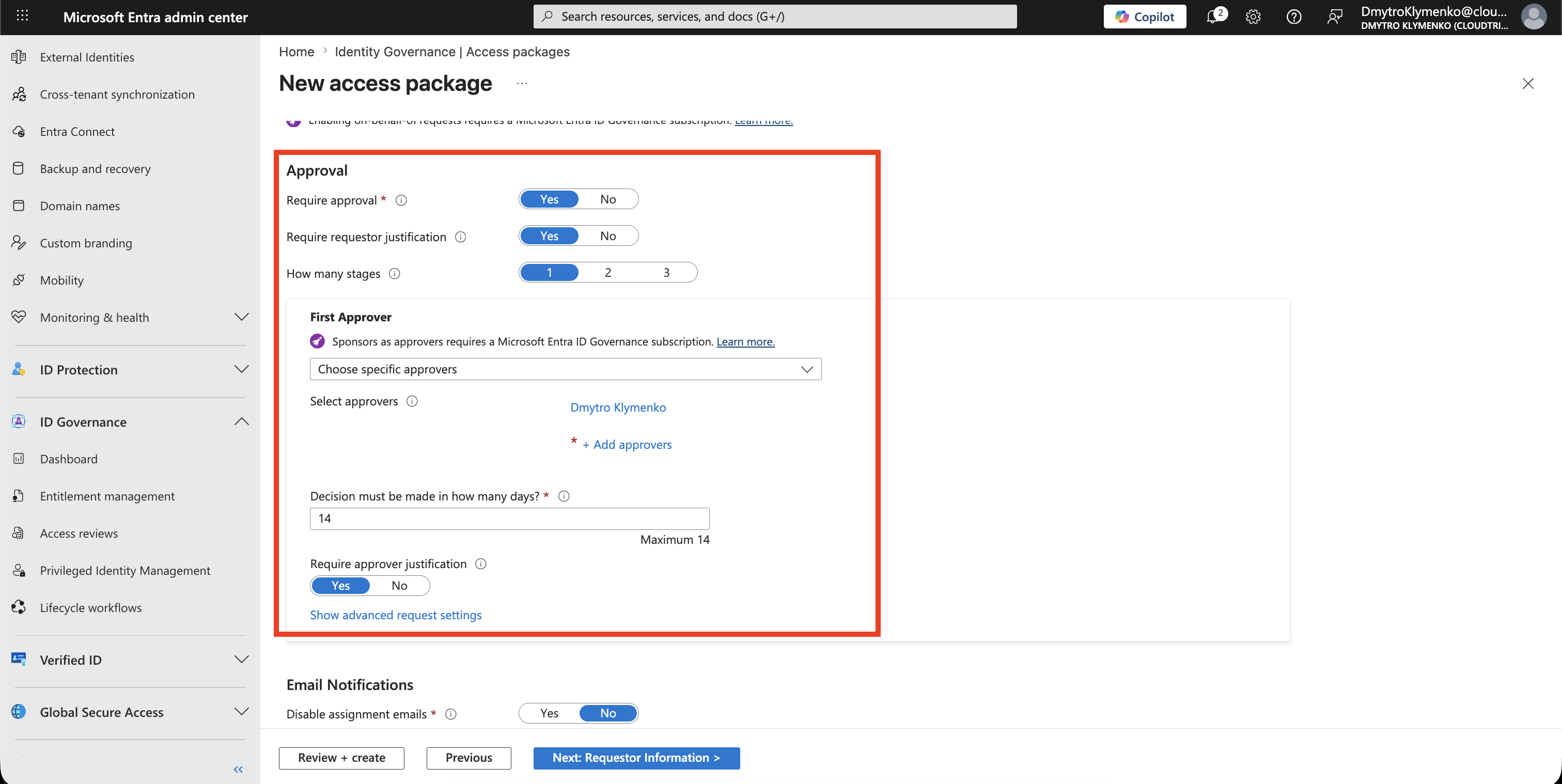
Require Approval
For contractor access, require approval.
Example:
Require approval: Yes
How many stages: 1
First approver: Choose specific approvers
Decision must be made in: 7 days
Require requestor justification: Yes
Approval prevents unknown external users from receiving access automatically.
The approver should be the business owner, project owner, or identity administrator for the contractor engagement.
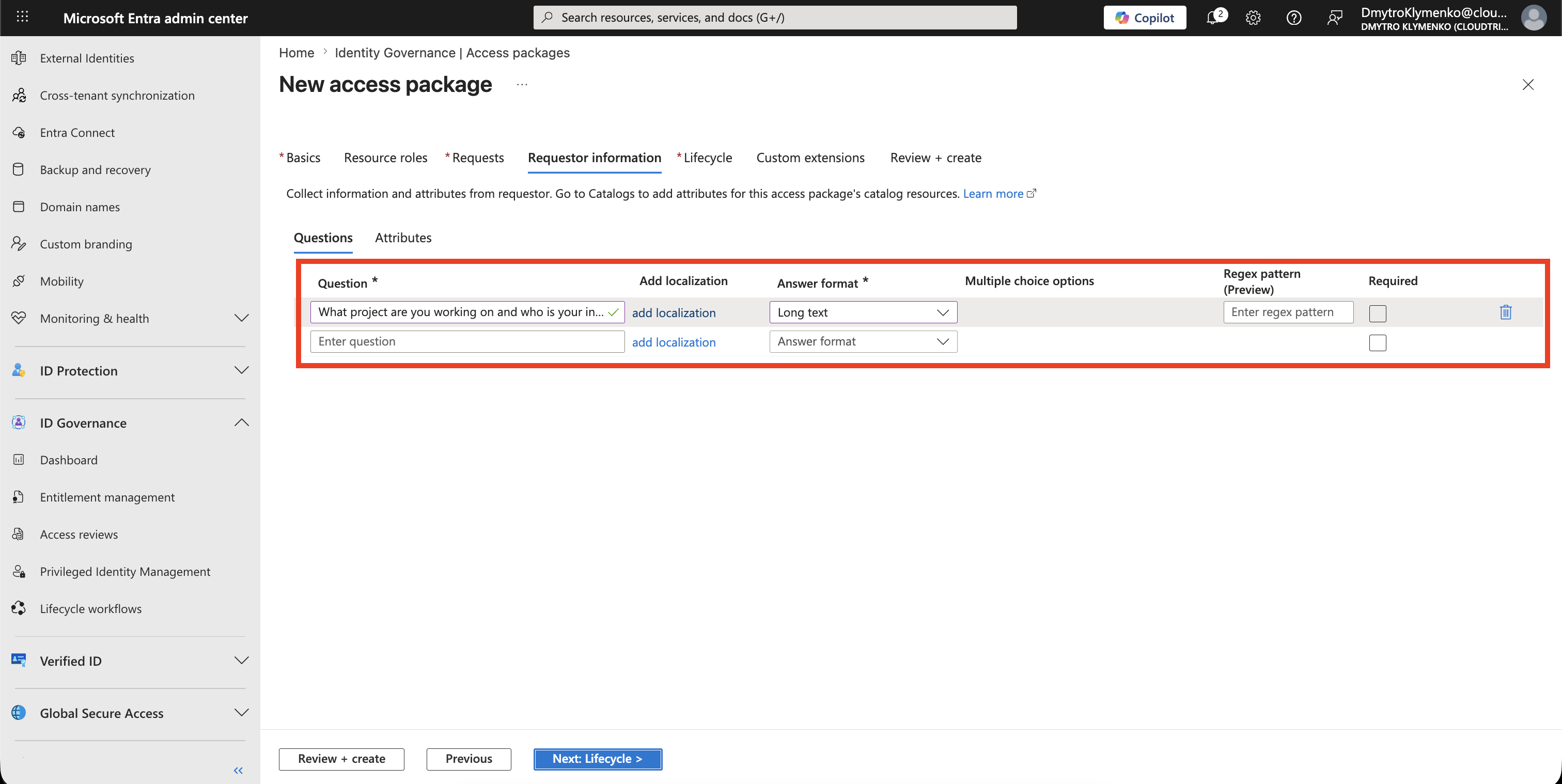
Add Request Information
Ask the requestor for the information an approver needs.
Example question:
What project are you working on and who is your internal sponsor?Mark the question as required.
This gives the approver context before granting access.
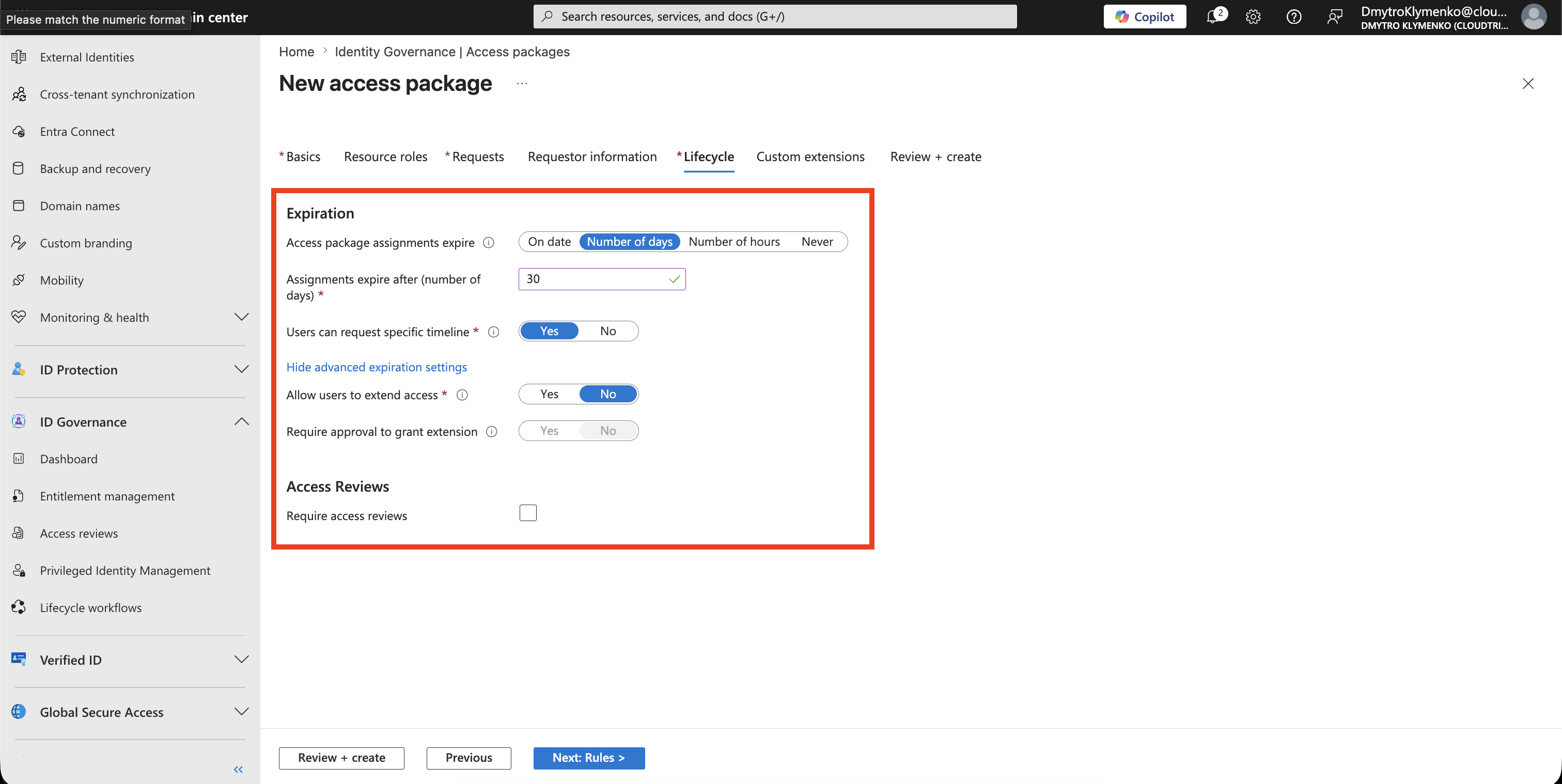
Configure Lifecycle
Set an expiration for the access package assignment.
Example:
Access package assignments expire: Number of days
Number of days: 30
Users can request specific timeline: Yes
Allow users to extend access: No
This makes the access time-limited.
For a contractor, avoid Never unless there is a strong reason.
If extensions are allowed, require approval for the extension.
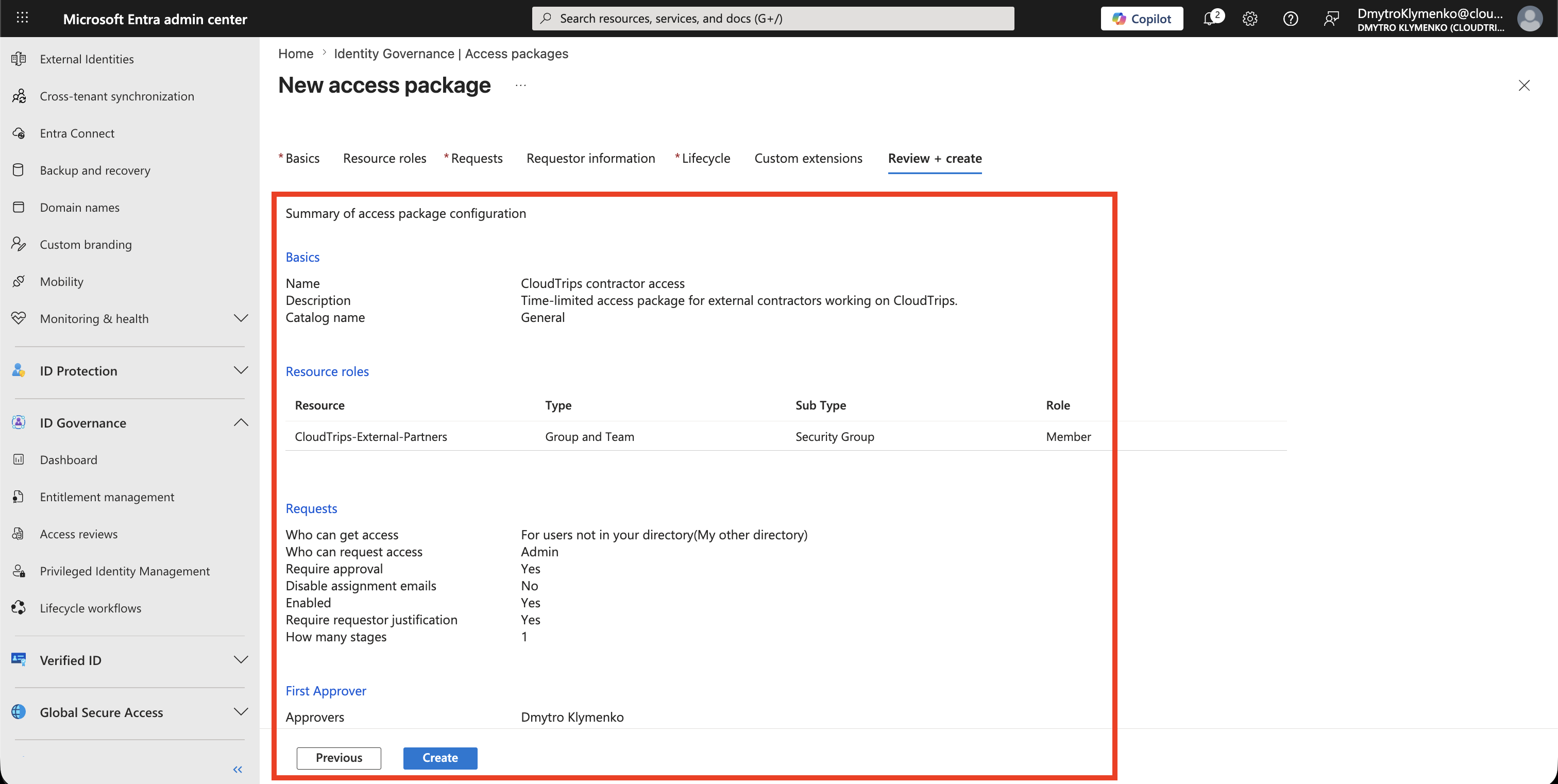
Review and Create
Review the configuration.
The package should answer:
Who can request it?
Who approves it?
Which group or app role is granted?
When does access expire?
Select:
CreateThe access package appears in the access packages list.
Share or Assign the Package
After the package exists, the contractor can receive access in two common ways.
Self-service request
Share the access package request link with eligible contractors.
They request access, provide justification, and wait for approval.
Direct assignment
An administrator directly assigns the package to a specific contractor.
Use this when you want to bypass self-service request flow but still keep lifecycle expiration.
Runtime Behavior
When the contractor is approved:
Contractor receives access package assignment
Microsoft Entra adds contractor to the configured group or app role
Contractor uses the granted access
Assignment expires after the configured time
Microsoft Entra removes the package-based access
This is different from a manual guest invite.
The access package governs request, approval, resource assignment, and expiration as one flow.
Enterprise Note
Access packages can grant real production access.
Recommended checklist:
- use a clear package name and description
- add only the resource roles the contractor needs
- prefer groups for resource access
- require approval for external users
- require requestor justification
- set an expiration date or number of days
- avoid broad external request scopes for sensitive access
- test with one contractor or test guest first
- review access package assignments regularly
- remove unused access packages and stale policies