Guest Access Must Be Reviewed? Create an Access Review
Guest access should not stay active forever.
External users often join a tenant for a project, vendor engagement, audit, or short-term collaboration.
After the work ends, their access is easy to forget.
The Microsoft Entra pattern is:
Choose resource -> scope review to guests -> assign reviewers -> configure recurrence -> apply resultsThis trip creates an access review for guest users.
The goal is to regularly confirm whether external users still need access.
When to Use an Access Review
Use an access review when:
- guests have access to a group, Team, or enterprise application
- the access owner should confirm continued need
- guest access must be reviewed periodically
- stale access should be removed after review
- governance evidence is needed
Access reviews are part of Microsoft Entra ID Governance.
Depending on your tenant, you need the required Entra ID Governance, Entra Suite, or compatible paid/trial licensing.
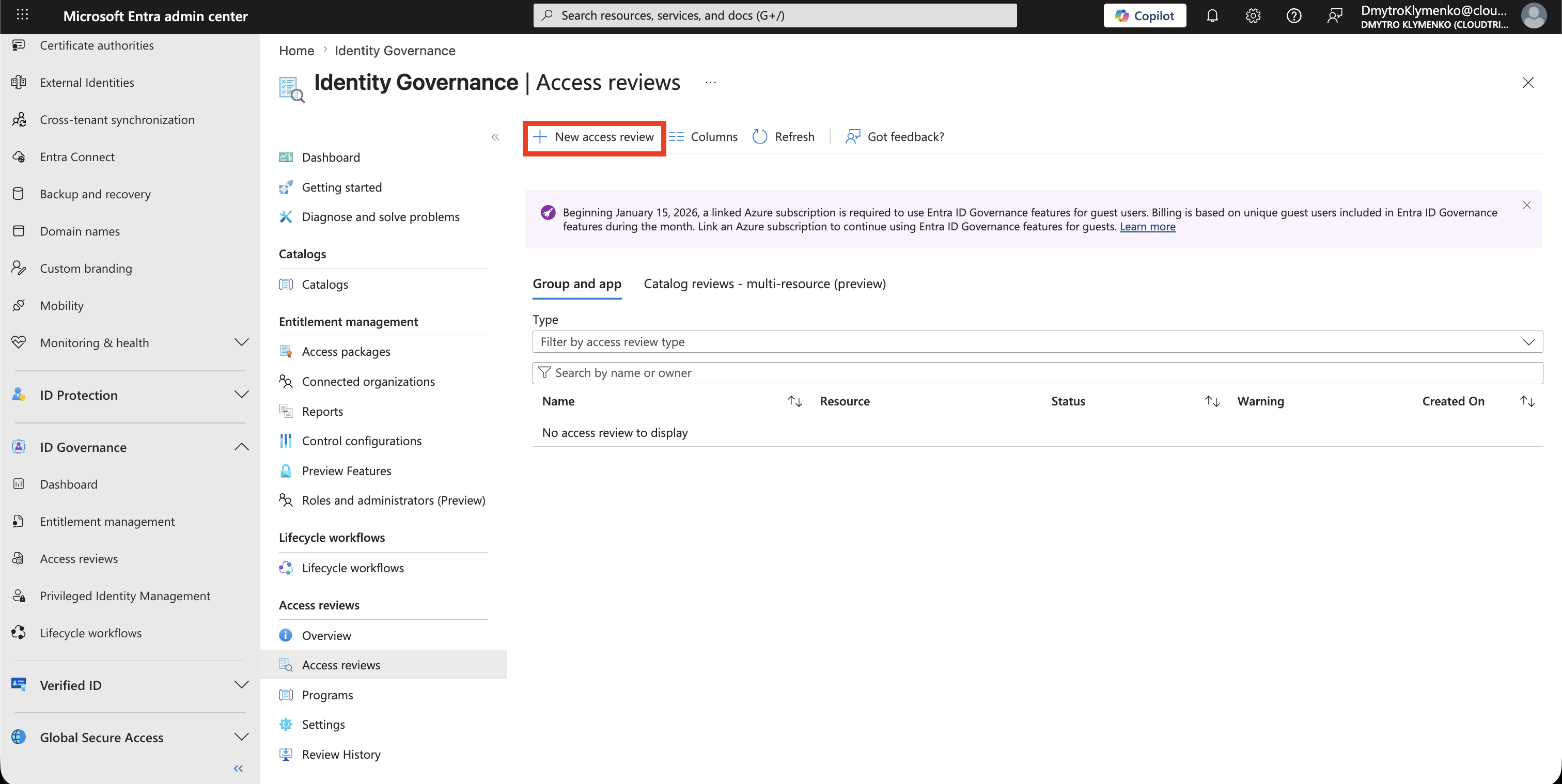
Open Access Reviews
Go to:
Microsoft Entra admin center > ID Governance > Access ReviewsSelect:
New access reviewThis starts a review definition.
Choose What to Review
On the template screen, choose:
Review access to a resource typeThen select the resource type.
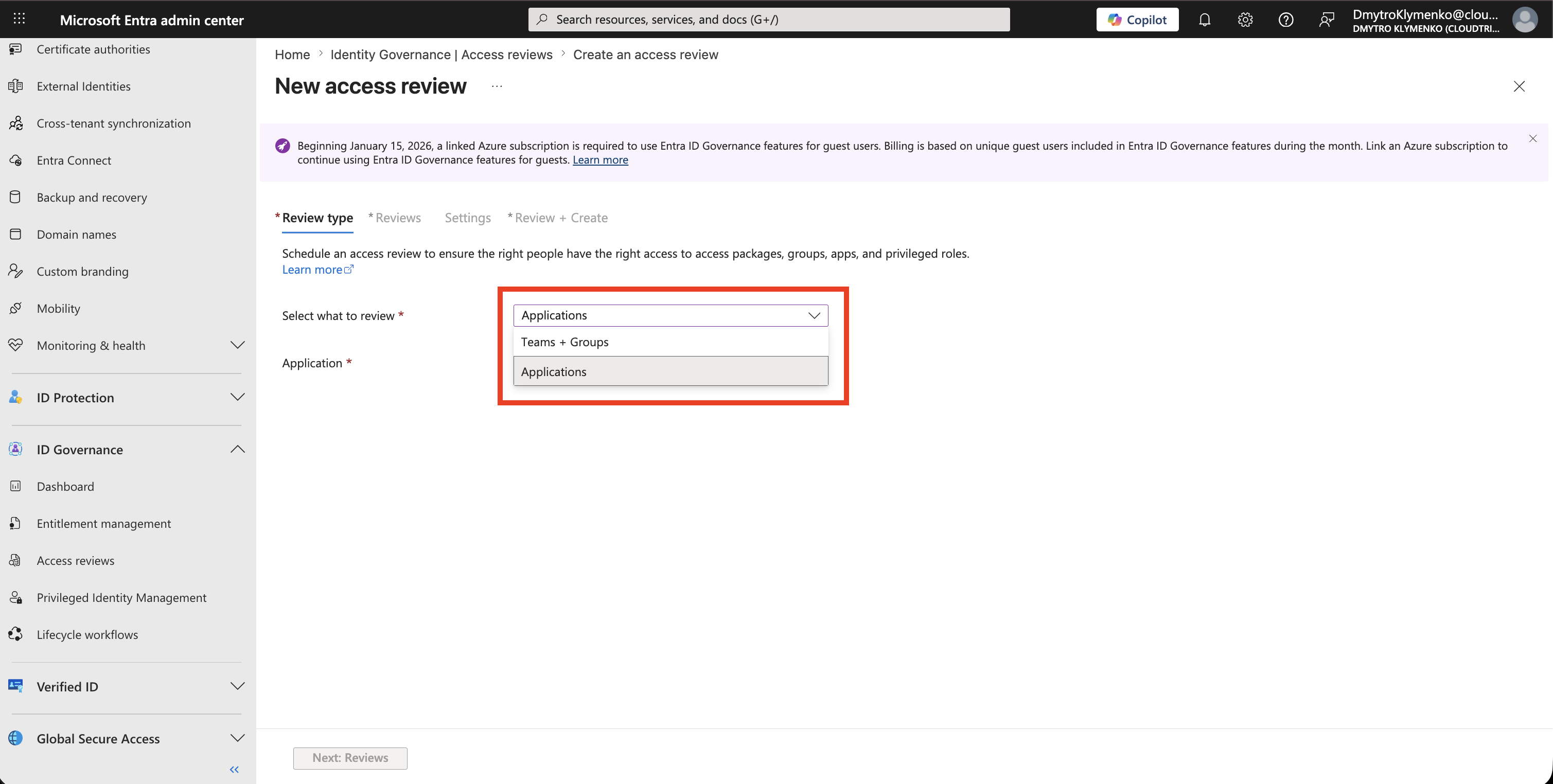
For guest collaboration, common choices are:
- Teams + Groups
- Applications
Example:
Teams + Groups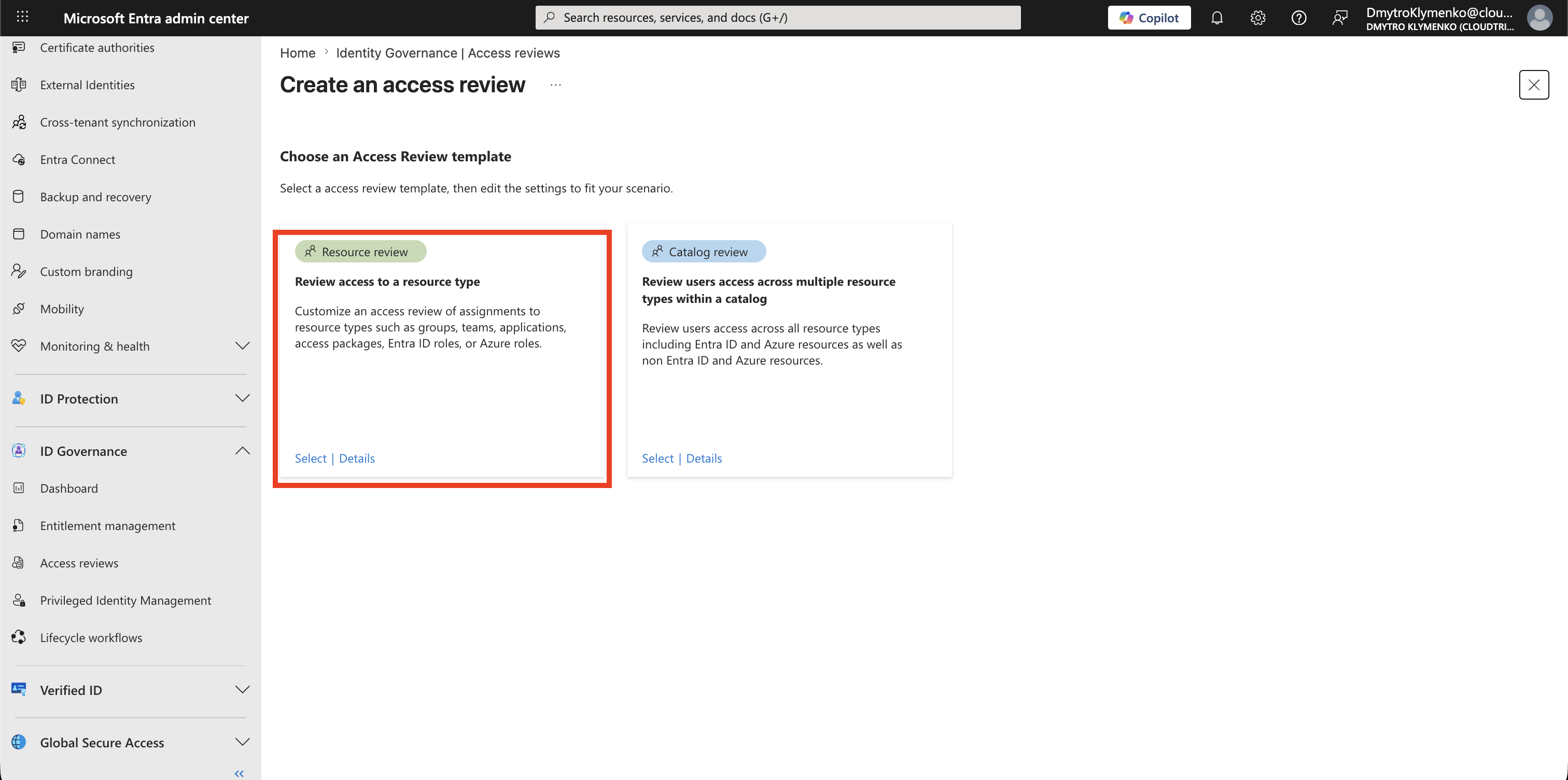
Select the Group or Application
Choose the resource that contains the guest access.
Example:
CloudTrips-External-PartnersIf you review Teams or Microsoft 365 groups, you can either select specific groups or review all Microsoft 365 groups with guest users.
For a controlled first review, start with one group.
Scope the Review to Guest Users
Set the review scope to:
Guest users onlyThis limits the review to Microsoft Entra B2B guest users.
Internal users remain out of scope.
Use this when the business question is:
Which external users still need this access?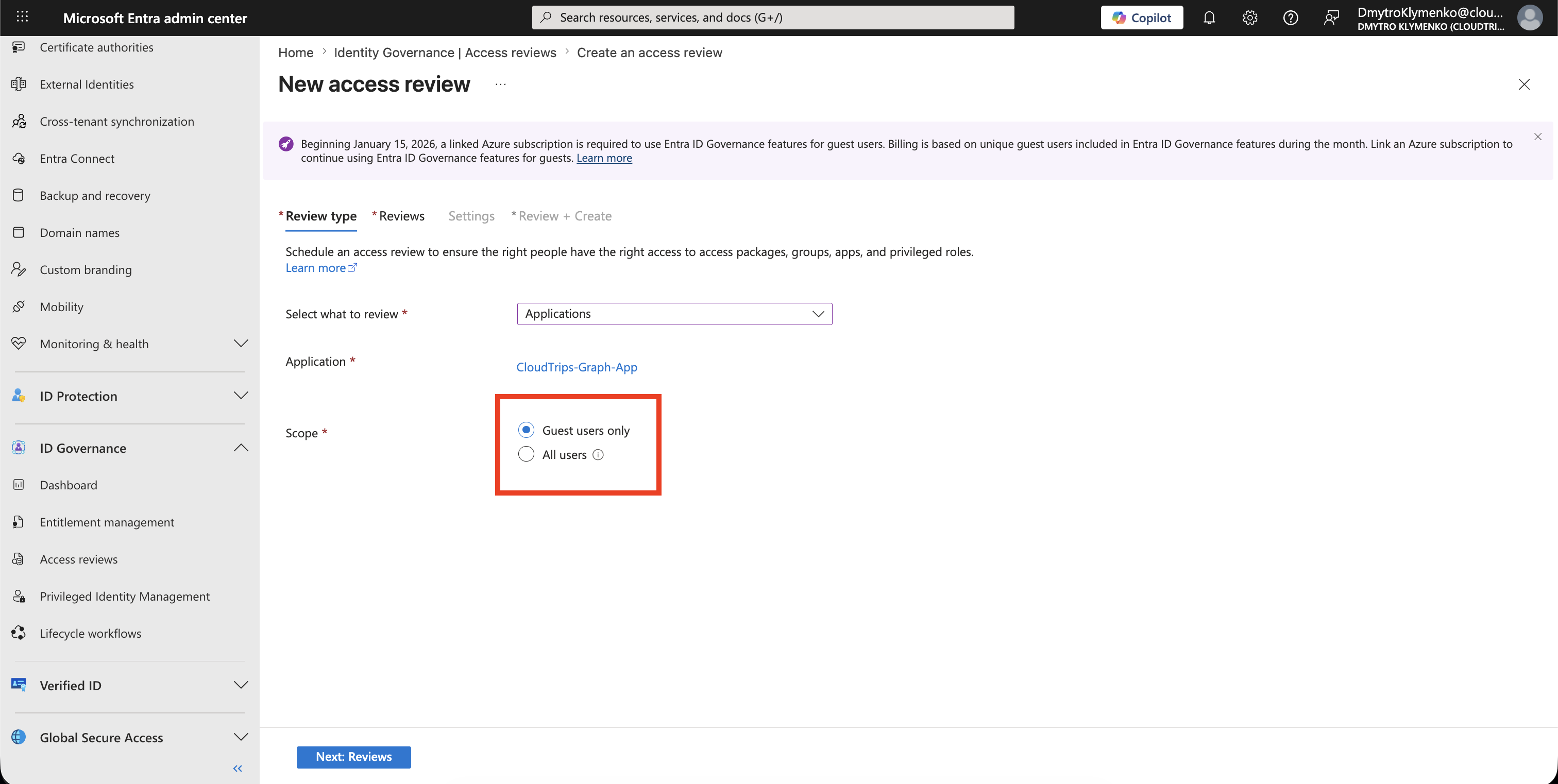
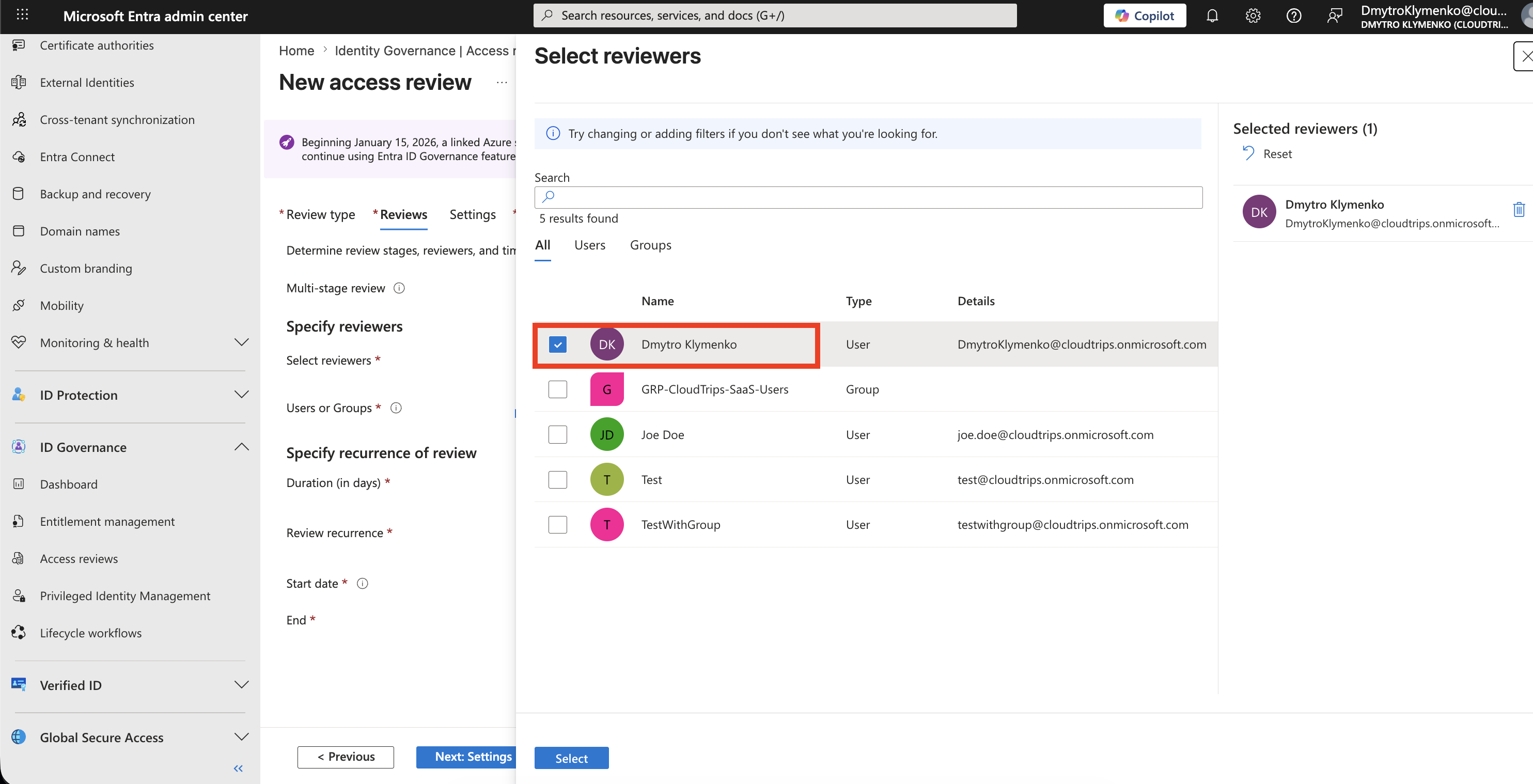
Select Reviewers
Choose who should make the access decision.
Common options:
- group owners
- selected users or groups
- managers of users
- users review their own access
For this trip, select yourself as the reviewer.
Example:
Reviewers: Selected user(s) or group(s)This is useful for a first test because the review notification and decision task go directly to you.
Configure Review Schedule
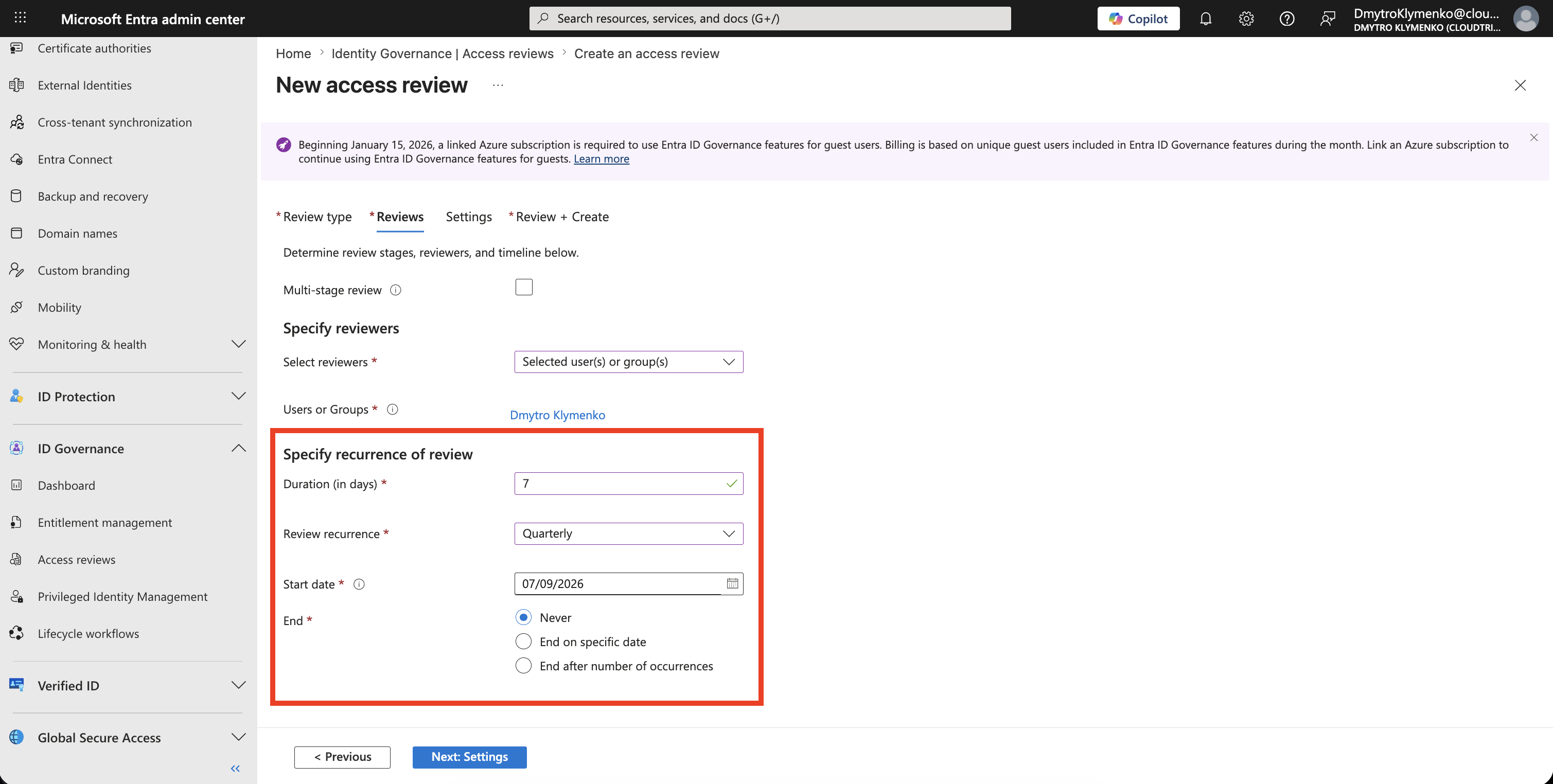
Set the review duration and recurrence.
Example:
Duration: 7 days
Recurrence: Quarterly
Start date: Today
End: Never
For temporary partner access, quarterly reviews are a practical starting point.
For sensitive applications, use a shorter interval.
Configure Completion Behavior
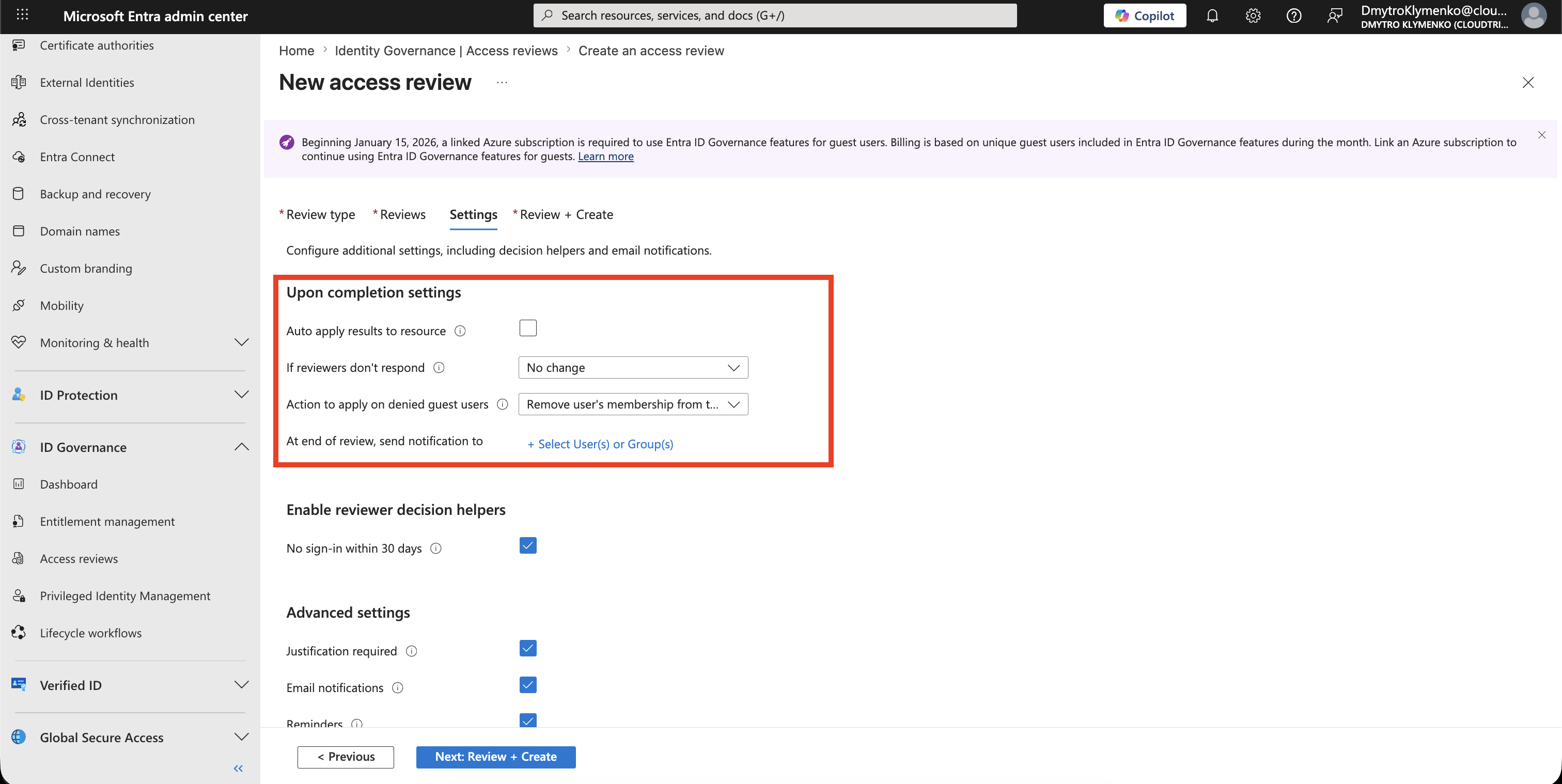
Decide what happens when the review finishes.
For a cautious first rollout:
Auto apply results to resource: No
If reviewers don't respond: No change
This lets administrators inspect the results before removing access.
After the process is trusted, you can enable:
Auto apply results to resourceFor denied guest users, choose the action carefully:
Remove user's membership from the resourceThis removes access to the reviewed group or application.
Use tenant-wide disable and delete only when you are sure the guest no longer needs any access in the tenant.
Add Reviewer Helpers
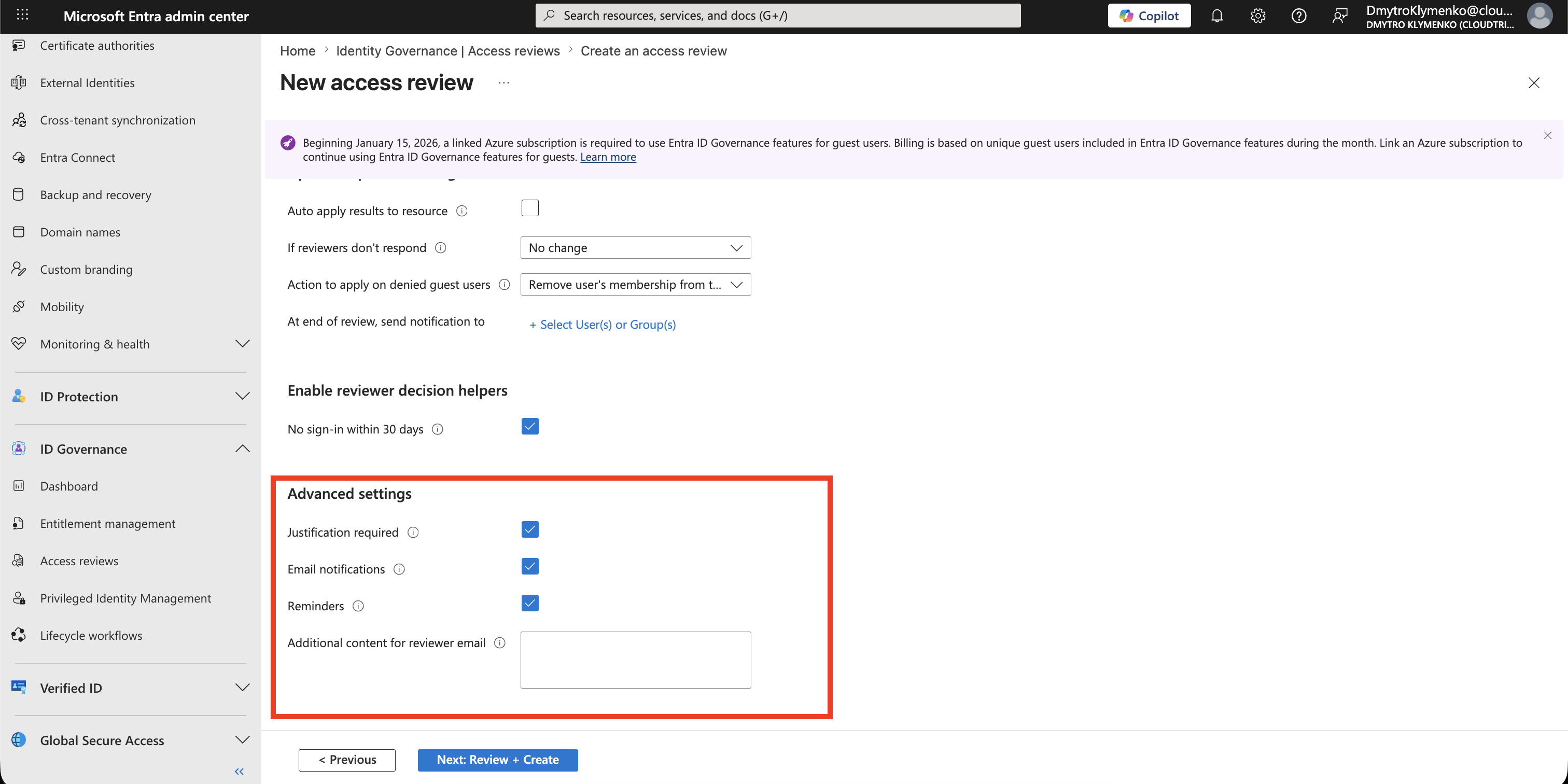
Enable settings that make decisions easier.
Useful options:
- require justification
- email notifications
- reminders
- no sign-in recommendation
- additional reviewer email content
Example message:
Please approve only guests who still need access for an active CloudTrips project.Requiring justification creates better audit evidence.
Review and Create
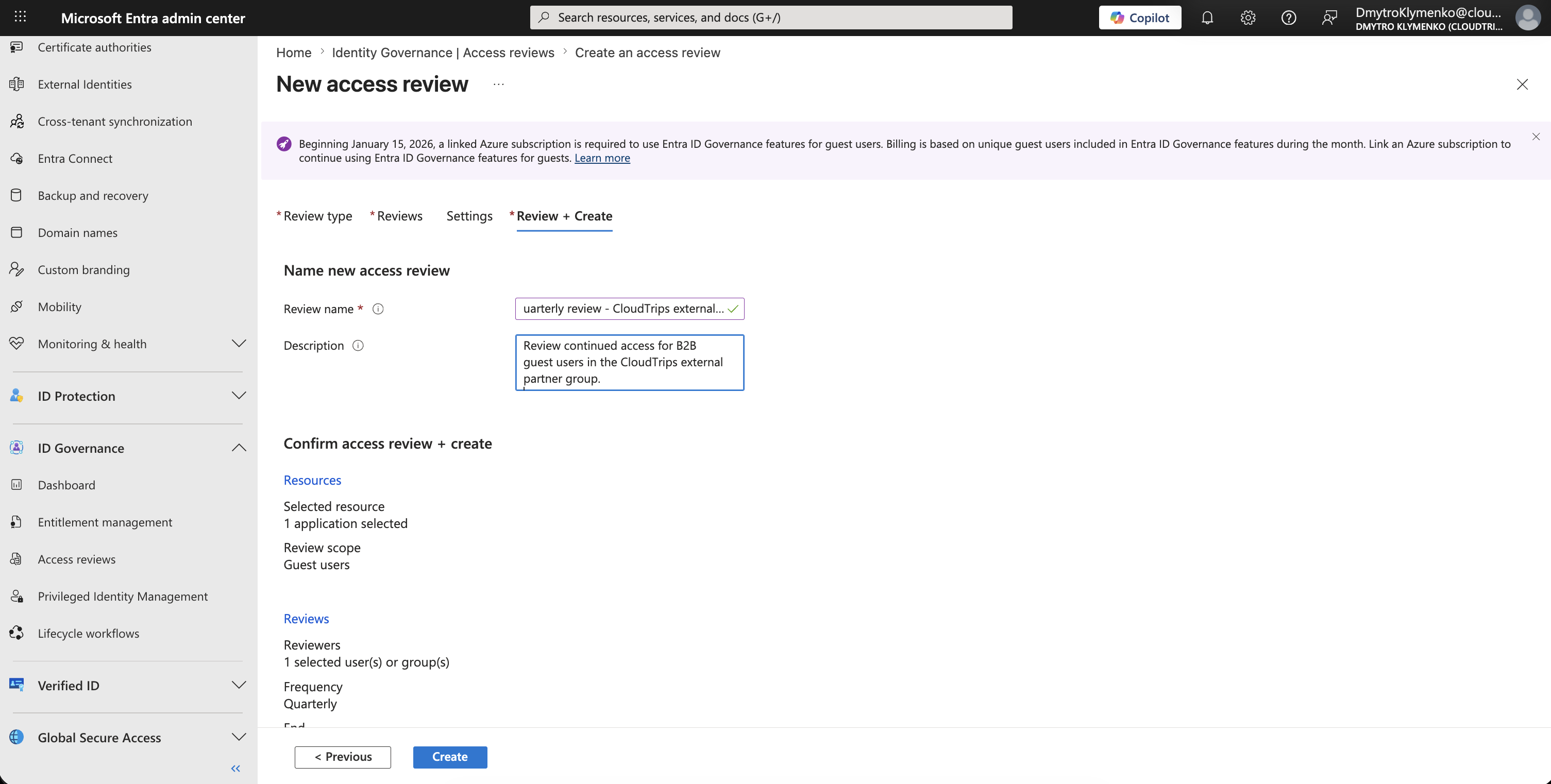
Give the access review a clear name.
Example:
Name: Quarterly review - CloudTrips external partners
Description: Review continued access for B2B guest users in the CloudTrips external partner group.
Select:
CreateThe review appears in the access reviews list.
Reviewers receive email notifications if notifications are enabled.
Complete the Review
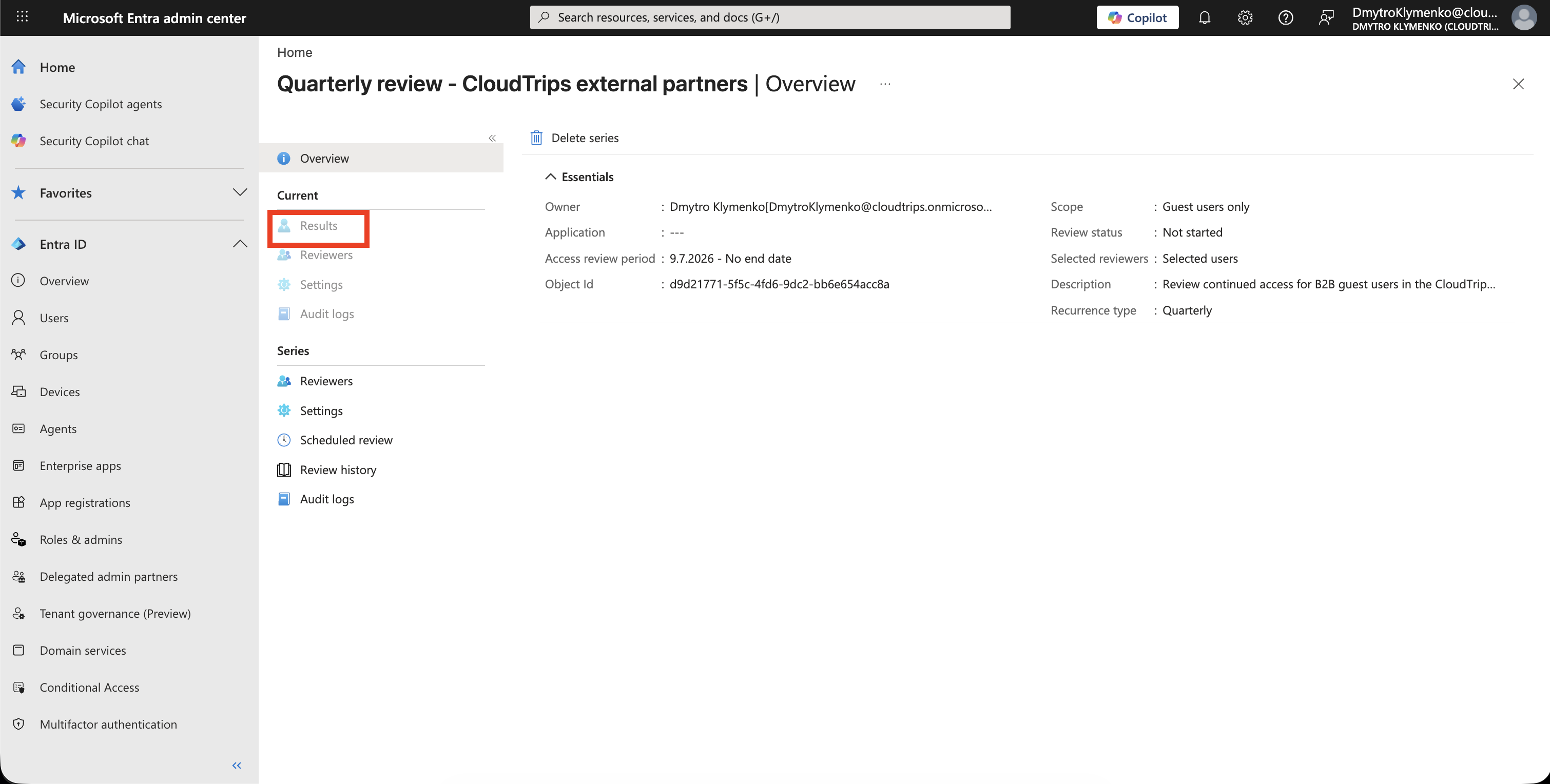
After the access review is created, results may be empty or unavailable at first.
That is expected.
The review needs reviewer decisions before there is anything meaningful to show in the results.
Because you selected yourself as reviewer, open the reviewer task from the notification email or from the access review page.
Then decide whether each guest should keep access.
Typical decisions:
Approve -> guest keeps access
Deny -> guest access should be removed
Don't know -> decision needs follow-up
After decisions are submitted, or when the review period ends:
- inspect review results
- apply results manually or automatically
- follow up on unclear decisions
- document exceptions
Enterprise Note
Access reviews are powerful because they can remove access.
Recommended checklist:
- start with a single group or application
- scope the review to guest users only
- start by selecting yourself as reviewer for the first test
- move to resource owners as reviewers when the process is ready
- require justification for approvals
- enable reminders
- avoid automatic removal until the process is tested
- use tenant-wide guest disable/delete only as a deliberate cleanup step
- review results before applying them in the first cycles