Helpdesk Should Manage Only One Department? Create an Administrative Unit
Administrative Units in Microsoft Entra ID allow you to restrict administrative permissions to a specific scope.
Instead of granting tenant-wide admin rights, you assign roles that only apply to a defined Administrative Unit.
Open Administrative Units
Go to:
Entra ID > Administrative unitsThen select:
New administrative unit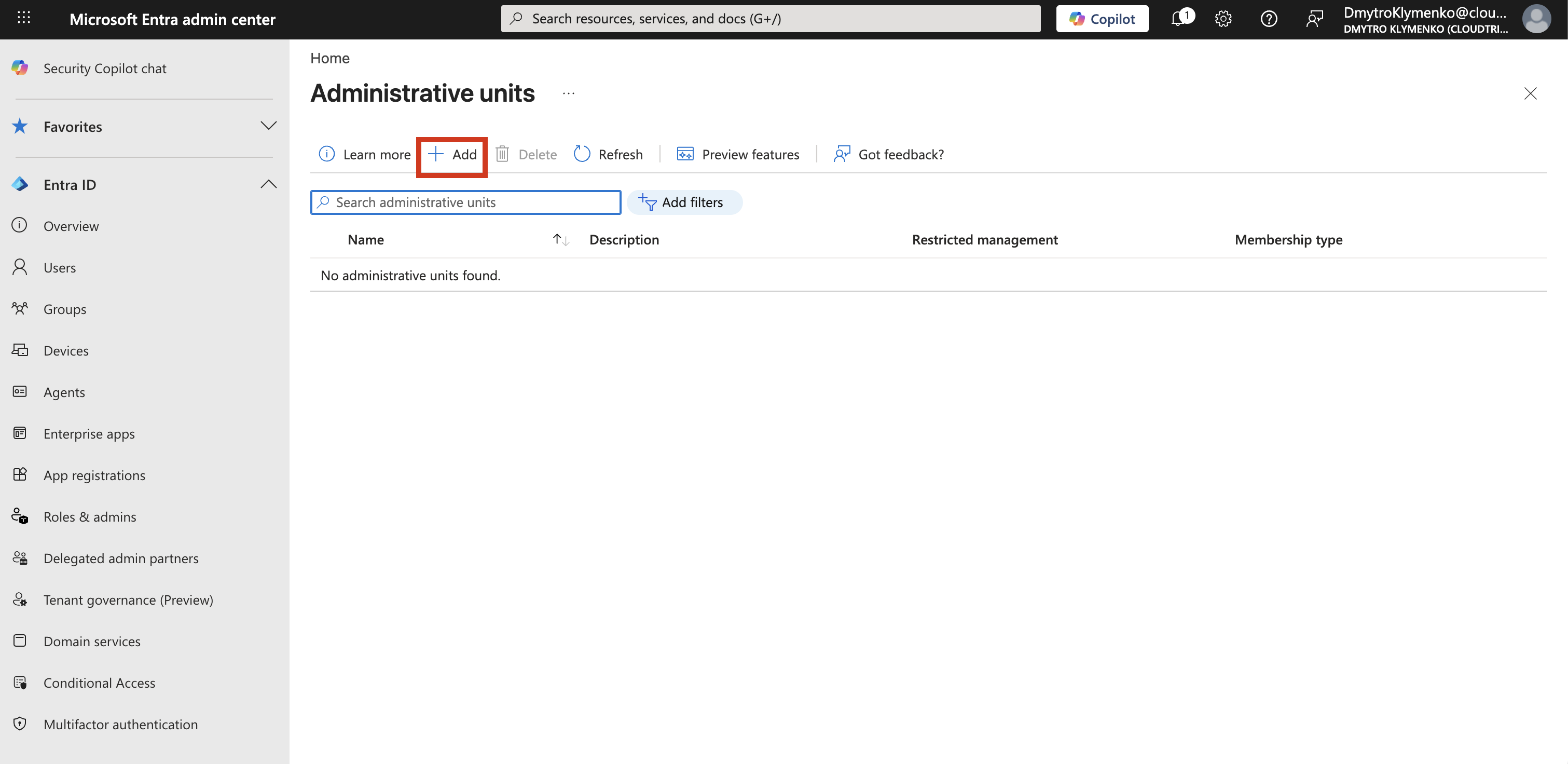
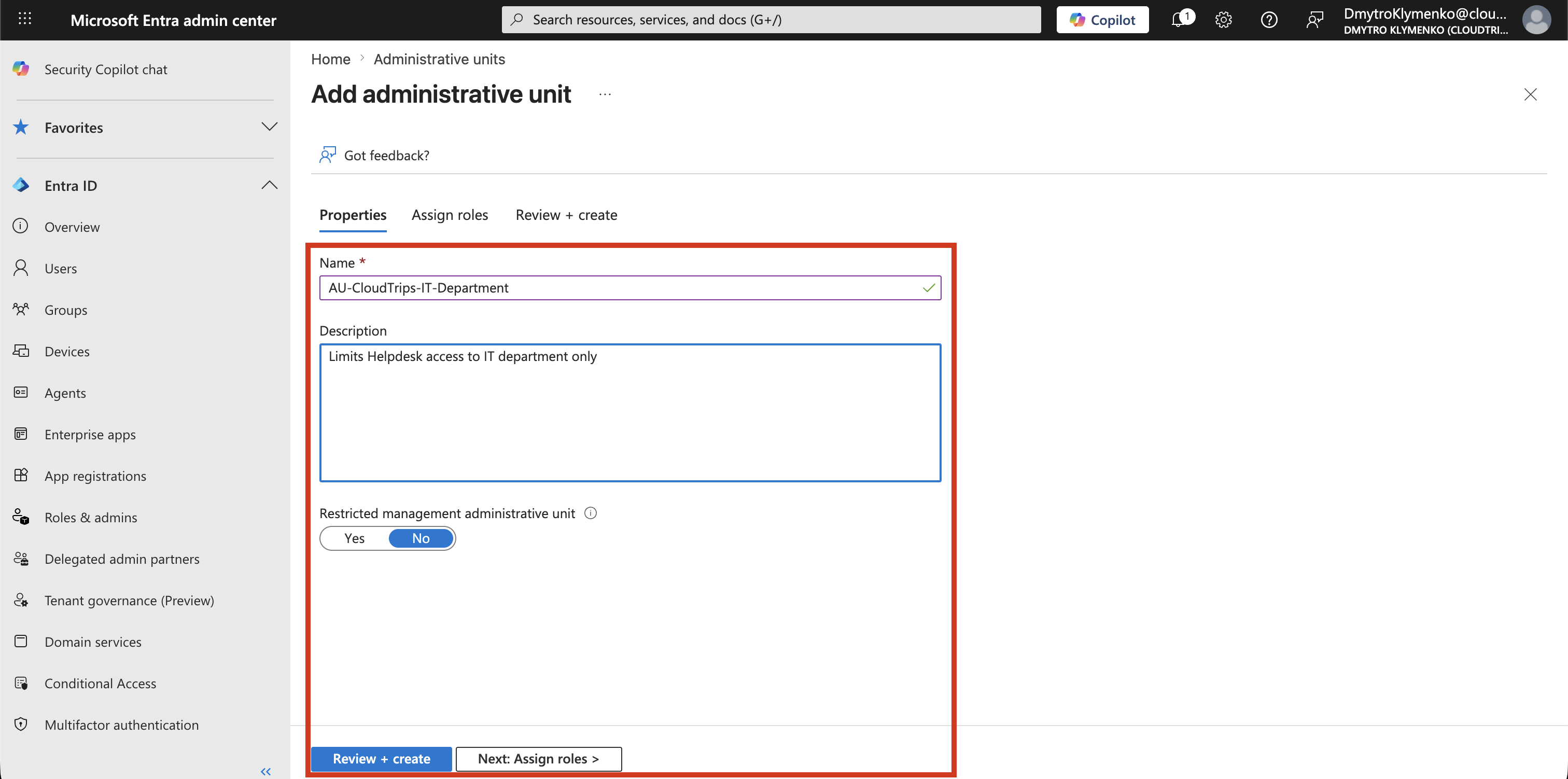
Create Administrative Unit
Create the administrative boundary:
Name: AU-CloudTrips-IT-Department
Description: Scope boundary for IT department administration
At this stage:
- no users added
- no groups added
- only the boundary exists
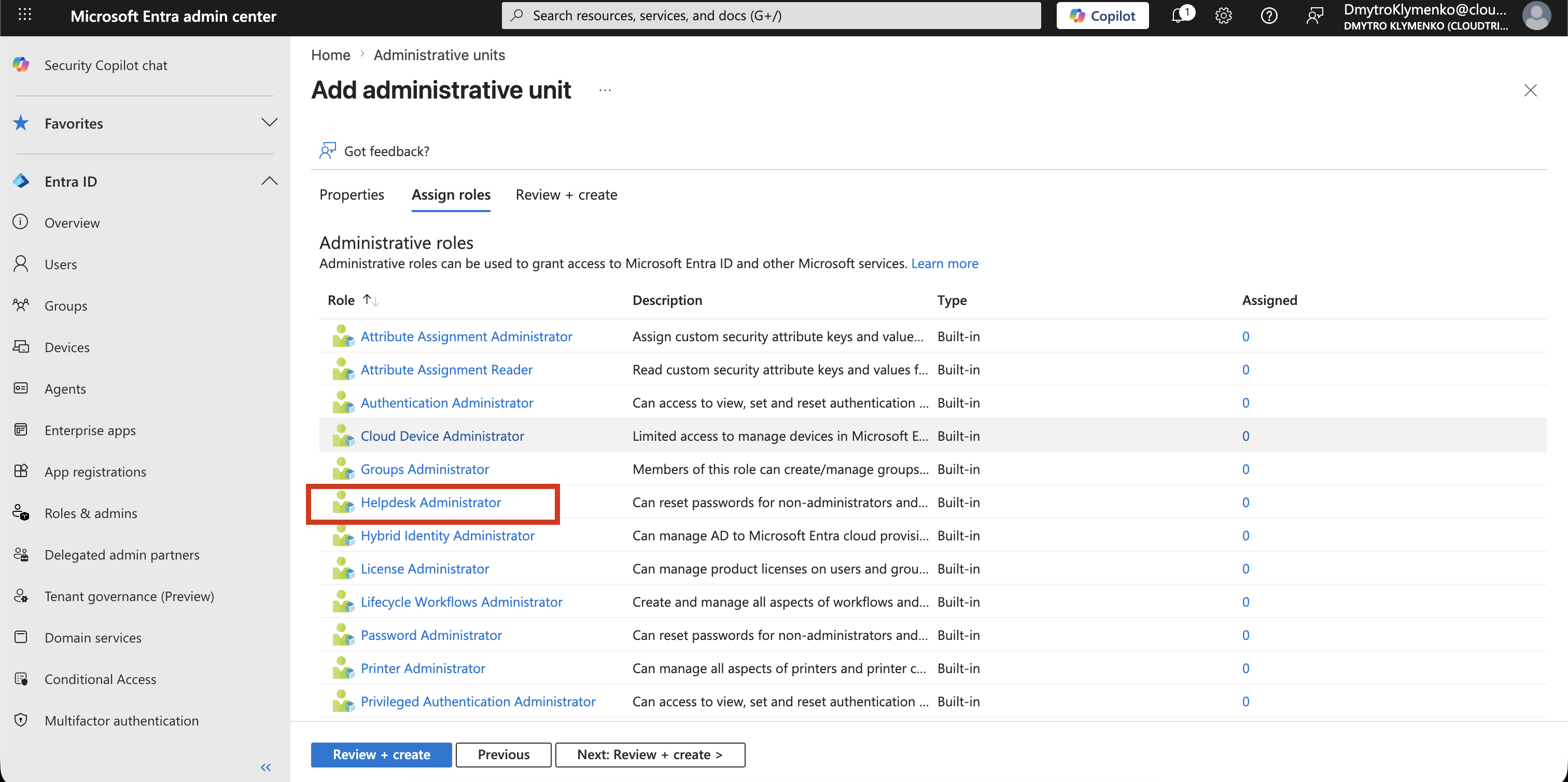
Assign Helpdesk Role to Administrative Unit
Now assign administrative permissions in two screens.
Role Selection
First select the role:
Helpdesk AdministratorThis defines what actions the admin can perform, for example resetting passwords or managing users.
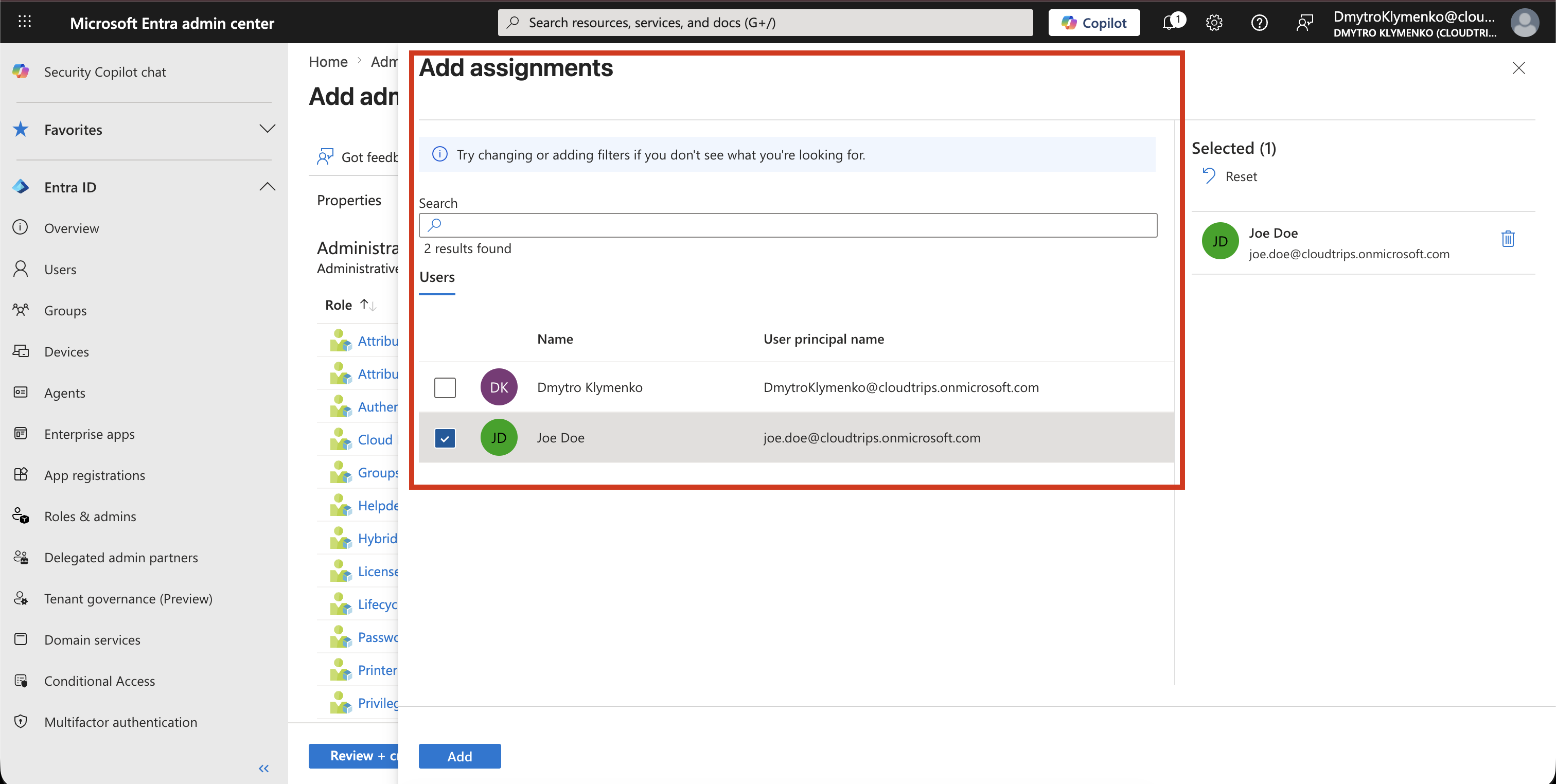
Add Assignment
Then assign the role:
User: Joe Doe
Scope: AU-CloudTrips-IT-Department
This connects:
- user, Joe Doe
- role, Helpdesk Administrator
- scope, Administrative Unit
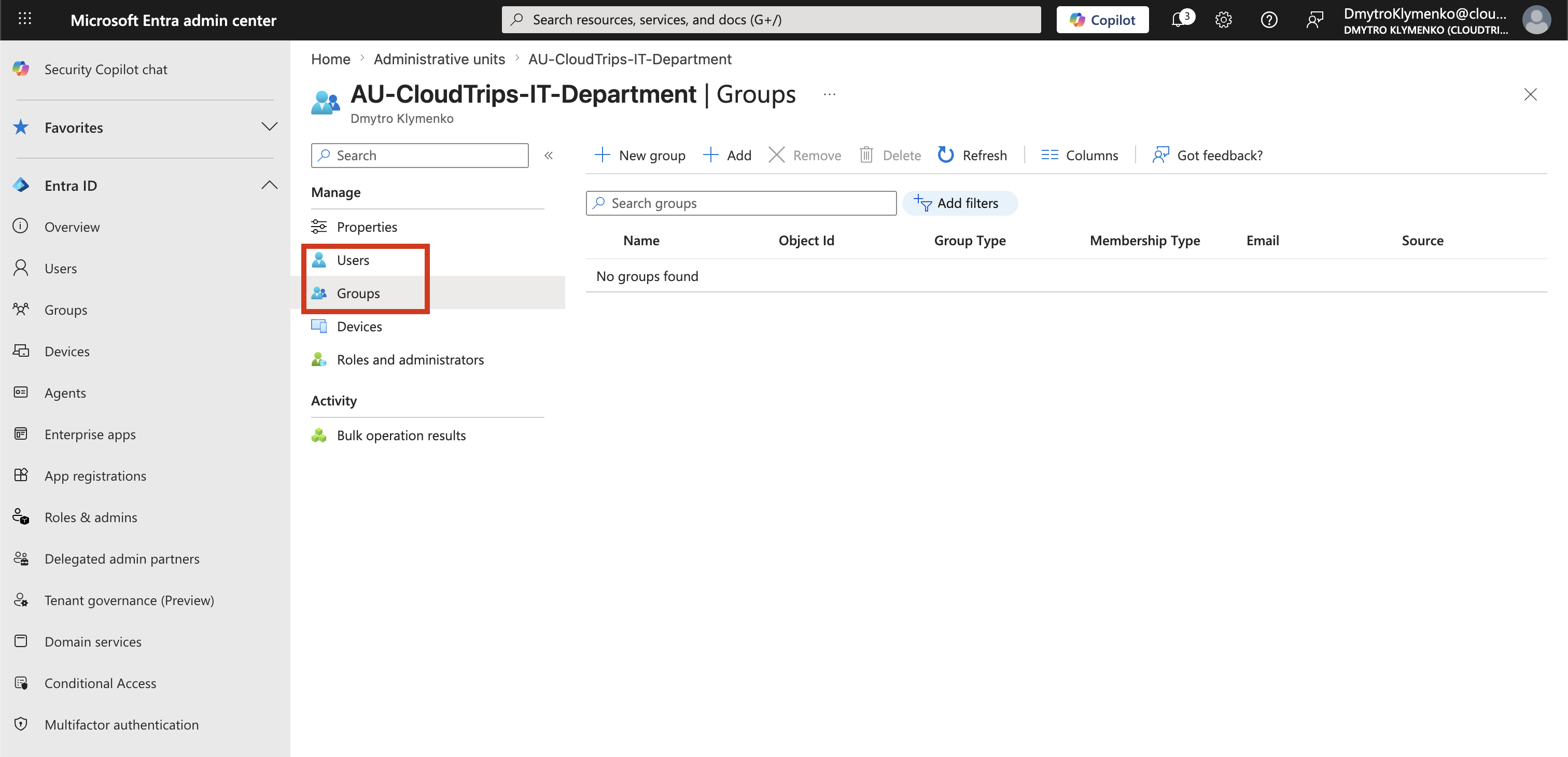
Manage Administrative Unit Members
Now define what the Helpdesk can actually manage.
Inside the Administrative Unit you can add:
- users
- groups
This defines the managed objects within the scope.
Result
After configuration:
- Joe Doe is Helpdesk Administrator
- but only for this Administrative Unit
- only users and groups inside the AU are manageable
- no access to the rest of the tenant