Users Should Join Group Automatically? Create a Dynamic User Group
Instead of manually managing group membership, Microsoft Entra ID allows you to create dynamic user groups.
These groups automatically add or remove users based on user attributes like:
- department
- job title
- country
- employee type
This is useful for:
- onboarding automation
- license assignment
- Azure RBAC access control
Open Groups in Entra
Go to:
Entra ID > GroupsThen select:
New group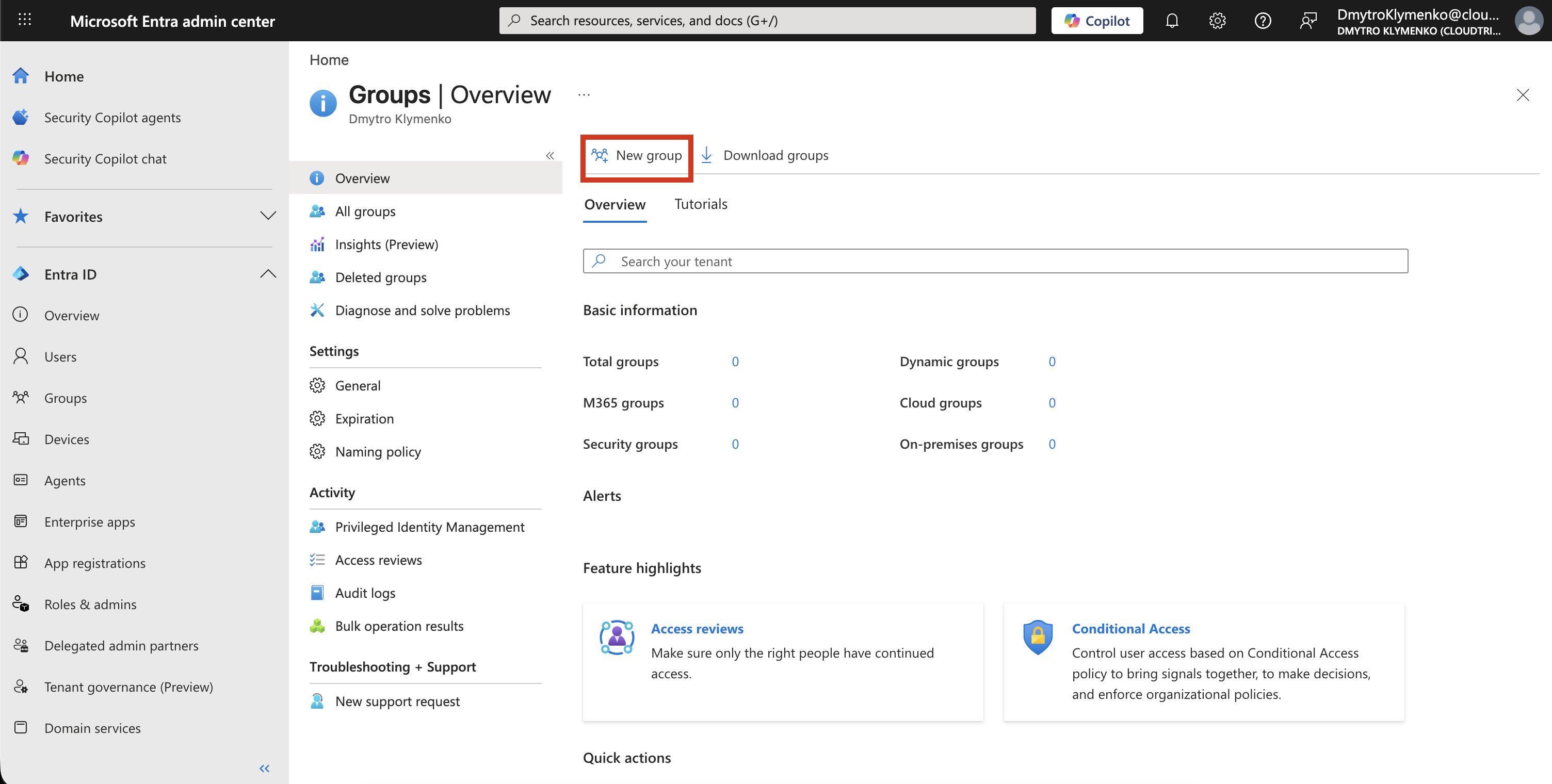
Create Dynamic User Group
Configure the group:
Group type: Security
Group name: GRP-CloudTrips-IT-Auto
Membership type: Dynamic User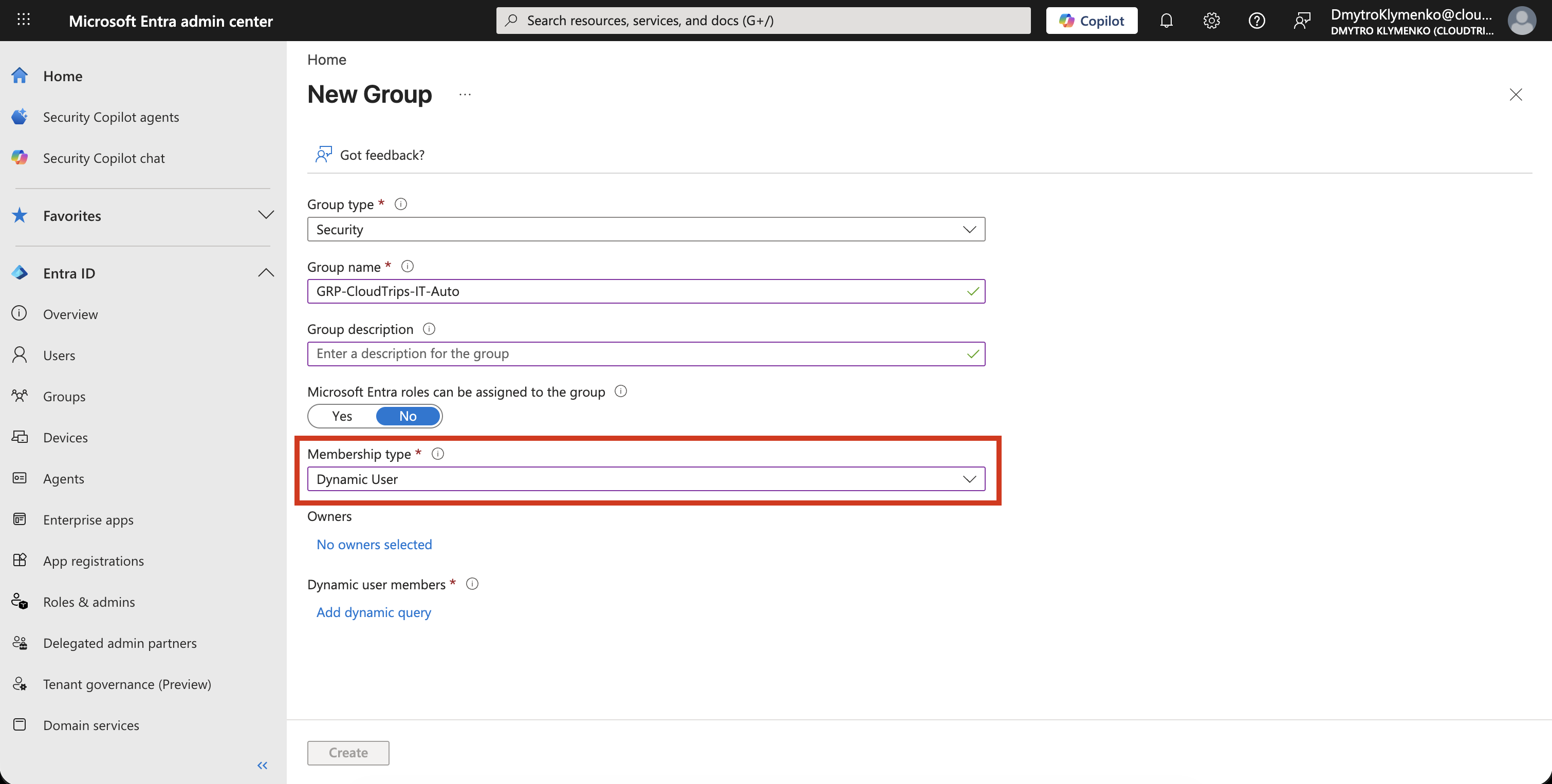
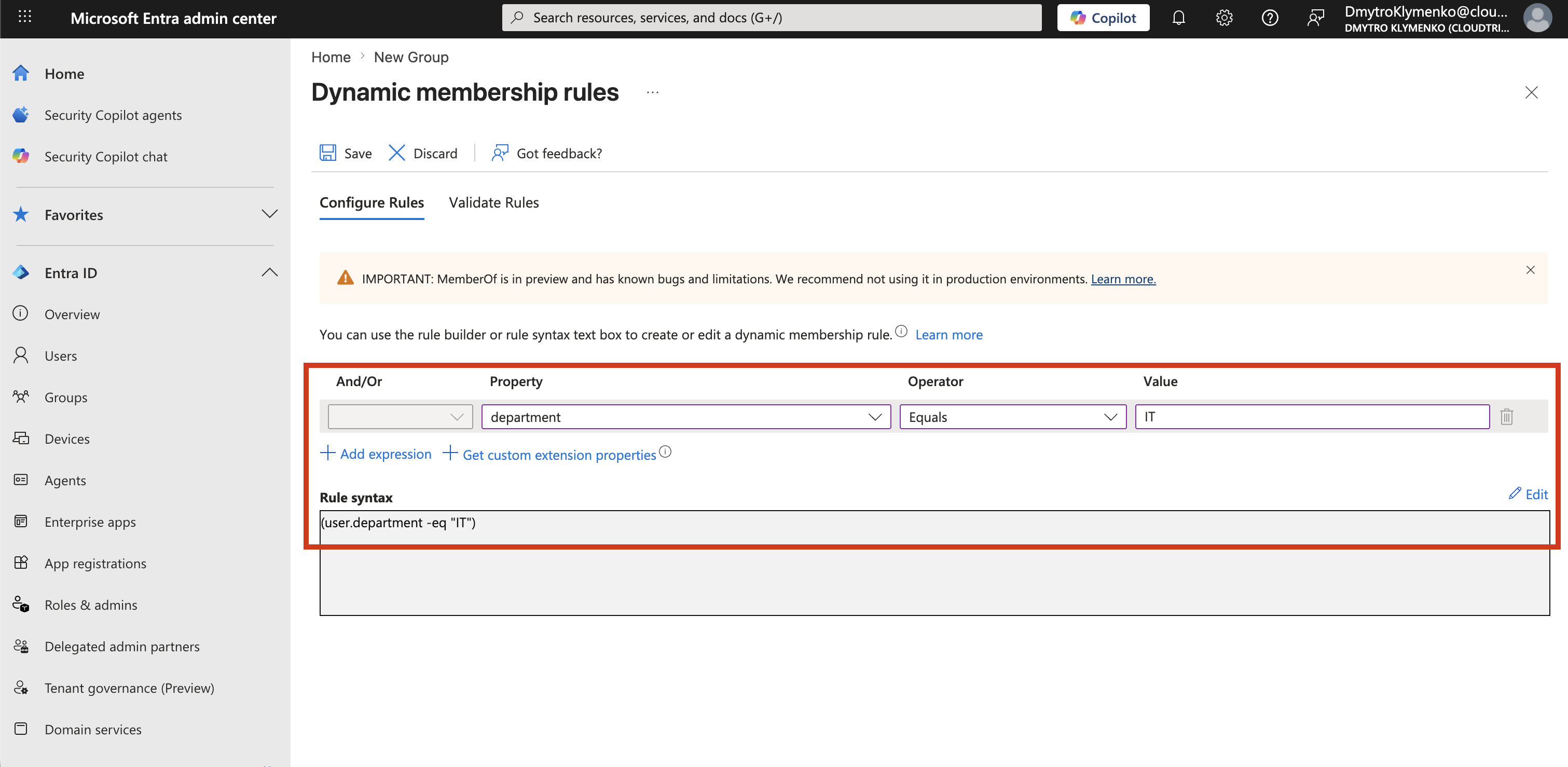
Define Membership Rule
Example rule for IT department users:
(user.department -eq "IT")This rule determines which users are automatically added to the group.
Create the Group
Click:
CreateEntra evaluates users in the background and automatically adds matching users to the group.
Test Dynamic Group
To verify that the rule works correctly, create a new test user and assign the correct attribute.
Create Test User
Create a new user with:
- Department = IT
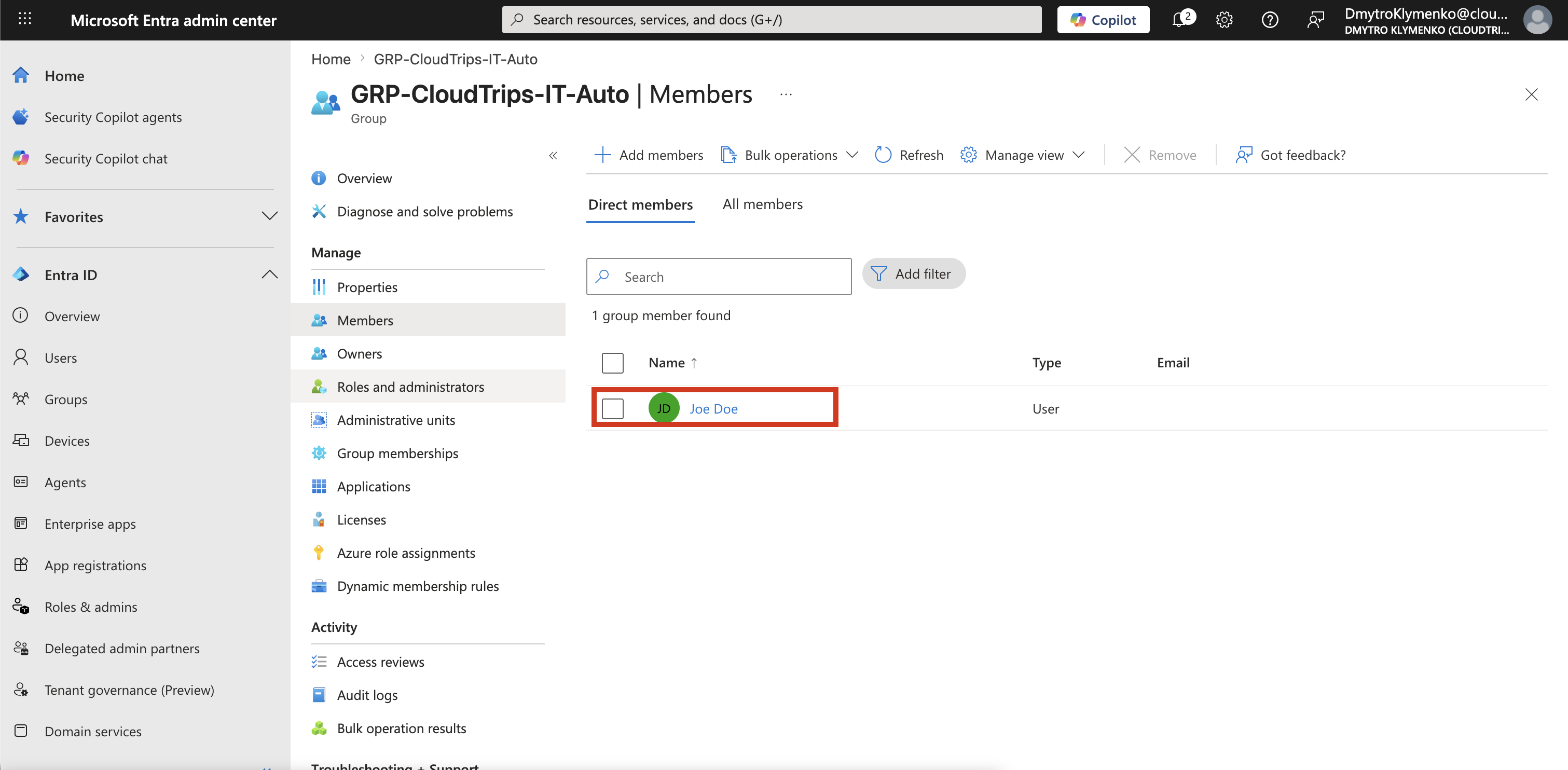
Then check if the user is automatically added to the group.
Go to:
Entra ID > Groups > GRP-CloudTrips-IT-Auto > MembersVerify that the newly created user appears automatically in the list.
Important Notes
- requires Microsoft Entra ID P1 or P2 license
- processing is asynchronous, not instant
- depends fully on correct user attributes in Entra ID