Company Wants Passwordless Login? Register Passkey
Passwords are easy to phish, reuse, and forget.
For stronger user sign-in, Microsoft Entra supports:
Passkeys (FIDO2).
A passkey is a phishing-resistant credential based on public key cryptography.
The private key stays with the authenticator, such as a security key, Microsoft Authenticator, Windows Hello, or another supported passkey provider.
This pattern is used when:
- users need passwordless sign-in
- the company wants stronger protection against phishing
- sign-in should use a device unlock gesture such as PIN, fingerprint, or face
- authentication is handled by Microsoft Entra ID
- rollout should be controlled by group targeting
In this example:
- CloudTrips Employees is the target group
- Employee is the user registering a passkey
- Microsoft Entra ID enforces the passkey policy
The shape is:
Enable passkeys -> target group -> user registers passkey -> user signs in passwordlessPasskey Types
Microsoft Entra passkeys are FIDO2-based credentials.
Two common types are:
Device-bound passkeys
The private key is created and stored on one device or hardware authenticator.
Examples:
FIDO2 security key
Microsoft Authenticator
Windows Hello
Synced passkeys
The passkey is synced by a supported passkey provider, such as a platform password manager.
Synced passkeys can be easier for users, but they may not provide the same assurance as device-bound credentials with attestation.
For a first enterprise rollout, start with a pilot group and a clear profile.
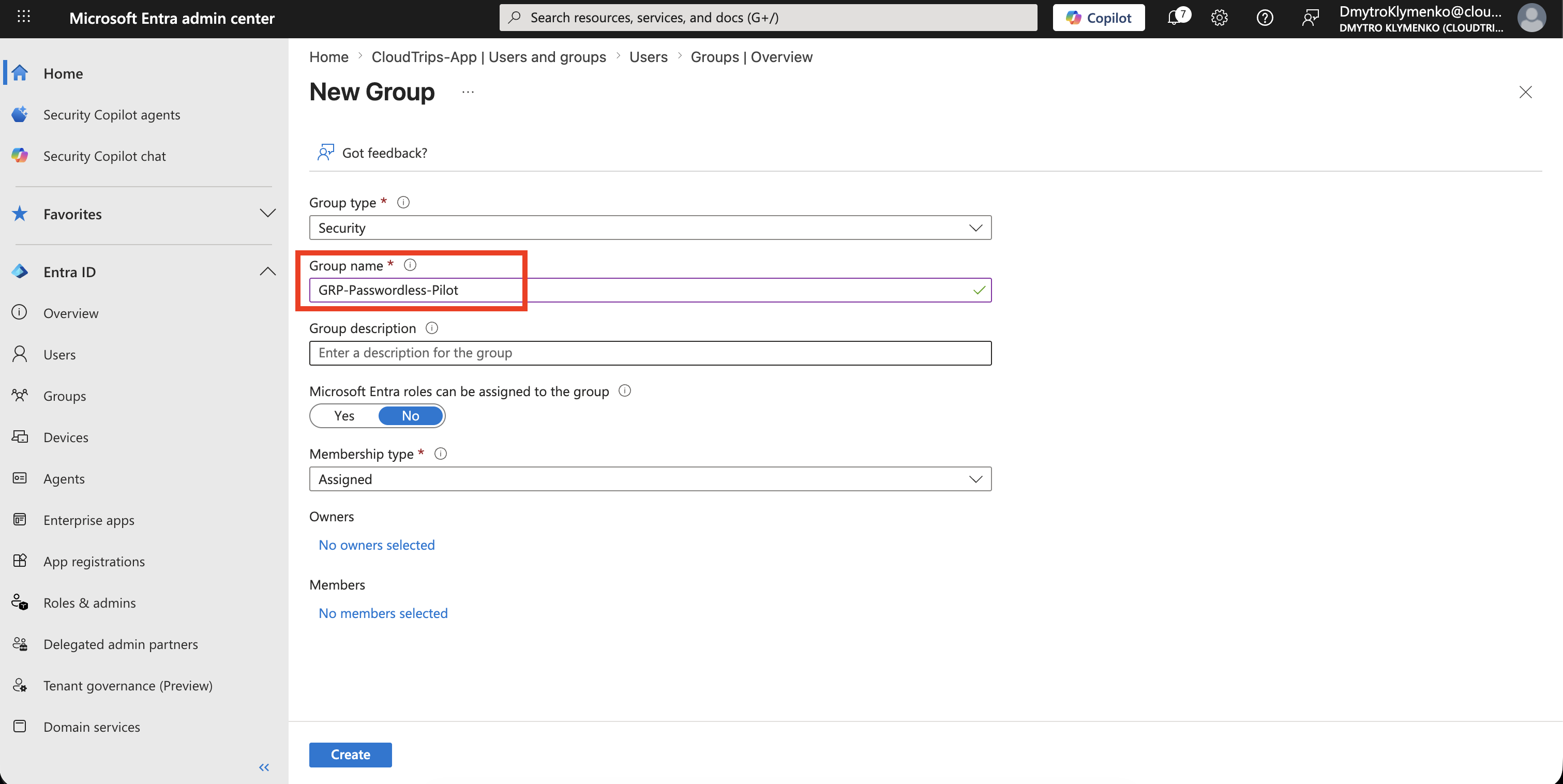
Create Pilot Group
Create a group for users who can register passkeys.
Go to:
Entra ID > Groups > New groupCreate a security group:
Group type: Security
Group name: GRP-Passwordless-Pilot
Membership type: Assigned
Add the test employee to the group.
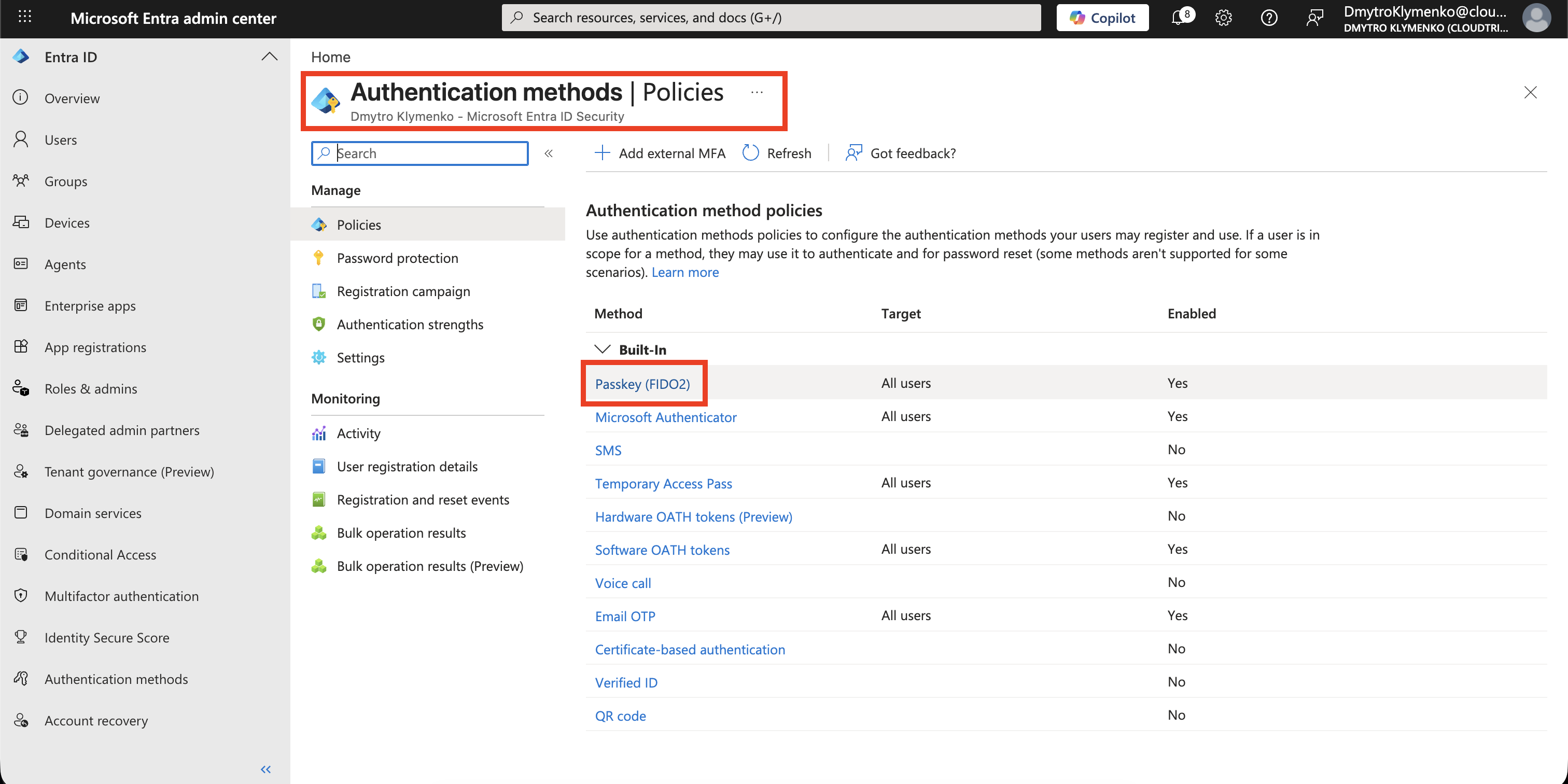
Open Authentication Methods
Go to:
Entra ID > Authentication methods > PoliciesOpen:
Passkey (FIDO2)This is where passkey registration and sign-in are controlled.
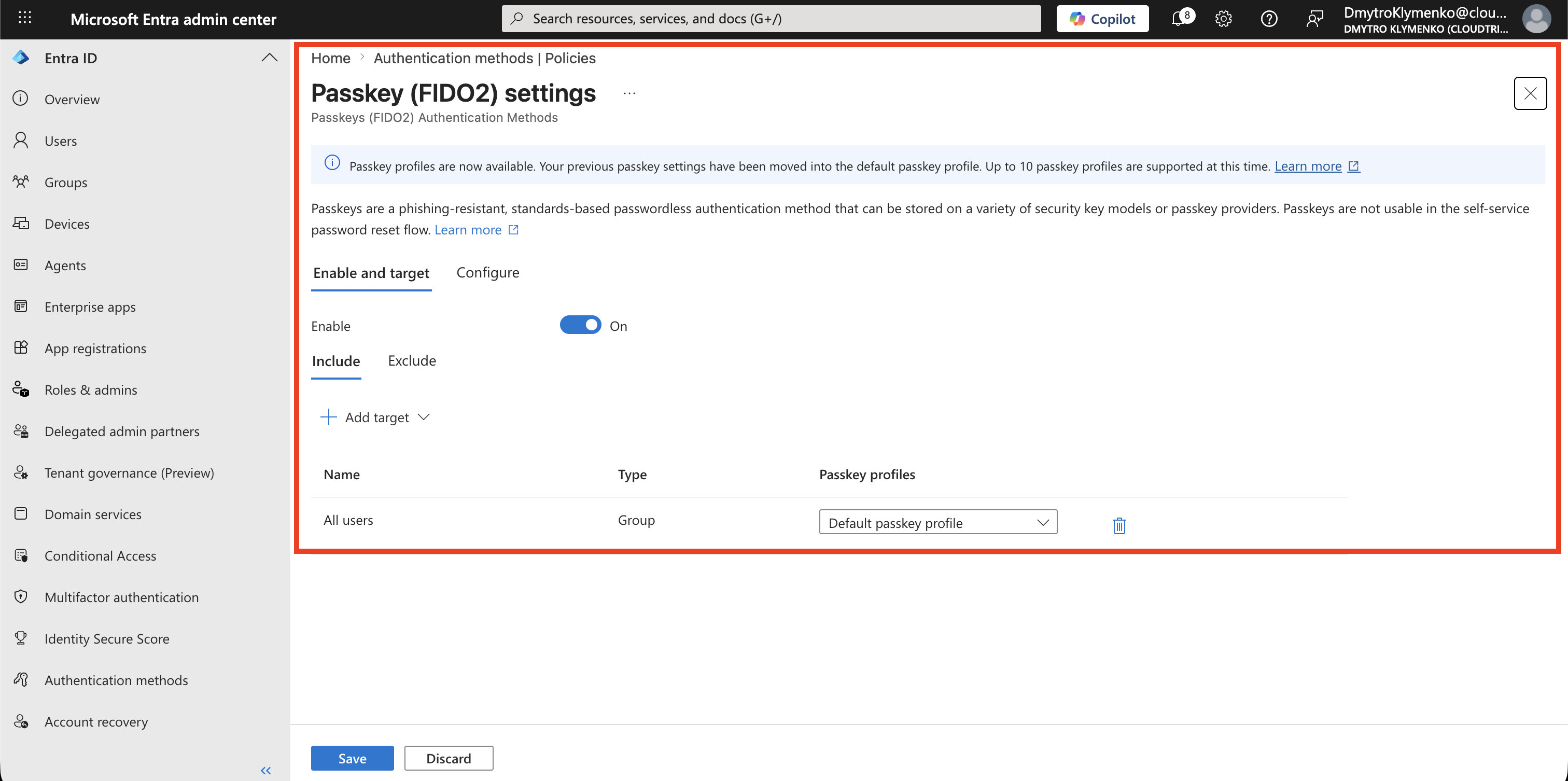
Enable Passkey Profiles
If your tenant shows a banner to enable passkey profiles, opt in.
Passkey profiles allow group-based passkey configuration.
They let you define settings such as:
- passkey type
- attestation enforcement
- authenticator restrictions
- target users and groups
After passkey profiles are enabled, existing global settings move into a default profile.
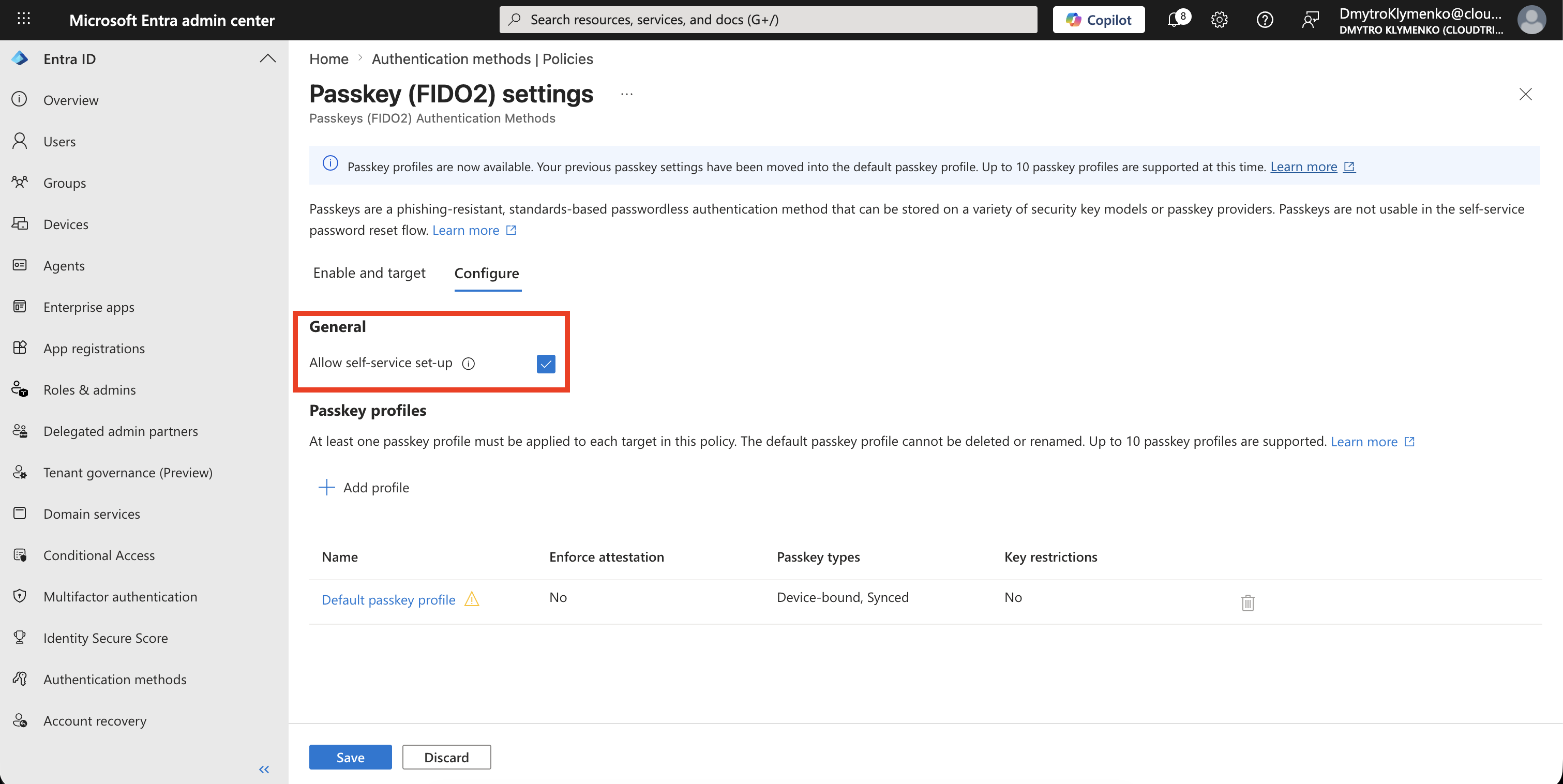
Configure Self-Service Setup
On the passkey policy, set:
Allow self-service set up: YesThis allows targeted users to register a passkey from their Security info page.
If this is set to No, users cannot register passkeys themselves, even if the authentication method is enabled.
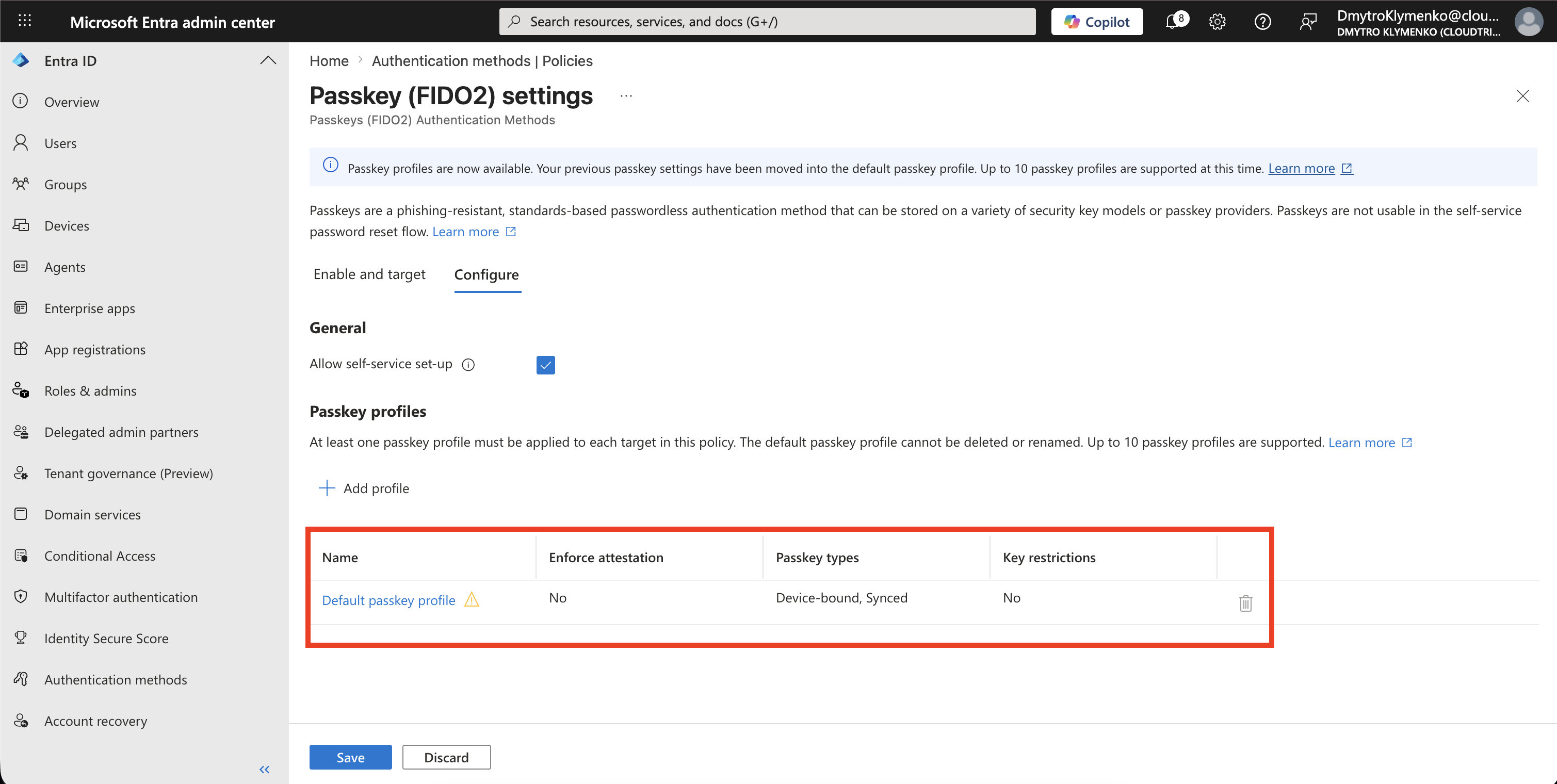
Use the Default Passkey Profile
After passkey profiles are enabled, Microsoft Entra provides a default passkey profile.
For this trip, use the default profile instead of creating a new one.
In many tenants, the default profile is already enabled for all users.
Open the default profile and review the settings:
Name: Default
Passkey types: Device-bound
Enforce attestation: No
Enforce key restrictions: No
For high-security roles, you might later enforce attestation or restrict allowed authenticators by AAGUID.
For the first trip, keeping the default profile simple makes the registration flow easier to prove.
Review Targeting
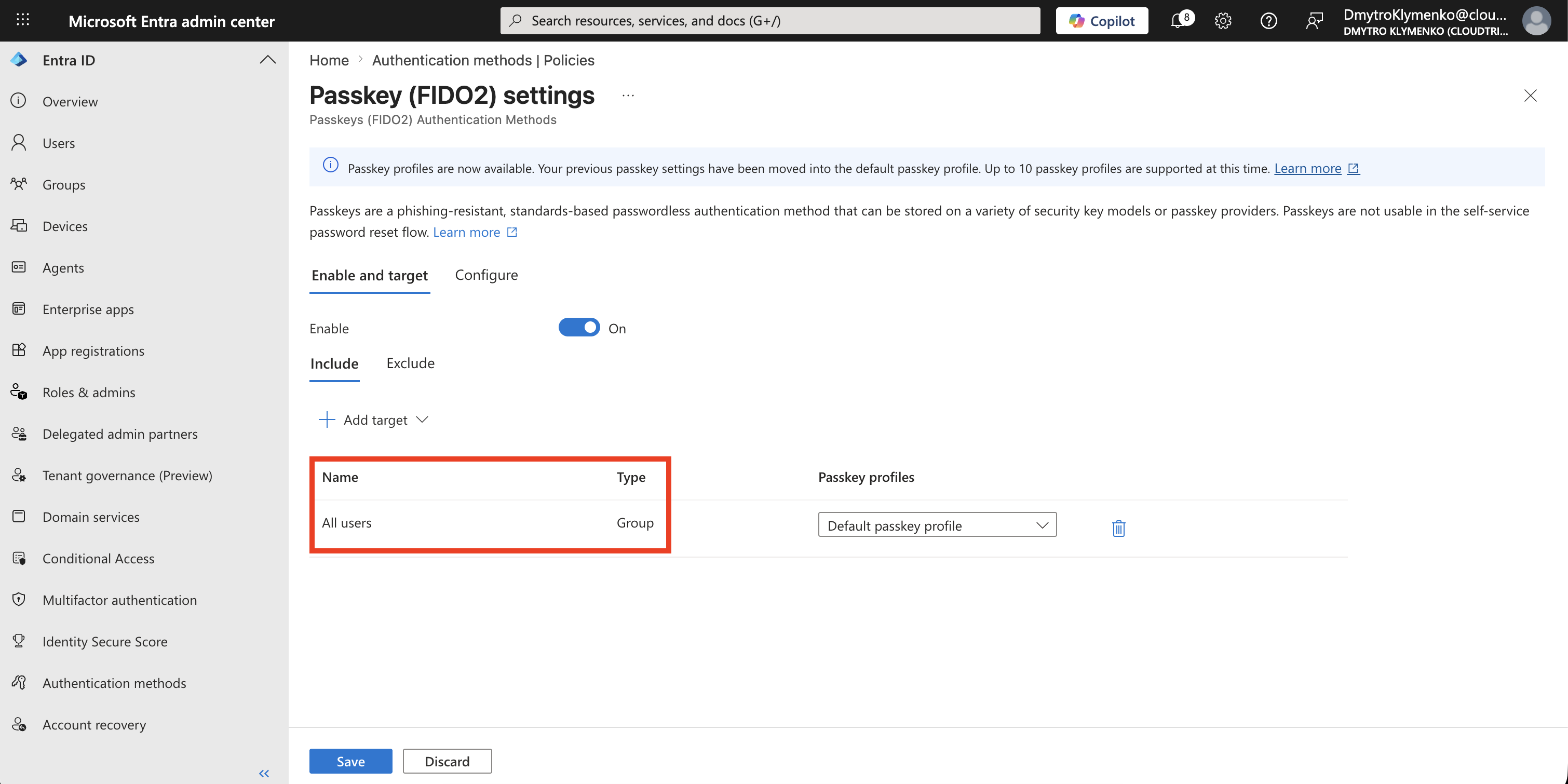
On the passkey policy, open:
Enable and targetCheck who is targeted.
If your tenant already shows:
Target: All users
Profile: Default
then passkey registration is already enabled broadly.
For a controlled rollout, replace or narrow the target to a pilot group:
Target: GRP-Passwordless-Pilot
Profile: Default
Save the policy.
Only the targeted users can register and use passkeys according to the default profile.
Register Passkey as User
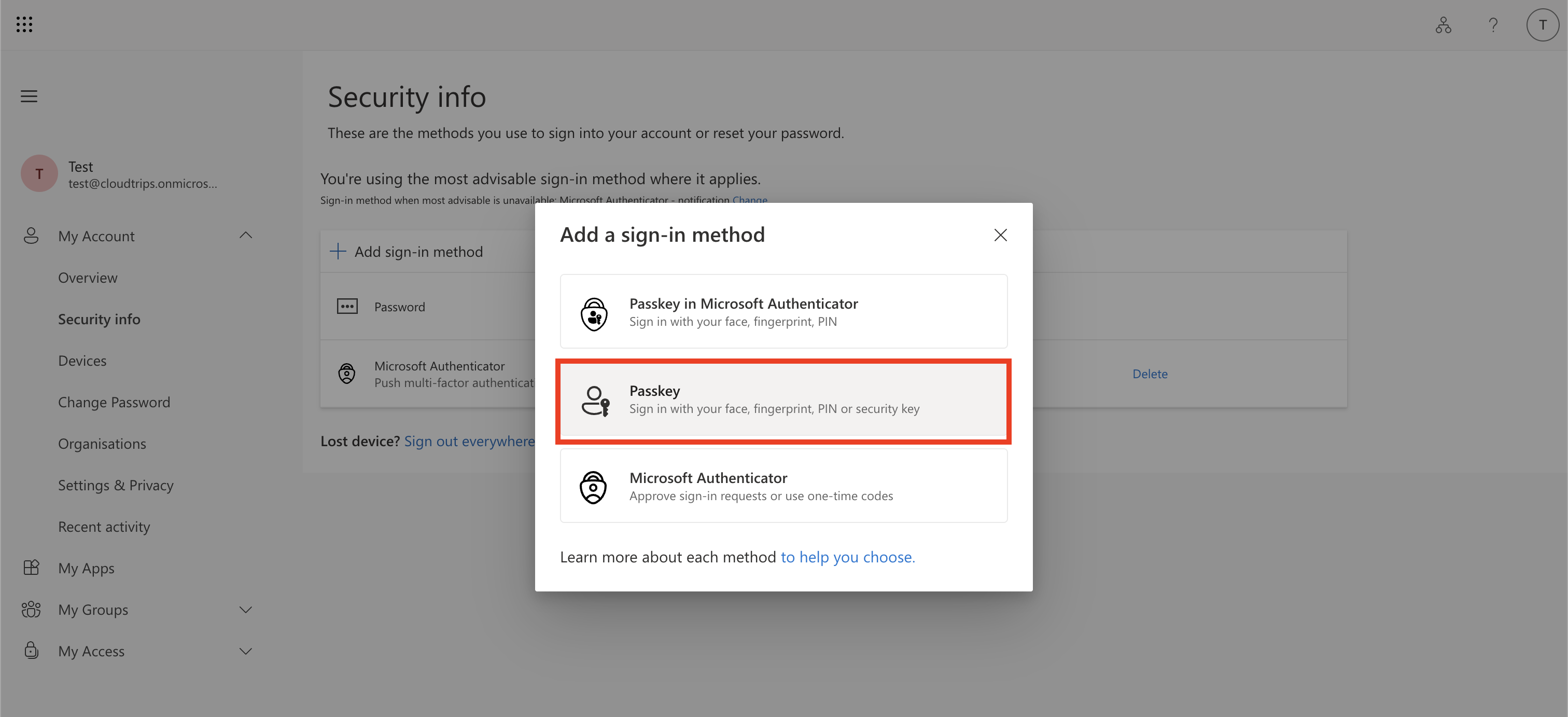
Sign in as the employee and open:
https://mysignins.microsoft.com/security-infoSelect:
Add sign-in methodChoose:
PasskeyThe user may need to complete MFA before registering the passkey.
Complete Passkey Registration
Follow the browser or device prompts.
Depending on the allowed profile and device, the user might register:
- a FIDO2 security key
- a passkey in Microsoft Authenticator
- a Windows Hello passkey
- another supported passkey provider
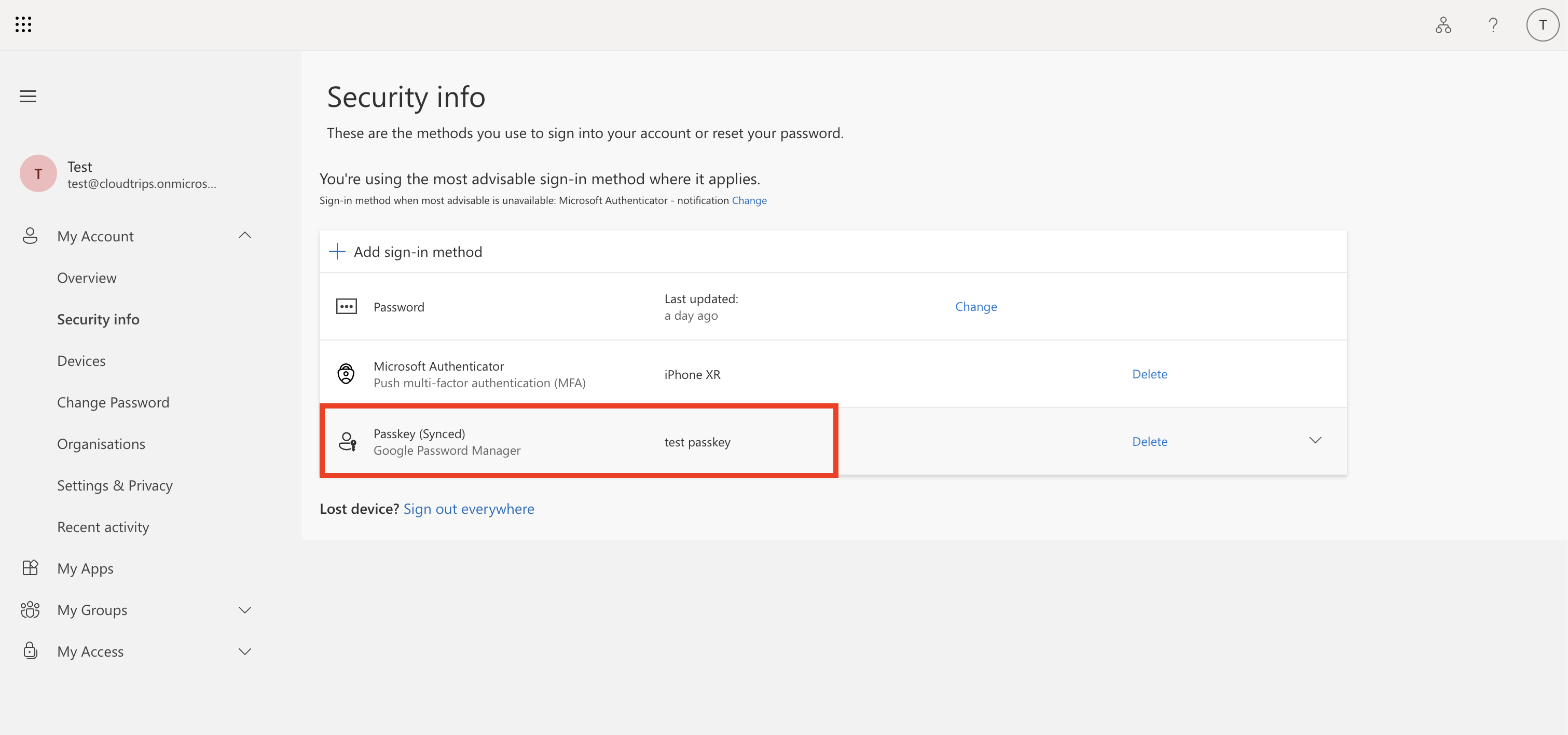
After registration, the passkey appears in the user’s authentication methods.
Test Passwordless Sign-In
Open a Microsoft Entra sign-in page.
When the user signs in, they can choose the passkey option and unlock the authenticator with the local gesture:
PIN
Fingerprint
Face
Security key touch
The password is not typed into the sign-in page.
That is the security benefit: there is no password for a phishing site to capture.
Enterprise Note
Passkeys are strong, but rollout still needs planning.
Decide:
- which users start in the pilot
- whether synced passkeys are allowed
- whether device-bound passkeys are required for admins
- whether attestation should be enforced
- whether specific authenticators should be allowed or blocked
- how users recover access if a passkey device is lost
For privileged accounts, prefer stricter controls:
Device-bound passkeys
Attestation enforced
Restricted authenticator list if required
Authentication strength policy for sensitive apps
For broad workforce rollout, start with a pilot group, collect feedback, then expand.