Enterprise App Should Not Be Open to Everyone? Require User Assignment
An enterprise application exists in the tenant, but not every user should be able to sign in.
Require user assignment so only assigned users or groups can access the app.
Understand the Scope
Enterprise applications represent applications that users can access through Microsoft Entra ID.
By default, some applications allow any user in the tenant to sign in if the app itself accepts them. Requiring assignment changes the access model:
user opens app -> Entra checks assignment -> only assigned users or groups can sign inThis is useful for internal apps, SaaS apps, test apps, admin tools, and any app where access should be intentional.
Requiring assignment is not the same as granting application permissions. It controls who can sign in to the enterprise app. The app still needs its own roles, authorization, and data permissions.
Prerequisites
You need:
- a Cloud Application Administrator, Application Administrator, or Global Administrator account
- an existing enterprise application
- a test user, for example
TestUser - optionally, a security group for assigned users
Group-based assignment can require Microsoft Entra ID P1 or P2. For the simplest demo, assign an individual test user.
For a demo, use a test app and a test user. Do not test with a production app unless you know who currently depends on it.
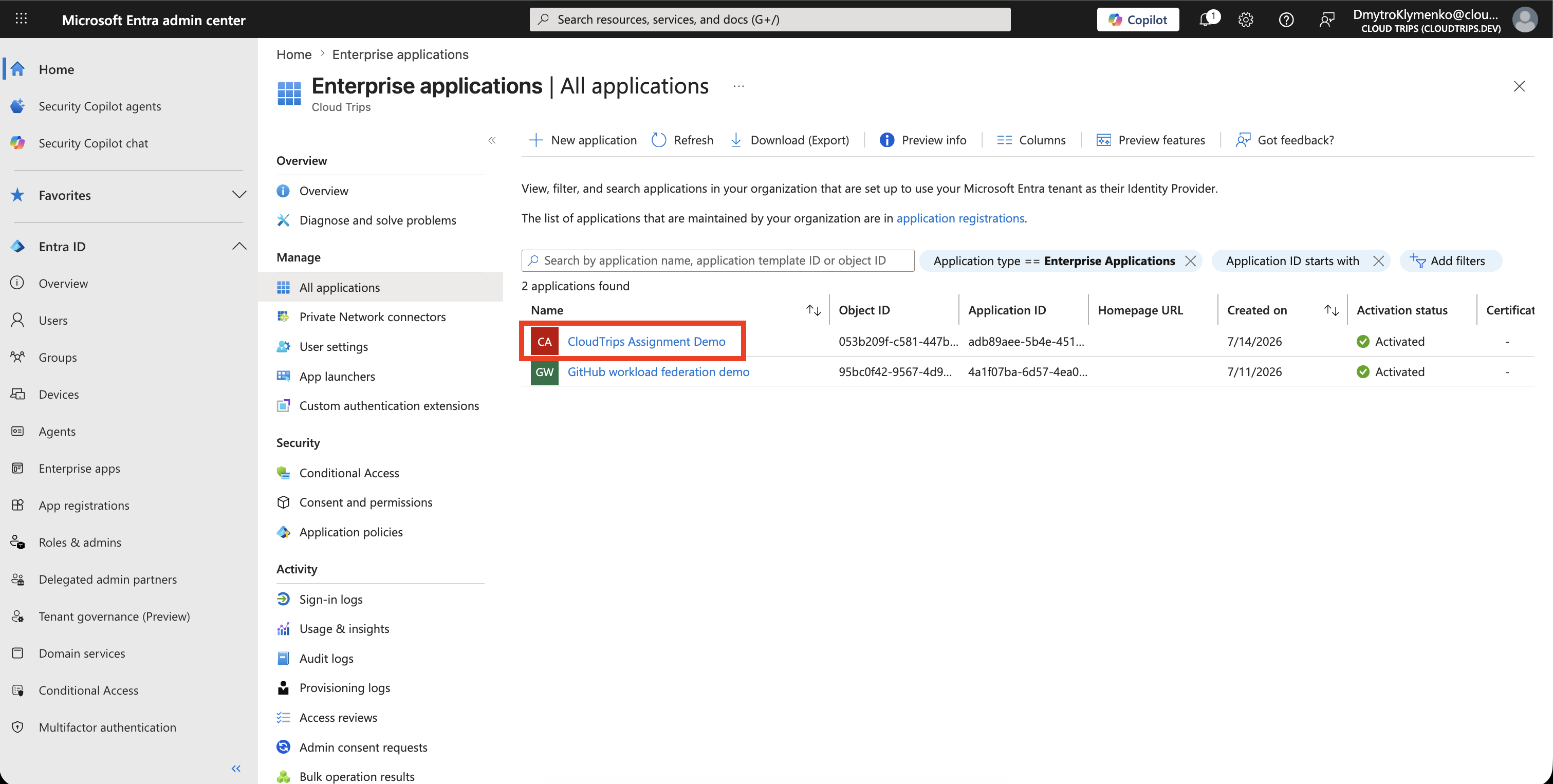
Open the Enterprise Application
In the Microsoft Entra admin center, go to:
Entra ID
> Enterprise applications
> All applications
Open the application you want to protect.
Require Assignment
Open:
PropertiesSet:
Assignment required?: YesSave the change.
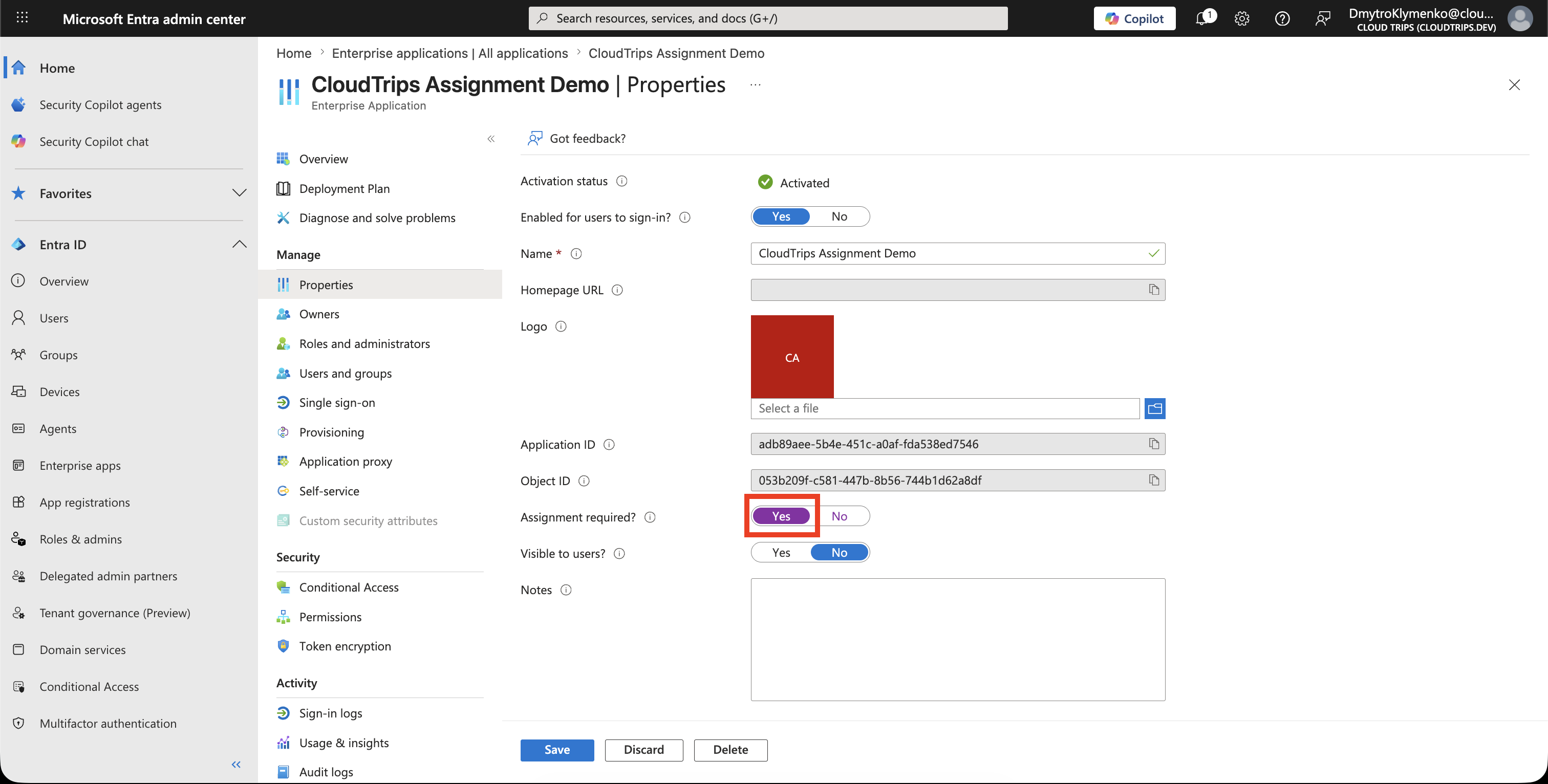
After this change, users who are not assigned to the application should not be able to sign in through Microsoft Entra ID.
Assign a User or Group
Open:
Users and groups
> Add user/group
Select the test user or a security group.
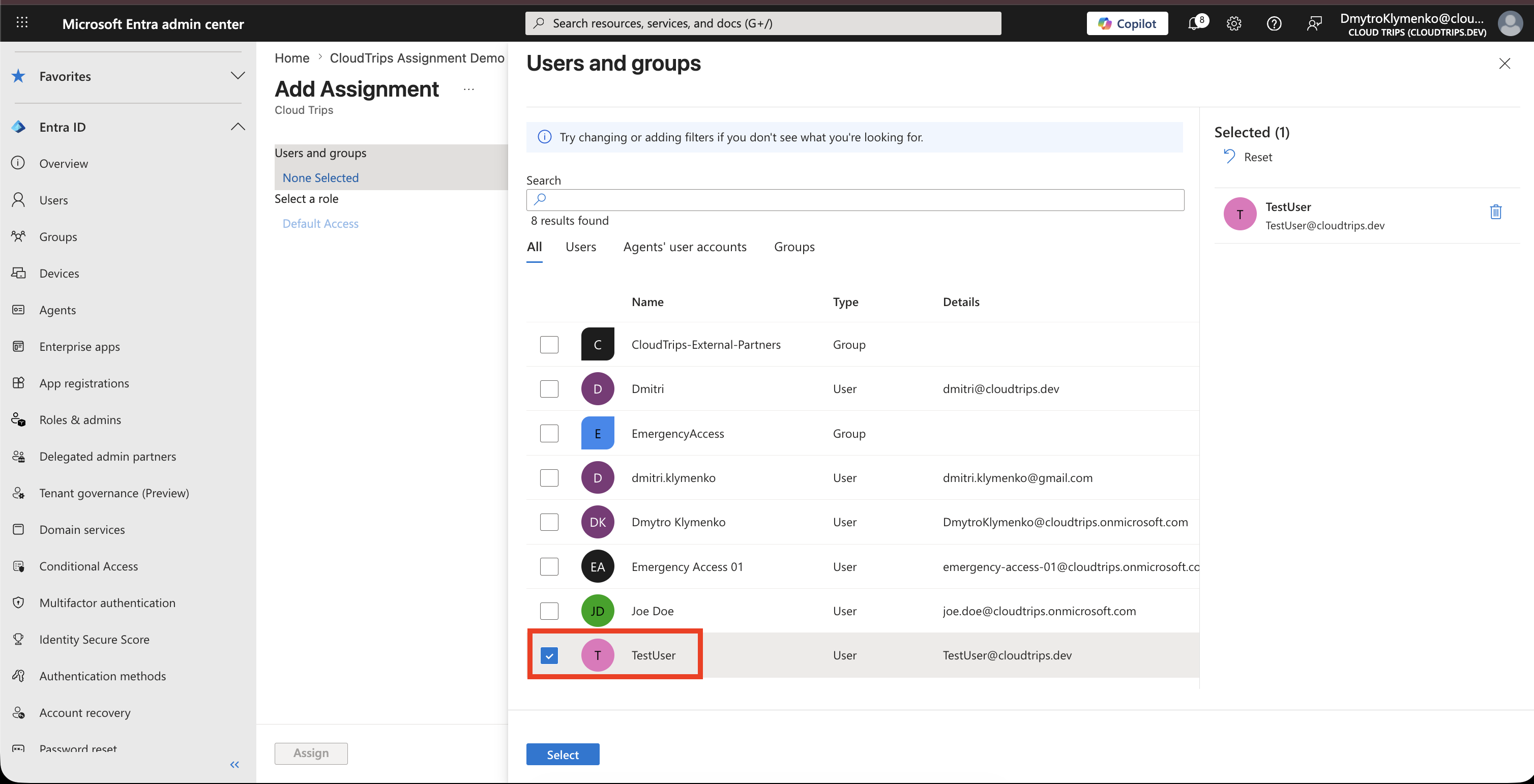
For the demo, assign one test user:
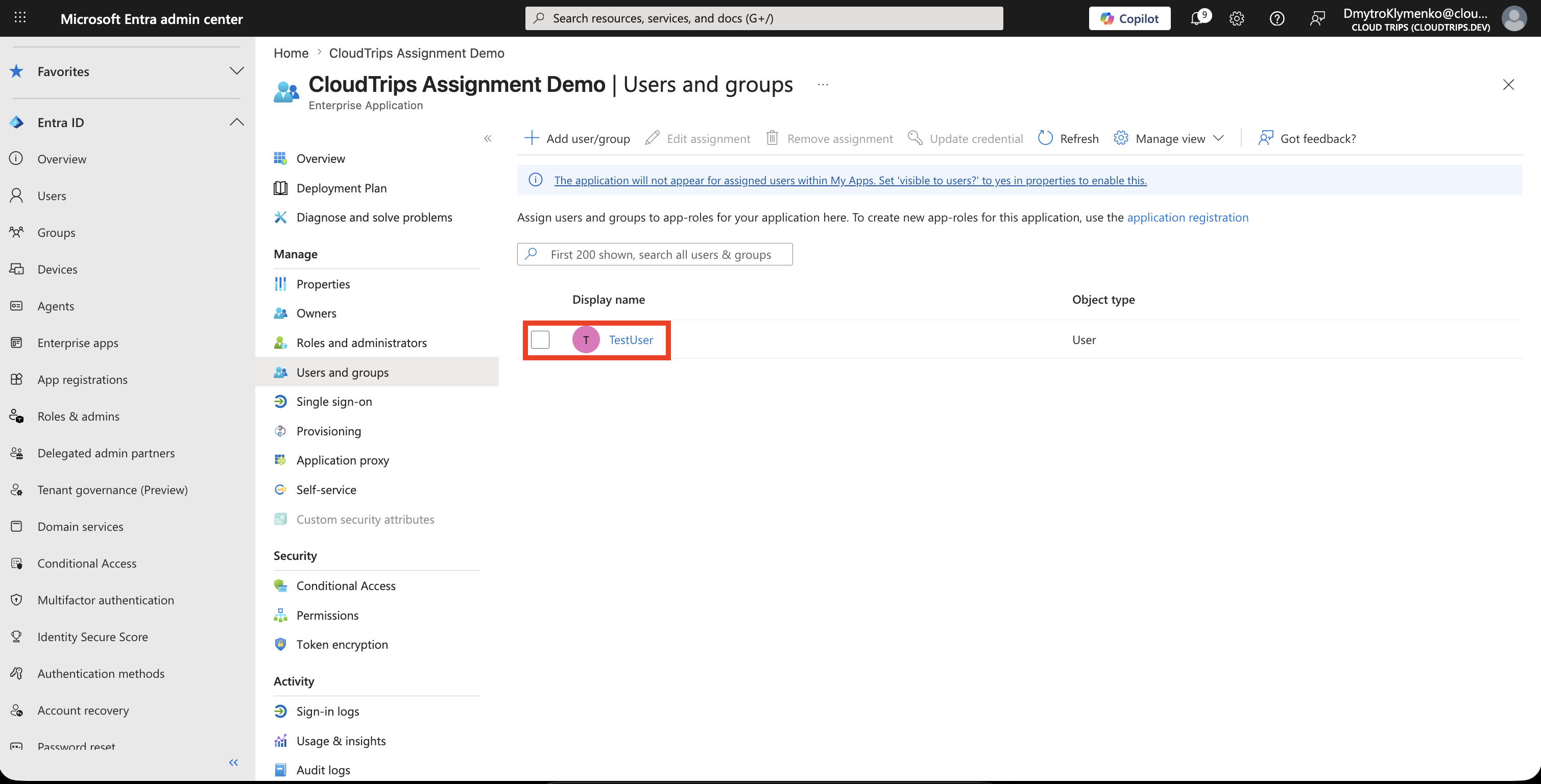
TestUserConfirm that the assigned user appears in the application assignment list.
Test Access
Open a private browser window and sign in as the assigned test user.
Confirm that the user can access the application.
Then test with a user that is not assigned. The unassigned user should be blocked by Microsoft Entra ID before reaching the application.
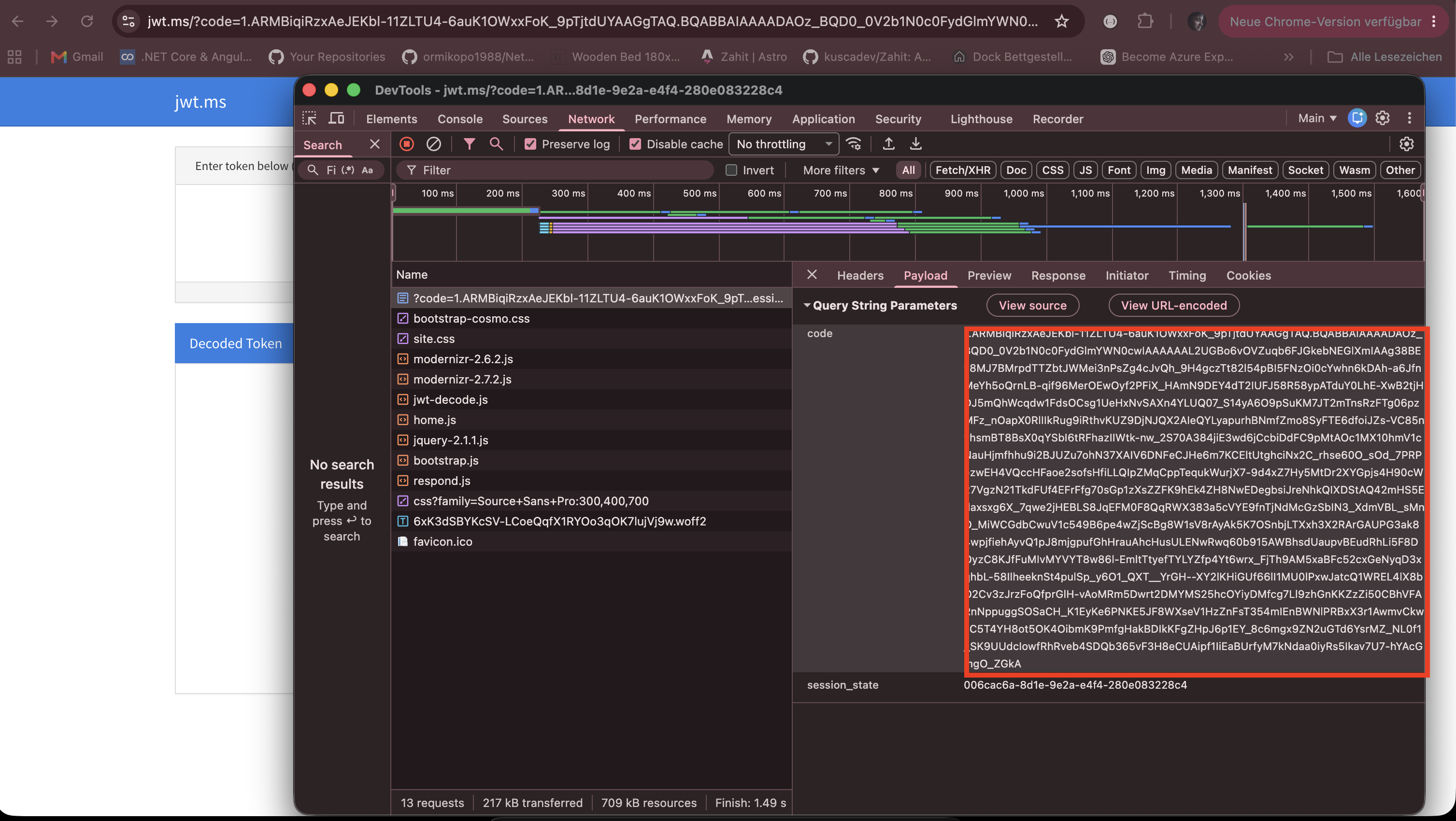
For this no-code demo, use the OAuth authorization endpoint from the app registration and redirect the result to https://jwt.ms. If the assigned user reaches jwt.ms with a code in the URL, the assignment check succeeded.
Review Sign-In Logs
Open:
Entra ID
> Monitoring & health
> Sign-in logs
Filter by the application and review the result.
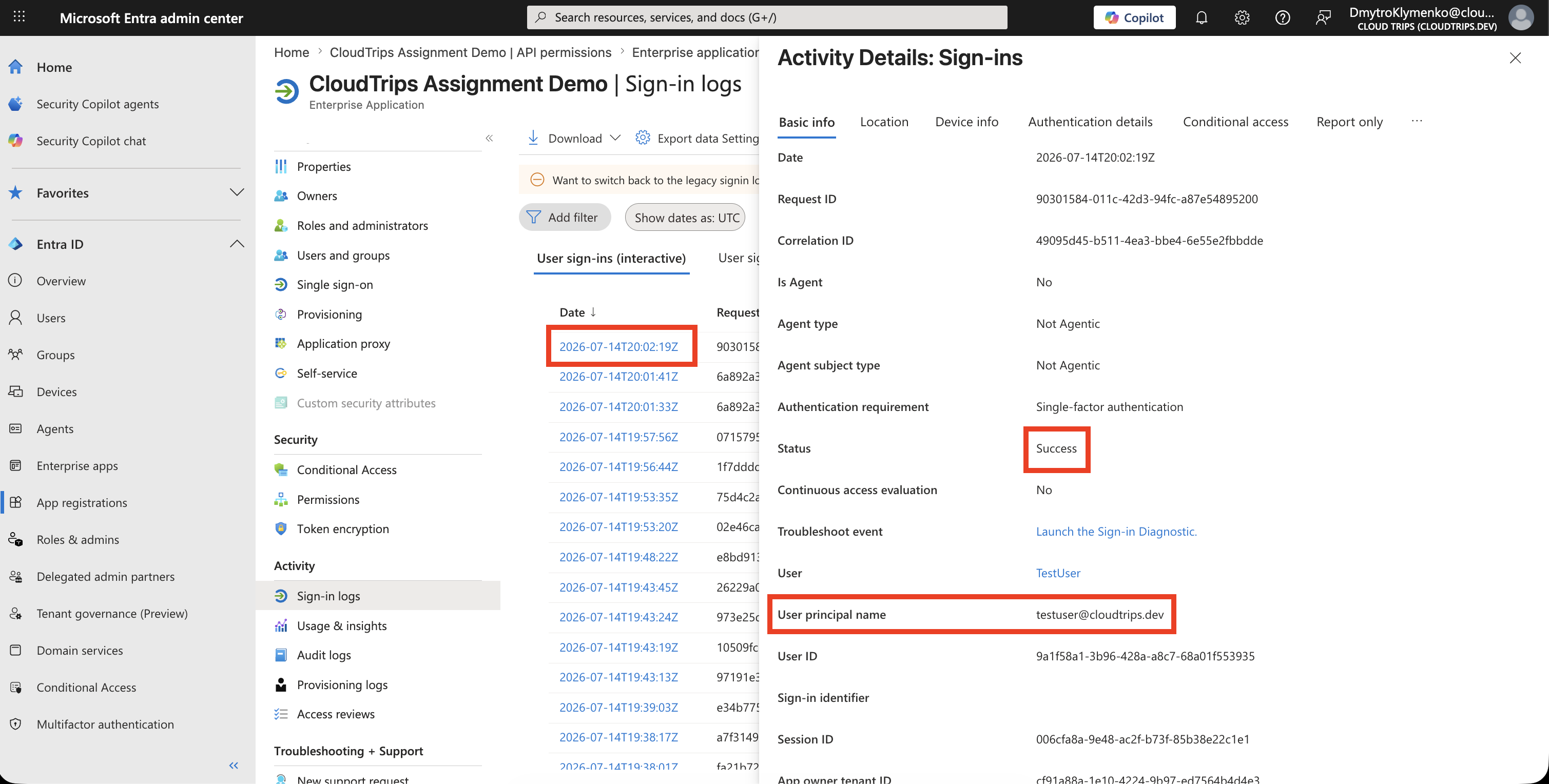
First confirm the successful sign-in from the assigned user.
Then confirm the failed sign-in from the unassigned user.
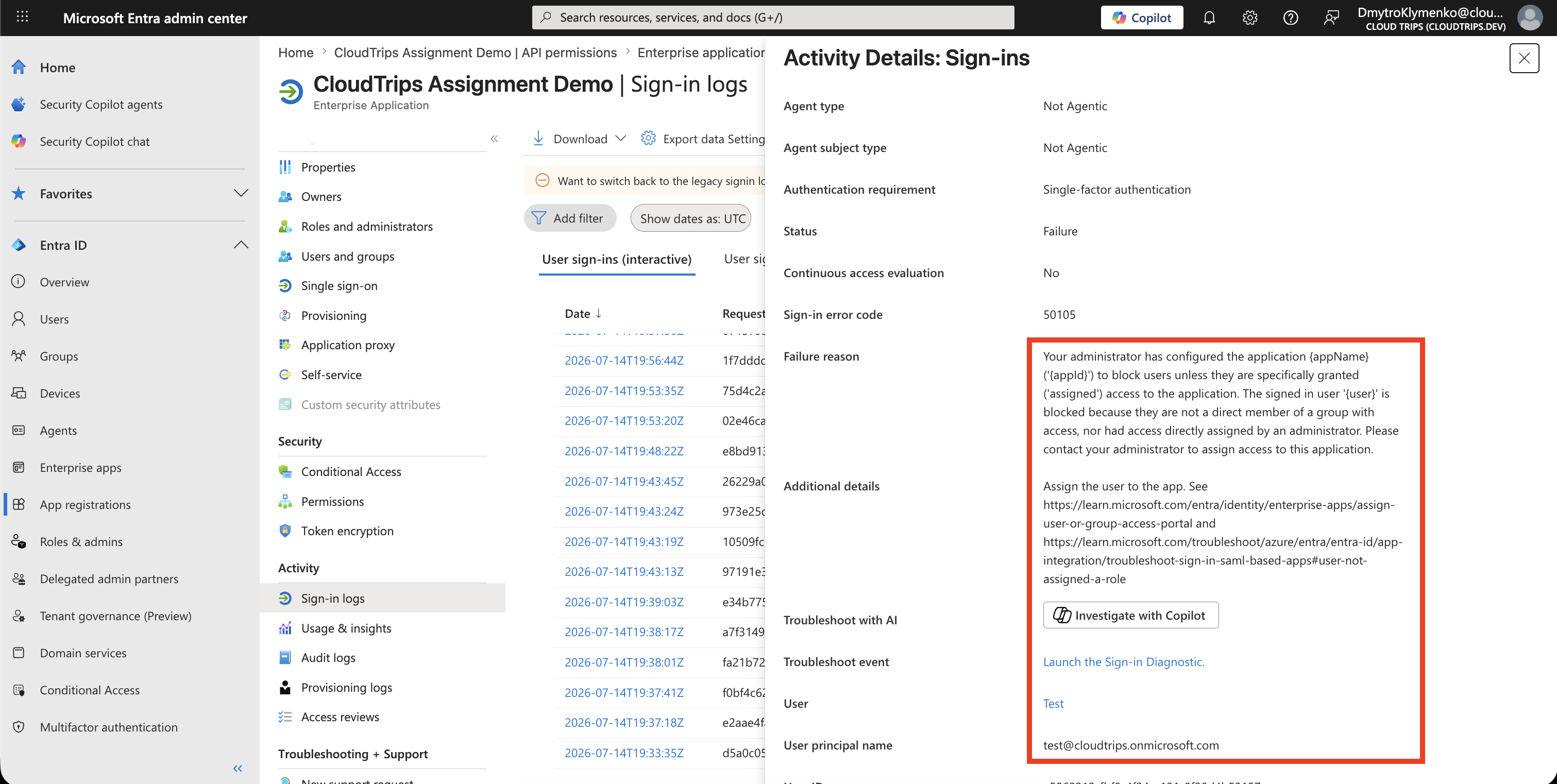
Use the logs to confirm that the assigned user succeeded and the unassigned user was blocked because assignment was required.
Enterprise Note
- require assignment for apps that should not be tenant-wide
- assign groups instead of individual users when access needs to scale
- confirm licensing before using group-based assignment
- use clear group names, such as
App-CloudTrips-Users - review assigned users regularly
- combine app assignment with app roles where the app supports roles
- monitor failed sign-ins after enabling assignment
- communicate the change before enabling it for production apps
Requiring assignment is a simple control with a big effect. It turns an open enterprise app into an intentionally assigned app.