Who Changed Identity Settings? Review Audit Logs
Something changed in identity.
A user was updated.
A group membership changed.
An app permission appeared.
A Conditional Access policy was edited.
The question is:
Who changed it?Microsoft Entra audit logs are the first place to look.
In this example:
- CloudTrips identity admin needs to investigate an identity change
- Audit logs show the activity, actor, target, result, and modified properties
- Correlation details help when the event must be escalated
What Audit Logs Answer
Audit logs help answer:
Who performed the change?
What activity was performed?
Which object was changed?
When did it happen?
Did it succeed or fail?
Which properties changed?
Was the change made by a user, app, or service principal?
Use audit logs when the question is about configuration or directory changes.
Use sign-in logs when the question is about login attempts.
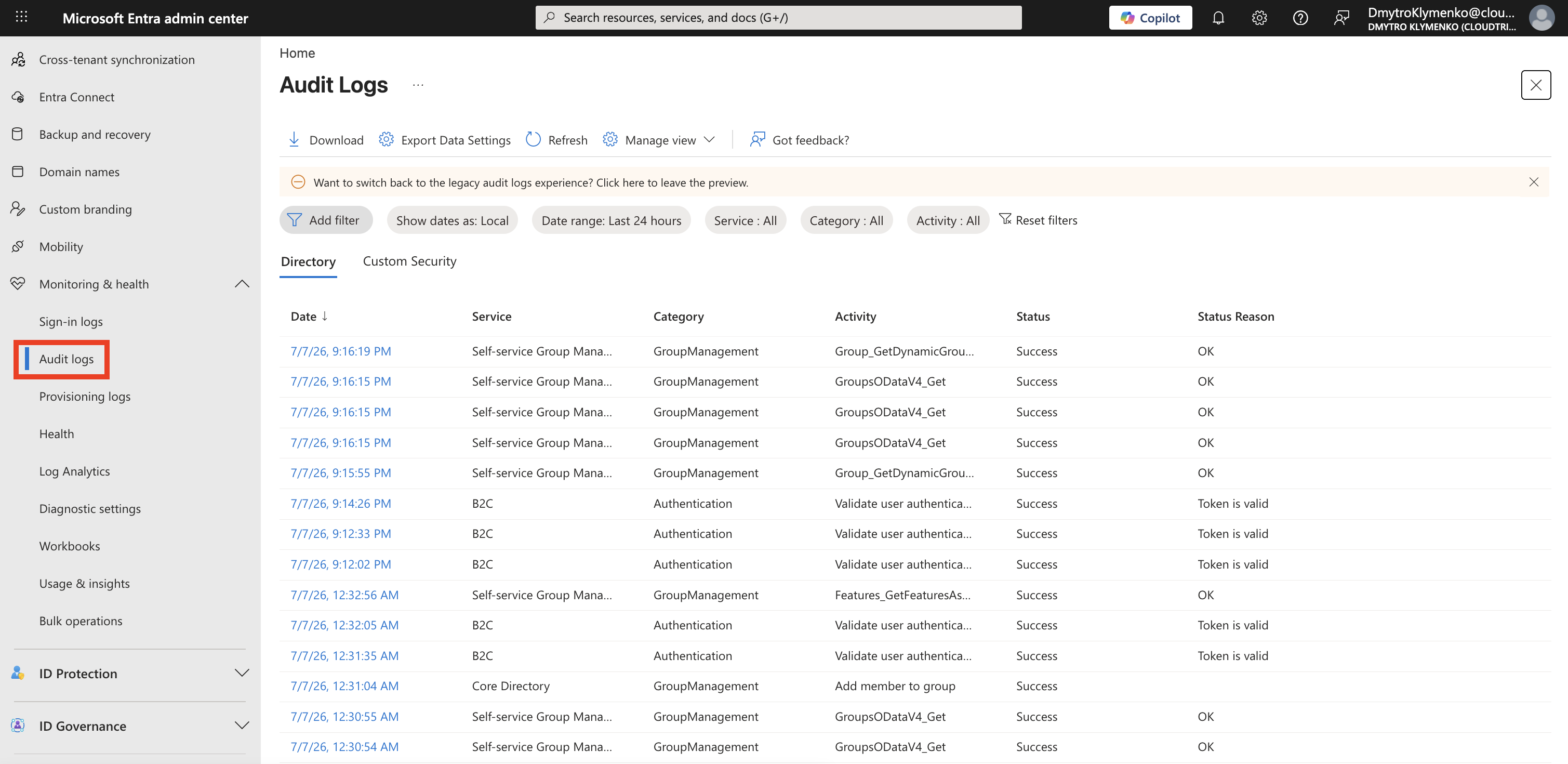
Open Audit Logs
Go to:
Entra ID > Monitoring & health > Audit logsThis page lists directory and identity-management activities.
Filter by Time and Activity
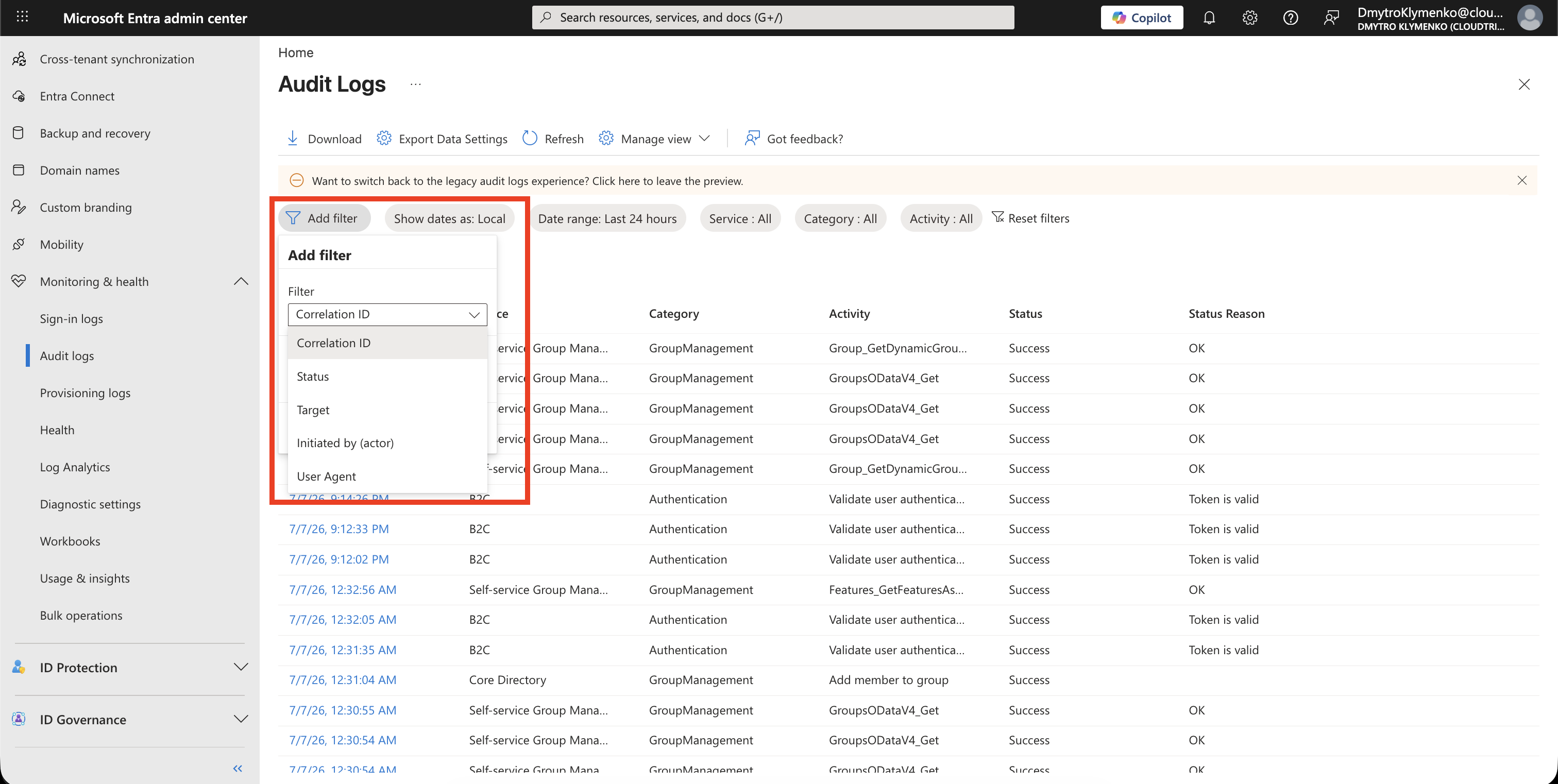
Start with the time window.
Then add filters such as:
Correlation ID
Status
Target
Initiated by
User agent
For example, if you are investigating a Conditional Access change, filter by the target policy name or by the admin shown in Initiated by.
Open the Audit Event
Select the audit log row that matches the change.
The details panel is where you confirm the event.
Look first at:
Activity
Target(s)
Modified properties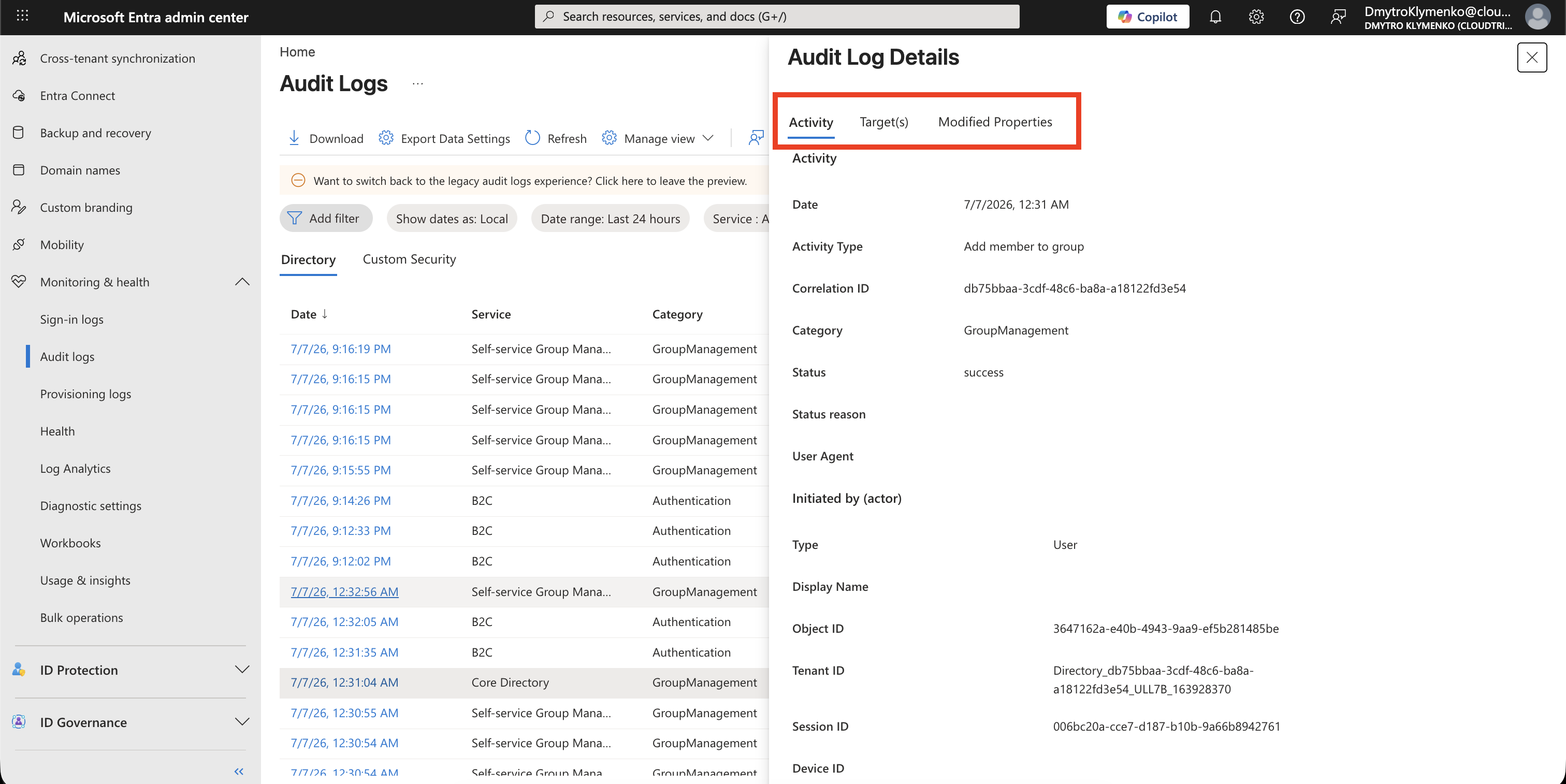
Identify Who Made the Change
Check:
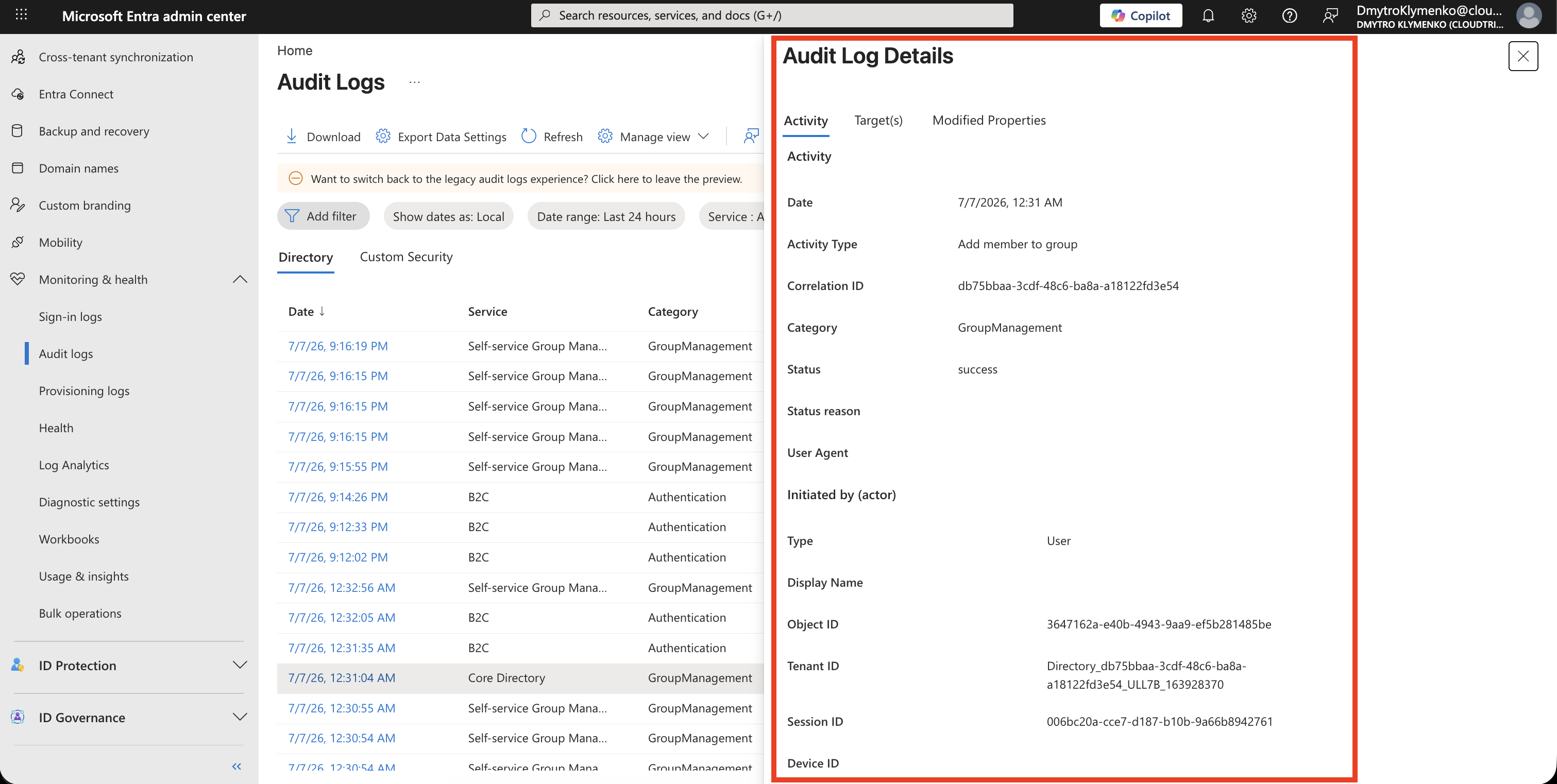
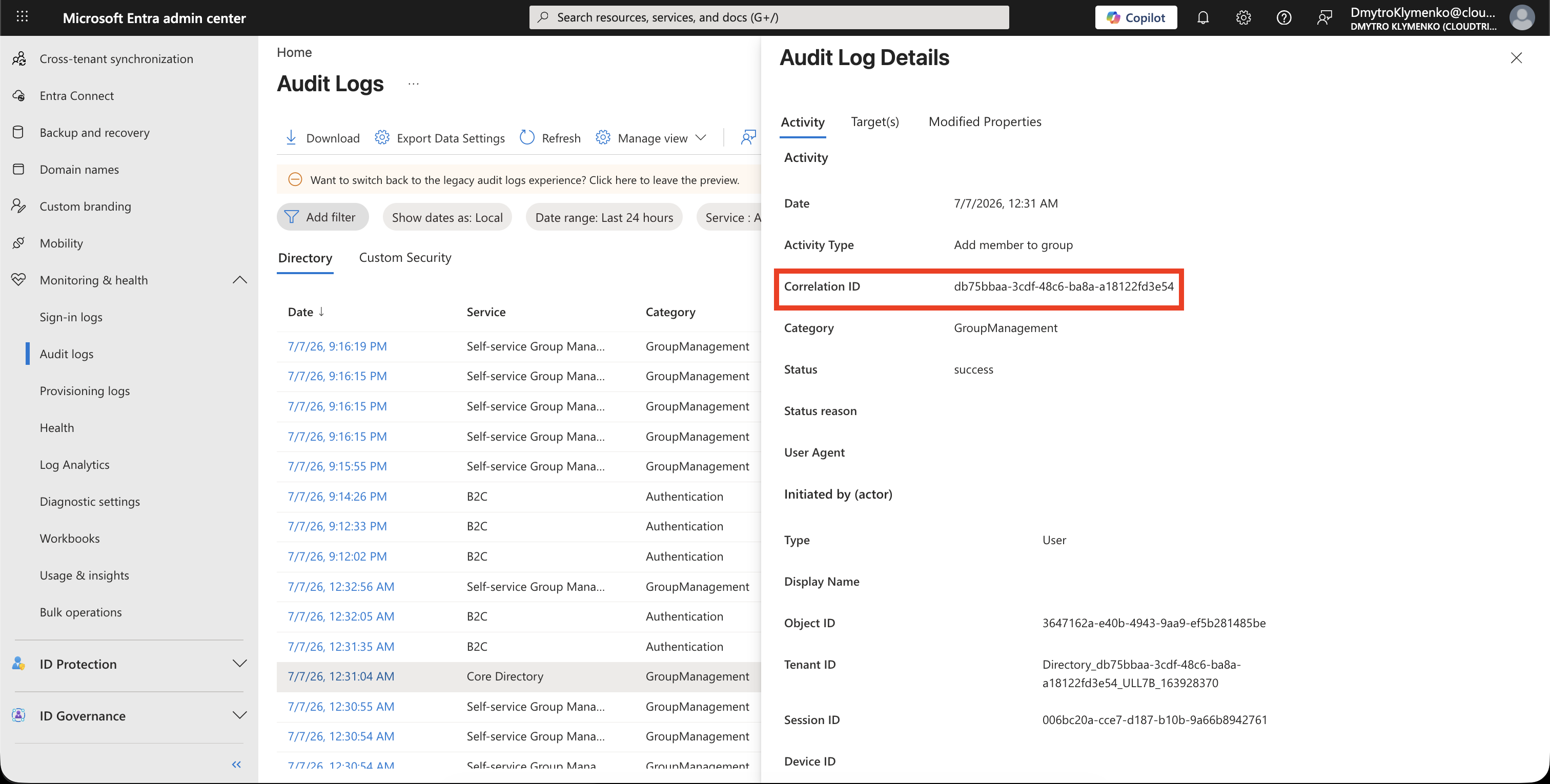
ActivityThe Activity section shows values such as:
Activity type
Correlation ID
Category
Status
Initiated by (actor)
Activity type tells you what operation happened.
Use Initiated by (actor) to identify who or what started the change.
The actor can be a person, app, service principal, managed identity, or Microsoft service.
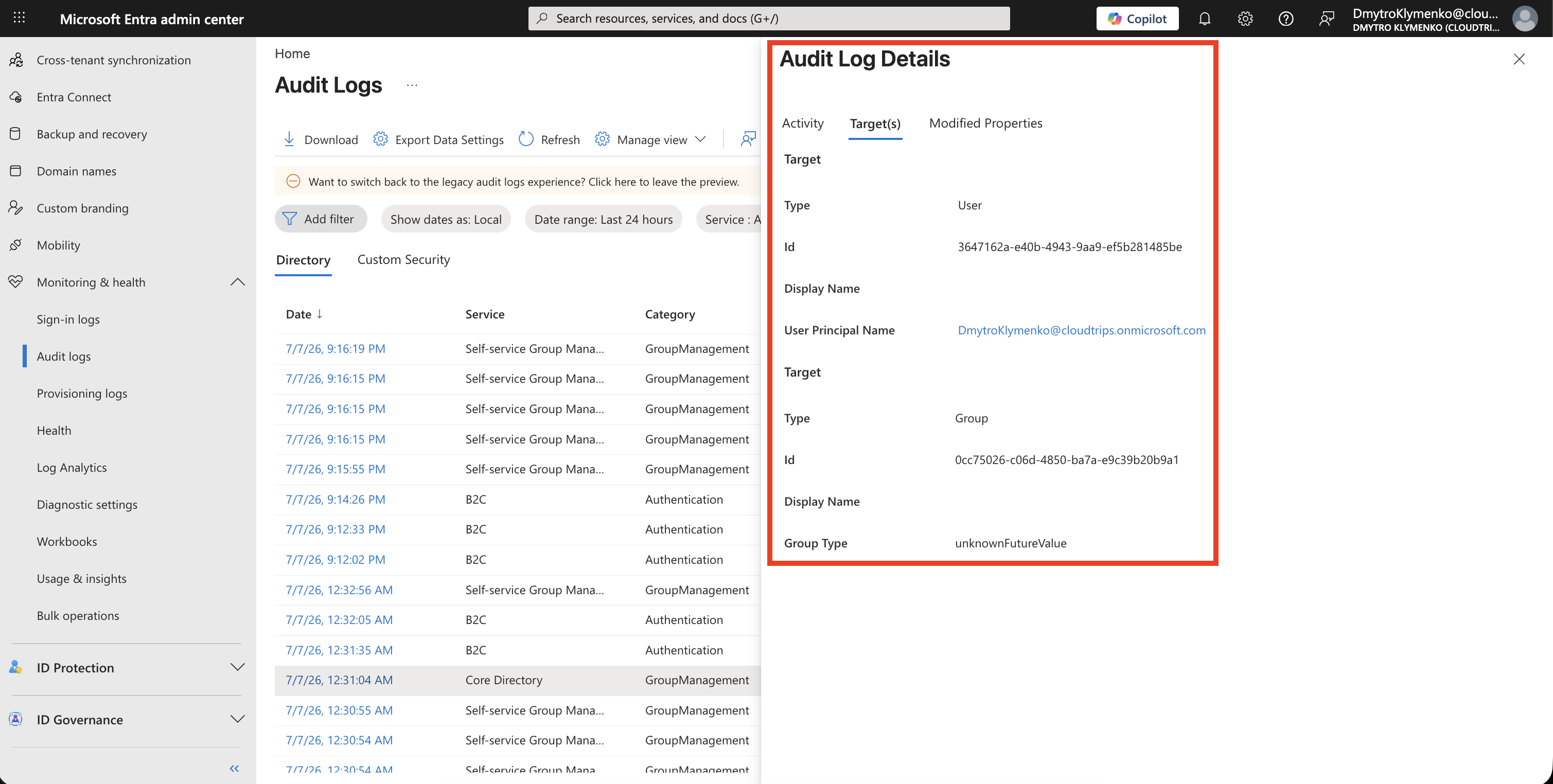
Identify What Was Changed
Check:
Target(s)This shows the object that was changed.
Examples:
User
Group
Application
Service principal
Conditional Access policy
Administrative unit
Role assignment
If multiple targets appear, review each one before deciding what happened.
Review Modified Properties
Open:
Modified propertiesThis is often the most important part.
Look for:
Property name
Old value
New value
This tells you what actually changed.
For example:
Account enabled: true -> false
Group membership: user added
Policy state: report-only -> on
App permission: permission added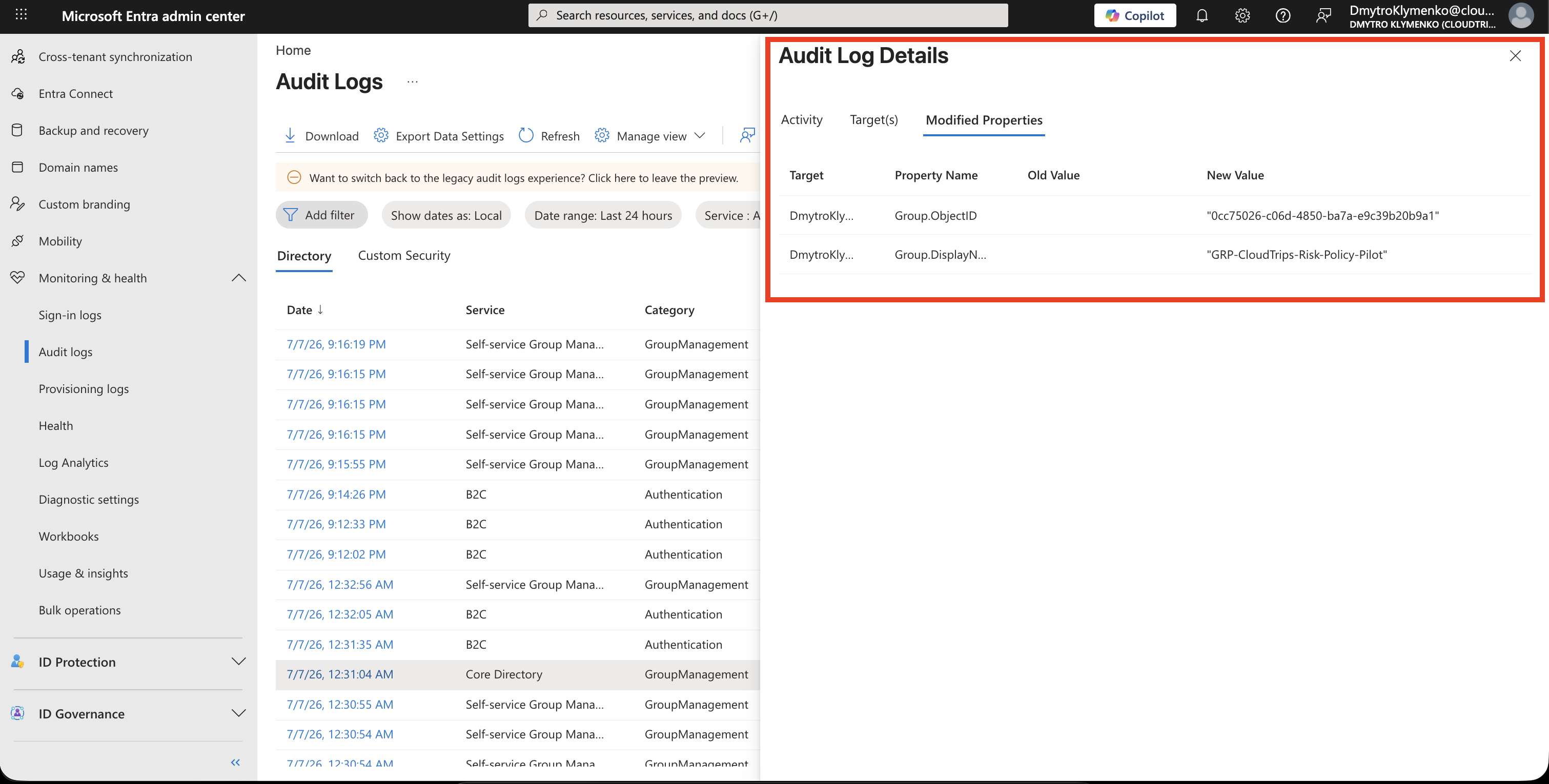
Save Correlation Details
Copy:
Correlation ID
Date
Initiated by
These values are useful when you escalate to another admin, security team, application owner, or Microsoft support.
Decide the Next Action
Use the audit log details to choose the response:
Unexpected user change -> contact actor or restore setting
Unexpected group membership -> remove member and review access
Unexpected app permission -> review consent and API permissions
Unexpected policy change -> compare old/new values and revert if needed
Unexpected role assignment -> review privileged access and PIM
Automated change -> inspect service principal or managed identity
The audit log should tell you whether this was expected administration, automation, or something suspicious.
Enterprise Note
Audit logs are not just for security incidents.
They are also useful for change control.
Recommended workflow:
- filter by time first
- narrow by activity, target, or actor
- open the event details
- identify who initiated the change
- identify the target object
- review modified properties
- save correlation details
- document whether the change was expected