Login Failed? Review Sign-In Logs
A user says:
I cannot sign in.
The first useful question is not “what did you click?”
The first useful question is:
What does the sign-in log say?Microsoft Entra sign-in logs show the sign-in attempt, result, error details, app, device, location, authentication method, Conditional Access result, and correlation ID.
In this example:
- CloudTrips employee cannot sign in
- Help desk or identity admin reviews the sign-in logs
- Sign-in details explain whether the issue is password, MFA, Conditional Access, device, app, or risk
What Sign-In Logs Answer
Sign-in logs help answer:
Who tried to sign in?
Which app was used?
Did the sign-in succeed or fail?
Which error code appeared?
Did Conditional Access block or challenge the user?
Did MFA succeed, fail, or not happen?
Which device, browser, IP address, and location were involved?
This is the operational trip you use before changing policies.
Open Sign-In Logs
Go to:
Entra ID > Monitoring & health > Sign-in logsUse the default User sign-ins view for normal user login troubleshooting.
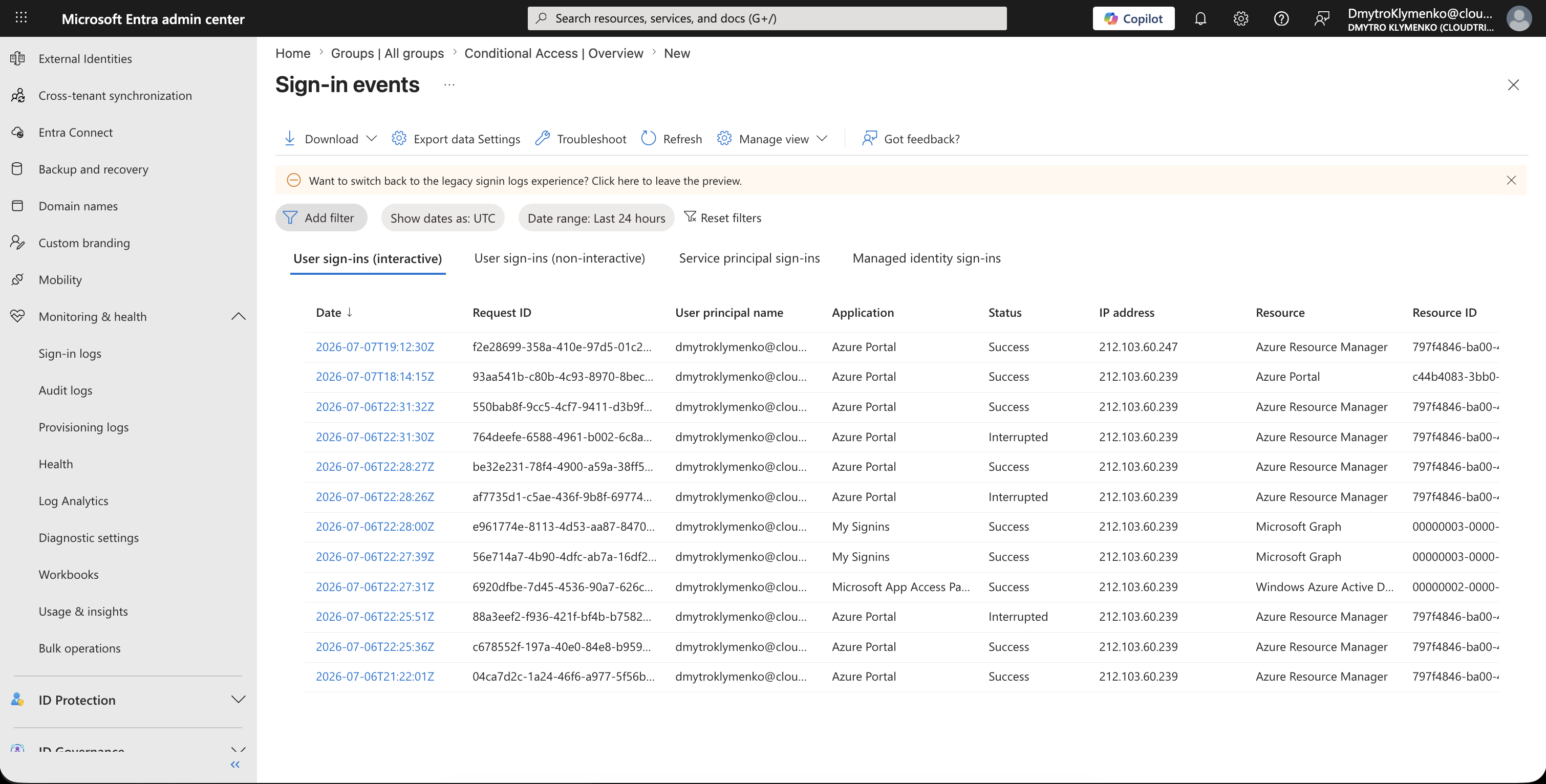
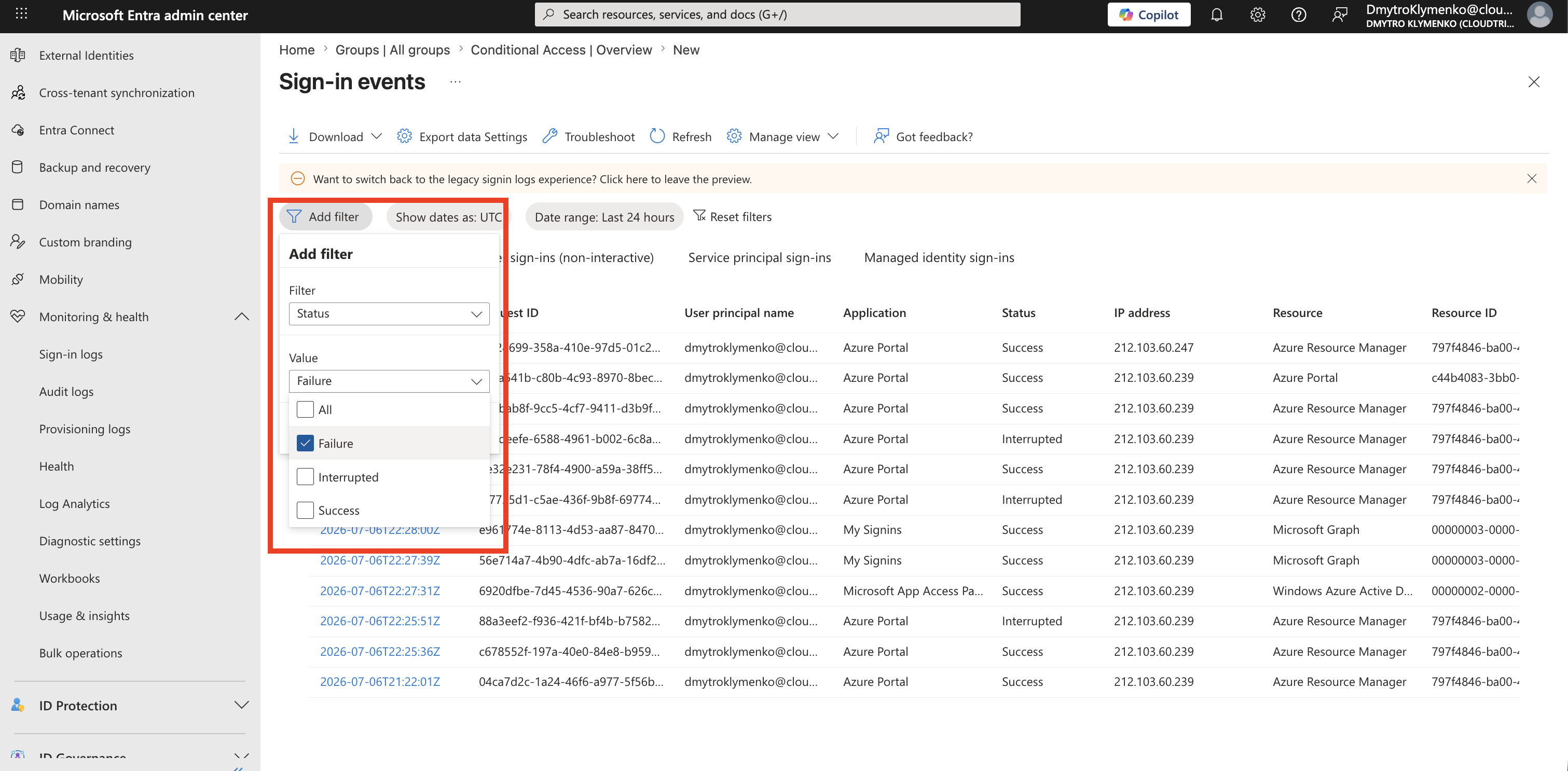
Filter by User and Failure
Add filters such as:
User principal name
Status: Failure
Date
Application
Start with the user and the time window from the support ticket.
If the user tried multiple times, compare the failed attempts.
Open the Failed Sign-In
Select the failed sign-in row.
The details panel is where the investigation starts.
Look first at:
Status
Failure reason
Error code
Application
Resource
IP address
Location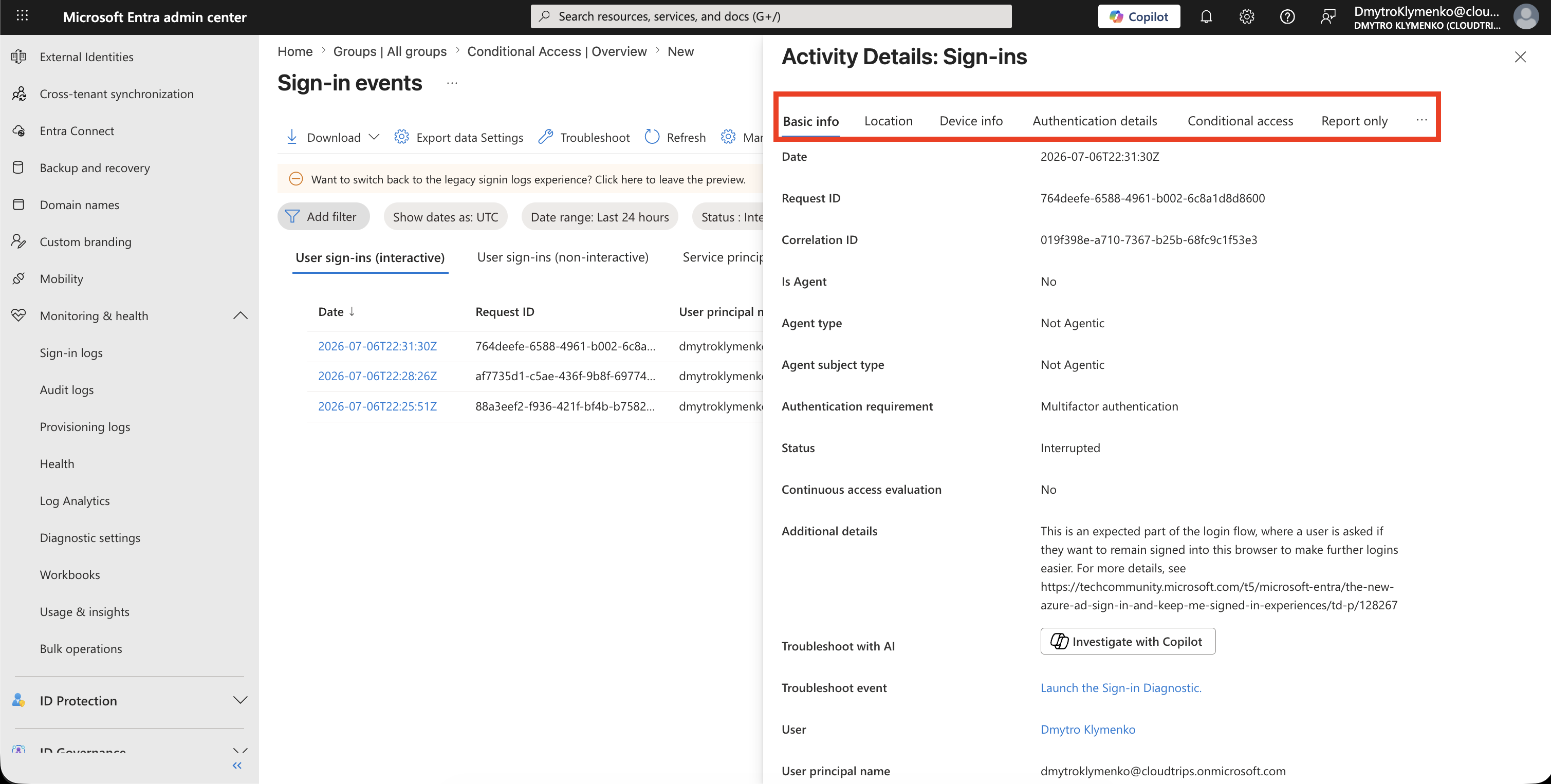
The error code and failure reason usually tell you the first branch of troubleshooting.
Examples:
Invalid username or password
User needs MFA registration
User failed MFA challenge
Access blocked by Conditional Access
Device required but not compliant
Application or redirect configuration problem
Do not troubleshoot blindly.
Use the error details to decide the next step.
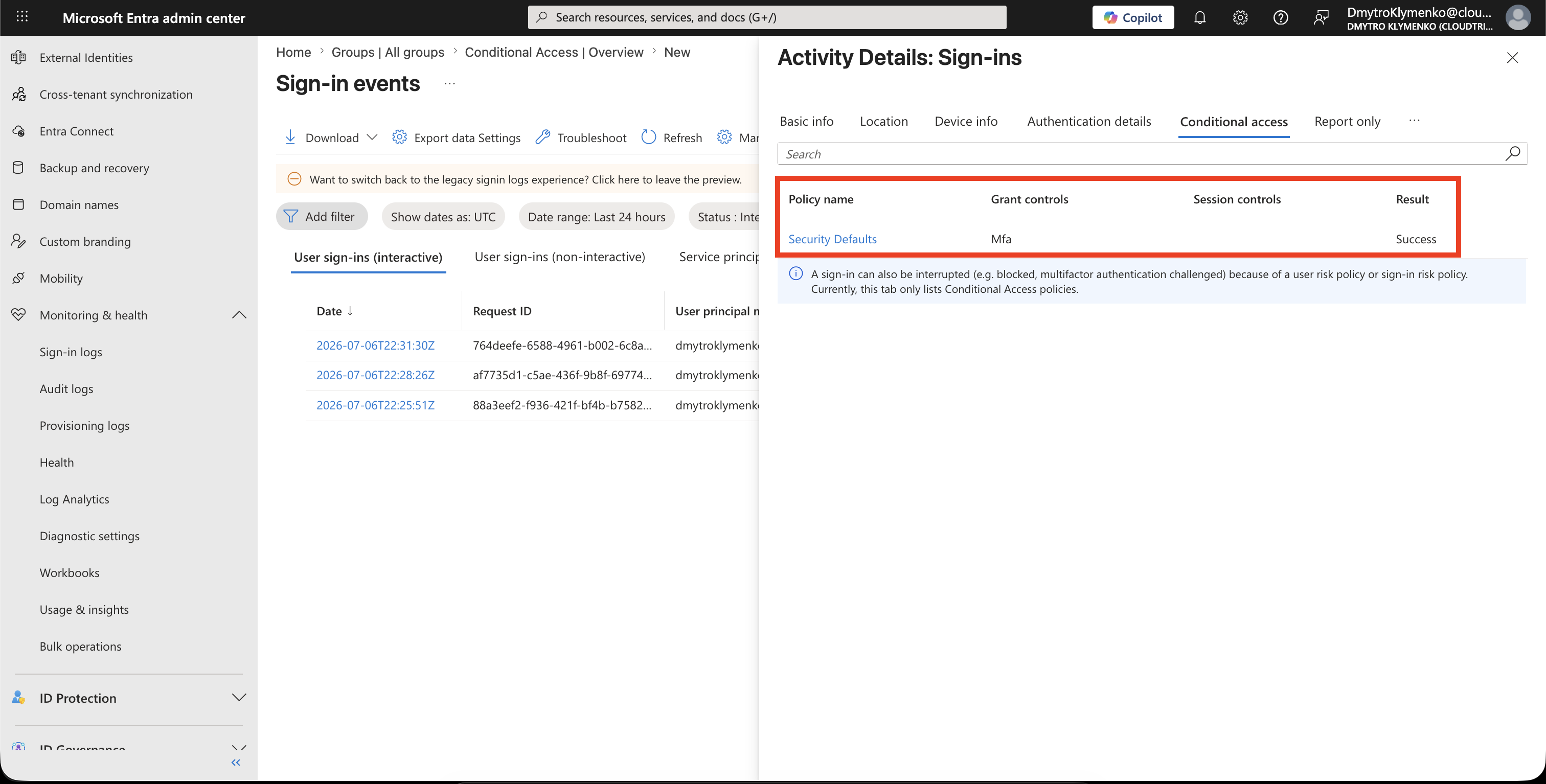
Check Conditional Access
Open the:
Conditional Accesstab or section in the sign-in details.
Look for:
Policy name
Result
Grant controls
Session controls
Report-only result
If the result says a policy blocked access, open that policy before changing anything.
Check Authentication and MFA
Open the authentication details.
Look for:
Authentication requirement
Authentication method
MFA result
Authentication step result
This helps separate password problems from MFA problems.
For example:
Password accepted, MFA failedis a different problem than:
Password failed before MFA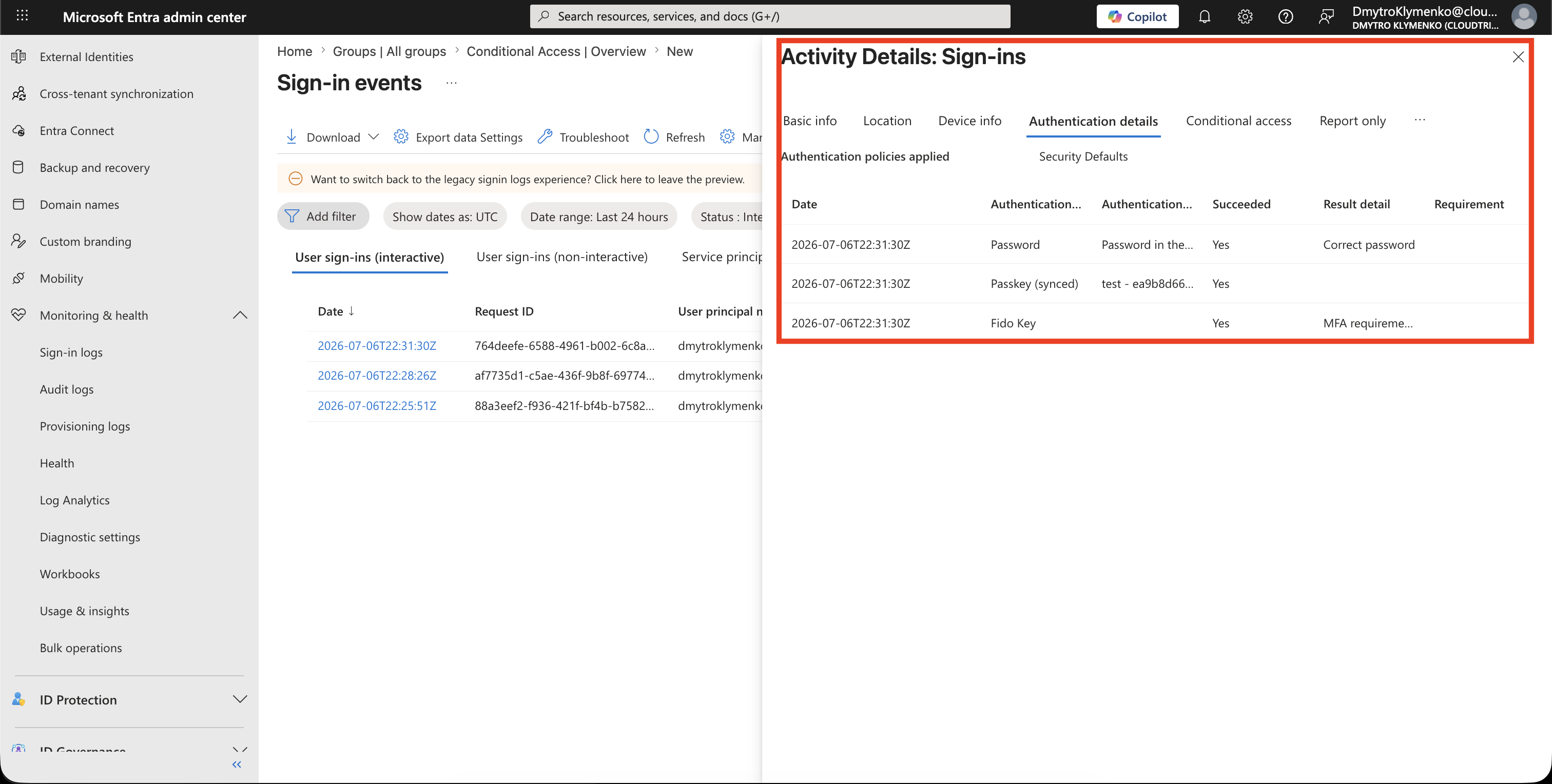
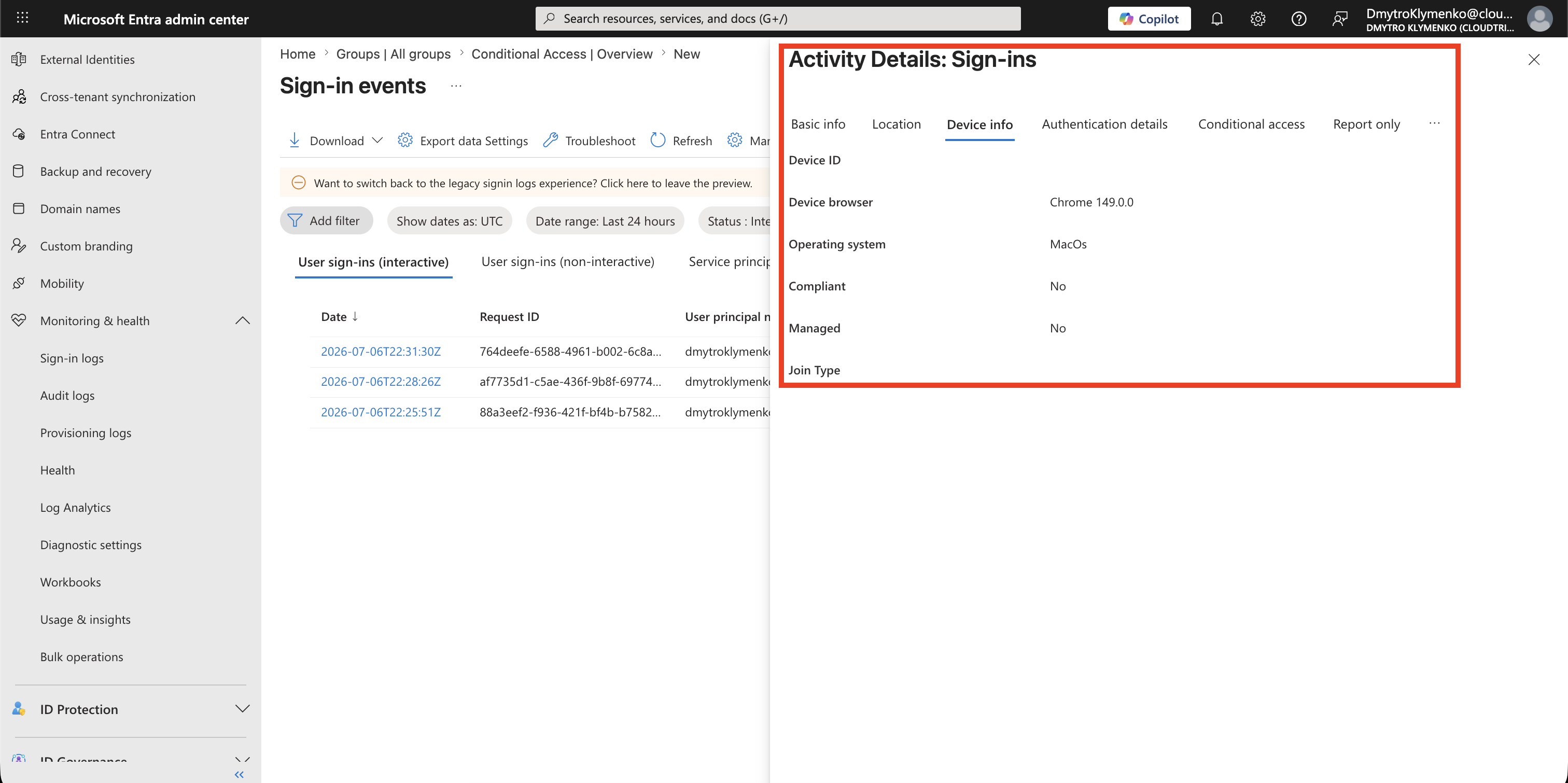
Check Device and Client Information
Review device and client details such as:
Device ID
Device state
Browser
Operating system
Client app
IP address
Location
This matters when policies require a compliant device, hybrid joined device, trusted location, or modern authentication client.
Save the Correlation ID
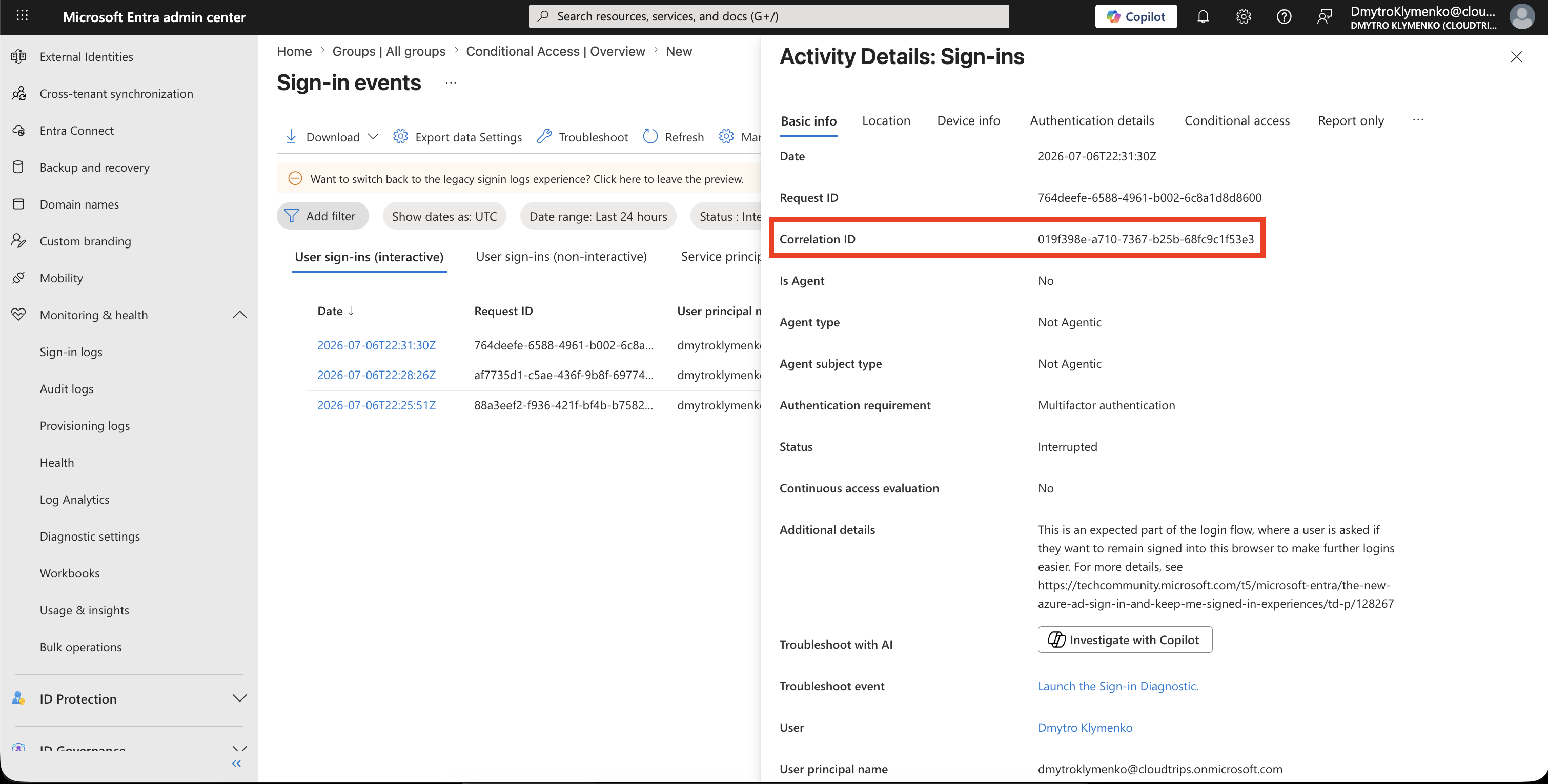
Copy the:
Correlation ID
Request ID
Date and time
Error code
These values are useful when you escalate to another admin, Microsoft support, or the application team.
Decide the Next Action
Use the log result to choose the next action:
Password failed -> reset password or check account state
MFA failed -> review authentication methods and registration
Conditional Access blocked -> review the named policy
Device issue -> check device compliance or join state
Location issue -> check named locations or travel/VPN
Application issue -> check app registration or enterprise app SSO configuration
Risk issue -> review sign-in risk or user risk
The sign-in log should guide the fix.
Enterprise Note
Do not change Conditional Access policies based on a screenshot alone.
Use the sign-in log details.
Recommended troubleshooting order:
- filter by user and time
- open the failed sign-in
- read status, failure reason, and error code
- check Conditional Access
- check authentication and MFA
- check device, client app, IP address, and location
- save correlation ID and timestamp
- document which policy or system caused the failure