Subscribers Need Different Messages? Create a Service Bus Topic and Filters
Your shop sells notebooks and downloadable guides. The warehouse needs physical orders; the download service needs digital orders. Send both to one topic, then let each subscription keep the messages its service needs.
A queue shares work among competing receivers. A topic gives each matching subscription its own copy. Completing a message in one subscription does not remove another subscription’s copy. Here, a subscription means a message inbox under a topic, not your Azure billing subscription.
Reuse sb-ctmessagingweu in rg-cloudtrips-servicebus-test-weu from the previous queue trip, using your actual namespace name if different. It must use Standard or Premium. Keep your Azure Service Bus Data Owner role and the portal network access from that trip. Everything below happens in the Azure portal; no application code is needed.
Create the Topic and Subscriptions
Open the namespace → Entities → Topics → + Topic. Name it order-events and keep the other defaults.
Open order-events → Subscriptions → + Subscription and create these two subscriptions, keeping sessions disabled and the other defaults:
| Subscription | Intended receiver |
|---|---|
| warehouse | Processes physical orders |
| downloads | Delivers digital products |
Create both subscriptions and their filters before sending messages. A new subscription does not retrieve messages sent before it existed.
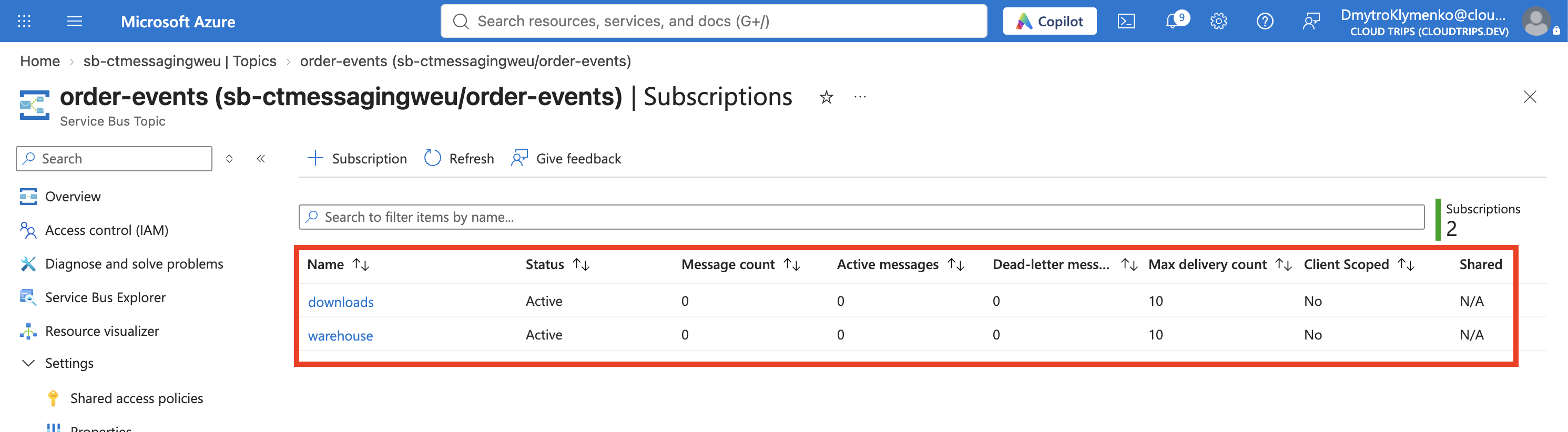
Screenshot 1: The order-events topic with warehouse and downloads listed under Subscriptions.
Set the Subscription Filters
Open each subscription → Filters. Add a filter rule using SQL Filter and these values:
| Subscription | Rule name | SQL expression |
|---|---|---|
| warehouse | physical-orders | productType = 'physical' |
| downloads | digital-orders | productType = 'digital' |
Save each rule, then delete the $Default rule from that subscription. Confirm only the intended rule remains in each subscription before continuing. The default rule accepts every message; adding a restrictive rule alongside it does not restrict delivery.
The SQL expression compares a message property. You do not need a SQL database. Filters cannot inspect the JSON body, so you will add productType separately as a custom property when sending.
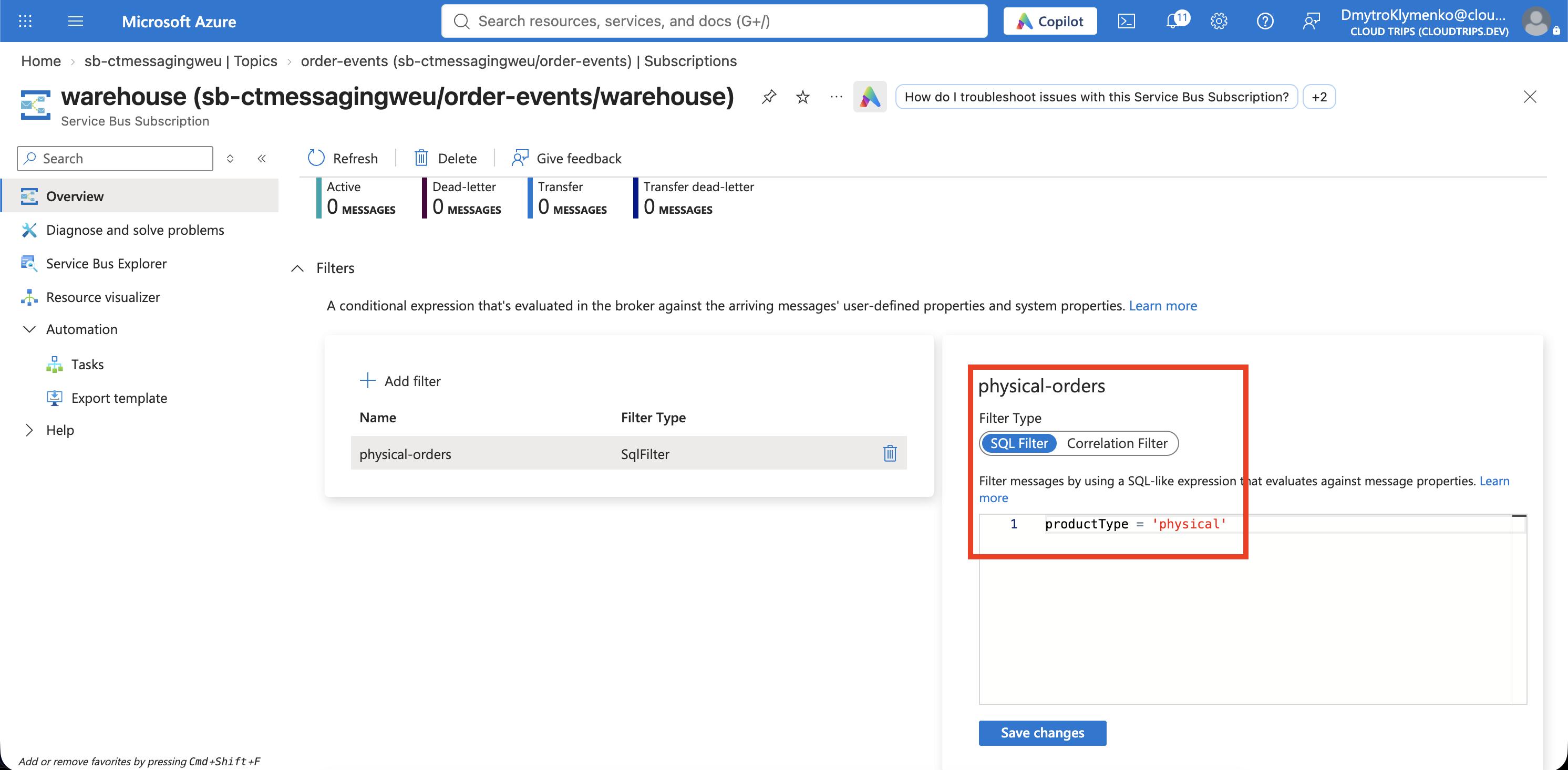
Screenshot 2: The warehouse subscription’s Filters page showing physical-orders and its expression, with $Default removed.
Send Two Different Orders
Open order-events → Service Bus Explorer. Under Settings, select Microsoft Entra ID authentication if needed. Choose Send messages, use Application/Json, and send each message once with repeat sending disabled.
For the first message, enter this body:
{
  "orderId": "CT-2001",
  "product": "Notebook"
}
In the send form’s Custom Properties, add:
Name / Key: productType
Type: String
Value: physical
Select Send. For the second message, replace the body with:
{
  "orderId": "CT-2002",
  "product": "Downloadable guide"
}
Change the custom property’s value to digital, keeping its name productType and type String, then send once. Enter property values without quotation marks; the quotes belong only in the SQL expressions.
The sender chooses the topic. It does not address warehouse or downloads directly.
Verify the Routing
In the topic’s Service Bus Explorer, choose Peek Mode, select the warehouse subscription, and select Peek from start. Inspect the body. Repeat with downloads selected.
| Subscription | Expected message | Message that should be absent |
|---|---|---|
| warehouse | CT-2001 — Notebook | CT-2002 |
| downloads | CT-2002 — Downloadable guide | CT-2001 |
With fresh subscriptions and one send per message, each subscription has one active message. Peeking leaves them in place. Refresh the topic’s subscription list if its counts have not updated yet.
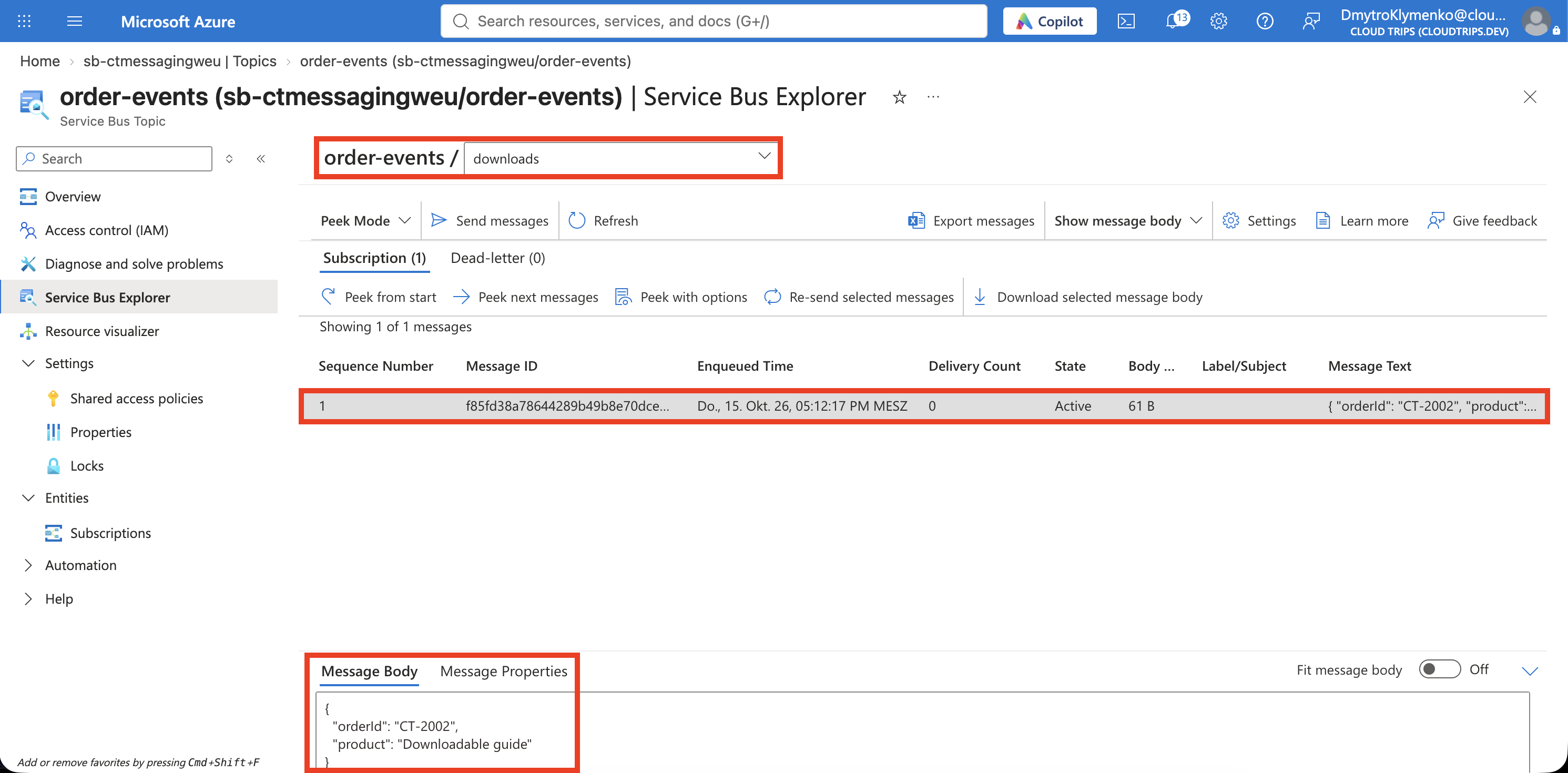
Screenshot 3: The downloads subscription selected in Explorer, showing only CT-2002 and its body.
If both subscriptions receive both orders, check for a remaining $Default rule. If neither receives an order, check the custom property’s name, String type, and exact value. Putting productType only inside the JSON body will not work. After correcting a filter, send a fresh test message: changing a rule does not remove previously accepted messages or recover messages that matched no subscription.
Finish
Each receiver now has its own filtered inbox. Filters can also overlap: if two subscriptions match the same message, both receive a copy.
To empty the subscriptions, receive each message with PeekLock and select Complete, as in the queue trip. Keep the namespace for later messaging trips. Delete order-events to remove this topic and its subscriptions, or delete the lab resource group when all messaging exercises are finished. Keeping the Standard namespace continues its base charges even when it is empty.