Failed Messages Need Investigation? Inspect and Resubmit a Dead-Letter Message
A worker receives an order with a negative quantity. Retrying the same invalid order will not fix it. A dead-letter queue (DLQ) holds messages that need investigation instead of normal processing. Every Service Bus queue has this built-in subqueue; you do not create a separate queue for it.
Messages can reach the DLQ after too many unsuccessful delivery attempts or because an application explicitly rejects them. In this lab, you act as that application and manually reject one invalid order. Service Bus does not validate your order’s business fields automatically.
Reuse sb-ctmessagingweu, the ordinary orders queue, and your Azure Service Bus Data Owner role from the first messaging trip. Use your actual namespace name if different. Use orders, not the session-enabled orders-sessions queue. This entire exercise runs in the Azure portal.
Send and Reject an Invalid Order
Open orders → Service Bus Explorer. Under Settings, use Microsoft Entra ID authentication. Select Send messages, choose Application/Json, and send this body once:
{
  "orderId": "CT-4001",
  "product": "Notebook",
  "quantity": -1
}
Under Broker properties, set Message ID to ct-4001-invalid. Leave repeat sending disabled.
Choose Receive Mode, select the normal Queue, and receive 1 message using PeekLock. Check that the selected message is CT-4001, then choose Dead-letter while its lock is valid. If the dialog offers reason and description fields, enter InvalidQuantity and Quantity must be greater than zero. Otherwise, continue with the portal’s supplied reason.
This simulates a worker rejecting bad input. If other lab messages are ahead of it, inspect and resolve those first. If the lock expires, receive CT-4001 again before selecting Dead-letter.
Investigate the Dead-Letter Message
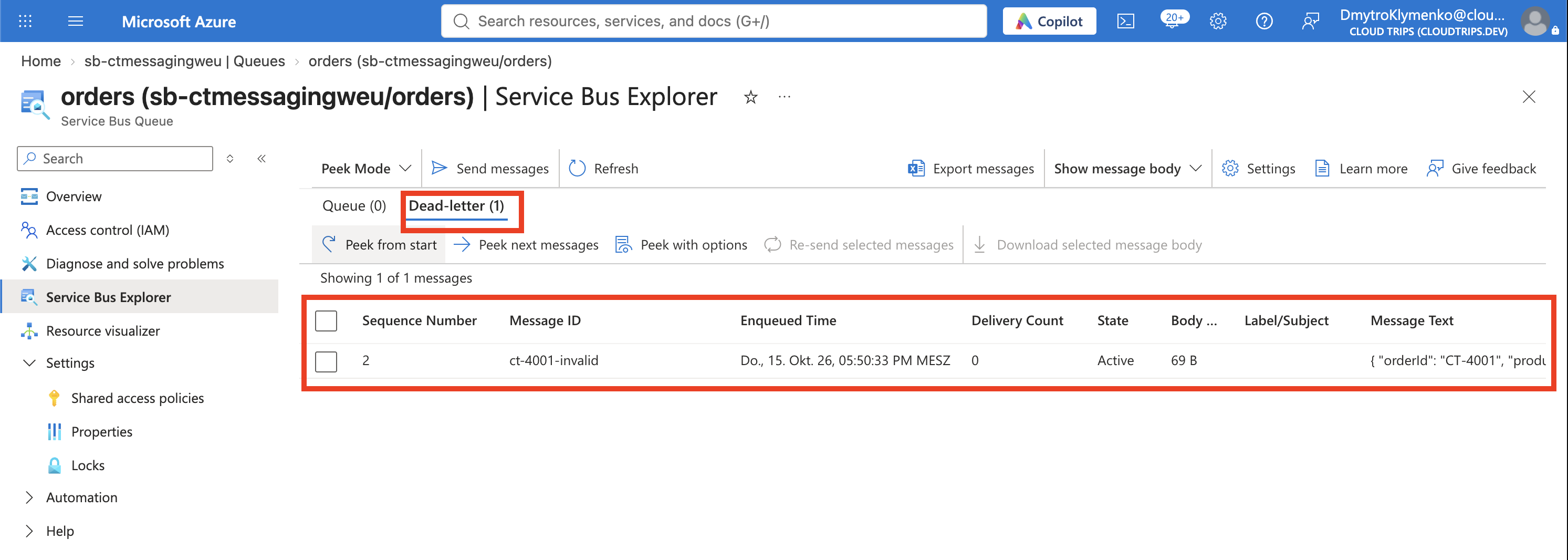
Switch to Peek Mode, select DeadLetter, and choose Peek from start. Open CT-4001 and inspect its body and Message Properties:
| Detail | What to investigate |
|---|---|
| MessageId | Identifies the failed message: ct-4001-invalid. |
| DeadLetterReason / DeadLetterErrorDescription | Explains the rejection when supplied by the application or service. |
| DeliveryCount | Helps identify repeated delivery attempts. Manual rejection does not require reaching the delivery limit. |
| Body | The quantity is -1; this order needs correction. |
Resubmit a Corrected Copy
Select the dead-letter message and choose Re-send selected messages. In the resend form, select the message for editing and change its body to:
{
  "orderId": "CT-4001",
  "product": "Notebook",
  "quantity": 1
}
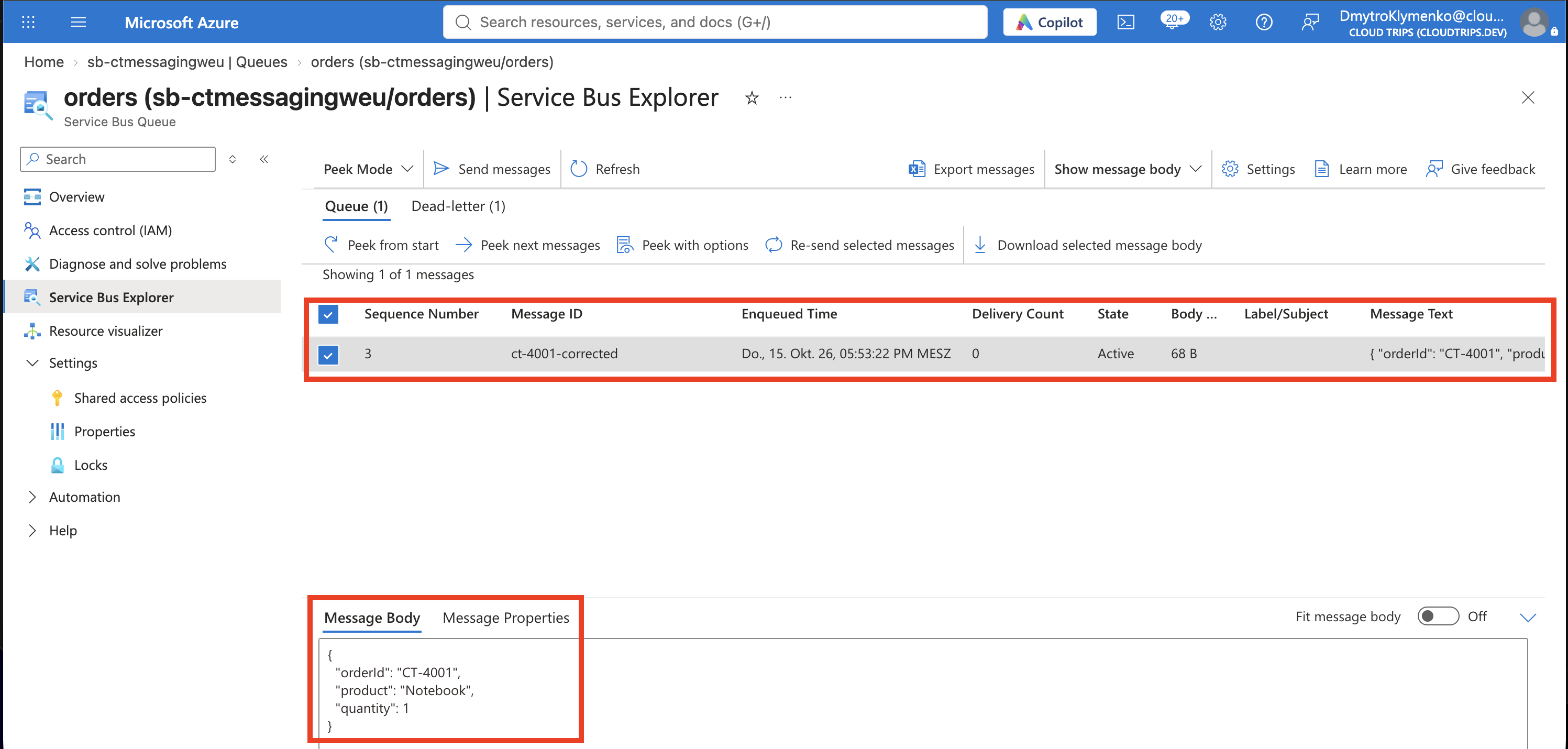
Set Message ID to ct-4001-corrected and send once. Keeping the same orderId preserves the business reference; the new Message ID identifies this correction and avoids suppression by MessageId-based duplicate detection if that feature is enabled.
Resending creates a new copy in the normal queue. It does not remove the original from the DLQ. Do not keep clicking Send if a result is slow to appear; inspect the queue first.
Switch back to Queue → Peek Mode → Peek from start. Confirm CT-4001 has quantity 1 and MessageId ct-4001-corrected.
Complete the Correction and Resolve the Original
In the normal Queue, receive the corrected copy with PeekLock, inspect it, and select Complete. This represents successful processing in the lab; no real shipping action runs.
Only after verifying the corrected copy, select DeadLetter, switch to Receive Mode, and receive the original with PeekLock. Confirm its MessageId is ct-4001-invalid, then select Complete to remove that resolved original. A message seen only through Peek must first be received before it can be completed.
Refresh orders → Overview. If the queue was otherwise empty, both Active messages and Dead-letter messages should become 0. Counters may update with a delay.
Finish
You inspected the failure, corrected its cause, verified the replacement, and removed the resolved original. DLQ messages are not automatically retried or cleared by their time-to-live; they need explicit handling.
In production, record the failure and recovery before removing evidence. Resending and completing in the portal are separate operations, so an interruption can leave both copies present. Workers still need duplicate handling based on the business operation; changing MessageId does not make an order safe to process twice.
Keep the namespace for later trips, or delete rg-cloudtrips-servicebus-test-weu when the messaging labs are finished to stop ongoing namespace charges.