Spoke Networks Need a Central Hub? Configure a Hub-Spoke Network
CloudTrips now has separate VNets for the application and shared services. If every new VNet is connected directly to every other VNet, the number of peerings and independently managed network paths quickly grows.
A hub-spoke network solves this structural problem. The hub is a central VNet intended for shared connectivity services such as a VPN gateway, Azure Firewall, Bastion, or DNS. Each spoke is a peered VNet that contains a workload or an isolated service.
This trip creates the CloudTrips hub and connects the existing application and services VNets as spokes. It does not deploy a paid firewall or gateway.
This trip builds on: Two VNets Need Private Communication? Create VNet Peering.
Plan the Topology
Use:
Hub VNet: vnet-cloudtrips-hub-test-weu
Hub address space: 10.60.0.0/16
Hub shared subnet: snet-hub-shared
Hub shared subnet range: 10.60.1.0/24

Application spoke: vnet-cloudtrips-test-weu (10.20.0.0/16)
Services spoke: vnet-cloudtrips-services-test-weu (10.40.0.0/16)
Region: West Europe
The new address space does not overlap any existing CloudTrips VNet:
vnet-cloudtrips-test-weu
         ⇅
vnet-cloudtrips-hub-test-weu
         ⇅
vnet-cloudtrips-services-test-weu
The diagram shows the new hub connections, not automatic traffic transit. VNet peering is non-transitive: the application spoke can reach the hub, and the hub can reach the services spoke, but the application spoke cannot use the hub as a router by default.
Create the Hub VNet
In the Azure portal, search for Virtual networks, open the service, and select Create.
On Basics, configure:
Subscription: CloudTrips TEST
Resource group: rg-cloudtrips-network-test-weu
Name: vnet-cloudtrips-hub-test-weu
Region: West Europe
On Security, do not deploy Azure Bastion, Azure Firewall, a DDoS protection plan, or virtual network encryption in this trip.
On IP Addresses, configure:
IPv4 address space: 10.60.0.0/16
Subnet purpose/template: Default
Subnet name: snet-hub-shared
Starting address: 10.60.1.0
Subnet size: /24
Default outbound access: Disabled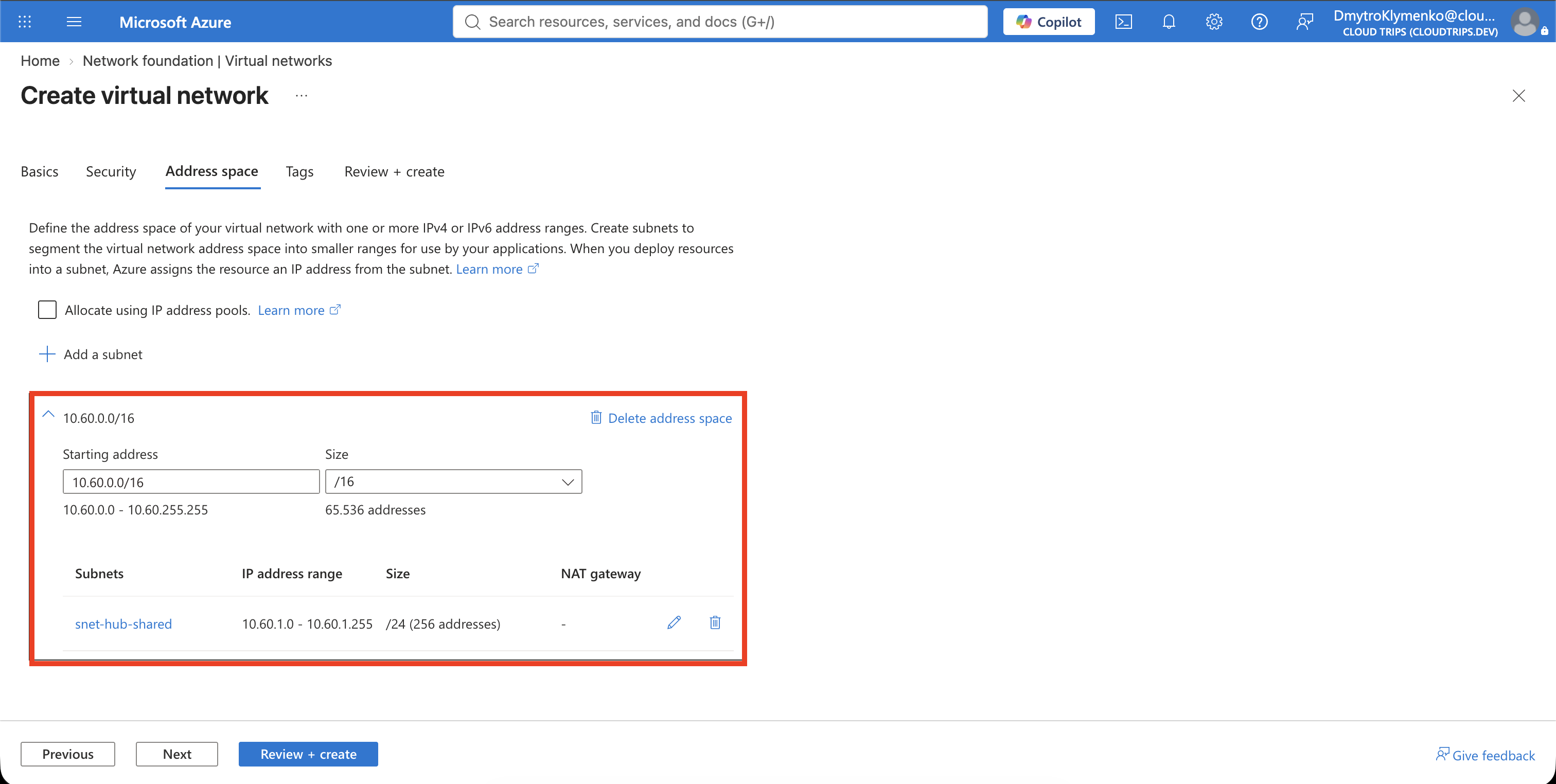
On Tags, add:
Application: CloudTrips
Environment: TEST
Purpose: ConnectivityHub
Select Review + create, and then select Create.
Connect the Application Spoke
Open vnet-cloudtrips-hub-test-weu, select Settings > Peerings, and
select Add.
Because the hub VNet is currently open, the peering under Local virtual network summary is stored on the hub. The peering under Remote virtual network summary is stored on the selected application VNet.
Under Remote virtual network summary, configure:
Peering link name: peer-app-to-hub
Subscription: CloudTrips TEST
Virtual network: vnet-cloudtrips-test-weu
Allow the application VNet to access the hub and enable it to receive forwarded traffic from the hub. Leave all gateway and route-server options disabled.
Under Local virtual network summary, configure:
Peering link name: peer-hub-to-appAllow the hub to access the application VNet and enable it to receive forwarded traffic from the application VNet. Leave the gateway and route-server options disabled.
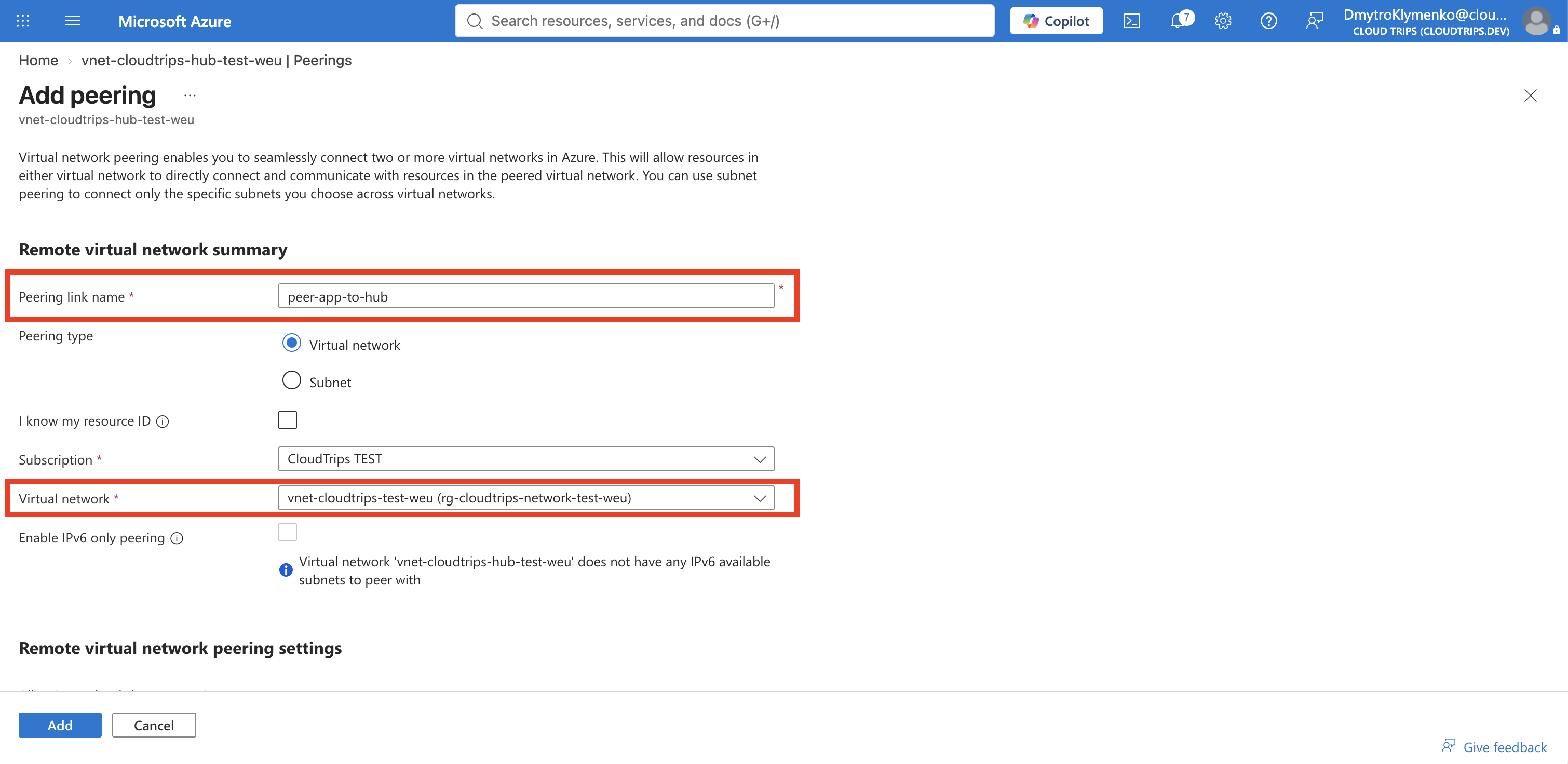
Select Add.
Allowing forwarded traffic prepares the peering for a future router in the hub. It does not deploy a router, create a route, or make peering transitive.
Connect the Services Spoke
From the hub VNet’s Peerings page, select Add again.
Under Remote virtual network summary, configure:
Peering link name: peer-services-to-hub
Subscription: CloudTrips TEST
Virtual network: vnet-cloudtrips-services-test-weu
Allow the services VNet to access the hub and receive forwarded traffic from it. Leave the gateway and route-server options disabled.
Under Local virtual network summary, configure:
Peering link name: peer-hub-to-servicesAllow the hub to access the services VNet and receive forwarded traffic from it. Leave the remaining gateway and route-server options disabled, and select Add.
Verify the Hub Connections
On the hub VNet’s Peerings page, select Refresh until both
peer-hub-to-app and peer-hub-to-services show Connected.
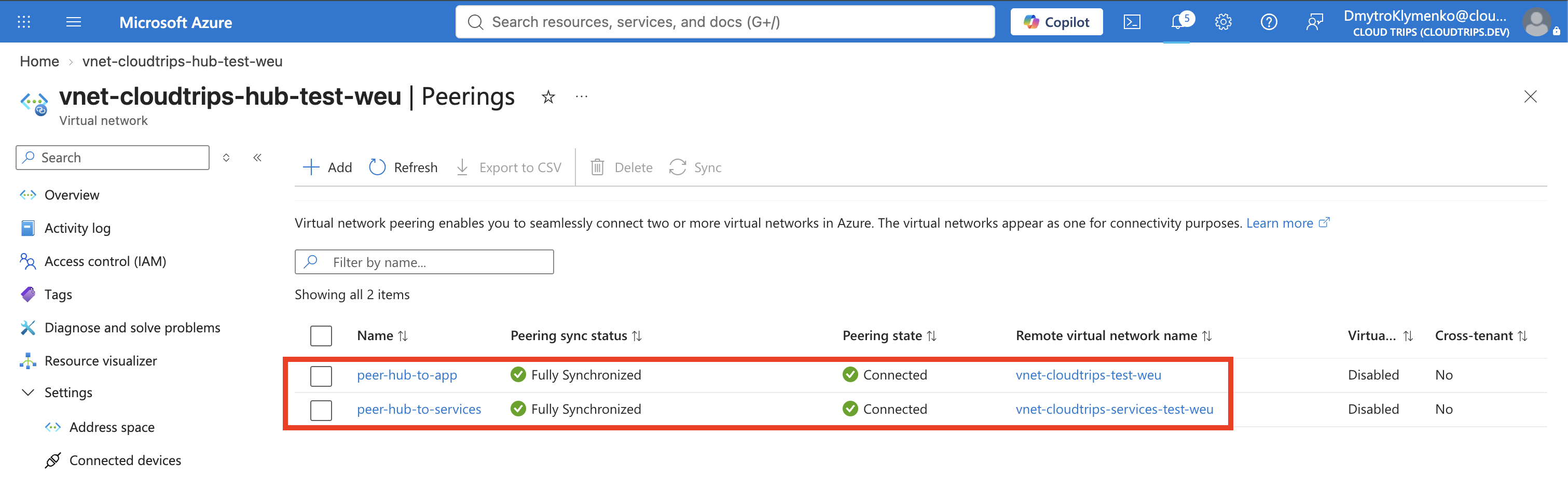
Open the application VNet and confirm that peer-app-to-hub is connected.
Then open the services VNet and confirm that peer-services-to-hub is
connected.
You can also inspect the hub peerings in Cloud Shell:
az network vnet peering list \
  --resource-group rg-cloudtrips-network-test-weu \
  --vnet-name vnet-cloudtrips-hub-test-weu \
  --query "[].{Name:name,State:peeringState,ForwardedTraffic:allowForwardedTraffic}" \
  --output table
Both hub-side peerings should show Connected and True.
The existing direct application-to-services peering still carries traffic directly between those two VNets. Do not delete it yet. Removing it before a firewall or another network virtual appliance and the required user-defined routes are configured would remove their working private path.
The hub-spoke foundation is now present: shared network services can be added once in the hub and made available to both spokes. Centralized spoke-to-spoke routing and inspection are separate configuration steps.