PaaS Network Boundary Needed? Configure Network Security Perimeter
Azure PaaS services expose data-plane endpoints without placing the service itself inside your virtual network. Configuring each resource’s public network rules independently becomes difficult as the number of services grows. Azure Network Security Perimeter (NSP) creates one logical boundary around supported PaaS resources and centrally controls their public inbound and outbound traffic.
In this trip, create a dedicated Key Vault, associate it with an NSP profile, allow only your workstation’s public IPv4 address, and change the association from Transition to Enforced mode.
Administrator public IPv4
          |
          | inbound access rule
          v
Network Security Perimeter profile
          |
          v
      Azure Key Vault
NSP protects public data-plane access. Microsoft Entra authentication and Key Vault RBAC still decide what an admitted caller may do. A network allow rule does not grant access to secrets.
These network controls solve different problems:
| Control | Endpoint used | Main purpose | Behavior with NSP |
|---|---|---|---|
| Network Security Perimeter | Public PaaS endpoint | Restricts which public sources can reach associated PaaS resources | NSP access rules control public traffic |
| Private Endpoint (Private Link) | Private IP inside your VNet | Gives workloads private VNet connectivity to the PaaS resource | Allowed without an NSP public access rule |
| Basic service endpoint | Public PaaS endpoint, with traffic identified by its source subnet | Allows an individual PaaS resource firewall to trust selected subnets | Traditional service-endpoint traffic is not an NSP integration path |
| Standard service endpoint (public preview) | Public PaaS endpoint, with the subnet represented by a network identifier | Allows an NSP rule to identify an approved subnet without creating a private endpoint | An NSP inbound IP rule can admit the network identifier; preview limits apply |
Use a private endpoint when a workload must reach the PaaS resource through a private VNet address. Use NSP when approved callers must use the resource’s public endpoint.
When to Use a Service Endpoint
VM in an approved subnet
          |
          | identified as traffic from snet-app
          v
Key Vault public endpoint
The basic service endpoint used in the preceding Storage trip allows a PaaS resource firewall to trust traffic from selected VNet subnets. The service still uses its public endpoint and does not receive a private IP address in your VNet. Configuration is normally repeated for every PaaS resource, but it does not require a private endpoint or private DNS. This traditional subnet-identity traffic is not supported as the connectivity method for an NSP-associated resource.
A separate standard service endpoint variant is in public preview. It associates a standard static public IP with the subnet as a network identifier. That address identifies the subnet to an NSP inbound IP rule; it is not used to route the packets. The PaaS service still uses its public endpoint and still has no private IP in the VNet. Because the feature is a preview without an SLA, review its supported services and limitations before considering it, and do not treat the basic endpoint configured in the previous trip as equivalent.
Use a basic service endpoint when one or a few subnets need controlled access to a non-NSP PaaS resource and its public endpoint is acceptable. Evaluate the standard preview variant only when an NSP-associated service must recognize a subnet through its public endpoint. Choose a private endpoint when the workload requires a private VNet address.
When to Use Network Security Perimeter
Approved laptop public IP ----+
Key Vault                     +--> NSP profile
Storage account --------------+
NSP centrally controls public access to multiple associated PaaS resources. Inbound rules can admit approved public IP ranges or subscriptions, while supported outbound rules can restrict destination FQDNs. This makes NSP useful when an organization needs one public network boundary instead of maintaining independent public-access rules on every service.
Use NSP when approved administrators, applications, or services must access one or more PaaS resources through their public endpoints.
When to Use a Private Endpoint
VM private IP:        10.20.1.4
          |
          | private VNet path
          v
Key Vault endpoint:   10.20.2.5
A private endpoint creates a network interface with a private IP address in your VNet. Private DNS resolves the normal service hostname to that private IP for connected clients. Public access can then be disabled. This provides strong private network isolation, but it requires private-endpoint lifecycle and DNS configuration.
Use a private endpoint when workloads in a VNet, an on-premises network, or a VPN-connected network must reach the PaaS resource without using its public endpoint.
For CloudTrips, choose:
| Requirement | Appropriate control |
|---|---|
| An administrator’s laptop reaches Key Vault through its approved public IP | Network Security Perimeter |
| A VM subnet reaches a non-NSP PaaS resource through its public endpoint | Basic service endpoint |
| An NSP-associated service must recognize a subnet through its public endpoint and preview use is acceptable | Standard service endpoint with a network identifier (public preview) |
| A VM reaches PaaS through a private IP inside the VNet | Private Endpoint |
These resources can incur charges. Complete the cleanup at the end of the trip. NSP names and locations shown in the portal can vary slightly as the service evolves.
Create a Dedicated Key Vault
Set reusable names in Azure Cloud Shell. The generated Key Vault name is globally unique and remains below its 24-character limit:
RG_NAME="rg-cloudtrips-network-test-weu"
LOCATION="westeurope"
SUBSCRIPTION_ID=$(az account show --query id --output tsv)
NSP_VAULT="kv-ct-nsp-${SUBSCRIPTION_ID//-/}"
NSP_VAULT=${NSP_VAULT:0:24}

az keyvault create \
  --resource-group "$RG_NAME" \
  --name "$NSP_VAULT" \
  --location "$LOCATION" \
  --enable-rbac-authorization true

printf 'Key Vault: %s\n' "$NSP_VAULT"
Keep the printed vault name. The NSP association generated by the portal also uses the resource name, so concise resource names avoid association-name length problems.
Create the Perimeter and Profile
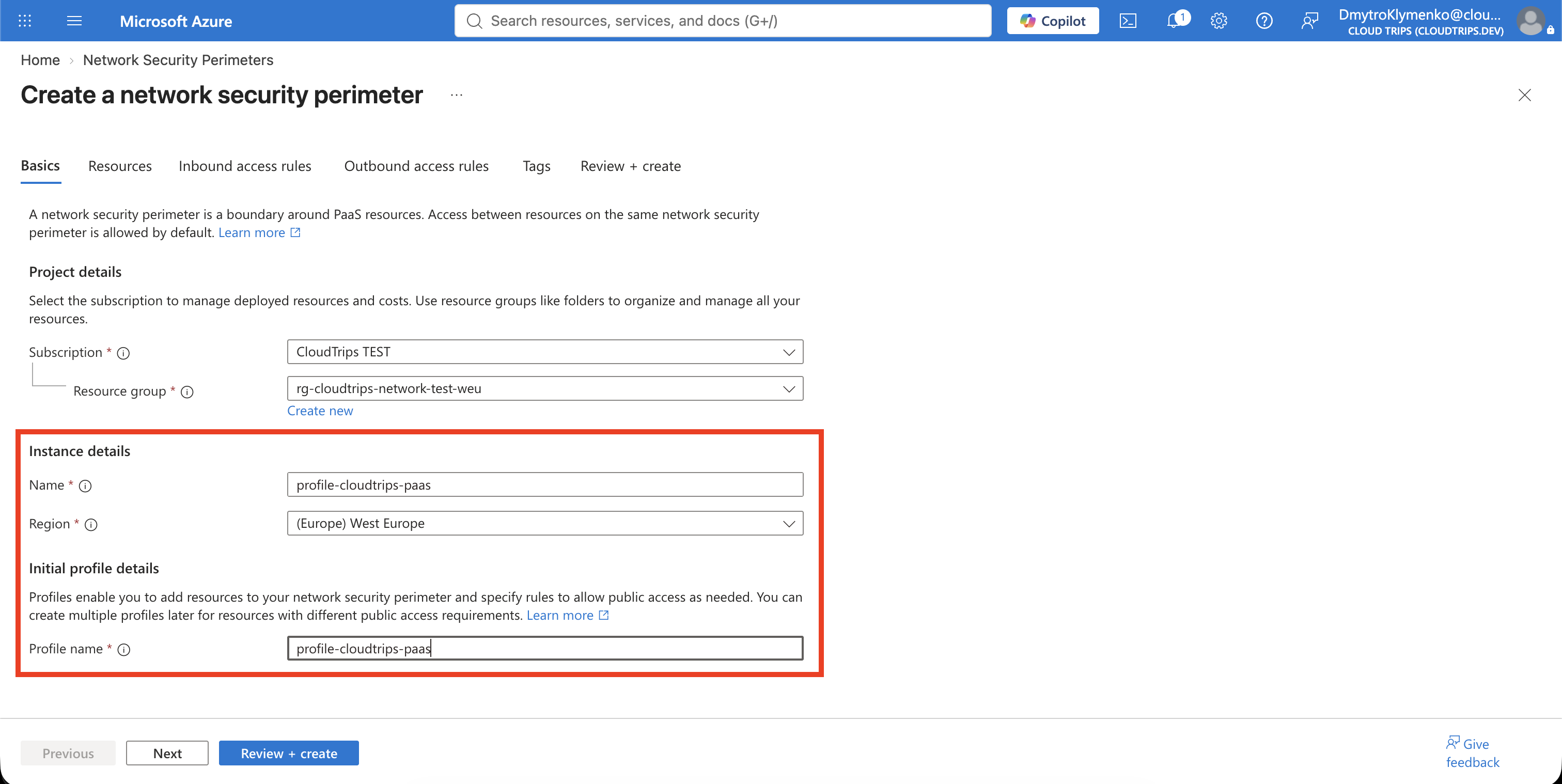
In the Azure portal, search for Network security perimeters and select Create. On Basics, configure:
Subscription: CloudTrips TEST
Resource group: rg-cloudtrips-network-test-weu
Name: nsp-cloudtrips-test-weu
Region: West Europe
Profile name: profile-cloudtrips-paas
Select Review + create > Create. A perimeter is the top-level boundary; the profile contains resource associations and access rules. Multiple supported PaaS resources can later join the same profile.
Associate the Key Vault in Transition Mode
Open nsp-cloudtrips-test-weu, select Settings > Profiles, and open
profile-cloudtrips-paas. Under Associated resources, select Add and
choose the Key Vault printed earlier.
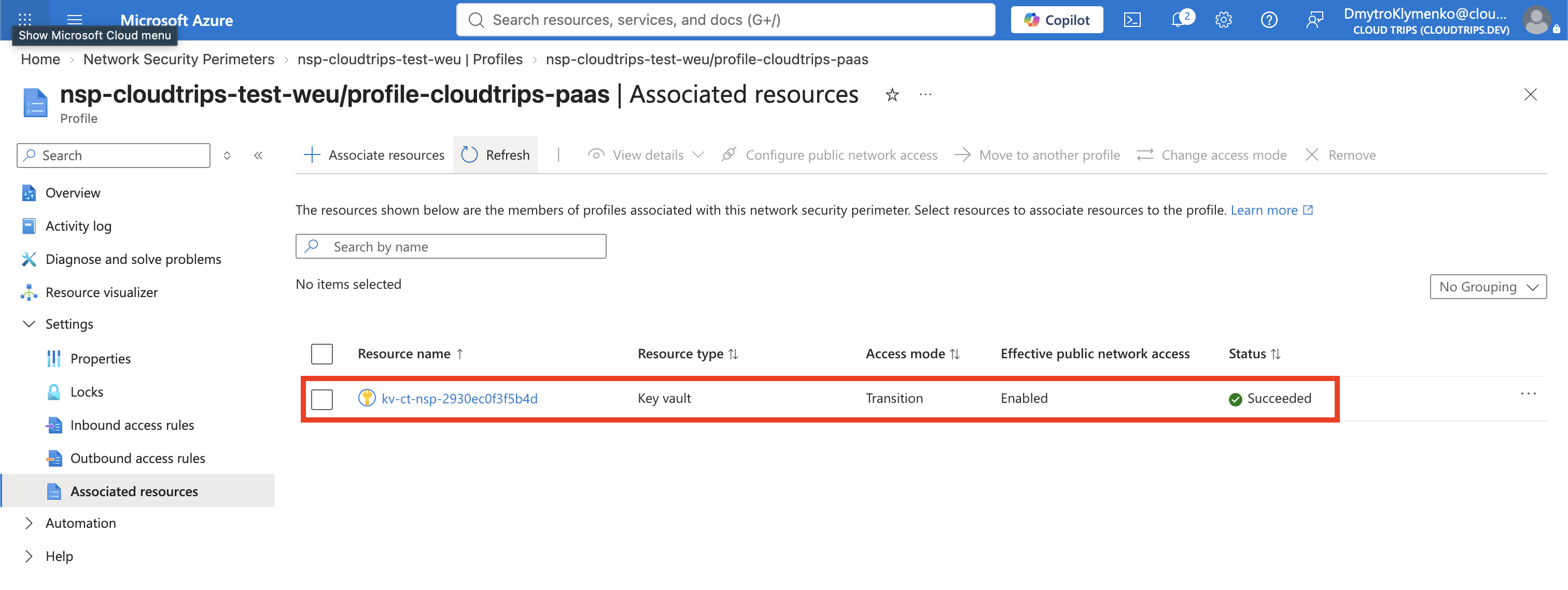
Keep the association in Transition mode initially. Transition is the safe starting state: it records how the perimeter would affect public access while the resource’s existing network controls continue to apply. Confirm the association shows:
Resource type: Microsoft.KeyVault/vaults
Access mode: Transition
You do not have to change Public network access to
SecuredByPerimeter for this lab. In Transition mode, the Key Vault’s
existing publicNetworkAccess setting still controls access. After you change
the association to Enforced, NSP rules override that setting and control public
access.
Allow One Administrator Address
Determine the public IPv4 address used by the workstation from which you will
test. Use an organization-approved IP lookup or ask the network team. Do not
enter the workstation’s private 10.x, 172.16-31.x, or 192.168.x address.
If a VPN or NAT gateway changes the public address, the rule no longer matches.
Azure Cloud Shell also uses a different egress address, so run the final test
from the same workstation represented by the rule.
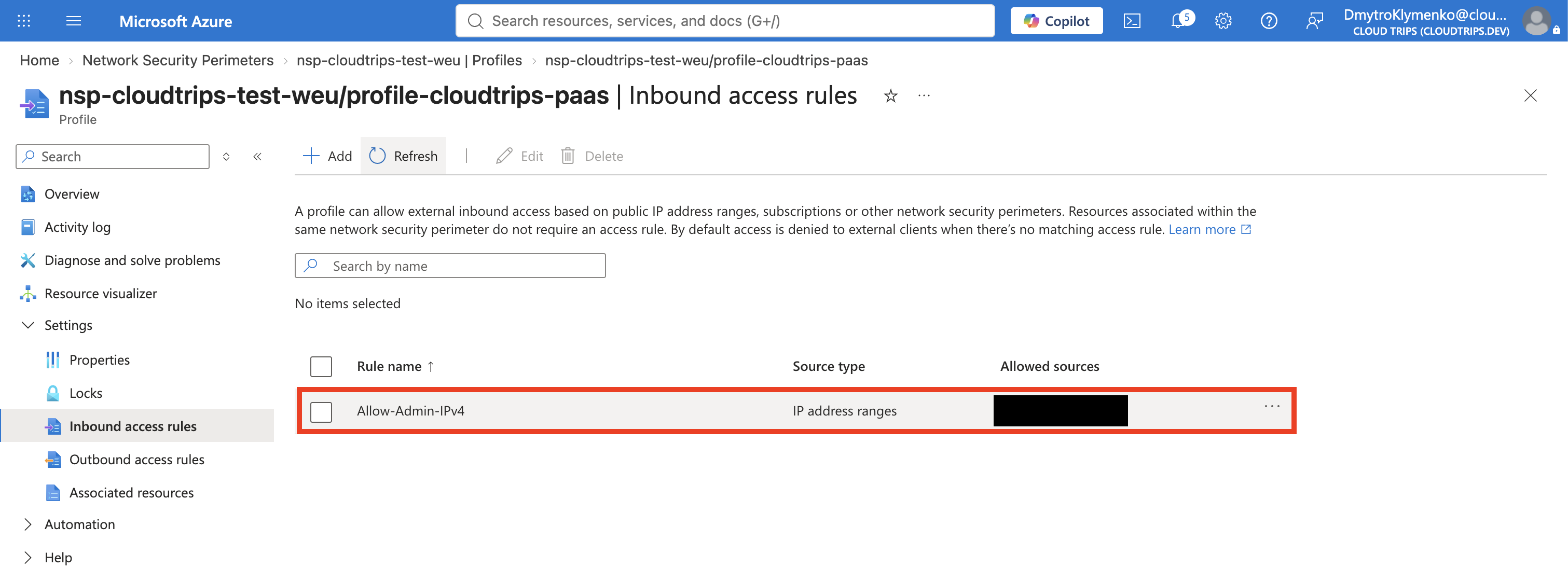
In profile-cloudtrips-paas, select Inbound access rules > Add:
Rule name: Allow-Admin-IPv4
Source type: IP address ranges
Allowed sources: <your-public-IPv4>/32
/32 permits exactly one IPv4 address. Do not use 0.0.0.0/0, because that
would admit every public IPv4 source and defeat this lab’s boundary.
No outbound rule is required for this Key Vault test. Outbound NSP rules use fully qualified domain names and are needed only when an associated service initiates supported public outbound connections.
Enforce and Verify the Boundary
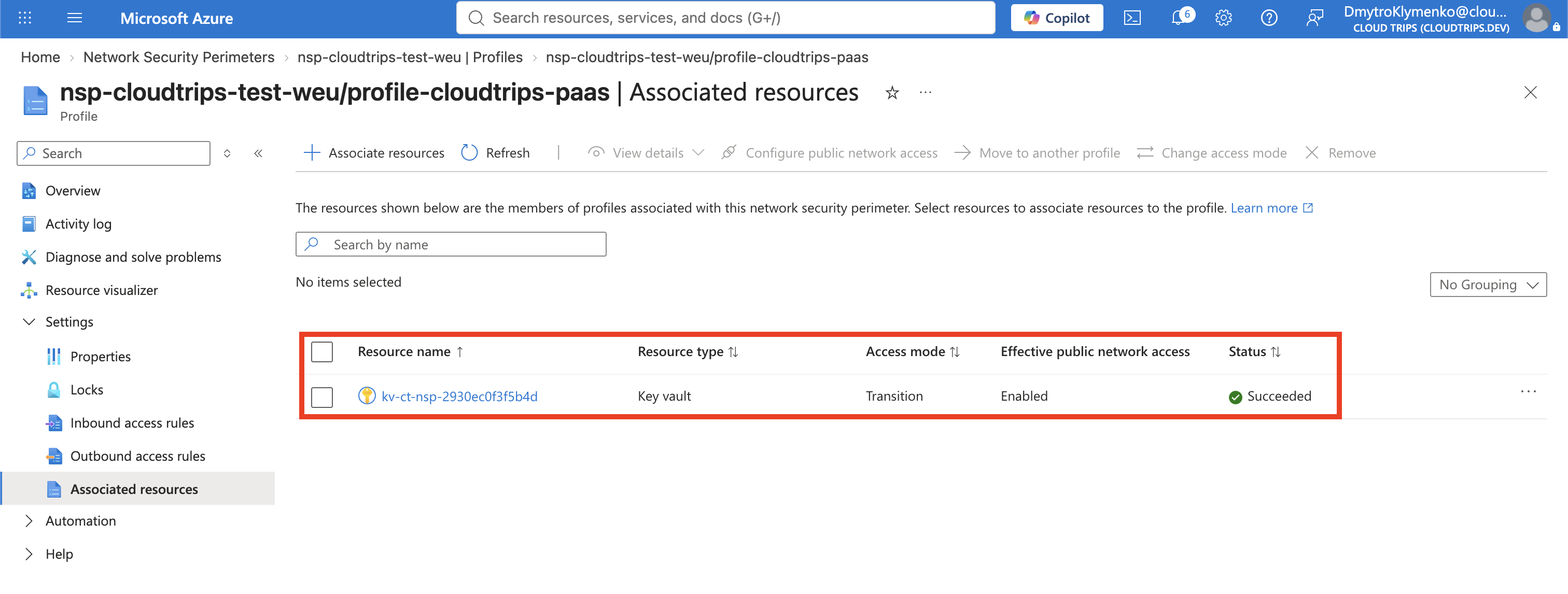
Return to Associated resources, open the Key Vault’s ellipsis menu, and select Change access mode > Enforced. Confirm the change. In Enforced mode, public traffic is denied unless it comes from within the same perimeter or matches an explicit access rule. Private-endpoint traffic remains allowed.
From the workstation whose public IP is allowed, replace the placeholder and
send an authenticated request to the Key Vault data plane. az rest obtains a
Bearer token for the signed-in Azure CLI identity; it does not expose that
token in the command:
NSP_VAULT="<printed-key-vault-name>"

az account show \
  --query '{User:user.name,Tenant:tenantId}' \
  --output table

az rest \
  --method get \
  --url "https://${NSP_VAULT}.vault.azure.net/secrets?api-version=7.4" \
  --resource "https://vault.azure.net"
If the identity has permission to list secret metadata, expect a successful
JSON response. If it lacks that data-plane role, an authorization error is
acceptable only when its JSON error is about RBAC or permissions and does not
contain ForbiddenByFirewall, Request was not allowed by NSP rules, or a
message that the client address is not authorized. This is an authenticated
network-path test; a bare 401 from curl only proves that a Bearer token was
missing and is not sufficient.
For the conclusive negative test, sign in with the same Azure identity on a
machine that uses a different public IP and run the exact same az rest
request. It must return a network-specific error such as
ForbiddenByFirewall or a message explicitly saying that NSP rules rejected
the client address. A generic 403 alone is not proof. Do not broaden the rule
merely to make a changing Cloud Shell egress address work.
Remove the Perimeter Lab
Do not delete a perimeter while leaving an application resource unintentionally
secured by it. In profile-cloudtrips-paas:
- Open Associated resources and change the Key Vault to Transition.
- Remove the Key Vault association.
- Delete
Allow-Admin-IPv4. - Delete
profile-cloudtrips-paas, thennsp-cloudtrips-test-weu.
Finally delete only the dedicated lab vault:
az keyvault delete \
  --resource-group "rg-cloudtrips-network-test-weu" \
  --name "$NSP_VAULT"
Keep the CloudTrips VNets, load balancer, VMs, Network Watcher, and all application resources. NSP governed a PaaS data-plane boundary; it did not replace their NSGs or Virtual Network Manager configuration.
The next trip adds DNS-based failover between the CloudTrips regional web endpoints.