An HTTP App Needs Layer 7 Routing? Create an Application Gateway
The CloudTrips regional Load Balancer distributes TCP connections, but it does
not understand the HTTP request inside a connection. It cannot route
/images/* and /api/* differently, make decisions from HTTP headers, or
apply a web application firewall.
Create an Azure Application Gateway in front of the two private CloudTrips web servers. Application Gateway operates at Layer 7, the application layer. It acts as a reverse proxy: it accepts the client’s HTTP connection, reads the request, applies a routing rule, and opens another connection to a healthy backend.
Internet client
      |
Application Gateway public IP
      |
HTTP listener and routing rule
      |----------------------|
Private WEB01           Private WEB02
This first configuration sends every request to one backend pool. The next trips build on the same gateway to route by URL path and rewrite requests.
This trip builds on A Web App Needs Traffic Distribution? Create a Load Balancer. Reuse
vm-cloudtrips-web01-test-weu,vm-cloudtrips-web02-test-weu, their web service on port 80, andvnet-cloudtrips-test-weu. The existing Load Balancer is not an Application Gateway backend; both services connect independently to the VMs.
Application Gateway Standard_v2 has a fixed hourly charge while it is provisioned, even when autoscaling has a minimum of zero. Complete the Application Gateway trips together and then follow the cleanup guidance.
Prepare the Existing Web Servers
If the two VMs were deallocated after the previous trip, start them:
az vm start --resource-group rg-cloudtrips-network-test-weu --name vm-cloudtrips-web01-test-weu
az vm start --resource-group rg-cloudtrips-network-test-weu --name vm-cloudtrips-web02-test-weu
The cloudtrips-web systemd service created previously starts automatically.
If either VM was deleted, repeat the VM and test-page sections of the Load
Balancer trip before continuing.
Create a Dedicated Application Gateway Subnet
Application Gateway must have its own subnet. Azure places managed gateway instances in that subnet as the service scales and performs maintenance; VMs and other resource types cannot share it.
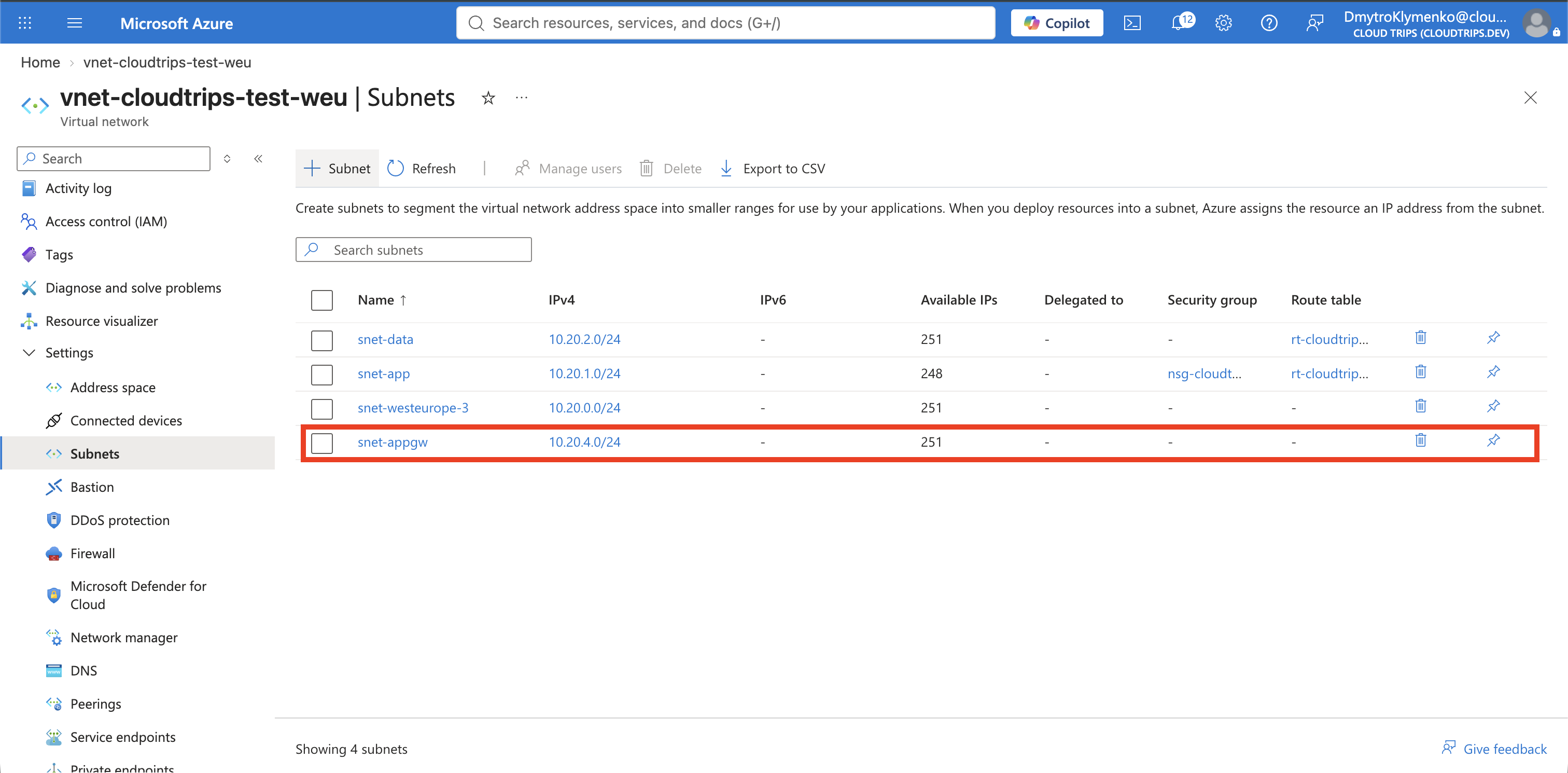
Open vnet-cloudtrips-test-weu, select Settings > Subnets, and select
+ Subnet. Configure:
Name: snet-appgw
Starting address: 10.20.4.0
Size: /24
Network security group: None
Route table: None
Select Save.
10.20.4.0/24 is inside the VNet’s 10.20.0.0/16 address space and does not
overlap the application, data, or earlier firewall subnets. A /24 leaves
space for Application Gateway v2 autoscaling and maintenance operations.
Allow the Gateway to Reach the Backends
The Application Gateway instances send requests from private addresses in
snet-appgw. Allow those requests through the NSG associated with snet-app.
Open nsg-cloudtrips-app-test-weu, select Settings > Inbound security
rules, and add:
Source: IP Addresses
Source IP addresses/CIDR ranges: 10.20.4.0/24
Source port ranges: *
Destination: IP Addresses
Destination IP addresses/CIDR ranges: 10.20.1.0/24
Service: HTTP
Action: Allow
Priority: 105
Name: Allow-HTTP-ApplicationGateway
Description: Allow Application Gateway to reach the CloudTrips web backends
This rule permits the gateway-to-backend connection on port 80. It is separate from the public listener: internet clients connect to the gateway’s public IP, not directly through this rule.
Create the Application Gateway
Search for Application gateways, and select Create. On Basics, set:
Subscription: CloudTrips TEST
Resource group: rg-cloudtrips-network-test-weu
Application gateway name: agw-cloudtrips-web-test-weu
Region: West Europe
Tier: Standard V2
Enable autoscaling: Yes
Minimum instance count: 0
Maximum instance count: 2
Virtual network: vnet-cloudtrips-test-weu
Subnet: snet-appgw
Minimum zero avoids reserving capacity units when the lab has no traffic, but it does not remove the gateway’s fixed hourly charge.
On Frontends, select Public and create a public IP:
Public IP address: Add new
Name: pip-cloudtrips-appgw-test-weu
SKU: Standard
Assignment: Static
Add the Private Backend Pool
On Backends, select Add a backend pool and configure:
Name: be-cloudtrips-web-test-weu
Add backend pool without targets: No
Target type: Virtual machine
Targets: the NICs of vm-cloudtrips-web01-test-weu and vm-cloudtrips-web02-test-weu
Application Gateway stores the VMs’ private NIC addresses as backend targets. Neither VM needs a public IP.
Connect the Listener to the Backends
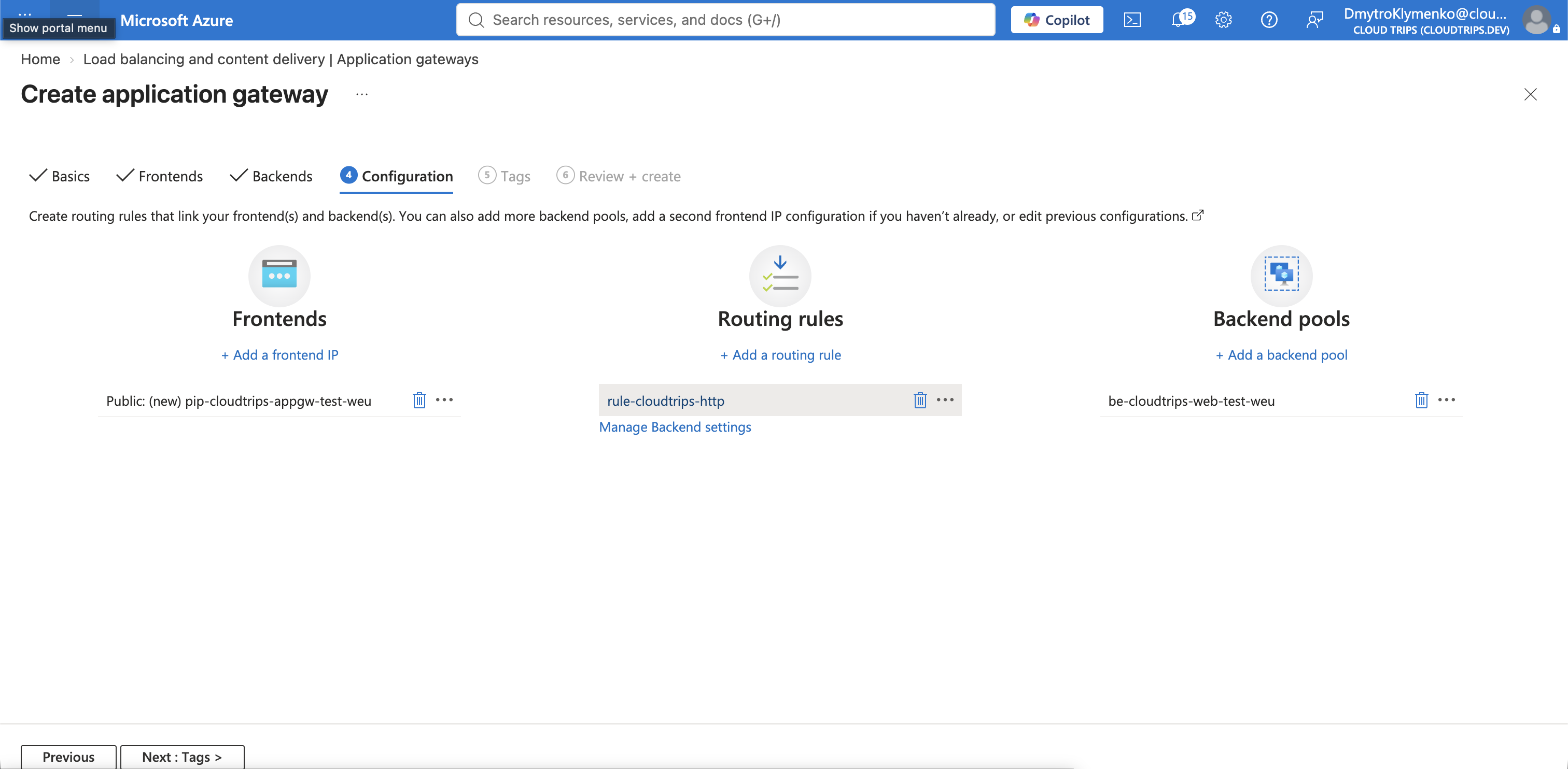
On Configuration, select Add a routing rule. Configure the listener:
Rule name: rule-cloudtrips-http
Priority: 100
Listener name: listener-cloudtrips-http
Frontend IP: Public IPv4
Protocol: HTTP
Port: 80
Listener type: Basic
A listener waits for matching client requests on a frontend IP and port. A basic listener accepts any host name sent to this public IP on port 80.
On Backend targets, select:
Backend target: be-cloudtrips-web-test-weu
Backend settings: Add new
Backend settings name: settings-cloudtrips-http
Backend protocol: HTTP
Backend port: 80
Cookie-based affinity: Disable
Connection draining: Disable
Request time-out: 20 seconds
Override backend path: Leave empty
Use custom probe: No
The routing rule joins three components:
- The listener receives the client request.
- The backend pool identifies the possible servers.
- The backend settings define how Application Gateway connects to them.
Without a custom probe, Application Gateway automatically checks / over
HTTP on backend port 80. Responses from 200 through 399 are healthy. This is
sufficient because both CloudTrips test pages respond successfully at /.
Do not enable path-based routing yet. Select Add, complete any remaining
tags with Application: CloudTrips, Environment: TEST, and
Purpose: Layer7Routing, and select Review + create > Create.
Application Gateway provisioning can take several minutes.
Verify Backend Health
Open agw-cloudtrips-web-test-weu, select Monitoring > Backend health,
and expand be-cloudtrips-web-test-weu. Both backend addresses should report
Healthy.
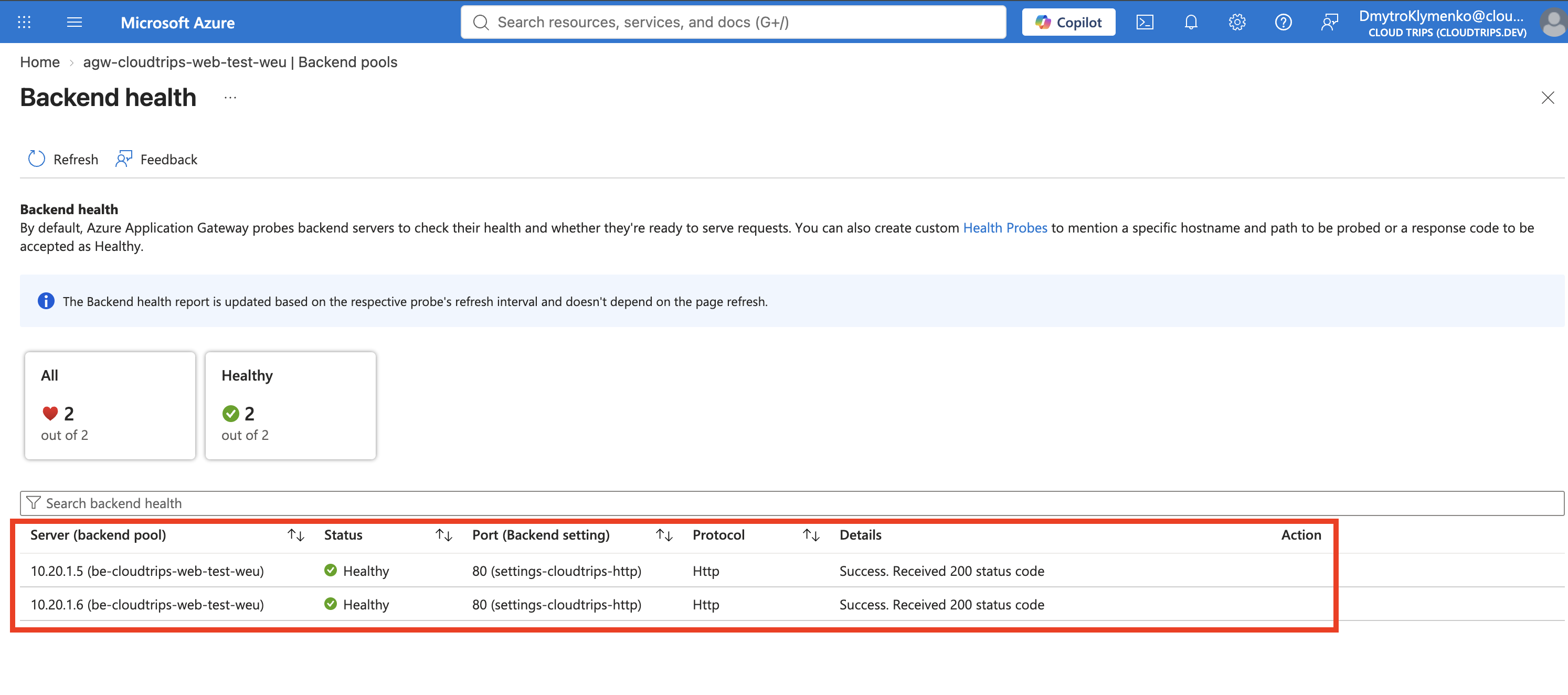
An unhealthy result usually means that the web service is stopped, the NSG
does not allow 10.20.4.0/24 to reach port 80, or the backend settings use the
wrong protocol or port.
Test Layer 7 Routing
Copy the public IP from the Application Gateway overview and run:
for request in {1..6}; do
  curl --connect-timeout 10 http://<application-gateway-public-ip>
done
The responses should come from WEB01 and WEB02. Application Gateway reads each
HTTP request, evaluates rule-cloudtrips-http, selects a healthy server from
be-cloudtrips-web-test-weu, and sends a new HTTP request to backend port 80.
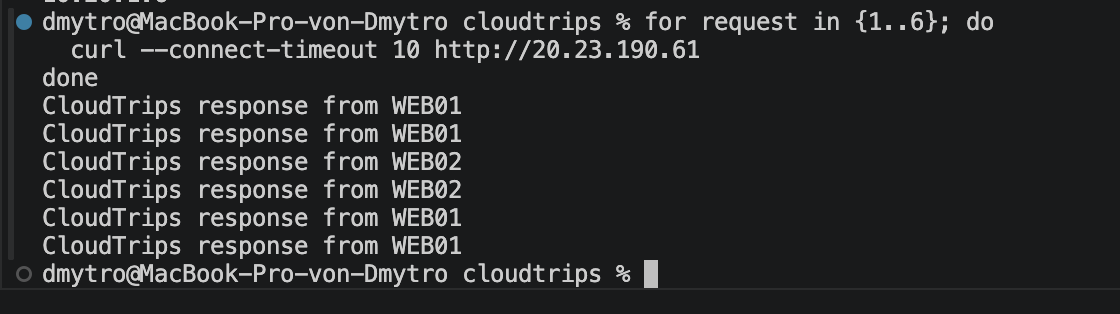
The visible result resembles the regional Load Balancer test, but the decision now occurs at Layer 7. The current basic rule sends every URL to the same pool; the next trip uses the HTTP path to select different backend pools.
Keep or Remove the Lab
Keep agw-cloudtrips-web-test-weu, pip-cloudtrips-appgw-test-weu,
snet-appgw, and both web VMs when continuing immediately with the
path-based-routing and rewrite-rule trips.
If you are pausing the labs, delete the Application Gateway first and then its
public IP to stop their charges. The empty snet-appgw subnet can remain at no
charge. Deallocate the two web VMs when they are not needed.