VM Needs a Network Adapter? Create a Network Interface
A virtual machine needs a connection point to an Azure network. That connection point is a network interface, commonly called a NIC.
The NIC connects the future CloudTrips VM to snet-app and receives a private
IP address from that subnet. Its primary IP configuration can also reference
the public IP reserved for the VM.
This trip builds on: VM Needs an Internet Address? Create a Public IP.
Plan the Interface
Use:
Subscription: CloudTrips TEST
Resource group: rg-cloudtrips-network-test-weu
Region: West Europe
Name: nic-cloudtrips-vm-test-weu
Virtual network: vnet-cloudtrips-test-weu
Subnet: snet-app
IP version: IPv4
Private IP assignment: Dynamic
Public IP: pip-cloudtrips-vm-test-weu
The NIC belongs to one VNet and one subnet. Azure will dynamically reserve an
available private address from snet-app at 10.20.1.0/24. Dynamic allocation
does not mean that the address changes on every restart; the private address
normally remains assigned until the NIC is changed or deleted.
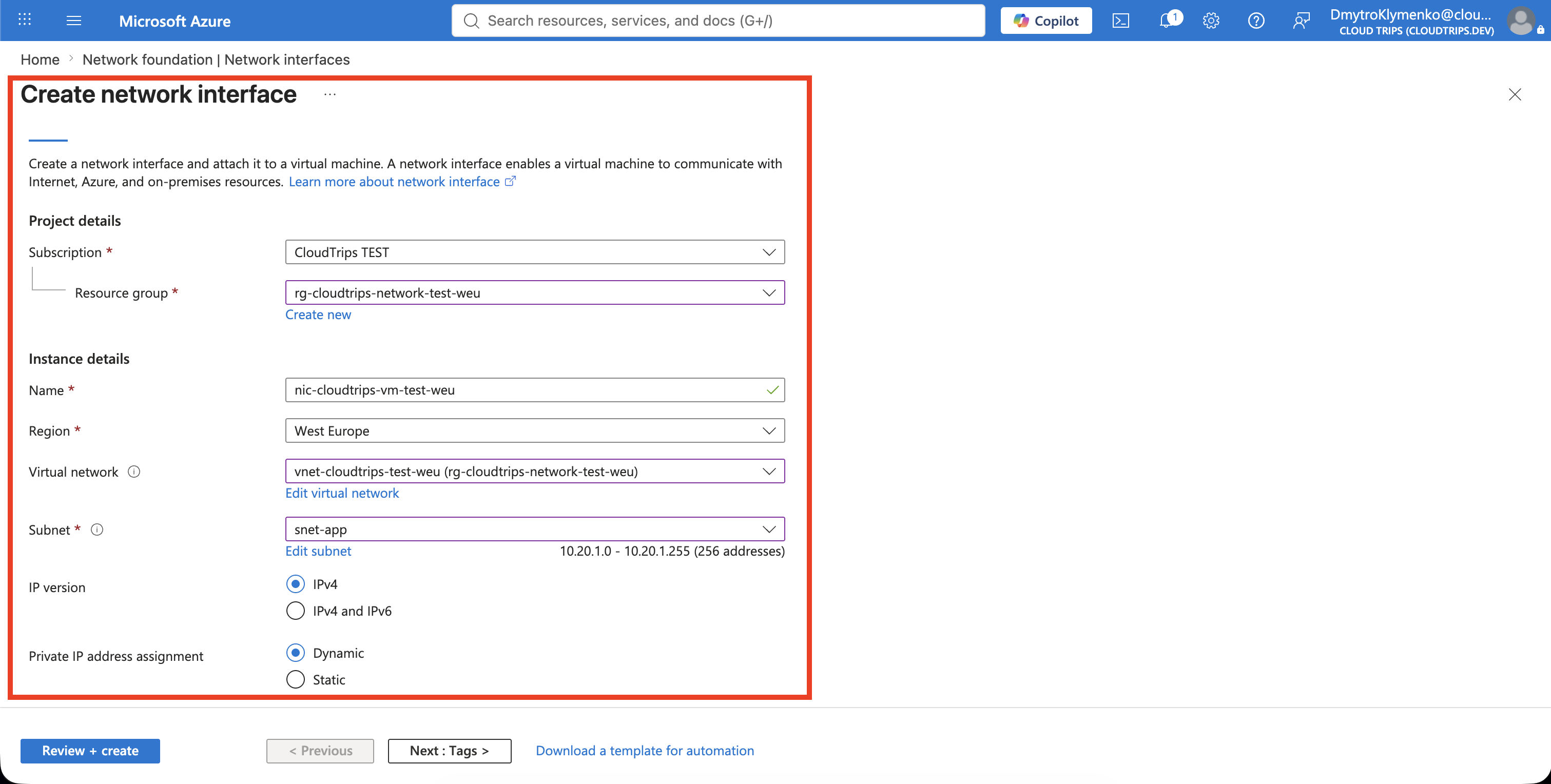
Create the Network Interface
In the Azure portal, search for Network interfaces, open the service, and select Create.
Configure:
Subscription: CloudTrips TEST
Resource group: rg-cloudtrips-network-test-weu
Name: nic-cloudtrips-vm-test-weu
Region: West Europe
Virtual network: vnet-cloudtrips-test-weu
Subnet: snet-app
IP version: IPv4
Private IP address assignment: Dynamic
If the portal shows these additional options, leave Accelerated networking disabled and Network security group set to None. Accelerated networking depends on the future VM size, and a later trip will add the security rules.
On Tags, add:
Application: CloudTrips
Environment: TEST
Purpose: VM
Select Review + create, and then select Create.
Associate the Public IP
Associating the public IP gives internet traffic an address through which it can reach the NIC and, later, the VM attached to it. Azure maps traffic sent to the public address to the NIC’s private address; the VM itself continues to use its private IP inside the VNet.
This association is optional. It is needed only when the VM must accept a direct inbound connection from the internet. An internal VM, or one reached through Azure Bastion, a VPN, a load balancer, or another controlled entry point, does not need its own public IP. The association also does not open any ports; an NSG must explicitly allow the required traffic.
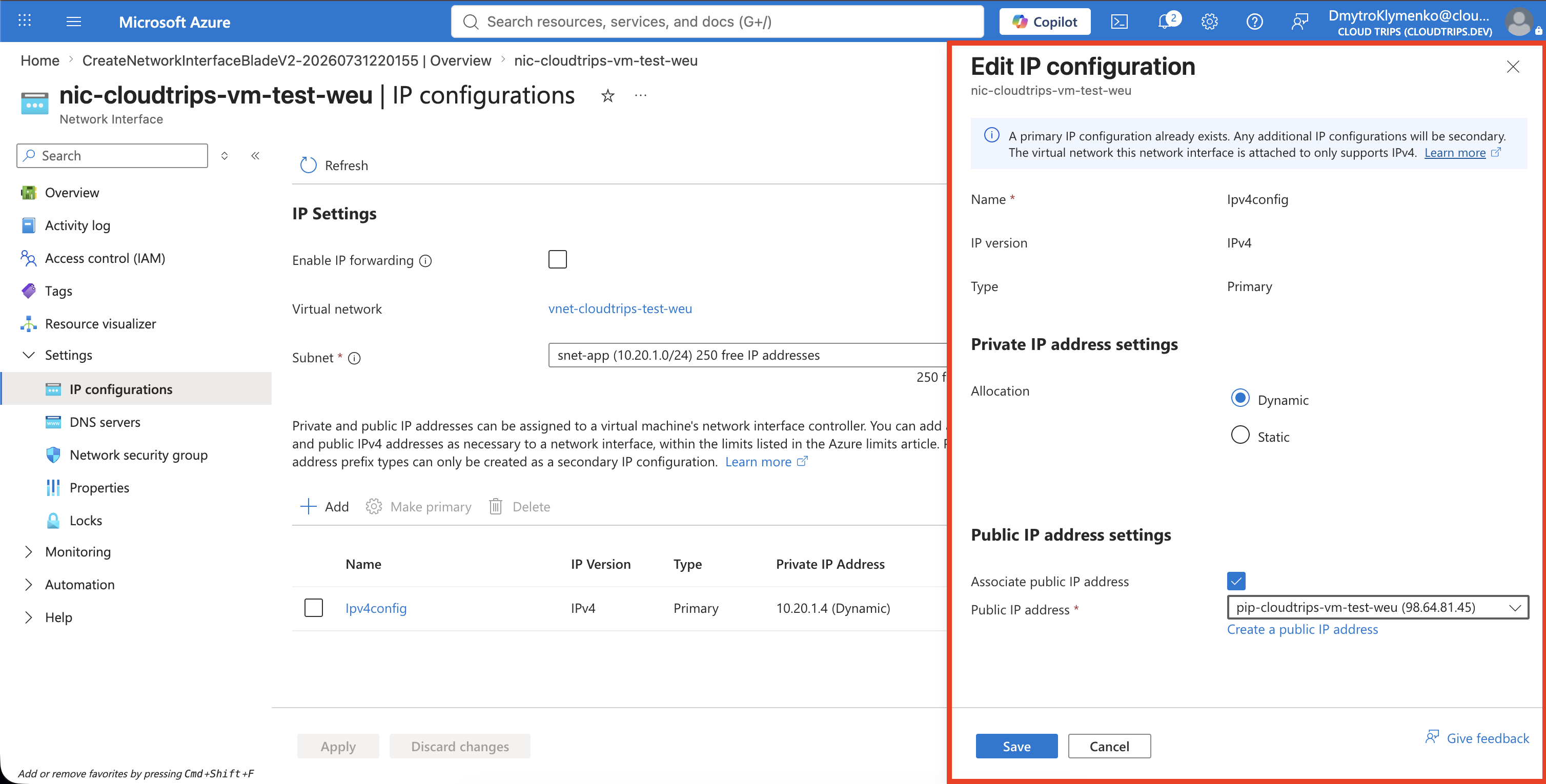
The portal does not offer a public IP selection while creating a standalone NIC. Open the new NIC and go to:
Settings > IP configurations > ipconfig1Under Public IP address settings, select Associate. Select:
Public IP address: pip-cloudtrips-vm-test-weuKeep the private IP allocation Dynamic, and then select Save.
Verify the Interface
Open the NIC’s Overview and IP configurations pages. Confirm:
Virtual network/subnet: vnet-cloudtrips-test-weu/snet-app
Private IP address: An address from 10.20.1.0/24
Private IP assignment: Dynamic
Public IP address: pip-cloudtrips-vm-test-weu
Virtual machine: No VM shown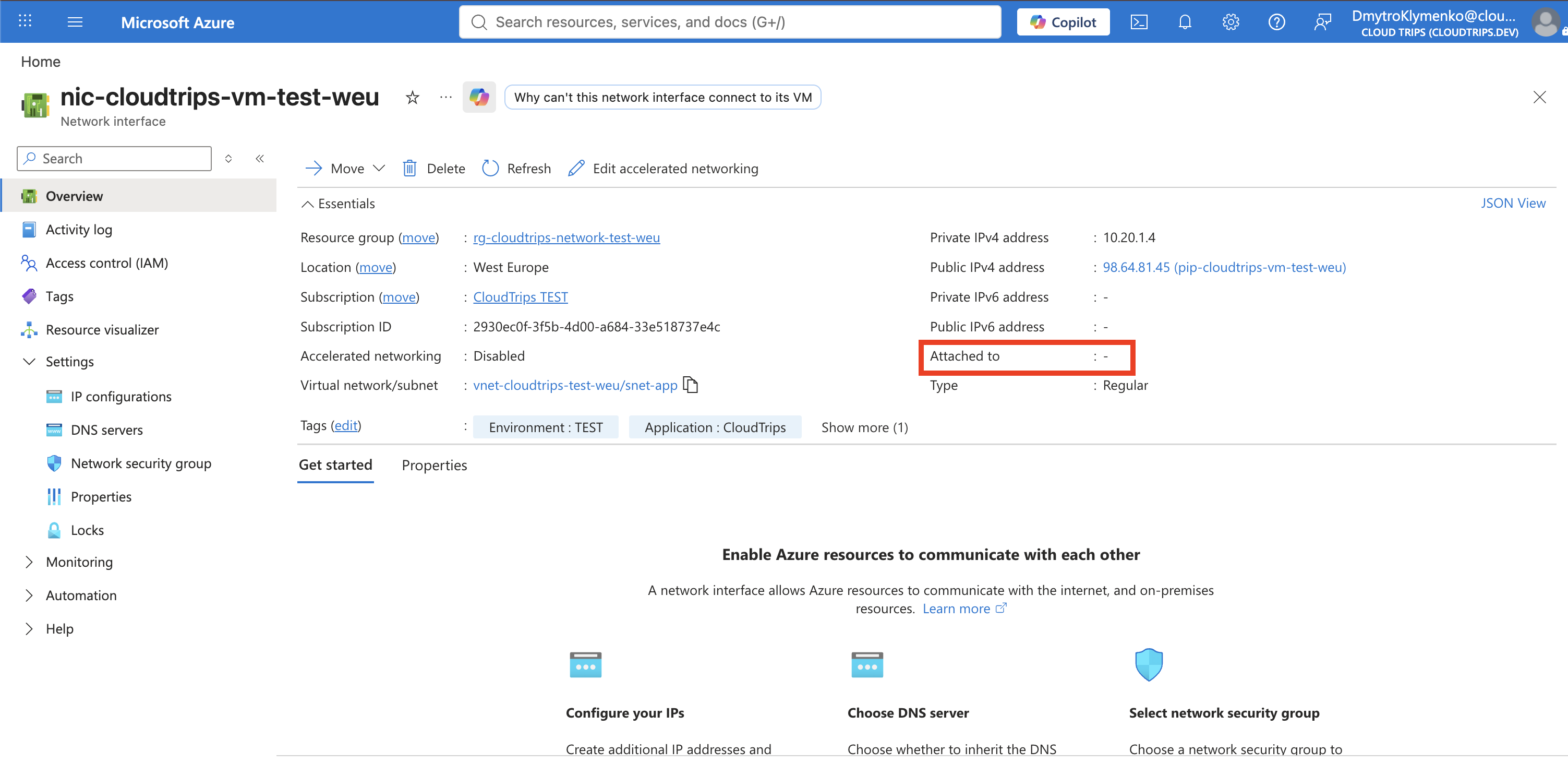
The empty VM association is expected because the VM does not exist yet. The MAC address can also remain empty until the NIC is attached to a VM and that VM starts for the first time.
Associating a Standard public IP does not automatically permit inbound connections. The intended port must later be allowed explicitly with a network security group. A later VM trip will use this existing NIC when creating the VM with Azure CLI.
Keep the NIC for the following trips. If you delete it, the public IP is dissociated but not deleted; it continues to exist and can continue to incur charges.