Two VNets Need Private Communication? Create VNet Peering
CloudTrips now needs a separate network for shared services. Keeping those services in another VNet provides an independent address space and network boundary, but VNets are isolated until they are deliberately connected.
Create a VNet peering between the application VNet and a new services VNet. Peering lets resources use their private IP addresses across the Microsoft backbone without a public IP, VPN gateway, or internet path.
Peering does not merge the VNets. Each VNet keeps its own subnets, NSGs, route tables, and administrative boundary.
This trip builds on: Traffic Must Use a Custom Path? Create a Route Table.
Plan the Peering
Use:
Application VNet: vnet-cloudtrips-test-weu
Application address space: 10.20.0.0/16
Services VNet: vnet-cloudtrips-services-test-weu
Services address space: 10.40.0.0/16
Services subnet: snet-services
Services subnet range: 10.40.1.0/24
Region: West Europe
The ranges do not overlap. Overlapping address spaces cannot be peered because Azure would not know which VNet owns a matching destination address.
The previous route-table trip blocked only 10.30.0.0/16. It does not block
the new 10.40.0.0/16 services VNet, and peering routes remain enabled on
rt-cloudtrips-app-test-weu.
Create the Services VNet
In the Azure portal, search for Virtual networks, open the service, and select Create.
On Basics, configure:
Subscription: CloudTrips TEST
Resource group: rg-cloudtrips-network-test-weu
Name: vnet-cloudtrips-services-test-weu
Region: West Europe
On Security, do not add Azure Bastion, Azure Firewall, a DDoS protection plan, or virtual network encryption for this exercise.
On IP Addresses, set:
IPv4 address space: 10.40.0.0/16
Subnet purpose/template: Default
Subnet name: snet-services
Starting address: 10.40.1.0
Subnet size: /24
Default outbound access: Disabled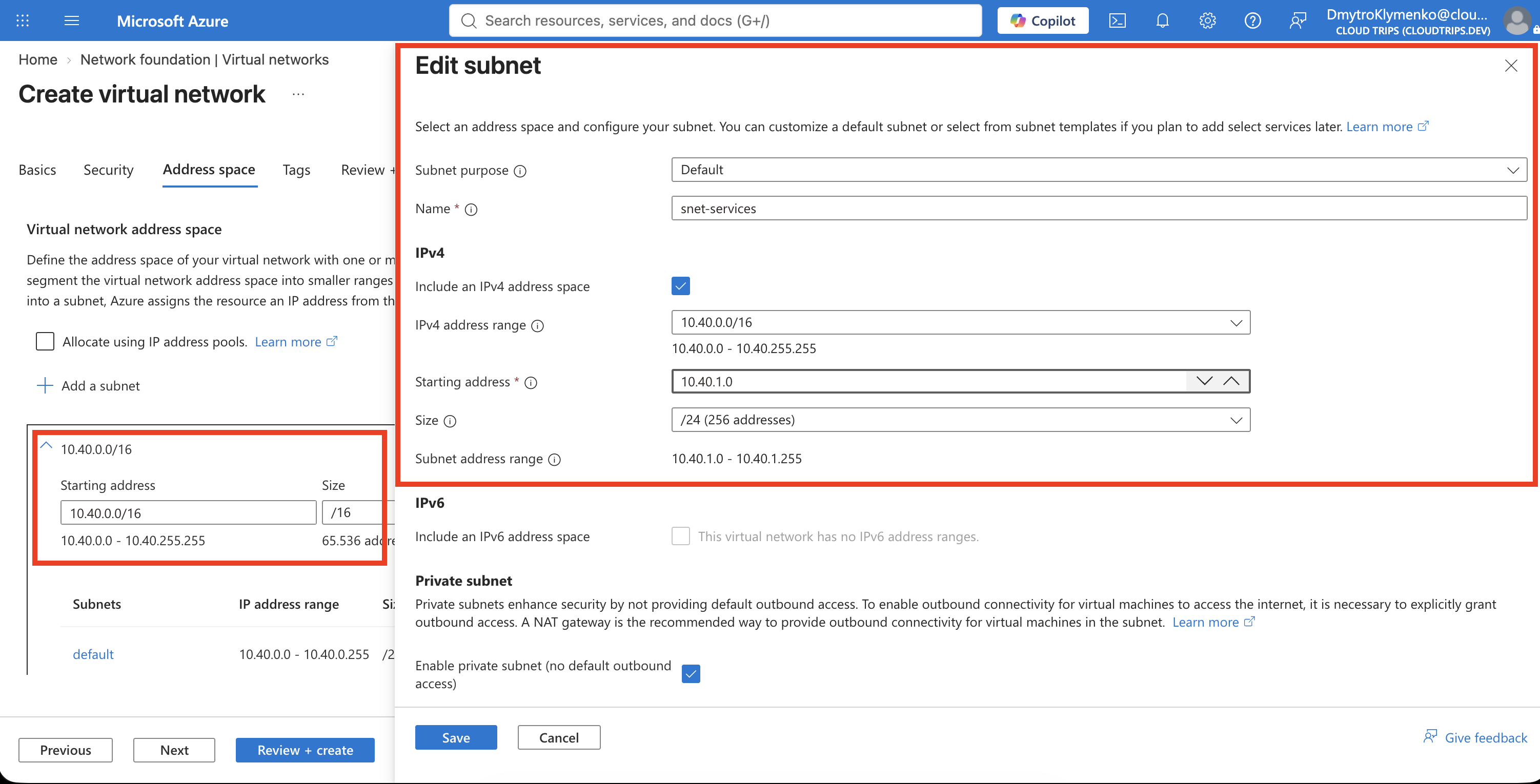
On Tags, add:
Application: CloudTrips
Environment: TEST
Purpose: SharedServices
Select Review + create, and then select Create.
Understand the Two Peering Links
Communication is bidirectional, but Azure represents it with two directional peering resources:
vnet-cloudtrips-test-weu
└── peer-app-to-services ──────► vnet-cloudtrips-services-test-weu

vnet-cloudtrips-services-test-weu
└── peer-services-to-app ──────► vnet-cloudtrips-test-weu
Because both VNets are in the same subscription and you can manage both, the portal creates both links in one operation.
Add the Peering
Open vnet-cloudtrips-test-weu, select Settings > Peerings, and select
Add.
In this form, Local virtual network means the currently open application
VNet, while Remote virtual network means the services VNet selected below.
The Local peering name is therefore peer-app-to-services; the Remote peering
name is peer-services-to-app.
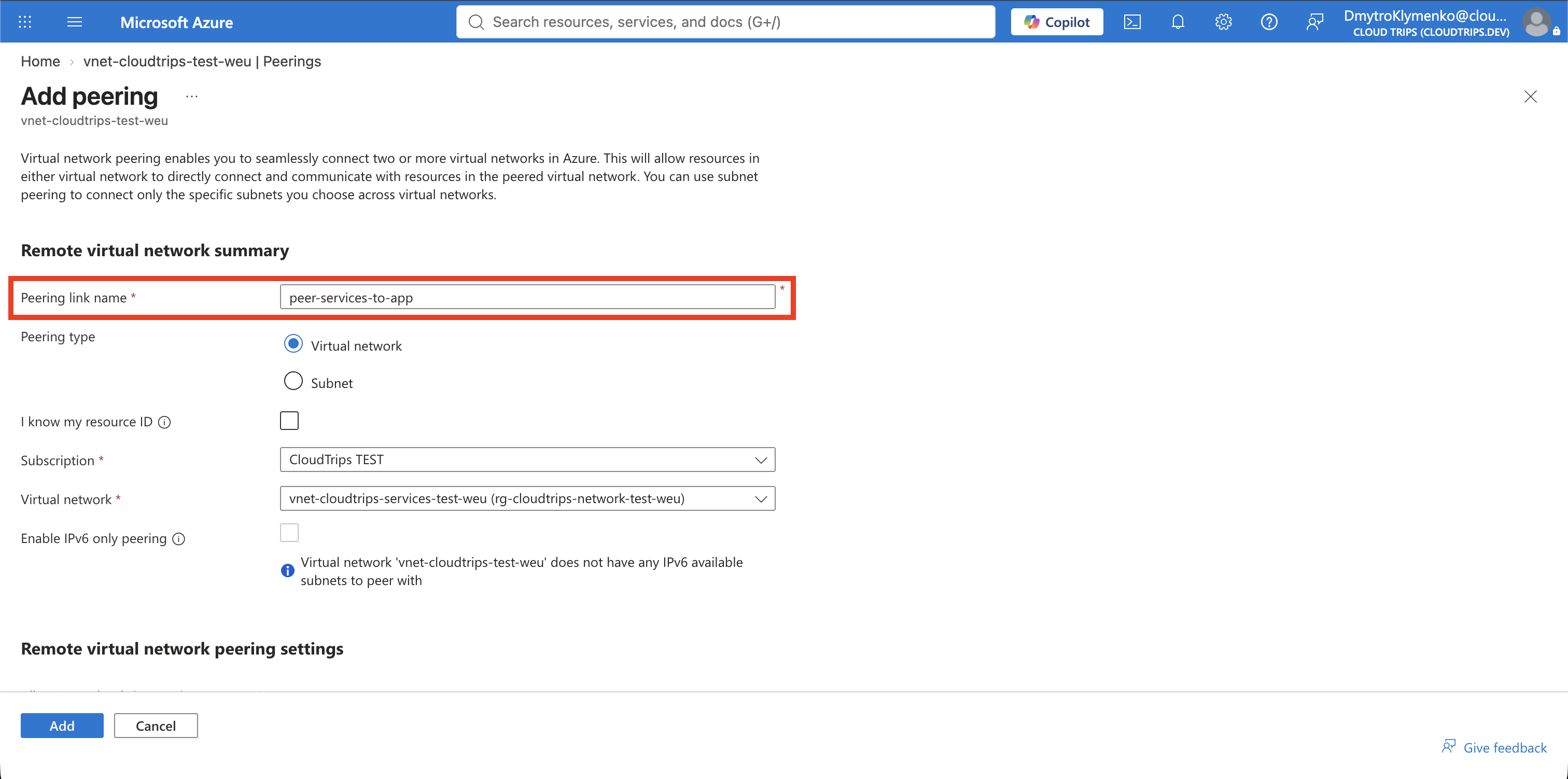
Under Remote virtual network summary, configure:
Peering link name: peer-services-to-app
Subscription: CloudTrips TEST
Virtual network: vnet-cloudtrips-services-test-weu
Allow the remote VNet to access vnet-cloudtrips-test-weu. Do not enable
forwarded traffic or gateway/route-server transit. Those settings are needed
only when another device or gateway forwards traffic through a VNet.
Under Local virtual network summary, configure:
Peering link name: peer-app-to-servicesAllow vnet-cloudtrips-test-weu to access the remote VNet. Again, leave
forwarded traffic and gateway/route-server options disabled.
Select Add.
Verify Both Directions
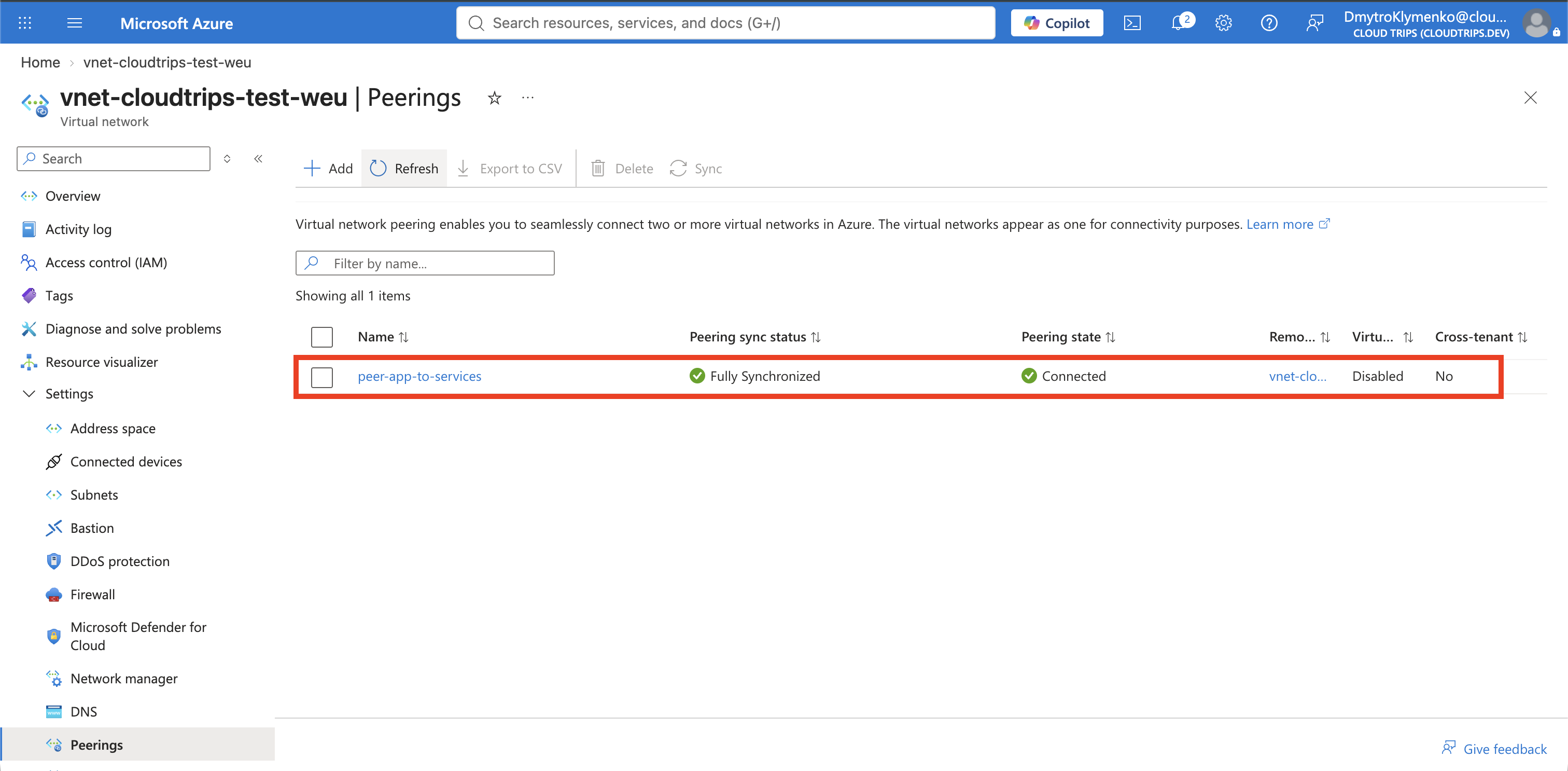
Return to Peerings and select Refresh until
peer-app-to-services shows Connected.
Open vnet-cloudtrips-services-test-weu > Settings > Peerings and
confirm that peer-services-to-app also shows Connected.
You can also verify both resources in Cloud Shell:
az network vnet peering list \
  --resource-group rg-cloudtrips-network-test-weu \
  --vnet-name vnet-cloudtrips-test-weu \
  --query "[].{Name:name,State:peeringState,Access:allowVirtualNetworkAccess}" \
  --output table

az network vnet peering list \
  --resource-group rg-cloudtrips-network-test-weu \
  --vnet-name vnet-cloudtrips-services-test-weu \
  --query "[].{Name:name,State:peeringState,Access:allowVirtualNetworkAccess}" \
  --output table
Both results should show Connected and True.
Peering provides the private route, but NSGs still control which connections are allowed and applications must listen on the destination ports. Name resolution across the two VNets also requires an appropriate DNS design. No workload exists in the services VNet yet, so this trip verifies the peering configuration rather than an application connection.