Keys Need a Dedicated HSM Service? Configure Azure Managed HSM
Your organization needs hardware-protected keys, a service isolated to its tenant, and control over the recovery material. Azure Managed HSM provides a single-tenant Hardware Security Module service. Azure operates the infrastructure; your administrators control key access and the security domain, the cryptographic material needed to recover the HSM with backups.
Both this service and Key Vault Premium protect keys inside HSM hardware. The difference is isolation and recovery control:
| Key Vault Premium | Azure Managed HSM |
|---|---|
| Shared service infrastructure | HSM service dedicated to your tenant |
| Create vault → create key | Create HSM → activate security domain → create key |
| Azure manages the security domain | You safeguard security-domain recovery material using a quorum of private keys |
| Stores secrets, certificates, and keys | Stores cryptographic keys |
| HSM key charges plus operation charges | Ongoing hourly service charge |
Premium suits applications needing hardware-protected keys. Managed HSM suits organizations requiring dedicated tenant isolation and greater control over recovery. This exercise creates a separate Managed HSM.
Check the hourly price before deployment. Billing continues while the HSM is soft-deleted, until it is purged. Use only disposable test keys in this lab.
Prepare the Activation Files
On your Mac, open Terminal and run these commands with OpenSSL available:
umask 077
hsm_recovery_dir=$(mktemp -d "$HOME/Downloads/ct-hsm-recovery.XXXXXX")
cd "$hsm_recovery_dir" || exit 1
openssl req -newkey rsa:2048 -nodes -keyout recovery1.key -x509 -days 365 -subj "/CN=CloudTrips-Recovery-1" -out recovery1.cer
openssl req -newkey rsa:2048 -nodes -keyout recovery2.key -x509 -days 365 -subj "/CN=CloudTrips-Recovery-2" -out recovery2.cer
openssl req -newkey rsa:2048 -nodes -keyout recovery3.key -x509 -days 365 -subj "/CN=CloudTrips-Recovery-3" -out recovery3.cer
open .
Finder opens a new folder under Downloads containing three public certificates (.cer) and three matching private keys (.key). Upload the certificates during activation. Keep the private keys securely outside the website repository; these lab files are unencrypted and protected by local file permissions.
Create the Managed HSM
In Azure portal → Azure Key Vault Managed HSMs → Create, enter:
Subscription: CloudTrips TEST
Resource group: rg-cloudtrips-mhsm-test-weu
Managed HSM name: mhsm-ctlabweu
SKU: Standard B1 (Standard_B1)
Region: West Europe
Initial administrator: your signed-in user
Soft-delete retention: 7 days
Purge protection: Disabled for this disposable lab
Use a unique name if taken. Allow public network access for this portal lab, review the settings and price, then create the resource.
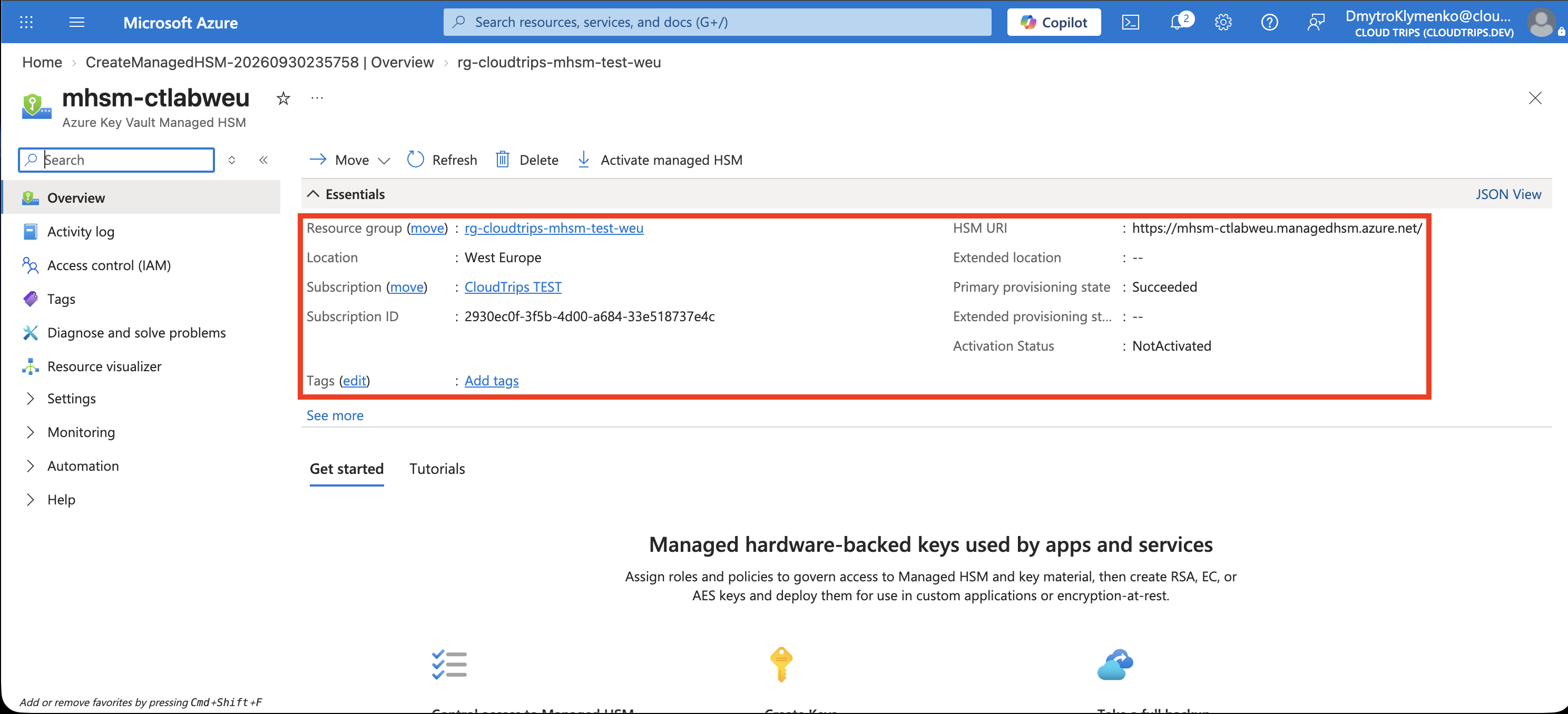
Confirm the resource name and successful provisioning. Activation is the next step before key creation.
Activate the Security Domain
As the initial administrator, open mhsm-ctlabweu → Overview and select Activate managed HSM in the top toolbar. Upload recovery1.cer, recovery2.cer, and recovery3.cer. Set Quorum: 2, then download the encrypted security-domain file and complete activation.
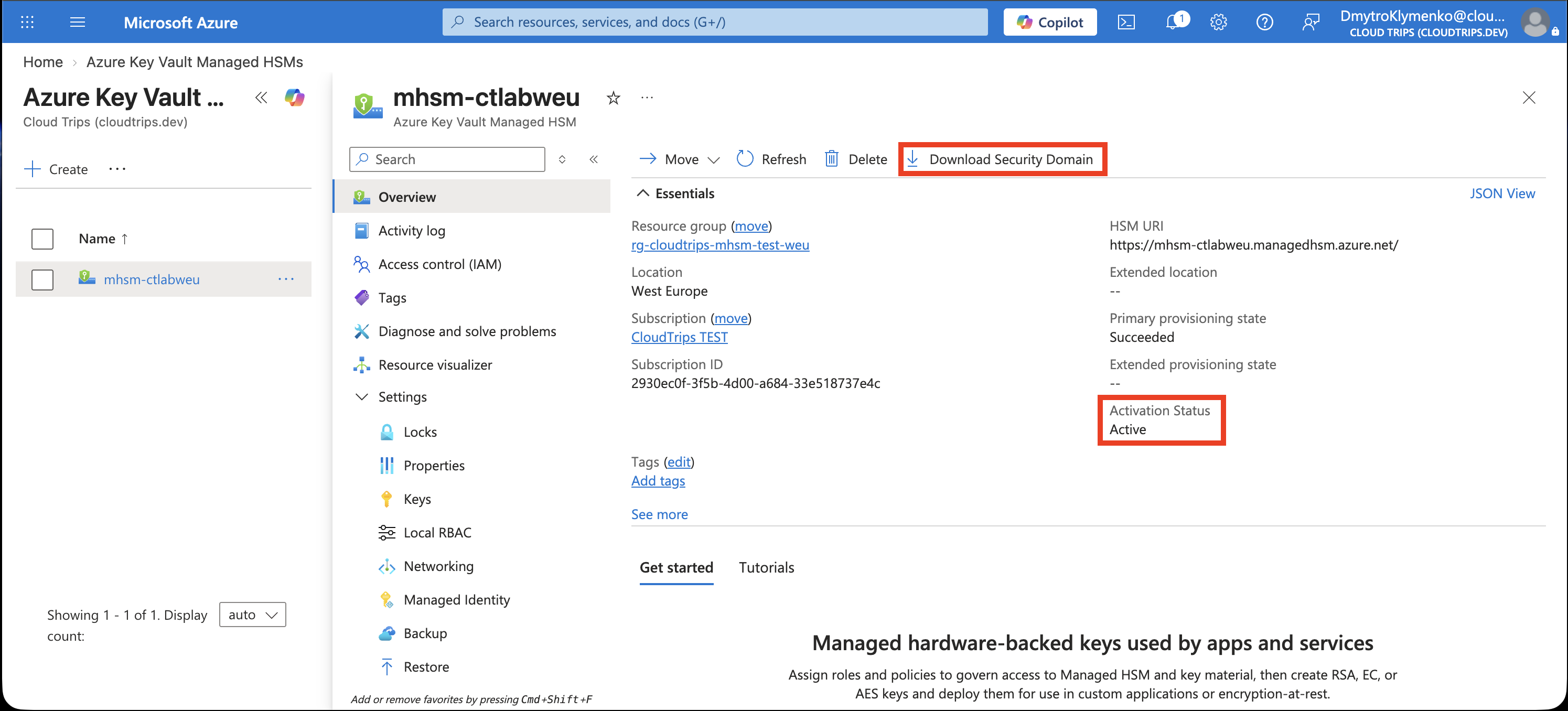
Check that activation completed and the downloaded file exists. The security domain is protected recovery material that lets you restore backed-up keys into another Managed HSM. The downloaded file is encrypted using your three recovery certificates; with quorum 2, any two matching private keys can unlock it.
Recovery requires the security-domain file + two recovery private keys + the HSM backup. Store the file and private keys securely in separate locations. Production deployments distribute recovery keys among separate custodians.
Assign Key Access and Create a Key
Open Settings → Local RBAC → Add role assignment:
Role: Managed HSM Crypto User
Scope: /keys
Principal: your signed-in user
The initial administrator controls activation and role assignments. Crypto User supplies key-management permissions. Managed HSM uses local RBAC for these operations; Azure IAM controls the Azure resource.
After the assignment takes effect, open Settings → Keys → Generate/Import:
Options: Generate
Name: demo-managed-key
Key type: RSA-HSM
Key size: 2048
Enabled: Yes
Create the key and open its current version.
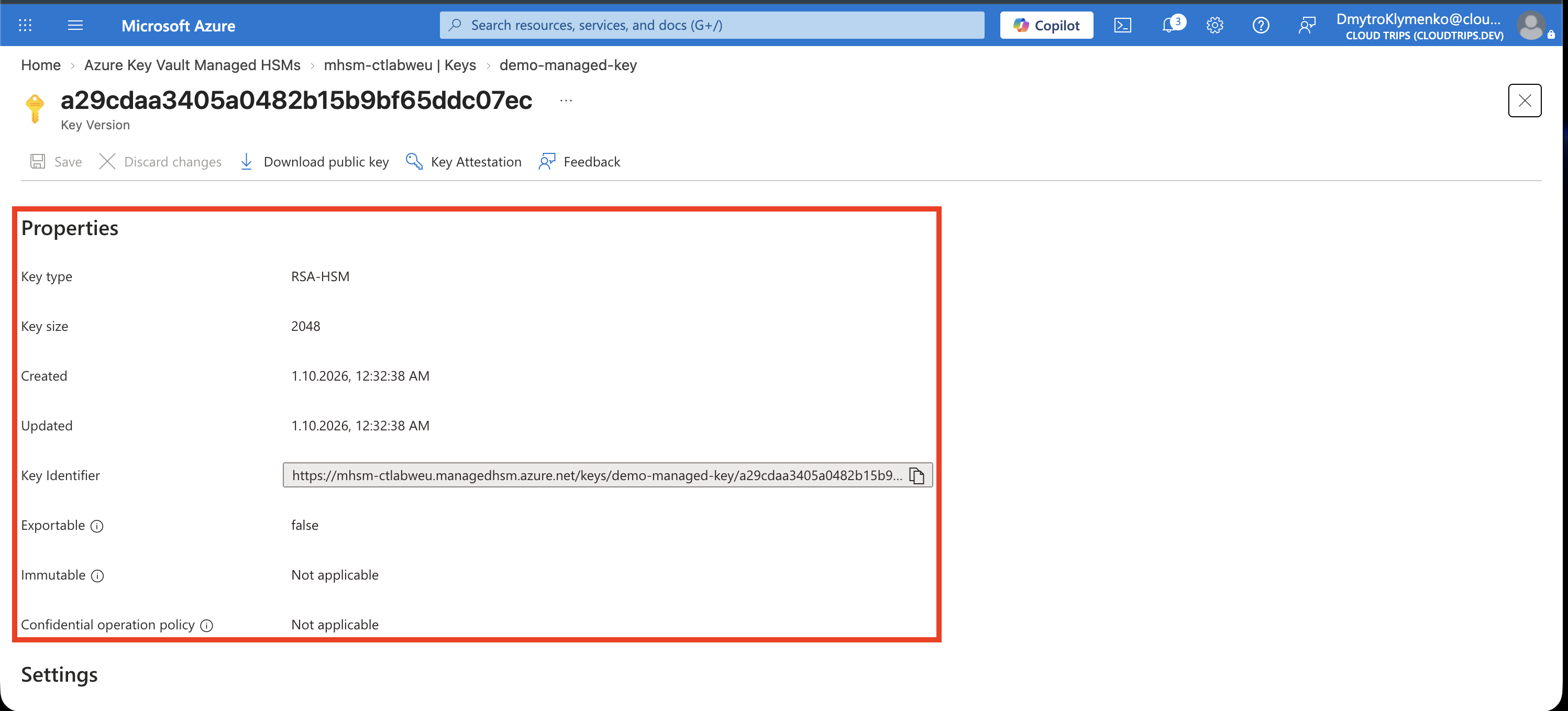
Check the key type and identifier under mhsm-ctlabweu.managedhsm.azure.net. The successful creation verifies activation and your key permissions. Applications use the endpoint with their own identities and assigned key permissions.
Delete and Purge the Lab
When finished, delete mhsm-ctlabweu. Then open Azure Key Vault Managed HSMs → Manage deleted HSMs, select your subscription and mhsm-ctlabweu, and choose Purge. Purging permanently removes this test HSM and ends its ongoing service billing. Confirm it disappears from the deleted list, then delete the empty rg-cloudtrips-mhsm-test-weu.
If purge protection was enabled, purging must wait until retention expires and billing continues during that period. Keep recovery material while the HSM or its backups are needed.