Incident Response Needs Automation? Configure a Sentinel Rule and Playbook
Analysts repeatedly add the same investigation instructions to incidents. Manual work takes time, and steps can be missed. A Sentinel automation rule decides when to act; a playbook, built in Azure Logic Apps, performs the workflow. Here, tagging your existing test incident starts a playbook that adds a comment.
Reuse law-ctsentinelweu, rg-cloudtrips-sentinel-test-weu, and the incident from Configure Microsoft Sentinel. Use your subscription Owner account for setup. Logic Apps runs can incur charges.
Create the Playbook
In the Microsoft Defender portal → Microsoft Sentinel → Configuration → Automation, select workspace law-ctsentinelweu, then Create → Playbook with incident trigger.
Subscription: CloudTrips TEST
Resource group: rg-cloudtrips-sentinel-test-weu
Playbook name: pb-ctincident-note-weu
Region: West Europe
Plan: Consumption
Connections: Managed identity
Create the playbook. In the Logic Apps designer, keep the Microsoft Sentinel incident trigger. Select + → Add an action, search for Microsoft Sentinel, and choose Add comment to incident (V3). Use the same managed-identity connection.
Incident ARM id: select Incident ARM ID from the trigger's dynamic content
Incident comment message: CloudTrips automation: Check the caller, source IP, and deletion time. Confirm that this was the planned lab action before closing the incident.
Select Incident ARM ID using the dynamic-content button; this supplies the current incident’s identifier on each run. Save.
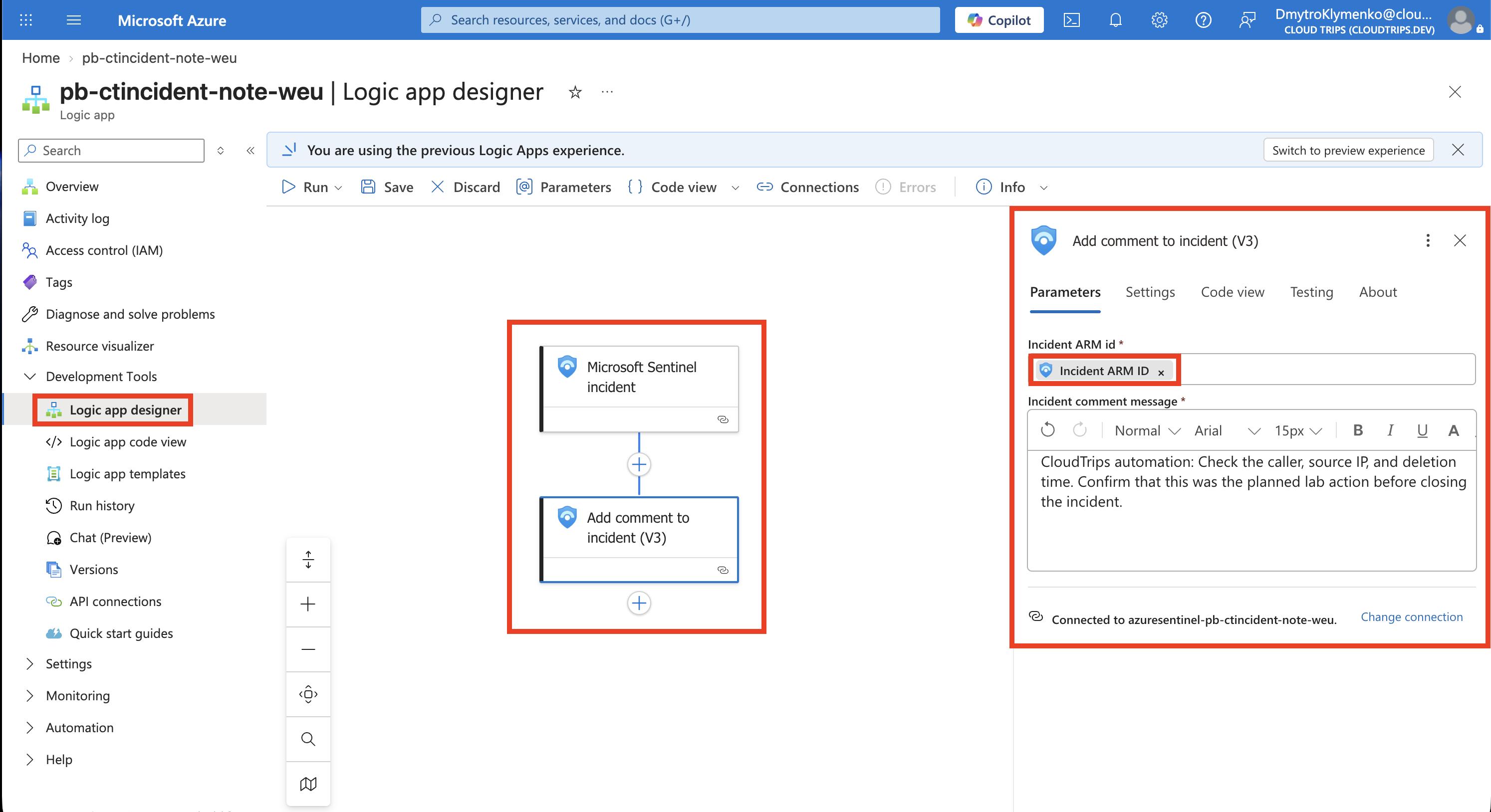
Check that the comment action follows the incident trigger and its ID field contains the dynamic token.
In the Azure portal, open law-ctsentinelweu → Access control (IAM) → Add role assignment. Assign Microsoft Sentinel Responder to Managed identity → Logic App → pb-ctincident-note-weu. This lets the playbook write incident comments. Its Identity → System assigned setting must be On.
Connect the Automation Rule
Return to Automation → Create → Automation rule. Combine all three conditions with AND:
Name: CloudTrips - Add investigation note
Trigger: When incident is updated
Condition 1: Tag / Any individual tag / Equals / cloudtrips-automate
Condition 2: Tag / Tags collection does not contain / cloudtrips-automation-started
Condition 3: Tag / Added (state-change condition)
Action 1: Add tags → cloudtrips-automation-started
Action 2: Run playbook → pb-ctincident-note-weu
Order: 1
Status: Enabled
The update trigger requires a state-change condition: Tag → Added detects a newly added tag. The first condition selects the lab incident. The second marks it as handled by this rule, preventing the playbook’s comment from triggering another run. Keep the actions in the displayed order.
In the Azure portal → Microsoft Sentinel → law-ctsentinelweu → Configuration → Settings → Settings tab, expand Playbook permissions → Configure permissions. Select rg-cloudtrips-sentinel-test-weu and Apply. Return to the automation rule in Defender. This grants Sentinel Microsoft Sentinel Automation Contributor on the group so it can start the playbook; the playbook’s Responder role lets it update the incident. Select the playbook and save the rule.
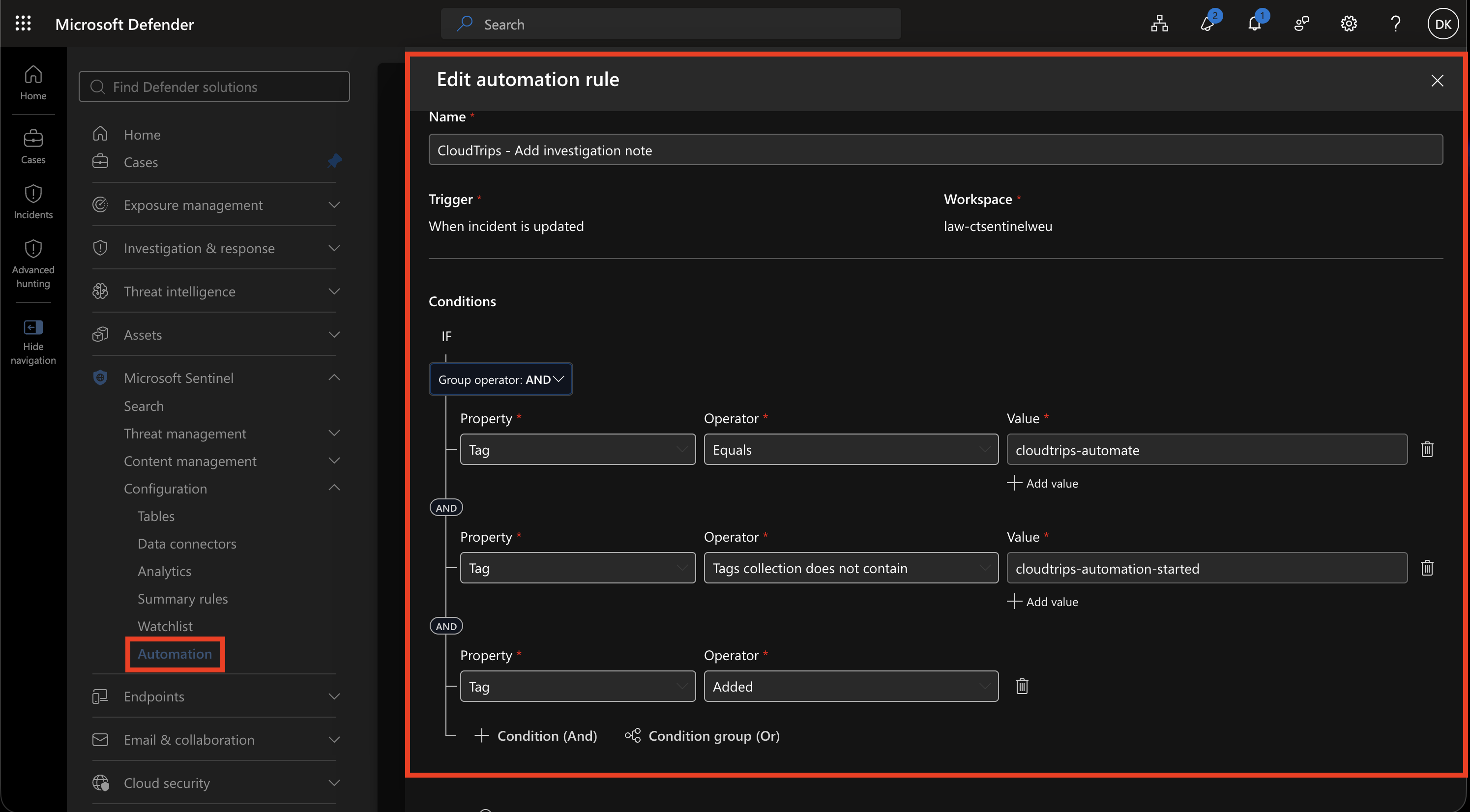
Check all three tag conditions, the collection-wide exclusion, and the selected playbook. A greyed-out playbook indicates that Sentinel still needs permission to run it.
Trigger and Check the Result
Open your existing test incident in Defender → Incidents. Add the tag cloudtrips-automate and save. If it already exists, remove it, save, then add it again after saving the rule. Allow time for synchronization and automation, then refresh its activity/comments.
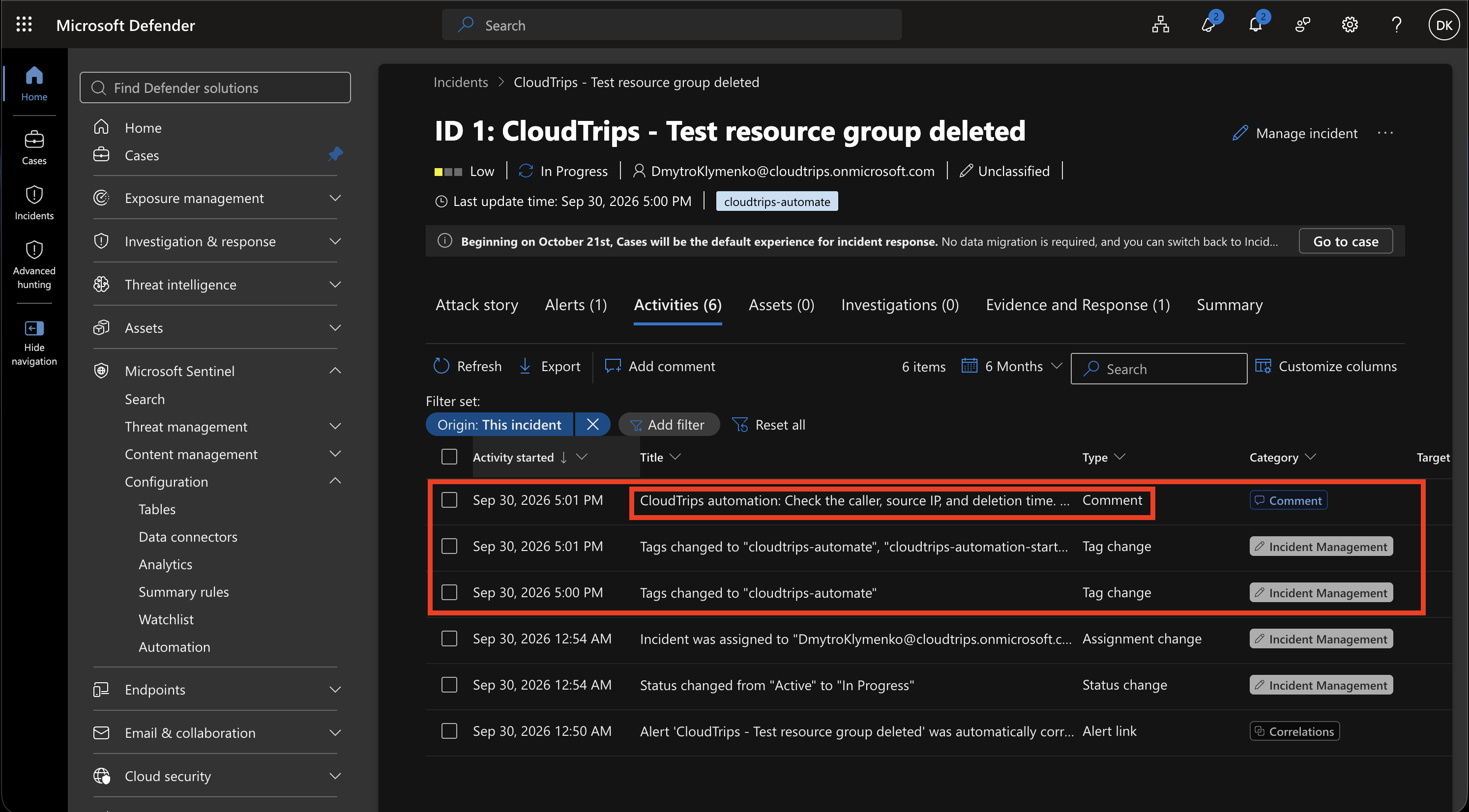
Check for the exact comment entered above. The tag shows that the rule selected the incident; the comment proves the playbook wrote to it. In Azure portal → Logic Apps → pb-ctincident-note-weu → Overview → Runs history, open the corresponding run and check for Succeeded. For a failed run, open the failed action to read its error; a 403 usually requires checking the managed identity’s workspace role.
Finish
Disable CloudTrips - Add investigation note after testing. Keep the workspace for later trips. To remove this workflow, delete its automation rule, Logic App, and associated API connection when that connection is used only by this playbook.