Security Events Need Investigation? Configure Microsoft Sentinel
A resource group disappears from your subscription. You need to know who deleted it, when it happened, and whether the action was expected. Microsoft Sentinel collects security-relevant logs, detects selected events, and gathers alerts into incidents for investigation. This lab detects the deletion of an empty test resource group.
Create the Workspace and Connect Logs
The logs need a place to live before Sentinel can analyze them. A Log Analytics workspace stores events in tables; Sentinel adds security detection rules, alerts, and incident investigation on top. You can also enable Sentinel on an existing workspace.
In Log Analytics workspaces → Create, use:
Subscription: CloudTrips TEST
Resource group: rg-cloudtrips-sentinel-test-weu
Workspace: law-ctsentinelweu
Region: West Europe
Open Microsoft Sentinel → Create, select law-ctsentinelweu, and add Sentinel. Review the displayed pricing or trial terms. Use an account with workspace creation, Sentinel configuration, and subscription diagnostic-settings permissions; your subscription Owner account covers this lab.
In Sentinel, open Content hub, find Azure Activity, and install the solution. Its connector uses subscription diagnostic settings. For this single-subscription lab, configure the connection directly: open Subscriptions → CloudTrips TEST → Activity log → Export Activity Logs → Add diagnostic setting.
Name: activity-to-sentinel
Logs: Administrative
Destination: Send to Log Analytics workspace
Workspace: law-ctsentinelweu
Save. Administrative logs record resource-management changes across this subscription. New events flow into the workspace’s AzureActivity table.
Create a separate, empty resource group named rg-ctsentinel-event-weu in West Europe. Delete only this empty group to generate the test event. Record the deletion time.
KQL (Kusto Query Language) searches and analyzes these tables. In the query below, where filters events, project selects the displayed columns, and each | passes the previous step’s results to the next step.
Open your Sentinel workspace’s Logs, switch to KQL mode if prompted, and run:
AzureActivity
| where TimeGenerated > ago(2h)
| where ResourceGroup =~ "rg-ctsentinel-event-weu"
| where OperationNameValue =~ "MICROSOFT.RESOURCES/SUBSCRIPTIONS/RESOURCEGROUPS/DELETE"
| where ActivityStatusValue =~ "Success"
| project TimeGenerated, Caller, CallerIpAddress,
          OperationNameValue, ResourceGroup, ResourceId, CorrelationId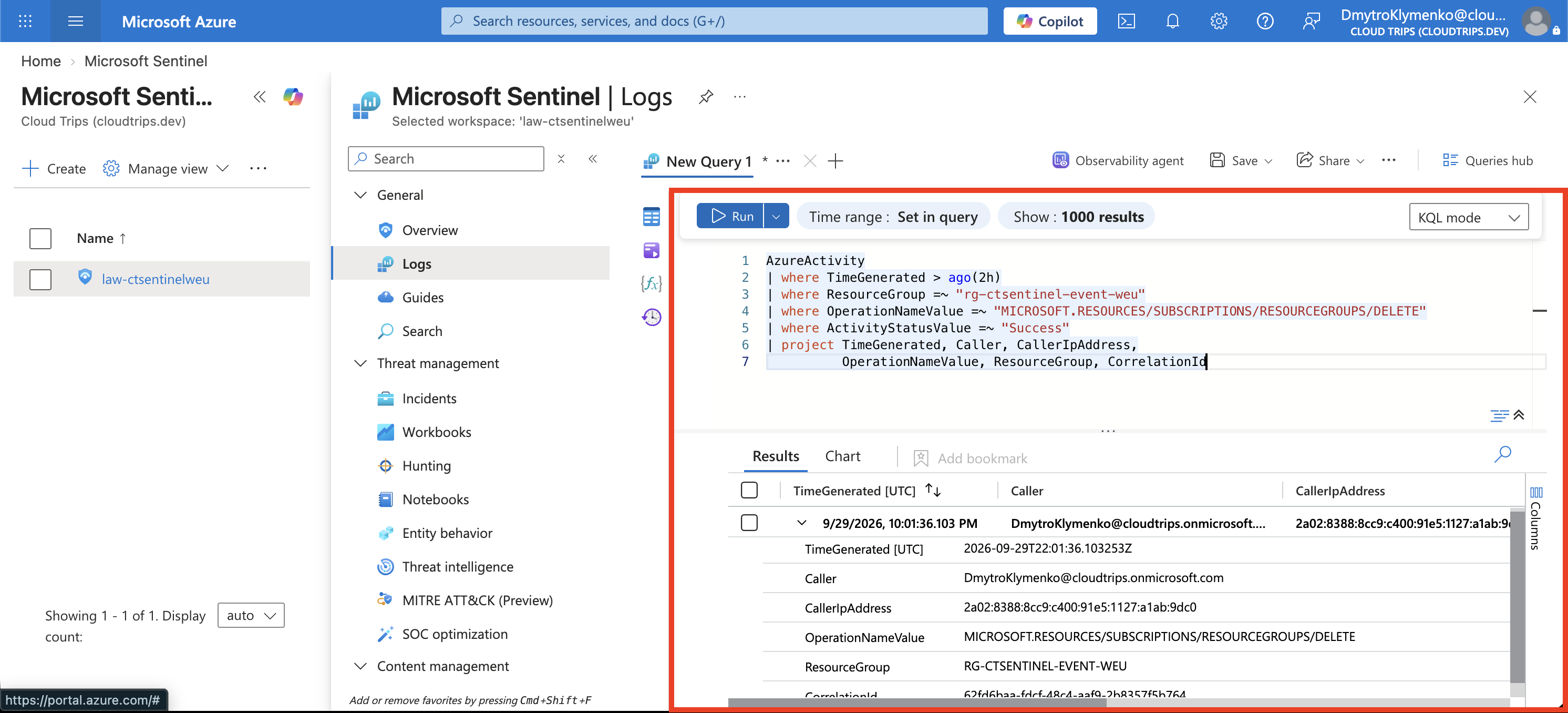
Check the UTC TimeGenerated, Caller, operation, and resource-group name against your action. CorrelationId links records from the same operation. Initial ingestion can take time; rerun until the event appears. If the table is missing or empty, confirm the diagnostic setting targets this workspace and generate a fresh test deletion after collection is active.
Turn the Query into a Detection
Open the Microsoft Defender portal → Advanced hunting, select workspace law-ctsentinelweu, paste the query above, and select Run query. Then select Create detection rule. Name it CloudTrips - Test resource group deleted, set severity Low, and leave it enabled. Keep the query from Advanced hunting.
Custom detection name: CloudTrips - Test resource group deleted
Frequency: Custom
Run every: 5 minutes
Lookback: 2 hours
MITRE ATT&CK: T1485 Data Destruction
In Alert settings → Alert details, enter:
Alert title: CloudTrips - Test resource group deleted
Description: Detects successful deletion of the CloudTrips test resource group. Check the caller, source IP, and time to confirm whether the deletion was authorized.
Under Alert settings → Entity mapping, enter:
Impacted Assets
Entity: Azure resource
Identifier: ResourceId
Column: ResourceId

Related Evidence
Entity: IP
Identifier: Address
Column: CallerIpAddress
The full resource ID identifies the deleted group; the IP identifies the request source. If a column is missing, include it in the query’s project output, rerun the query, and reopen rule creation. Review and create the rule.
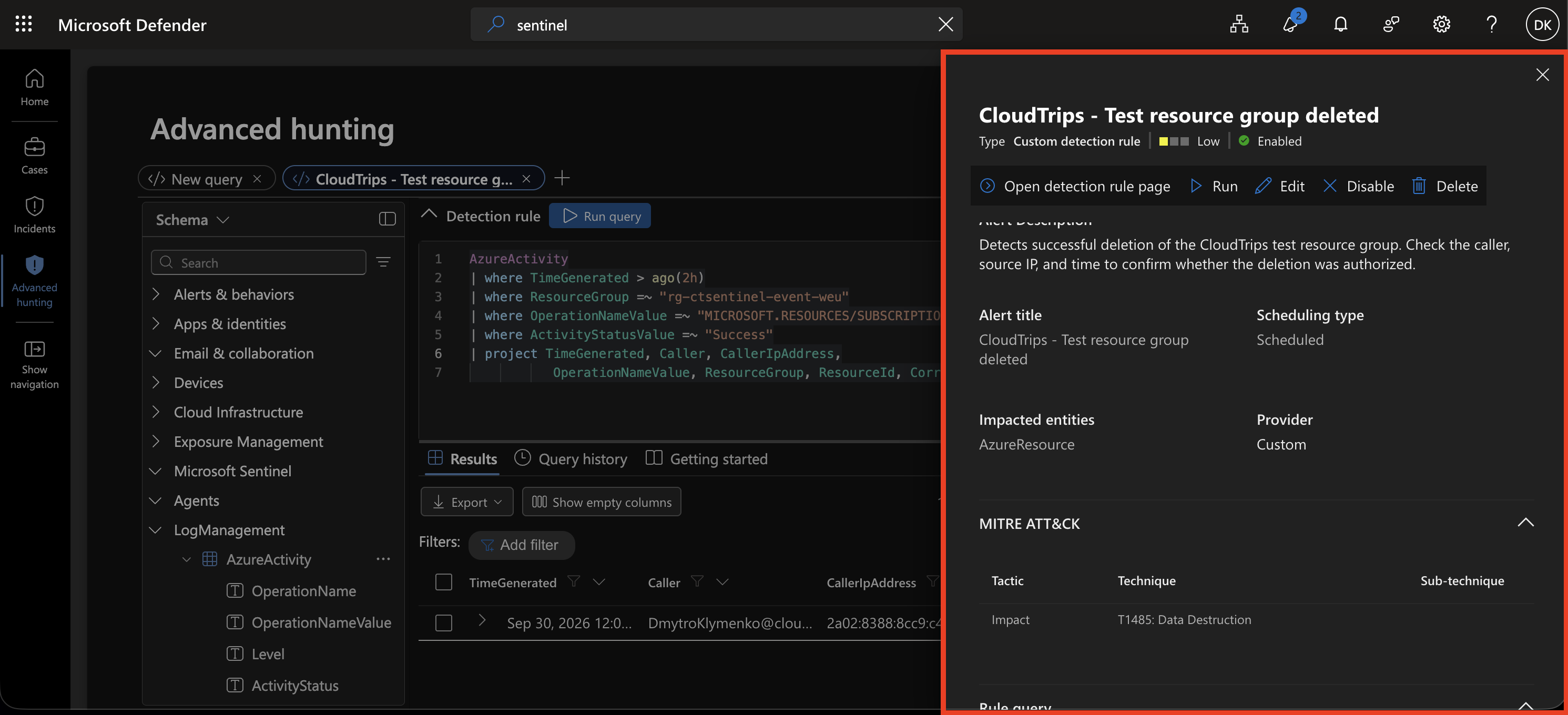
The rule checks for the successful deletion every five minutes. The two-hour lookback includes recent lab events; matching results trigger alerts. Allow time for rule execution and incident creation. If your event is older than two hours, recreate and delete the same empty test group.
In the Defender portal, open Incidents from the navigation menu to investigate the resulting alert.
Investigate the Incident
Open Incidents, refresh, and select the incident containing your test-rule alert. Assign it to yourself and set its status to Active or In progress, depending on the portal. Open the alert and its events; inspect the mapped source IP when available.
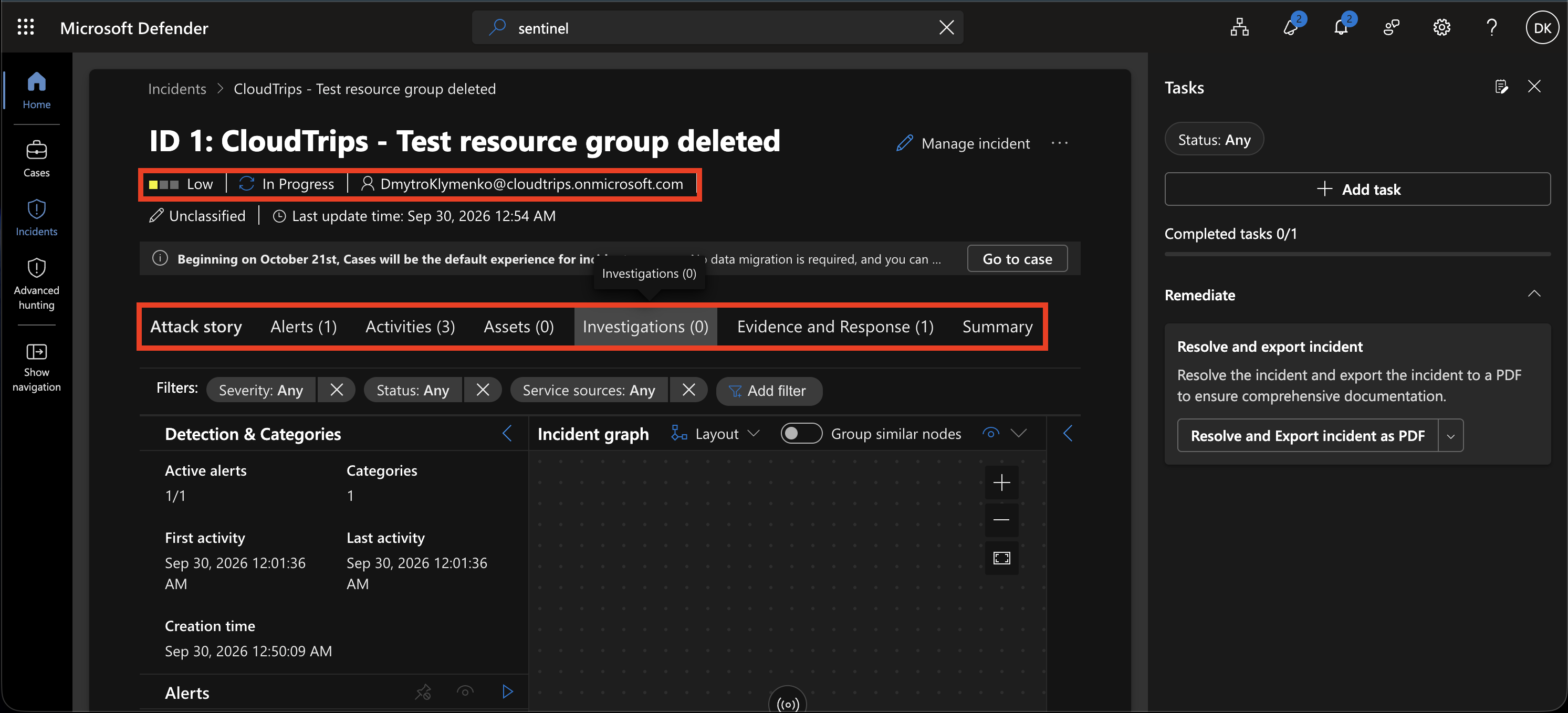
Compare the caller, UTC time, source IP, and deleted group with your recorded test. This establishes who performed the action and what was affected. Add a comment explaining the intentional lab deletion, then close the incident as Benign positive / Suspicious but expected: the rule correctly detected an expected action.
Finish
Disable the test analytics rule. Keep the workspace for the next Sentinel trips if needed. To remove the lab, first delete activity-to-sentinel from the subscription’s Activity log diagnostic settings, then delete rg-cloudtrips-sentinel-test-weu. Review ongoing ingestion and retention costs while keeping the workspace.