Partner Needs SFTP Upload? Create Data Lake Gen2 and Enable SFTP
CloudTrips must receive a file from a partner that already uses SFTP. Azure Blob Storage can expose an SFTP endpoint without operating an SFTP server or VM.
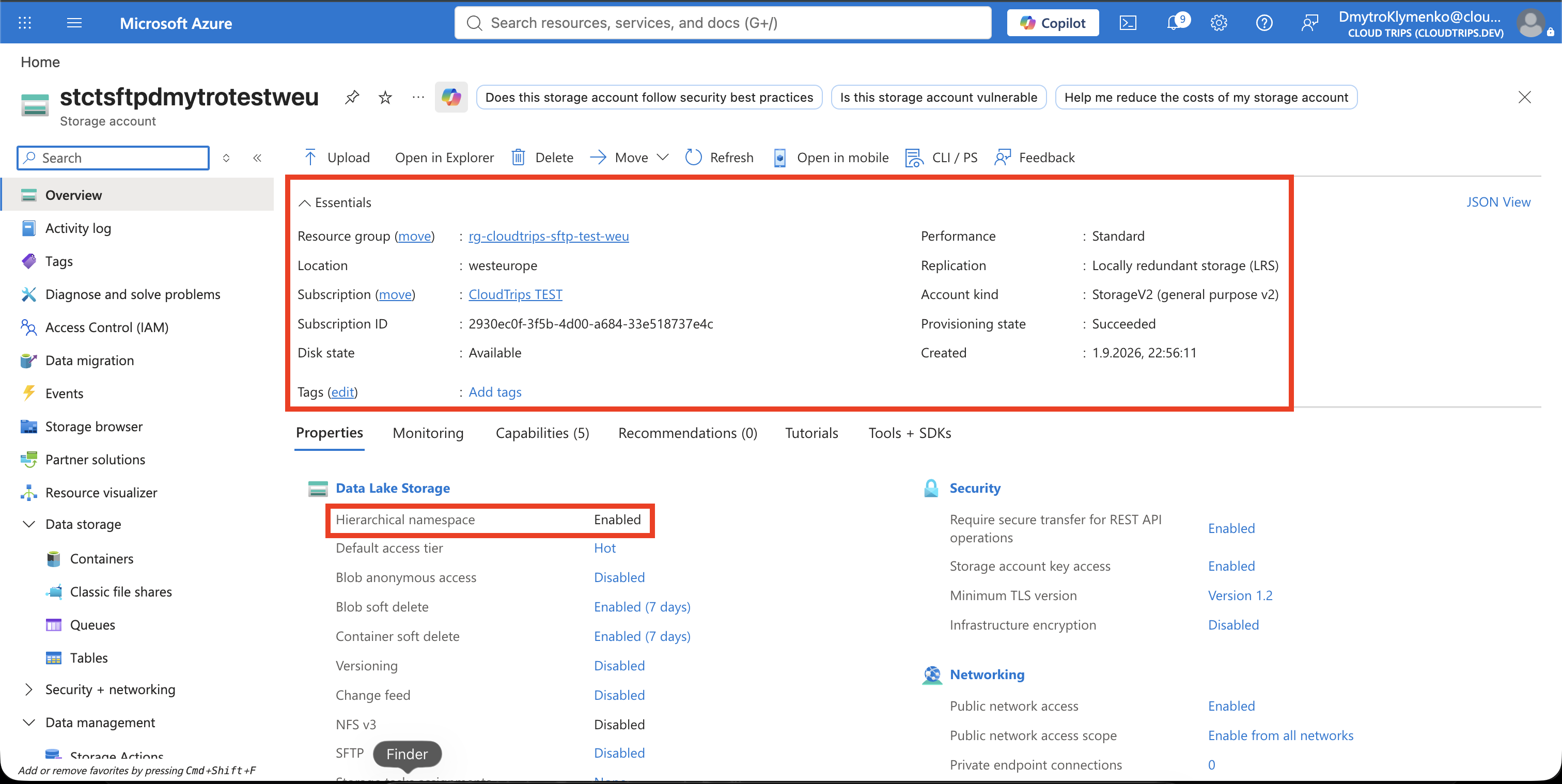
SFTP requires a hierarchical namespace. Enabling it gives Blob Storage directory semantics and Data Lake Storage Gen2 capabilities; Data Lake Gen2 is therefore a capability of this storage account, not a separate server. The setting cannot be disabled later.
Create the Data Lake Gen2 Account
Search for Storage accounts, select Create, and enter:
Subscription: CloudTrips TEST
Resource group: Create new → rg-cloudtrips-sftp-test-weu
Storage account name: stctsftpdmytrotestweu
Region: West Europe
Performance: Standard
Redundancy: Locally-redundant storage (LRS)
On Advanced, enable:
Enable hierarchical namespace: EnabledLeave SFTP disabled during account creation, then select Review + create and Create. Enabling SFTP later keeps the charged test window short.
Create the Partner File System
Open the account and select Data storage > Containers > + Container:
Name: partner-drop
Anonymous access level: Private (no anonymous access)
In a hierarchical-namespace account, this container is also called a file system. It provides the root directory to which the partner will be restricted.
Enable SFTP and Add a Local User
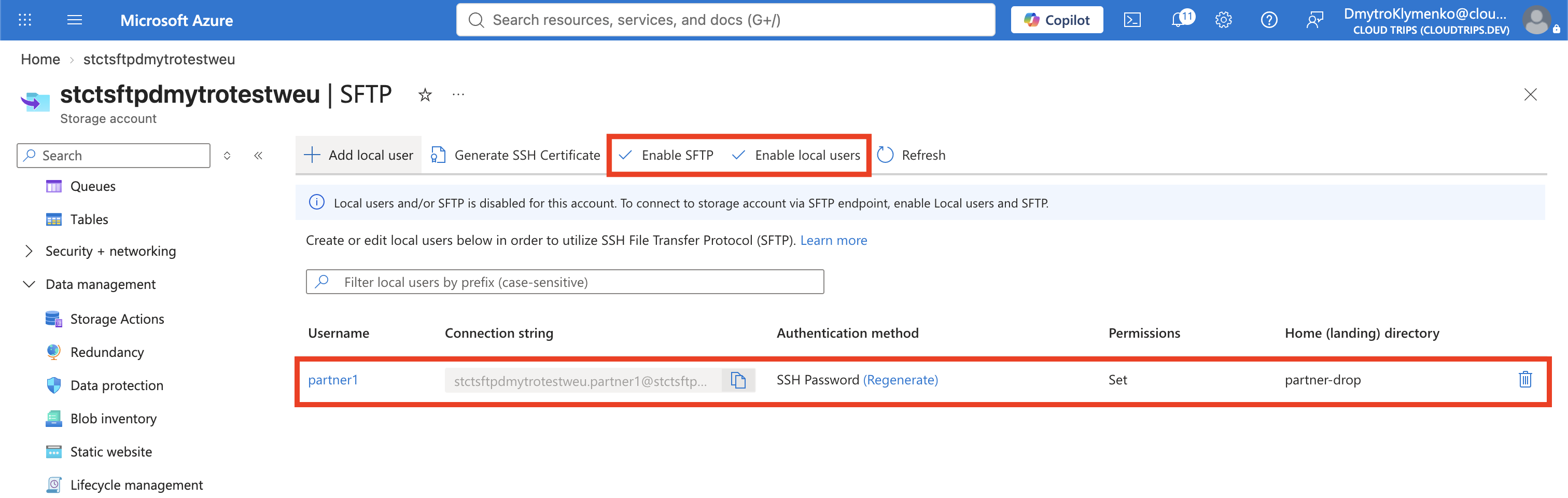
Select Settings > SFTP, choose Enable SFTP, and then select Add local user. Configure:
Local user name: partner1
Authentication method: SSH Password
Home directory: partner-drop
Container: partner-drop
Permissions: Read, Write, List, Create
These permissions let the partner enter the container, list it, and upload or read files without granting deletion. Complete the user creation and immediately copy the Azure-generated password to a temporary secure location. Azure shows this password only once; it cannot be retrieved later, only regenerated.
The local user is an SFTP-specific identity. Its container permissions are evaluated independently of Microsoft Entra roles such as Storage Blob Data Contributor. For production, prefer an SSH key and restrict the storage firewall or private endpoint to the partner’s network.
Upload Through SFTP
Create a small test file in the local terminal:
printf 'CloudTrips partner upload\n' > partner-upload.txtConnect through port 22. The SFTP username combines the storage account and local-user names:
sftp stctsftpdmytrotestweu.partner1@stctsftpdmytrotestweu.blob.core.windows.netAccept the host key only after confirming that the hostname is the expected
Azure Storage endpoint, then enter the generated password. At the sftp>
prompt, run:
pwd
put partner-upload.txt
ls
exit
pwd should show /partner-drop, and ls should include
partner-upload.txt.

Verify and Stop the Charge
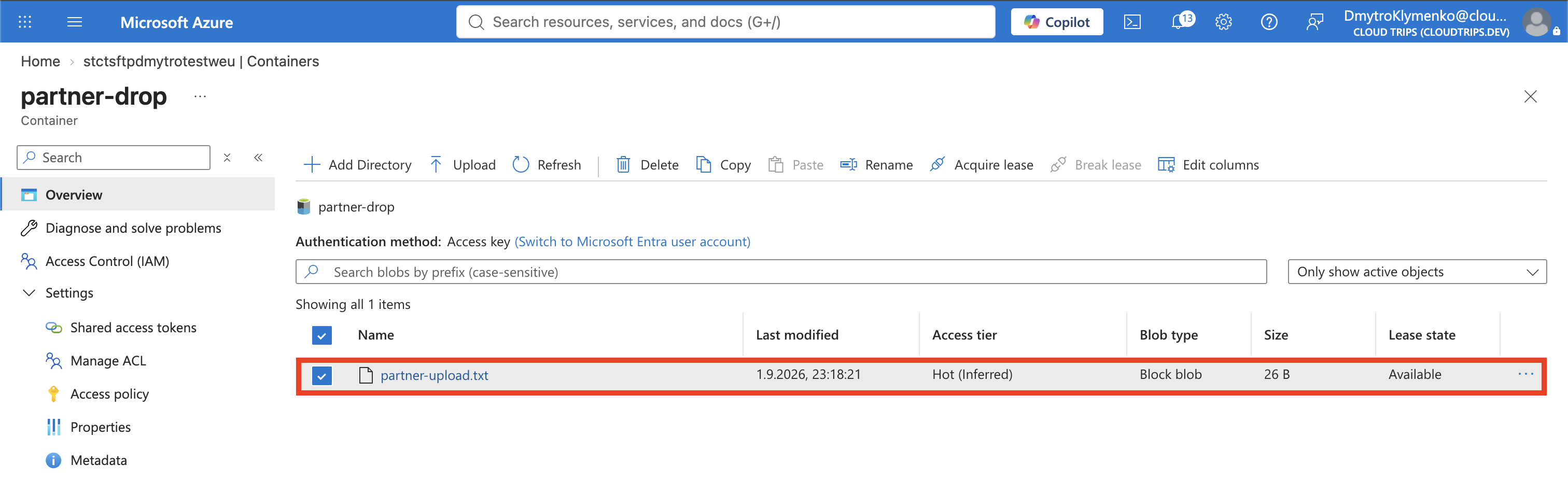
In the portal, open Data storage > Containers > partner-drop and
confirm that partner-upload.txt exists.
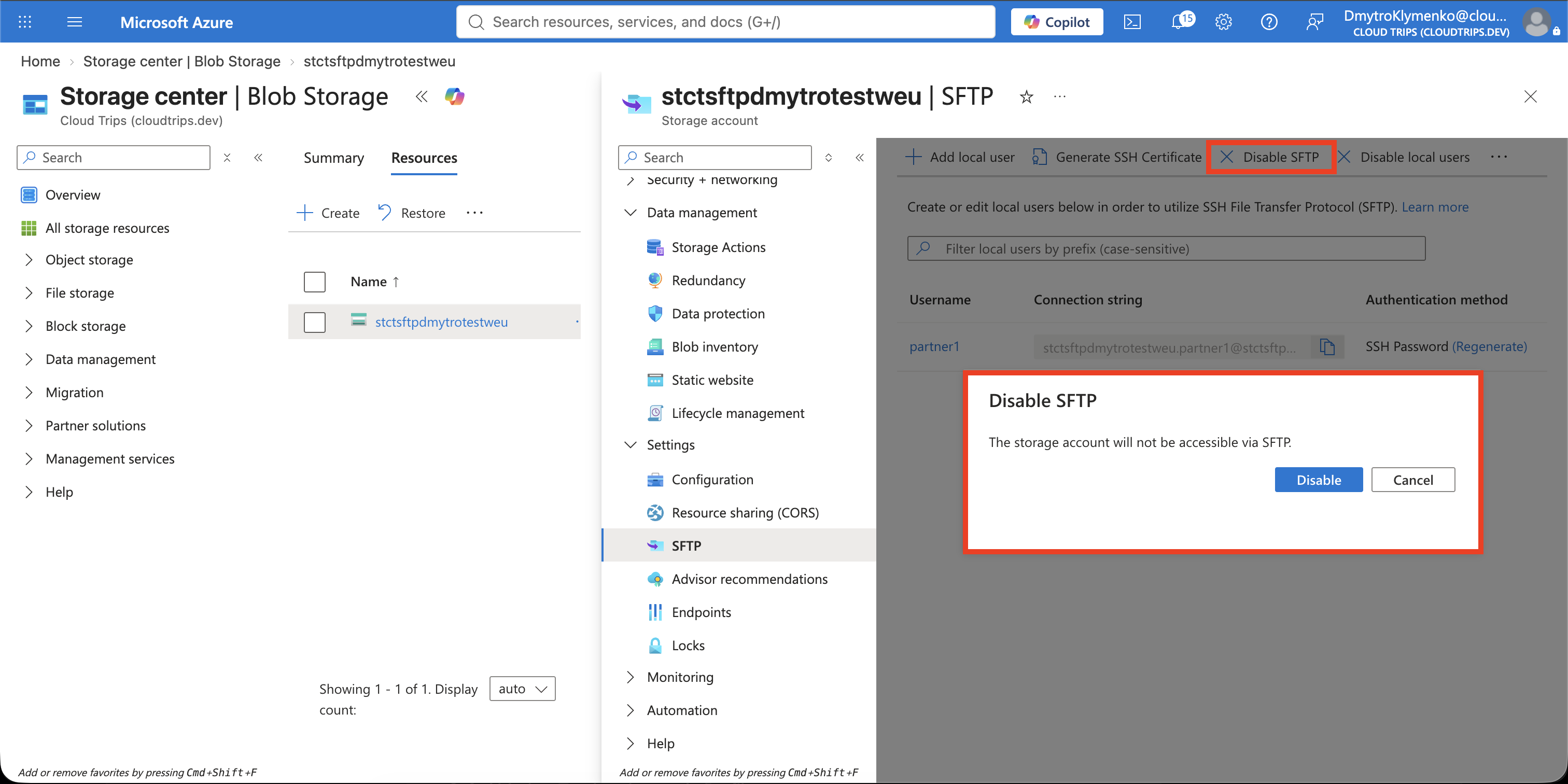
Return to Settings > SFTP and disable SFTP immediately after the test. SFTP has an hourly charge whenever it is enabled, even when nobody is connected; normal storage, transaction, and network charges also apply. Disabling SFTP stops new SFTP sessions but does not delete the container or uploaded blob.
If a connection fails, confirm that SFTP is enabled, the username contains both
names separated by a dot, the local user has access to partner-drop, and the
storage firewall permits the client network.
Clean Up
Delete the local copy, then delete the standalone resource group:
rm partner-upload.txt

az group delete \
  --name rg-cloudtrips-sftp-test-weu \
  --yes
Confirm that the resource group is gone:
az group exists --name rg-cloudtrips-sftp-test-weuExpected result: false.