SQL Database Needs Scaling? Scale Database
As more users query your database, its allocated resources can become a bottleneck. Scaling up gives the same database more capacity; scaling down reduces cost when demand falls. This lab changes Basic (5 DTUs) to Standard S0 (10 DTUs). A Database Transaction Unit (DTU) measures a bundled allocation of CPU, memory, and data input/output (I/O) capacity. More DTUs give the database more resources to handle queries; Standard with 10 DTUs is the performance level called S0.
DTU-based purchasing offers preset resource bundles: choose it for simple sizing when a Basic, Standard, or Premium performance level fits your workload. This lab uses DTUs for a small, straightforward configuration.
vCore-based purchasing lets you choose virtual CPU cores and size storage separately; memory depends on the hardware and core count. Choose it for finer capacity planning, matching an existing server’s requirements, or using supported serverless options. Compare costs for your workload—neither model is always cheaper.
Check the Starting Point
Use sqldb-cloudtrips from Create Azure SQL Database. If you deleted it, recreate the small Basic database first.
Open SQL databases → sqldb-cloudtrips → Compute + storage and confirm Basic, 5 DTUs. For a real workload, inspect Monitoring → Metrics for DTU percentage, CPU percentage, and Data IO percentage. Sustained high usage helps identify resource pressure; a quiet lab database will show little activity.
Increase Capacity
In Compute + storage, select the DTU-based Standard tier and S0 (10 DTUs). Keep the small database’s data unchanged, review the displayed cost, and select Apply.
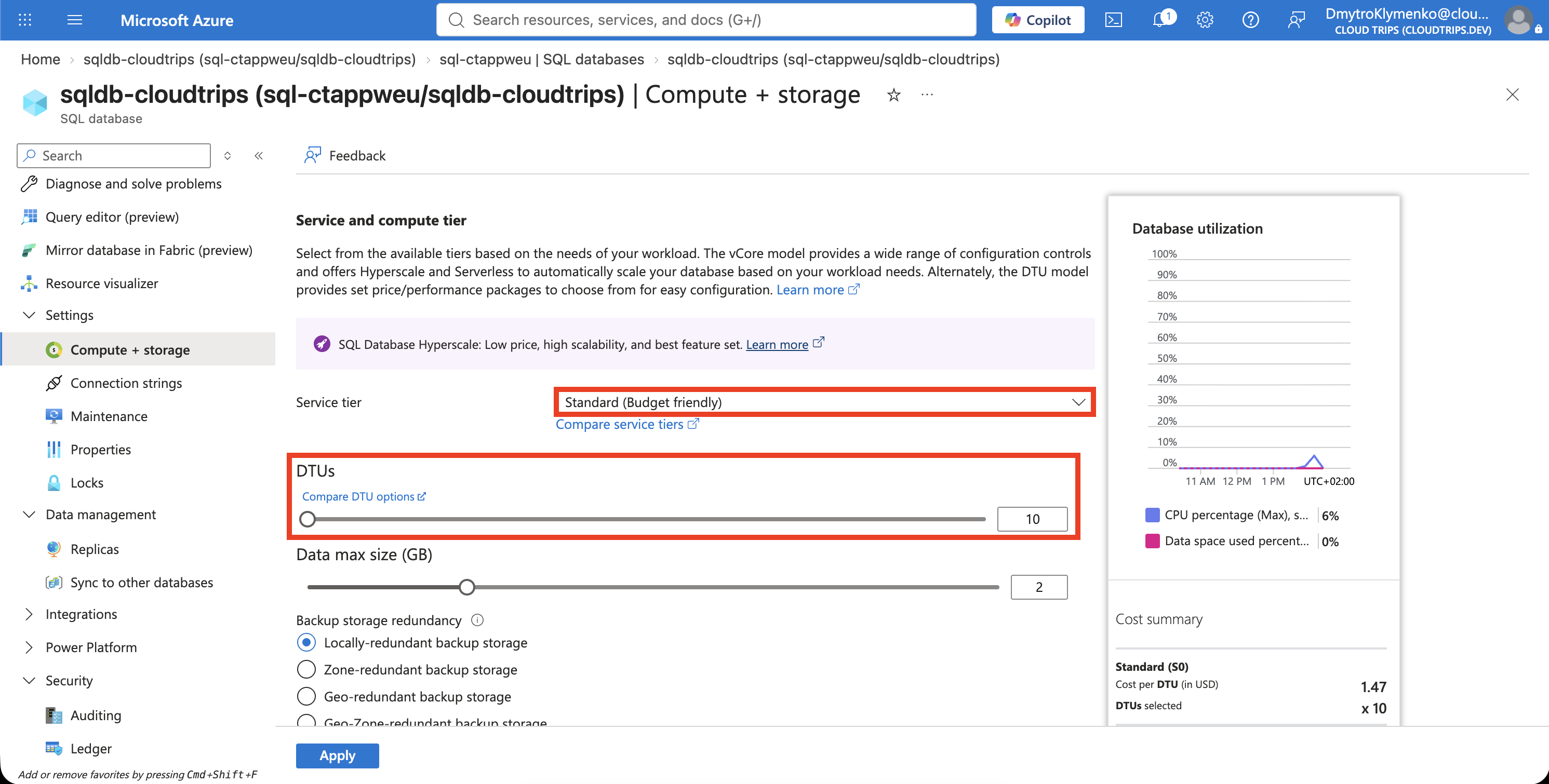
Check the target is S0 / 10 DTUs. The allocation doubles, while actual query speed depends on the workload, indexes, and bottlenecks.
Wait for the scaling operation to finish in Notifications or the database Overview. The switch can briefly interrupt connections; applications should reconnect and retry transient failures. The server address and database name stay the same.
Verify the New Tier
Reconnect through Query editor (preview) or your existing VS Code SQL profile and run:
SELECT DB_NAME() AS DatabaseName,
       DATABASEPROPERTYEX(DB_NAME(), 'Edition') AS Edition,
       DATABASEPROPERTYEX(DB_NAME(), 'ServiceObjective') AS ServiceObjective;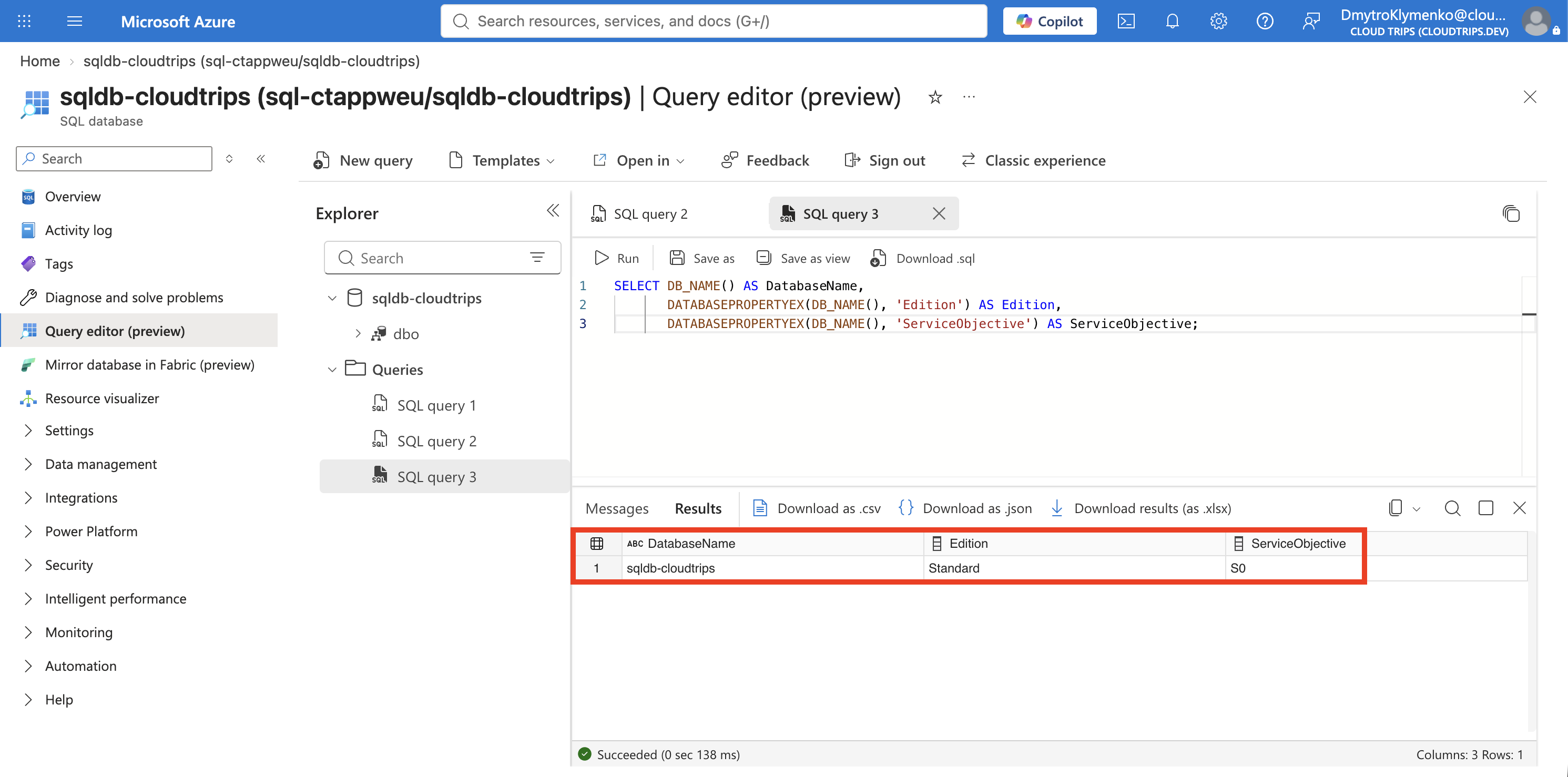
Expect sqldb-cloudtrips, Standard, and S0. These values verify the capacity configuration; measuring performance improvement requires comparable queries under load before and after scaling.
Scale Back or Clean Up
Return to Compute + storage, select Basic (5 DTUs), set maximum data size to 2 GB, and apply. The database’s allocated data must fit Basic’s limit. This small lab should fit; larger databases require checking storage before a downgrade.
After completion, rerun the query and expect Basic for both edition and service objective. Keep the database for the next trip, or delete rg-cloudtrips-sql-test-weu to stop its ongoing charges.