Website Uptime Needs Monitoring? Create an Availability Test
A process can be running while users cannot reach its website. An availability test sends scheduled requests from external locations and checks the response. It adds an outside view to the request telemetry collected inside your application.
Reuse the lab app and ai-ctmonitorweu from Enable Application Insights, plus ag-ctmonitor-email. Use your own publicly reachable lab website. Standard tests are billed by test executions; more locations and shorter intervals increase the number of executions.
Create the Test
Open ai-ctmonitorweu → Availability → Add Standard test:
Test name: av-ctweb
URL: the app's HTTPS Default domain, including https://
Test frequency: 5 minutes
Test locations: five available locations
Timeout: 30 seconds
HTTP response: 200
SSL certificate validation: Enabled
Alerts: Enabled
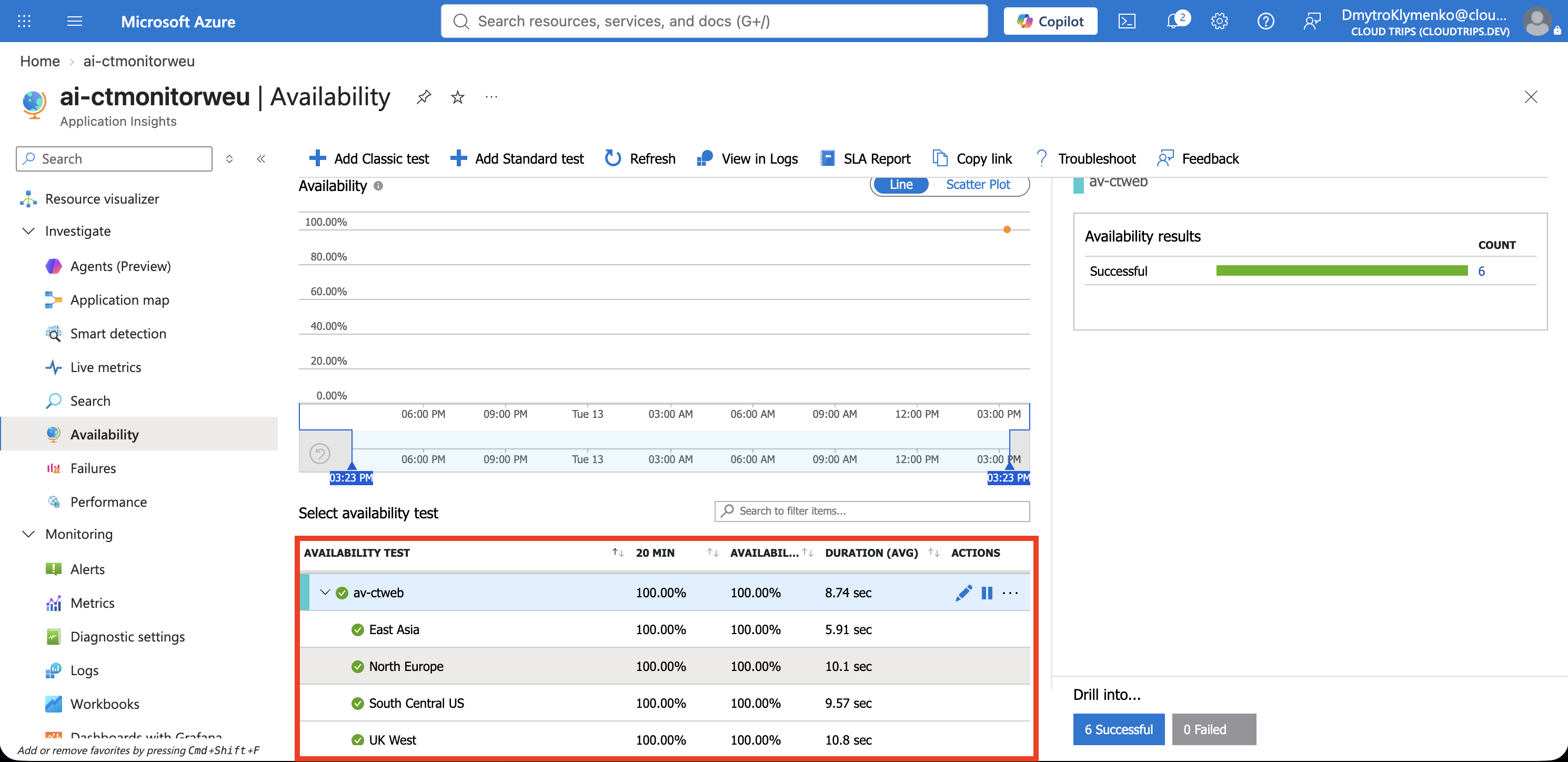
Use the actual app URL copied from App Service Overview. Choose locations from more than one geography. Save, then wait for the first executions. Select a successful test result to inspect its location, time, duration, and HTTP response.
Screenshot 1: Availability results with successful checks from the selected locations.
Configure the Notification
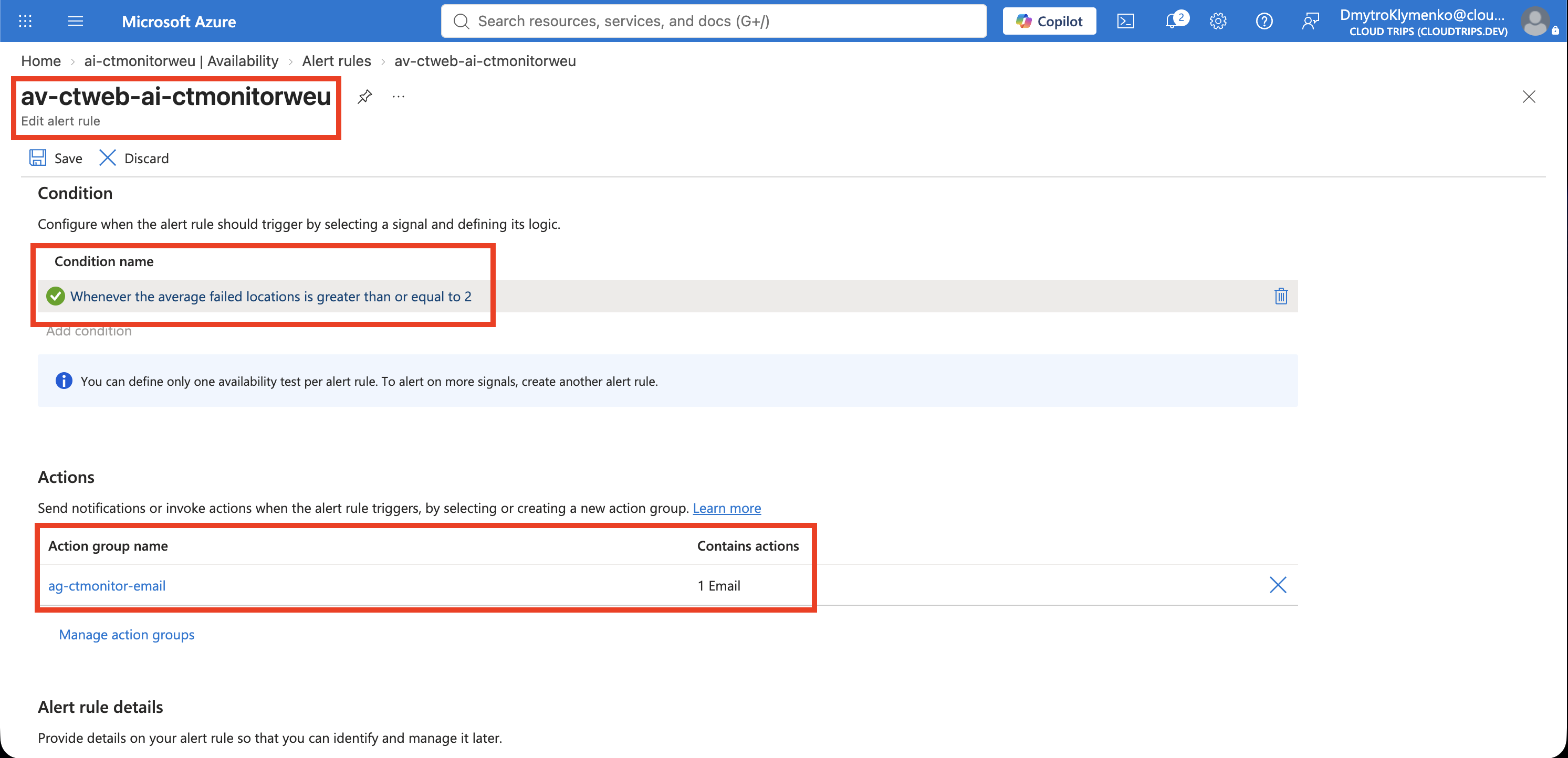
From the test’s menu open its alert rule, or find the new rule under Azure Monitor → Alerts → Alert rules. Keep the default availability condition shown below and configure the action group:
Condition: Whenever the average failed locations is greater than or equal to 2
Action group: ag-ctmonitor-email
Severity: 1 - Error
Automatically resolve alerts: Enabled
Leave this condition and the rule’s evaluation settings unchanged for the lab. The alert fires when the average number of failed test locations is 2 or more during the evaluation period. This is the availability test alert, separate from the Failure Anomalies rule in Application Insights. A test execution interval and an alert evaluation interval describe separate schedules.
Screenshot 2: Availability alert condition showing the failing-location threshold and the action group.
Verify Failure and Recovery
For this lab, edit the test and enable Content match. Enter this deliberately absent response text:
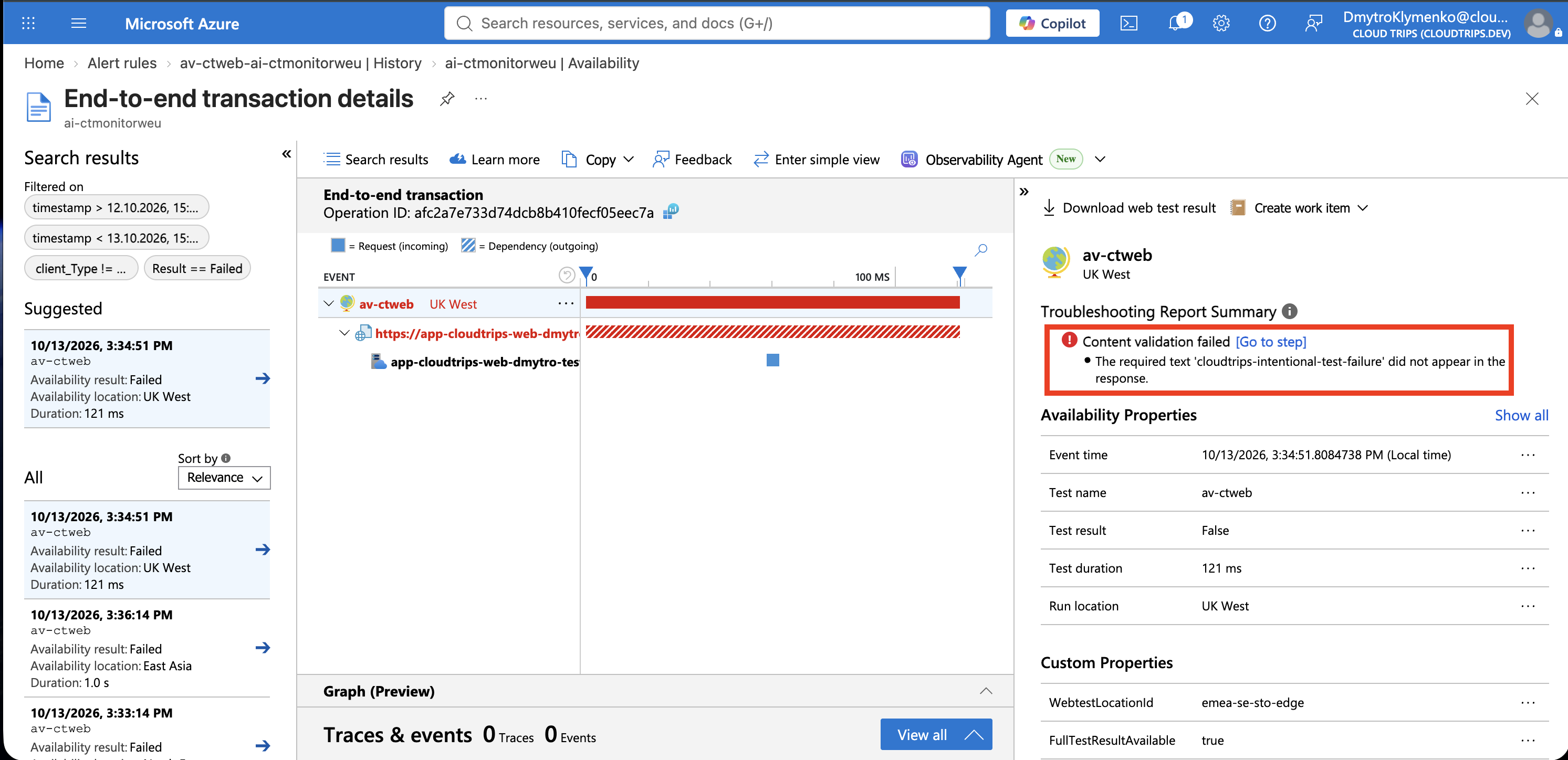
CLOUDTRIPS_EXPECTED_MARKER_NOT_PRESENTSave. The website remains usable, while the test now fails because its response lacks the marker. Wait for enough locations to execute the updated test and for the alert’s evaluation window. Inspect a failed test’s details, then open the Fired alert and check your email.
Screenshot 3: Fired availability alert, with the failed test details identifying the content-match failure.
Remove the content-match requirement and save. Watch new test results become successful and the alert eventually resolve. Allow multiple test/evaluation cycles; the transition is not immediate. If failures appear without an alert, check the location threshold and evaluation window. If an alert appears without email, check its action group and any matching suppression rule.
Finish
Disable av-ctweb and its alert rule when the exercise is complete to stop scheduled test executions. Keep Application Insights for the tracing Trip. A real availability test should check a meaningful health endpoint or stable expected response content.