VM Performance and Logs Need Monitoring? Enable VM Insights and DCRs
Host metrics show Azure’s view of a VM. VM Insights adds performance data from inside its operating system. Azure Monitor Agent (AMA) collects that data according to a Data Collection Rule (DCR). A rule specifies what to collect and where to send it; an association applies the rule to a VM.
Reuse law-ctmonitorweu from Configure Log Analytics. This lab uses a separate Linux VM and the portal’s Run command, so you can complete it without an interactive SSH session. VM runtime, disks, public IP, and log ingestion can incur charges.
Prepare and Monitor the VM
Create an Azure virtual machine with:
Resource group: rg-cloudtrips-monitor-vm-test-weu
Name: vm-ctmonitorweu
Region: West Europe
Image: Ubuntu Server 24.04 LTS, x64
Size: Standard_D2s_v3, or an available comparable size
Authentication: SSH public key
Public inbound ports: None
OS disk: Standard SSD
Public IP: Create new
Boot diagnostics: Enable with managed storage
Keep the generated virtual network and network security group. Download the generated SSH key if Azure requires it. The public IP provides an explicit outbound path for agent communication; leave inbound management ports closed.
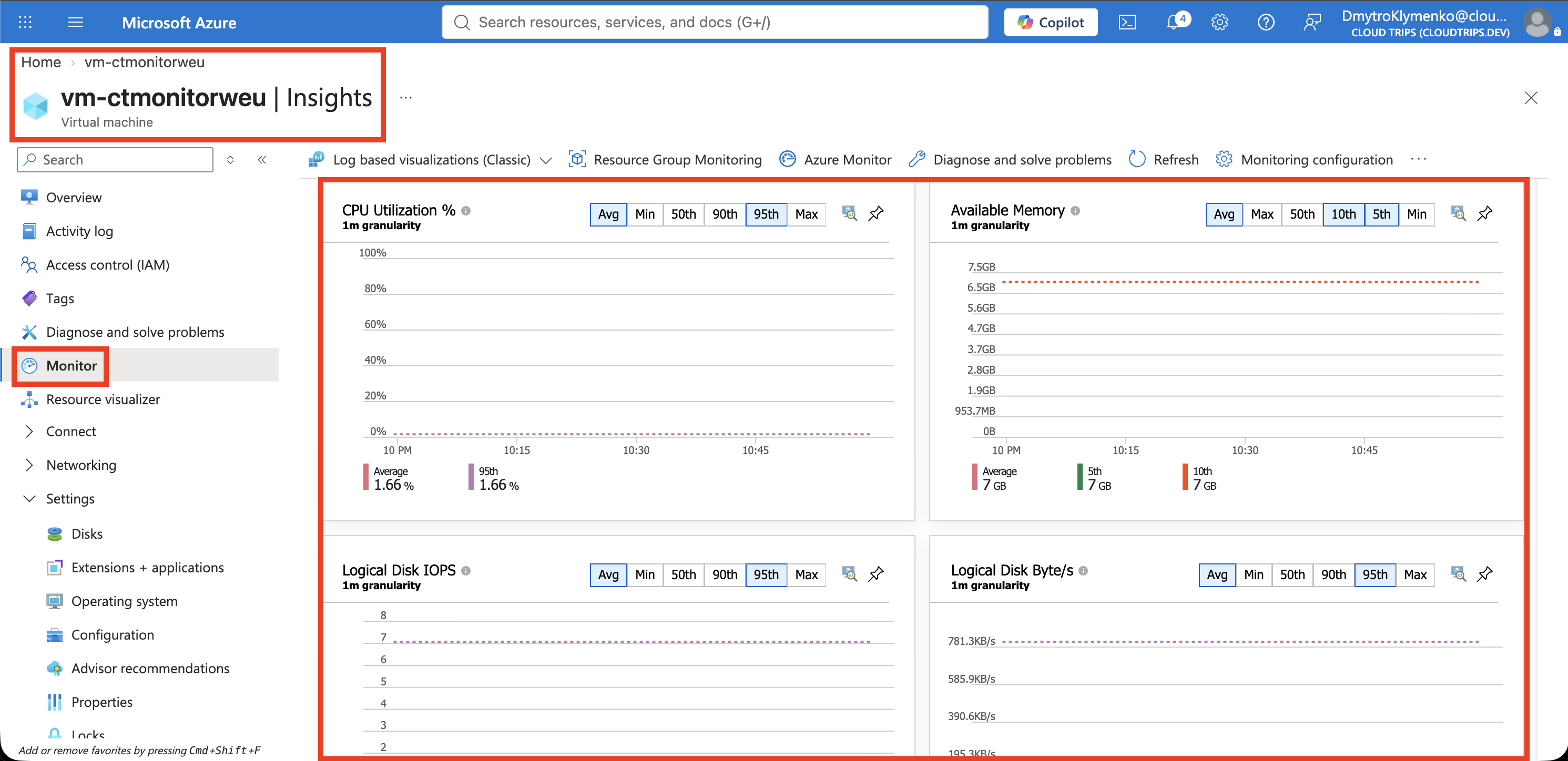
Once deployment finishes, open VM → Monitor → Configure. If your portal shows Monitoring → Insights, open that and choose Enable. Select the logs-based (classic) performance experience and law-ctmonitorweu. Under customization, create a new performance DCR, using dcr-ctvm-performance if a name is requested. Leave additional process/dependency collection and recommended alert creation off for this lab. Review and enable.
If the newer configuration also preselects OpenTelemetry metrics, clear that option for this exercise so the performance data goes to the selected Log Analytics workspace. The portal enables a managed identity and installs AMA. Under Extensions + applications, check AzureMonitorLinuxAgent reports successful provisioning. Allow several minutes, then view the logs-based performance charts.
Screenshot 1: VM performance view with populated CPU, memory, or disk charts.
Add a Syslog Rule
Open Azure Monitor → Data Collection Rules → Create:
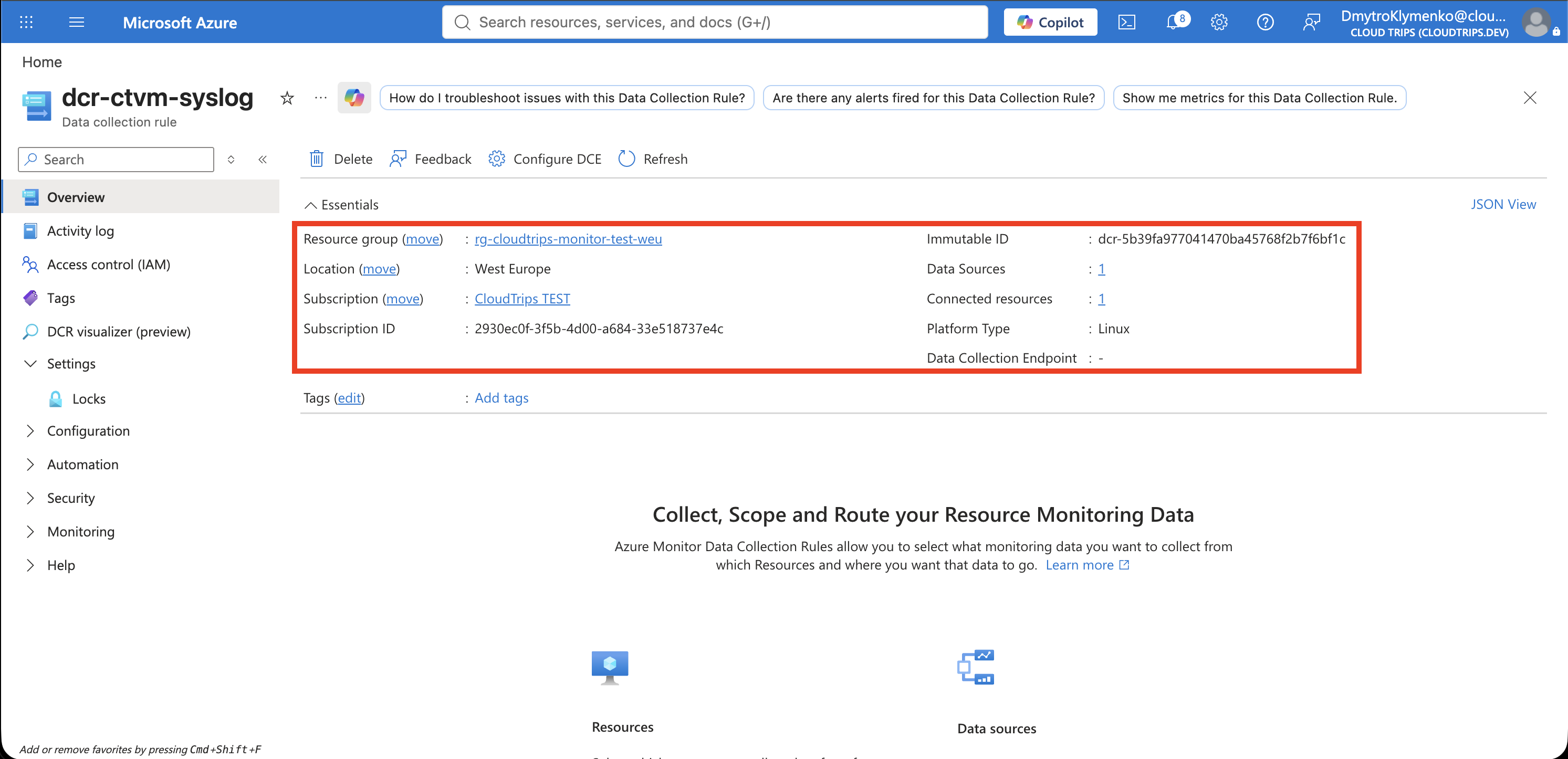
Name: dcr-ctvm-syslog
Resource group: rg-cloudtrips-monitor-test-weu
Region: West Europe
Platform type: Linux
Resources: vm-ctmonitorweu
Data source: Linux Syslog
Facility: user
Minimum log level: Info
Other facilities: None
Destination: Azure Monitor Logs
Workspace: law-ctmonitorweu
Leave the Data Collection Endpoint unset for this public-network setup unless the wizard requires one. On Collect and deliver, configure the source and its destination, then create the rule. Check its Resources section lists the VM. Selecting Info collects informational messages and more severe messages for the user facility.
Screenshot 2: dcr-ctvm-syslog showing the user facility, Info level, destination, and VM association.
Generate and Find One Event
After the rule has propagated, open VM → Operations → Run command → RunShellScript. Run:
systemctl is-active rsyslog
logger -p user.info -t cloudtrips-monitor 'cloudtrips-monitor-check: Syslog collection works'
The first command should report active. If rsyslog is absent, install and start it in Run command using apt-get update, apt-get install -y rsyslog, and systemctl enable --now rsyslog, then repeat the logger command after AMA has applied its Syslog configuration.
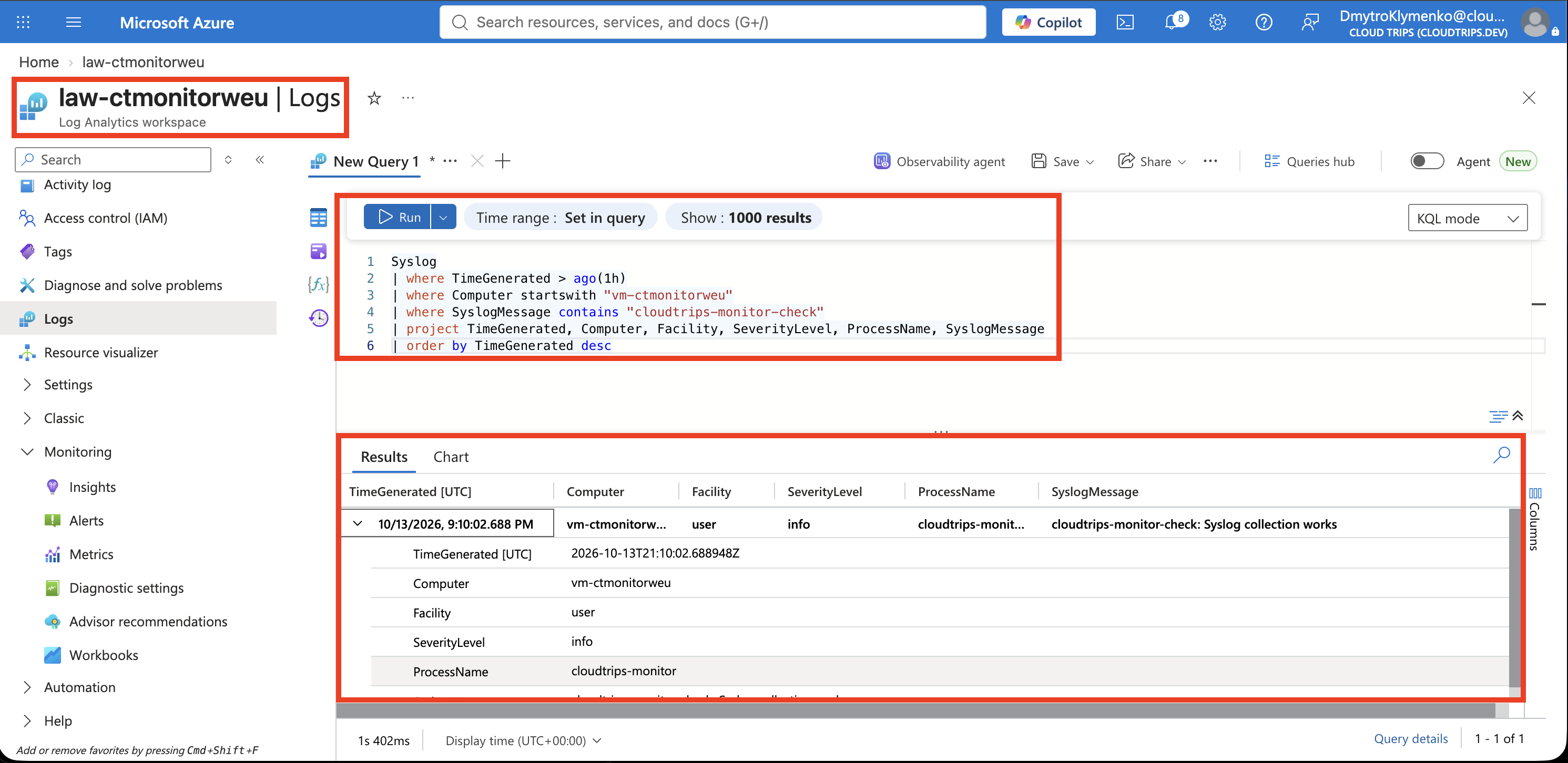
Open law-ctmonitorweu → Logs, select Last hour, and run:
Syslog
| where TimeGenerated > ago(1h)
| where Computer startswith "vm-ctmonitorweu"
| where SyslogMessage contains "cloudtrips-monitor-check"
| project TimeGenerated, Computer, Facility, SeverityLevel, ProcessName, SyslogMessage
| order by TimeGenerated desc
Screenshot 3: Syslog query returning the test message from vm-ctmonitorweu.
An empty result calls for checking the agent, DCR association, facility/level, destination, and ingestion delay. Generate another message after a few minutes. Performance collection and Syslog collection have separate rules, so healthy charts alone do not prove that Syslog is configured.
Finish
Delete rg-cloudtrips-monitor-vm-test-weu when finished with this dedicated VM. Also delete dcr-ctvm-syslog and the performance DCR if they have no remaining associations. Keep the shared Log Analytics workspace. Stopping a VM with Stop (deallocate) ends its compute charge, while retained disks and other resources can still cost money.