Storage Must Block Public Networks? Configure the Storage Firewall
Valid credentials can be used from many networks. Your storage account should accept data requests only from approved locations. The Storage firewall restricts network access; data permissions still determine what each user can do.
Prepare a Test Account
In Storage accounts → Create, use:
Resource group: rg-cloudtrips-firewall-test-weu
Storage account name: stctfirewallweu
Region: West Europe
Performance: Standard
Redundancy: LRS
Adjust the globally unique name if needed. Initially allow public network access from all networks. Create a private container named firewall-test and upload a small hello.txt.
Assign your user Storage Blob Data Contributor under Access control (IAM). Owner manages the account; this additional role grants blob-data access. Allow time for the assignment to propagate.
From your local computer, sign in to Storage Explorer, open the container, and confirm you can download the file before changing network rules.
Allow Only Your Network
Open Security + networking → Networking. Under Public network access, choose Enable → Enabled from selected networks (also shown as Enabled from selected virtual networks and IP addresses).
Add your current public IPv4 address using Add your client IP address, then save. For this isolated lab, leave virtual-network rules and resource-instance rules empty and clear trusted-service, logging, and metrics exceptions.
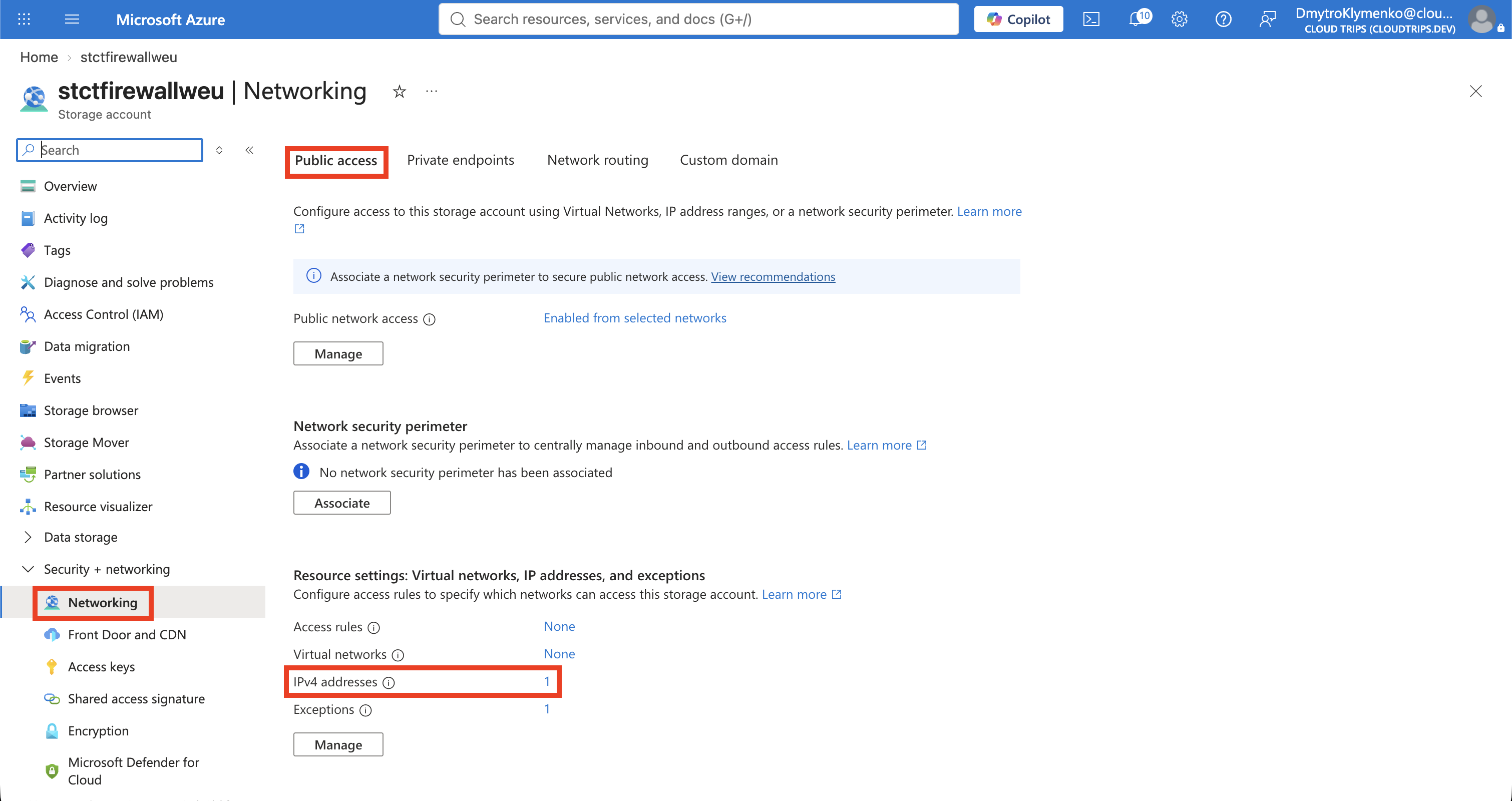
Check that the allowlist contains your internet-facing address. A local address such as 192.168.1.10 belongs to your home network; Azure sees the public address used by your router or VPN. Refresh Storage Explorer and download the blob again to verify allowed access.
Verify Denied Access
Remove your IP rule, save, and allow the change to take effect. Refresh the container in Storage Explorer using the same signed-in user.
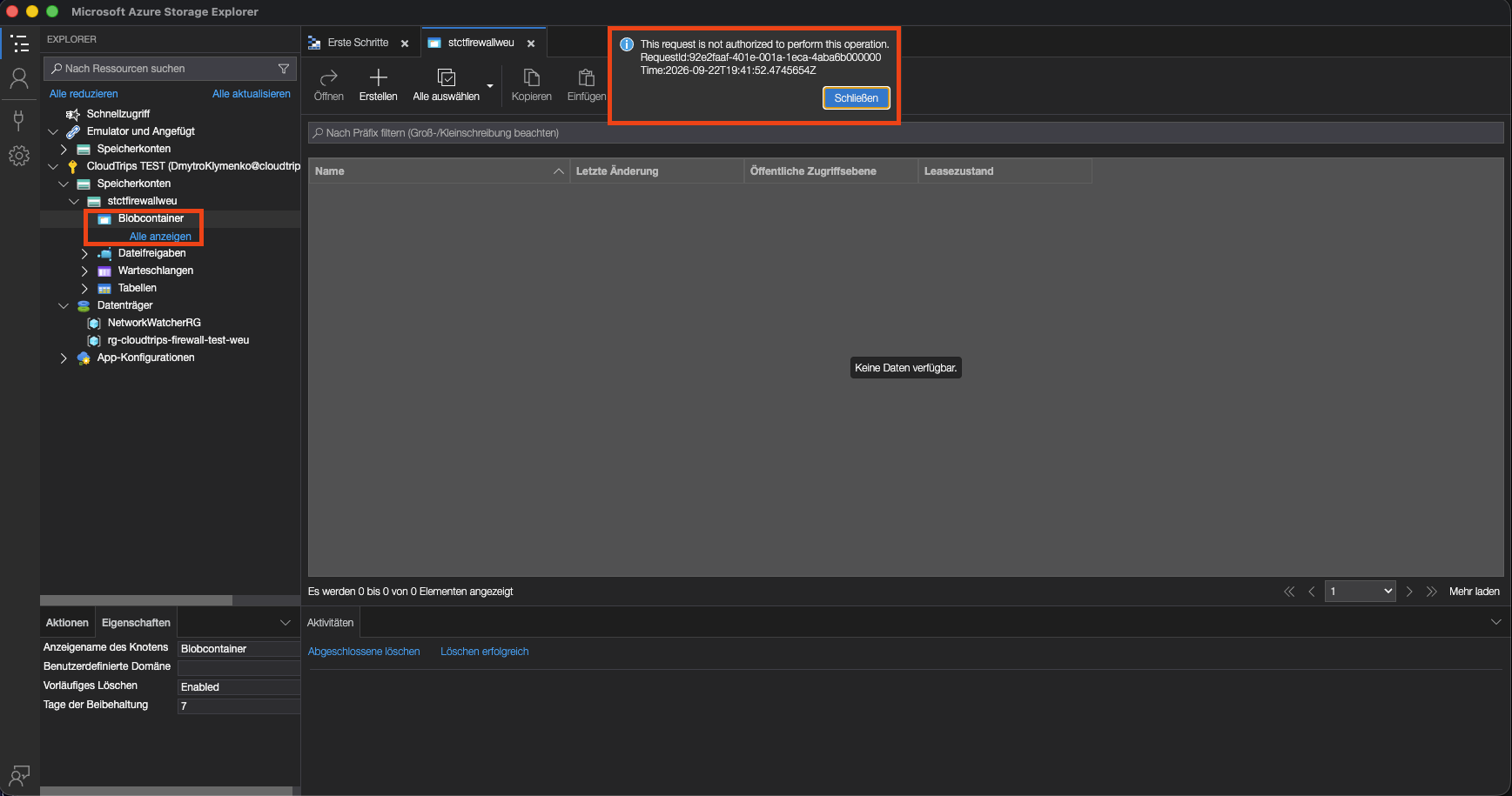
Expect listing or downloading to fail, typically with HTTP 403. Compare this with the successful download before the rule changed: the user is the same, but network access is now denied. You can still manage networking through the Azure portal because these rules govern data access.
Block Public Network Access
Back in Networking, set Public network access: Disable and save, keeping the exceptions cleared.
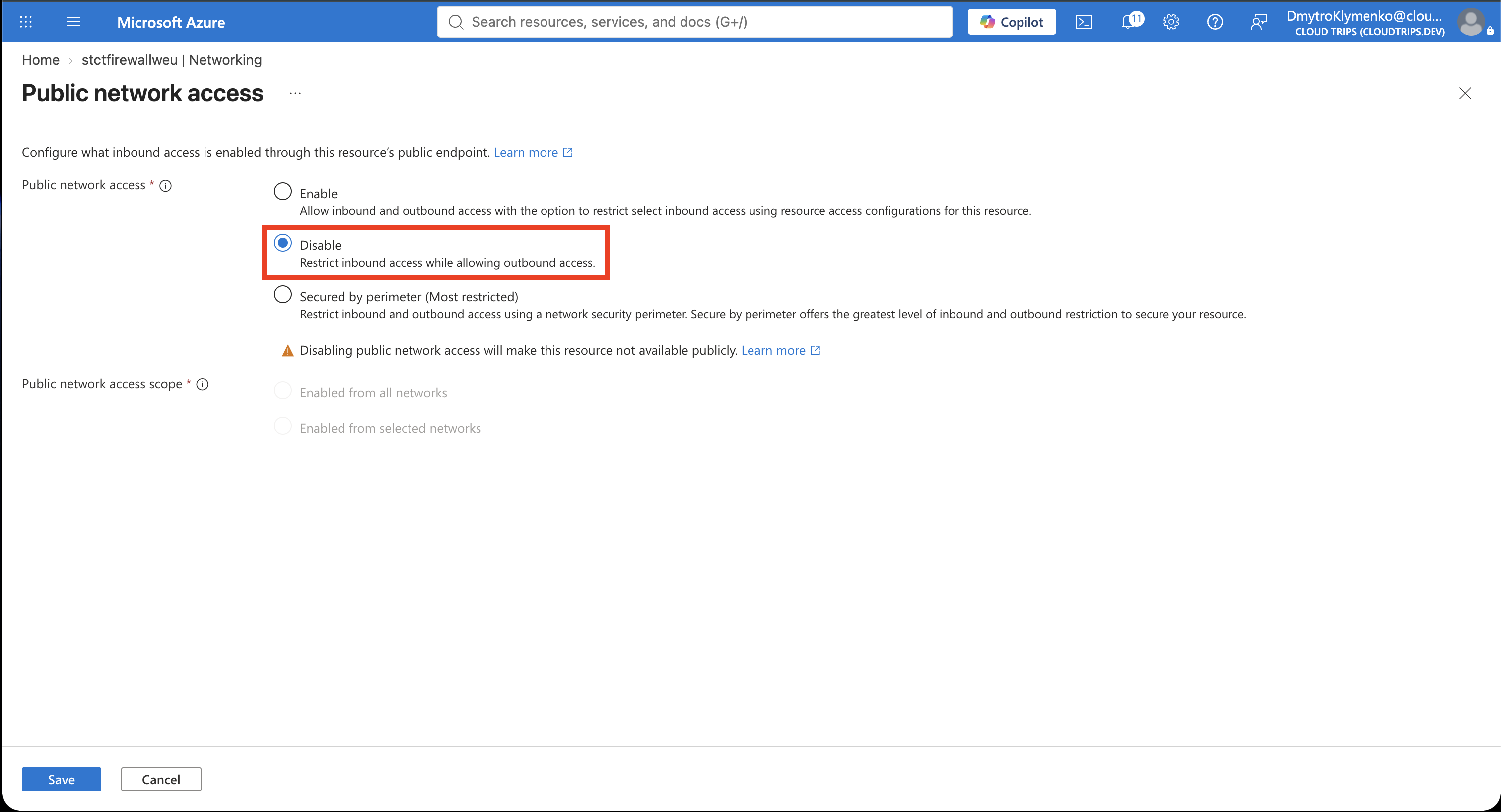
This blocks data access through the public endpoint. Applications needing access now require a configured private endpoint and matching private DNS/network connectivity. Creating that private path is a separate exercise; this lab finishes with public access blocked.
Clean Up
Delete rg-cloudtrips-firewall-test-weu in the portal and confirm that it disappears from the resource-group list.