Admin Needs GUI and Large-File Transfers? Use Storage Explorer and AzCopy
An administrator needs to browse files visually and repeat large uploads from a terminal. Azure Storage Explorer provides a graphical interface; AzCopy provides scriptable, parallel transfers. Storage Explorer also uses AzCopy for many transfers.
Prepare Storage and Access
In the Azure portal, create a storage account:
Resource group: rg-cloudtrips-transfer-test-weu
Storage account name: stcttransferweu
Region: West Europe
Performance: Standard
Redundancy: LRS
Adjust the globally unique account name if needed, including in the command below. Under Data storage → Containers, create a private container named transfers.
Under Access control (IAM), assign your user Storage Blob Data Contributor for uploads and Reader for account discovery, unless you already have equivalent access. Role assignment requires appropriate permissions; allow time for changes to propagate. Keep the account’s public endpoint reachable from your computer.
Install Microsoft Azure Storage Explorer and AzCopy v10 locally; make azcopy available in your terminal’s PATH. Prepare a small hello.txt and an existing, non-sensitive large file for the upload test.
Upload with Storage Explorer
Open Storage Explorer, select Sign in to Azure, and choose your subscription. Expand Storage Accounts → stcttransferweu → Blob Containers → transfers. Select Upload → Upload Files, choose hello.txt, and upload.
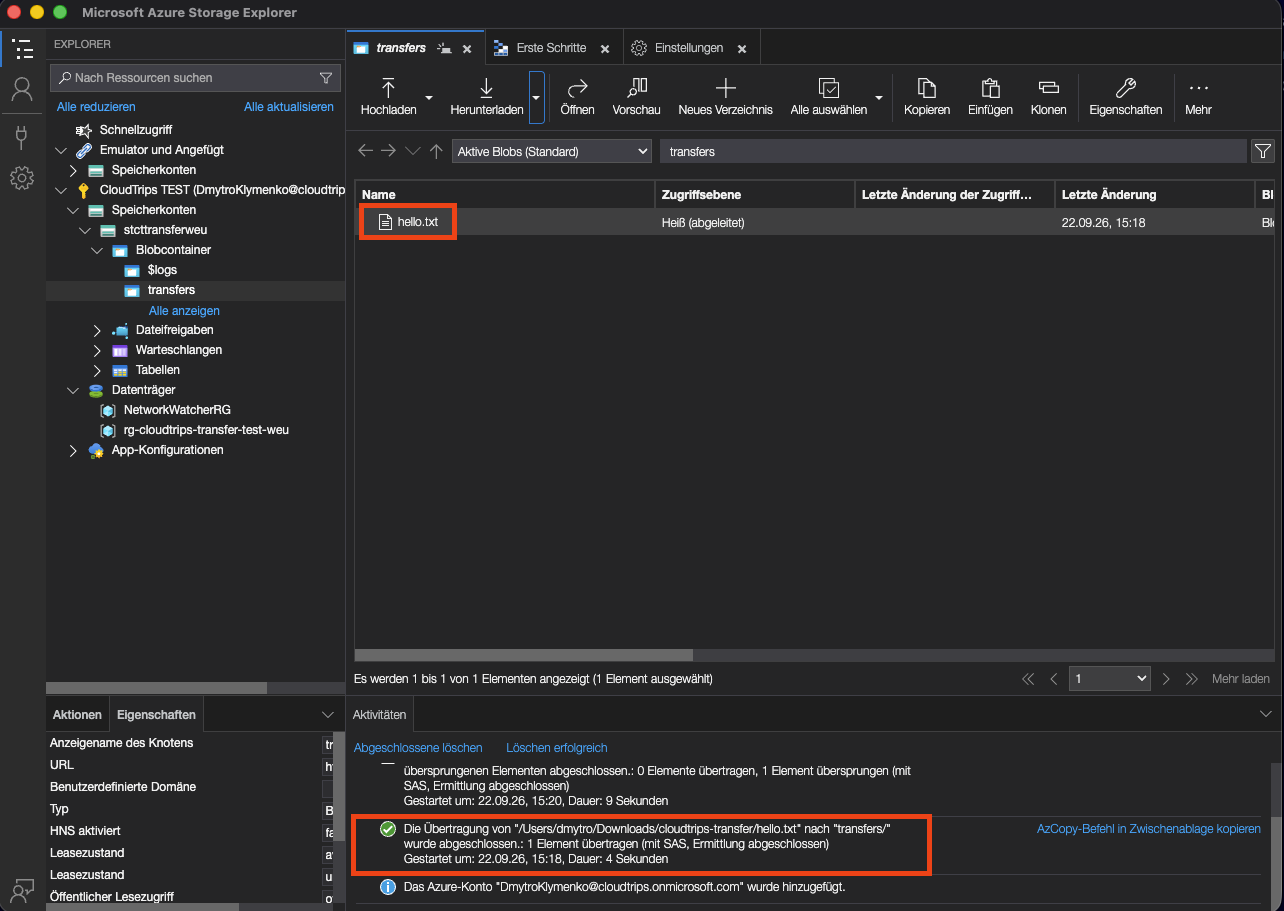
Check that hello.txt appears and the upload activity completes. Its size should match your local file. Select Download to retrieve a copy and check its contents.
Upload a Large File with AzCopy
Run locally and follow the sign-in instructions using the same Azure user:
azcopy loginReplace the source path with your file’s absolute path. This example stores it as large-file.bin:
azcopy copy "/absolute/path/large-file.bin" "https://stcttransferweu.blob.core.windows.net/transfers/large-file.bin"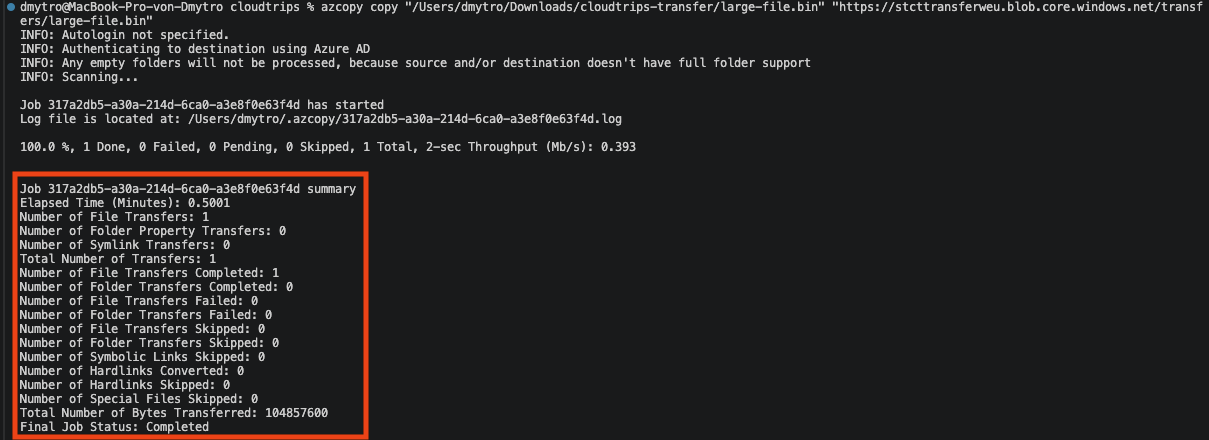
Look for Final Job Status: Completed, one completed file transfer, and zero failed transfers. Check the transferred byte count against the source file’s size. The job ID identifies this transfer; duration and throughput depend on the file and network.
Refresh transfers in Storage Explorer and confirm that large-file.bin appears with the expected size. AzCopy keeps job logs and plans locally, allowing interrupted jobs to be inspected and resumed.
Clean Up
In the portal, delete rg-cloudtrips-transfer-test-weu and confirm that it disappears from the resource-group list. Remove the downloaded test copy locally if no longer needed.